\n\tThis gallery is also available as a post in the Windows and Office Blog.
\n
\n\tAs I wrote last week in Take advantage of the $15 Windows 8 Pro Upgrade Offer, I purchased a new system back in August, an ASUS CM1740 with an AMD APU A8-3820 (2.5GHz), 8GB RAM and running Windows 7 Home Premium 64-Bit. I decided to download the Windows 8 Pro Upgrade.
\n
\n\tWhen the download was complete, I was contemplating installing Windows 8 in a dual-boot configuration, but decided to sleep on it. After weighing my options, I decided against a dual-boot configuration thinking that if I could easily access Windows 7, it would turn into a crutch and I would find myself frequently returning to the familiar environment just because I could. Instead, I decided to blow away Windows 7 along with all the partitions, and perform a clean install of Windows 8.
\n
\n\tAs I was formulating my plan, I thought that I would document the entire procedure so that those of you who decide to go the clean install route will have a roadmap to follow and know what to expect.
\n
\n
\n
\n\tOf course, before you get started, you should back up your data. You can use Windows 7’s Backup and Restore to create a backup or you can simply copy your data files over to an external hard disk. You might even want to do both operations. After all, you really can’t have too many backups, can you?
\n
\n
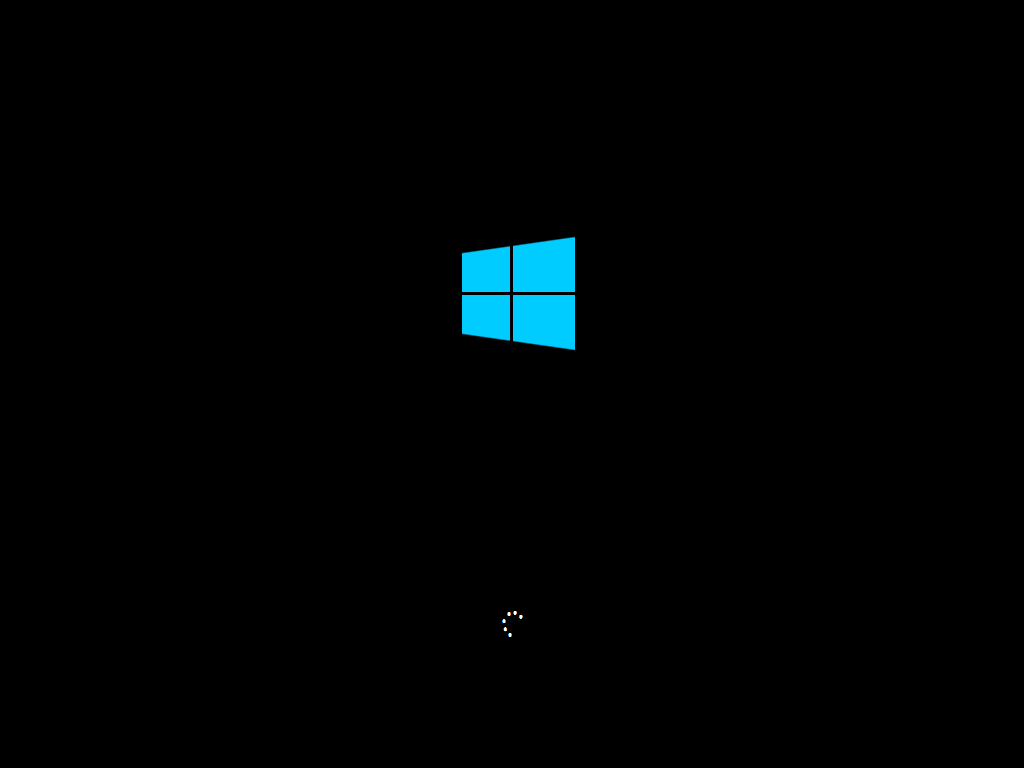
\n\tAfter booting from the DVD that I created from my download, the first thing I encountered was the new light blue Windows logo on a black background, as shown in Figure A. This image remained on the screen for a few moments while Setup was initializing. I was kind of hoping that the flag would be animated, but the only animation was the dots spinning in a circle.
\n
\n\tCredit: Images by Greg Shultz for TechRepublic
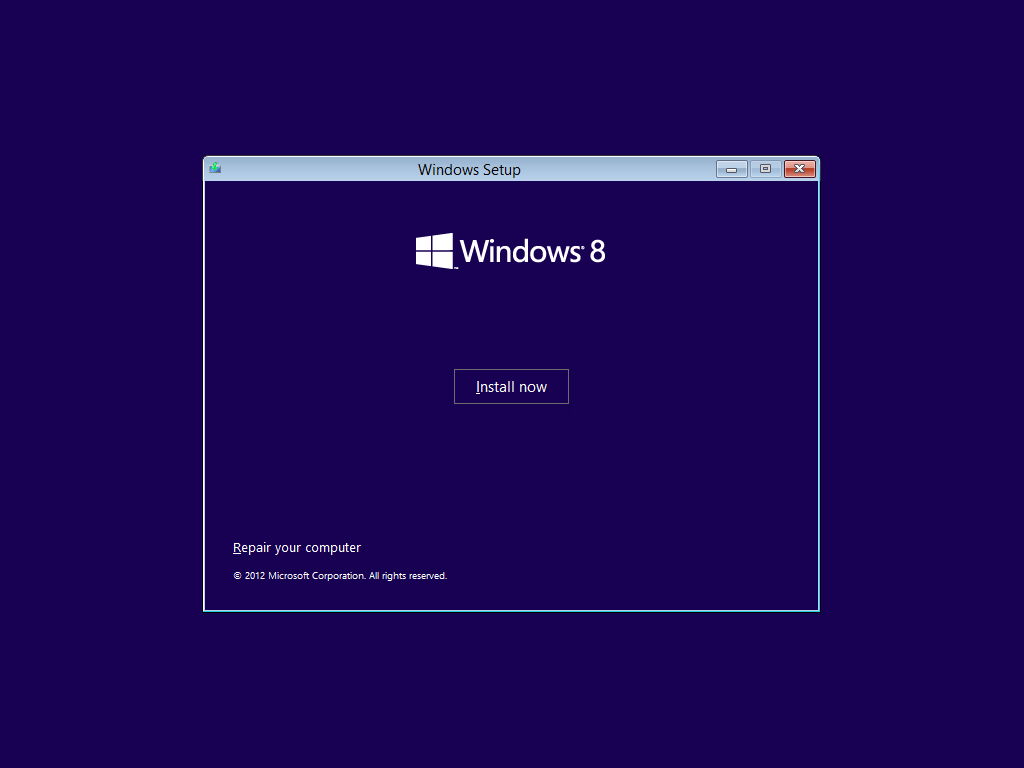
\n\tAs soon as the initial steps are taken care of, you’ll see the Windows Setup screen shown in Figure C and will click the Install Now button.
\n
\n\tCredit: Images by Greg Shultz for TechRepublic
\n
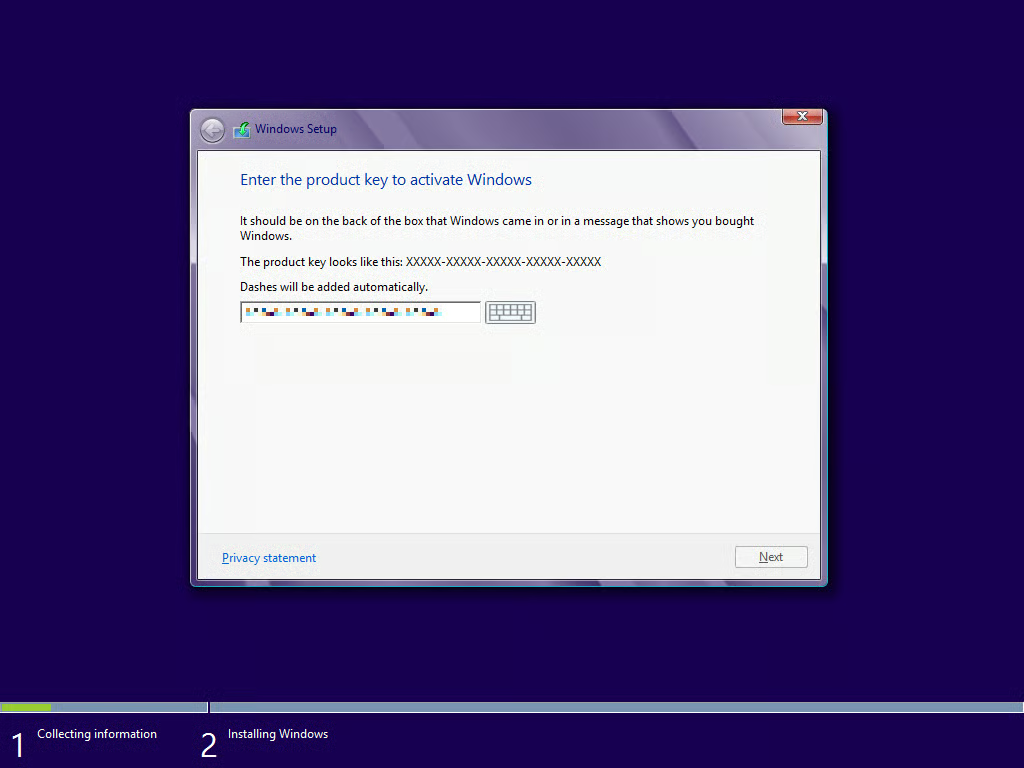
\n\tOnce you click the Install now button, you’ll see the beginning of the information collection phase of the installation procedure. As you can see in Figure D, the first step here is to input the Windows 8 product key.
\n
\n\tCredit: Images by Greg Shultz for TechRepublic
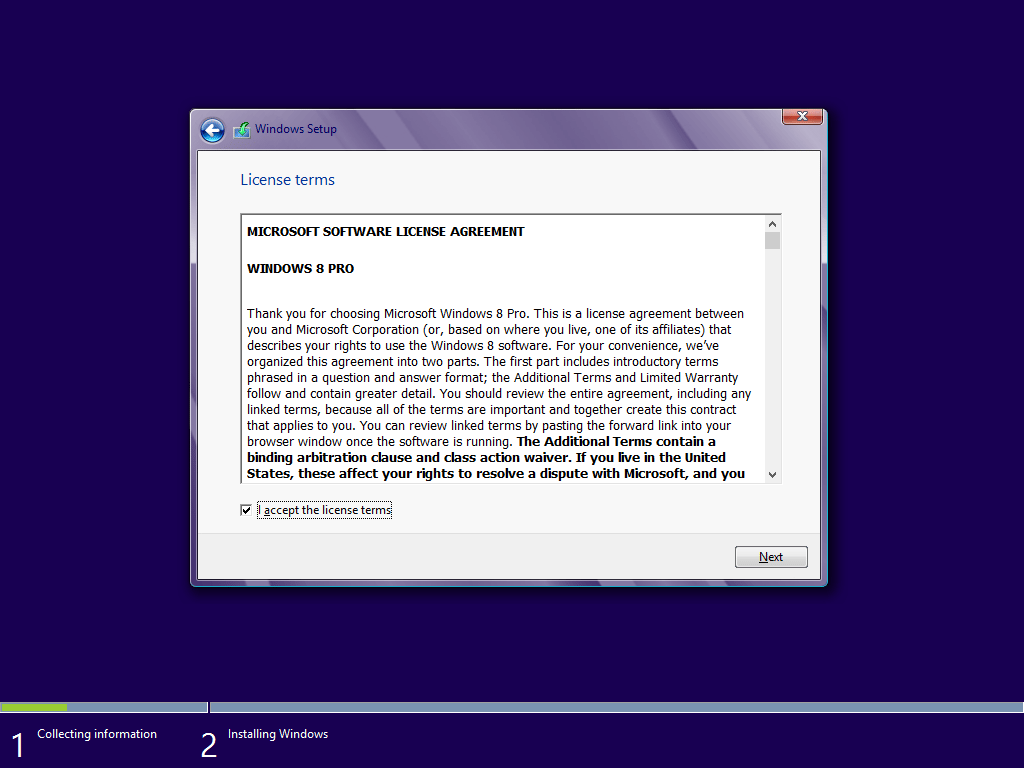
\n\tThe next step is to acknowledge that you accept the license terms, as shown in Figure E. If you take the time to read through them, you will see that Microsoft has indeed radically overhauled EULA as Ed Bott over at ZDNet wrote about in a recent column.
\n
\n\tEven if you don’t take the time to read the license terms during the installation, once you have installed Windows 8, you can find the Microsoft Software License Agreement in the Windows Help and Support system – just search with the term License. Not only is the license shorter in length, but it is also much clearer and easier to read.
\n
\n\tCredit: Images by Greg Shultz for TechRepublic
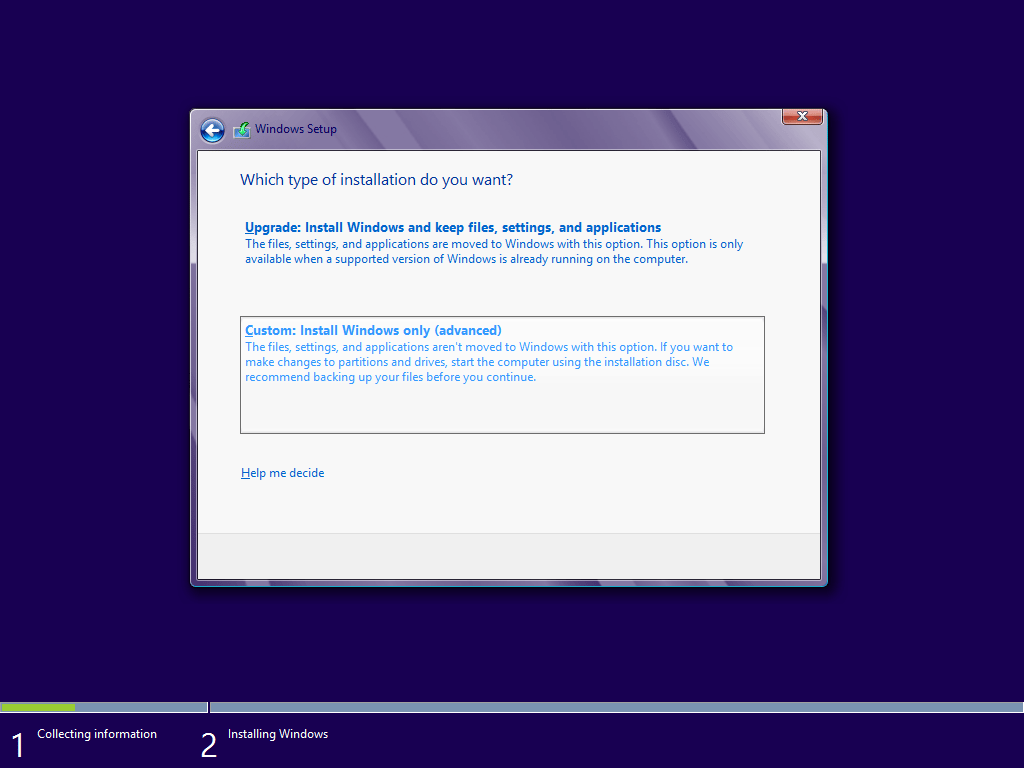
\n\tWhen you are prompted to choose which type of installation you want to perform, as shown in Figure F, you’ll choose Custom: Install Windows only (advanced) type in order to perform a clean install of Windows 8.
\n
\n\tCredit: Images by Greg Shultz for TechRepublic
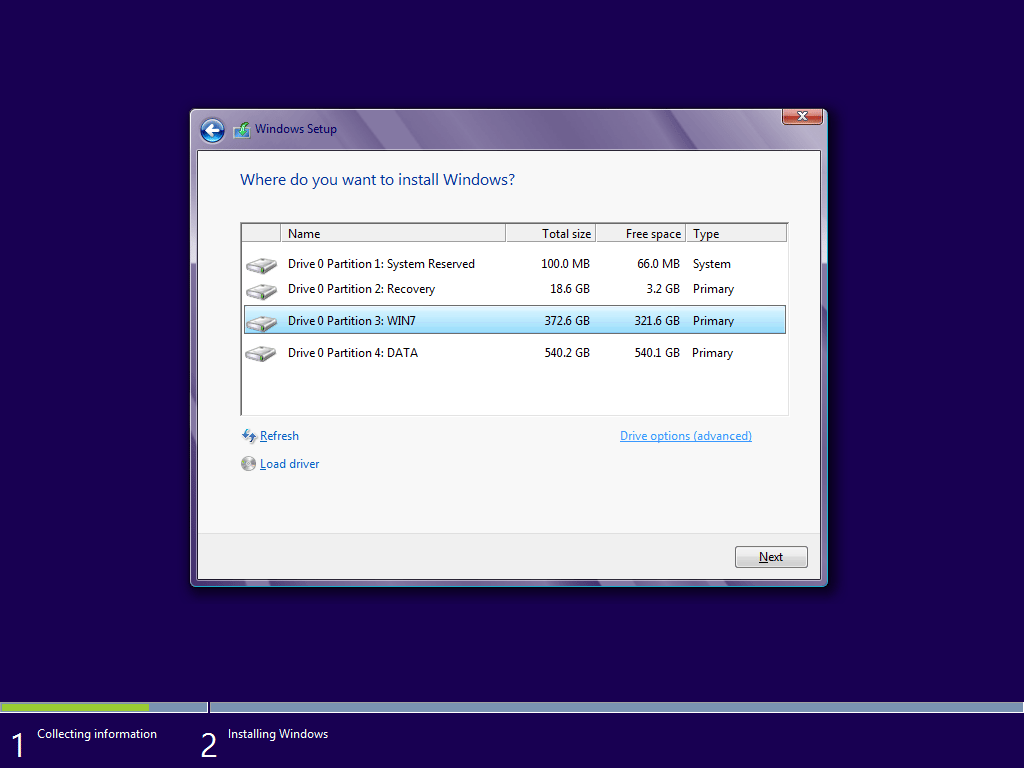
\n\tWhen you are prompted to choose where you want to install Windows, as shown in Figure G, you’ll see a list of any partitions that are currently on your hard disk. As you can see in my example system there are actually four separate partitions. You may have a different combination depending on your system.
\n
\n\tAs I mentioned, performing a clean install means blowing away all existing partitions. The first partition in this list is labeled System Reserved and it was created automatically during the Windows 7 installation. A new System Reserved partition will be created by Windows 8, so you can remove existing one. The partition labeled Recovery contains the OEM recovery for Windows 7. I created the recovery DVDs soon after I got the new system. It won’t do me any good going forward with Windows 8 anyway, so I will remove that partition too. The partition labeled WIN7 contains the Windows 7 installation that I am replacing, so it is definitely going. The partition labeled DATA contains all of my data that I copied to an external hard disk, so it is safe to blow that one away too.
\n
\n\tCredit: Images by Greg Shultz for TechRepublic
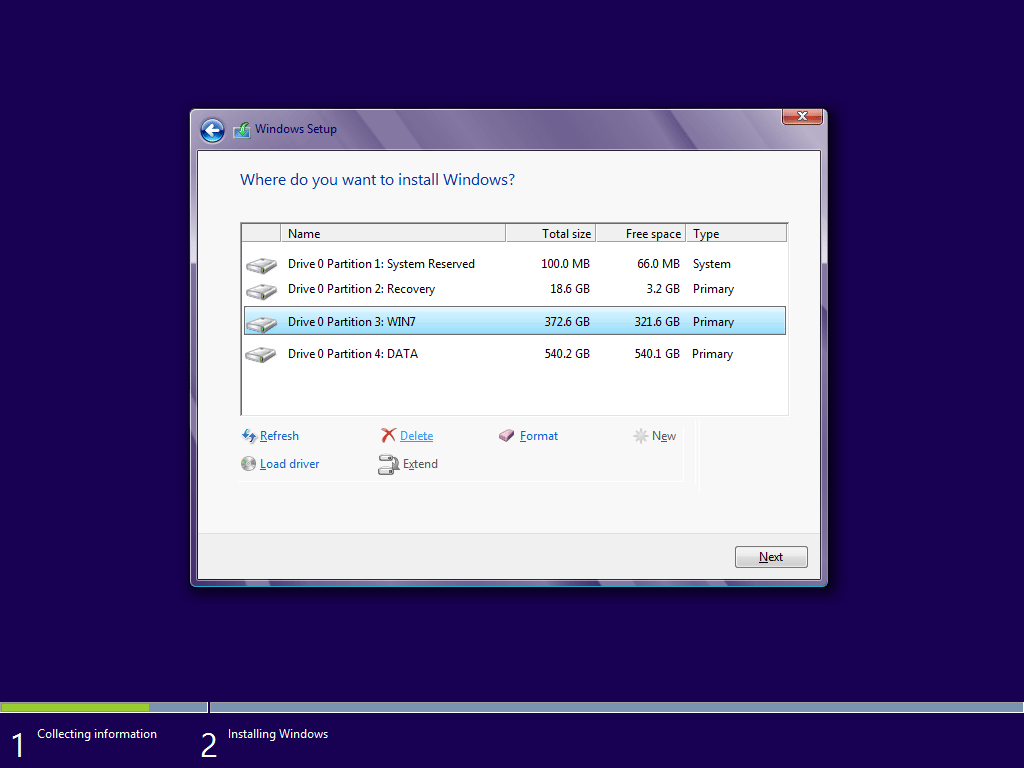
\n\tTo begin blowing away partitions, you start by clicking Drive options (advanced). When you do so, you’ll see a list of commands for managing partitions, as shown in Figure H.
\n
\n\tCredit: Images by Greg Shultz for TechRepublic
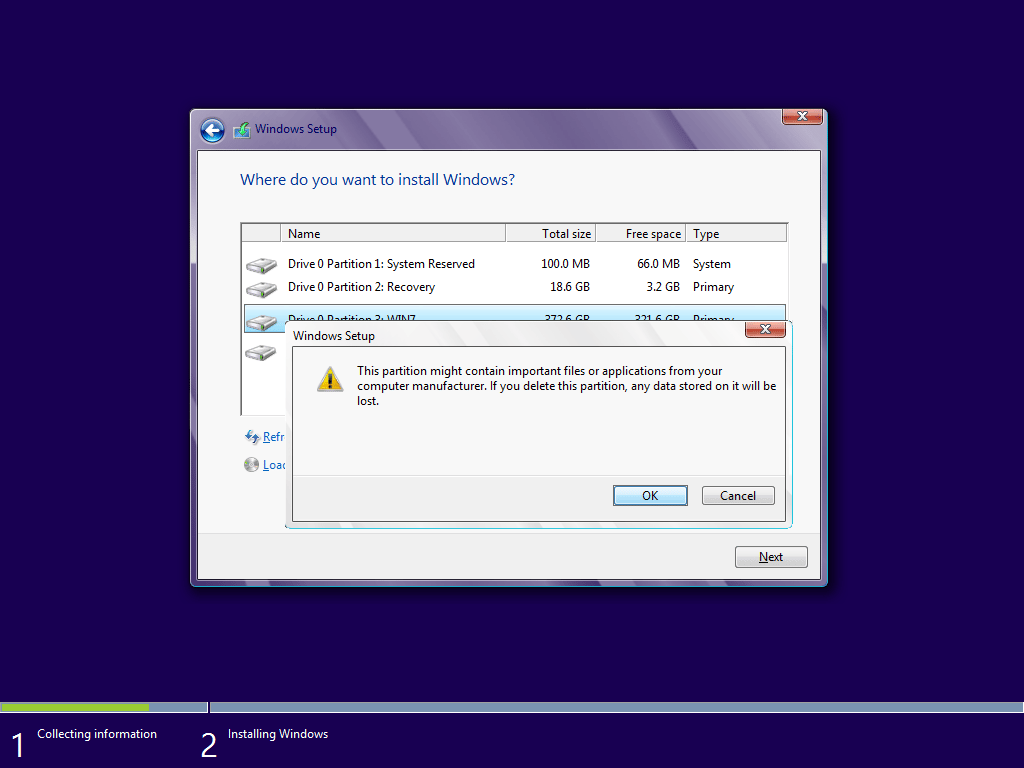
\n\tNow, you’ll select each of the partitions, one by one, and select the Delete command. When you do, you’ll see a confirmation prompt like the one shown in Figure I. Just click OK to delete the partition.
\n
\n\tCredit: Images by Greg Shultz for TechRepublic
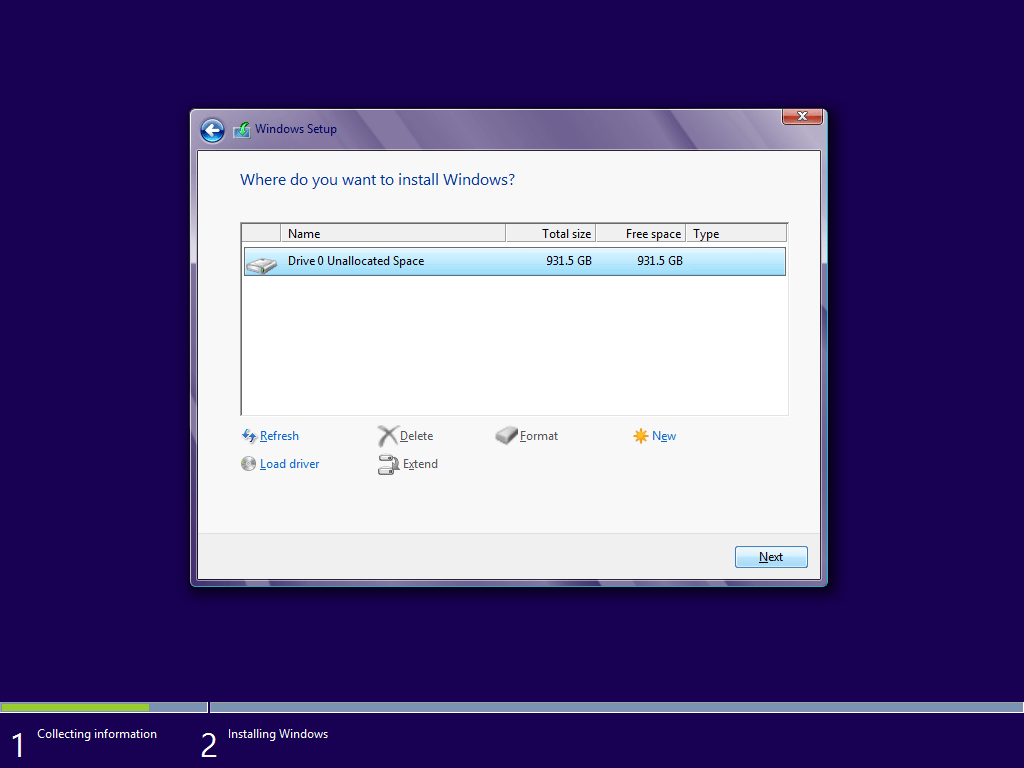
\n\tOnce you delete each of the existing partitions, you’ll see that all of the space will be combined together in one chunk labeled Unallocated Space, as shown in Figure J. While you could create a new partition and format it, you don’t have to. Windows 8 will automatically take care of that in the next step. So just go ahead and click Next.
\n
\n\tCredit: Images by Greg Shultz for TechRepublic
\n
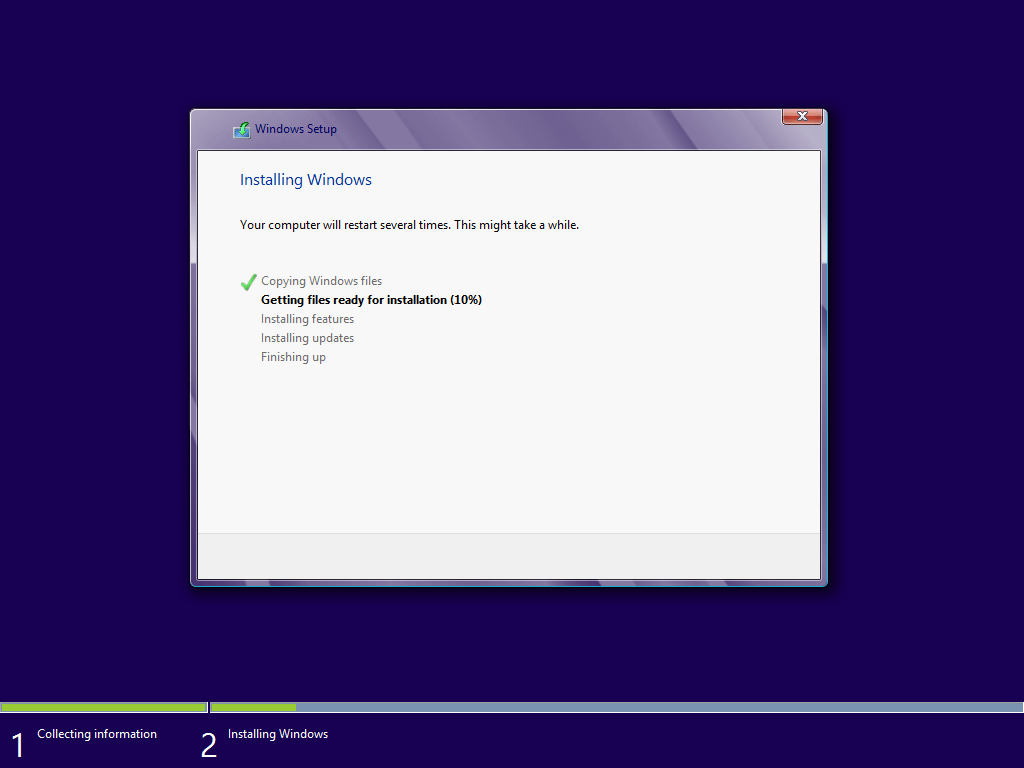
\n\tWhen you click Next, Setup creates the partition, formats it, and then instantly moves into the Installing Windows phase which begins with copying and getting files ready for the installation, as shown in Figure K. This process will take a while to progress though, so you can sit back and relax a bit.
\n
\n\tCredit: Images by Greg Shultz for TechRepublic
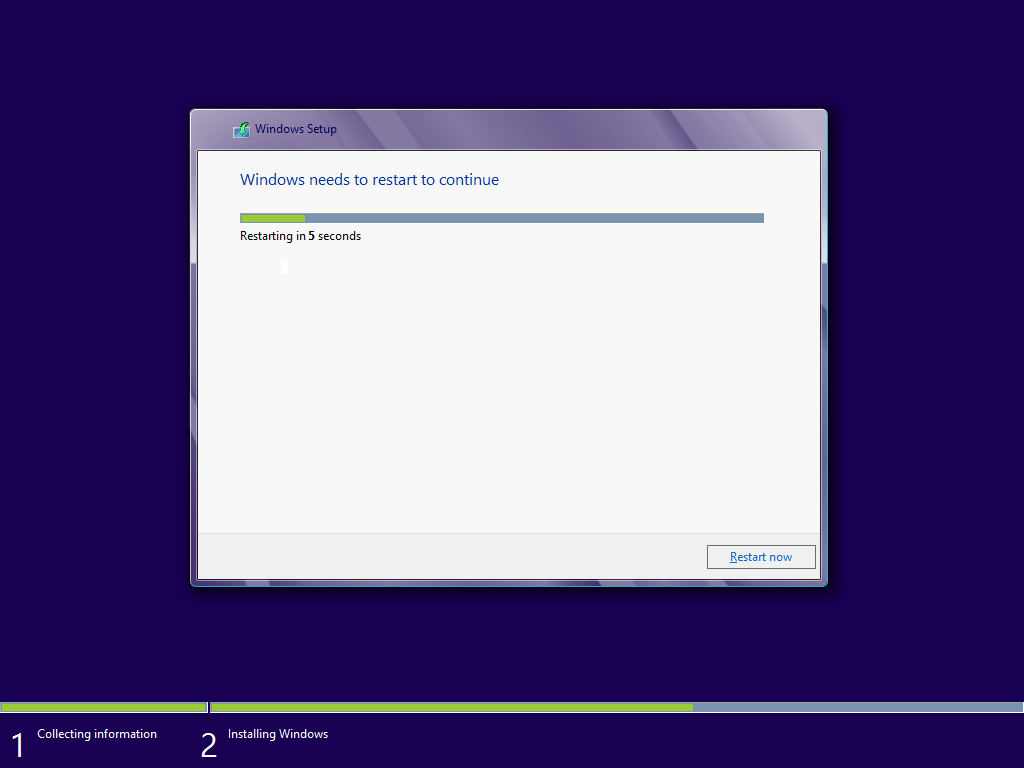
\n\tWhen this phase of the process is complete, Windows will alert you that it is going to restart in order to continue, as shown in Figure L. If you are really impatient and really quick, you can click the Restart now button.
\n
\n\tCredit: Images by Greg Shultz for TechRepublic
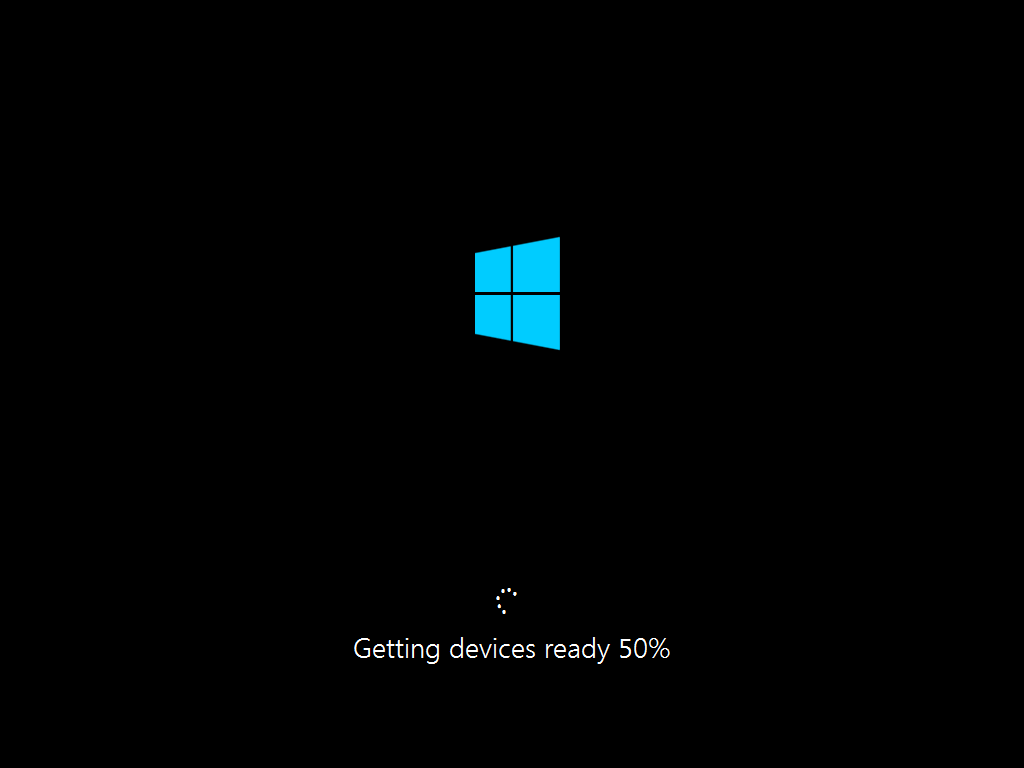
\n\tUpon restarting you’ll see the black screen with the blue Windows logo and see that Setup is getting devices ready, as shown in Figure M.
\n
\n\tCredit: Images by Greg Shultz for TechRepublic
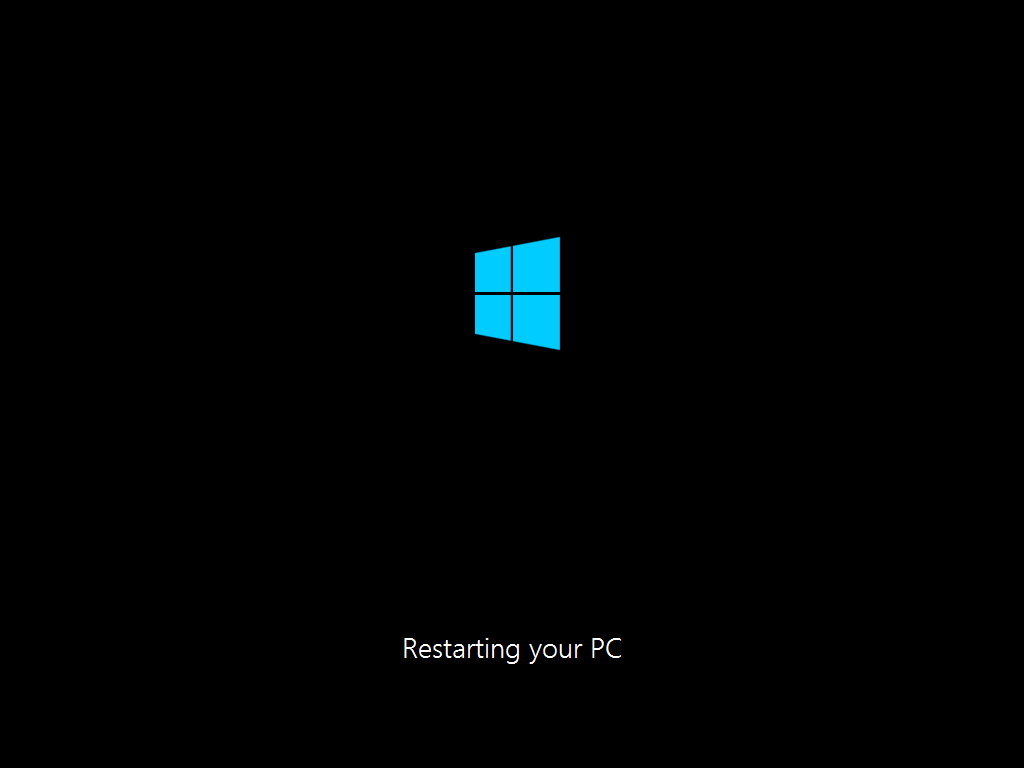
\n\tAs soon as that part of the process is complete, Windows will alert you that it is going to restart again, as shown in Figure N.
\n
\n\tCredit: Images by Greg Shultz for TechRepublic
\n
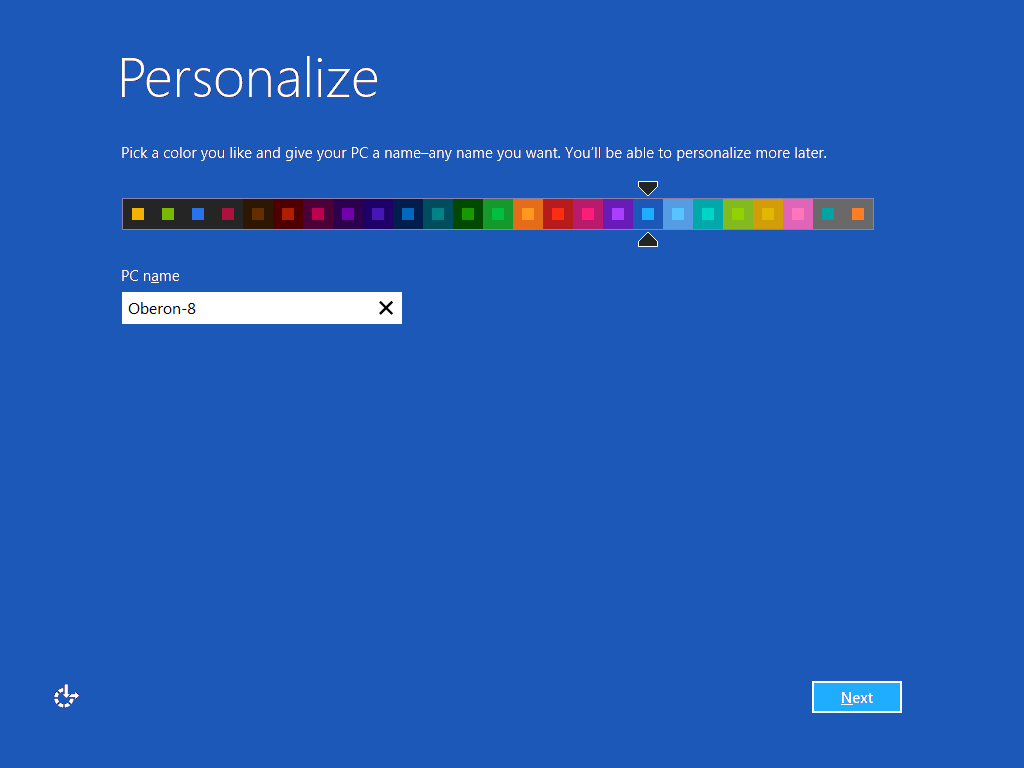
\n\tWhen the system restarts, you’ll be prompted to choose a color scheme for Windows 8 and a PC name, as shown in Figure O. I chose a light blue color scheme for now. I can change it later.
\n
\n\tCredit: Images by Greg Shultz for TechRepublic
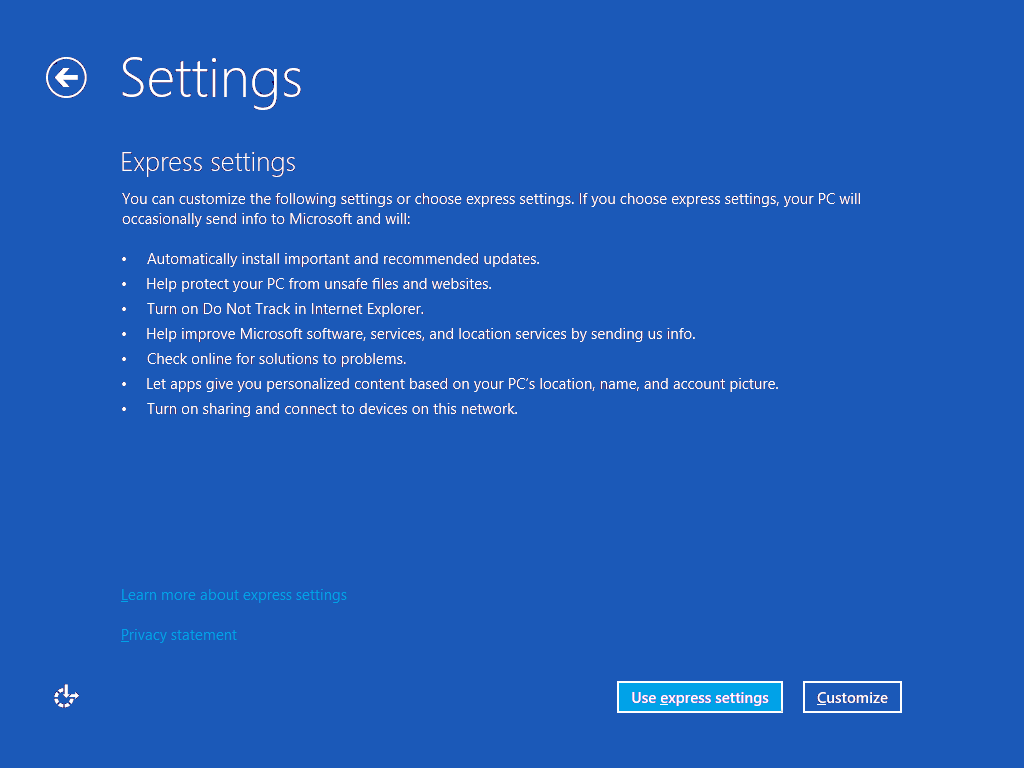
\n\tWhen the Settings screen appears, as shown in Figure P, you can choose to customize these settings or you can allow Windows to use the express settings. If you are unsure, you can click the Learn more link and get more details. I chose to use the express settings. I can change any or all of these setting later if I want.
\n
\n\tCredit: Images by Greg Shultz for TechRepublic
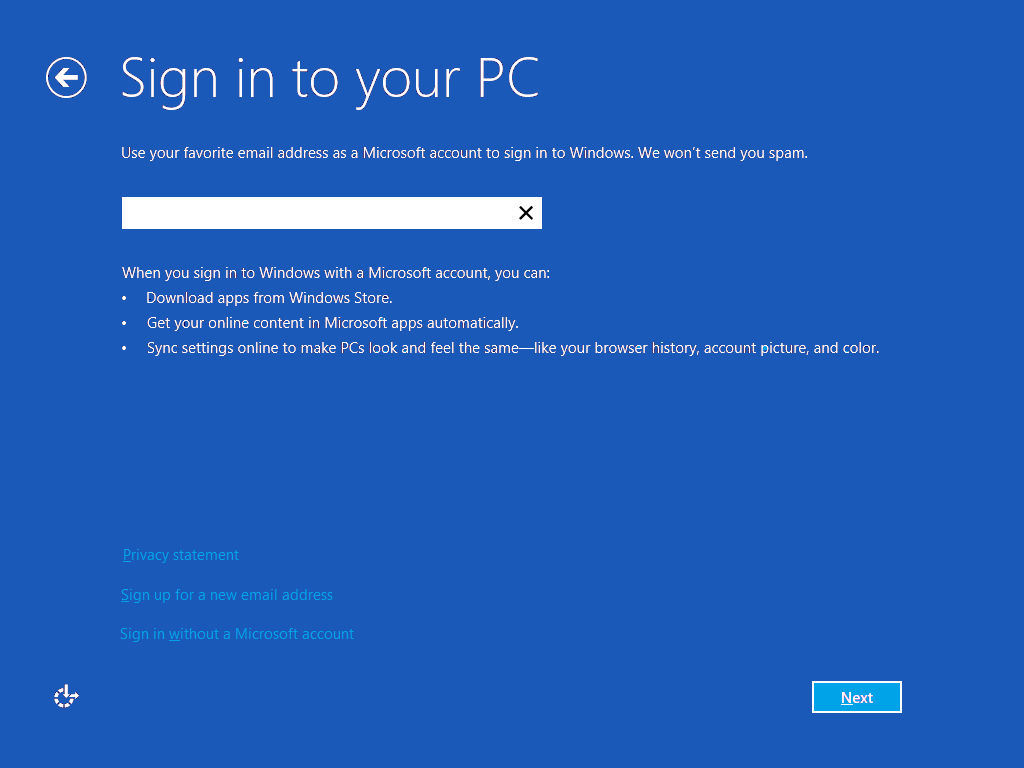
\n\tOn the next screen, you’ll choose how you want to sign on to Windows 8, as shown in Figure Q. While you can choose to sign in with a local account, I would recommend that you use an existing Microsoft (email) account, such as a Hotmail.com or a Live.com account. If you don’t have a Microsoft account, you can sign up for one or you can use any email address that you want and Windows 8 will create an account for you.
\n
\n\tCredit: Images by Greg Shultz for TechRepublic
\n\tThe advantage of using an existing Microsoft account or creating one is that you will be able to instantly use the Windows Store, will be able to easily sync settings between multiple Windows 8 computers, and be able to easily take advantage of other Windows 8 features. I already have a Microsoft account, so I entered it here.
\n
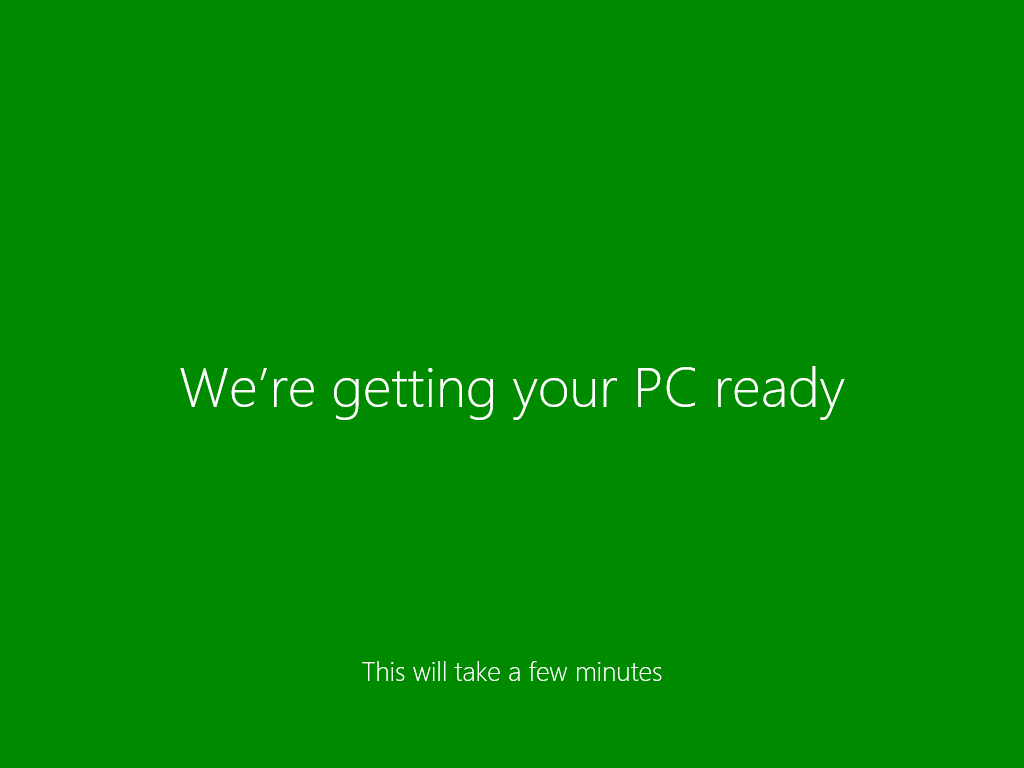
\n\tAfter filling the details of your account on the next couple of screens, you’ll eventually see a screen that changes color as it alerts you the Setup is getting your PC ready. The green version of this screen is show in Figure R.
\n
\n\tCredit: Images by Greg Shultz for TechRepublic
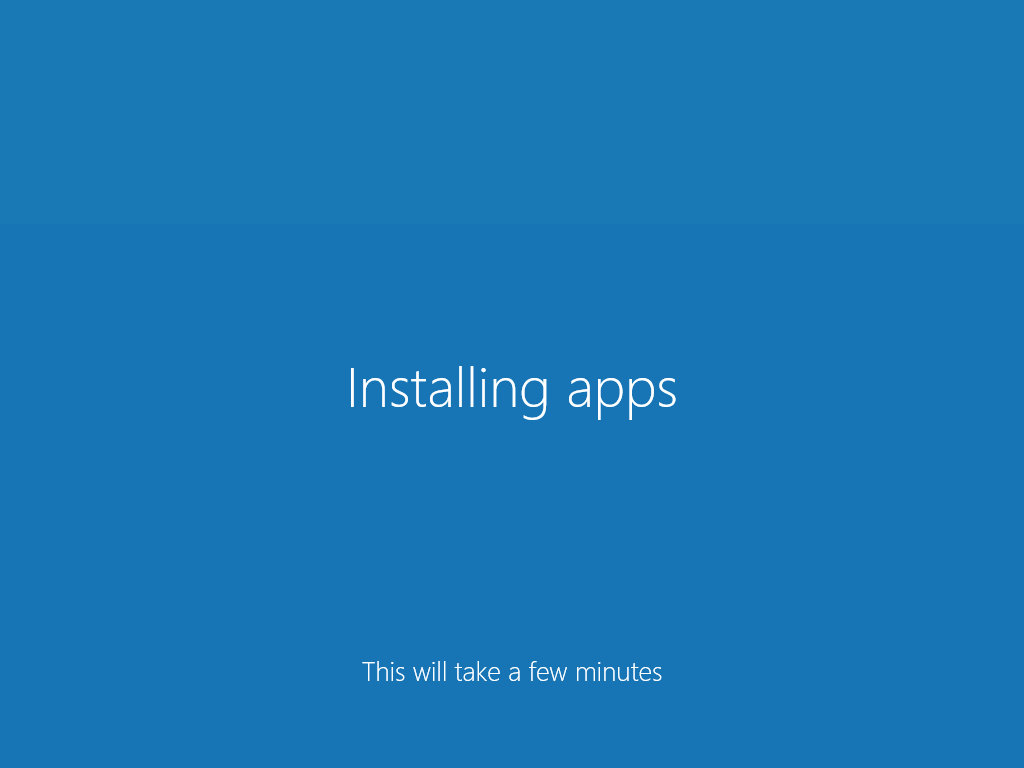
\n\tAs you may know, Windows 8 comes with a host of native apps for the Start screen interface that replace and add to the group of applications that used to come with previous versions of Windows. The screen shown in Figure S indicates that Setup is installing those apps.
\n
\n\tCredit: Images by Greg Shultz for TechRepublic
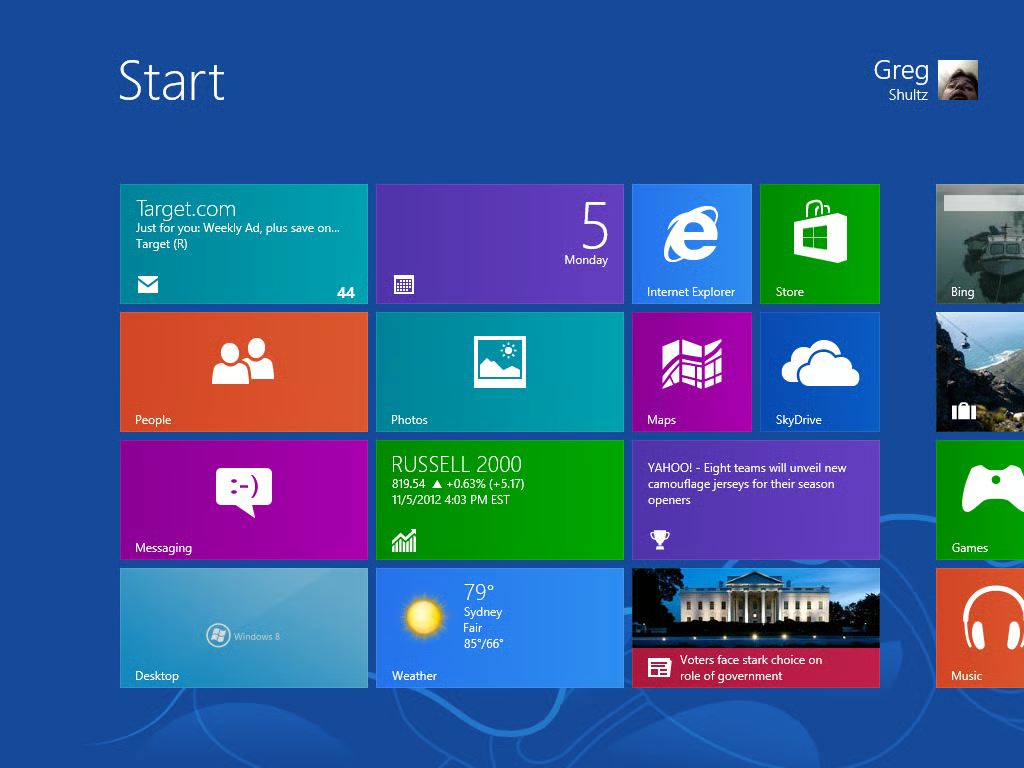
\n\tOnce the apps are installed, you’ll see the Start screen, as shown in Figure T, and can begin using Windows 8.
\n
\n
\n\tAre you planning on performing a clean install of Windows 8? As always, if you have comments or information to share about this topic, please take a moment to drop by the TechRepublic Community Forums and let us hear from you.
\n
\n
\n\t
\n\t
\n
\n
\n\tCredit: Images by Greg Shultz for TechRepublic

My first computer was a Kaypro 16 \"luggable\" running MS-DOS 2.11 which I obtained while studying computer science in 1986. After two years, I discovered that I had a knack for writing documentation and shifted my focus over to technical writing.


