\n\t
\n
\n\tI recently received the Microsoft Touch Mouse and wrote a review of it for the Windows Desktop Report. In this gallery, I’ll show you what I encountered while unboxing the Touch Mouse.
\n
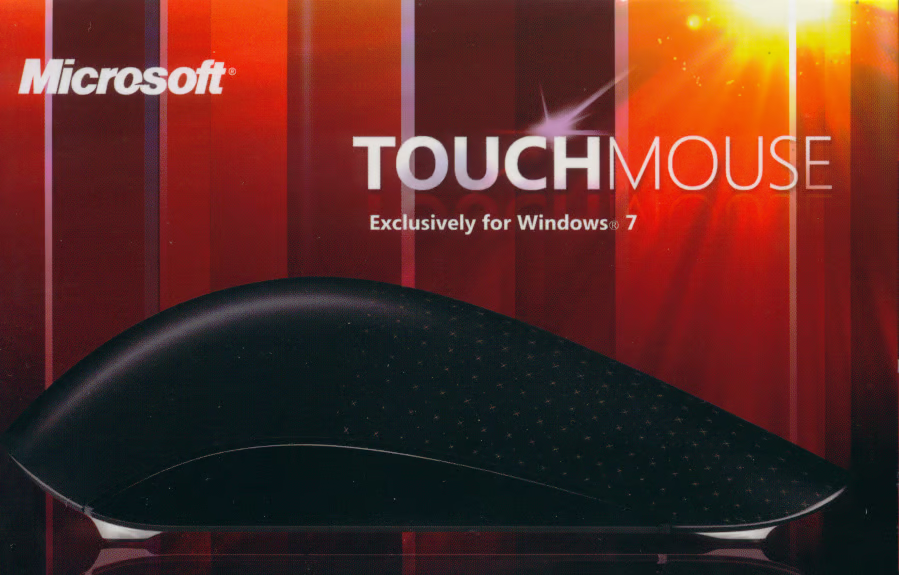
\n\tThe mouse comes in a solid cardboard box that measures 6-inches long, 4-inches wide, and 3-inches tall. This is the top of the box.
\n
\n\tImage created by Greg Shultz for TechRepublic, all rights reserved.
\n\t
\n
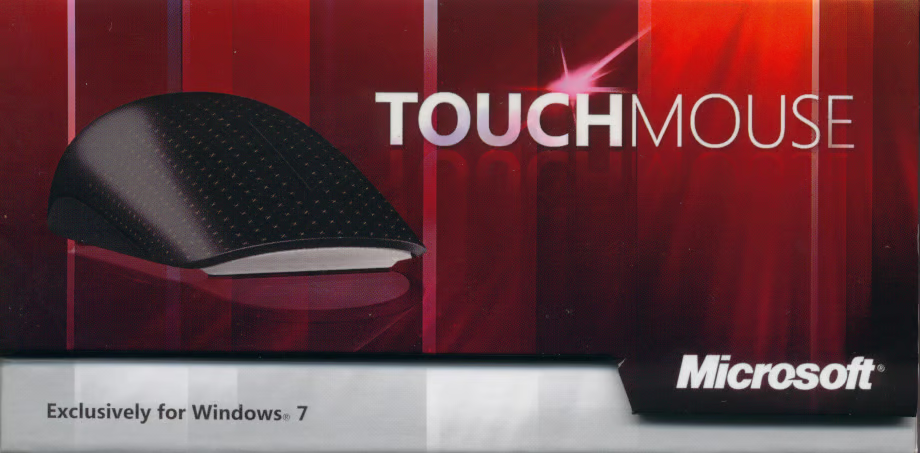
\n\tThis is the front of the box. You flip up the tab, which is magnetically held in place, to open the box.
\n
\n\tImage created by Greg Shultz for TechRepublic, all rights reserved.
\n\t
\n
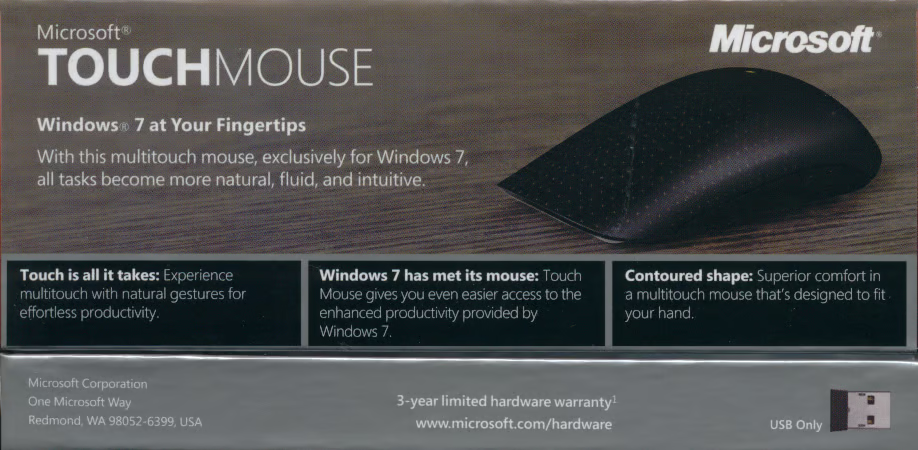
\n\tThe back of the box provides some enticing advertising.
\n
\n\tImage created by Greg Shultz for TechRepublic, all rights reserved.
\n\t
\n
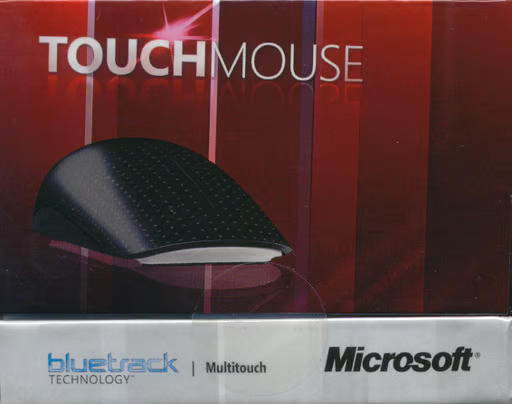
\n\tThe left side of the box promotes the mouse’s use of Microsoft’s proprietary BlueTrack Technology that is designed to provide fast and extremely smooth movement on just about any surface that you can imagine.
\n
\n\tImage created by Greg Shultz for TechRepublic, all rights reserved.
\n\t
\n
\n\tThe right side of the box sports the hanger for the retail display and shows off the Compatible with Windows 7 logo.
\n
\n\tImage created by Greg Shultz for TechRepublic, all rights reserved.

\n\t
\n
\n\tThe system requirements are found on the bottom of the box.
\n
\n\tImage created by Greg Shultz for TechRepublic, all rights reserved.
\n\t
\n
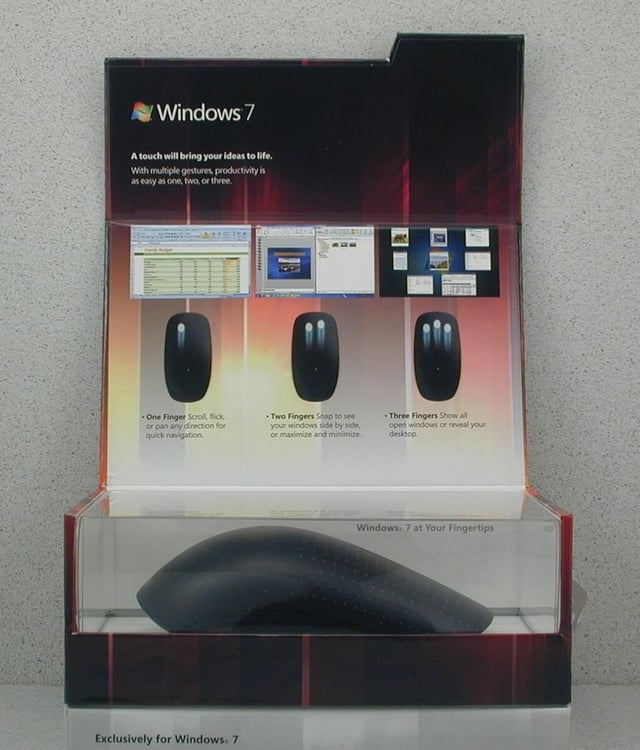
\n\tWhen you open the box, you see that the mouse is enclosed in what looks like a display case.
\n
\n\tImage created by Greg Shultz for TechRepublic, all rights reserved.
\n\t
\n
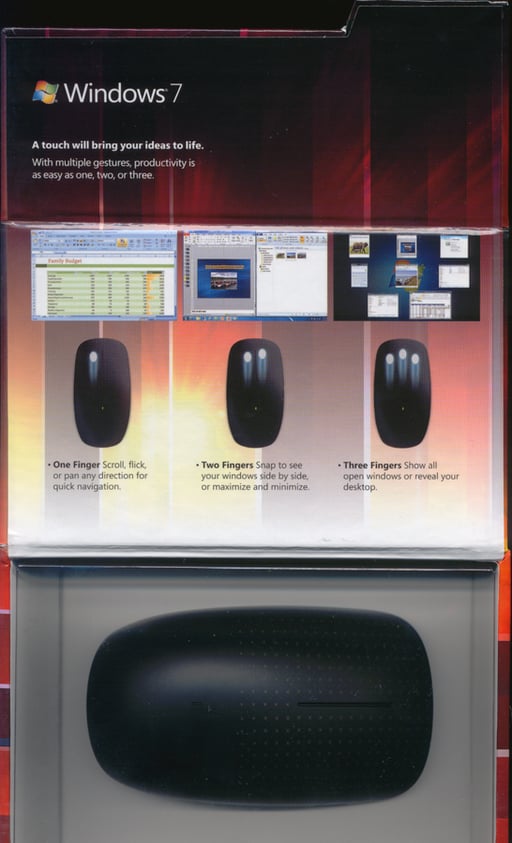
\n\tHere is a top view of the display case.
\n
\n\tImage created by Greg Shultz for TechRepublic, all rights reserved.
\n\t
\n
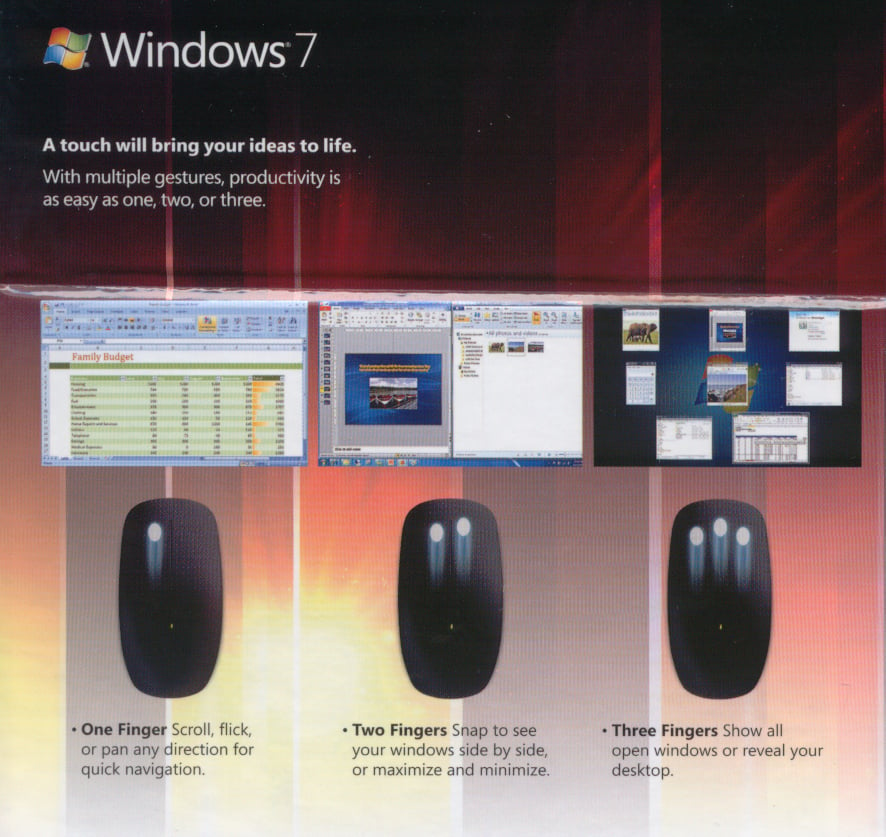
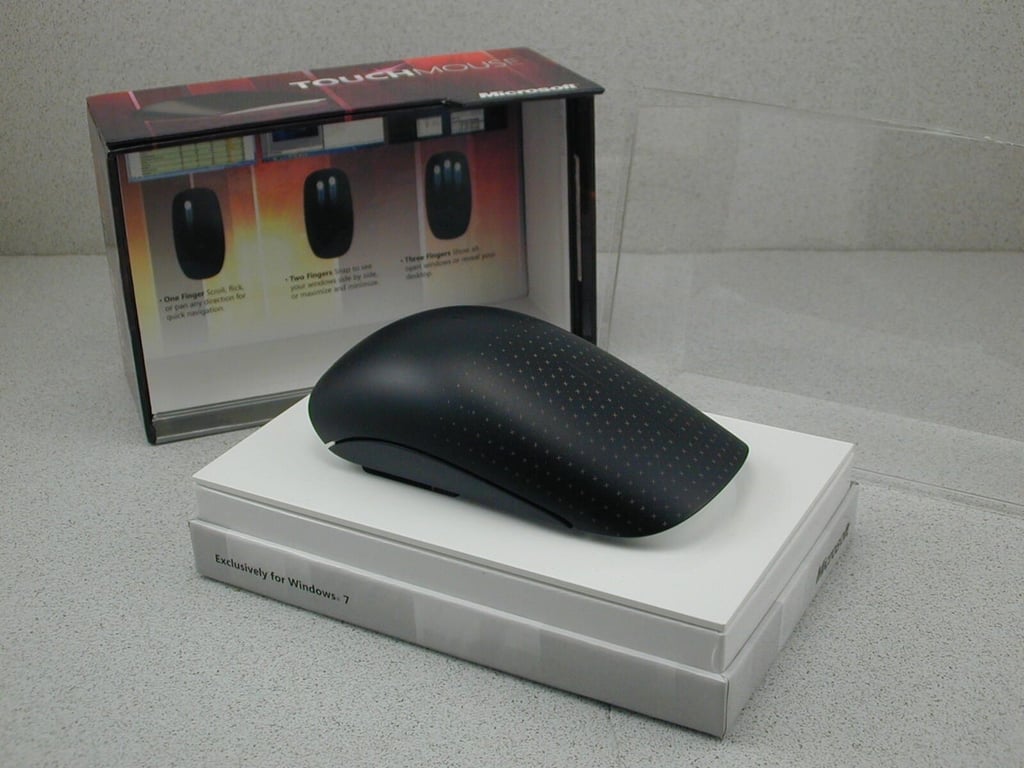
\n\tThe inside of the lid provides you with a brief introduction of how the mouse’s gestures features work.
\n
\n\tImage created by Greg Shultz for TechRepublic, all rights reserved.
\n\t
\n
\n\tOnce you remove the box top and the plastic cover, you see that the mouse is on a pedestal. It is actually fastened very securely to this pedestal.
\n
\n\tImage created by Greg Shultz for TechRepublic, all rights reserved.
\n\t
\n
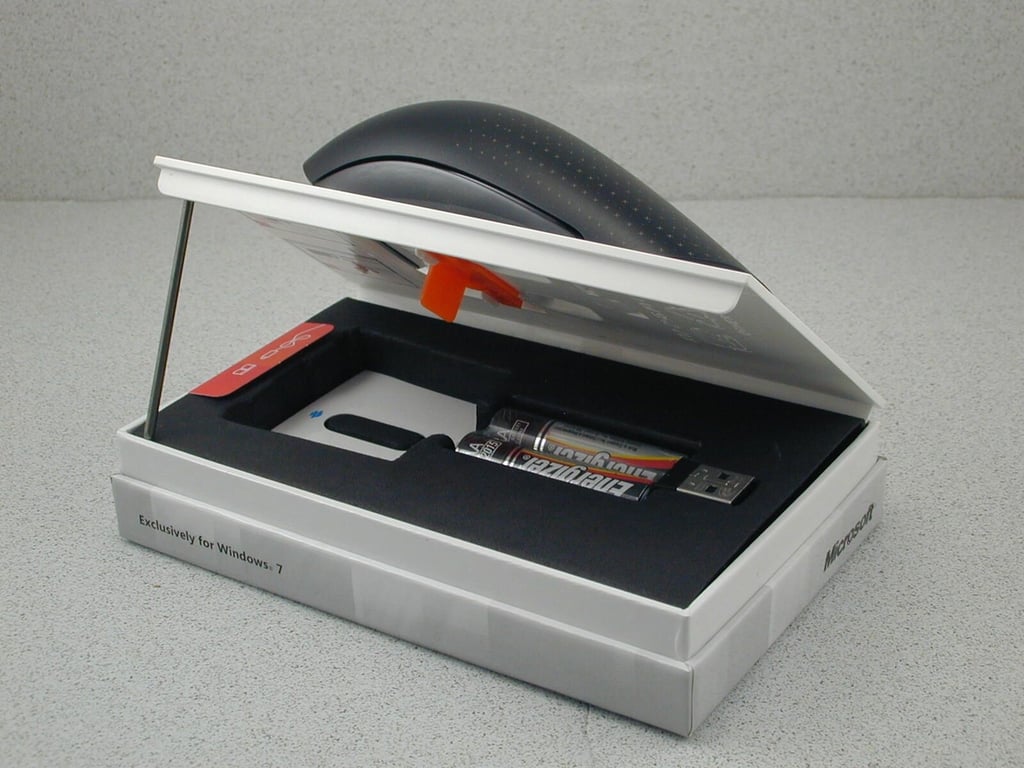
\n\tWith a slight pry, the top of the pedestal lifts up to reveal the USB transceiver, batteries, and the battery cover.
\n
\n\tImage created by Greg Shultz for TechRepublic, all rights reserved.
\n\t
\n
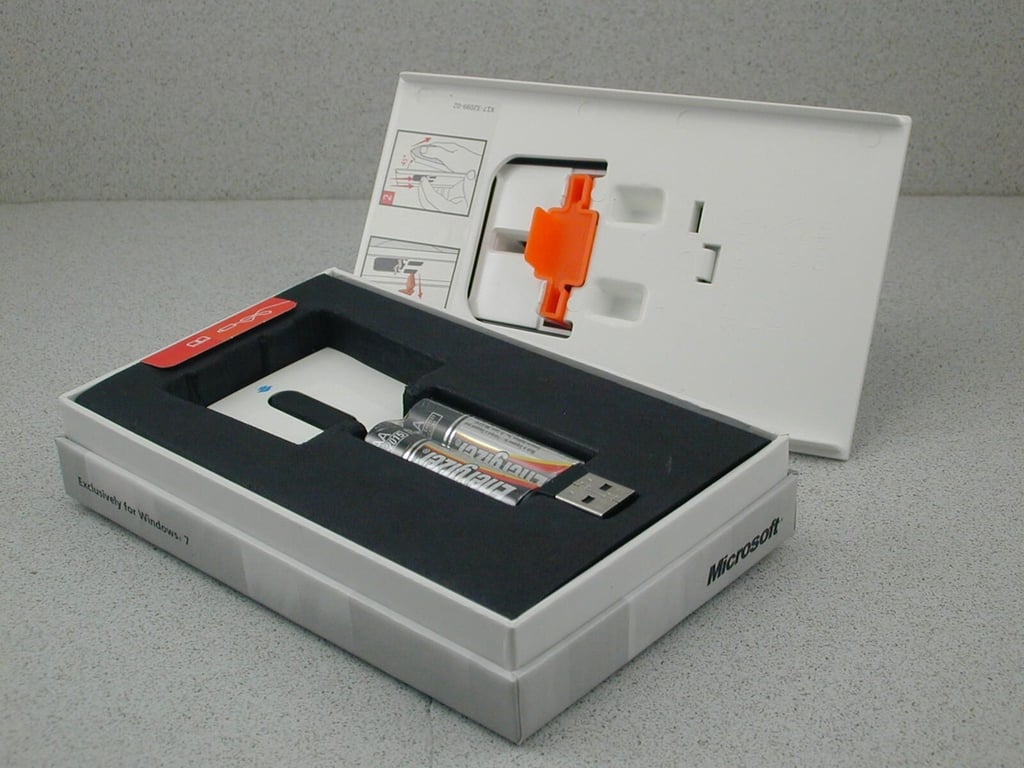
\n\tWhen you remove the top, you can see the mechanism securing the mouse.
\n
\n\tImage created by Greg Shultz for TechRepublic, all rights reserved.
\n\t
\n
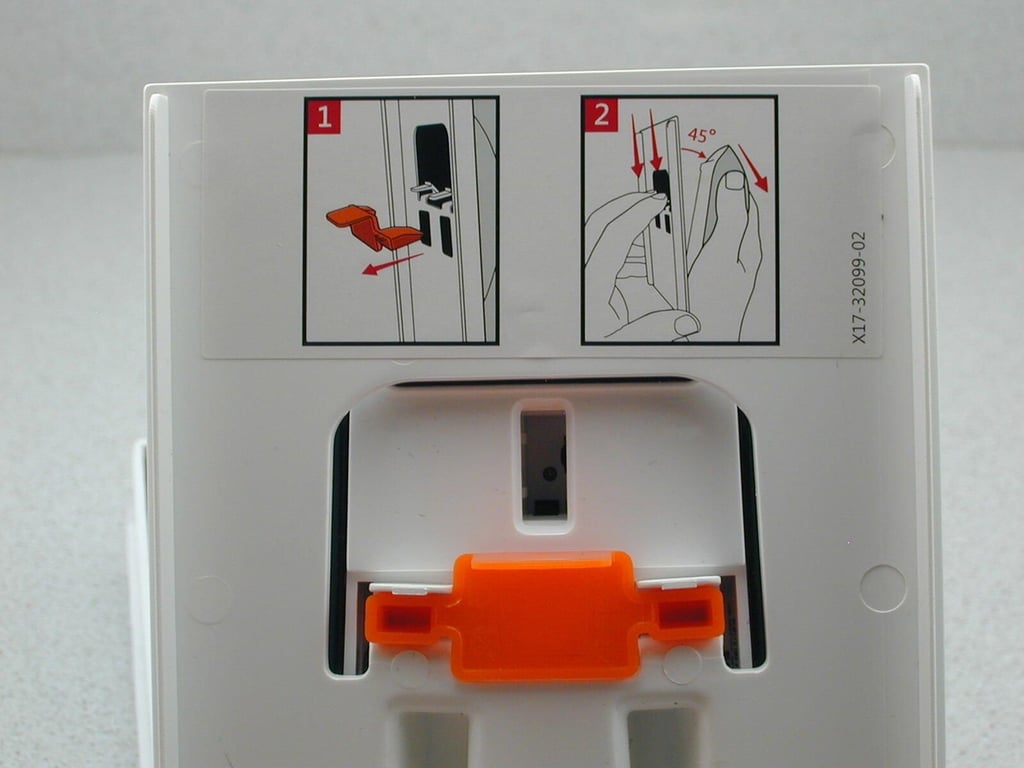
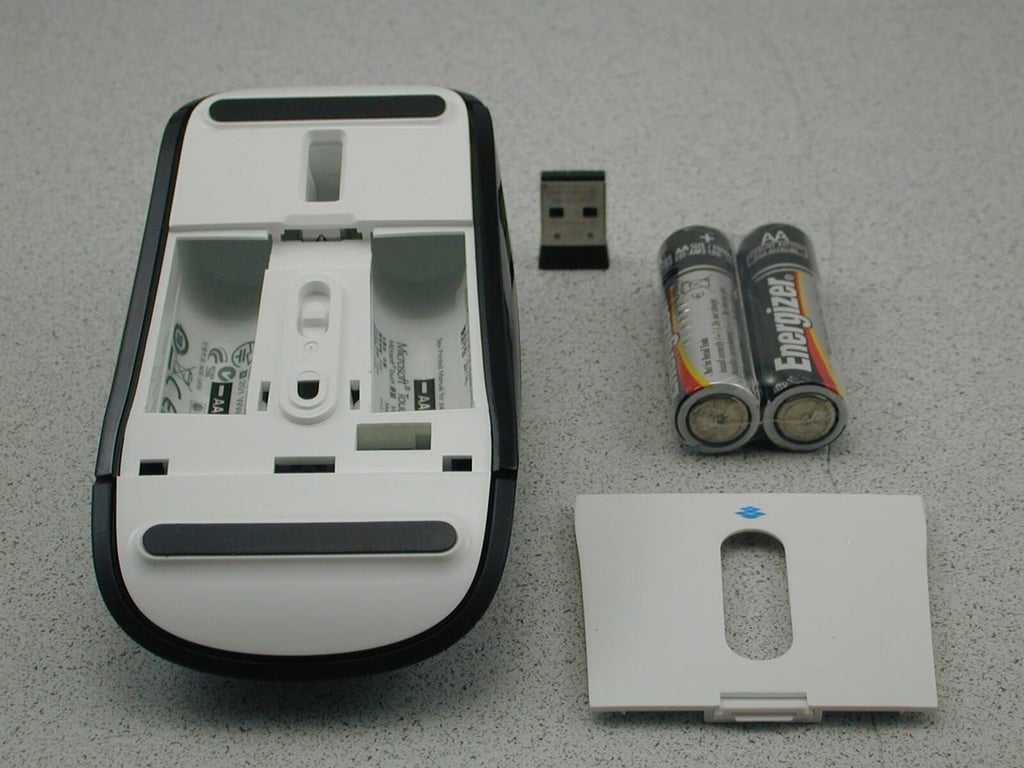
\n\tThe instructions for releasing the mouse make it look like a very simple operation. However, it took several tries to get the mechanism to actually release the mouse. It’s fastened very securely.
\n
\n\tImage created by Greg Shultz for TechRepublic, all rights reserved.
\n\t
\n
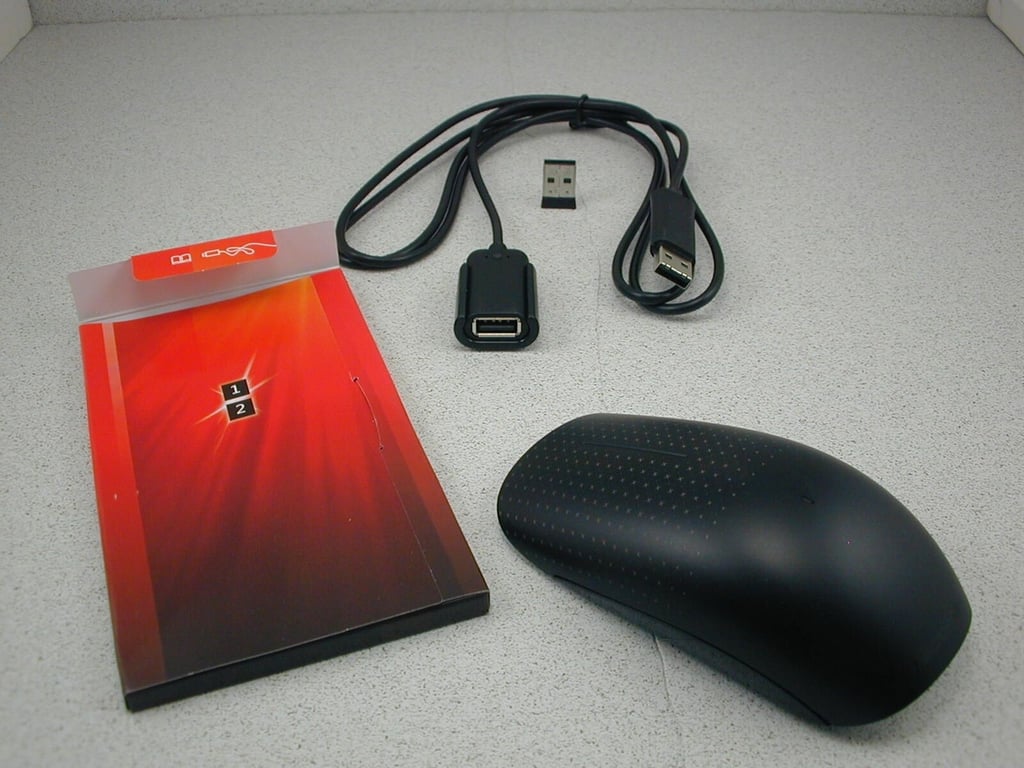
\n\tOnce out of its box, you can see the four main components. You can also see how small the USB transceiver actually is.
\n
\n\tImage created by Greg Shultz for TechRepublic, all rights reserved.
\n\t
\n
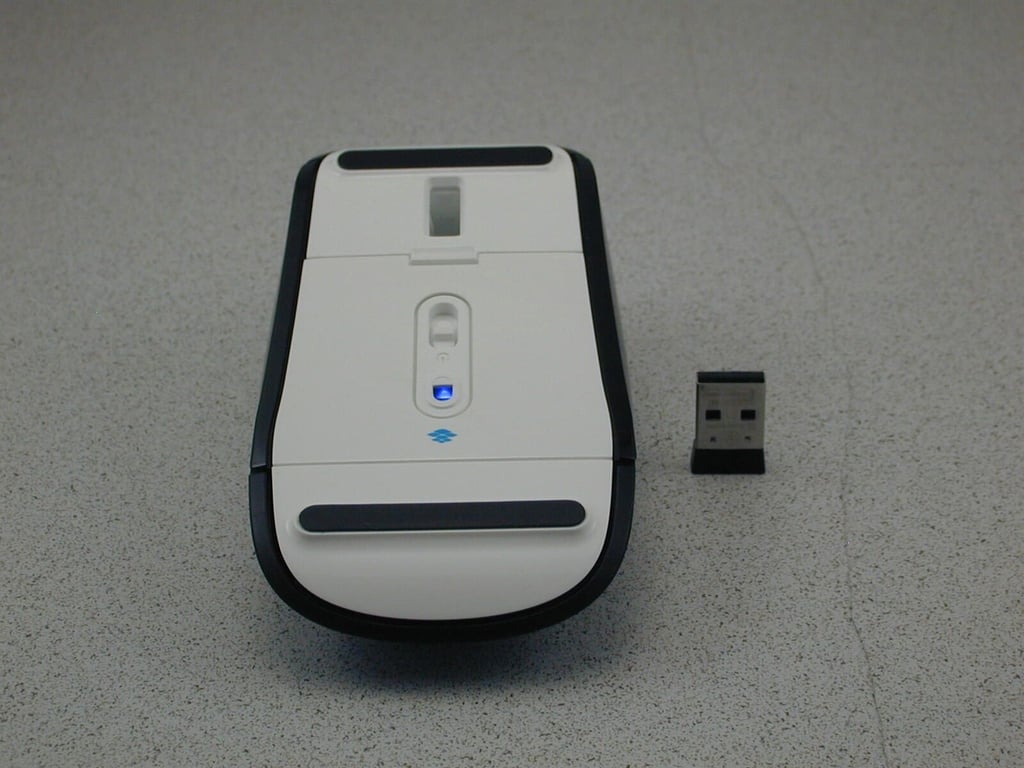
\n\tAfter it is assembled and the switch is flipped on, you’ll immediately see the flickering light of BlueTrack. You can save battery power by turning off the mouse when you are not going to be using it.
\n
\n\tImage created by Greg Shultz for TechRepublic, all rights reserved.
\n\t
\n
\n\tIn the bottom of the box, you’ll find a USB cable and a small box containing the Setup guide, which provides instruction in English and 7 other languages.
\n
\n\tImage created by Greg Shultz for TechRepublic, all rights reserved.
\n\t
\n
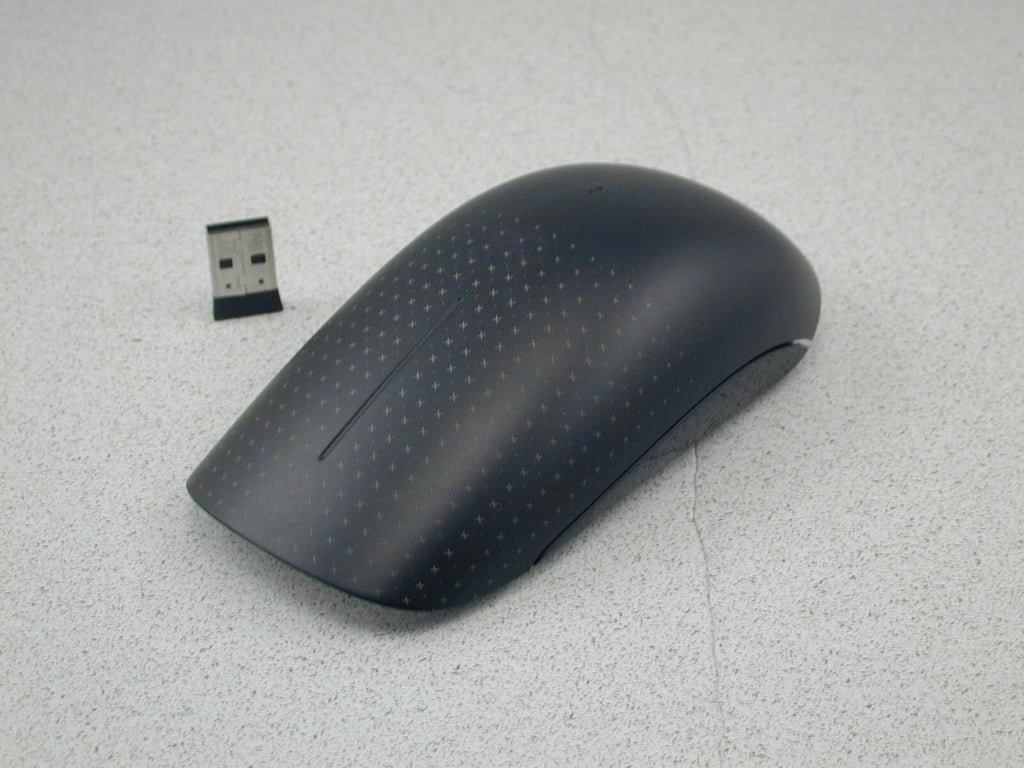
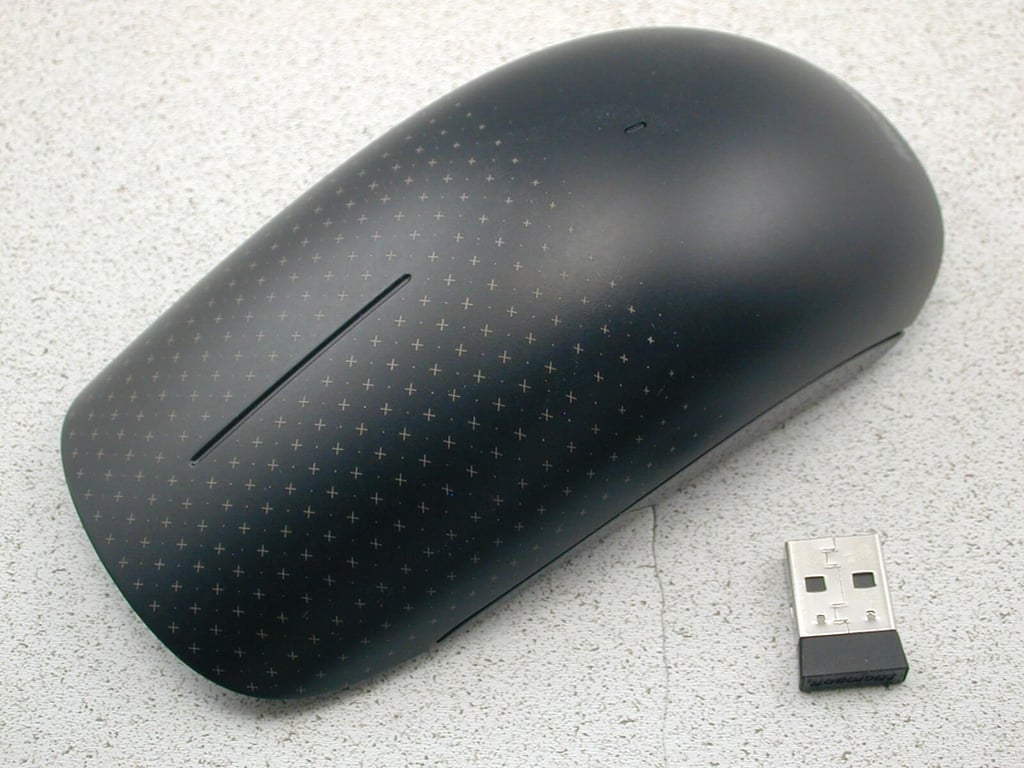
\n\tThe Touch Mouse is smaller than a standard mouse, but it actually fits in the palm of your hand very comfortably.
\n
\n\tImage created by Greg Shultz for TechRepublic, all rights reserved.
\n\t
\n
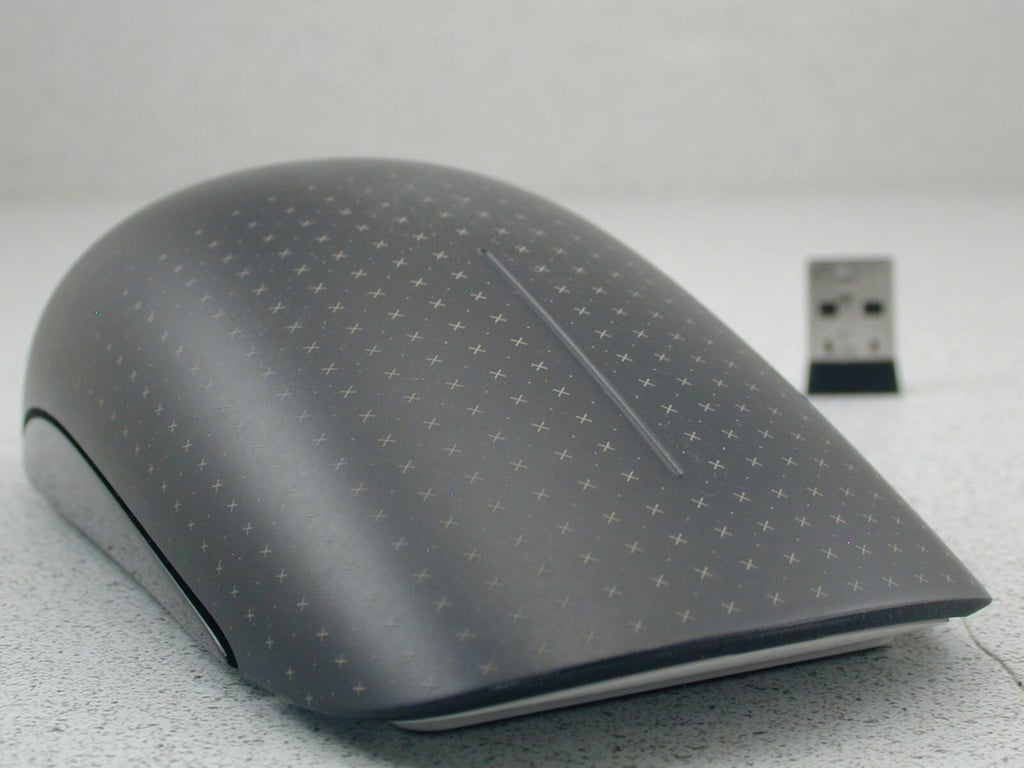
\n\tThe surface of the Touch Mouse is populated with a multitude of sensors that are designed to track movement of your fingers and allow you to take advantage of Windows 7’s touch-based user interface features.
\n
\n\tImage created by Greg Shultz for TechRepublic, all rights reserved.
\n\t
\n
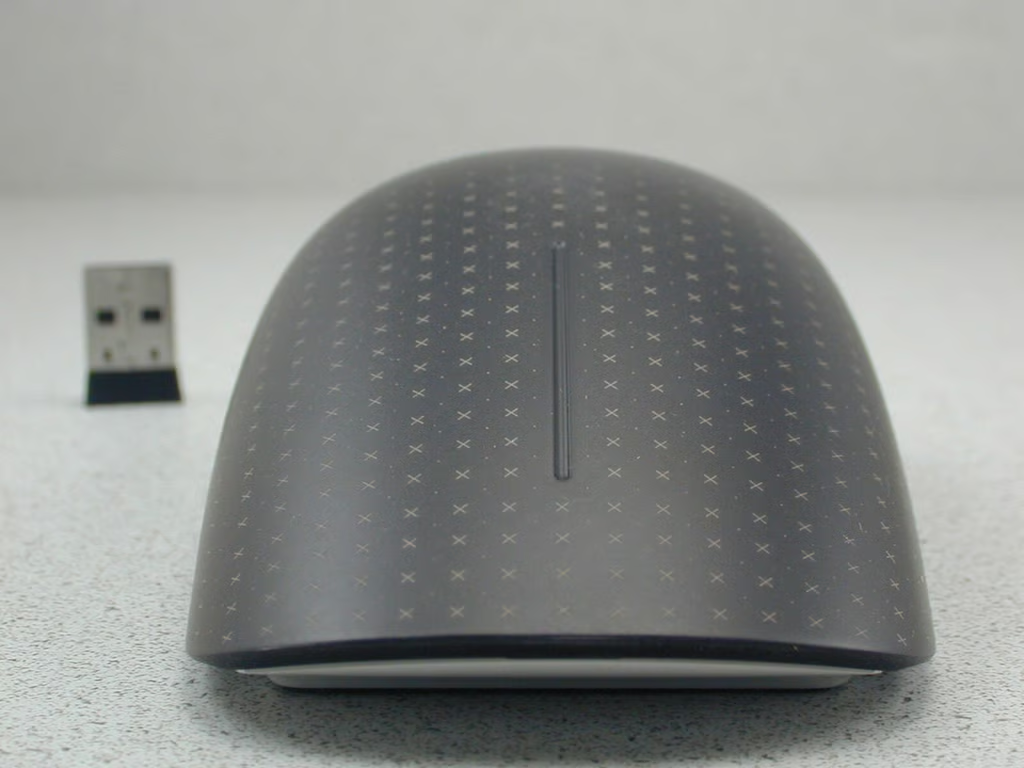
\n\tThere are no discernable buttons on the mouse, but clicking on the left or right side of the mouse works just like the buttons on a regular mouse.
\n
\n\tImage created by Greg Shultz for TechRepublic, all rights reserved.
\n\t
\n
\n\tThe straight line at the top center of the mouse essentially replaces the wheel for scrolling—you just move one finger up or down to scroll.
\n
\n\tImage created by Greg Shultz for TechRepublic, all rights reserved.
\n\t
\n
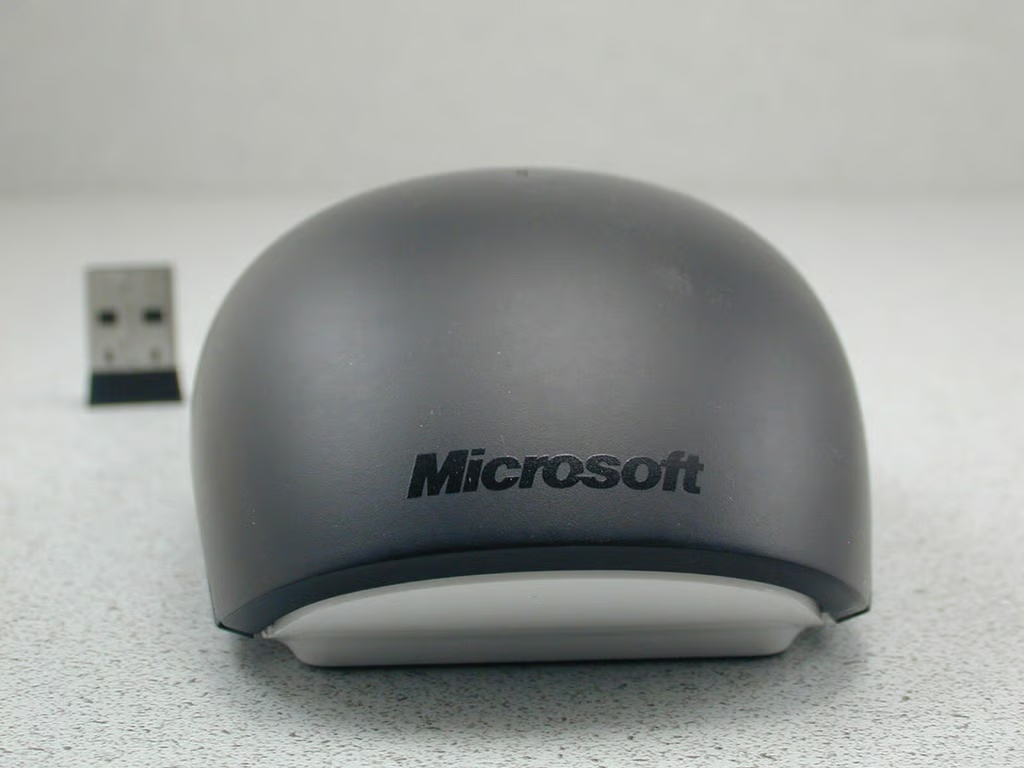
\n\tOf course, the back of the mouse has the Microsoft logo on it.
\n
\n\tImage created by Greg Shultz for TechRepublic, all rights reserved.
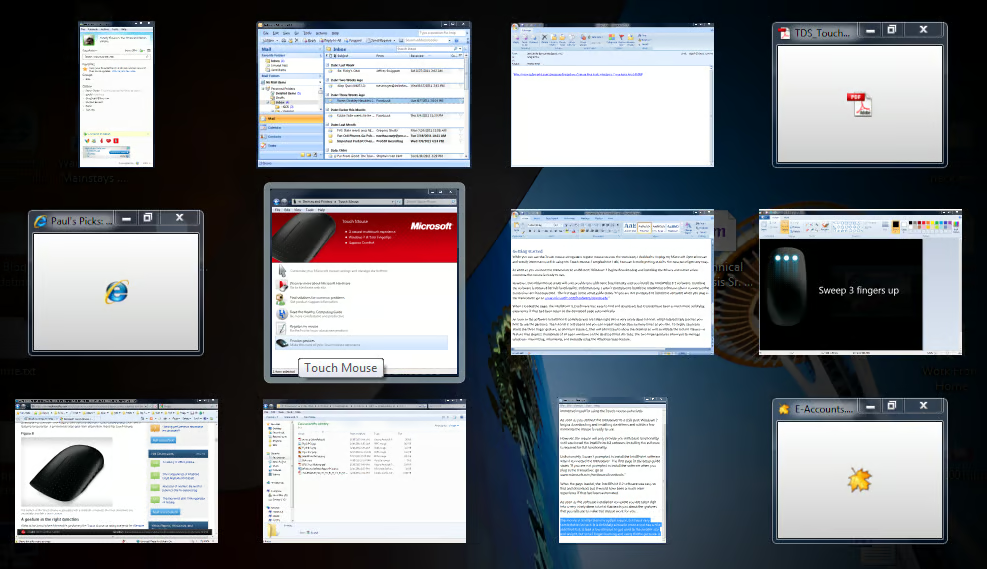
\n\tThe Instant Viewer displays all open windows as thumbnails.

My first computer was a Kaypro 16 \"luggable\" running MS-DOS 2.11 which I obtained while studying computer science in 1986. After two years, I discovered that I had a knack for writing documentation and shifted my focus over to technical writing.


