No matter how well designed an operating system purports to be, there are ways to tweak it for performance. Here are 10 tweaks, tricks, and hacks you can apply to Microsoft Windows Vista to make it run like a champion and perform to your particular specifications.
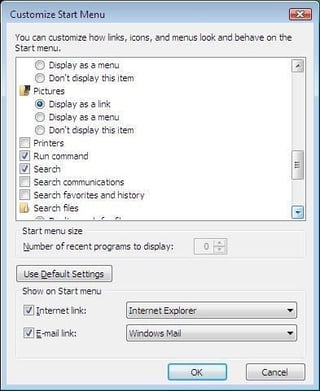
Beginning way back with the release of Windows 1.0, Microsoft has been all about the GUI interface (more or less effectively). But sometimes you just want to run aprogram without having to navigate the GUI maze of menus and folders. Windows Vista, by default, does not include the Run command on the Start Menu. This wasa common and favorite feature of Windows XP.
To addthe Run command back to the Vista Start Menu, follow these steps:
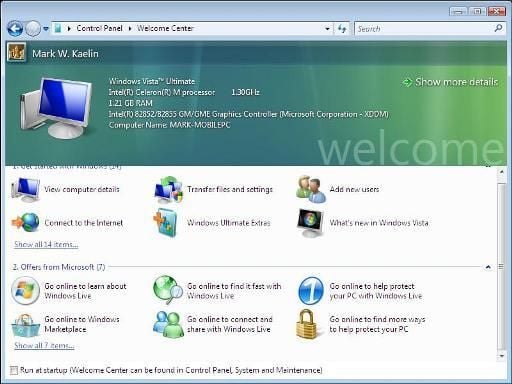
The Windows Vista default setting is to show the Welcome Center on startup. While the Welcome Center is mildly interesting the first time you see it, you will quickly tire of it appearing every time you boot your Vista PC. This behavior is easily changed by unchecking the Run a Startup button located at the bottom of the Welcome Center.
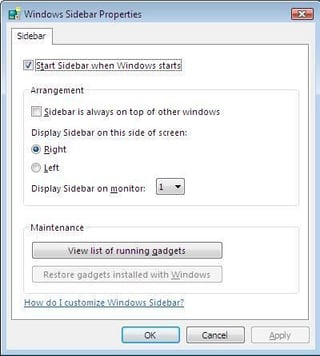
Similarly, the Vista Sidebar is also on by default. While some users will find the Sidebar and its widgets useful, many will desire the desktop real estate and underlying resources for other more productive uses. You can turn the Sidebar off by:
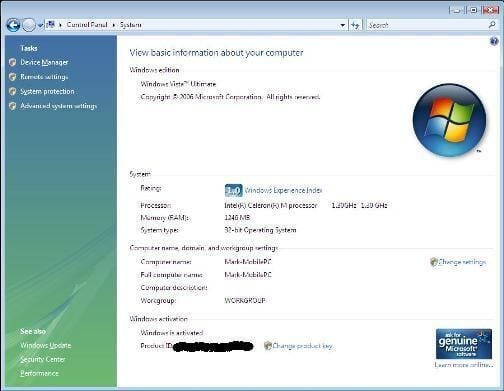
A Windows Vista installation disk essentially has all of the various editions of Vista included on that one disk. Which version gets installed is dependent onwhat product key you enter during the installation process. At some point you may want to upgrade your current version to a version with more bells and whistles, which would require a new Product Key.
Or you may want to Activate your Windows Vista under a different Product Key for some reason. The easiest way to change your Product Key is through the System applet in the Control Panel.
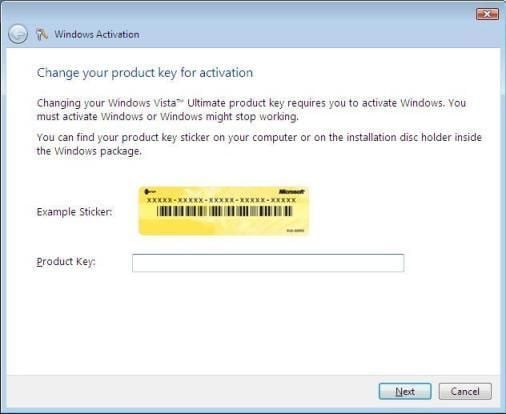
Underthe Windows Activation section there is a link: Change Product Key. Clicking that link brings up the screen shown in where you can enter in a different Product Key.
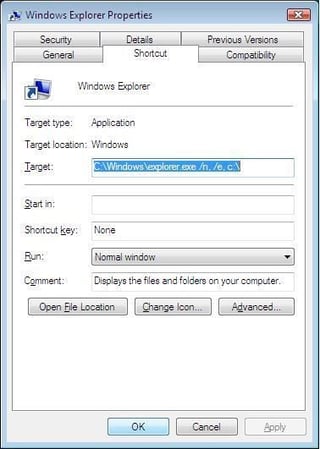
While Windows Vista has desktop search that will theoretically allow you the optionof merely typing in a location on your hard disk to get an Explorer view, some users will undoubtedly prefer to use Windows Explorer. By default, Windows Explorer in Vista shows you the files located in the user Documents folder. Follow these steps to have Windows Explorer start in a different folder:
For example, to have Windows Explorer start at C:\\ type:
C:\\Windows\\explorer.exe /n, /e, c:\\
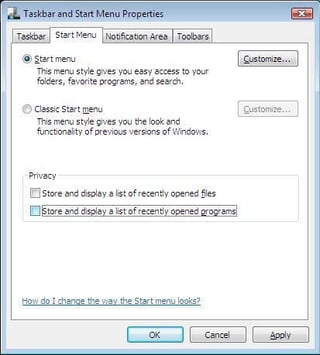
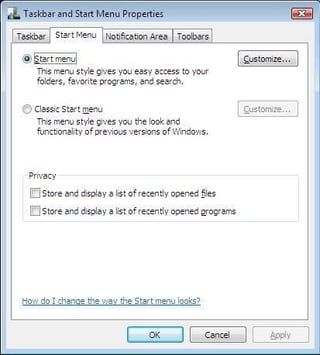
As a convenience, Windows Vista by default saves and displays a list of recently opened files and programs on the Start Menu. Ostensibly, this is supposed to make it easier to find a file or program. However, many users would prefer that information to remain hidden. Here is how to turn it off:
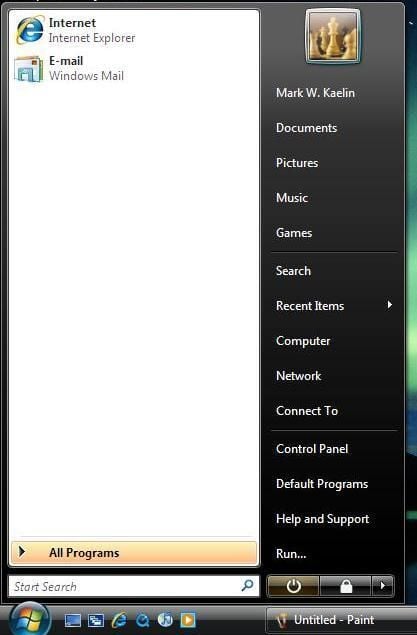
The icons located on the Windows Vista Start Menu default to large.
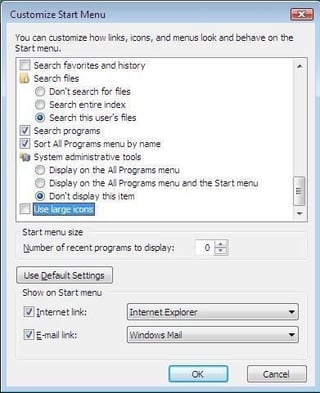
For many users, the personal preference will be for those icons to be much smaller. Here is how:
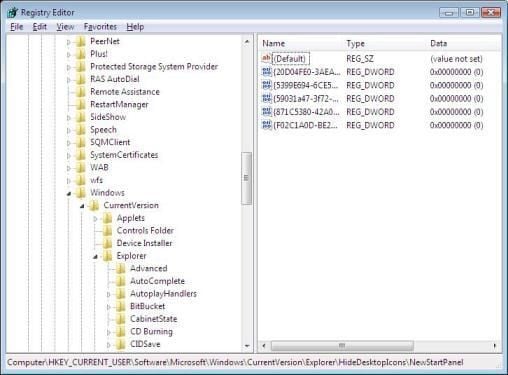
For some reason known only to the Windows Vista development team, there is no easy option to add the Windows Explorer icon to the Vista Desktop. You can add Computer, Recycle Bin, and the Control Panel — perhaps someone can explain that to us. In the meantime, if you want to add Internet Explorer you can do it with a Registry hack. Before editing the Windows Registry it is always advisable to make a backup of the Registry file.
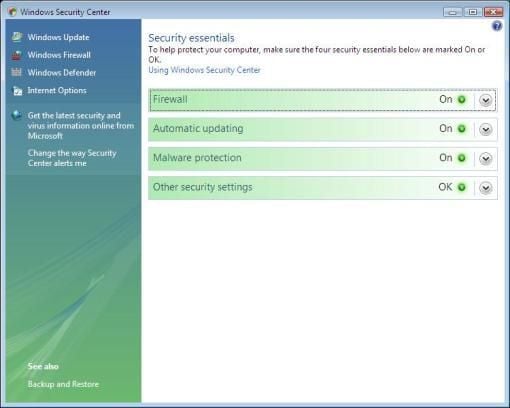
One of the most often leveled criticisms of Windows has been its lack of security. To overcome that perception Microsoft had programmed Vista to complain loudly and often if it discovers your malware, firewall or virus protection software is off or requires maintenance. For many users, the constant badgering to update your virus definitions is more annoying then effective. To calm Vista down a bit you can change the way you are notified of potential lax security.
Open the control panel and click the Windows Security Center as shown.
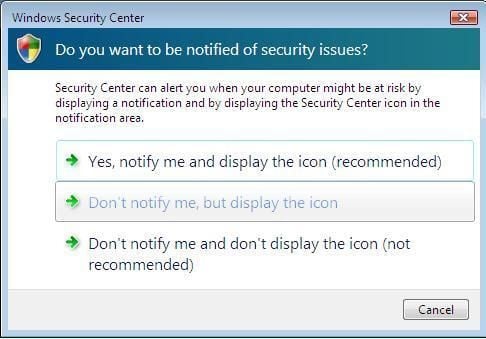
Click the link Change the way Security Center alerts me to reach the dialog box shown.
Choose you preference for notification.
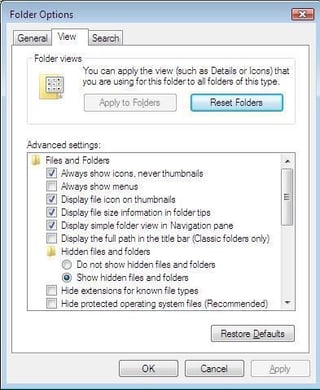
One of the first things experienced users change when they get a new Windows computer is change the Folder View options to a preferred setting. Windows Vista is no exception to this rule.
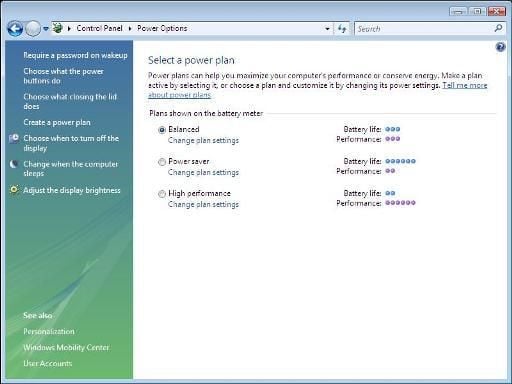
By default, Windows Vista sets the power options to what it calls a “Balanced” plan. While for many users this plan will be adequate, there are many who will want to make adjustments. For laptop users specifically, settings can vary greatly when operating on battery power versus plugged into an outlet.
To adjust power settings:Open the Control Panel and then click the Power Options icon.
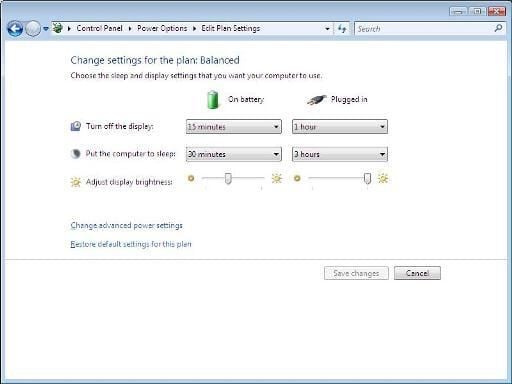
Click on the Change Plan Settings under one of the default plans to make changes.
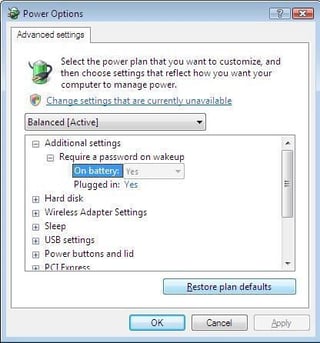
For additional fine tuning click Change advanced power settings.
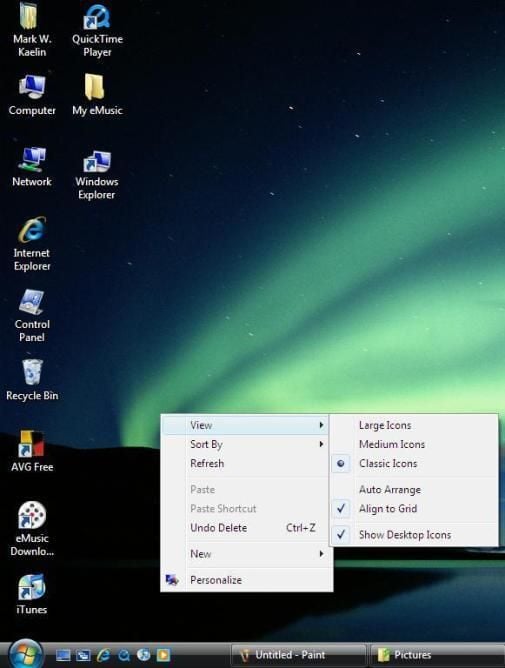
By default, the Windows Vista Aero GUI uses what it classifies as “Medium” icons on the Desktop. Medium in this case is really quite large. (There is also a Large icon setting, but we won’t go there.) To bring the icons back to a less eye-popping size:
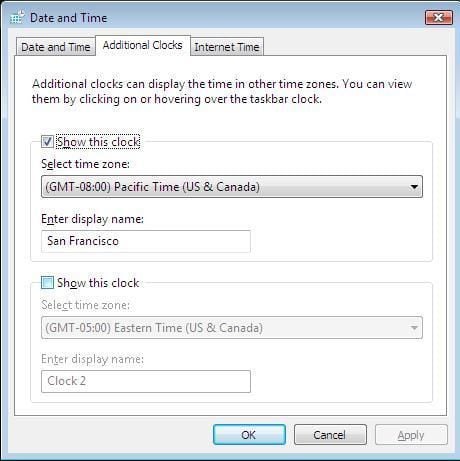
For many of us working away from home offices at satellite offices, home or on the road, knowing the time across various time zones can be a necessary evil. Windows Vista will allow you to keep time in two additional time zones to the machine time.

Mark W. Kaelin has been writing and editing stories about the information technology industry, software, hardware, gaming, finance, accounting, and technology geekdom for more than 30 years.


