VMware released a free player that allows you to run virtual machines created by VMware Workstation, GSX, and ESX Server as well as Microsoft virtual machines and Symantec LiveState Recovery disk formats. You can download the free VMware Player and a pre-built Browser Appliance loaded with Ubuntu and Firefox. Steven Warren walks you through the VMware Player installation and use with these screenshots. You can read more about Steven’s experience with VMware Player in his The Hot Button blog.
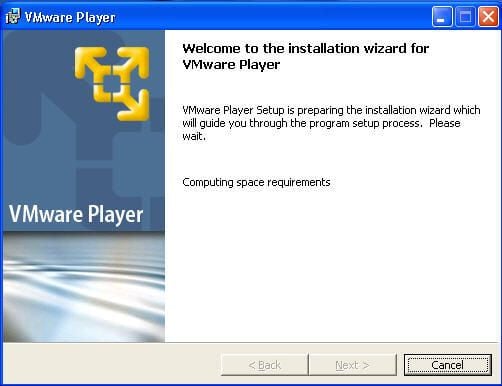
According to the VMware Player Manual, you’ll need at least 1GB free disk space for each guest operating system. VMware Player only requires about 150MB.
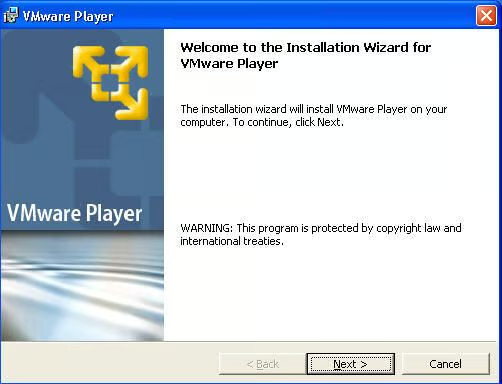
VMware Player uses a standard installation wizard most IT pros should be familiar with.
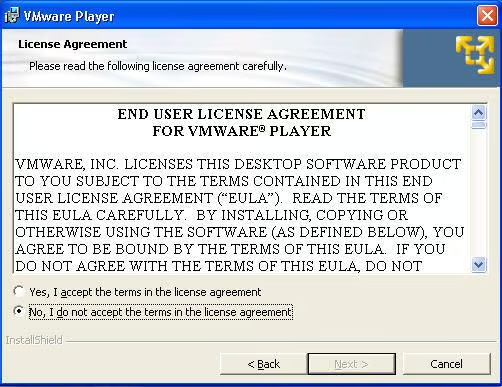
You can read the complete End User License Agreement (EULA) on VMware’s Web site.
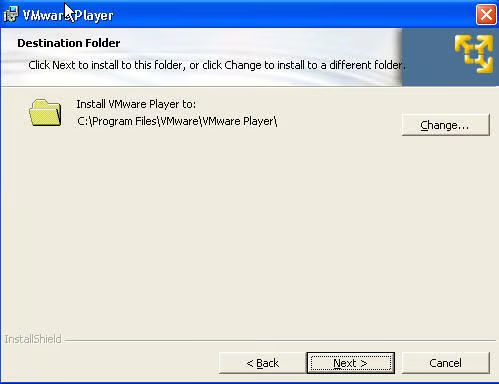
As with most applications you can change the install folder.
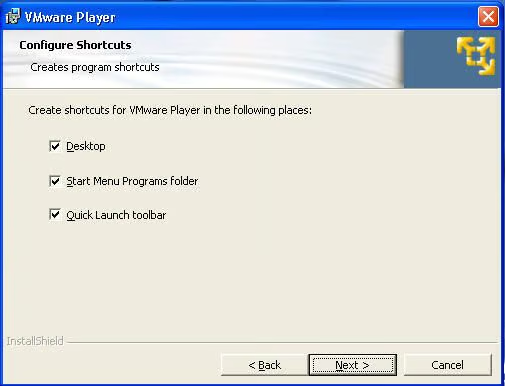
VMware Player offers the standard Desktop, Start menum and Quick Launch shortcuts.
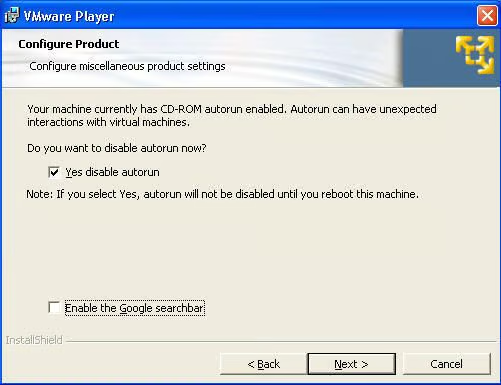
If enabled on your machine, CD-ROM autorun will be disabled during VMware Player’s installation.
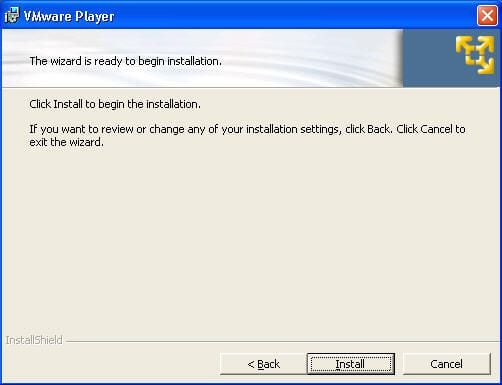
With the installation configuration finished, you’re ready to start the installing VMware Player.
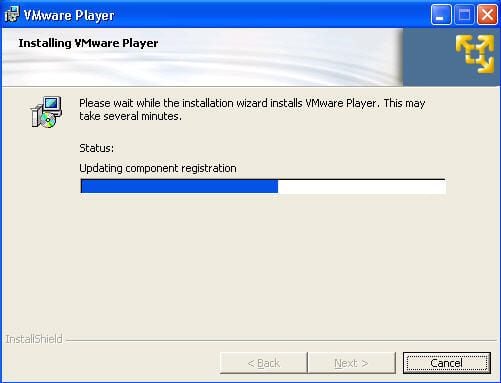
You’ll be able to track the installation’s progress.
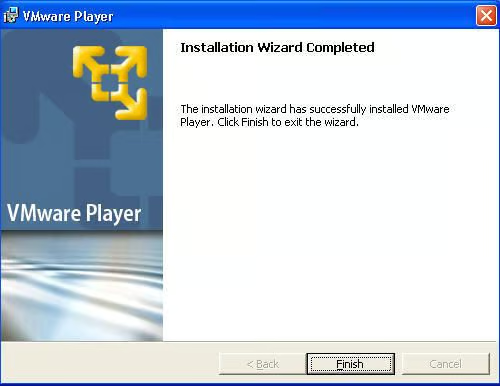
Click Finish and you’re ready to begin.

VMware Player’s Windows Desktop icon
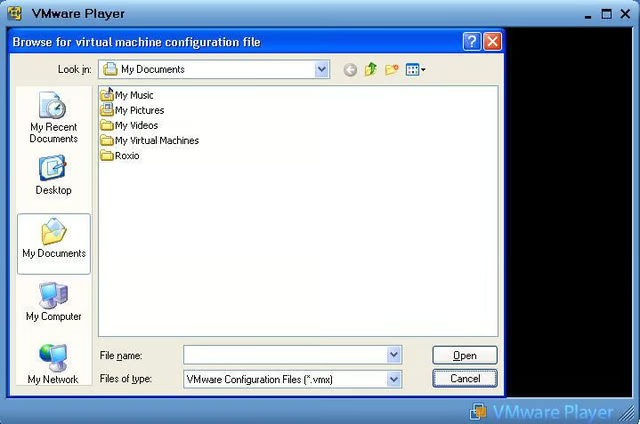
Once you start the VMWare Player you can choose a virtual machine configuration file.
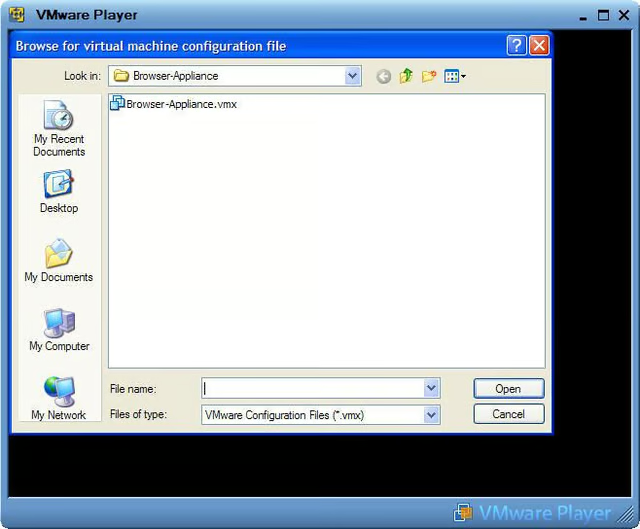
Once you have installed VMware Player and have downloaded the free Browser Appliance, you simply run VMware player and attach the .vmx image of the browser appliance as shown here.
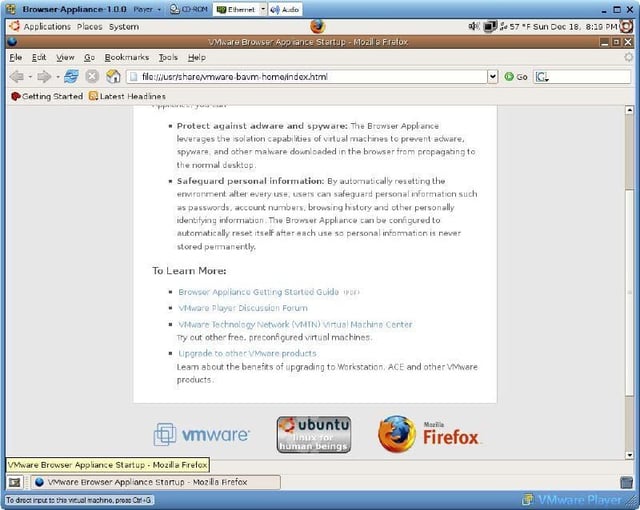
Once you choose the appropriate configuration file, your virtual machine (vm) will load. In this screenshot, I’m loading Ubuntu Linux.
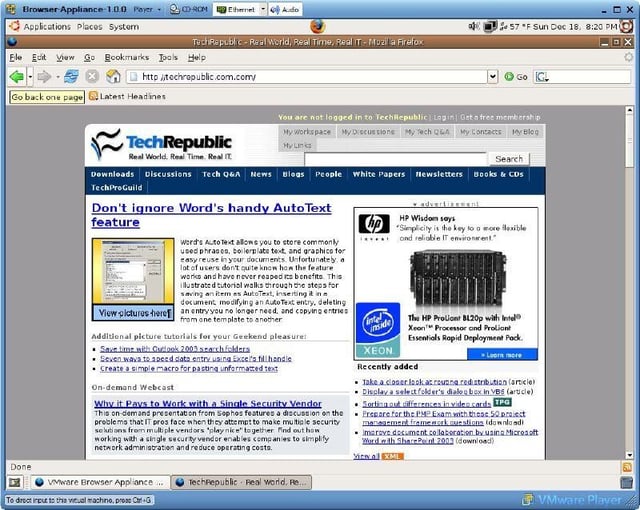
Here I’m using the Browser Appliance to access TechRepublic.
Bill Detwiler is the Editor for Technical Content and Ecosystem at Celonis. He is the former Editor in Chief of TechRepublic and previous host of TechRepublic's Dynamic Developer podcast and Cracking Open, CNET and TechRepublic's popular online show. Previously, Bill was an IT manager in the social research and energy industries. He has bachelor's and master's degrees from the University of Louisville, where he has also lectured on computer crime and crime prevention.


