Windows 7’s Control Panel is literally packed with tools (a.k.a. applets) that allow you to configure and control the way that the operating system works. Because the Control Panel has so many tools, Microsoft added a Search box to make it easy for you to find the tool that you need for a particular task.
To help you become familiar with all of the tools that are available in Windows 7’s Control Panel, I have created the Windows 7 Walkthrough series in which I’ll show you and provide a brief overview of each tool in the Control Panel categories. This is the last one in the series and covers the tools in the Ease of Access category.
Keep in mind that I’ll be using the Ultimate edition of Windows 7, which contains some features not available in other editions of the operating system.
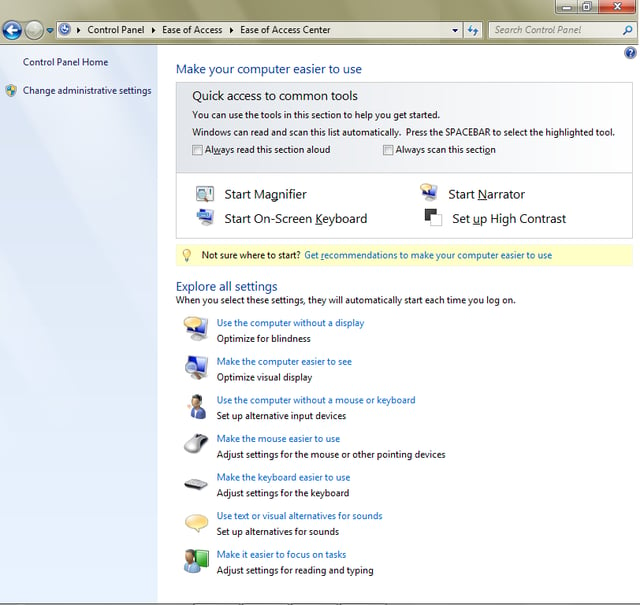
When you select the Ease of Access Center, you’ll find a host of tools that are designed to allow you to configure a Windows 7 system for use by an individual with vision, hearing, or mobility challenges. The Quick Access Section provides you with easy access to the most common tools while the Explore all settings section provides you with more individualized configurations settings.
Images by Greg Shultz for TechRepublic
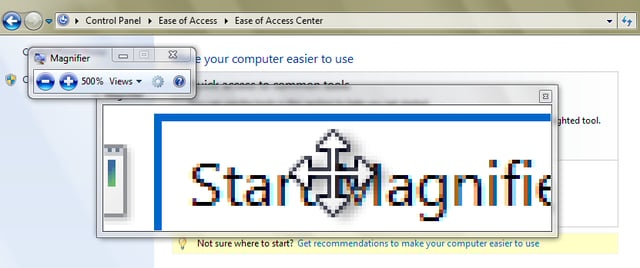
When you click Start Magnifier, you’ll immediately see the Magnifier window and configuration control dialog box, which allows you to zoom in or out and choose your view setting.
Images by Greg Shultz for TechRepublic?
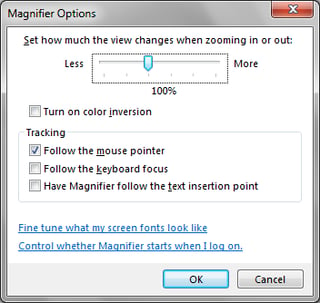
When you click the sprocket icon in configuration control dialog box, you’ll see the Magnifier Options dialog box, which provides you with more fine tuning controls.
Images by Greg Shultz for TechRepublic
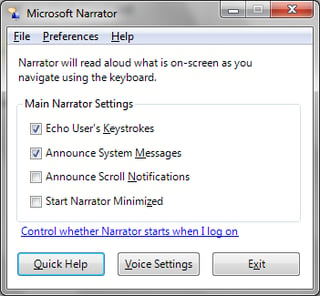
When you click Start Narrator, you will immediately hear the Narrator begin reading the text in the dialog box, and can use the controls here to adjust how the Narrator feature works.
Images by Greg Shultz for TechRepublic
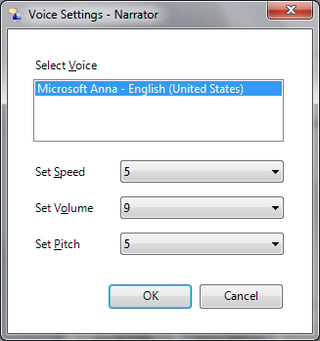
Clicking the Voice Settings button allows you to configure the speed volume, and pitch of the voice. If you have additional voices installed, you will be able to select them here too.
Images by Greg Shultz for TechRepublic
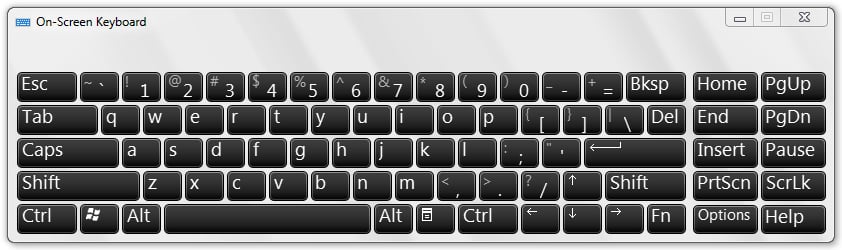
When you click Start On-Screen Keyboard, you’ll immediately see the keyboard.
Images by Greg Shultz for TechRepublic
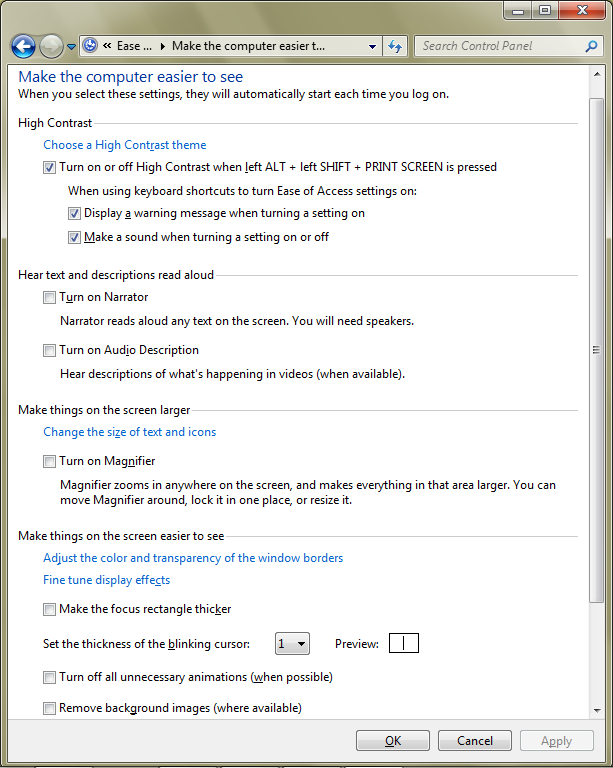
When you click Set Up High Contrast, you’ll encounter the Make the computer easier to see window, which in addition to changing the contrast setting, provides many options for adjusting the screen. (The Make the computer easier to see window is also available in the Explore all settings section.)
Images by Greg Shultz for TechRepublic?
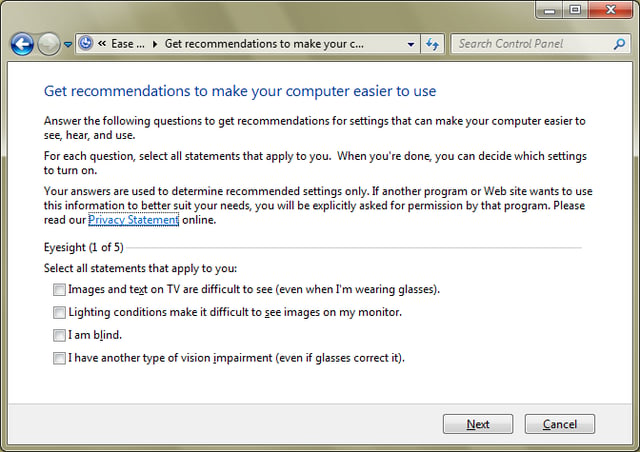
If you are unsure of how to proceed, you can click the Get recommendations to make the computer easier to use link and use the wizard to walk you through the steps of configuring the computer for accessibility.
Images by Greg Shultz for TechRepublic
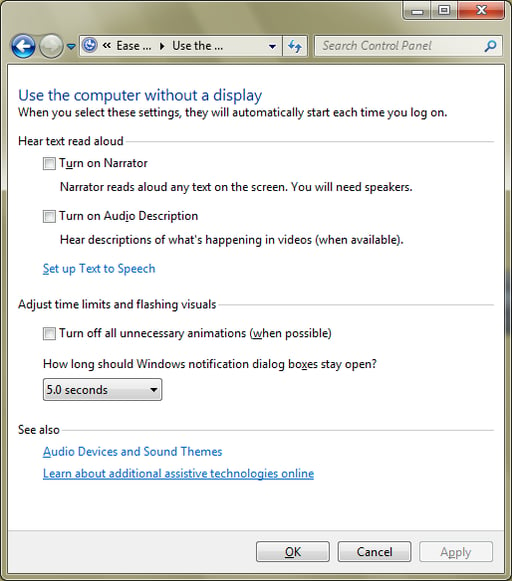
The options in the Use the computer without a display window allow you to tailor settings for blind users.
Images by Greg Shultz for TechRepublic
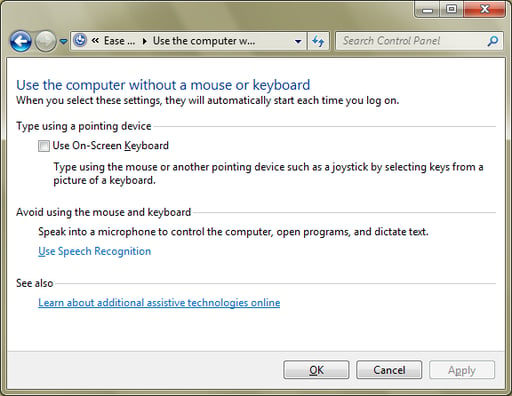
The options in the Use the computer without a mouse or keyboard window allow you configure alternative input devices.
Images by Greg Shultz for TechRepublic
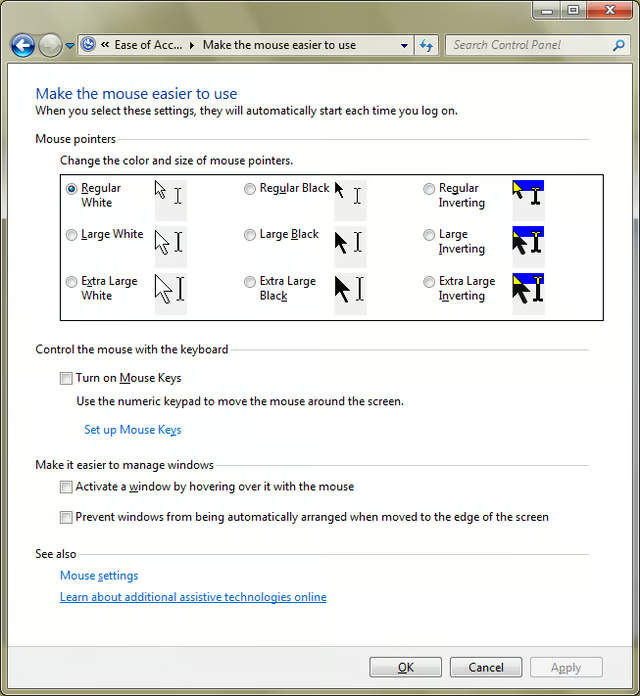
The options in the Make the mouse easier to use window allow you to adjust settings for the mouse and other pointing devices.
Images by Greg Shultz for TechRepublic
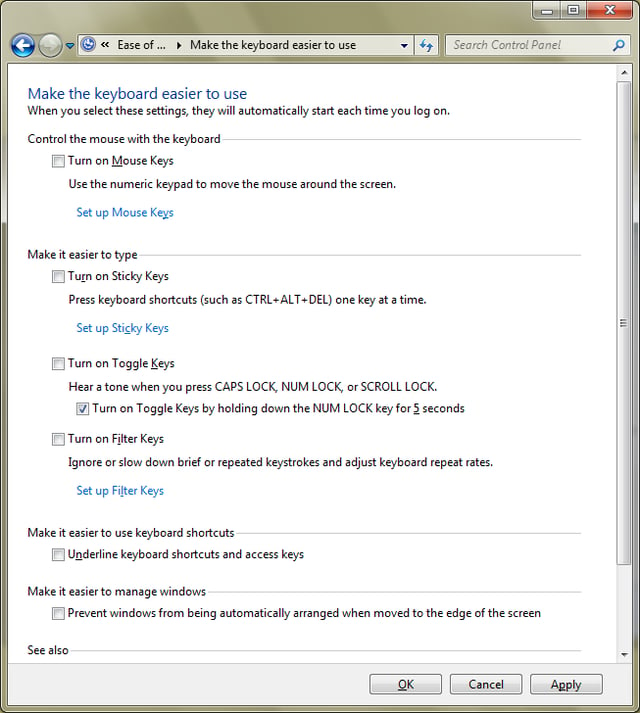
The options in the Make the keyboard easier to use window allow you to adjust settings for the keyboard.
Images by Greg Shultz for TechRepublic
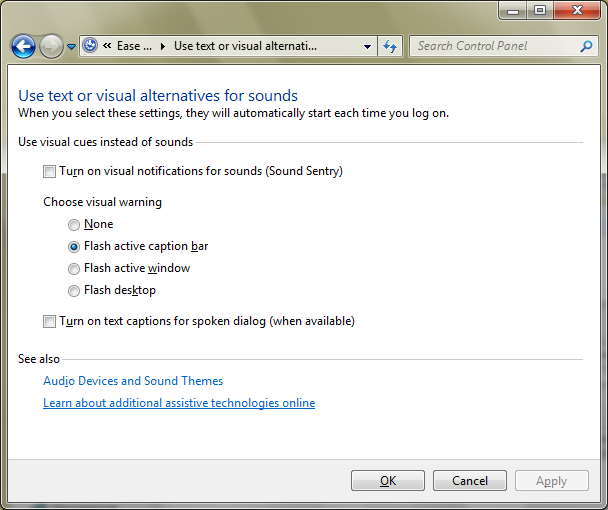
The options in the Use text or visual alternatives for sounds window allow you to configure visual cues as a substitute for system sounds.
Images by Greg Shultz for TechRepublic
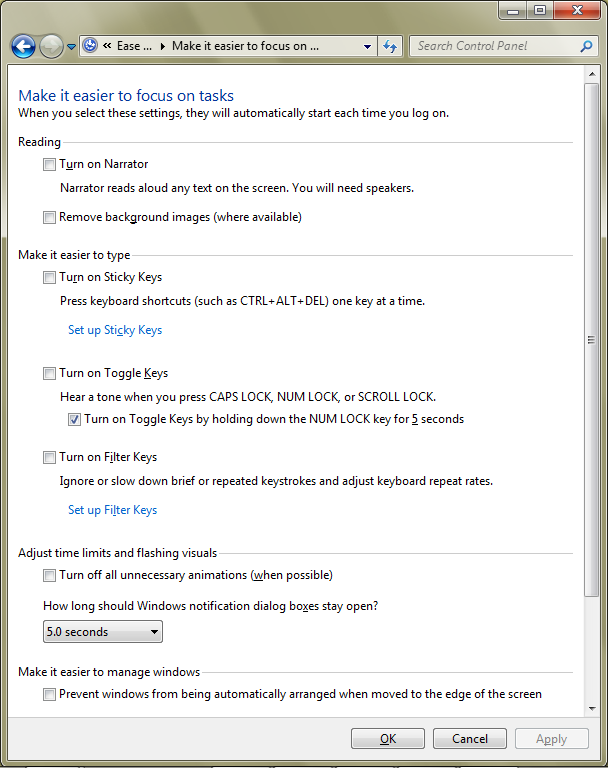
The Make it easier to focus on tasks window provides you with a host of settings that you can use to make it easier read, type and manage open windows.
Images by Greg Shultz for TechRepublic
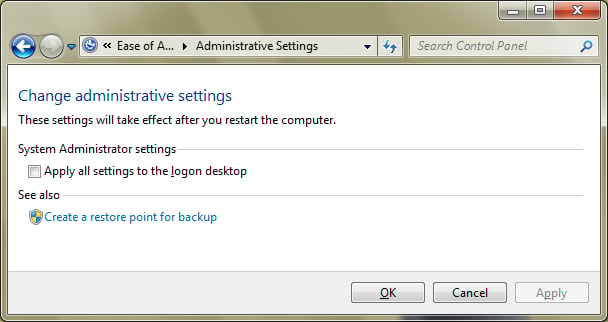
In order to use any accessibility features that you normally use, like Narrator or Magnifier, to help you log on to Windows, select Change administrative settings.
Images by Greg Shultz for TechRepublic
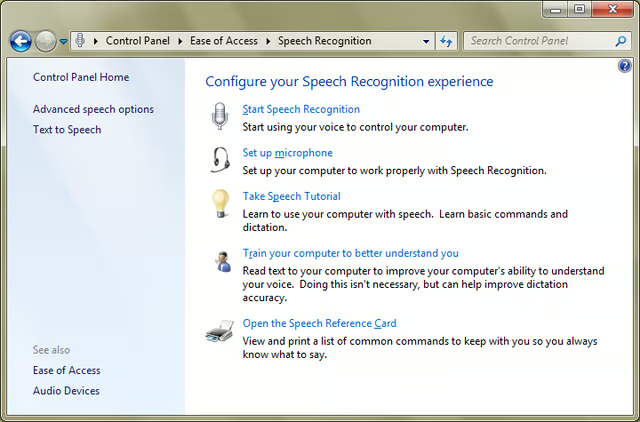
When you select Speech Recognition you’ll find a host of tools that are designed to allow you to configure how speech recognition works in Windows 7.
Images by Greg Shultz for TechRepublic
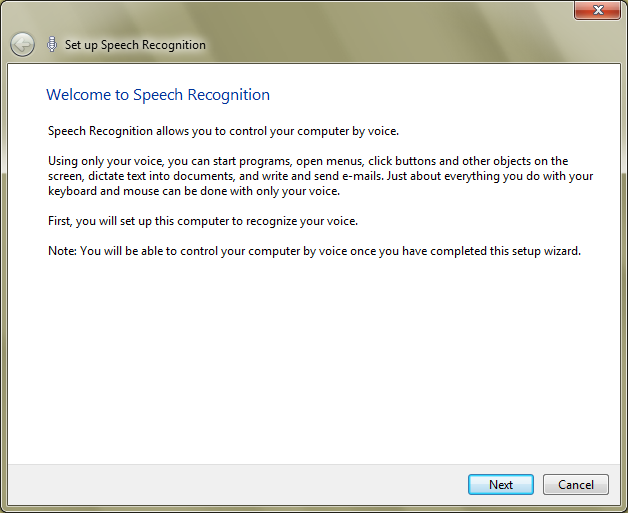
You’ll use this wizard to walk you through the process of configuring your system to use Speech Recognition.
Images by Greg Shultz for TechRepublic?
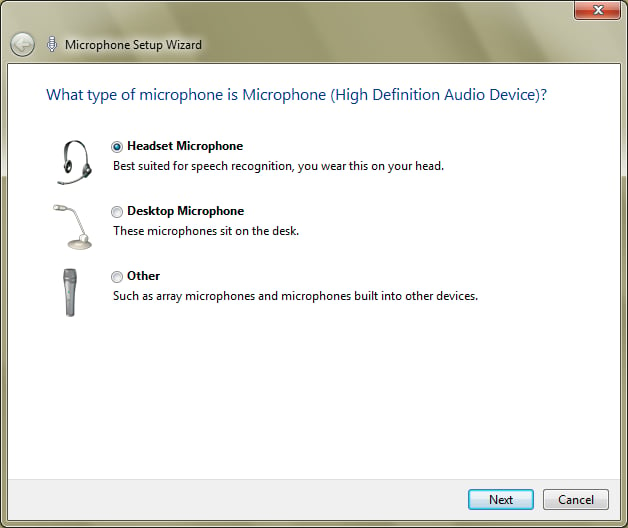
You’ll use the Microphone Setup Wizard to walk you through the process of configuring a microphone.
Images by Greg Shultz for TechRepublic
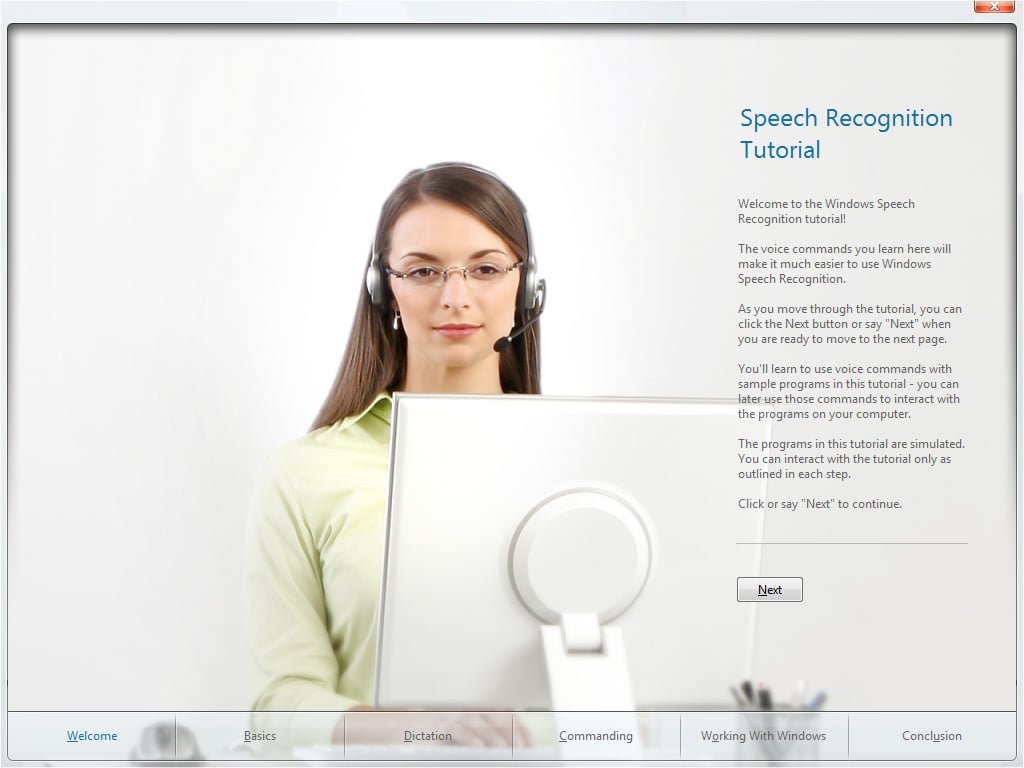
Before you begin to use Speech Recognition feature in Windows 7, it is advisable that you work through the Speech Recognition Tutorial.
Images by Greg Shultz for TechRepublic
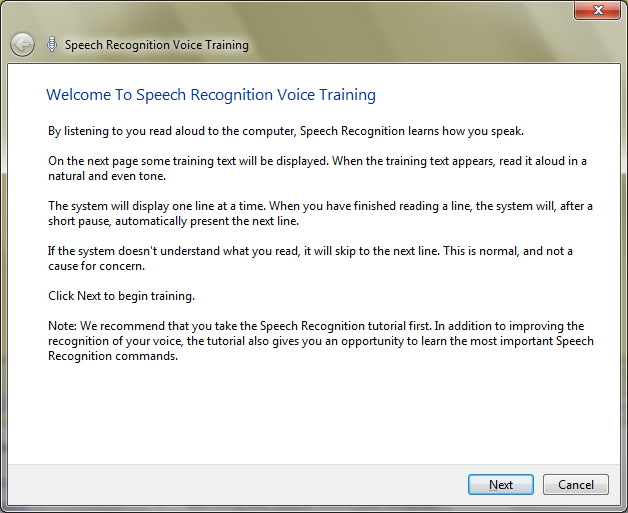
You use the Speech Recognition Voice Training wizard to read text to your computer in order to improve the computer’s ability to understand your voice.
Images by Greg Shultz for TechRepublic
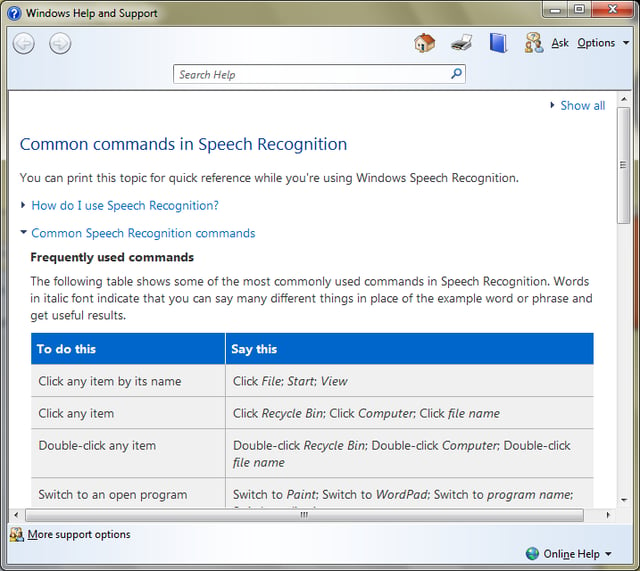
When you select Open the Speech Reference Card, you’ll access a Help screen that contains a list of commonly used commands as well as other information to help you with the Speech Recognition feature.
Images by Greg Shultz for TechRepublic
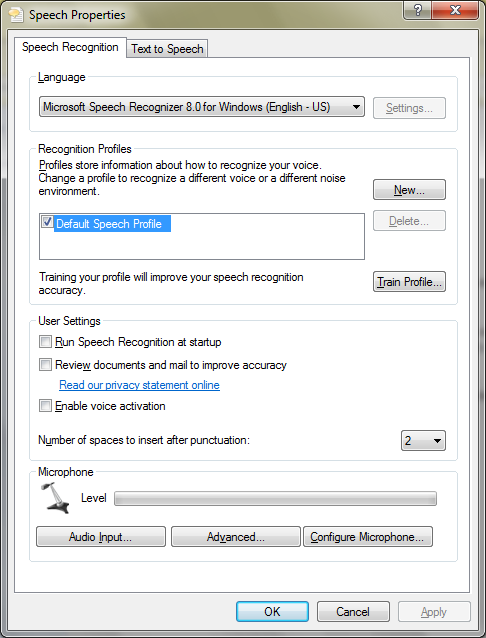
The Speech Recognition tab of the Speech Properties dialog box provides you with several advanced configuration settings for adjusting speech recognition.
Images by Greg Shultz for TechRepublic
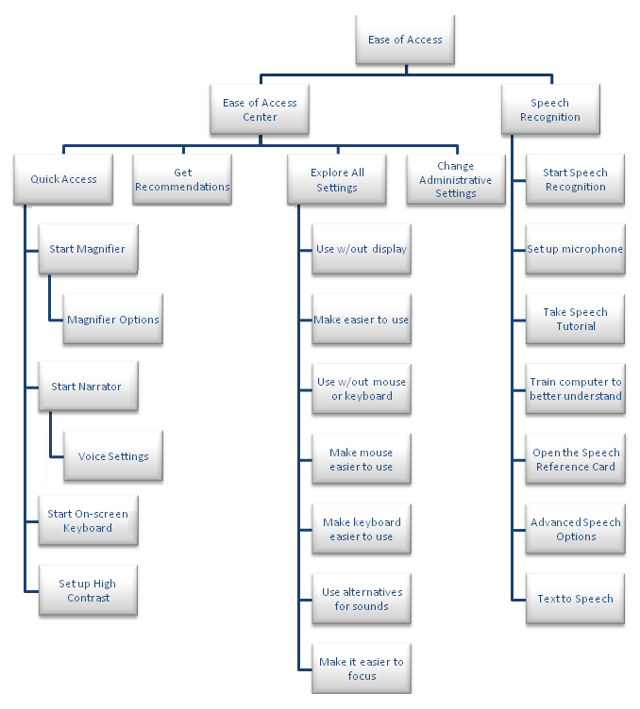
This tree diagram presents a map of the Ease of Access walkthrough.
Images by Greg Shultz for TechRepublic

My first computer was a Kaypro 16 \"luggable\" running MS-DOS 2.11 which I obtained while studying computer science in 1986. After two years, I discovered that I had a knack for writing documentation and shifted my focus over to technical writing.


