Windows 7’s Control Panel is literally packed with tools (a.k.a. applets) that allow you to configure and control the way that the operating system works. Because the Control Panel has so many tools, Microsoft added a Search box to make it easy for you to find the tool that you need for a particular task.
To help you become familiar with all of the tools that are available in Windows 7’s Control Panel, I have created the Windows 7 Walkthrough series in which I’ll show you and provide a brief overview of each tool in the Control Panel categories. This one covers the tools in the Network and Internet Control Panel category.
Keep in mind that I’ll be using the Ultimate edition of Windows 7, which contains some features not available in other editions of the operating system.
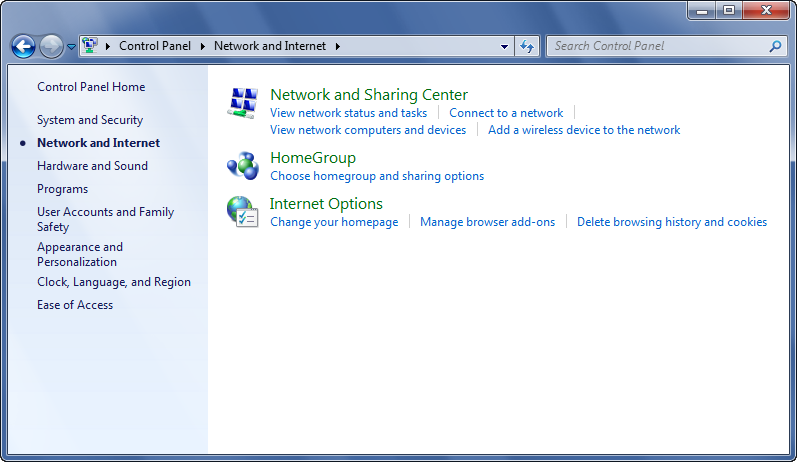
When you open the Network and Internet category you’ll see that there are 3 tools in this category.
Images by Greg Shultz for TechRepublic
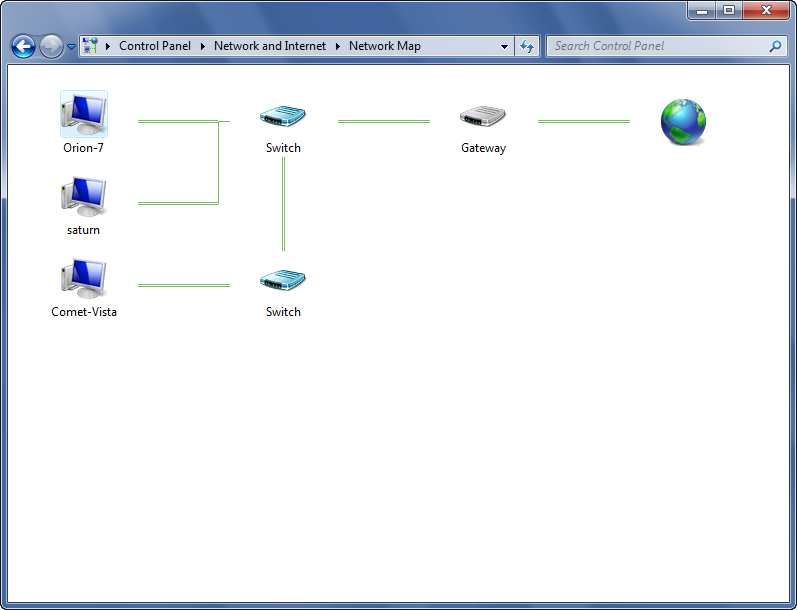
When you click See full map, you’ll see a map of your network, which is a graphical view of the computers and devices on your network that shows how they’re connected.
Images by Greg Shultz for TechRepublic
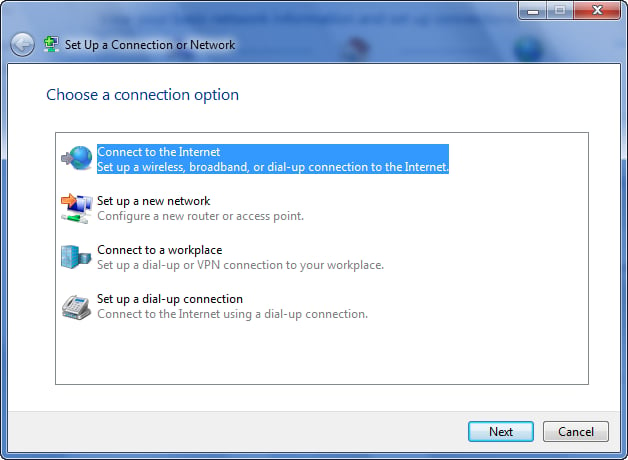
When you select Set up a new connection or network, you’ll access the Set Up a Connection or Network wizard where you can configure different types of network connections.
Images by Greg Shultz for TechRepublic
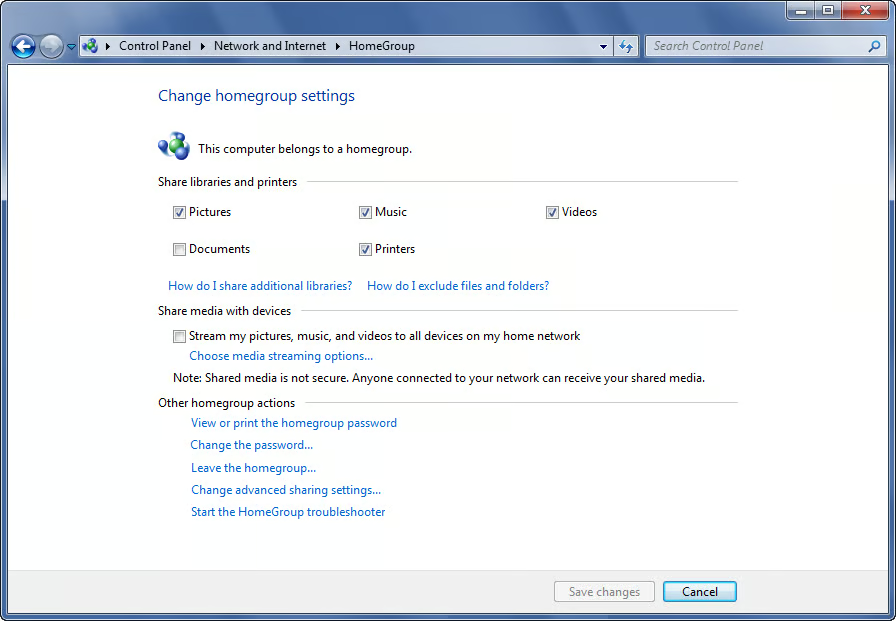
When you select Choose HomeGroup and sharing options, you’ll see the Change HomeGroup settings window. This is the same window that the HomeGroup tool in the main Network and Internet window opens.
Images by Greg Shultz for TechRepublic
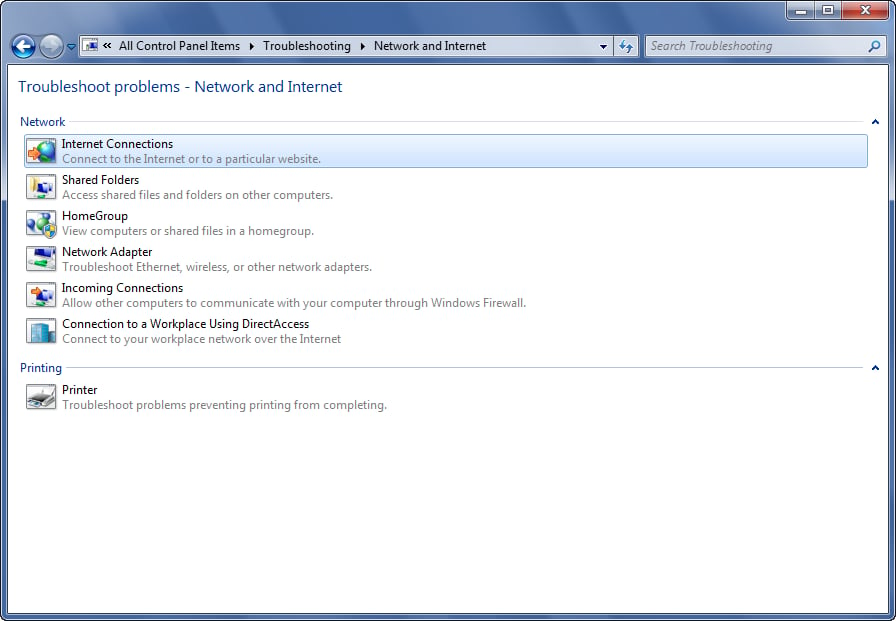
When you select Troubleshoot problems, you’ll access the Network and Internet Troubleshooter, which is a part of Windows 7’s new Troubleshooting Platform, and is designed to help you solve a variety of networking problems.
Images by Greg Shultz for TechRepublic
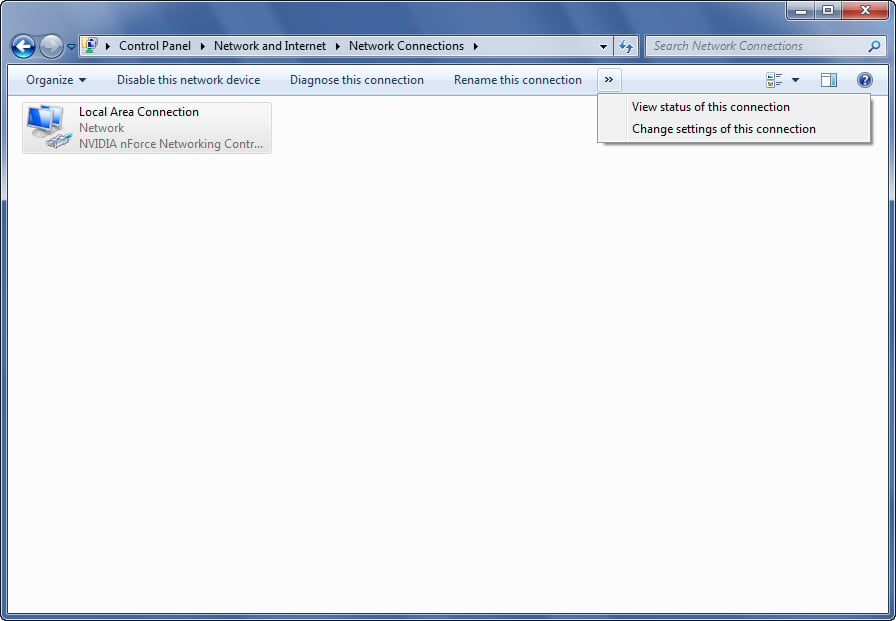
When you select Change Adapter Settings, you’ll see the Network Connections window, which displays the adapters in your system. You can select any of the options on the toolbar or double click on any adapter to see its status.
Images by Greg Shultz for TechRepublic
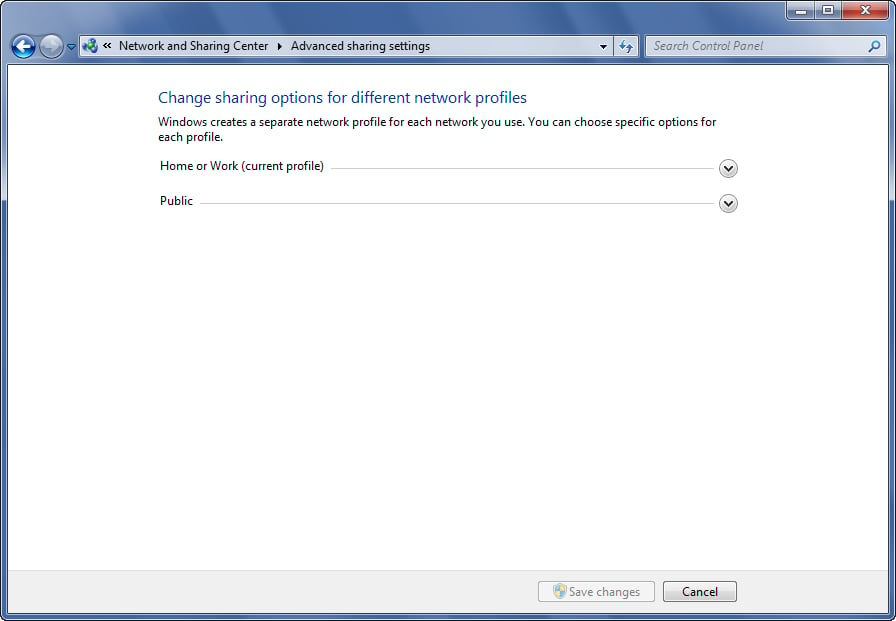
When you select Change Advanced Sharing Settings, you can change the sharing options for the different network profiles that you have set up. As you can see, in this example, there are two profiles: one for Home or Work and one for Public.
Images by Greg Shultz for TechRepublic
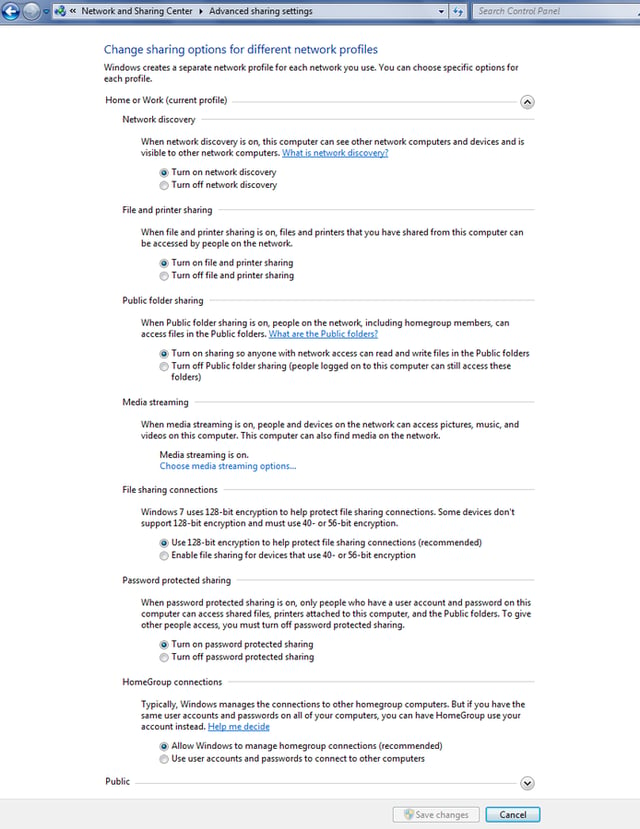
If you open the Home or Work profile, you’ll find a whole range of settings that will allow you to control and configure how and what your system shares on this network. The Public profile has similar settings.
Images by Greg Shultz for TechRepublic
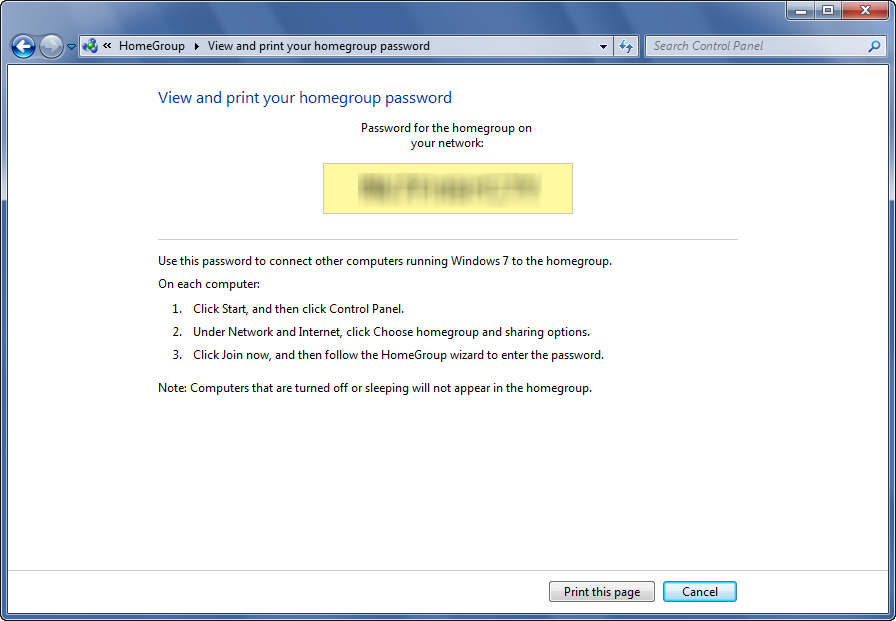
When you create a HomeGroup, it is protected by a password that other Windows 7 computers will use to join the HomeGroup. From this window, you will be able to view and print the HomeGroup password.
Images by Greg Shultz for TechRepublic
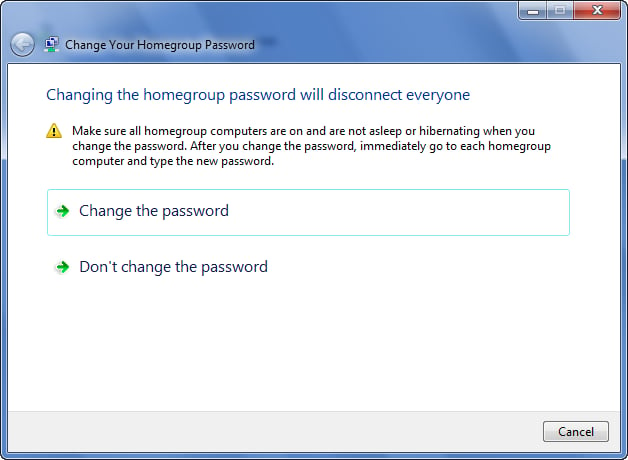
You can change the HomeGroup password if you so desire.
Images by Greg Shultz for TechRepublic
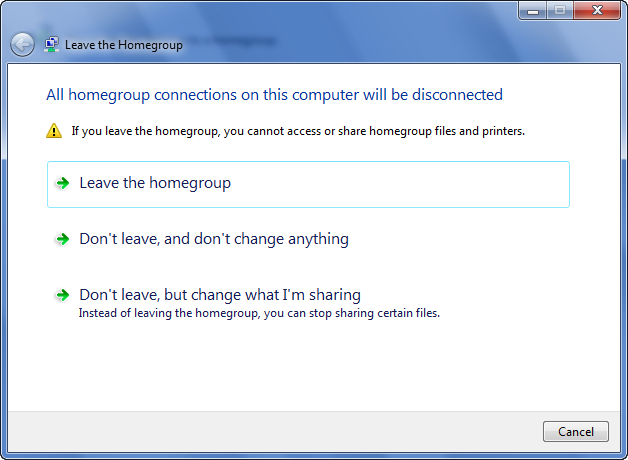
If you decide that you no longer want to belong to a HomeGroup, you can leave it. After you leave a HomeGroup, you will no longer be able to access files and printers in that HomeGroup.
Images by Greg Shultz for TechRepublic
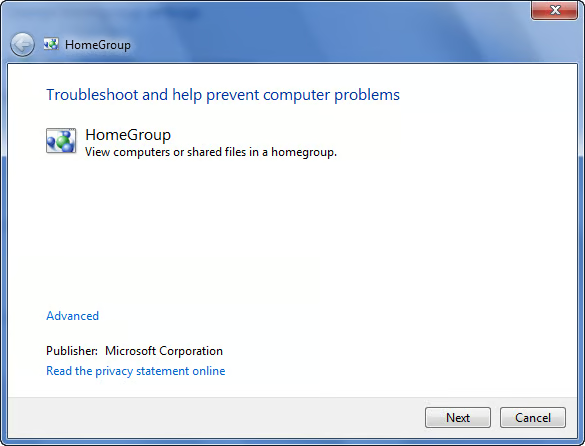
If you encounter a problem with your HomeGroup, you can launch and use the HomeGroup Troubleshooter to diagnose the problem.
Images by Greg Shultz for TechRepublic
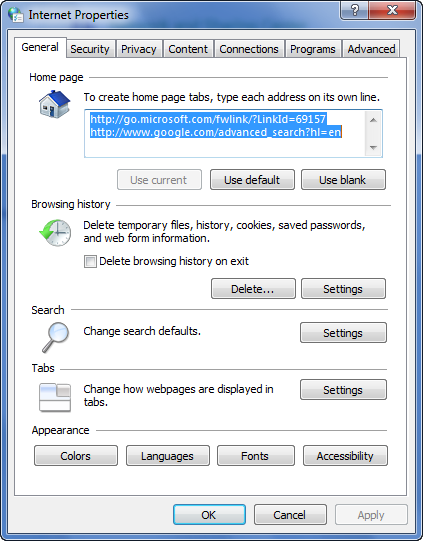
Back in the Network and Internet window, you can access the Internet Options dialog box, which works just like the one in Windows XP and Windows Vista.
Images by Greg Shultz for TechRepublic
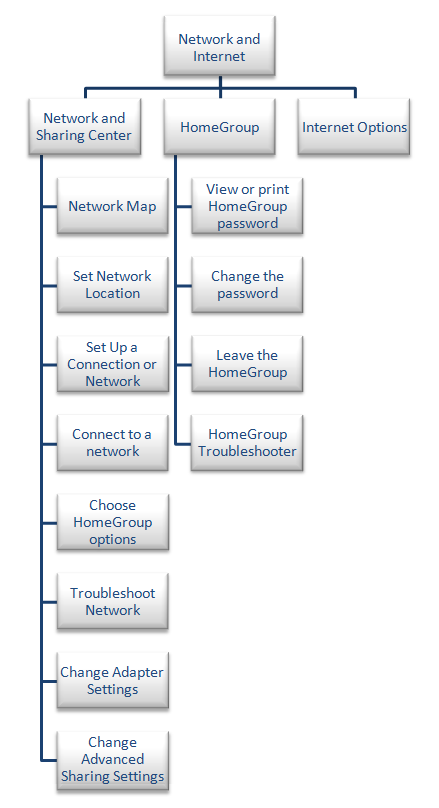
This tree diagram presents a map of the Network and Internet walkthrough.
Images by Greg Shultz for TechRepublic

My first computer was a Kaypro 16 \"luggable\" running MS-DOS 2.11 which I obtained while studying computer science in 1986. After two years, I discovered that I had a knack for writing documentation and shifted my focus over to technical writing.


