Windows 7’s Control Panel is literally packed with tools (a.k.a. applets) that allow you to configure and control the way that the operating system works. Because the Control Panel has so many tools, Microsoft added a Search box to make it easy for you to find the tool that you need for a particular task.
To help you become familiar with all of the tools that are available in Windows 7’s Control Panel, I have created the Windows 7 Walkthrough series in which I’ll show you and provide a brief overview of each tool in the Control Panel categories. The first one covers the tools in the System and Security Control Panel category.
Keep in mind that I’ll be using the Ultimate edition of Windows 7, which contains some features not available in other editions of the operating system.
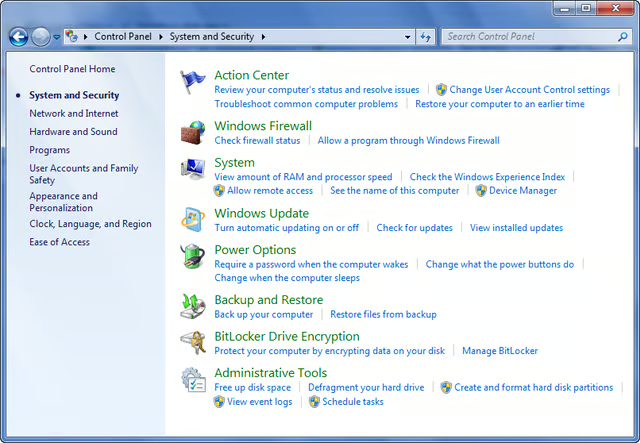
When you open the System and Security category you’ll see that there are 8 tools in this category.
Images by Greg Shultz for TechRepublic
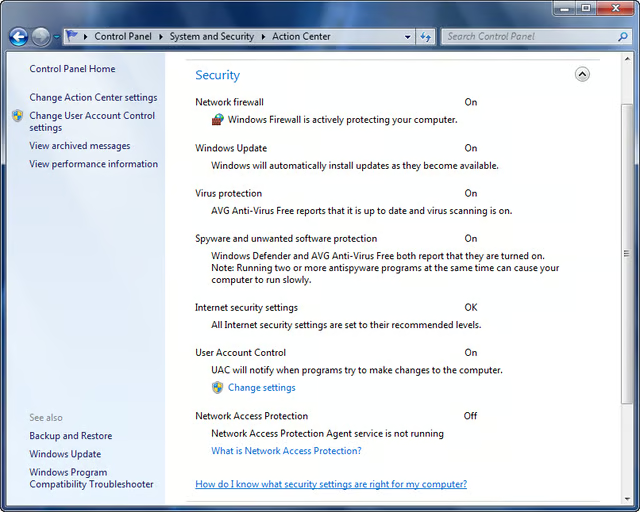
The Security section contains status information about the Firewall, Windows Update, Virus protection, Spyware protection, Internet Security Settings, User Account Control, and Network Access Protection (NAP).
Images by Greg Shultz for TechRepublic
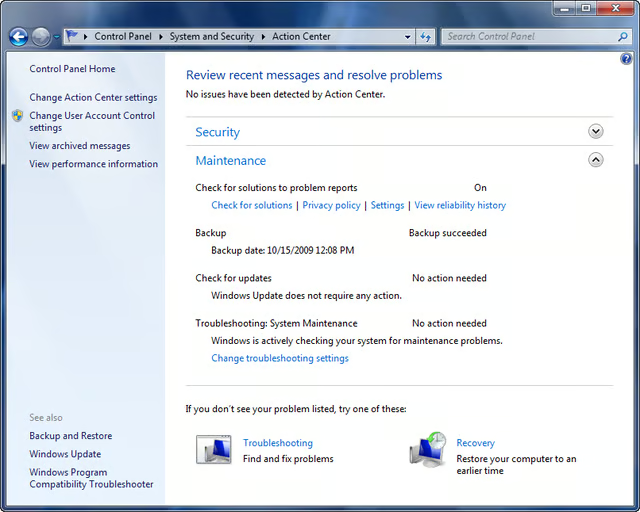
The Maintenance section contains status information about problems reports, Windows Backup, Windows Update and the Troubleshooting features.
Images by Greg Shultz for TechRepublic
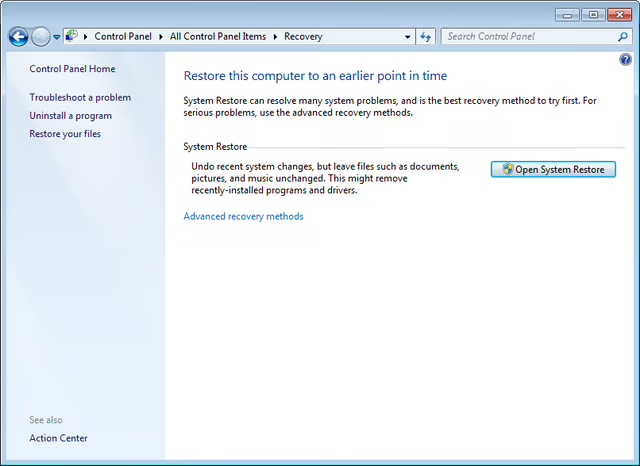
From within the Action Center, you can access the System Restore feature. Click the Open System Restore button to launch the System Restore wizard.
Images by Greg Shultz for TechRepublic
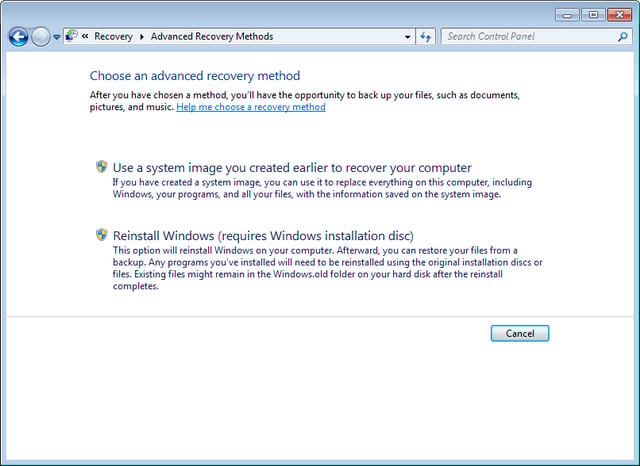
From within the Recovery window, you can access Advanced Recovery Methods, which allows you to either use a disk image to restore your system or to the reinstall Windows.
Images by Greg Shultz for TechRepublic
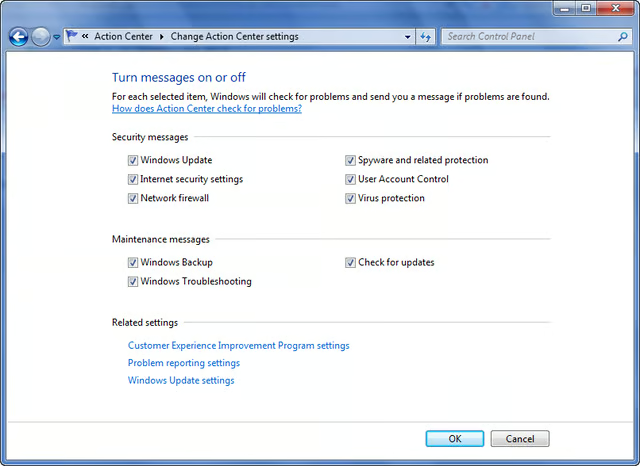
Back in the Action Center, you can access the Change Action Center Settings and you can turn messages on or off and change how solutions to problems appear.
Images by Greg Shultz for TechRepublic
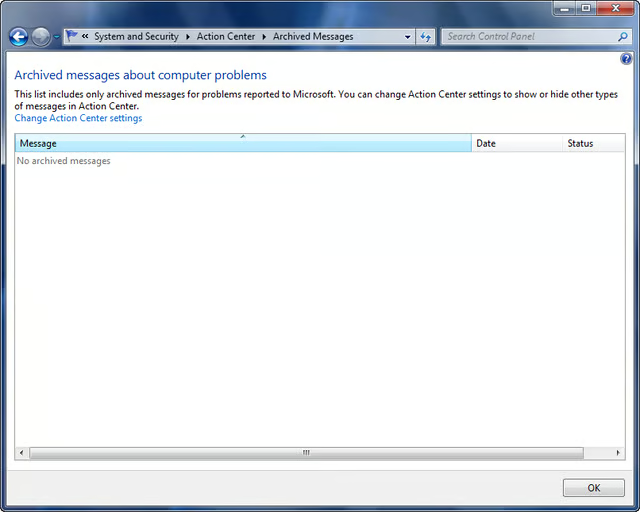
From within the Action Center, you can access the Archived Messages window. If you have used the problem reporting feature to report problems to Microsoft, those messages will appear in the Archive Messages window.
Images by Greg Shultz for TechRepublic
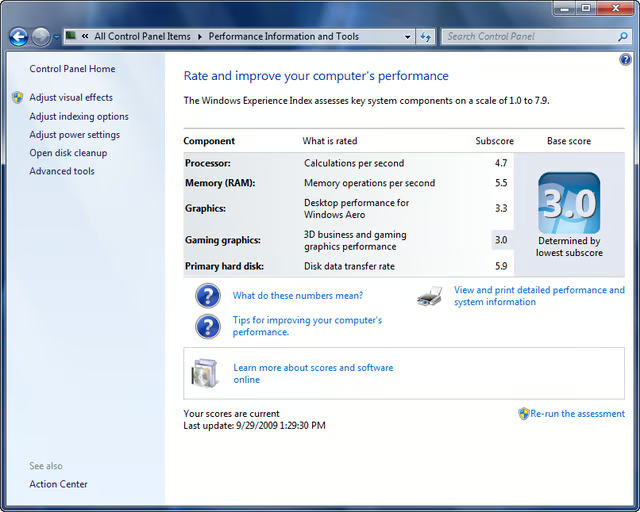
From within the Action Center, you can access and view Performance Information, which highlights your system’s Window Experience Index rating.
Images by Greg Shultz for TechRepublic
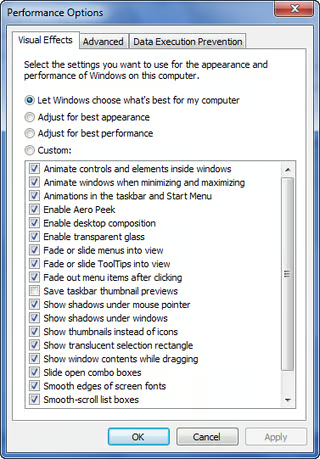
From within Performance Information, you can access the Performance Options dialog box where you can adjust performance by changing a multitude of appearance settings. (You can also adjust processor resources and virtual memory on the Advanced tab and change Data Execution Prevention settings.)
Images by Greg Shultz for TechRepublic
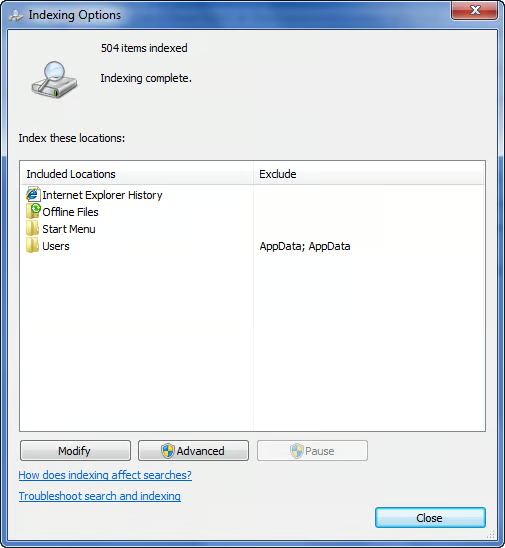
From within Performance Information, you can access the Indexing Options dialog box where you can customize the Windows search index to improve the efficiency of searches.
Images by Greg Shultz for TechRepublic
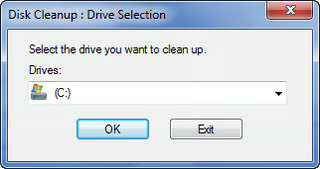
From within Performance Information, you can launch the Disk Cleanup utility.
Images by Greg Shultz for TechRepublic
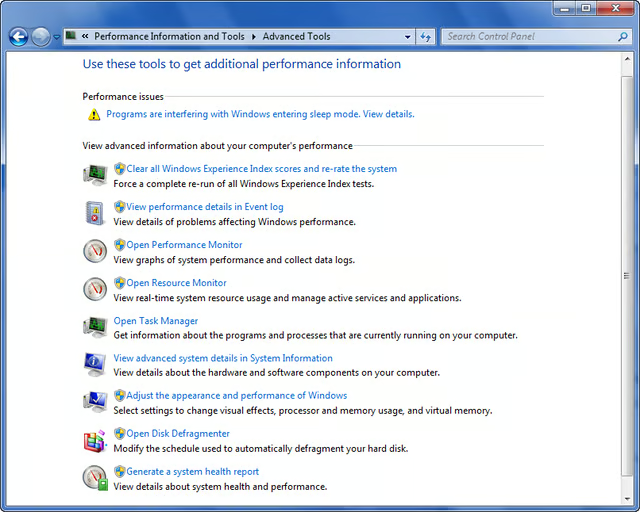
From within Performance Information, you can open Advanced Tools and access a whole slew of utilities too numerous to cover here. While most of these utilities are carryovers from previous versions of Windows, some have new features which I’ll discuss in future articles.
Images by Greg Shultz for TechRepublic
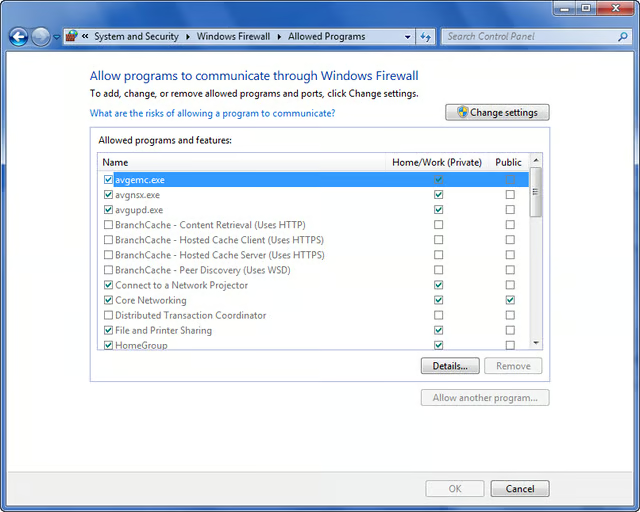
From within the Windows Firewall tool, you can allow or disallow programs from sending information to or from your computer through the firewall.
Images by Greg Shultz for TechRepublic
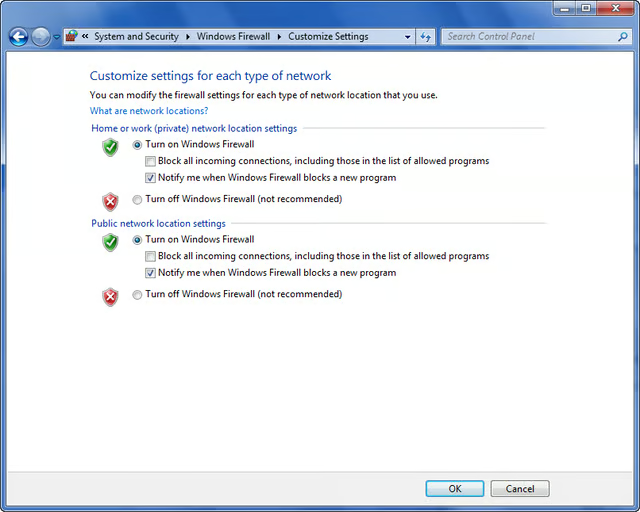
From within the Windows Firewall tool, you can block all incoming connections, change the notification setting or disable the firewall.
Images by Greg Shultz for TechRepublic
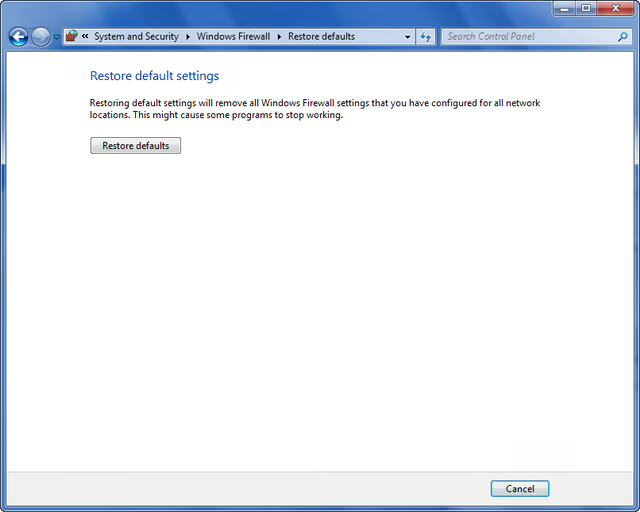
If after you make changes to the Windows Firewall settings you decide against them, you can easily restore all the settings to their default values.
Images by Greg Shultz for TechRepublic
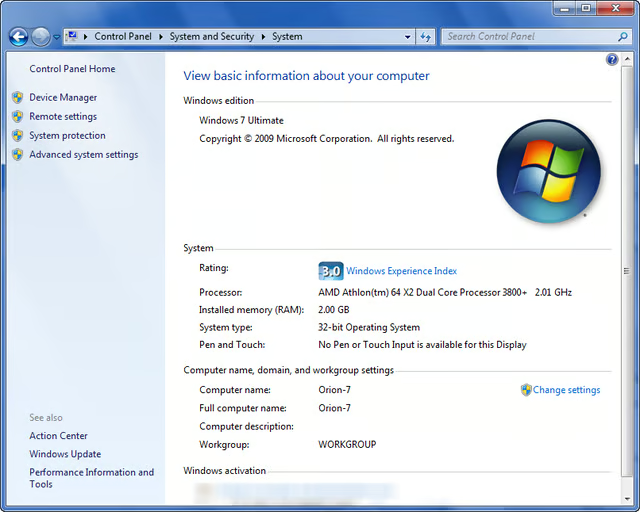
Back in the System and Security window, you can access the familiar System window, which is essentially a one stop resource for indentifying your Windows 7 edition, hardware, network, and product ID.
Images by Greg Shultz for TechRepublic
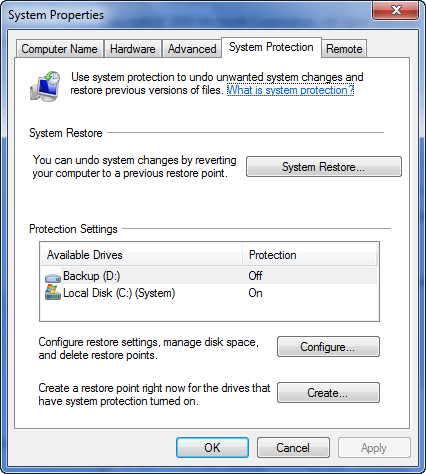
From within the System window, you can access the System Protection tab of the System Properties dialog box and configure System Restore.
Images by Greg Shultz for TechRepublic
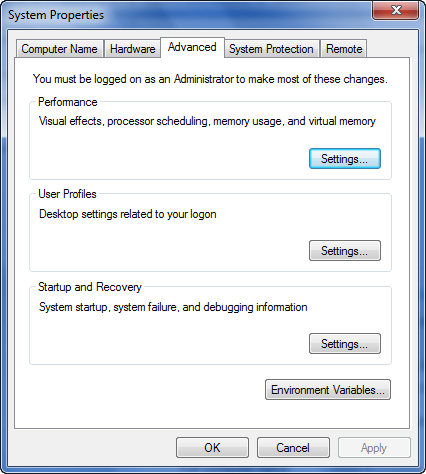
From within the System window, you can access the Advanced tab of the System Properties dialog box and configure Performance, User Profile and Startup and Recovery settings. The settings on this tab are similar to those in the Advanced tab in Windows XP.
Images by Greg Shultz for TechRepublic
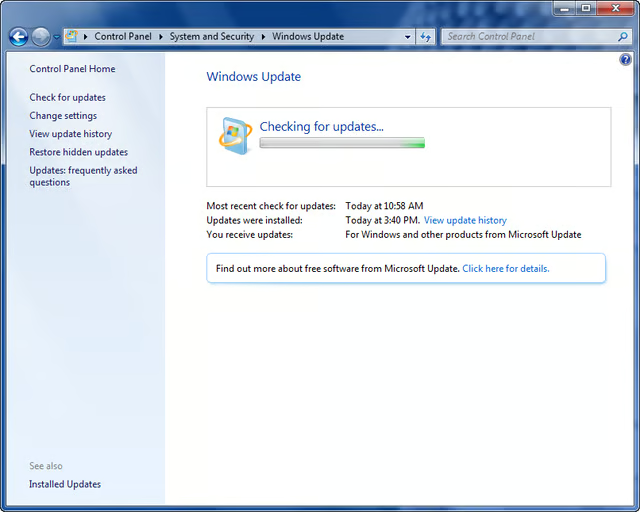
From within the Windows Update tool, you can manually check for new updates anytime that you want.
Images by Greg Shultz for TechRepublic
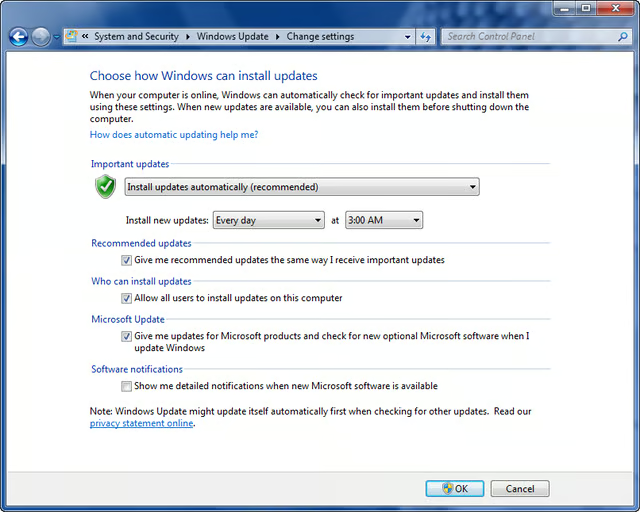
From within the Windows Update tool, you can configure when and how you want updates to occur.
Images by Greg Shultz for TechRepublic
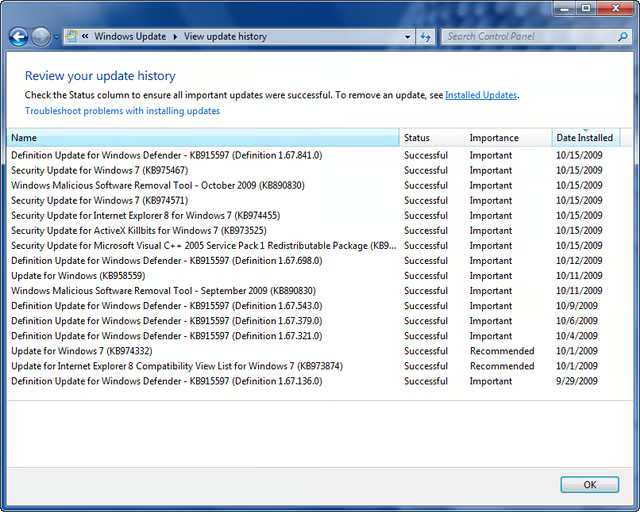
From within the Windows Update tool, you can take a look at all the updates that have been installed on your system and you can see when they were installed.
Images by Greg Shultz for TechRepublic
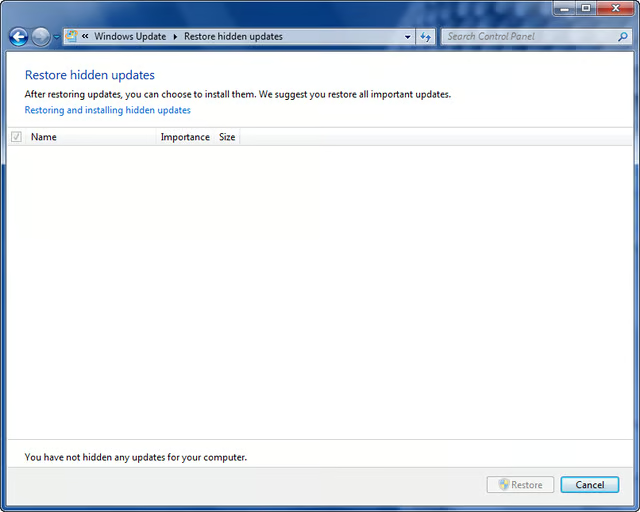
From within the Windows Update tool, you can restore hidden updates, which are updates you’ve asked Windows not to install or notify you about.
Images by Greg Shultz for TechRepublic
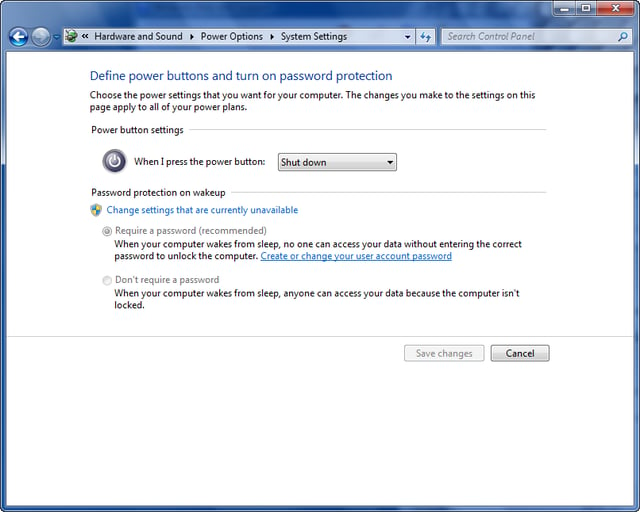
From within the Power Options window, you can configure how the power button works as well as specify that a password be required when you wake up your computer.
Images by Greg Shultz for TechRepublic
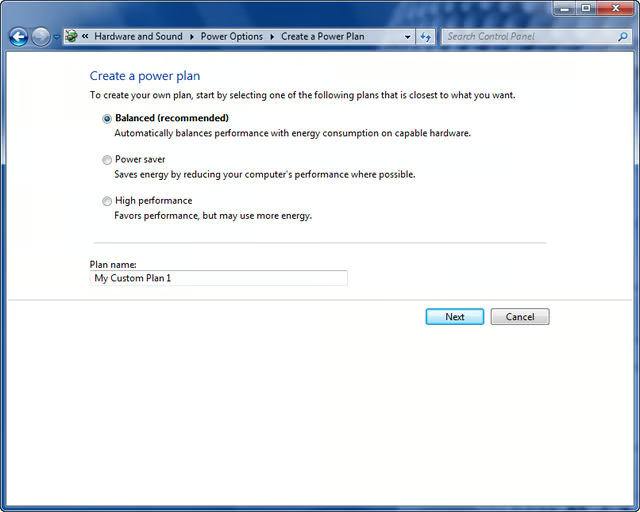
From within the Power Options window, you can define a power plan by choosing options from a collection of hardware and system settings that manage how your computer uses power.
Images by Greg Shultz for TechRepublic
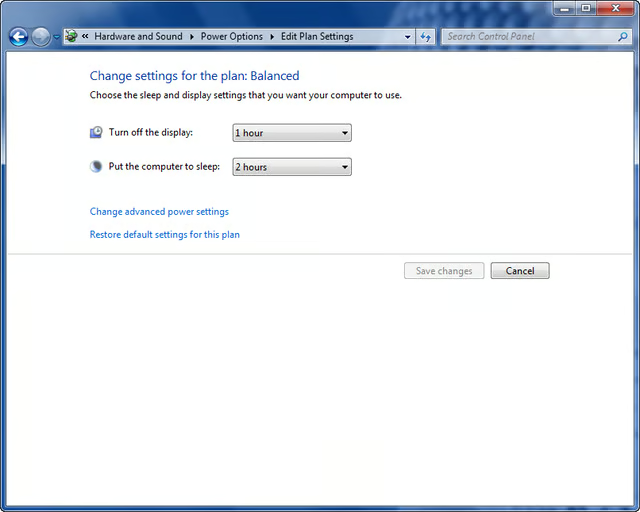
Rather than configuring an entire plan, you can just choose when to turn off the display and when the computer sleeps.
Images by Greg Shultz for TechRepublic
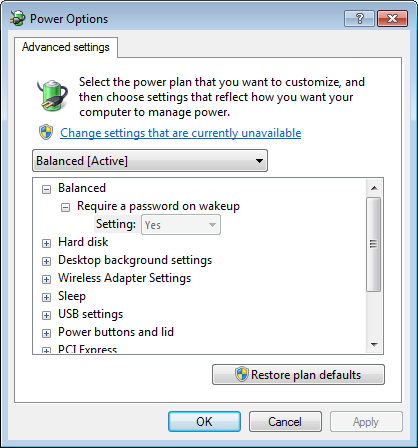
In addition to choosing when to turn off the display and when the computer sleeps, you can access the Advanced Settings dialog box and further customize the current power plan.
Images by Greg Shultz for TechRepublic
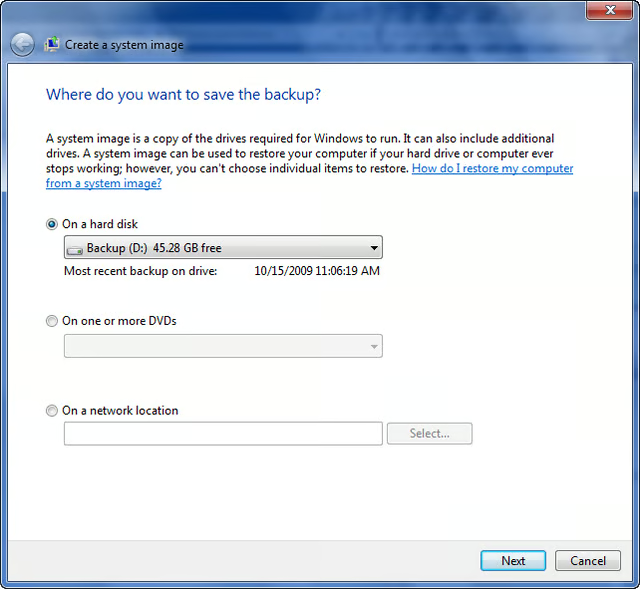
From within the Backup and Restore window, you can create a system image, which is an exact copy of a drive.
Images by Greg Shultz for TechRepublic
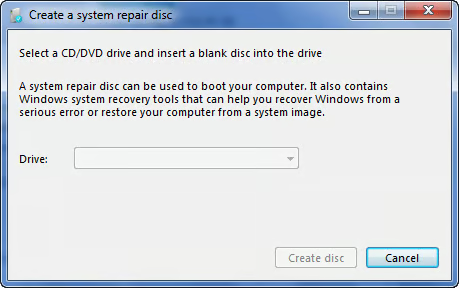
From within the Backup and Restore window, you can create a repair disk, which is a bootable CD/DVD that contains the Windows System Recovery Tools.
Images by Greg Shultz for TechRepublic
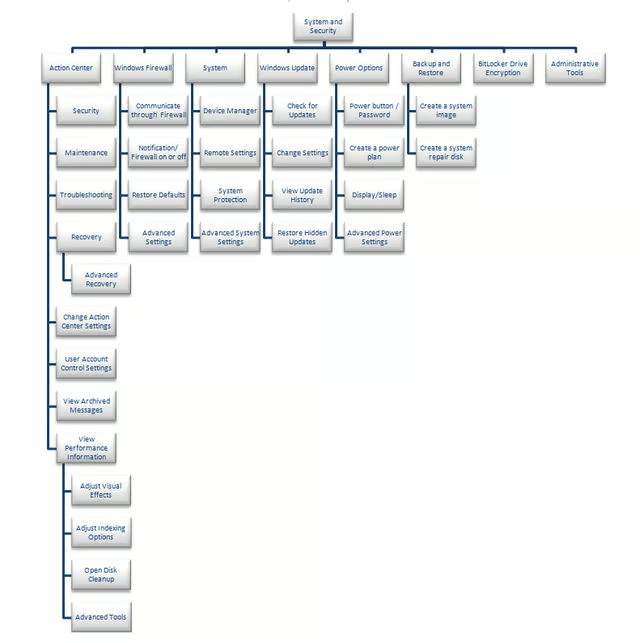
This tree diagram presents a map of the System and Security walkthrough.
Images by Greg Shultz for TechRepublic

My first computer was a Kaypro 16 \"luggable\" running MS-DOS 2.11 which I obtained while studying computer science in 1986. After two years, I discovered that I had a knack for writing documentation and shifted my focus over to technical writing.


