\n\tThis photo gallery is also available as a post in the Windows and Office Blog.
\n
\n\tAre you a Windows 8 user who is pining away for the old Start menu? Do you really need it? Or are you just looking for some comforting familiarity?
\n
\n\tIf you need that familiarity, there are actually several third-party Start menu replacement options such as StartW8 and Classic Shell, both of which are free. Or you can purchase Stardock’s Start8 for $4.99. There are several others out there but these are the ones that I have heard most people talk about using.
\n
\n\tHowever, if you really think about how much you’ve used the Start menu in recent years, chances are good that you’ll find that you don’t really need it anymore. In fact, Windows 8 provides plenty of very efficient ways to launch your Desktop applications – you just need to be aware of them. In this blog post, I’ll show you several techniques that you can use to launch your Desktop applications in Windows 8.
\n
\n
\n
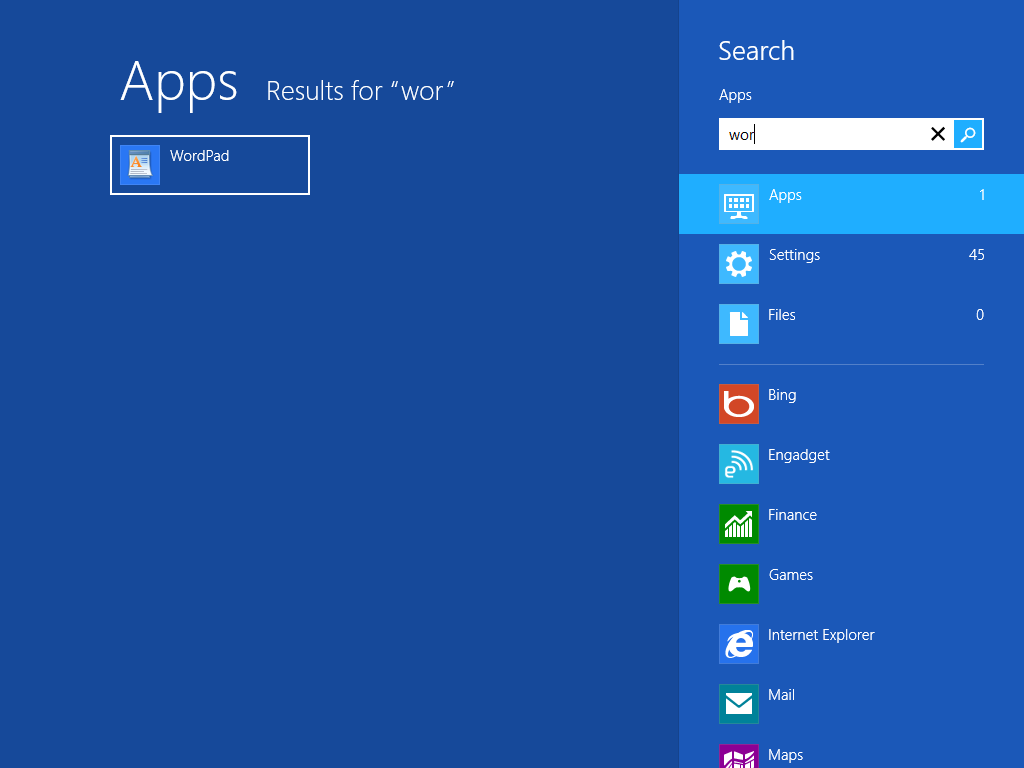
\n\tIf you think of the [Windows] key on your keyboard as a replacement for the old Start button on the screen, you’ll find that the Windows 8’s Start screen provides you with a great way to launch your applications and other desktop-based tools. All you need to do is press the [Windows] key and start typing the first few letters in the name of the application that you want to launch. As soon as you do, the Apps Search tool will launch and begin searching for an application that matches.
\n
\n\tFor example, if you want to launch WordPad, just press the [Windows] key and type word. When you do, the Apps Search tool will immediately find WordPad, as shown. To launch the application, just click the icon/tile or press [Enter].
\n
\n\tCredit: Images by Greg Shultz for TechRepublic
\n
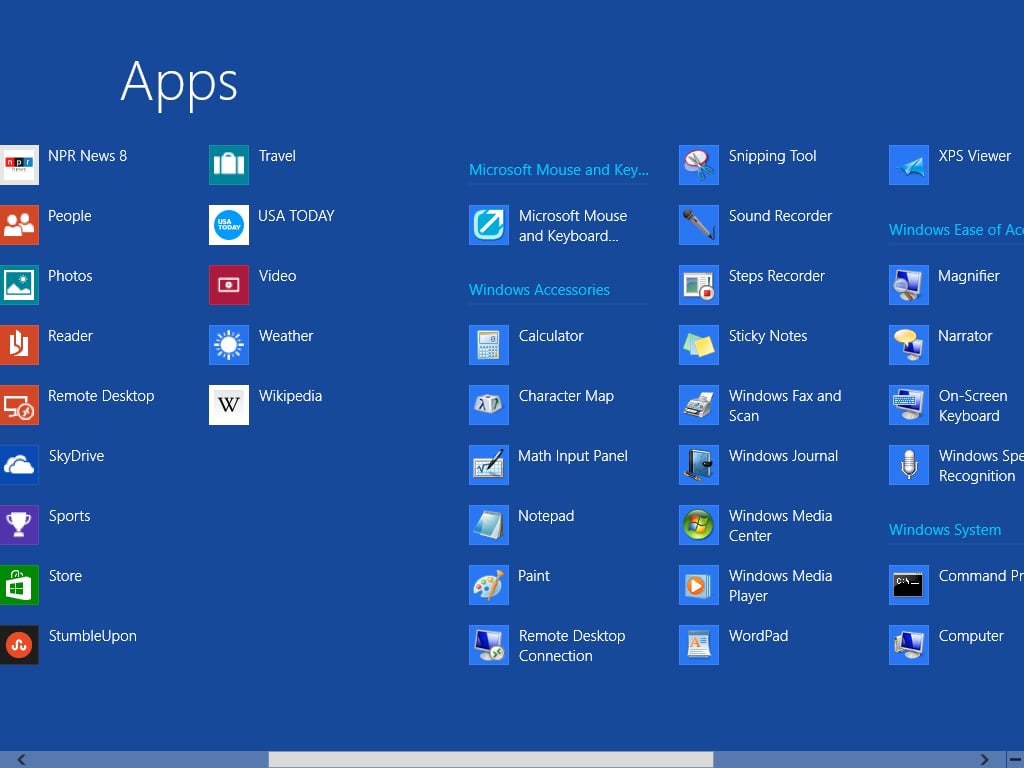
\n\tIf you’d rather see all of your applications on screen as regular small icons/tiles along with descriptive titles, you can use the Apps screen. To get to the Apps screen, press the [Windows] key to bring up the Start screen, press [Windows]+[Z] to bring up the App command bar, and then press [Enter] or click the All apps button. (If you have a Microsoft Touch Mouse, you can bring up the App command bar with a two finger gesture and then click the All apps button.)
\n
\n\tAlternatively, you can use this keystroke combination: [Windows]+X+S+[Esc]. It may look convoluted, but it is very simple. If you refer back to my Tools menu article, you’ll see that [Windows]+X brings up the Tools menu and S launches the Search feature with the Apps screen in the background. Pressing [Esc] closes the Search panel leaving the Apps screen visible.
\n
\n\tWhatever way you use to get to the Apps screen, as shown, you’ll see that the this screen shows all of the Windows 8 Apps as well as your regular desktop applications in alphabetical order on the left side of the scrollable screen. On the right side of the screen in categorical order, you’ll find all of your traditional Windows desktop tools. The small icons/tiles and the titles make it easy to find what you’re looking for. To launch the application, just click the icon/tile.
\n
\n\tCredit: Images by Greg Shultz for TechRepublic
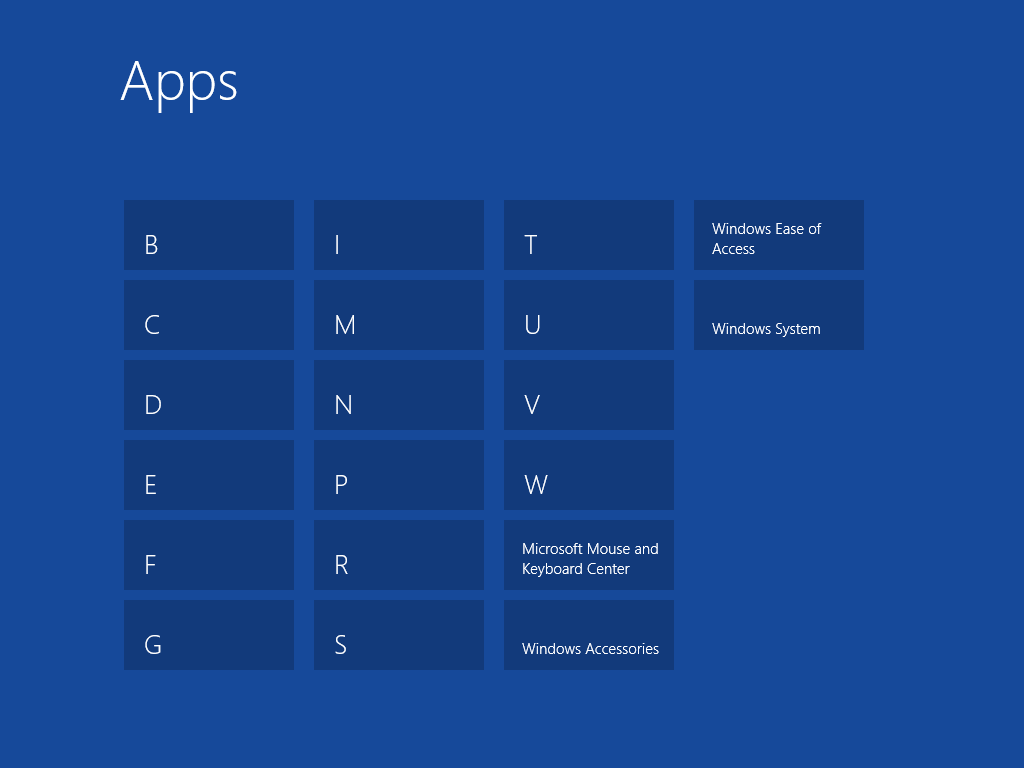
\n\tIf you have a lot of icons/tiles on the Apps screen and are having trouble locating what you need, you can use the Semantic Zoom feature to help. To access the Semantic Zoom feature with your mouse, just click the minimize button that appears in the lower right corner of the screen. (If you have a Microsoft Touch Mouse, you can activate the Semantic Zoom feature with a three finger gesture.) As you can see, when zoomed in, the Apps screen displays alphabetically and categorically labeled icons/tiles. All you have to do is click the appropriate icon/tile and Windows 8 will zoom back out and put those items that match in the center of the screen.
\n
\n\tCredit: Images by Greg Shultz for TechRepublic
\n
\n\tIf you prefer to stay away from the Start screen, you can pin your applications to the taskbar. You can then launch your applications right from the desktop as well as perform a host of other relevant activities via the Jump lists.
\n
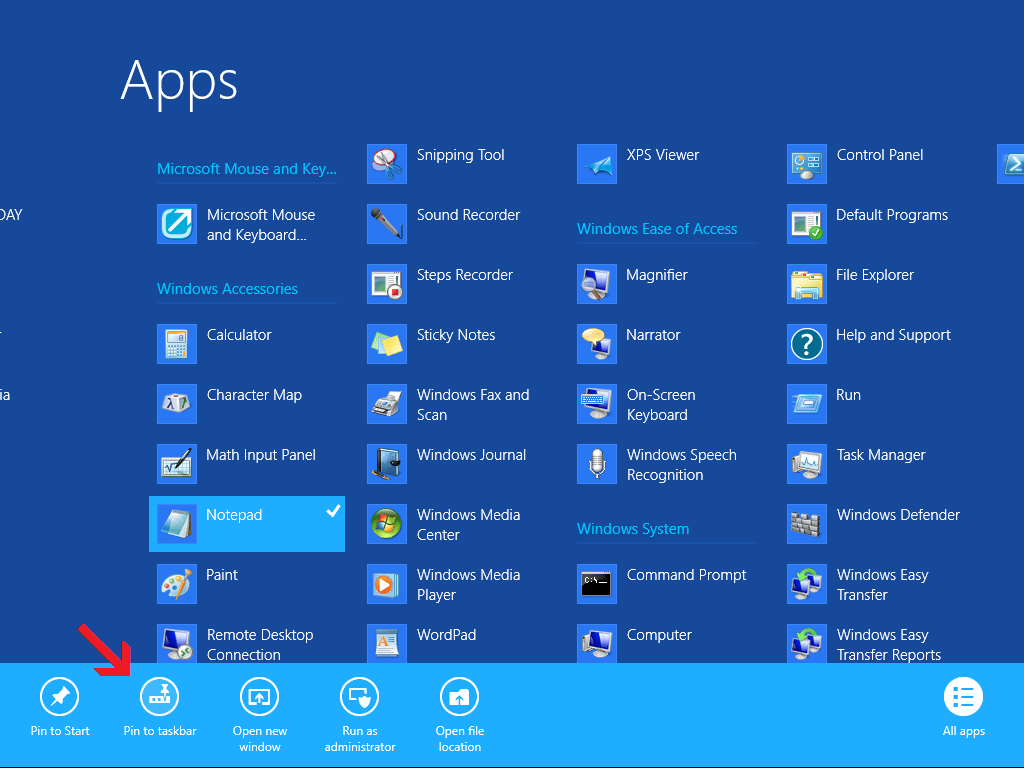
\n\tTo pin applications to the taskbar, locate the application on the Apps screen, right click on the icon/tile, and when the App command bar appears, select the Pin to taskbar button as shown.
\n
\n\tCredit: Images by Greg Shultz for TechRepublic
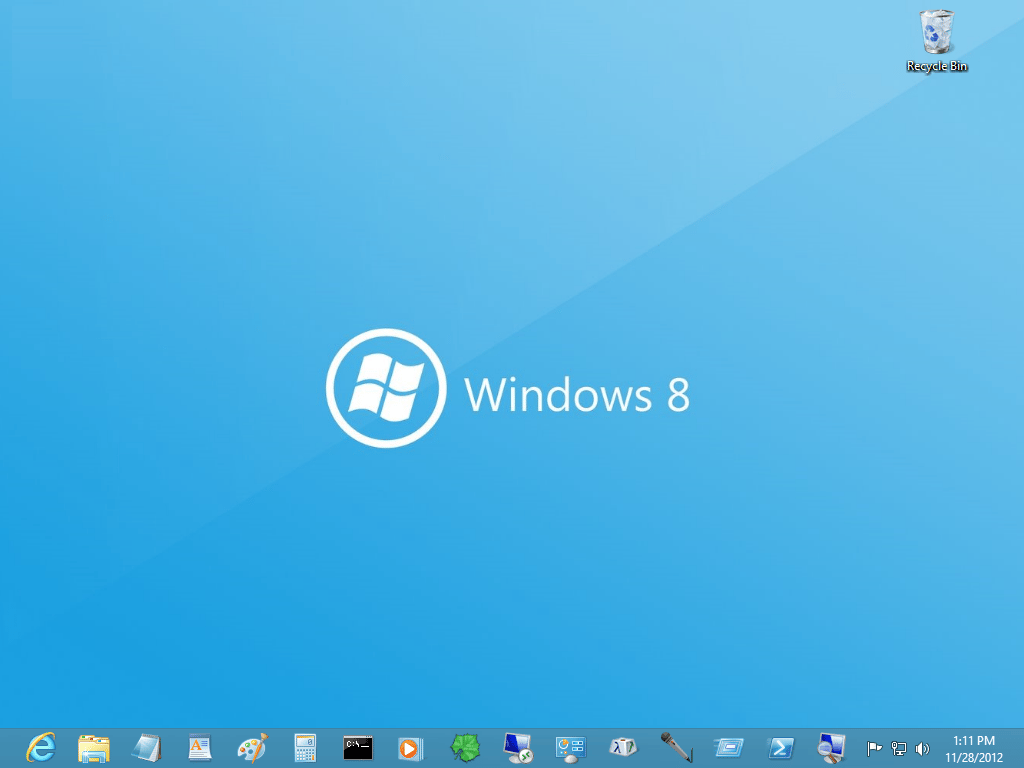
\n\tYou can fill the taskbar with pinned applications. You need not worry about having enough room on the taskbar for pinned and running applications, as each application will use the same icon whether it is running or not.
\n
\n\tCredit: Images by Greg Shultz for TechRepublic
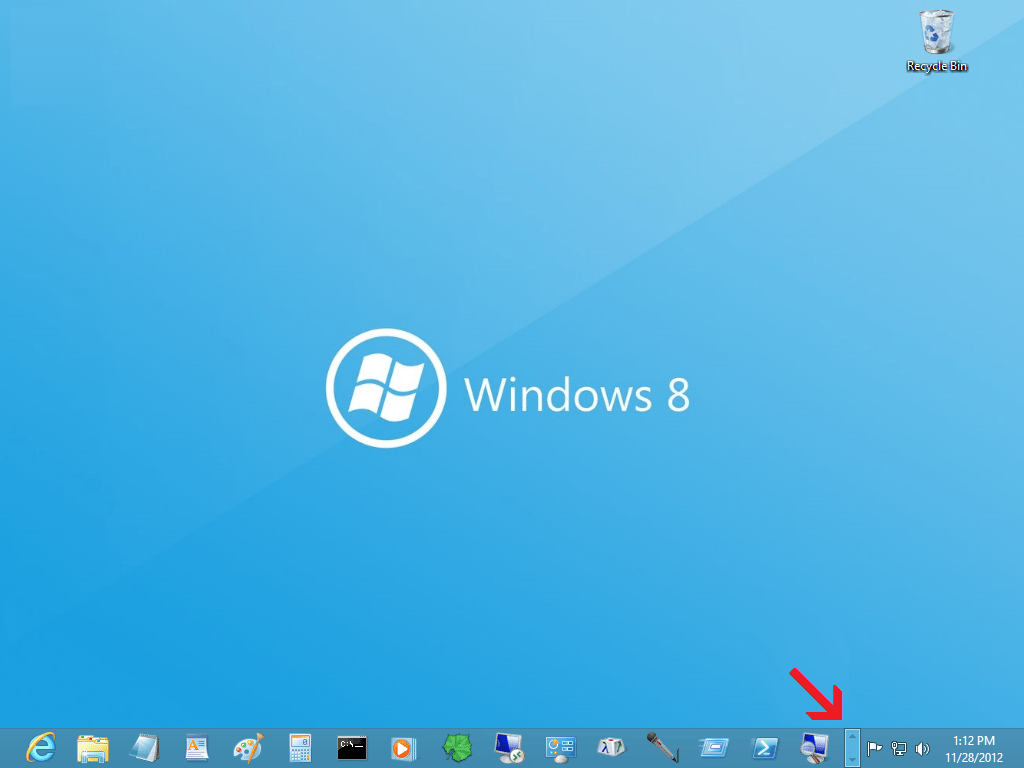
\n\tIf you fill the taskbar with pinned applications, Windows 8 will just add a second row to the taskbar and you’ll see a small bar with arrows appear and the right edge of the taskbar. If you click the arrows, you can scroll between the rows to access all your pinned applications.
\n
\n\tCredit: Images by Greg Shultz for TechRepublic
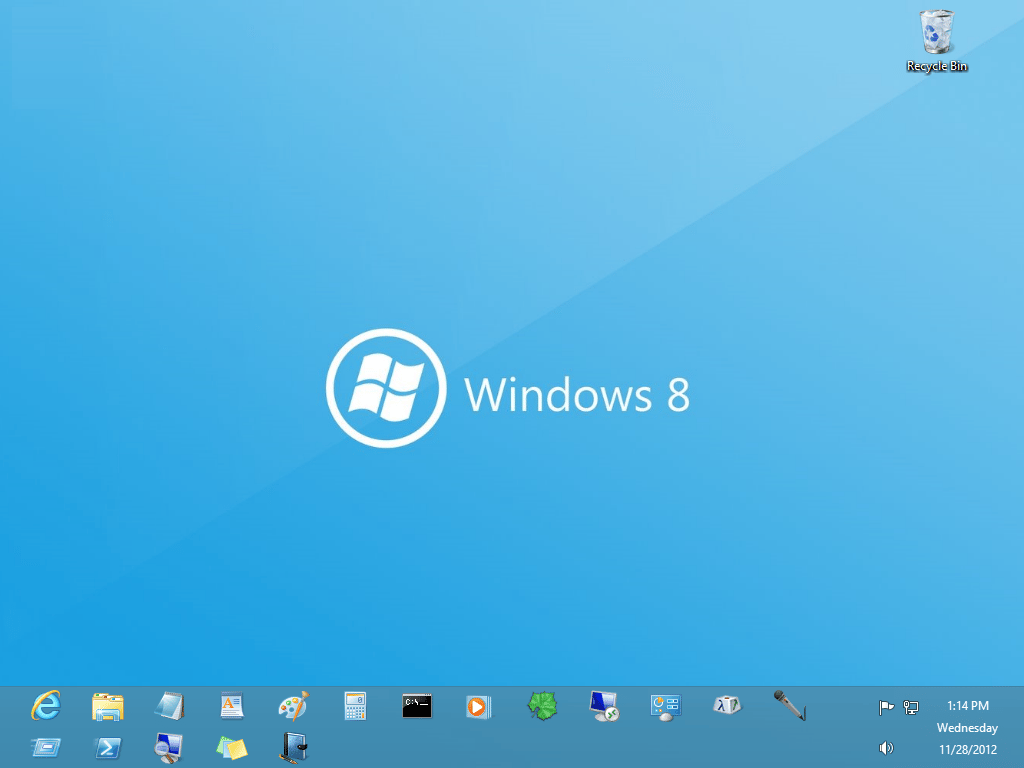
\n\tIf you would rather see both rows of icons on the taskbar, you can widen the taskbar. To do so, right click on the taskbar and select the Lock the taskbar command to remove the check mark. You can then stretch the width of the taskbar to show both rows. When you are done, right click on the taskbar and select the Lock the taskbar command to reapply the check mark.
\n
\n\tCredit: Images by Greg Shultz for TechRepublic
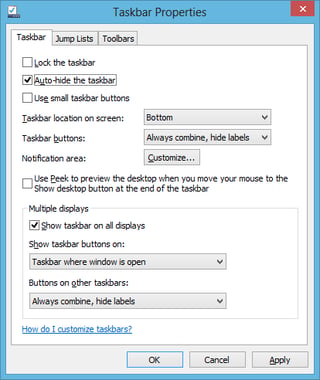
\n\tWhen using a double-wide taskbar, it will take away screen space from maximized windows. As such, you may want to enable the Auto-hide the taskbar option. To do so, right click on the taskbar and select the Properties command. When you see the Taskbar Properties dialog box, select the Auto-hide the taskbar check box.
\n
\n\tCredit: Images by Greg Shultz for TechRepublic
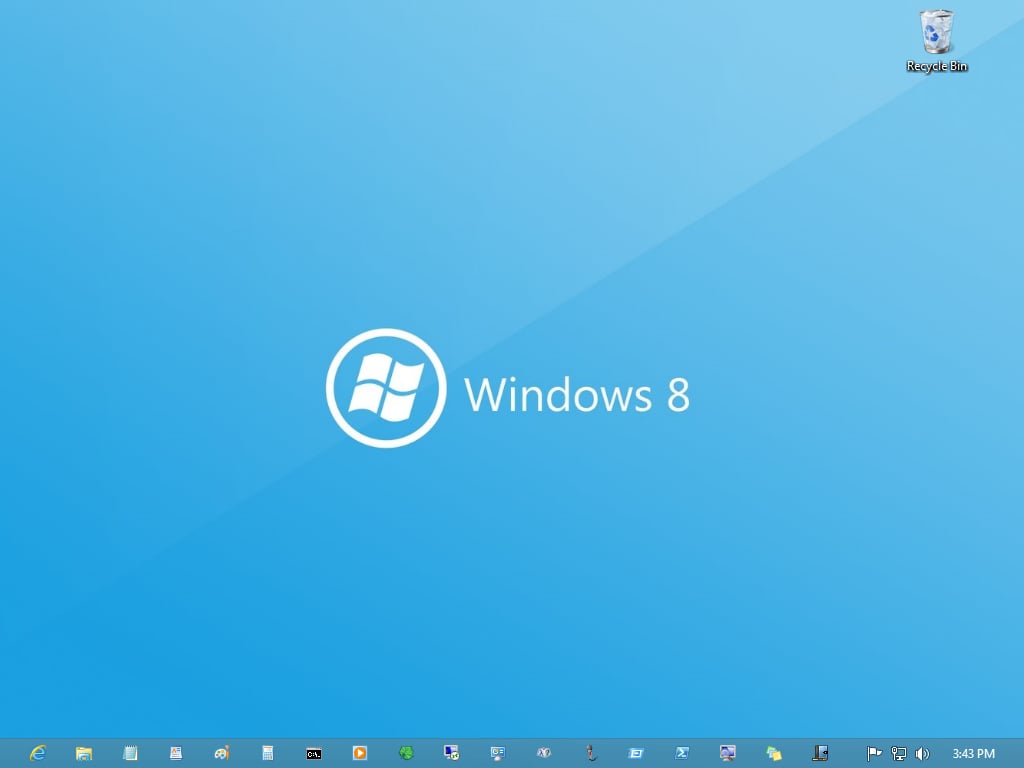
\n\tIf you don’t want to use a double-wide taskbar, you can select the Use small taskbar icons option. Just select that check box in theTaskbar Properties dialog box, and your taskbar will have room for more icons.
\n
\n\tCredit: Images by Greg Shultz for TechRepublic
\n
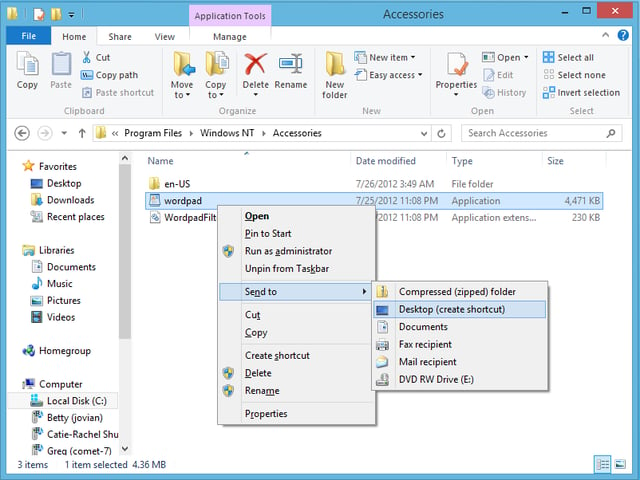
\n\tOf course, you can always resort to keeping your application icons on the desktop. To do so easily, locate and right-click the application’s executable file and select the Send to | Desktop (create shortcut) command.
\n
\n\tCredit: Images by Greg Shultz for TechRepublic
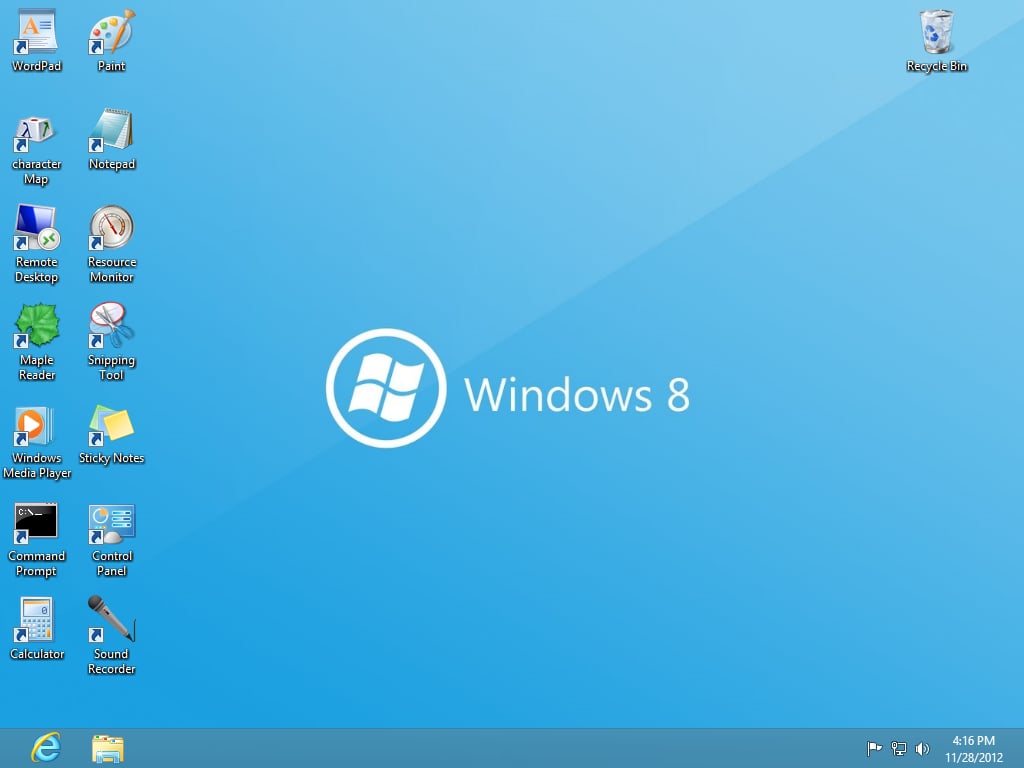
\n\tYou can then launch your applications right from the desktop.
\n
\n
\n\tAre you likely to install one of the third-party Start menu replacement options or will you use one of the techniques shown here? As always, if you have comments or information to share about this topic, please take a moment to drop by the TechRepublic Community Forums and let us hear from you.
\n
\n\tAdditional Windows 8 tips are available on this TechRepublic Focus Page.
\n
\n
\n\t
\n\t
\n
\n
\n\tCredit: Images by Greg Shultz for TechRepublic

My first computer was a Kaypro 16 \"luggable\" running MS-DOS 2.11 which I obtained while studying computer science in 1986. After two years, I discovered that I had a knack for writing documentation and shifted my focus over to technical writing.


