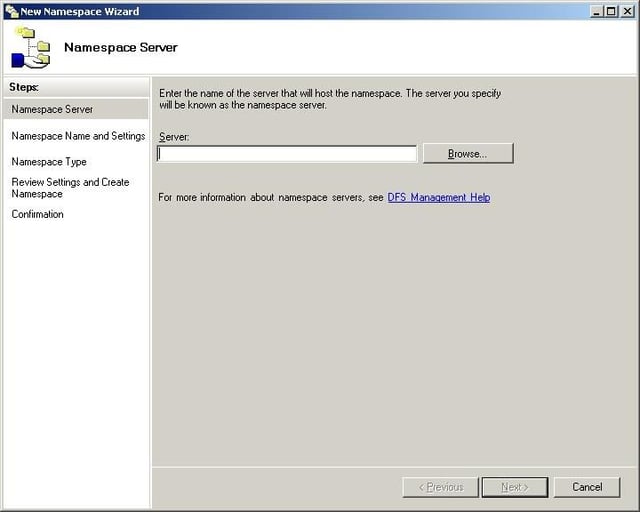
The DFS namespace wizard simplifies the process of selecting which server in your organization will host a DFS namespace.
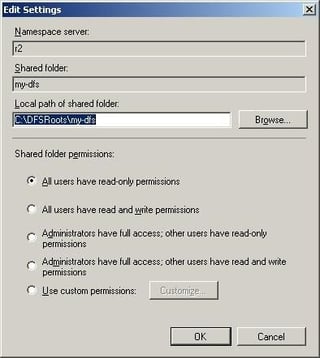
When defining a DFS namespace, the namespace wizard allows you to set some initial permissions for the new namespace.
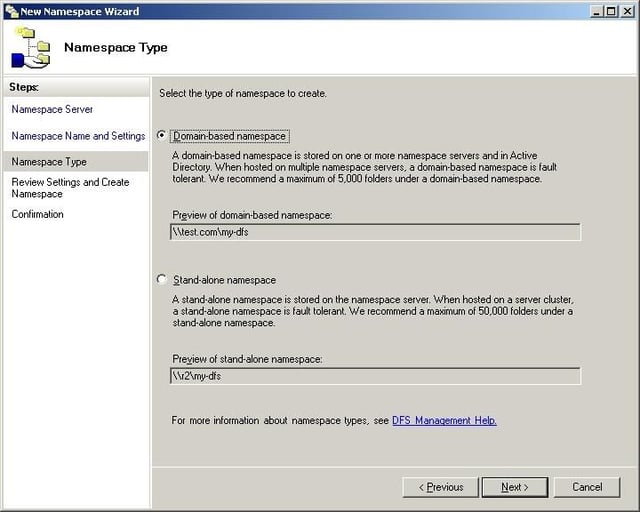
The previous version of Windows Server 2003 supported domain and standalone roots (now called namespaces), but it did not explain what the difference was. R2 helps you to decide whether a domain namespace or a stand-alone namespace is more appropriate for your organization.
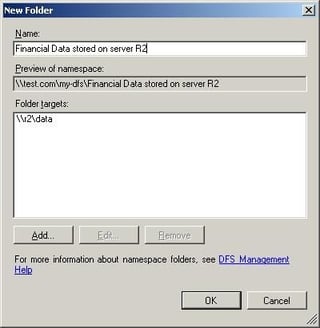
When you add a shared folder to a namespace, R2 gives you the chance to enter descriptive information regarding what the folder is used for or where it is stored. This helps to simplify management.
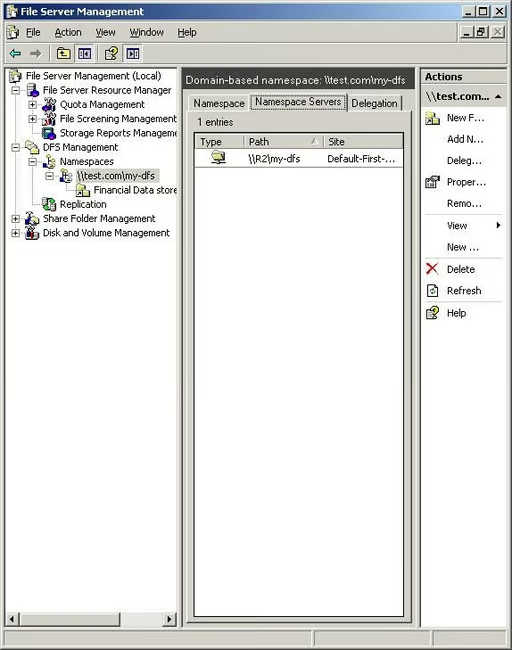
The Namespace Servers column displays the server that is hosting the DFS namespace (or replicas of it), and which Active Directory site those servers are located in.
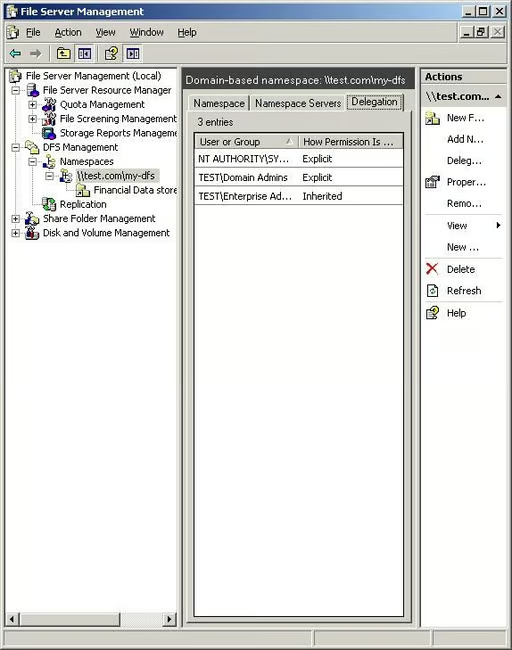
The Delegation tab shows the permissions that apply to the namespace and where the permissions come from.
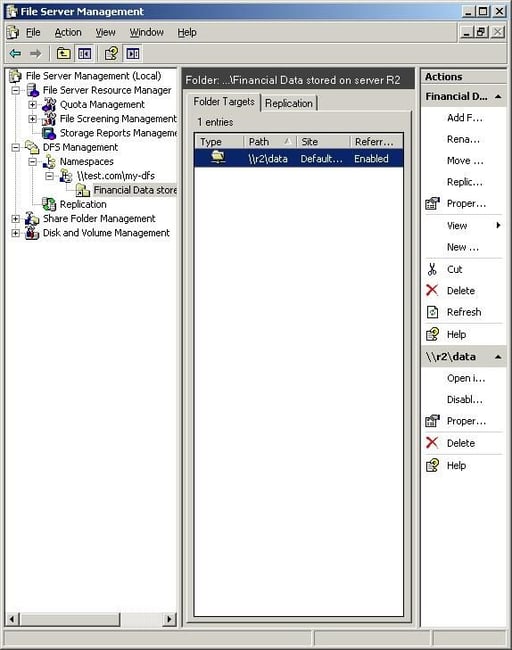
When you select a shared folder within a namespace, the console will display detailed information regarding the folder’s location and replication status.
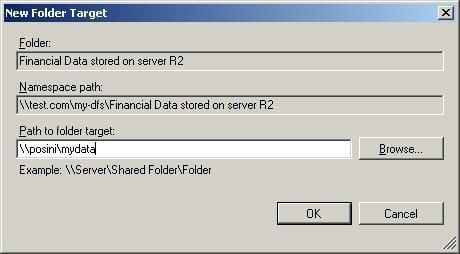
You can replicate data to branch offices by creating a target on a server that exists in a branch office.
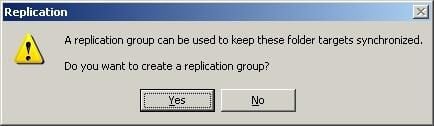
After creating a new target, you will be asked if you want to create a replication group.
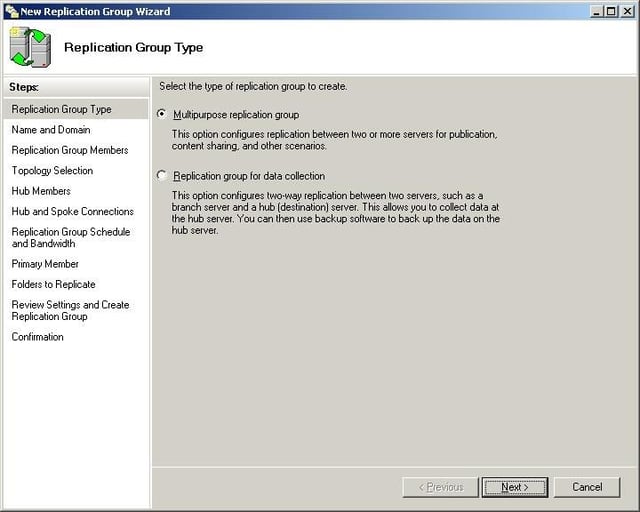
The new Replication Group Wizard asks if you want to create a multipurpose replication group, or a replication group for data collection. The Replication Group for Data Collection option is usually the most appropriate for branch offices because it replicates data that is created at the branch offices to a central server where it can be backed up.
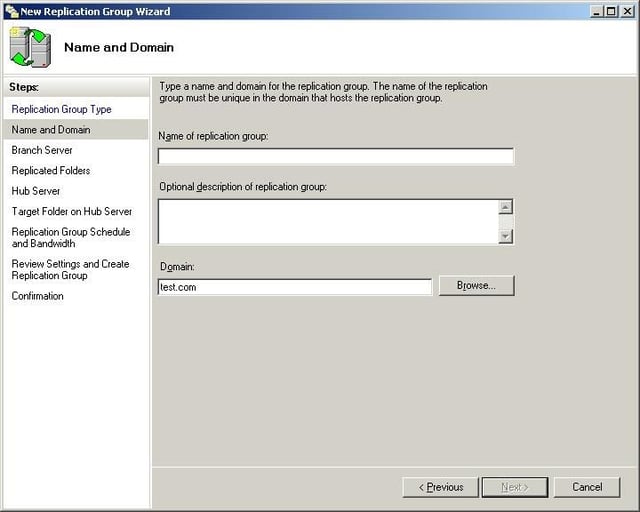
Enter a name and a description of the replication group that you are creating.
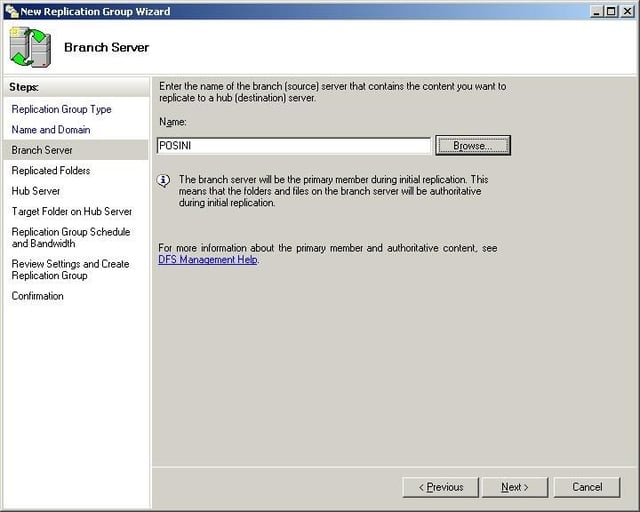
Enter the name of a server in a branch office that you want to collect data from.
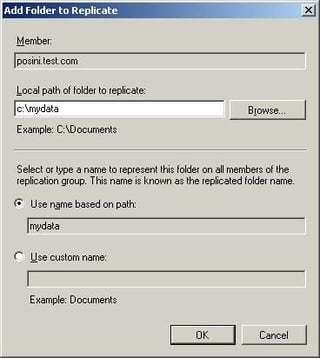
Enter the path to the folder that you want to replicate. Notice that even though we are specifying a folder on a remote server, we are entering a local path name (C:\\path as opposed to \\\\servername\\share).
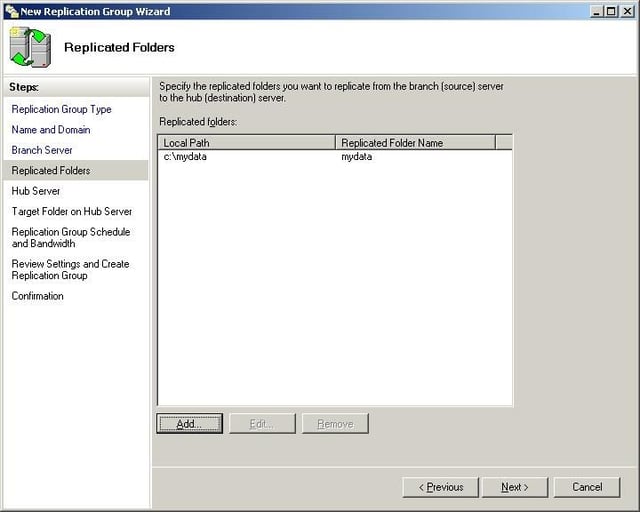
The path is displayed in the list of replicated folders.
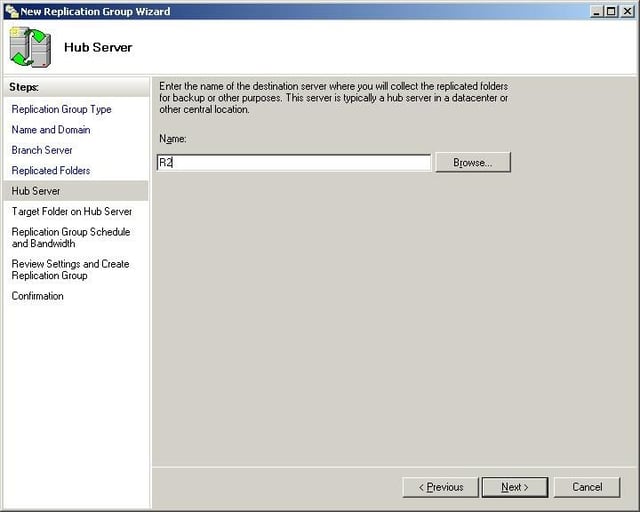
Enter the name of a hub server. This should be a server in the main office that will act as a collection point for data that’s stored in the remote office.
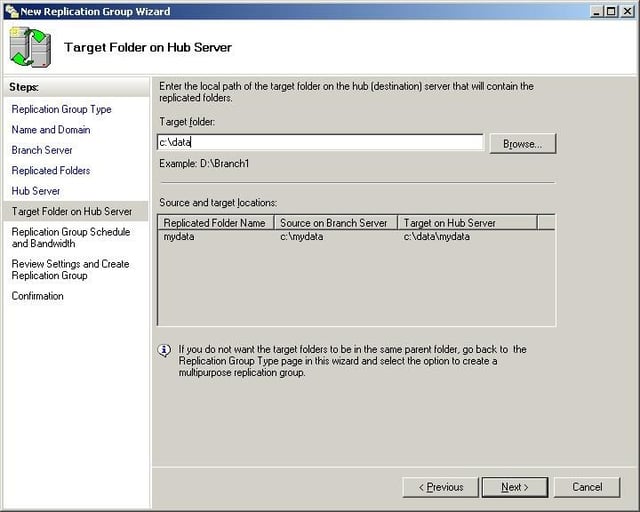
Enter the path to a folder on the hub server that will be used to store the data that is replicated from the servers in the branch offices.
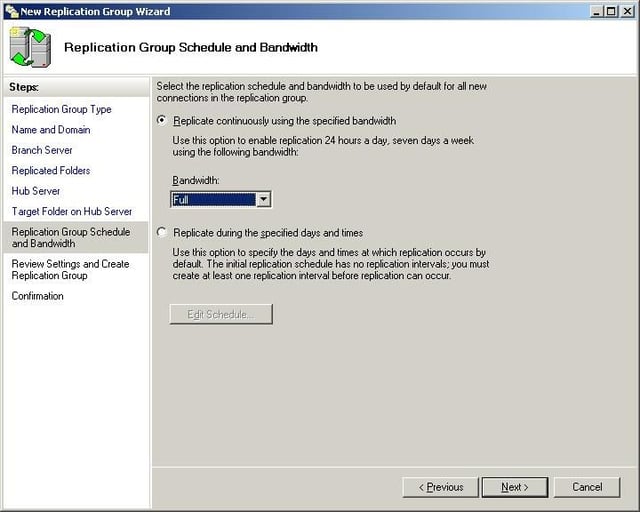
You must choose between continuous replication or a replication schedule of your choosing. This screen also contains a bandwidth drop down list that you can use to select the maximum amount of bandwidth that will be used by the replication process.
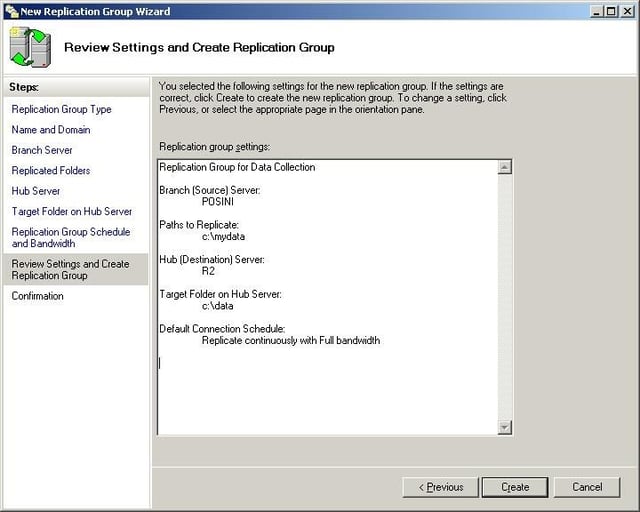
You are given one last chance to review your settings.
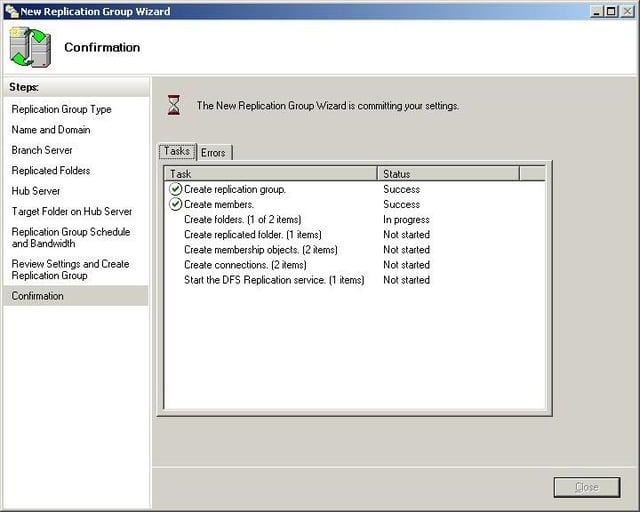
After you click Create, Windows will begin creating the replication architecture.
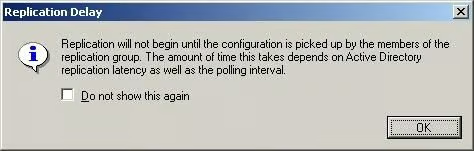
After the creation process completes, click the Close button. You will see a message indicating that replication will not begin until the configuration has been replicated throughout the Active Directory.
Bill Detwiler is the Editor for Technical Content and Ecosystem at Celonis. He is the former Editor in Chief of TechRepublic and previous host of TechRepublic's Dynamic Developer podcast and Cracking Open, CNET and TechRepublic's popular online show. Previously, Bill was an IT manager in the social research and energy industries. He has bachelor's and master's degrees from the University of Louisville, where he has also lectured on computer crime and crime prevention.


