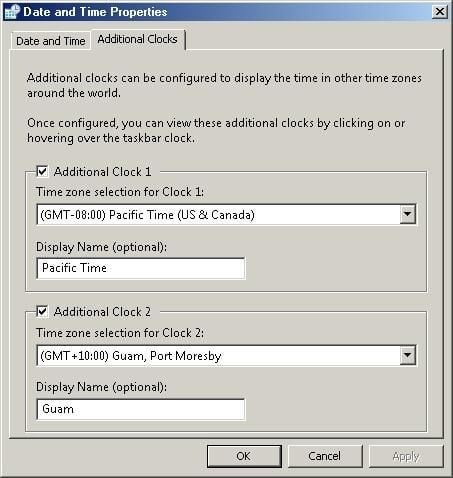
For those with network spanning multiple time zones, Longhorn can keep track of the time at other locations.
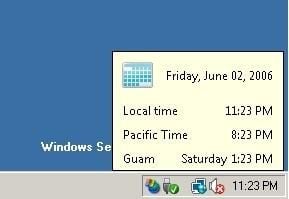
These additional time zones can be displayed by hovering over the clock in the task bar.
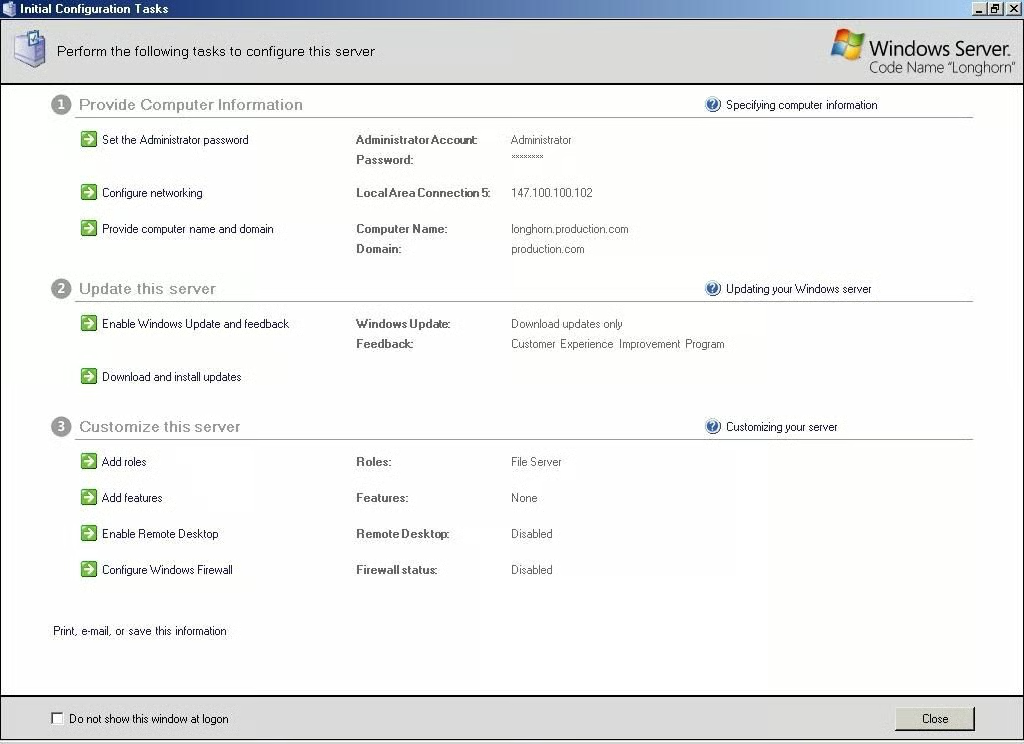
When Longhorn is initially installed, the Initial Configuration Tasks screen is displayed. This screen allows you to set IP addresses, the Administrative password, the server‘s role, etc.
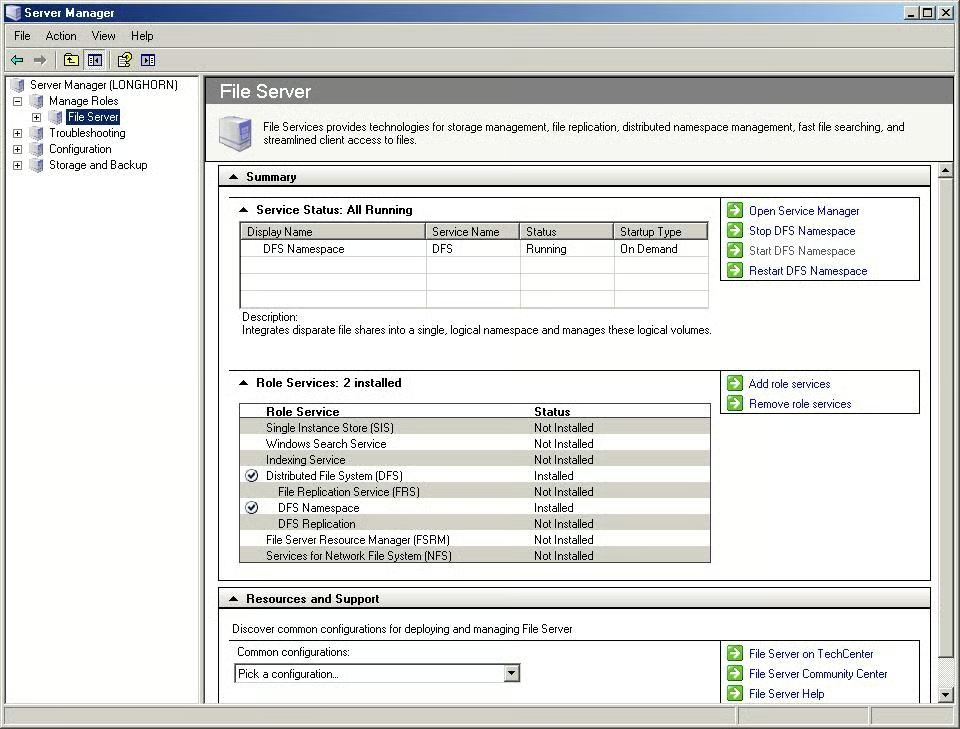
If you select an individual role from the console tree on the left, you will see granular detail regarding the role‘s components.
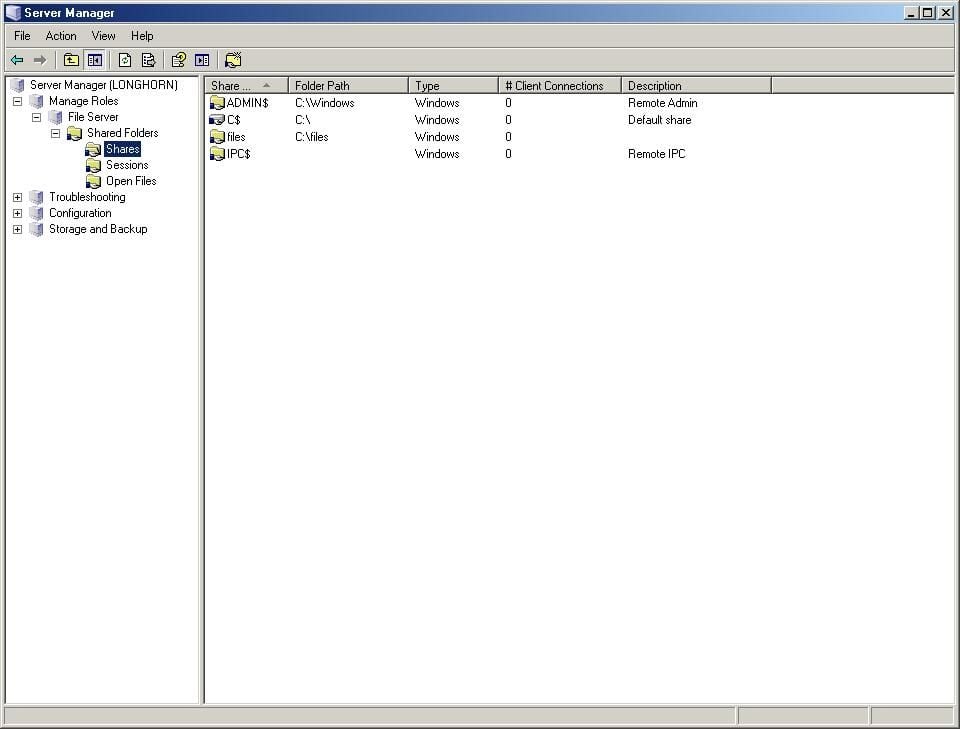
If you further expand a role, you can actually manage the role in the same way that you previously did through the Computer Management console.
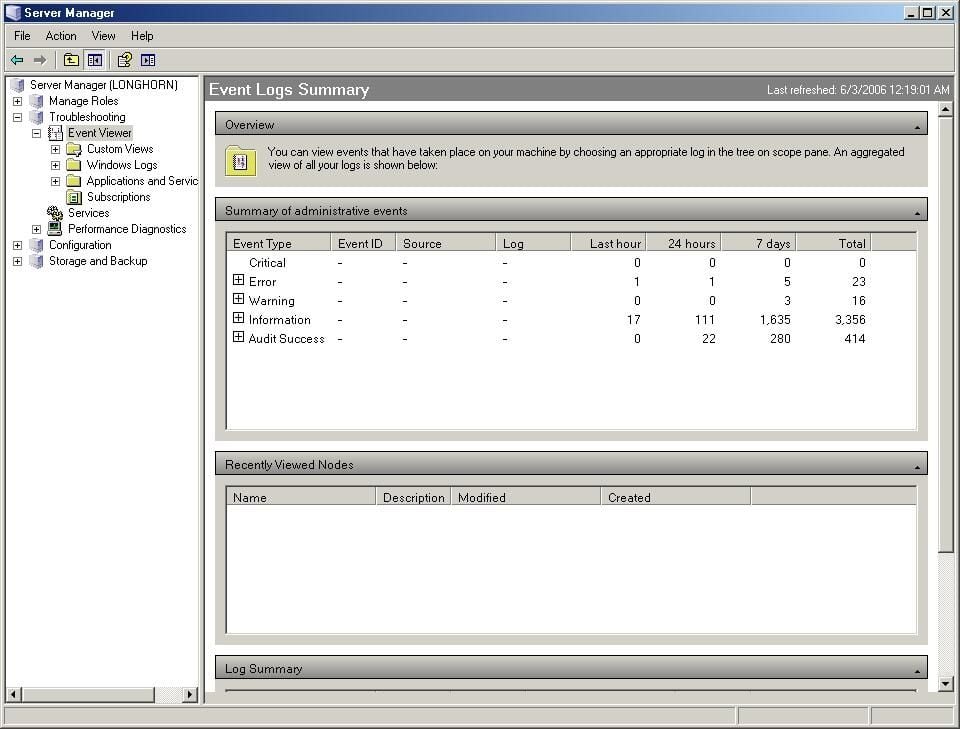
The Event Viewer, which is accessible through the Server Manager, now has a summary screen.
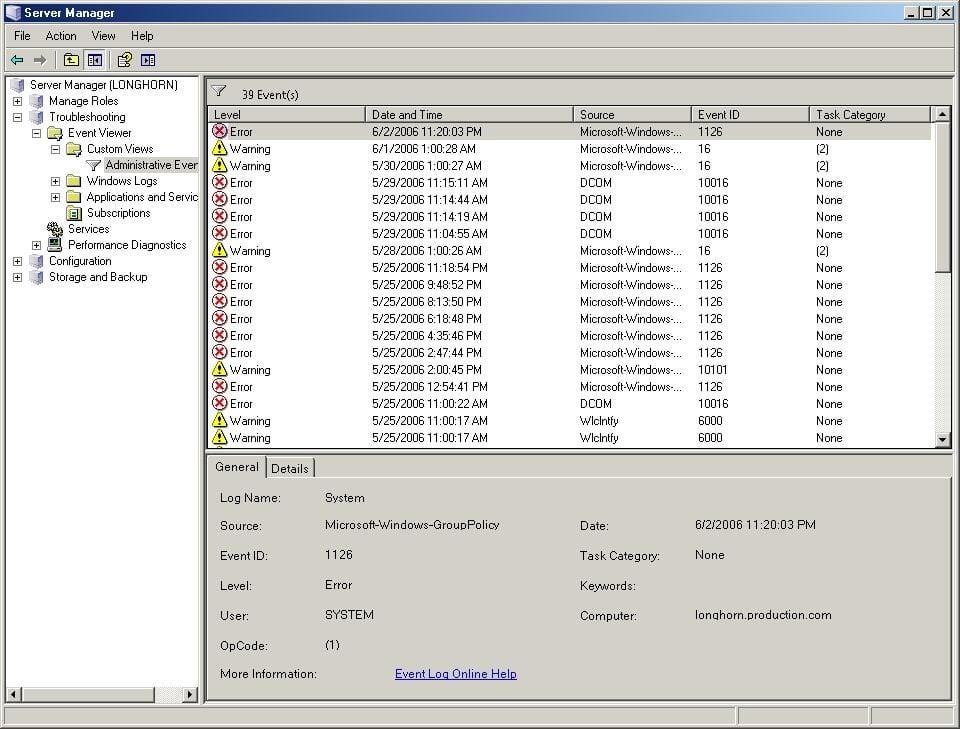
The Event Viewer now has the ability to create custom views. This custom view includes all of the errors and warnings from each of the logs.
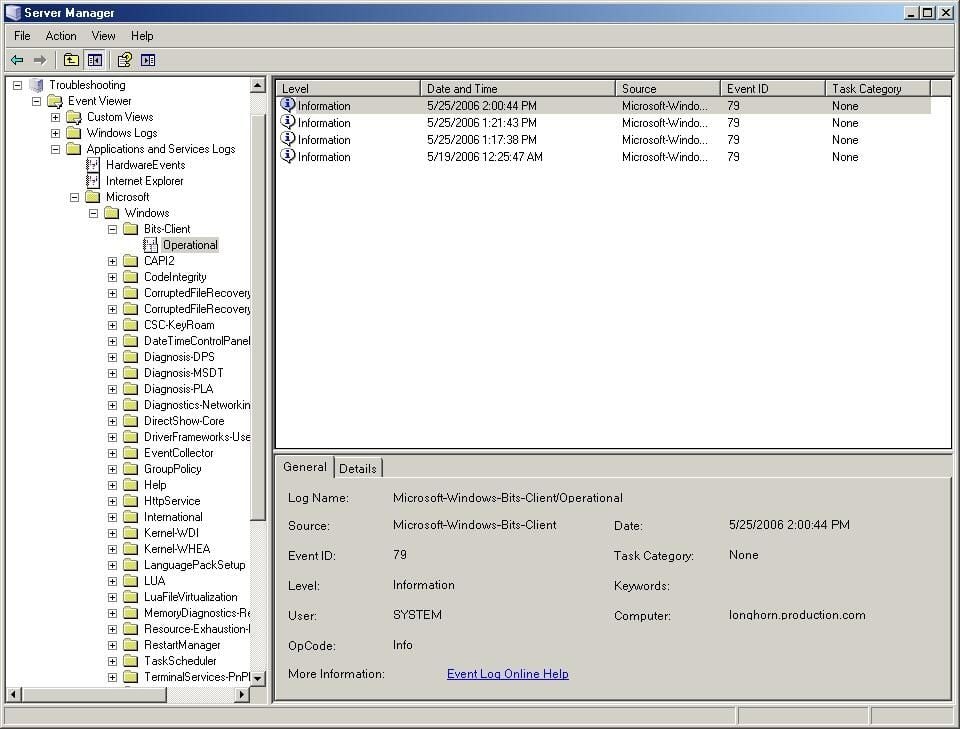
Included in the Event Viewer are the new Applications and Services logs. These logs allow you to view events that are specific to individual applications or services.
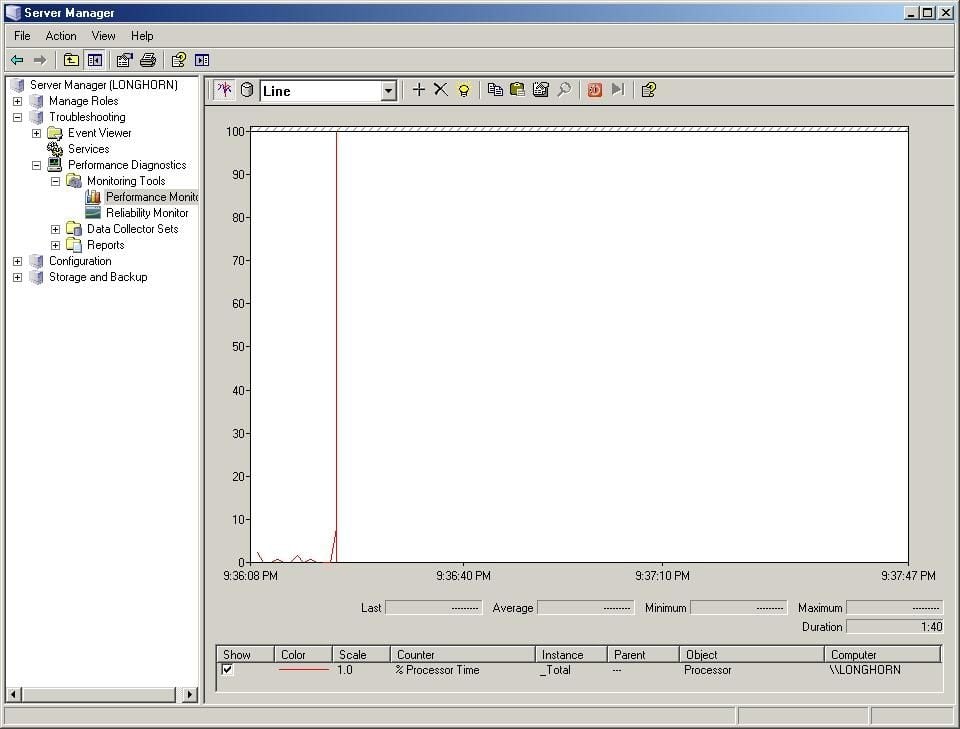
If you require more detailed information on the server‘s performance, then the Performance Monitor is accessible through System Manager.
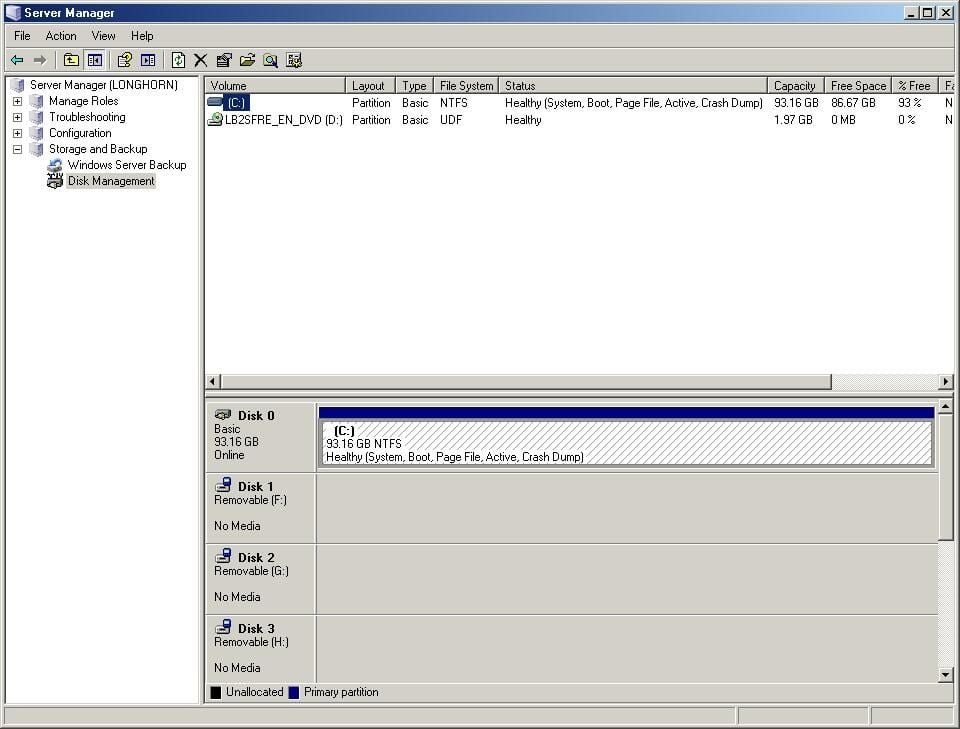
Disk manager and NT Backup are available through the Server Manager‘s Storage and Backup container.
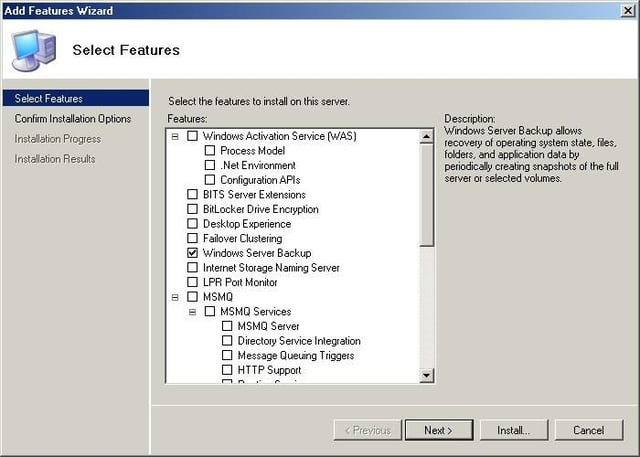
The Add / Remove Programs applet has been removed from the Control Panel and replaced with the Add Features wizard, which is accessible through Server Manager. Notice in the screen capture that Windows Server Backup is no longer installed by default.
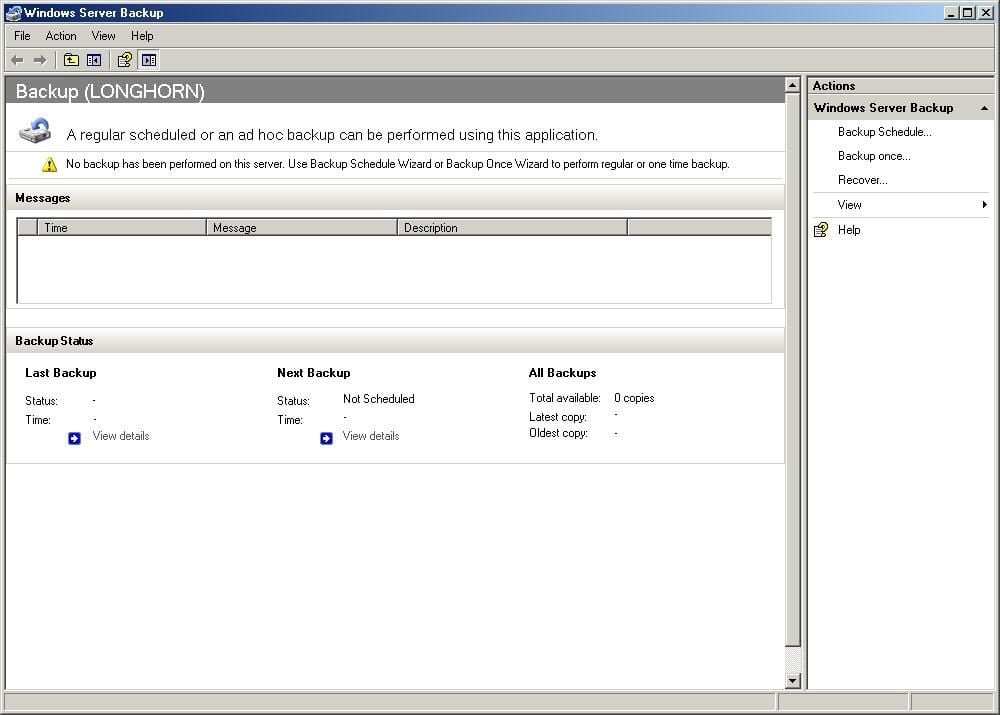
NTBACKUP has received a completely new interface. Notice how it now provides backup summary information on the initial screen.
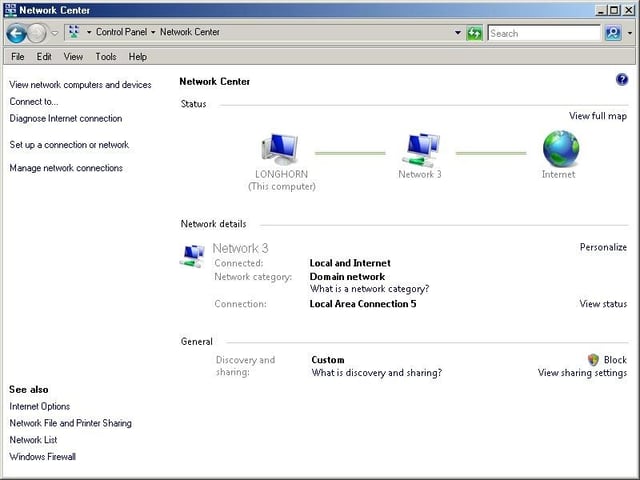
The Network Center gives you a summary of how the server is connected to the network.
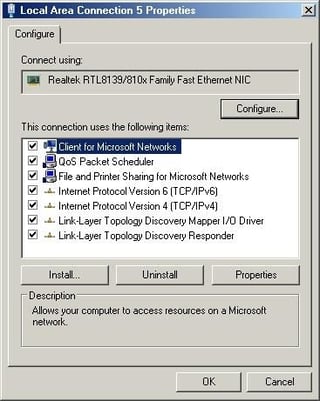
Longhorn‘s IP stack has been designed so that IPv4 and IPv6 run in parallel without placing a significant extra burden on the system.
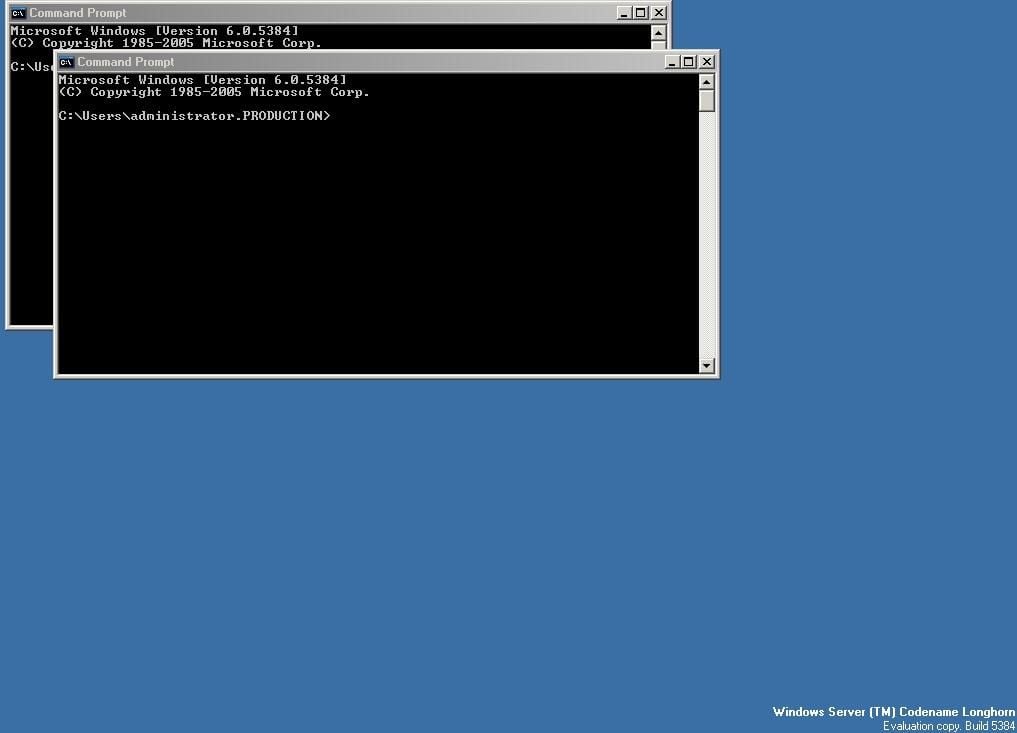
Longhorn Server can be configured to act as a core server. A core server is a hardened server that is dedicated to the task of acting as a DHCP, DNS, domain controller or file server. As you can see in the figure, core servers do not even have a true GUI. They must be initially configured using the command line and may be maintained either via command line or remote administration.
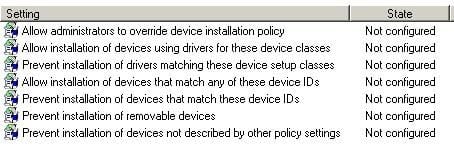
The Group Policy now contains settings to prevent users from installing hardware. This is especially helpful in preventing the installation of USB storage devices.
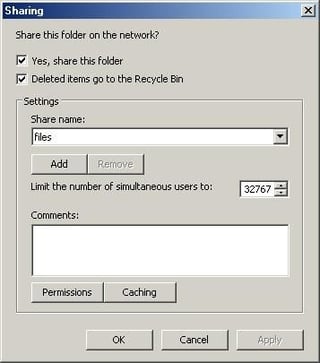
One of my favorite new features is that Longhorn can be configured so that if a file is deleted through a file share, that file is placed in a recycle bin. Previously files deleted through a share were permanently deleted.
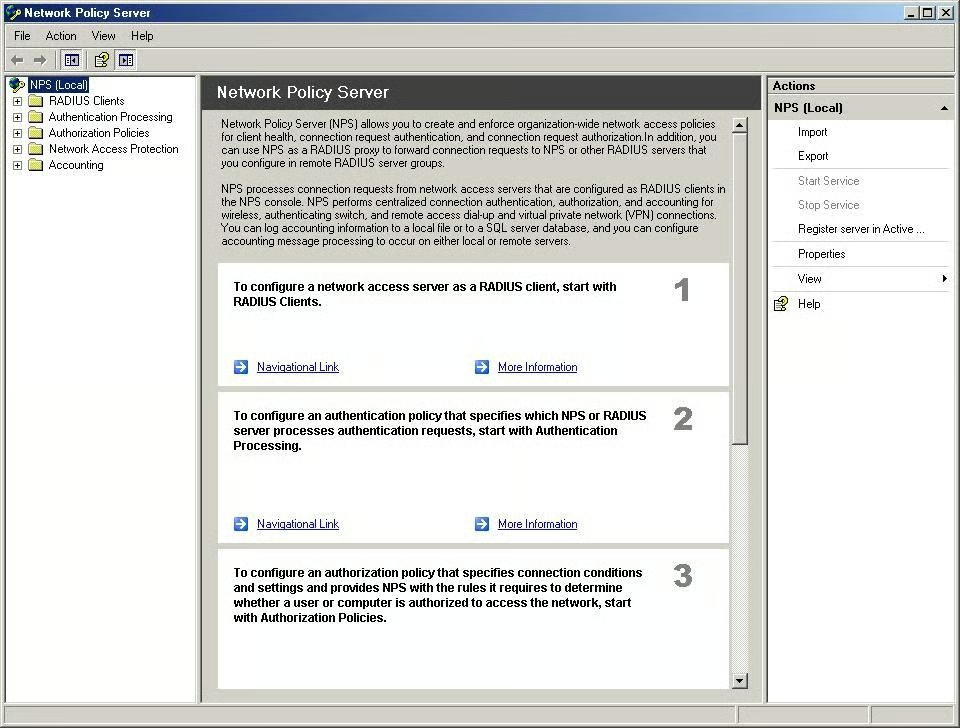
The new Network Policy Server can be used to create a policy that requires computers to pass a health check prior to attaching to your network.
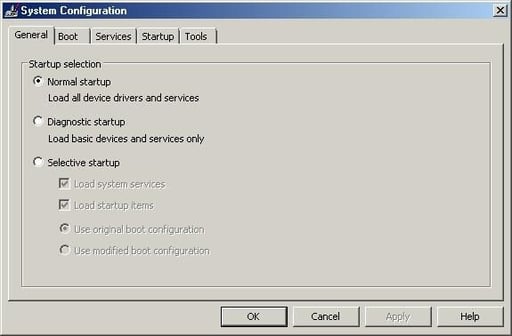
The System Configuration tool allows you to control what services and components load at boot.
Bill Detwiler is the Editor for Technical Content and Ecosystem at Celonis. He is the former Editor in Chief of TechRepublic and previous host of TechRepublic's Dynamic Developer podcast and Cracking Open, CNET and TechRepublic's popular online show. Previously, Bill was an IT manager in the social research and energy industries. He has bachelor's and master's degrees from the University of Louisville, where he has also lectured on computer crime and crime prevention.


