\n\tRemote Guild Chat is a new feature in the World of Warcraft Mobile Armory app for iPhone, iPad, and Android platforms. The feature is part of Blizzard’s World of Warcraft Remote, which also includes the Remote Auction House. World of Warcraft Remote costs $2.99 USD per 30 days.
\n
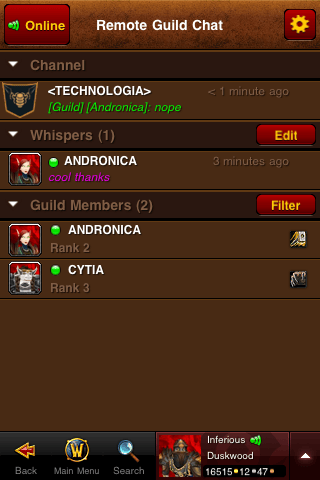
\n\tThis is the main window of the Remote Guild Chat feature. Listed here are the channels you have access to (the guild your character is in — for now anyway), any active whisper chat sessions you have, and any guild members online. There is also a button to sign on and off at the upper left and a Settings button at the upper right.
\n
\n\tScreenshot by Wally Bahny for TechRepublic
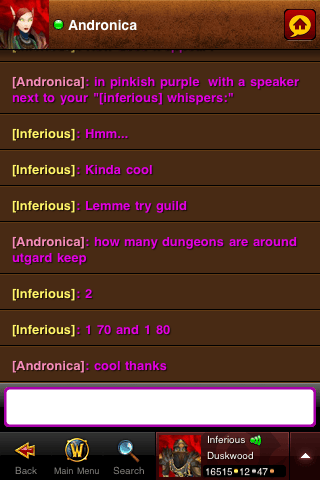
\n\tTapping on an active whisper chat session will bring up the whisper window. This was my first time using the service, and I was discussing my chat experience with Andronica, a member of Technologia, the official unofficial WoW guild of TechRepublic. As she stated at the top of the current view, Remote Guild Chat users appear with a small icon next to their name to players that are in the game client.
\n
\n\tScreenshot by Wally Bahny for TechRepublic
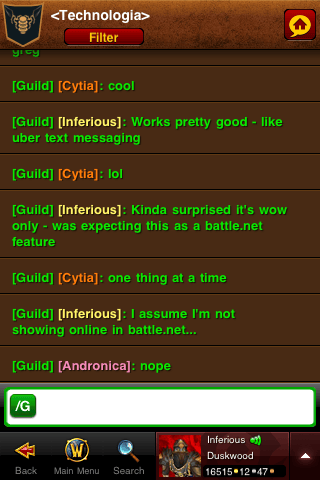
\n\tRemote Guild Chat looks much the same as whisper chat. In this chat session, we were discussing that this is a World of Warcraft-only feature — mobile users do not appear in Battle.net nor are they able to chat with friends outside of the guild their selected character is in. (The selected character is shown on the bottom of the screen.)
\n
\n\tScreenshot by Wally Bahny for TechRepublic
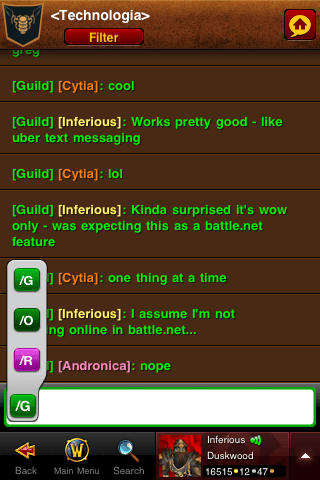
\n\tMy selected character, Inferious, is an officer in Technologia, so I’m able to choose whether I want to chat in the Guild channel or the Officer’s channel. Also, I’m able to quickly send a reply whisper using the “/R” option just as in-game. These whispers appear in-line with the guild channel chat.
\n
\n\tScreenshot by Wally Bahny for TechRepublic
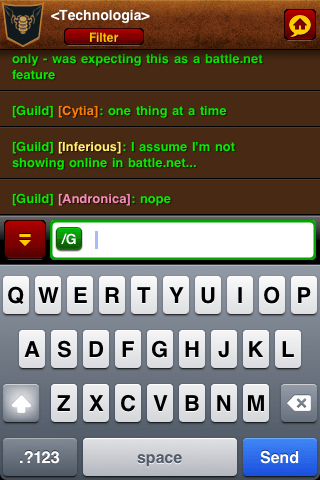
\n\tPutting the cursor in the chat box makes the iPhone popup keyboard appear.
\n
\n\tScreenshot by Wally Bahny for TechRepublic
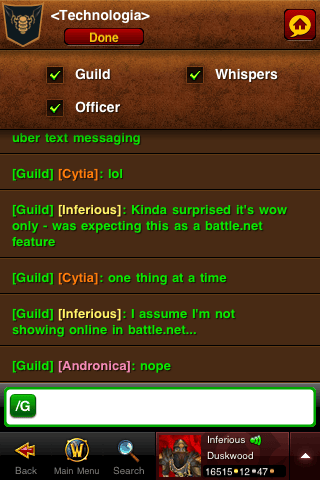
\n\tTapping the Filter button below the guild name pops up the channel filter window. Here you can turn on and off the various channels’ appearance in this window.
\n
\n\tScreenshot by Wally Bahny for TechRepublic
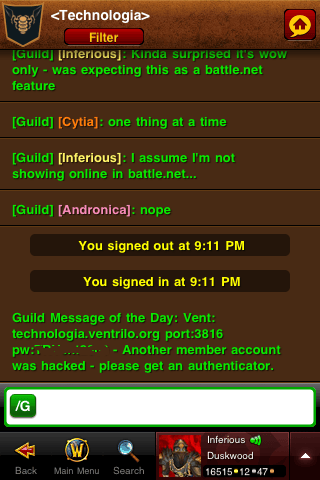
\n\tNotices of characters signing in and out (including yourself) appear in line with the other guild chat. When you sign in to the service, the guild message of the day appears as well.
\n
\n\tScreenshot by Wally Bahny for TechRepublic
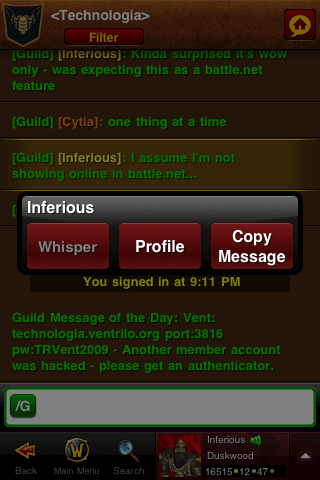
\n\tTapping on a character’s message gives you quick access to three features: Whisper, Profile, and Copy Message. In this case, I tapped on my character so the Whisper button is disabled, but this would allow you to quickly whisper another guild member instead of having to go back to the main screen and pull them up that way.
\n
\n\tScreenshot by Wally Bahny for TechRepublic
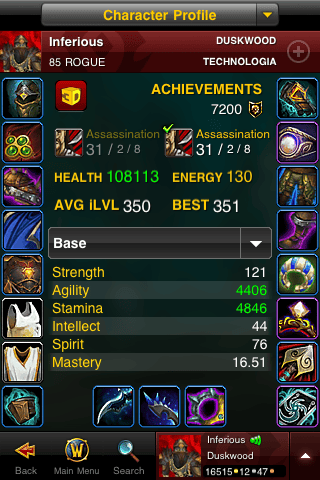
\n\tTapping on profile in the character popup will take you to that character’s current Armory profile. This is profile page for Inferious from late April, before Patch 4.1 came out. You can do much of the same stuff in the Mobile Armory Profile window as you can in the regular Armory page. Mobile Profile has been a feature of the Mobile Armory app for some time.
\n
\n\tScreenshot by Wally Bahny for TechRepublic
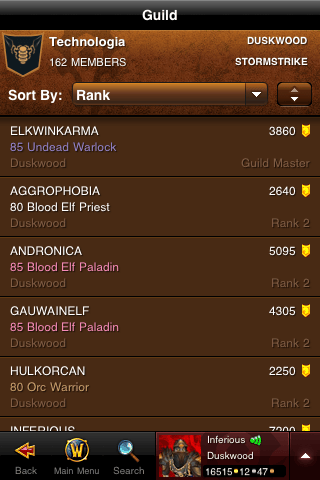
\n\tBack to the guild chat window, tapping on the guild’s tabard displayed in the upper left corner brings you to the Guild Listing screen. (This screen has been a feature of the Mobile Armory app for quite a while.) You can sort guild members by various attributes and access their profiles.
\n
\n\tScreenshot by Wally Bahny for TechRepublic
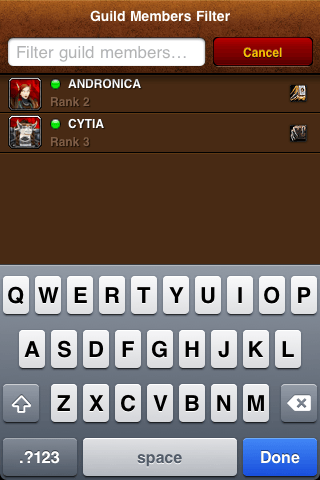
\n\tFrom the Remote Guild Chat main window, you can filter the guild members that are online by tapping the Filter button at the top of the list of online members. This enables you to quickly search through and find the guild member you want to whisper chat or look at their profile.
\n
\n\tScreenshot by Wally Bahny for TechRepublic
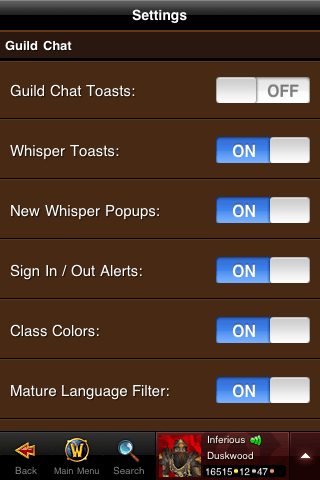
\n\tTapping the Gear button at the top right of the main window brings you to the Guild Chat Settings screen. These options are very similar to the options that are in the game client’s chat settings.
\n
\n\tScreenshot by Wally Bahny for TechRepublic


