This\r\ngallery is also available as a TechRepublic article.
Note: After you install Windows 8.1, you will be asked to sign in to a Microsoft Live account. There will be no apparent way to move past that screen if your intention is to only have a local account. Here is the trick: Click the Create New Account link and then at the bottom of that next screen you will see a link that will let you cancel the process. You will then login using your local account.
As of October 17, 2013, Microsoft\r\nWindows 8.1 is available as a downloadable update for Windows 8 users. The\r\nretail box version of the operating system hit the market on October 18, 2013.\r\nFor those of us using Windows 8, the new features and subtle changes of 8.1 are\r\nvery welcome. I can say unequivocally, if you have a computer running Windows\r\n8, you want to upgrade to 8.1.
\r\n\r\n
\r\n\r\n
I know you will be tempted to start your Windows 8.1\r\ndownload right away, but there are few things to do in preparation before you\r\nbegin the process:
\r\n\r\n
\r\n
\r\n
\r\n
\r\n
\r\n\r\n
\r\n\r\n
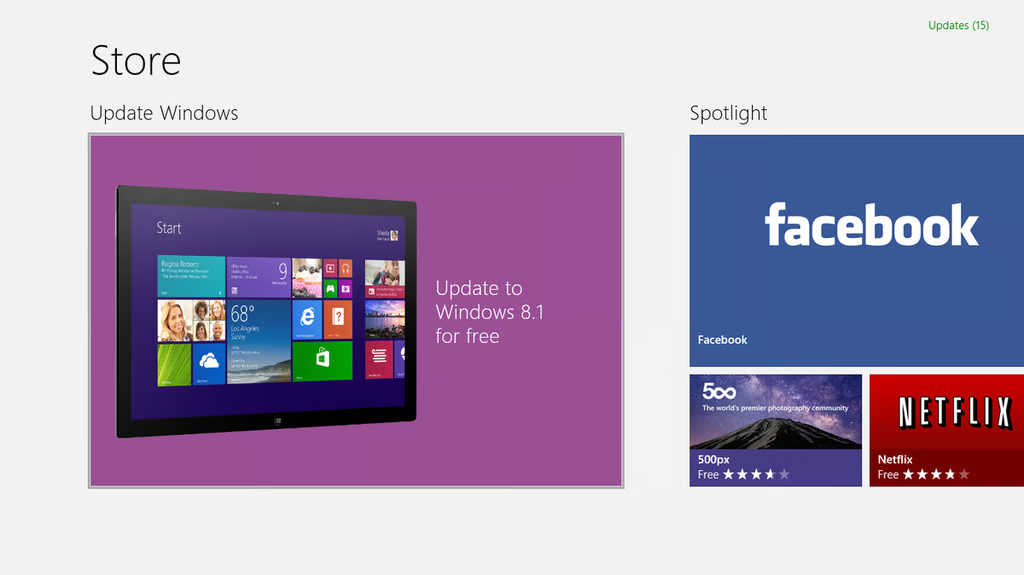
If you have a retail version of Windows 8, you can update to\r\n8.1 by going to the Store from the Start Screen – the first item you should see\r\nis a large Windows 8.1 download icon (Figure A).
\r\n\r\n
Credit: Images by Mark\r\nKaelin for TechRepublic
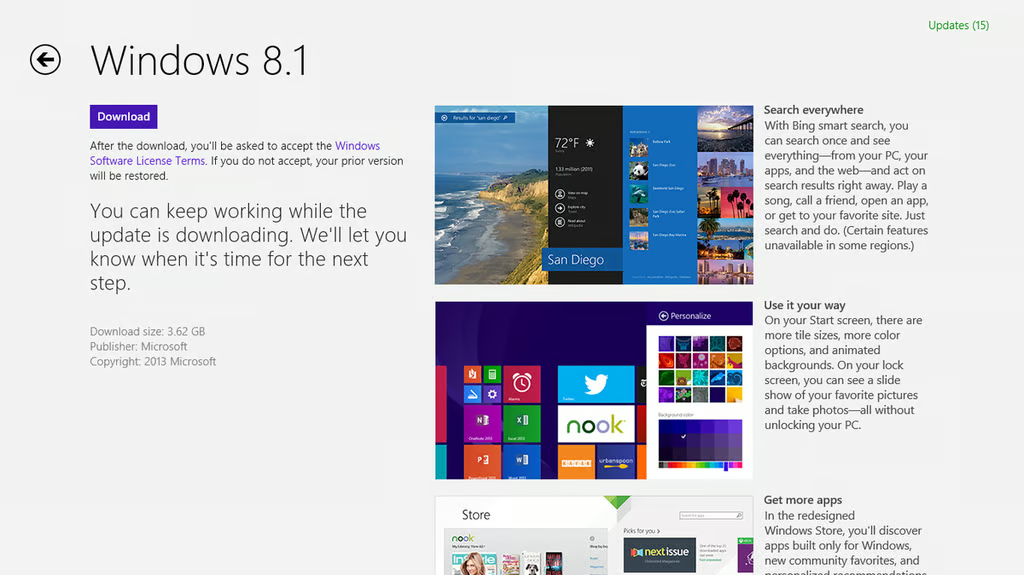
The next page (Figure B) is where you will actually click\r\nthe download button. This is also where you can get some explanation of what\r\nchanges are available with 8.1.
\r\n\r\n
Credit: Images by Mark\r\nKaelin for TechRepublic
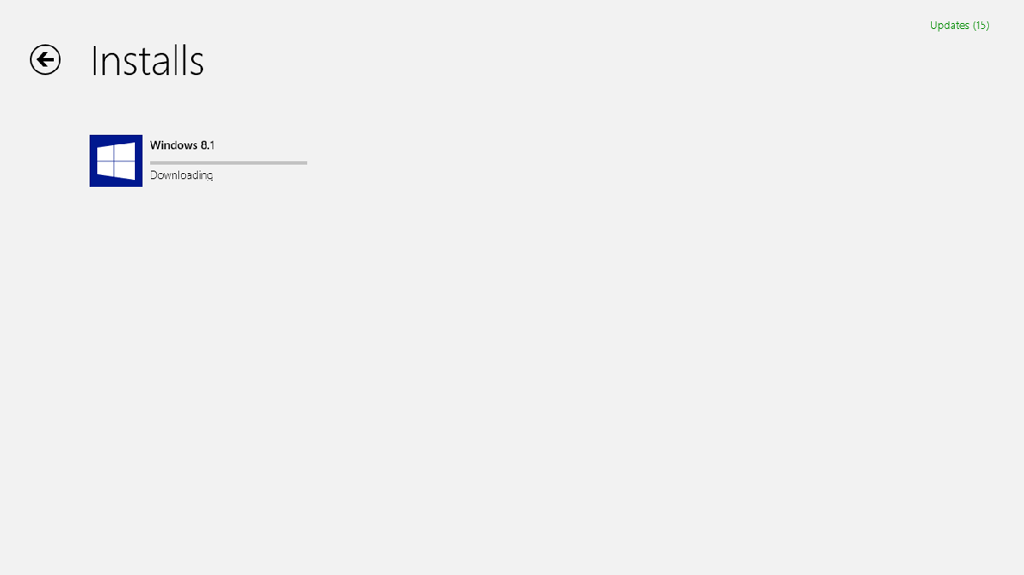
The download took a long time (Figure C), but I am thinking\r\nsome of the increased time was because of the number of requests coming in on\r\nthe first day of availability.
\r\n\r\n
Credit: Images by Mark\r\nKaelin for TechRepublic
\r\n\r\n
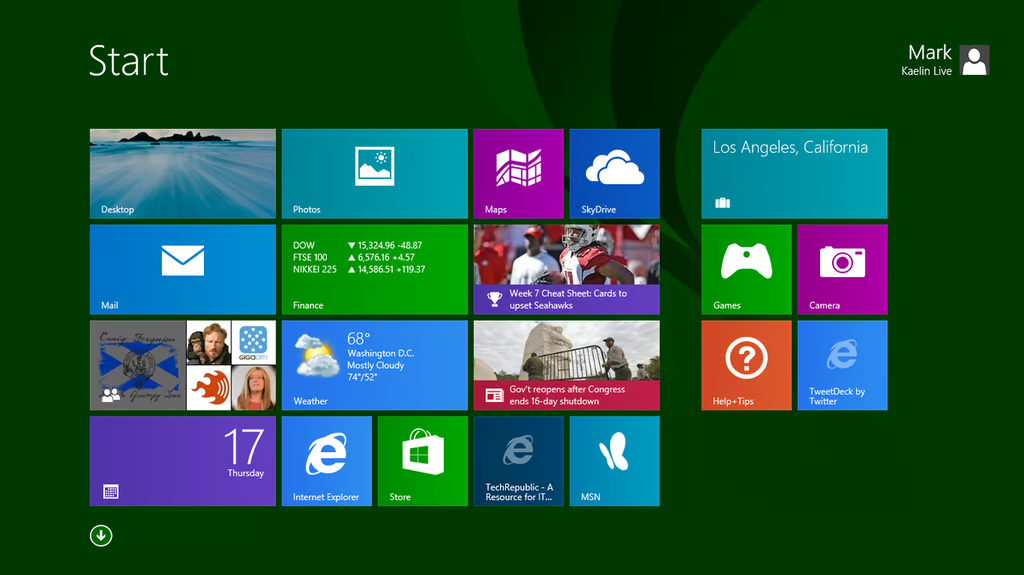
Once you have completed the download an installation\r\nprocess, the Start Screen of Windows 8.1 looks much like Windows 8 always has\r\n(Figure D).
\r\n\r\n
Credit: Images by Mark\r\nKaelin for TechRepublic
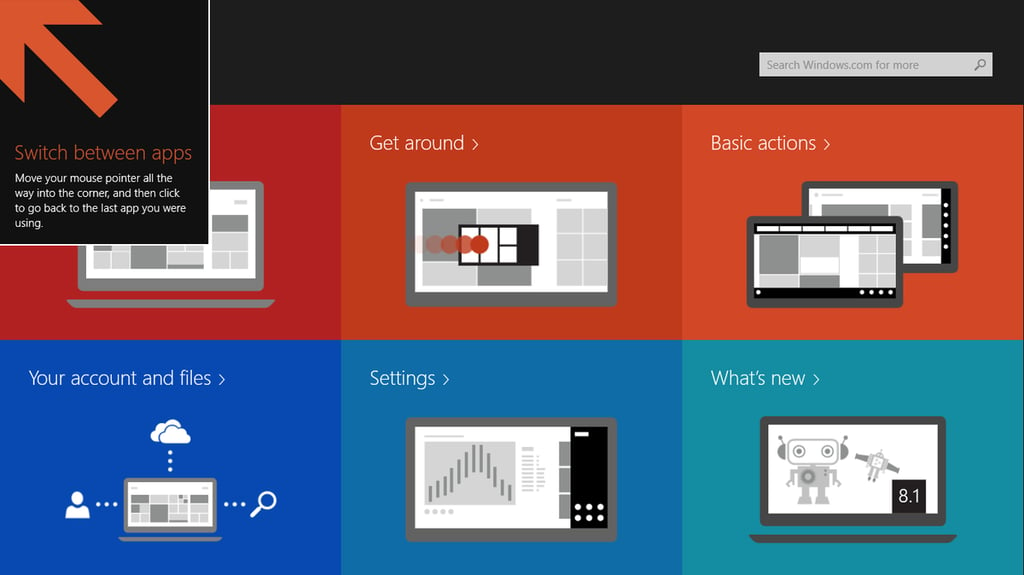
One of the prominent complaints against Windows 8 was the\r\nsteep learning curve. In my opinion, much of the problem was that Microsoft did\r\na terrible job explaining how things work in Windows 8 – especially with regard\r\nto the Start Screen.
\r\n\r\n
Windows 8.1 includes a Help + tips tile (Figure E) that\r\nexplains many of the navigation features users should be familiar with when\r\nthey are using the Start Screen. There is also an explanation of some of the\r\nnew 8.1 features.
\r\n\r\n
Credit: Images by Mark\r\nKaelin for TechRepublic
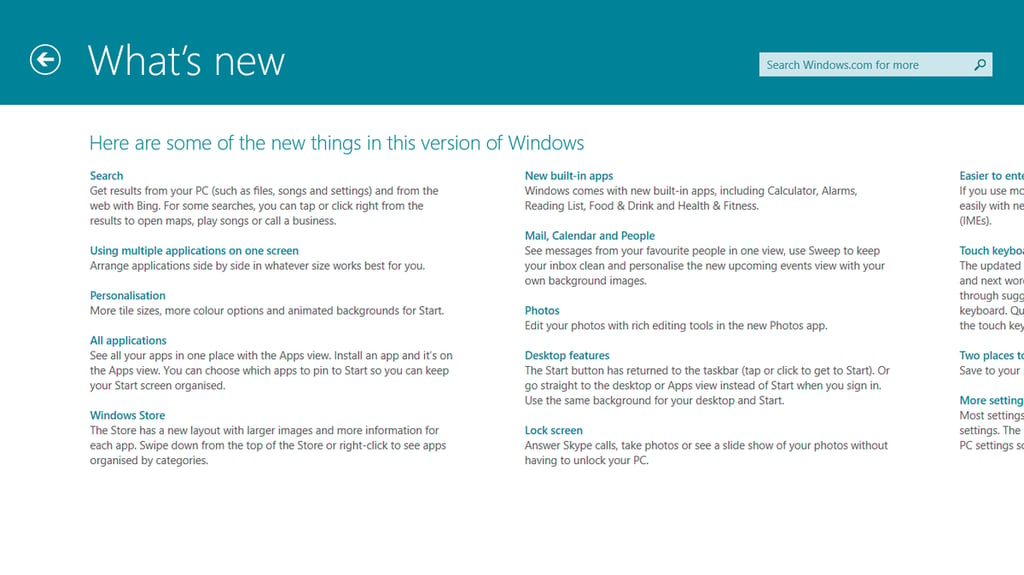
Figure F shows you some of the new features of Windows 8.1.\r\nFor me, some of the more noteworthy changes include the better Search, multiple\r\napplications on one screen, and more personalization choices.
\r\n\r\n
Credit: Images by Mark\r\nKaelin for TechRepublic
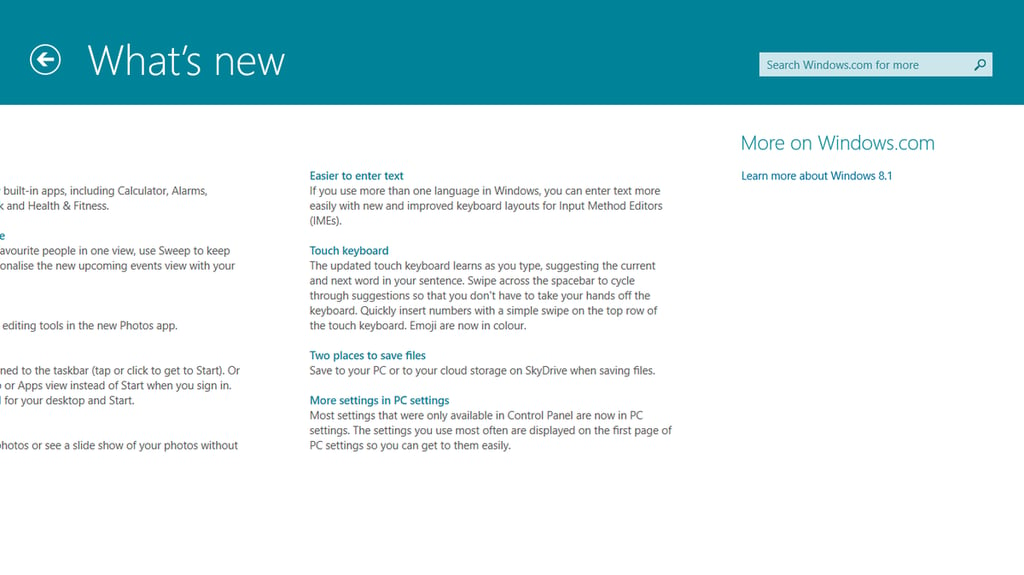
Figure G shows you a few more of the new features, including\r\nthe additional integration of SkyDrive. This is an important change – the\r\ndefault saving folders are now all on SkyDrive. You will have to specify a\r\ndifferent saving path if you want to save on your local hard drive, for\r\nexample.
\r\n\r\n
Credit: Images by Mark\r\nKaelin for TechRepublic
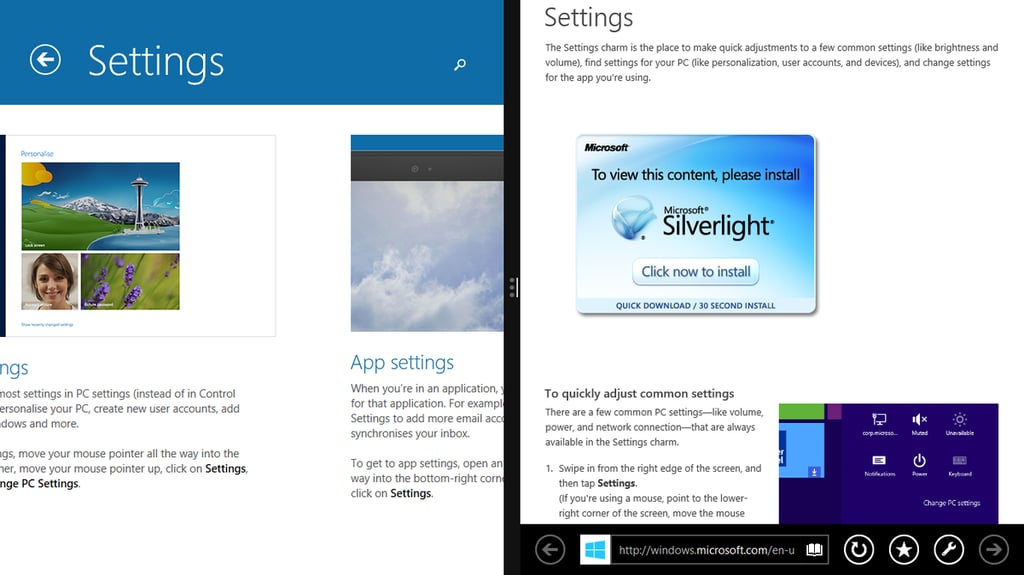
You have many more settings options (Figure H) with 8.1 and\r\nyou can now display two modern interface apps side by side.
\r\n\r\n
Credit: Images by Mark\r\nKaelin for TechRepublic
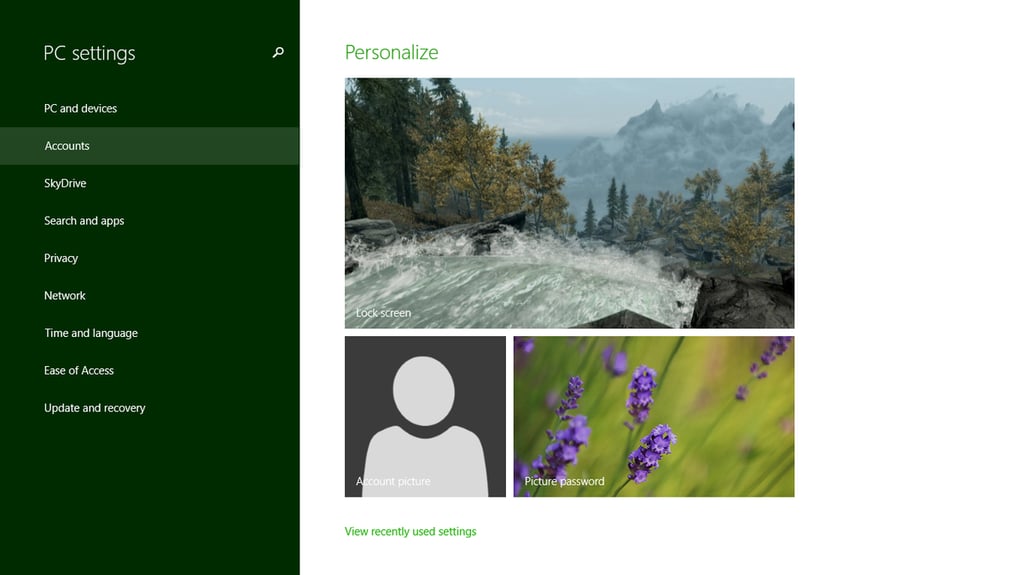
There are also more options flowing off of the Personalize\r\nsettings screen (Figure I). In a business setting, this may not be as\r\nimportant, but for individuals falling under the BYOD mode of operation it is\r\noften very important.
\r\n\r\n
Credit: Images by Mark\r\nKaelin for TechRepublic
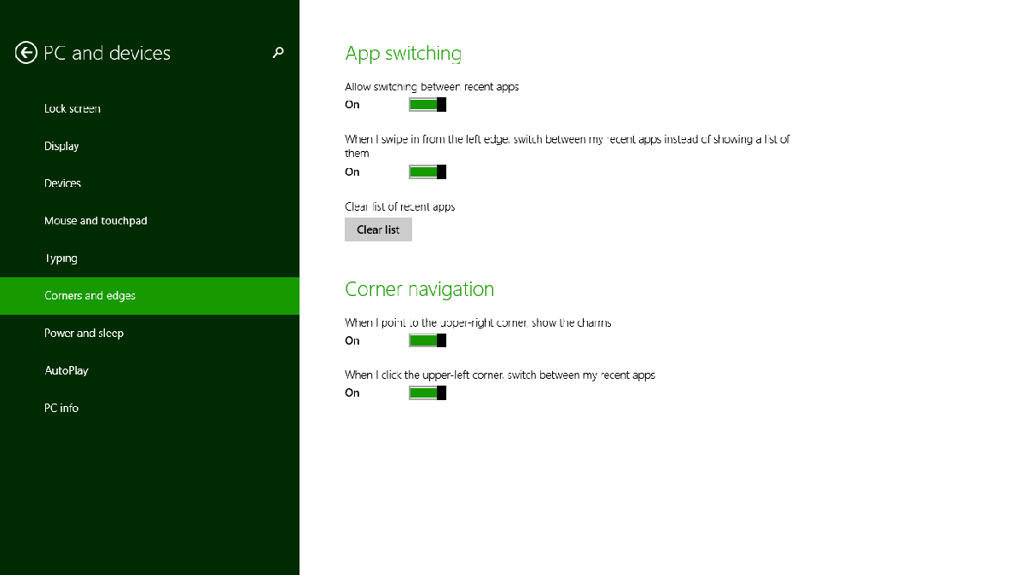
Corners and edges play a major role for touch screen users\r\nand the settings for those navigation aspects are included in the Personalize\r\nsettings menu. (Figure J)
\r\n\r\n
Credit: Images by Mark\r\nKaelin for TechRepublic
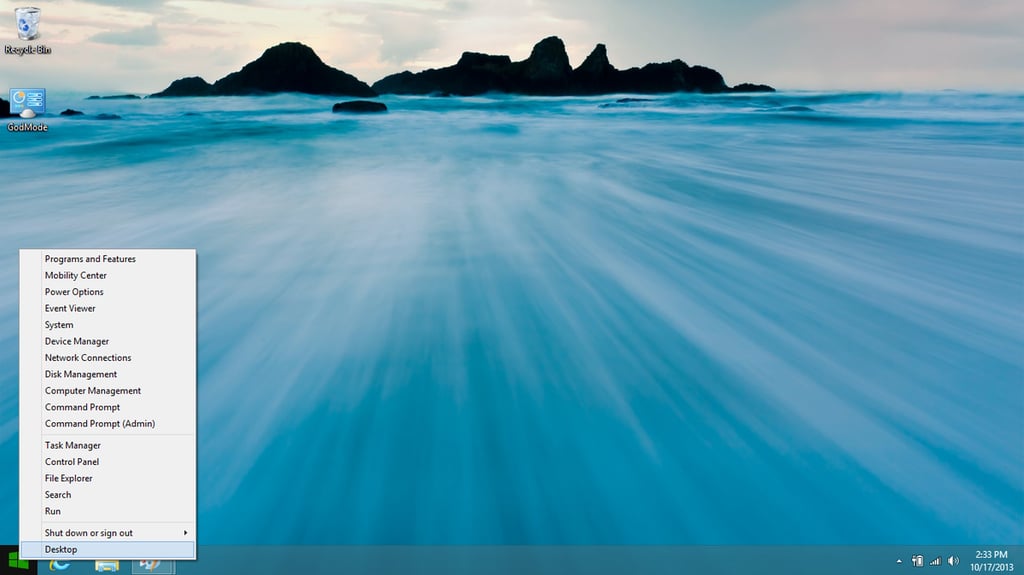
As a desktop user, I am more excited by having more features\r\nand choices available from the Windows Desktop. Figure K shows you the options\r\nyou get when you right-click the Start button in the bottom left corner.
\r\n\r\n
Credit: Images by Mark\r\nKaelin for TechRepublic
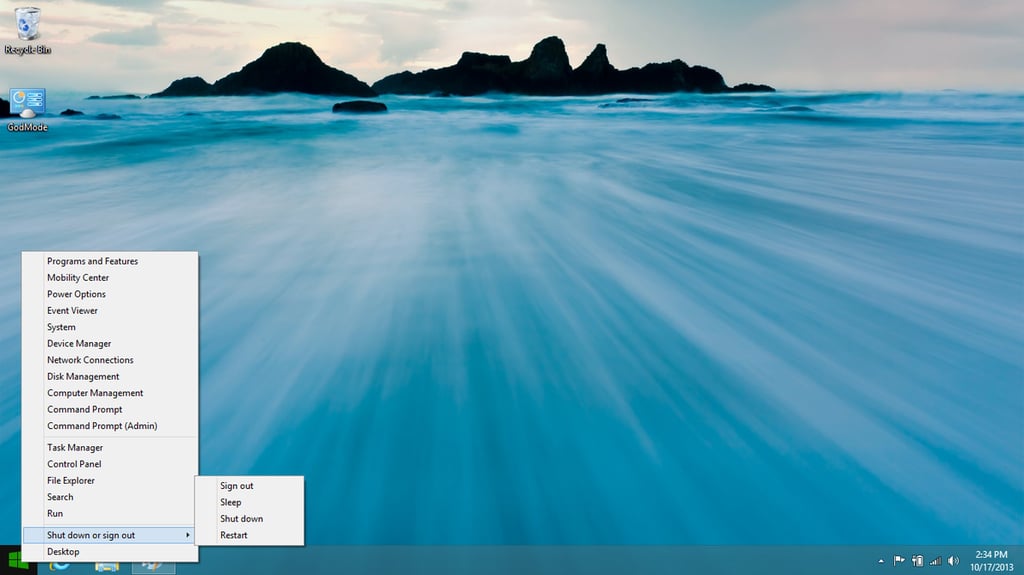
As you can see in Figure L, an additional menu off of the\r\nright-click menu gives you all of your Shut down options.
\r\n\r\n
Credit: Images by Mark\r\nKaelin for TechRepublic
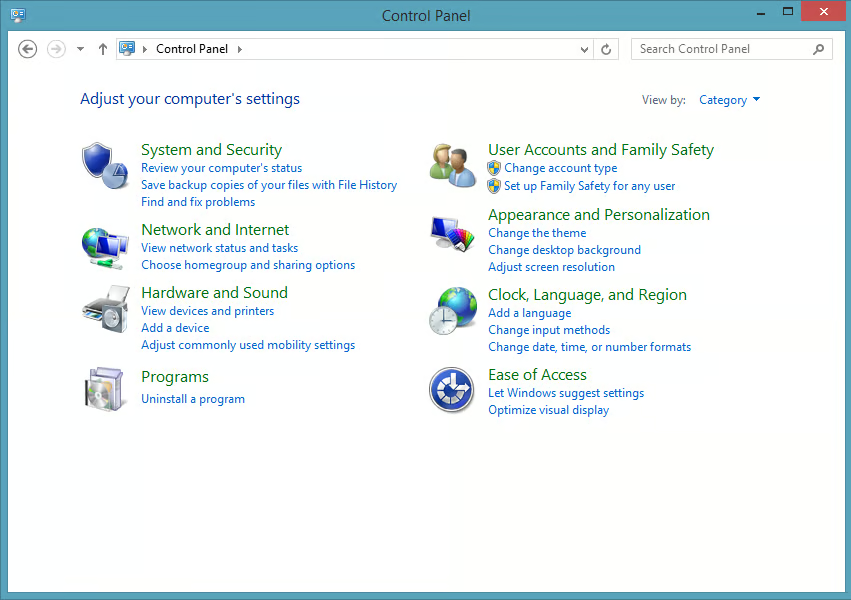
The Start button right-click menu also gives you direct\r\naccess to the familiar all-encompassing Control Panel. (Figure M)
\r\n\r\n
Credit: Images by Mark\r\nKaelin for TechRepublic
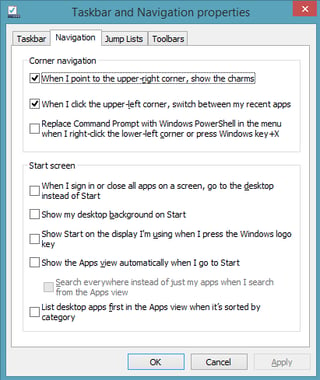
Another new feature in 8.1 that desktop users have been\r\nlooking for is the ability to login directly to the Desktop. The setting for\r\nthis feature can be found in the Taskbar and Navigation properties screen,\r\nshown in Figure N. You get to this screen by right-clicking the Taskbar and\r\nclicking the Properties menu item.
\r\n\r\n
Credit: Images by Mark\r\nKaelin for TechRepublic
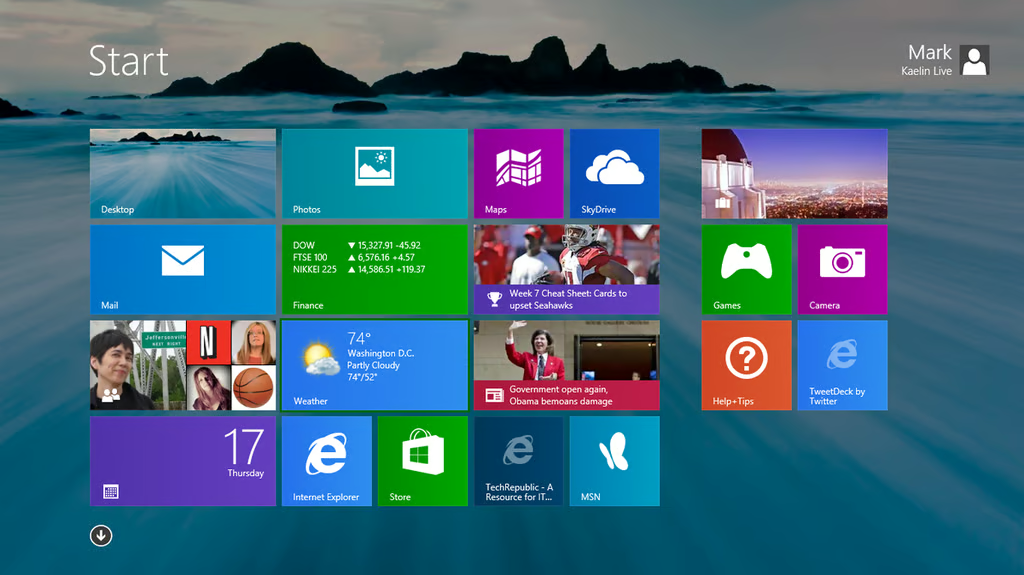
Another personalization feature is the ability to set a\r\nbackground image for the Start Screen. (Figure O)
\r\n\r\n
Credit: Images by Mark\r\nKaelin for TechRepublic
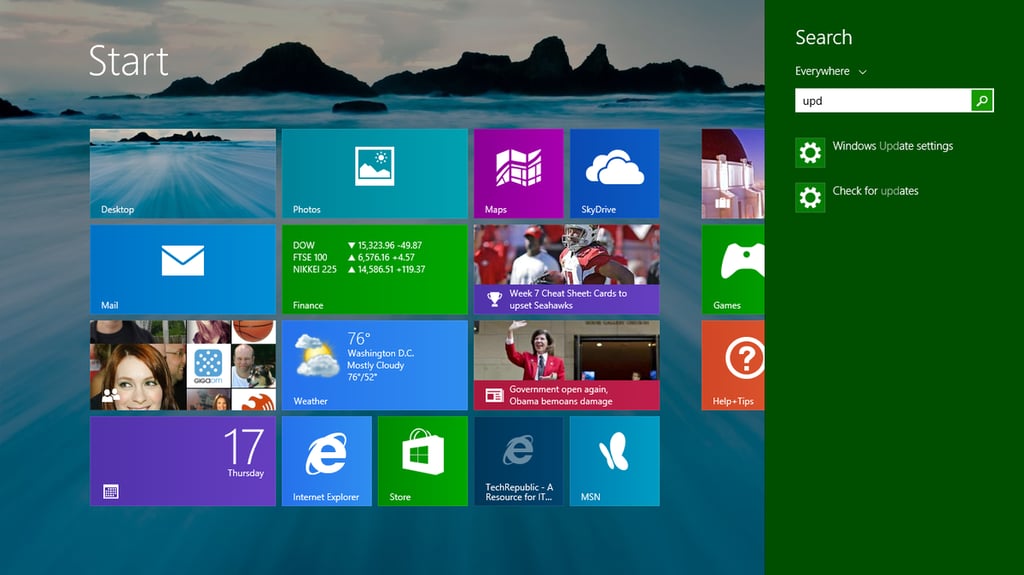
As mentioned earlier, the Search feature in 8.1 now searches\r\neverywhere (Figure P), which eliminates the need to specify apps over settings\r\netc.
\r\n\r\n
Credit: Images by Mark\r\nKaelin for TechRepublic
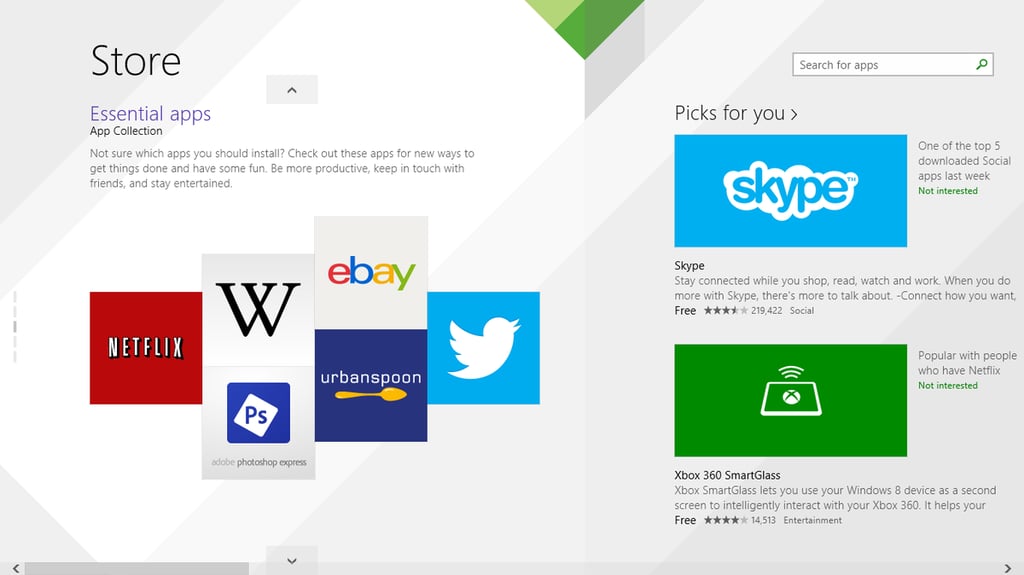
The Windows Store has also received a facelift with 8.1.\r\n(Figure Q)
\r\n\r\n
\r\n\r\n
As I said originally, if you use Windows 8 you will want to\r\nupgrade to Windows 8.1. There are new features and subtle changes that address\r\nmany of the issues user complained about when Windows 8 was released. And you\r\nget these better features for free – that’s tough to complain about.
\r\n\r\n
Credit: Images by Mark\r\nKaelin for TechRepublic

Mark W. Kaelin has been writing and editing stories about the information technology industry, software, hardware, gaming, finance, accounting, and technology geekdom for more than 30 years.


