


 Comparing lists for duplicates is a task that often has many
variables. You can compare values in the same list or you might want to compare
one list to another. Then there’s the definition of duplicate you need to
evaluate. How many values are necessary to satisfy the term? You’ll find many
solutions if you search the Internet, but you’ll find no one-size-fits-all
solution. You must know your data and apply an appropriate solution.
Built-in conditional formatting
In 10
cool ways to use Excel’s conditional formatting feature, #5 and #6 offer
conditional formatting rules for catching duplicate values. #5 compares values
in the same column. #6 finds discrepancies between values in two columns (or
lists). Now, suppose you want to highlight values that occur in both columns.
Neither of these solutions will work, but they’re close.
If you’re using a ribbon version, the solution is simple:
use one of the new built-in rules. To create the results shown in the images
below, do the following:
- Select the dataset, A1:
B8. - On the Home tab, click
Conditional Formatting in the Styles group. - Choose Highlight Cells
Rules and then select Duplicates Values in the subsequent menu. - In the resulting dialog,
select an appropriate format – I accepted the default – and click OK.
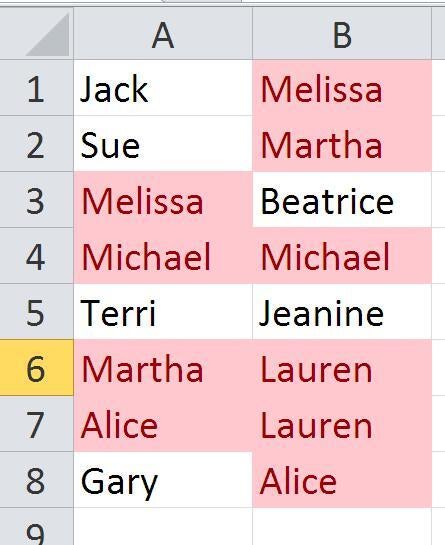
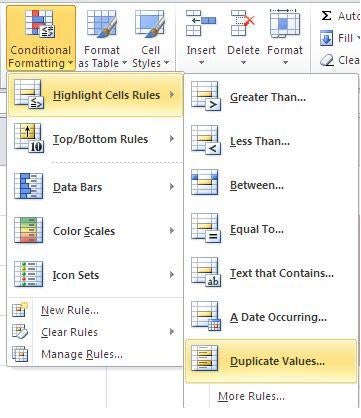
This built-in rule highlights all duplicates across the
selected columns. It highlights duplicates in the same column and can handle
more than two columns.
Formula conditional formatting
If you’re using Excel 2003, or if the above rule provides
too much coverage, you can use a formula rule to get almost the same results, as shown in the image below.
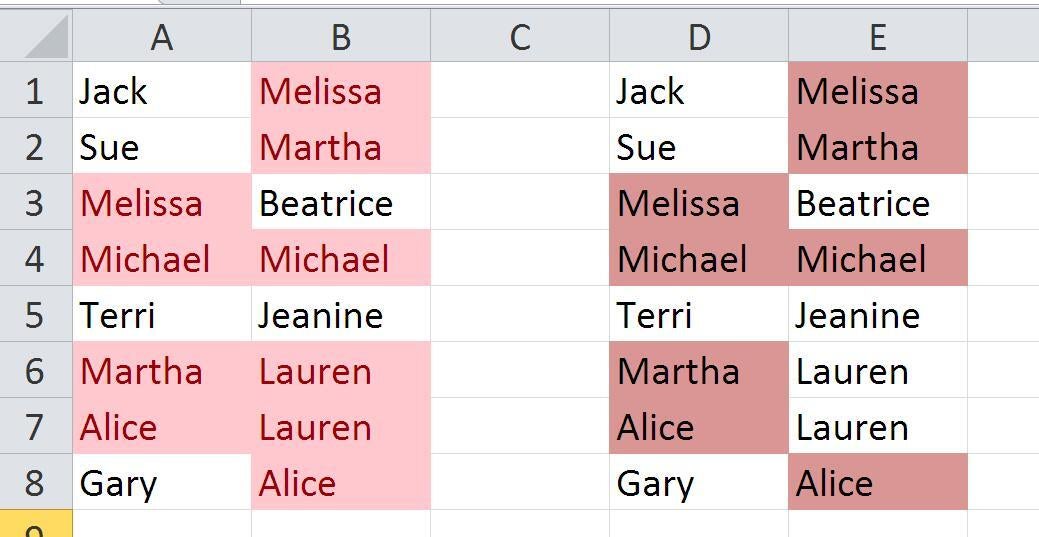
To achieve the similar results shown in the image below, do
the following:
- Select the first column,
D1:D8. - On the Home tab, click
Conditional Formatting in the Styles group. - Choose New Rule.
- In the resulting dialog,
select the last option in the first pane: Use A Formula To Determine Which
Cells To Format. - Enter the formula
=COUNTIF($E$1:$E$8,D1) and then click Format. - Select the appropriate
options, and click OK. - Click OK to return to the
sheet.
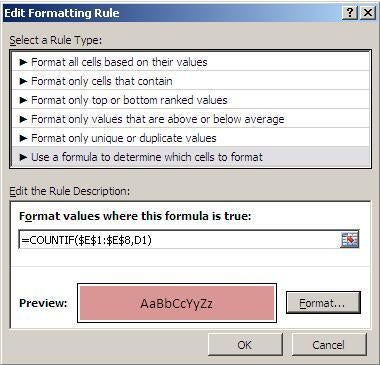
Repeat the steps above, selecting the data in column E,
E1:E8, and entering the formula =COUNTIF($D$1:$D$8,E1). (Don’t include the
period at the end; it’s grammatical.)
Applying this type of conditional format can have you
banging your head against the wall – so much can go wrong! In this example, the
function’s first argument is the same as the selected range. This arrangement
says: if a value in the selected range equals any value in the other referenced
column, highlight it.
This formula doesn’t catch duplicates in the same column.
You’d need an additional rule to cover those. In addition, this particular rule
restricts you to two columns.
Also read: