



Benchmarking tools are useful for diagnosing PC
performance problems or quantifying a comparison between the performance of
two machines. Given the usefulness of benchmarking software, it’s no surprise
that there are countless benchmarking utilities available on the market. Here are five such utilities.
This article is also available as a TechRepublic Screenshot Gallery.
1. Everest Ultimate Edition
Everest Ultimate Edition is more than just a performance benchmarking tool. This utility also provides a
plethora of general information about your computer. The software offers detailed statistics about things like your operating system, motherboard,
and storage. It can also perform benchmarking tests for your
memory, CPU, and FPU. Everest Ultimate Edition even provides a number of established
benchmarks (Figure A) so that you can see how your system stacks up.
Figure A
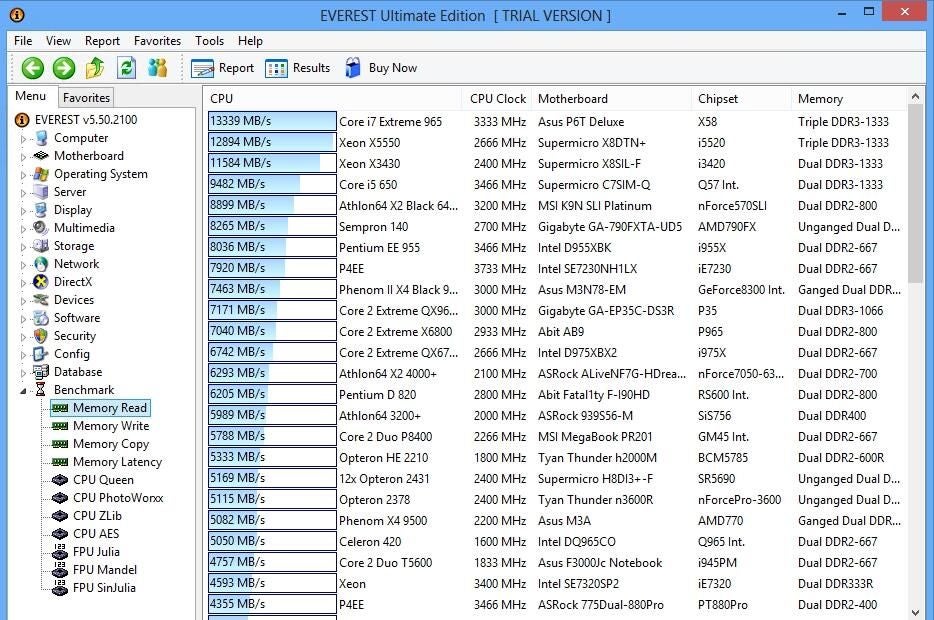
Everest Ultimate Edition benchmarks.
Additionally, the utility provides a really nice
reporting engine (Figure B) that you can use to view and export a variety of report types.
Figure B
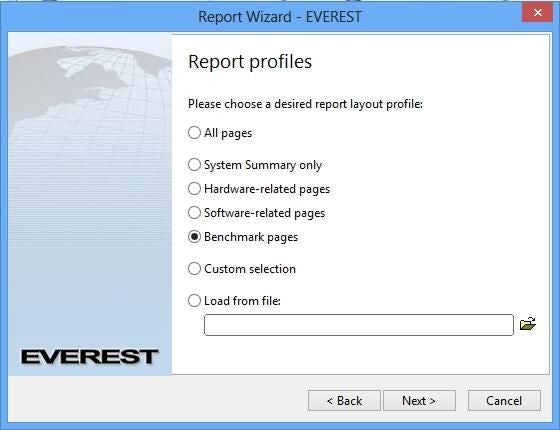
Everest Ultimate Edition reporting engine.
Everest Ultimate Edition sells for $39.95 (USD), but a free
trial version is available for download.
2. SiSoftware Sandra
SiSoftware Sandra is a modular benchmarking and informational tool for the PC. It can be used on domain networks or standalone PCs. The software uses a
collection of modules to evaluate hardware, software, and performance (Figure C). It’s functionality can be further extended by adding additional modules.
Figure C
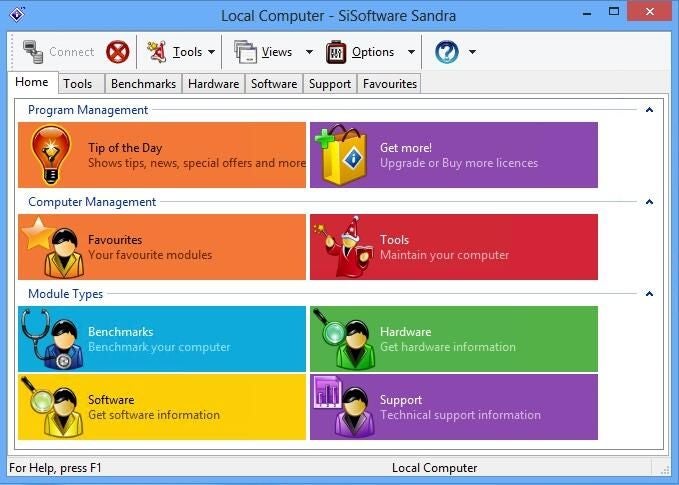
SiSoftware Sandra Home tab.
The one thing that I found amusing about this particular application was its
power consumption metrics. I ran SiSoftware Sandra on a virtual PC. As such,
the software did not know how to accurately compute power consumption and therefore
reported the virtual machine’s power consumption at 65,496.25 watts (Figure D).
Figure D
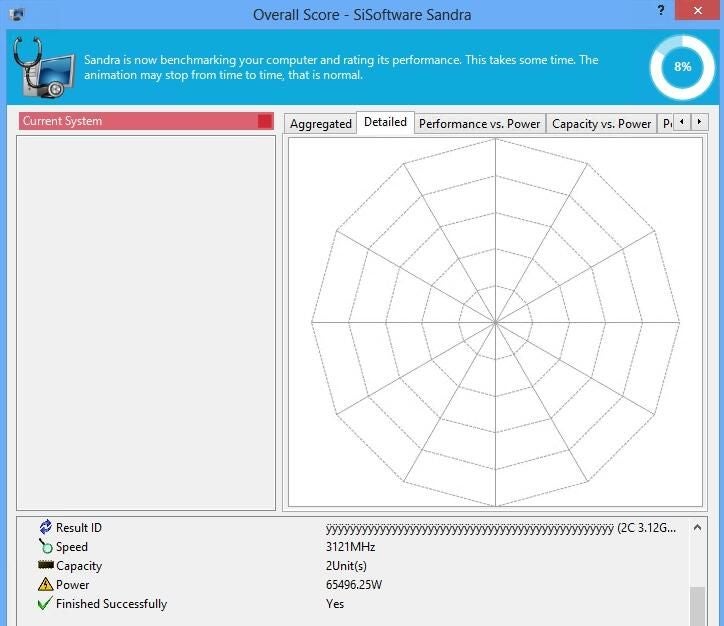
SiSoftware Sandra report.
SiSoftware Sandra sells for $49.99 (USD), but a free trial
version is available for download. The software is also free for private or educational use.
3. PerformanceTest
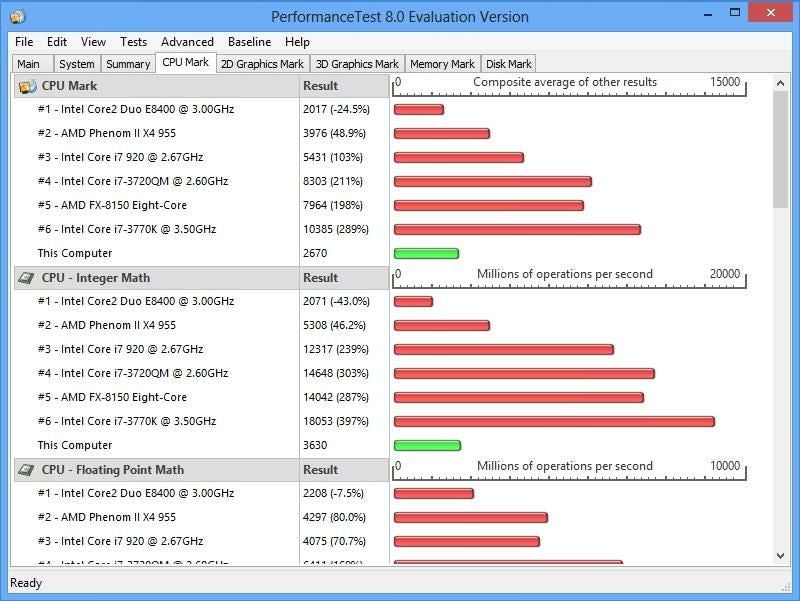
PerformanceTest is yet another utility for compiling system information and benchmark performance testing. It’s similar to Everest Ultimate Edition in that it
provides a number of established benchmarks as a way of giving you a basis of
comparison. When the testing results are displayed, your computer’s performance
benchmarks are displayed in green alongside the established benchmarks (Figure E).
Figure E
PerformanceTest benchmark results.
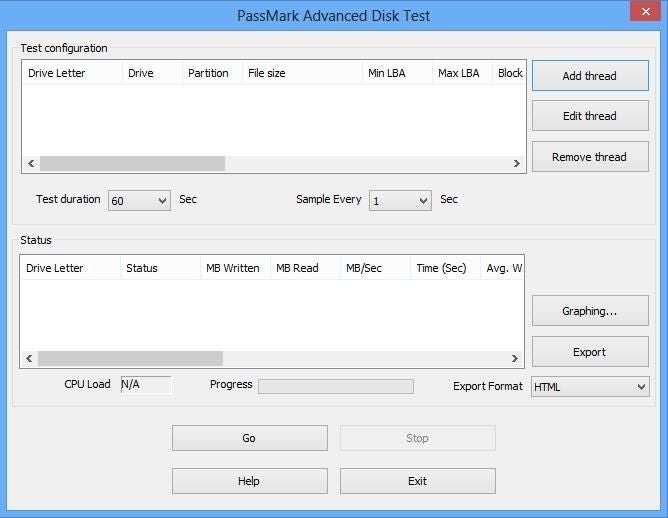
Perhaps the best feature of this utility is that you can
run custom tests (Figure F). There’s even an option to run scripted testing.
Figure F
You can run custom tests with PerformanceTest.
PerformanceTest sells for $26.00 (USD), but a free trial
version is available for download.
4. Fraps
Fraps is really different from the other benchmarking utilities in this review.
I chose to include it because Fraps is a utility that I personally use on a
regular basis.
Fraps is designed to help you to benchmark the frame rate
of DirectX applications. When playing a game for instance, Fraps displays a
yellow number in the upper left corner of the window, indicating your current
frame rate. This number dynamically adjusts as your frame rate changes.
Figure G

Fraps displays a yellow number in the upper left corner of the window.
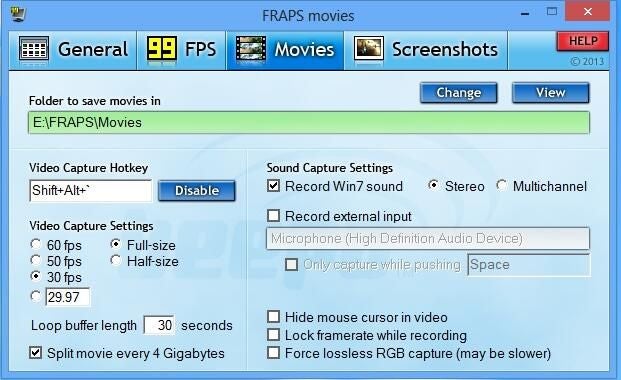
The other really cool thing about Fraps is that it can
record video and screen captures of DirectX applications (Figure H). Hardcore gamers
sometimes use Fraps to make a movie of their game play so that they can upload
it to YouTube or a similar video hosting service.
Figure H
Fraps lets you record video of DirectX apps.
Fraps sells for $37.00 (USD), but a free trial version is
available for download.
5. Fresh Diagnose
Like most of the other utilities that I have reviewed, Fresh Diagnose is a tool for benchmarking performance and compiling system information.
However, there are a couple of things that set Fresh Diagnose apart. The first thing that it’s free!
The second thing that sets Fresh Diagnose apart is the
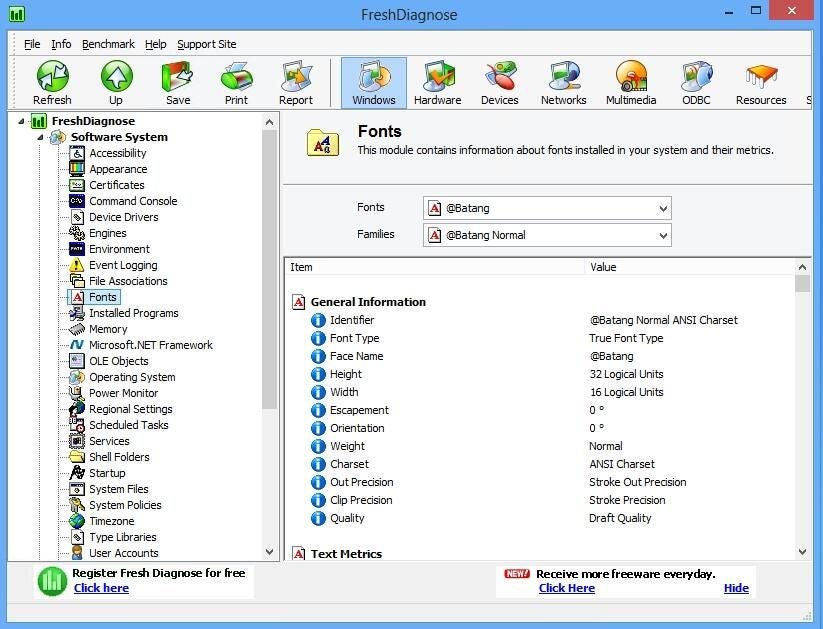
level of detail that it provides. While many utilities provide information on
CPU and disk architecture, Fresh Diagnose also provides granular operating
system information. For example, the software provides information on fonts
that are installed (Figure I), your system policies, and Windows Startup configuration.
Figure I
Fresh Diagnose Fonts.
The actual benchmarking capabilities are supposed to be available only to registered users (Figure J). However, a bug in the program allows
non-registered users to launch benchmarks by using the Start command that’s
located on the Benchmark menu.
Figure J
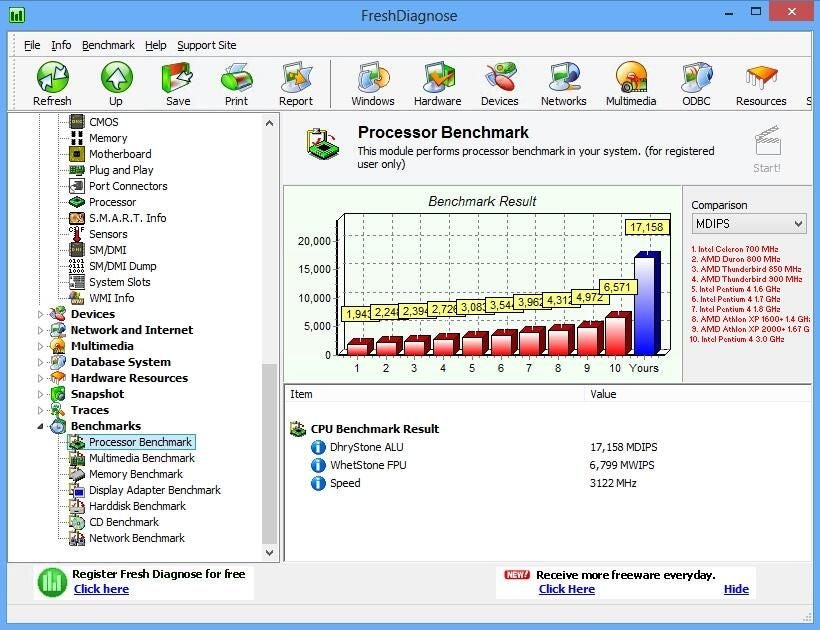
Fresh Diagnose Processor Benchmark.
What benchmarking tools do you use in your organization? Share your favorite utility in the discussion thread below.