


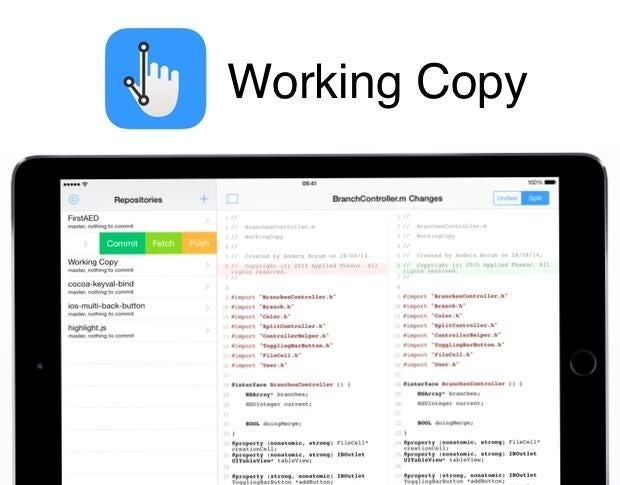
Git is the modern standard for source code hosting. Large hosting platforms like GitHub and Atlassian’s Bitbucket allow for easy creation of git repositories for storing apps and web source code for sharing amongst teams during the development process. But, what if you want to access the repositories, perform merges, and commit code while you’re on iOS?
Fortunately, there are quite a few good apps that you can use on the iPhone and iPad to do this, and we’ll take a look at one of the best: Working Copy.
SEE: Apple releases iOS 10.3.1 for iPhone, iPad (ZDNet)
Download Working Copy
Mobility must-reads
- Big Apple OS Makeover: Here’s What to Expect & When
- MWC 2025: Nothing Shows Off (3A) Phones With AI Organization Tool
- Bad News for App Developers: Most Apps Fail to Hit $1,000 Monthly Revenue Within Two Years
- Mobile Device Computing Policy
I like Working Copy because it’s a universal app that works on iPhone and iPad; it includes a built-in editor that lets you edit code; and it can handle many simple git tasks such as forking, merging, and reverting changes.
Working Copy is a paid app available on the App Store. It costs $14.99 USD to download.
Sign in with your git account or import keys
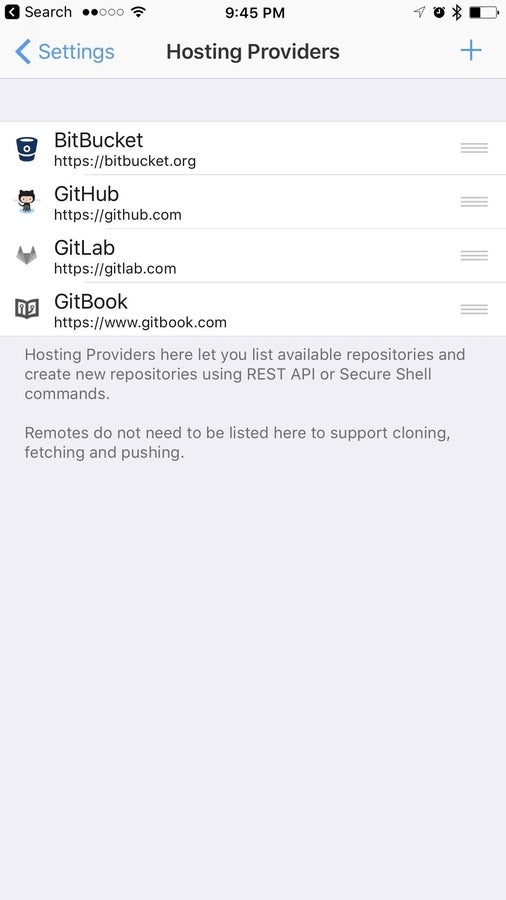
If you use GitHub, Bitbucket, GitLab, or GitBook, you can sign into your account to view available repositories. To do this inside of Working Copy, follow these steps.
- Open Working Copy.
- Tap Settings in the top left-hand corner and then tap Hosting Providers.
- Select your provider (Figure A).
- Enter your username and password
Figure A
Now that you’ve signed in to your git hosting account, you’ll need to either generate a new SSH key for your device or import an existing key. Follow the directions below for each of those tasks.
How to generate a new SSH key
- Open Working Copy.
- Select Settings | SSH Keys | + Button (Figure B).
- Select Generate Key.
Figure B
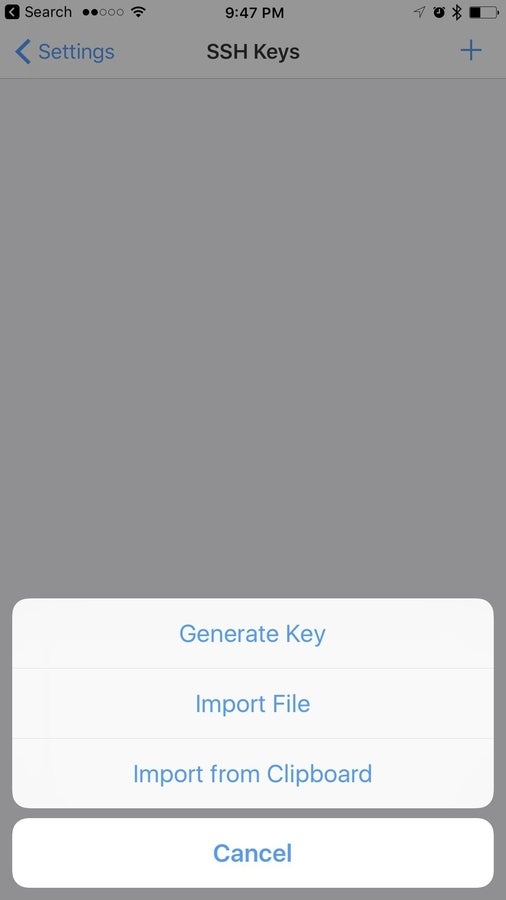
You’ll be presented with a new SSH key that you can name to your liking. You can export the public or private keys via email, iMessage, or AirDrop so you can import those keys with your git hosting provider.
How to import an existing SSH key
- Open Working Copy.
- Select Settings | SSH Keys | + Button.
- Select either Import File (if the SSH key to import is stored in iCloud Drive or another location on your device) or Import From Clipboard (if you copied your SSH key to your iOS clipboard).
If you don’t wish to add an SSH key and use HTTP or HTTPS clones instead, you can skip this step. When cloning the repository you’ll be prompted to enter the username and password if cloning via HTTP/S.
How to clone repositories
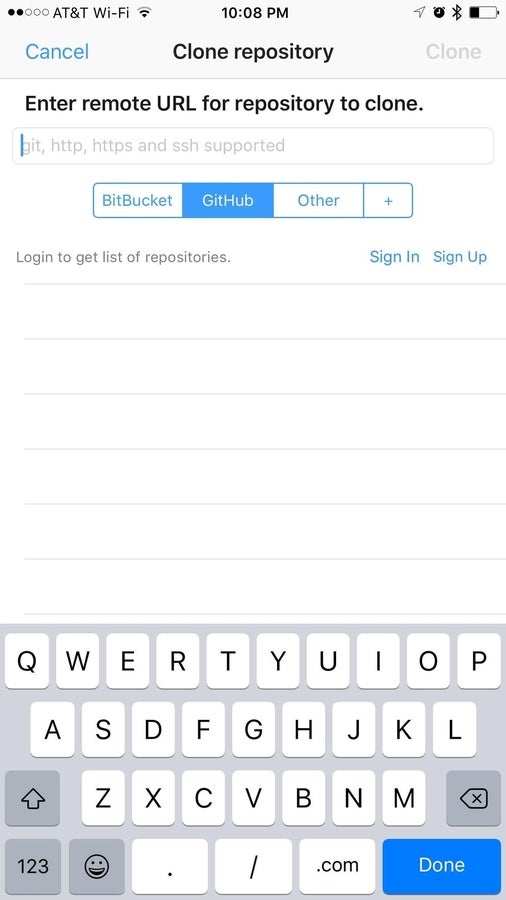
To clone a repository to your local device, open Working Copy and navigate back to the app’s main screen. Tap the + button to bring up the Clone Repository view (Figure C).
Figure C
To clone a new repository on the device, follow these steps.
- Enter the URL (HTTP, HTTPS, and SSH URLs are supported).
- Select Clone.
While in this view, you can also see all repositories available to clone from your signed in hosting account, such as Bitbucket and GitHub, from the list below the clone URL text entry.
If the SSH key created in the Working Copy app has already been associated with your git hosting service, the clone will start immediately. If you’re using an HTTP/S clone, you’ll be prompted to provide your username and password before continuing.
After tapping the Clone button, the repository will be cloned from the remote URL and added to Working Copy where you can edit the files inside of the app by tapping a file name. Once edited, the changes will appear and can be committed and pushed back to the remote repository.