



Anyone that has ever used a virtual machine (VM) understands how important it is to be able to allocate enough storage for their virtual servers. Sometimes you spin up a VM with more than enough storage, and sometimes you don’t. When that costly mistake occurs, what do you do?
You add a new drive to your VM.
More must-read storage coverage
- Quick Glossary: Storage
- Hiring Kit: Storage Engineer
- Microsoft Redesigns OneDrive for Business Layout
- Achieving Cost Efficiency in Cloud Storage: The Role of Western Digital’s Hard Drive Portfolio
Thankfully, this task is easy in VirtualBox. Let’s walk through the steps and, in the end, you’ll have added enough storage to keep your virtual server up and working, without fear of running out of space.
SEE: Quick glossary: Virtualization (Tech Pro Research)
Adding the disk
- Add the actual disk; this will be another virtual disk (so you’re not actually adding a physical drive for the VM).
- Power down the VM. (Do not close it by saving the state–it must be powered down.)
- Select it in the VirtualBox main window (left pane) and then click Settings.
- In the Settings window, click the Storage section.
- Under the Storage tree (Figure A) click Controller: SATA and then, near the bottom click the Add Disk button (the green plus sign over the floppy icon), and select Add Hard Disk.
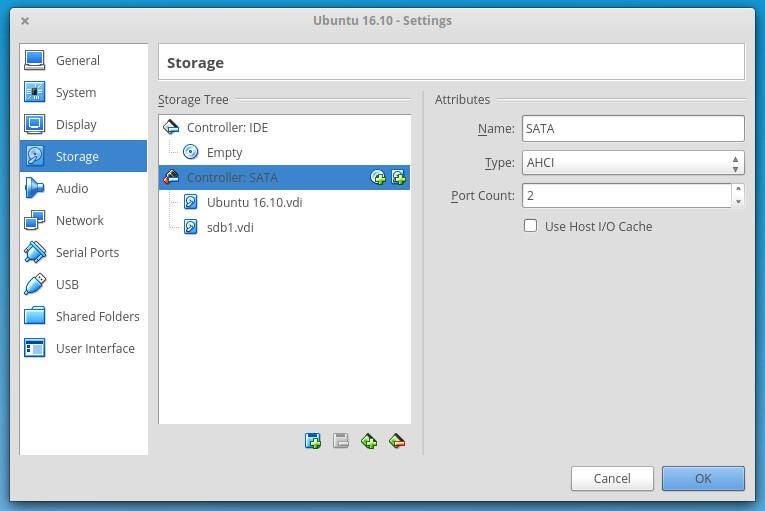
- In the popup window, click Create New Disk and walk through the Create Virtual Hard Disk wizard: Select VDI, either Dynamically Allocated or Fixed Size, Name, and (if dynamic) size of the disk, and click Create. You should have a new, unformatted drive attached to your VM (Figure B).
- Click OK to close out the Settings window and fire up your VM.
Figure A
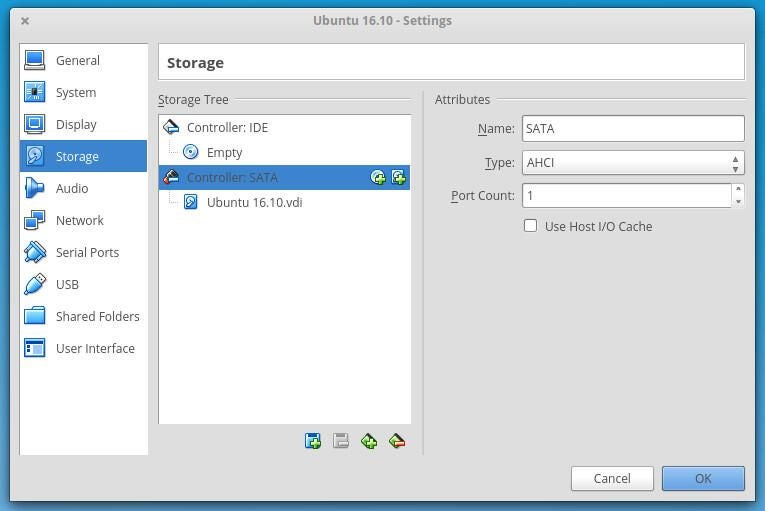
Figure B
Preparing the drive for use
Once the VM is up and running, it should detect the newly attached drive. It will show up as unformatted, so it currently is unavailable for use. The way you format this drive will depend upon the VM platform. I am demonstrating with Ubuntu 16.10 as the guest, so I’ll proceed accordingly.
Opening the Disks tool (which is GNOME Disks), I can see the the newly created drive (I named it sdb1 – Figure C).
Figure C
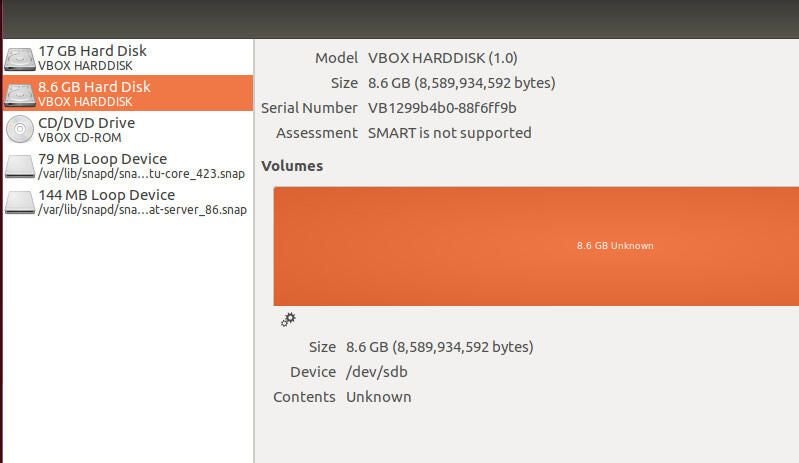
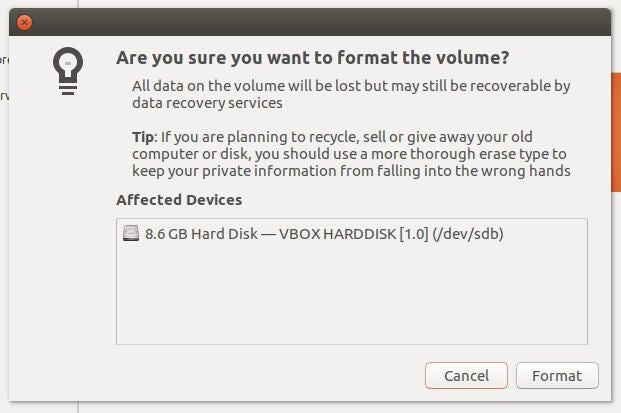
Click the gear icon (under Volumes), select Format Partition, make your selections (Quick or Slow Erase, file system type), name the drive, and click Format. When prompted, click Format a second time (Figure D), and the drive will be formatted and ready to use.
Figure D
Open your file manager, and the new drive will be listed as available. The way you make that drive automatically available at boot will depend upon your platform. For Linux, you will have to add an entry into /etc/fstab (Figure E).
Figure E
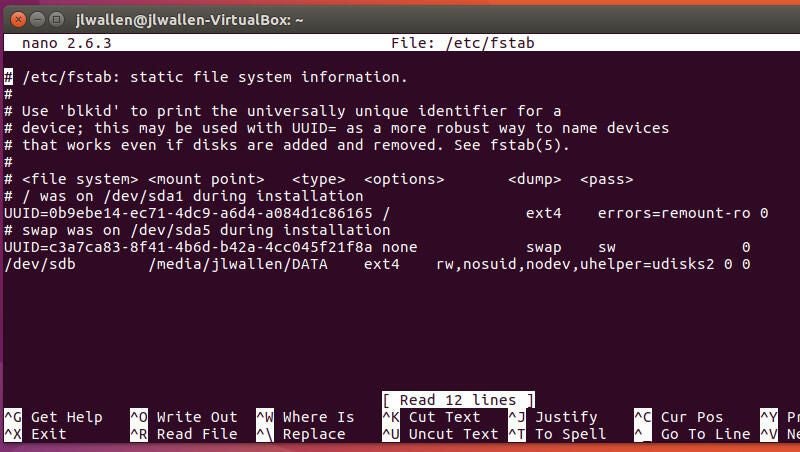
Once you save /etc/fstab issue the command sudo mount -a. That command should return no errors or warnings.
As simple as it gets
Adding a new disk to a VirtualBox VM is as simple as it gets. Other than shutting down the VM to quickly add the disk, your virtual server will suffer very few hiccups and, within minutes, you’ll have added a new drive to help expand your system.
And don’t think you’re limited to adding only one drive. You can expand your VM as needed…as long as you have the necessary space on your VirtualBox host.