


Image: Lightspring/Shutterstock
Must-read security coverage
- UK Police Convicts Pair in £5.5 Billion Bitcoin Launder Case
- Blackpoint Cyber vs. Arctic Wolf: Which MDR Solution is Right for You?
- How GitHub Is Securing the Software Supply Chain
- 8 Best Enterprise Password Managers
The evolution of social media and the internet have allowed people and companies to share a lot of content, some of which might be used to spread fake news or misinformation. One of the keys to investigate this material is to try to find evidence of the same image/video being used before, often in an unrelated context. This article shows how to easily check for it by using the InVID Verification Plugin.
What is InVID Verification Plugin?
While the plugin is originally designed to help journalists verify content on social media and improve fact-checking and debunking capabilities for its users, it can also be used by anyone with an interest in checking images or videos. More and more companies have social media experts on staff who need tools to spot fake news and detect fake media that might target them. The tool might also be used to raise awareness or train people to increase their skills in detecting media tampering.
The InVID Verification Plugin, or Toolkit, is provided by the InVID and WeVerify European projects. Both projects have received funding from the Horizon 2020: EU Programme for Research and Innovation.
Features of the InVID Verification Plugin
The features of this plugin are:
- Get contextual information on Facebook and YouTube videos.
- Perform reverse image search on multiple services: Google, Bing, Baidu, Yandex, TinEye and Reddit.
- Fragment videos from several social networks: Facebook, Instagram, YouTube, Twitter, Dailymotion.
- Enhance and explore keyframes and images by using a magnifying lens.
- Read video and images metadata.
- Check video copyrights.
- Apply forensic filters on images.
- Query Twitter more efficiently through timed intervals and several filters.
How to install the InVID Verification Plugin
This tool works as a Chrome or Firefox browser plugin. From the home page of the InVID Verification Plugin, select Chrome or Firefox. We chose Firefox for this tutorial (Figure A), but the install steps are the same for Chrome.
Figure A
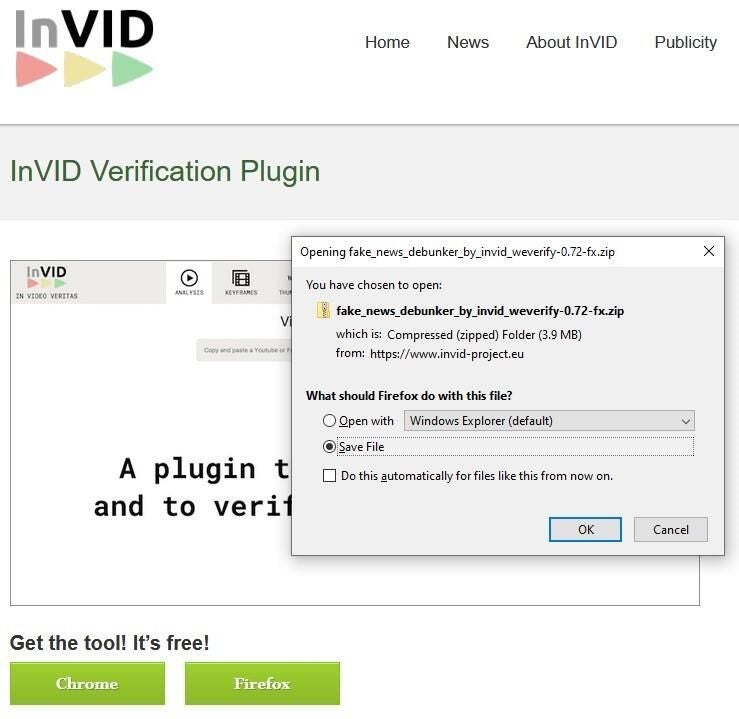
Download the plugin.
Once the plugin is downloaded, go to the folder where it was saved and extract the .zip file (Figure B), then unzip it.
Figure B

Double-click on the .xpi file to launch it in Firefox or Chrome. Depending on what your default browser is, you might need to right-click on the .xpi file and select Open With, then choose Firefox or Chrome.
As it opens in the browser, select Add to allow the permissions to install the plugin (Figure C).
Figure C
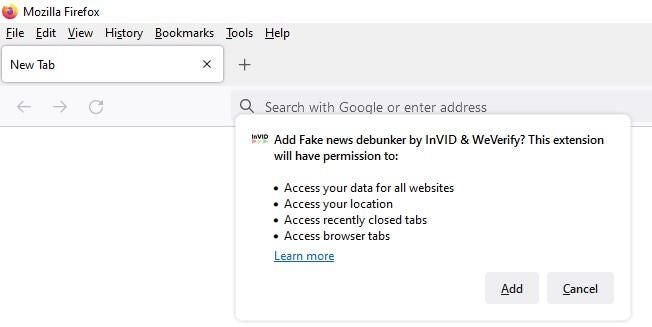
Tick the box for allowing the plugin to run in Private Windows if you like, then click Okay (Figure D).
Figure D
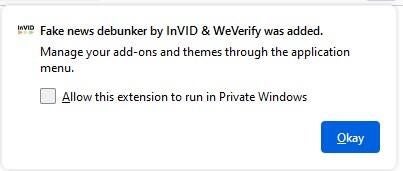
The plugin is now installed and should show its logo in the plugins bar.
How to access and use the plugin
The plugin can be accessed and used via two methods.
A click on the plugin icon in the browser opens its menu (Figure E).
Figure E

- Open InVID launches the plugin.
- Video Urls displays the URL of a video on a web page.
- Image Urls displays the URL of an image on a web page.
The other option is to right-click on a picture or video from the web page (Figure F).
Figure F

Once right-clicked, the menu shows different options from the plugin, like opening the magnifier or doing reverse searches on images in search engines.
InVID Toolkit’s main menu
By clicking on the plugin icon in the browser and selecting Open InVID, the main menu of the plugin appears (Figure G).
Figure G

On the upper part of the menu, several options are available:
- Tools: This is the default panel that is opened when the plugin is launched, as can be seen on Figure G.
- Tutorial: This part contains several tutorial contents.
- Classroom: This panel shows several educational videos about fake news and disinformation.
- Interactive: This panel brings the user to “Spot the Fake” exercises (with solutions).
- About: This panel shows information about the plugin and its developers.
The tools
Image magnifier
The image magnifier allows an investigator to zoom in on a picture to see more details about it (Figure H).
Figure H

Image metadata
This option shows the metadata of a picture (Figure I).
Figure I

Video Rights
Video Rights shows the usage rights for videos from YouTube, Twitter or Facebook (Figure J).
Figure J

Twitter Advanced Search
This feature allows users to launch advanced queries on Twitter (Figure K).
Figure K

YouTube thumbnails reverse search
This feature runs reverse searches on the thumbnails of a YouTube video. The searches can be run on several search engines (Figure L).
Figure L

Video fragmentation and reverse image search (Keyframes)
This option fragments the video into multiple images (Figure M) and allows the investigator to run a reverse image search on any of it. This is a useful feature to detect if parts of a video have been reused from another source.
Figure M

Video contextual verification
This tab provides statistics about videos from YouTube, Twitter or Facebook (Figure N).
Figure N

Image forensic analysis
This tab provides eight different filters to help detect digital image tampering (Figure O).
Figure O

Reverse image search
InVID can launch reverse image searches on several search engines: Google, Yandex, Bing, TinEye, Baidu and Reddit.
The easiest way to launch this is to right-click on a picture and select the desired search engine or select all. The plugin opens one tab per search engine in the browser to show the results (Figure P).
Figure P

The InVID Toolkit allows any investigator or social media expert to verify contents by analyzing images and videos on several different platforms or even on local files. Being a plugin for Firefox or Chrome, it can be used on several different operating systems, like Windows, Linux or Mac.
Disclosure: I work for Trend Micro, but the views expressed in this article are mine.