



Google Keep is one of the best cloud-based note-keeping apps on the market, and Google is constantly adding new ways to make the tool even more useful. One such addition is the ability to take a photo, and then quickly have the text copied into a digital format. This means you could take a photo of someone’s business card and almost instantly have their details in text format…all without having to type a single line of text.
Cloud: Must-read coverage
- CrowdStrike Outage Disrupts Microsoft Systems Worldwide
- Quick Glossary: Cloud Platform Services
- Achieving Cost Efficiency in Cloud Storage: The Role of Western Digital’s Hard Drive Portfolio
- Still Not Backing Up Microsoft 365 Data? Here’s Why That’s a Risky Move
- Verito vs. Rightworks: Which IT Provider Is Best for Your Firm?
How do you do this? Simple. Let me show you how.
First off, unlike pulling text from images already saved on your local machine or Google Photos, optical character recognition using your camera only works with the mobile app (for obvious reasons). But when you’ve taken the photo and extracted the text, it will automatically sync to every instance of Google Keep you have associated with your Google account.
To do this, follow these steps:
- Open Keep on your mobile device.
- Tap the camera icon in the bottom right corner.
- Tap Take Photo.
- Snap a photo of the image.
- Tap the check when you’re happy with the photo.
- In the resulting window, tap the menu button (three vertical dots).
- Tap Grab Image Text (Figure A).
- Title the note.
- Edit the note as needed.
- Tap the back button when done.
Figure A
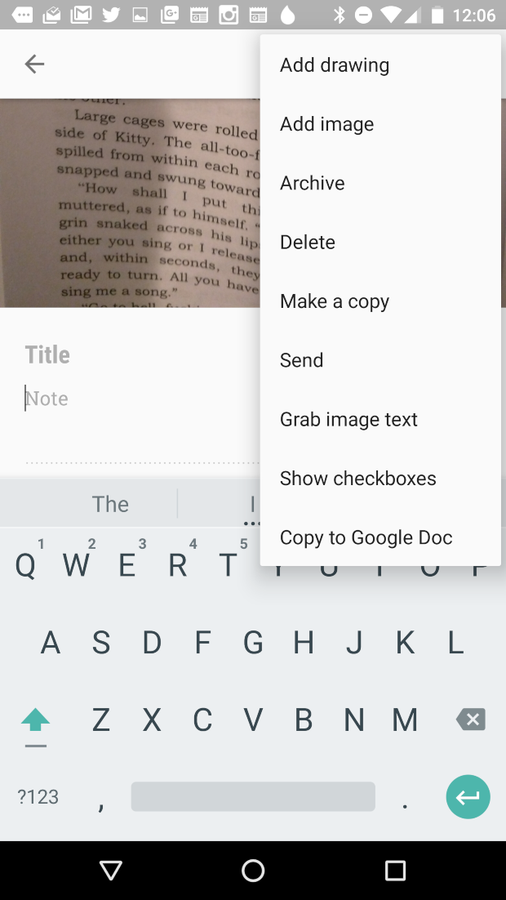
Working with Google Keep on a Verizon-branded Nexus 6.
Soon after you titled the note, it’ll sync to your account (and all of your devices). You can edit the note again, add tags, and do whatever you need with it.
One handy feature Google has added is the ability to remove the associated photo from the note. To do this, open the note and then tap the trashcan icon associated with the image (Figure B).
Figure B
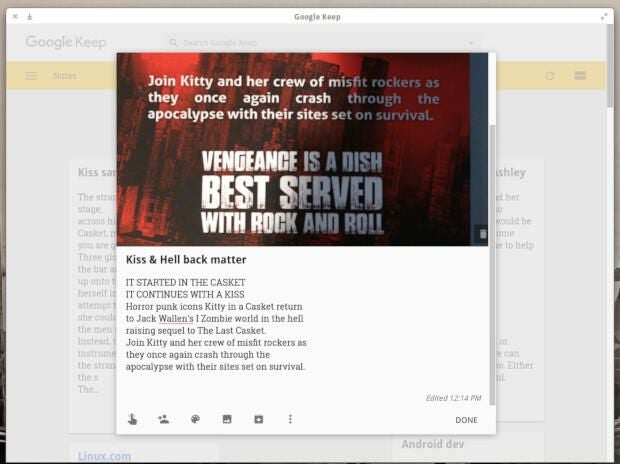
Removing the original image from the note on the desktop client.
I’ve tested this method on a number of sources and found Keep’s ability to extract text correctly to be quite impressive; even with longer paragraphs, Keep nails it.
Try this Google Keep feature
You don’t have to take the time to enter words into Google Keep — not when a picture is worth a thousand of those words. Give this Keep feature a try, and see if it doesn’t turn into your favorite way to get information quickly on the go and sending it directly to your Google cloud.