


ManageEngine Password Manager Pro is a highly configurable password manager that’s built for enterprises and large businesses.
In this article, we show you how to set up and use ManageEngine. We also answer some frequently asked questions about ManageEngine and its features.
How to set up and use ManageEngine Password Manager Pro
1. Choose a ManageEngine subscription
ManageEngine has three subscription options: Standard, Premium and Enterprise. Here’s a brief rundown of the differences between the three:
- Standard: Provides basic password storage and sharing for large organizations.
- Premium: Has features such as remote password reset, password alerts and password management reports.
- Enterprise: Includes more enterprise-class functionality such as auto discovery of privileged accounts, SIEM integration and application-to-application password management.
In our hands-on review, ManageEngine received a score of 3.7 out of 5 stars. Check out our full review of ManageEngine here.
Figure A
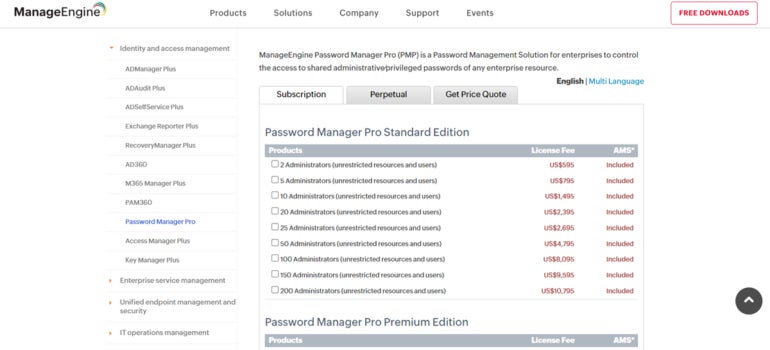
Given ManageEngine’s enterprise-focused features, its price point is higher than consumer-facing password management solutions. ManageEngine divides its plans according to your preferred number of administrators.
Fortunately, all plans cover an unlimited number of users and storable passwords or resources.
Here are the starting prices for each tier:
- Standard (2 administrators): $595
- Premium (5 administrators): $1,395
- Enterprise (10 administrators): $3,995
While ManageEngine doesn’t have a free version, it does have a generous 30-day free trial of its Enterprise edition. This free trial doesn’t require credit card or payment information to access.
Given the price of a subscription, I highly recommend taking advantage of the free trial. This allows you to test drive the software to see if it suits your business’ needs.
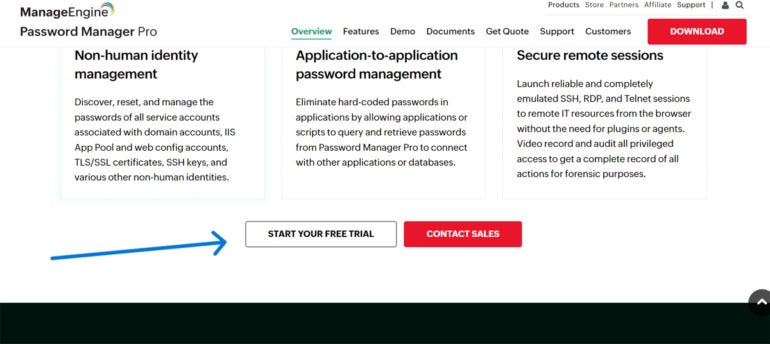
I downloaded the free trial by navigating to the main ManageEngine Password Manager Pro product page. From there, I scrolled down to find the Start Your Free Trial button and clicked it.
Figure B
I was redirected to a download page and clicked the download button on the left.
Figure C
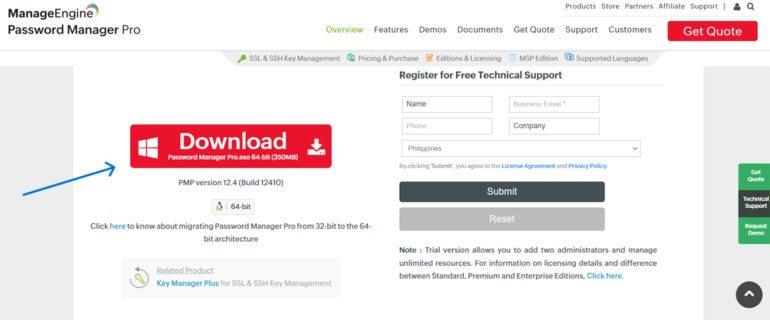
After downloading the file, I followed the instructions and was able to install ManageEngine on my computer.
2. Set up ManageEngine
Unlike other password managers, I noticed that ManageEngine has a unique way of opening their program. Upon installation, ManageEngine didn’t have a conventional desktop icon to click to open the application.
Instead, a TrayIcon pops up in your Systems Tray at the lower right corner of the screen. From here, I right clicked the icon and clicked on the PMP Web Console.
Figure D
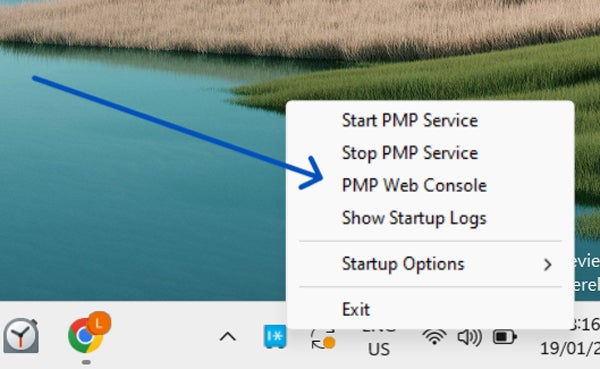
I was redirected to the Manage Engine Password Manager Pro web console sign in page.
Figure E
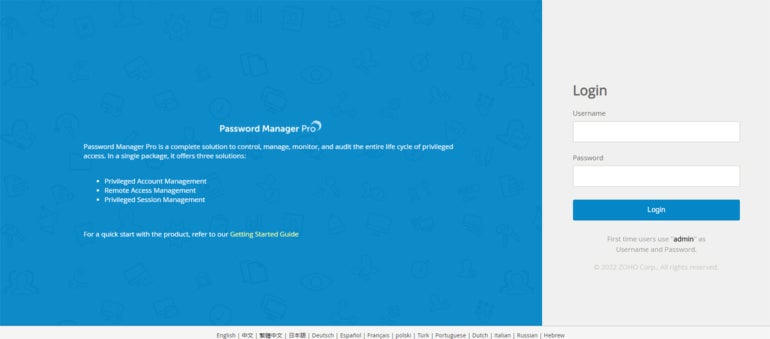
As this was the first time I signed in, I used “admin” as both my username and password. Once I logged in, I was able to access the main ManageEngine Password Manager Pro web console.
Figure F
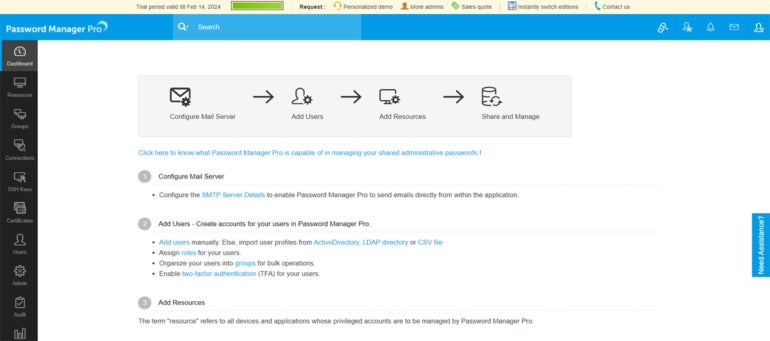
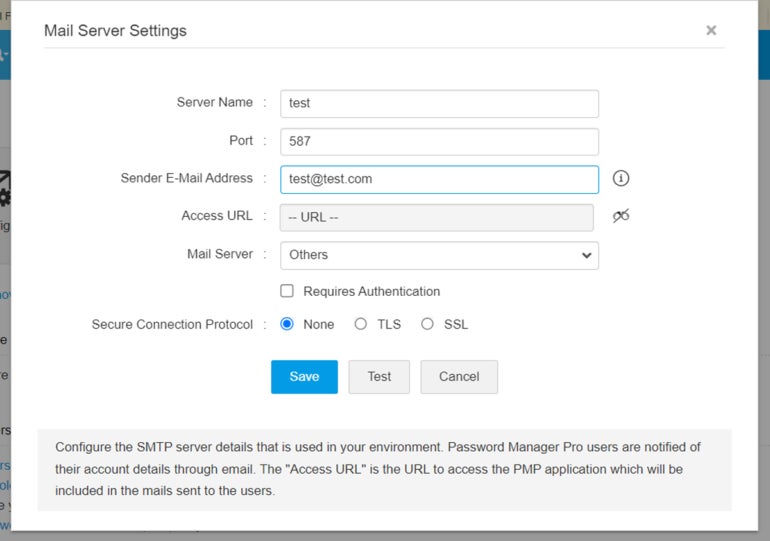
I clicked on Configure the SMTP Server Details. Here, you can configure your business’ SMTP server and input the relevant details. Below is a screenshot of the Mail Server Settings with placeholders for the fields.
Figure G
3. Add a new resource in ManageEngine
Once in the web console, I was able to add resources to the ManageEngine vault. Resources refer to all devices and applications that will be managed by Password Manager Pro, including users and user passwords.
To add a new resource, I clicked on the Resources tab on the left of the console. From there, I selected Add Resource. You get a choice of adding a resource manually, importing a CSV file or importing a KeePass file.
Figure H
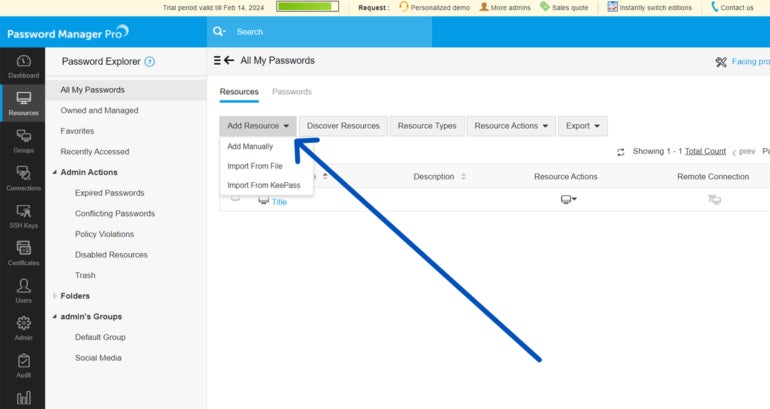
I clicked on Add Manually and filled in the required fields.
Figure I
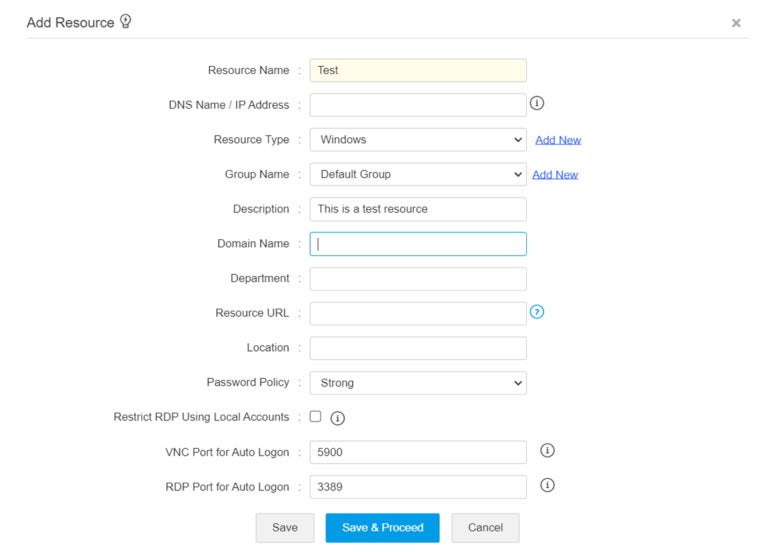
I added in a couple of user accounts, set my preferred password policy and generated their respective passwords.
Make sure you click the Add button (Figure J) after you’re happy with the account details you inputted.
Figure J
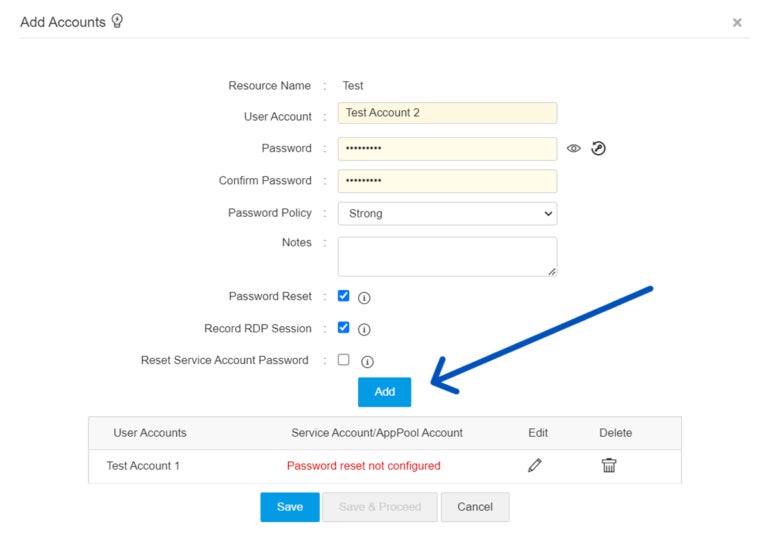
Once I had an account within the resource, I pressed Save.
Figure K
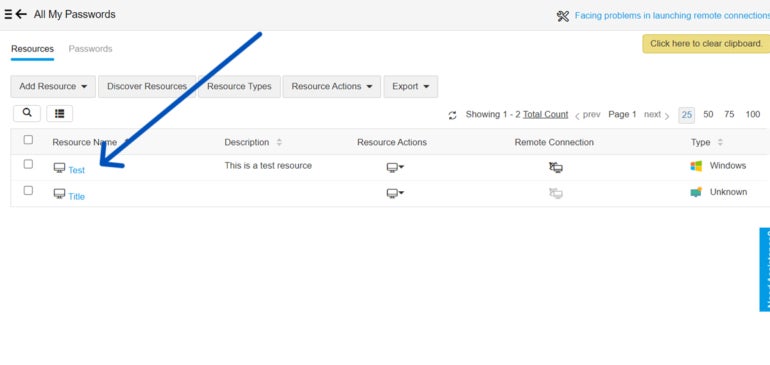
At this point, I was redirected back to the Resources page and was able to start managing these accounts and their passwords.
ManageEngine Password Manager Pro frequently asked questions (FAQs)
Is ManageEngine Password Manager Pro free?
No, ManageEngine’s password manager is not free. However, there’s a 30-day free trial available for the Enterprise edition of the software.
Can you create groups on ManageEngine Password Manager Pro?
Yes, ManageEngine has a Dynamic Groups feature that lets you create user and account groups based on your chosen criteria.
You can set groups based on department, location, resource type, resource name and user account.
Is ManageEngine Password Manager Pro good for small businesses?
As an enterprise-level password manager, ManageEngine’s features and pricing are tailored for larger businesses and organizations.
Small businesses (SMBs) may be better served with other password manager providers, such as NordPass and 1Password, that have dedicated subscriptions and features for SMBs.
ManageEngine says “Failed to start PMP Service. Reason: Access Denied” after installing. How can I fix this?
This may mean that your Password Manager Pro is being accessed without administrator privileges.
To solve this, locate the PMP.exe file. You can find this by right clicking on the shortcut found on the system tray and opening the file location.
From there, right click on the PMP.exe file and select Run as Administrator. After this, you should be able to access the PMP web console properly.
What if ManageEngine Password Manager Pro isn’t working?
If you encounter any issues with ManageEngine, you can visit its official product support page and access its knowledge base guides and community forum. You can also submit a ticket via its online form or support email.
ManageEngine also has dedicated phone support for users in the United States, Australia and the United Kingdom. It also has an international number for customers not covered by these areas.
What we think of ManageEngine Password Manager Pro
In our full review, ManageEngine Password Manager Pro received a rating of 3.7 out of 5 stars. We highlighted its highly configurable software and manager-centric features, which can be extremely useful for larger companies and enterprises.
Unfortunately, its steep pricing and more technical software prevent it from being an all-around option for smaller businesses or individual users.
If you want to learn more, read our full review and analysis of ManageEngine Password Manager Pro.