


Google announced the availability of Titan Security Keys with passkey support in mid-November 2023; the initial Titan Security Keys edition was used solely for multifactor authentication. Security keys offer a tangible token in the form of a device you may attach to a keyring and place in a pocket. For many people, a security key can be easier to keep track of and use than passwords and authenticator apps.
Titan Security Keys are available on the Google Store in Austria, Belgium, Canada, France, Germany, Italy, Japan, Spain, Switzerland, the U.K. and the U.S (except Puerto Rico). Google’s site notes that bulk orders are also available in select countries through the distributor SYNNEX.
Jump to:
- How can Titan Security Keys be used?
- What are the various versions of Titan Security Keys?
- How to get started with a Titan Security Key and your Google account
- How to use a Titan Security Key as a passkey
How can Titan Security Keys be used?
Google’s Titan Security Keys may be used in two ways.
Must-read security coverage
- UK Police Convicts Pair in £5.5 Billion Bitcoin Launder Case
- Blackpoint Cyber vs. Arctic Wolf: Which MDR Solution is Right for You?
- How GitHub Is Securing the Software Supply Chain
- 8 Best Enterprise Password Managers
First, as with earlier editions of the keys, you may use them as an additional security factor. In this case, an account sign-in requires your username, password and security key confirmation. For example, you could use the keys to enroll your Google account in Google’s Advanced Protection Program, which relies on the keys to authenticate access. (The Advanced Protection Program requires two security keys, with one intended for daily use and the other stored as a backup. Where possible, you may want to secure Google Workspace administrator accounts in this manner.)
Alternatively, Titan Security Keys can serve as a passkey to replace password entry. In this scenario, the site relies on a securely stored token created and then saved to your security key. Once configured, you enter your username and confirm access with your key — no password is needed. According to Google, each Titan Security Key can “store more than 250 unique passkeys.” Adobe, Amazon, Apple, Google, Microsoft and many others already support passkeys, with more companies planning passkey support soon.
What are the various versions of Titan Security Keys?
Google’s Titan Security Keys come in two versions:
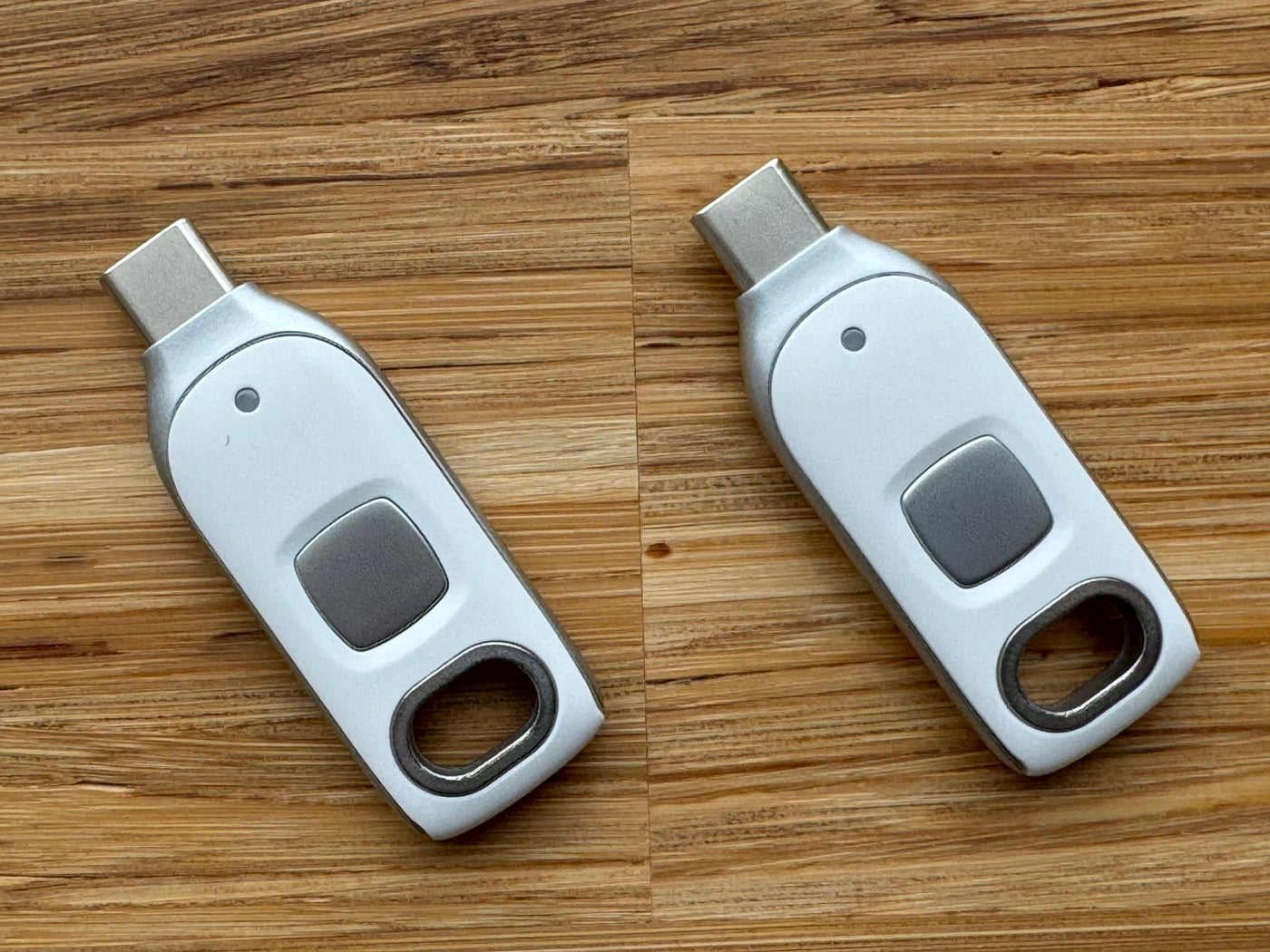
- USB-C/NFC ($35 each, Figure A) for modern USB-C ports, such as those found on the iPhone 15 and most Android phones.
- USB-A/NFC ($30 each) for USB-A ports, the older, large-size USB connector on computers.
Figure A
How to get started with a Titan Security Key and your Google account
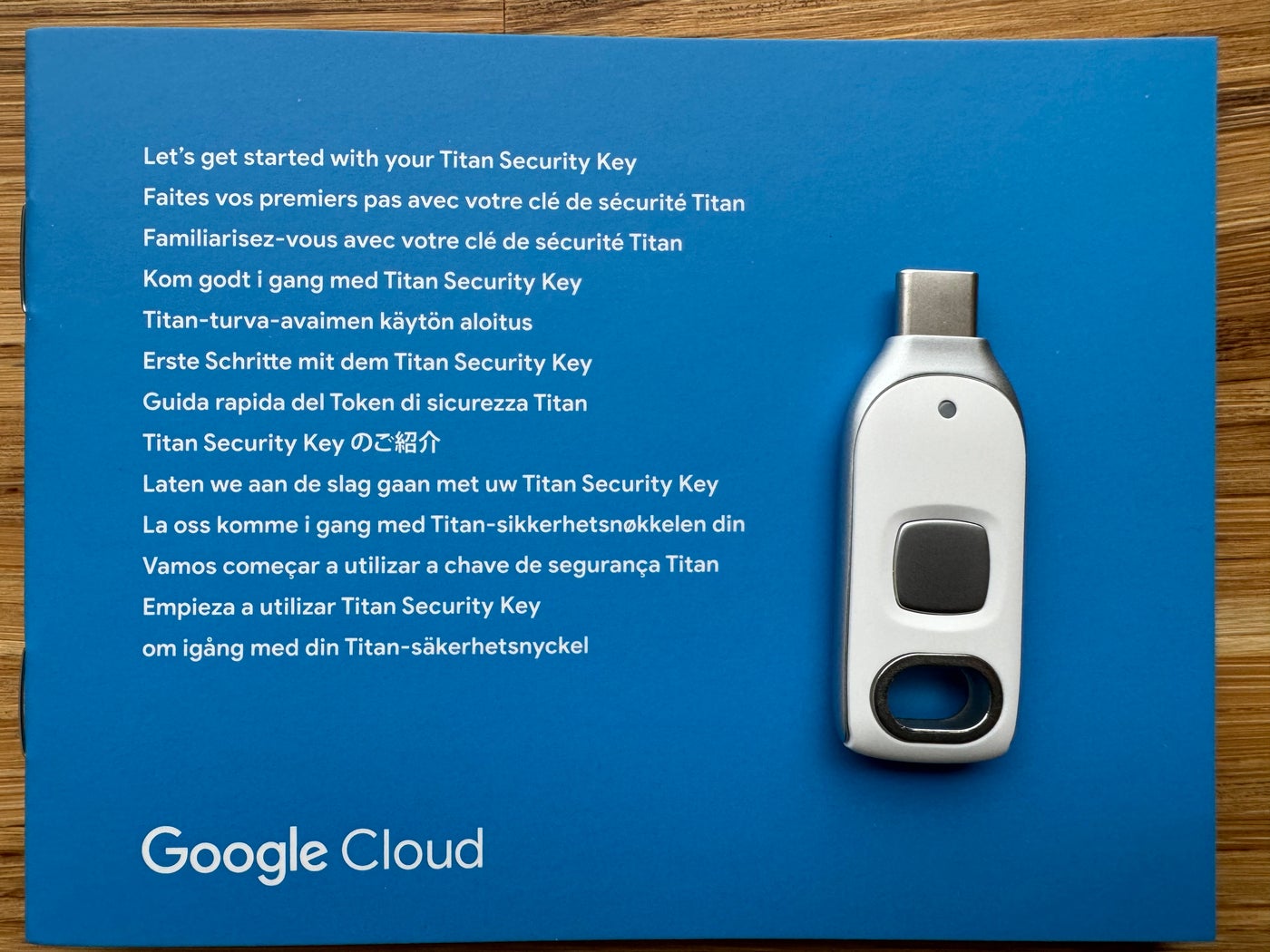
Each Titan Security Key comes with a brief bit of documentation (Figure B). The following steps walk you through how to set up a new Titan Security Key to provide two-step verification for your Google account.
Figure B
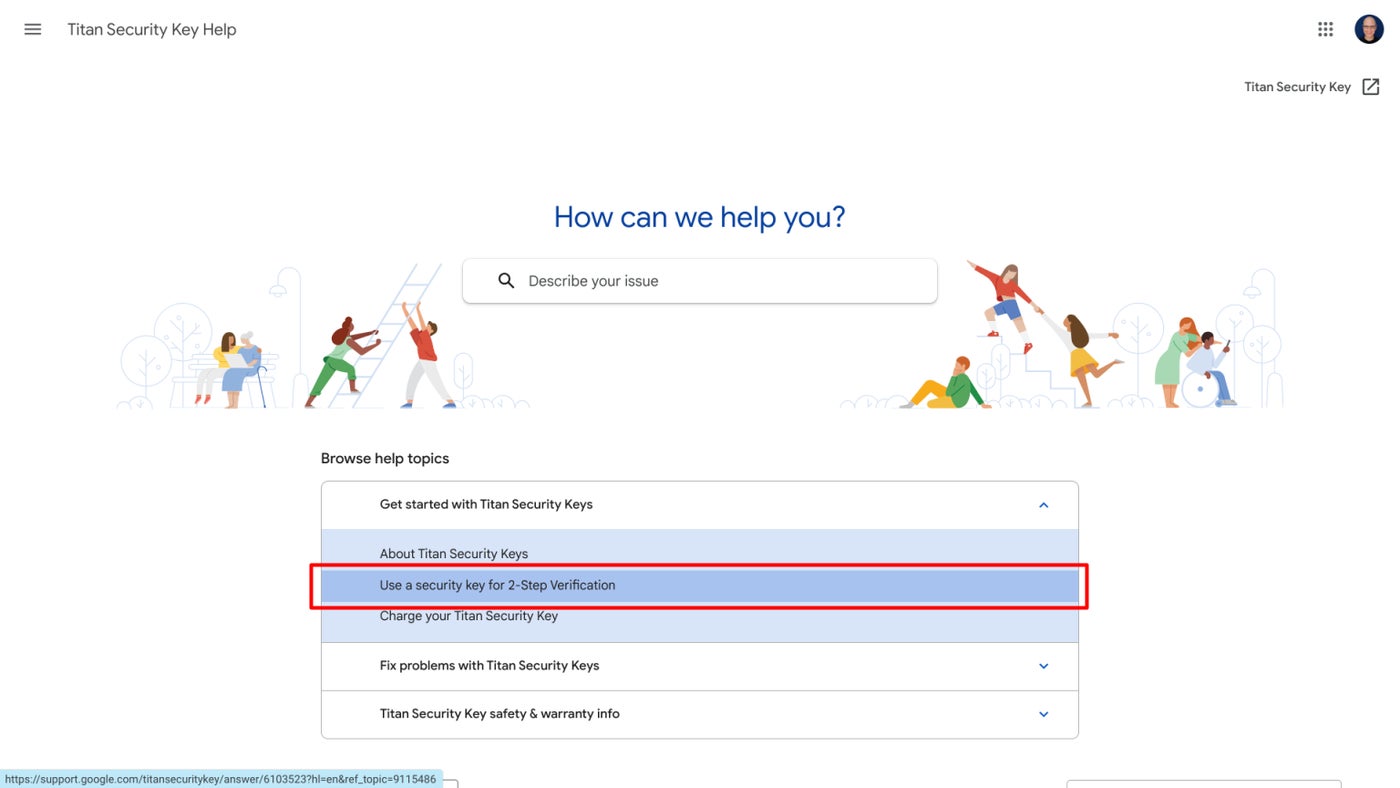
- The documentation suggests you “set up your key at g.co/titansecuritykey/help.” Select the Use A Security Key For 2-Step Verification (Figure C).
Figure C
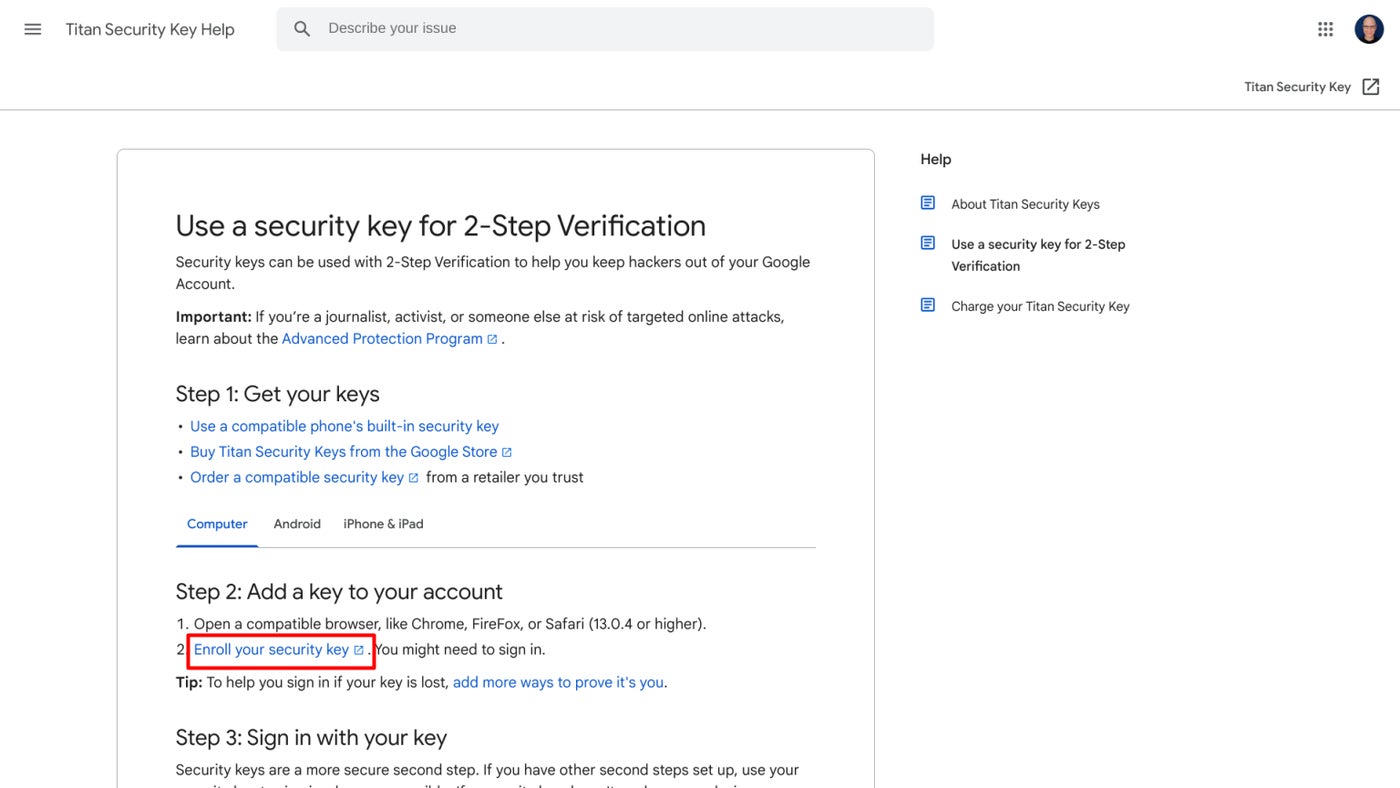
- Assuming you’re using a current version of Chrome, Firefox or Safari on a computer, go ahead and select Enroll Your Security Key (Figure D). At this point, you may be prompted to sign in to your Google account.
Figure D
- Select + Add Security Key (Figure E).
Figure E
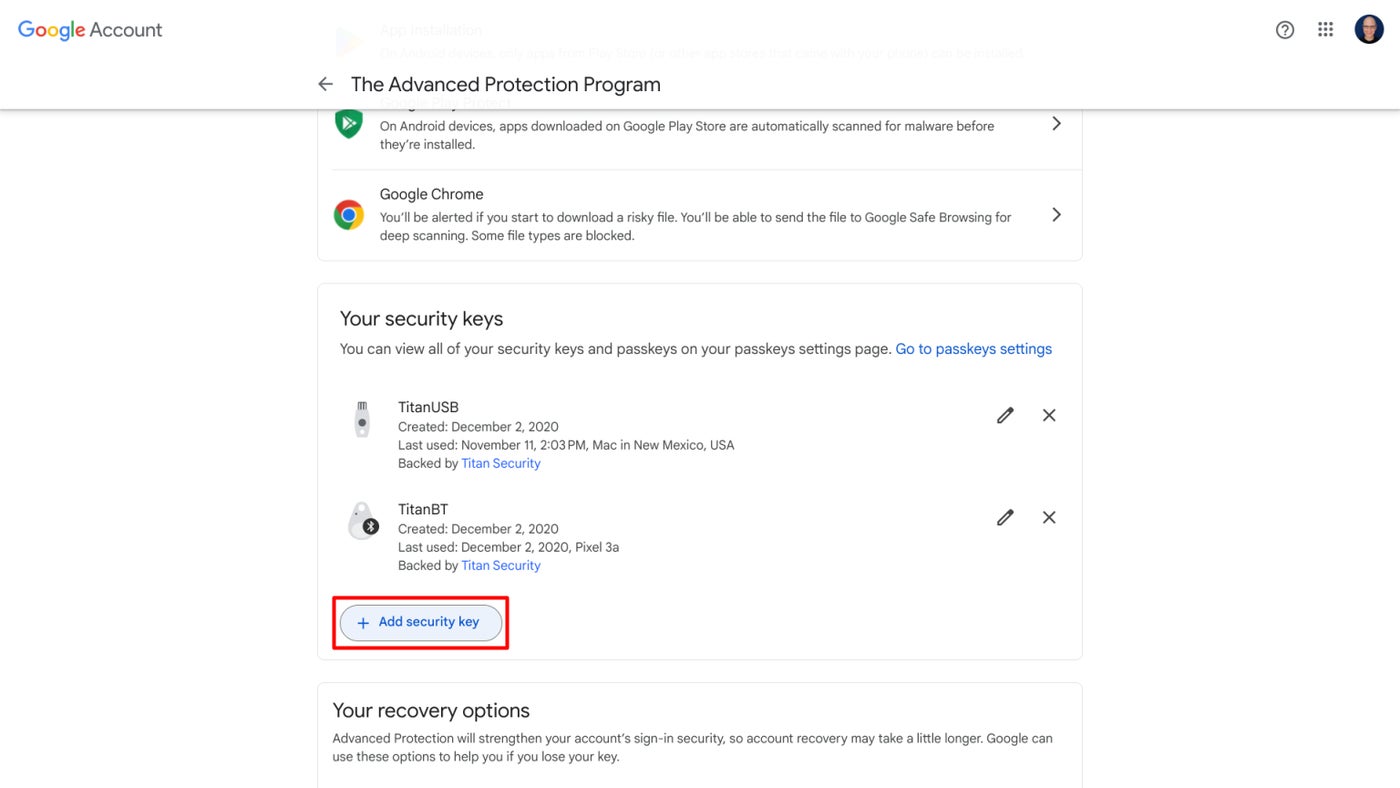
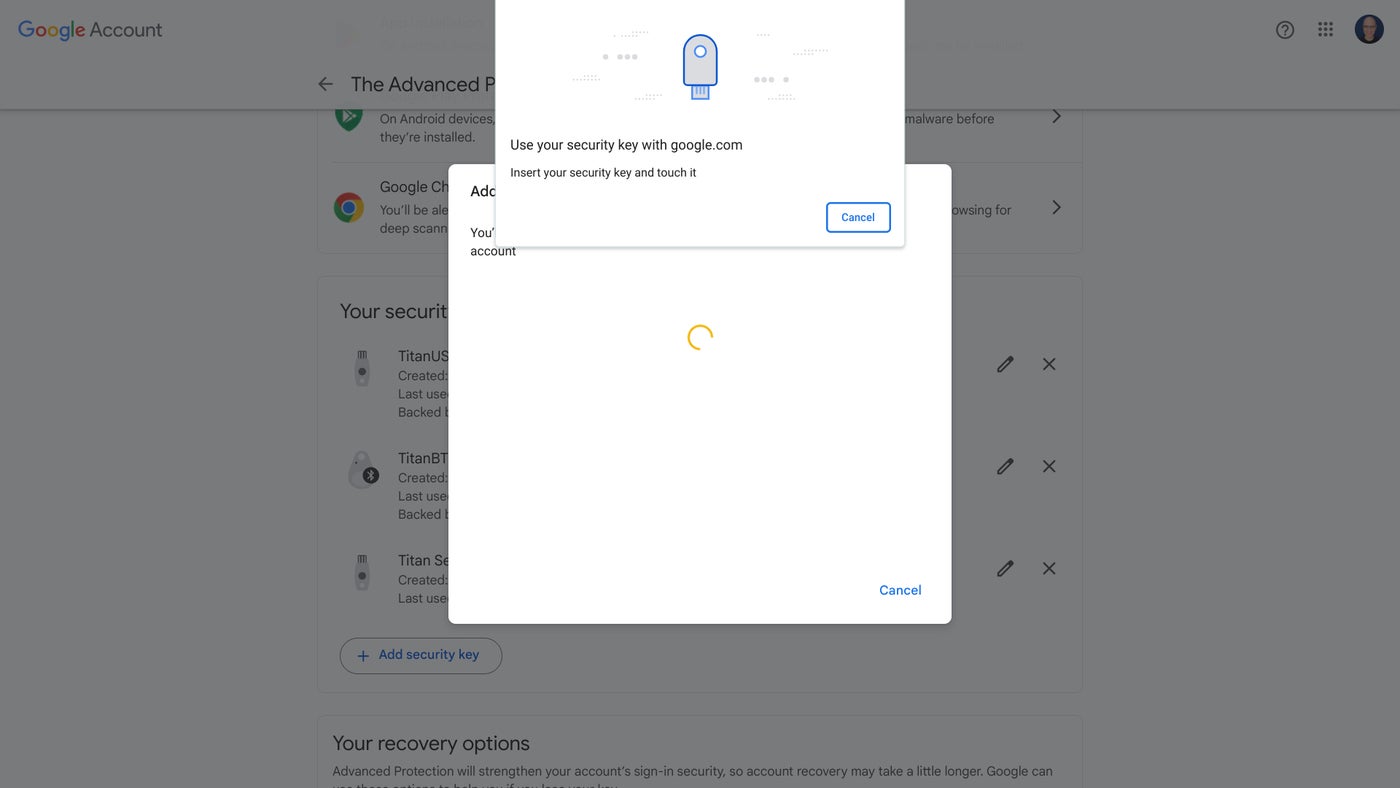
- At this point, insert your key (Figure F). Then, touch the button or fingerprint sensor on the key.
Figure F
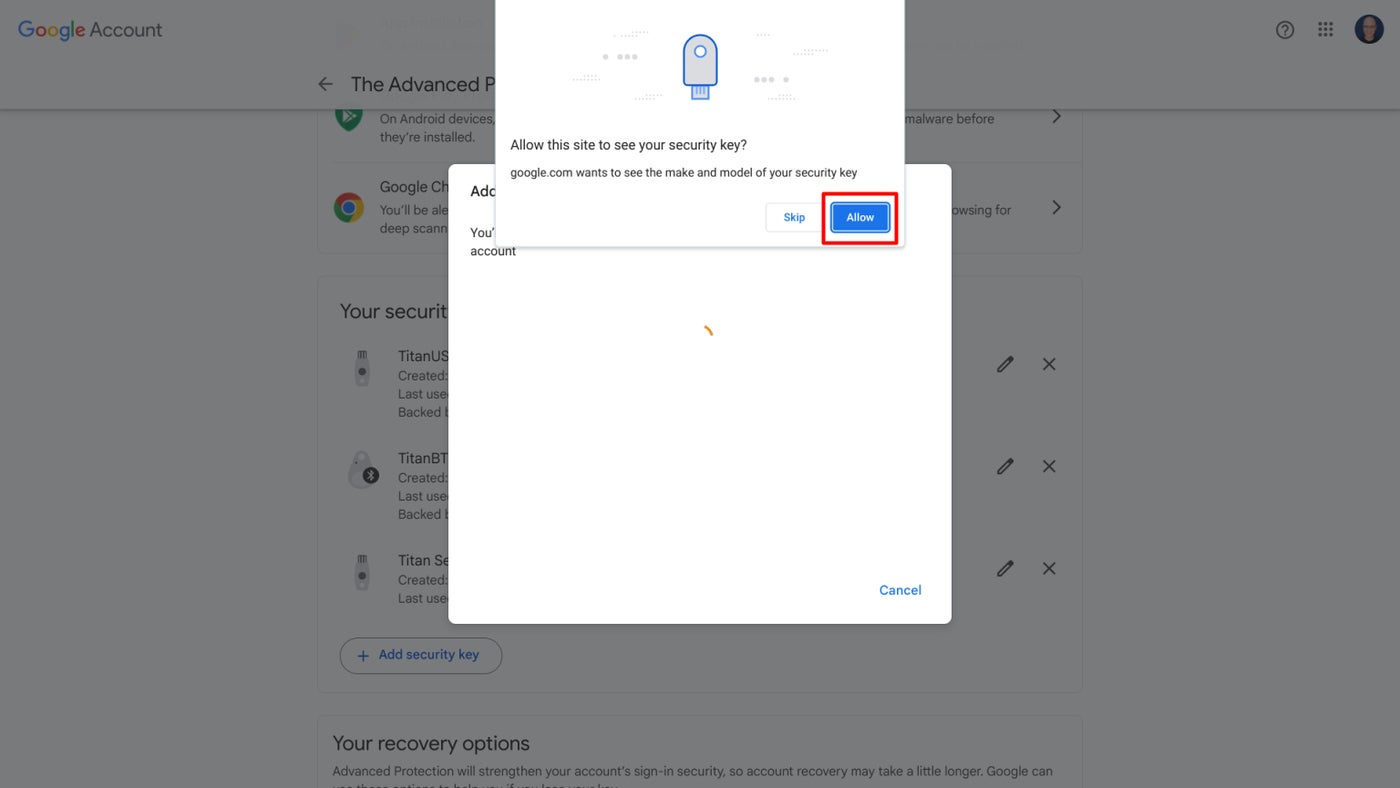
- Review the prompt that asks whether you will Allow This Site To See Your Security Key? If you agree that the site may access the make and model of the key, select Allow (Figure G).
Figure G
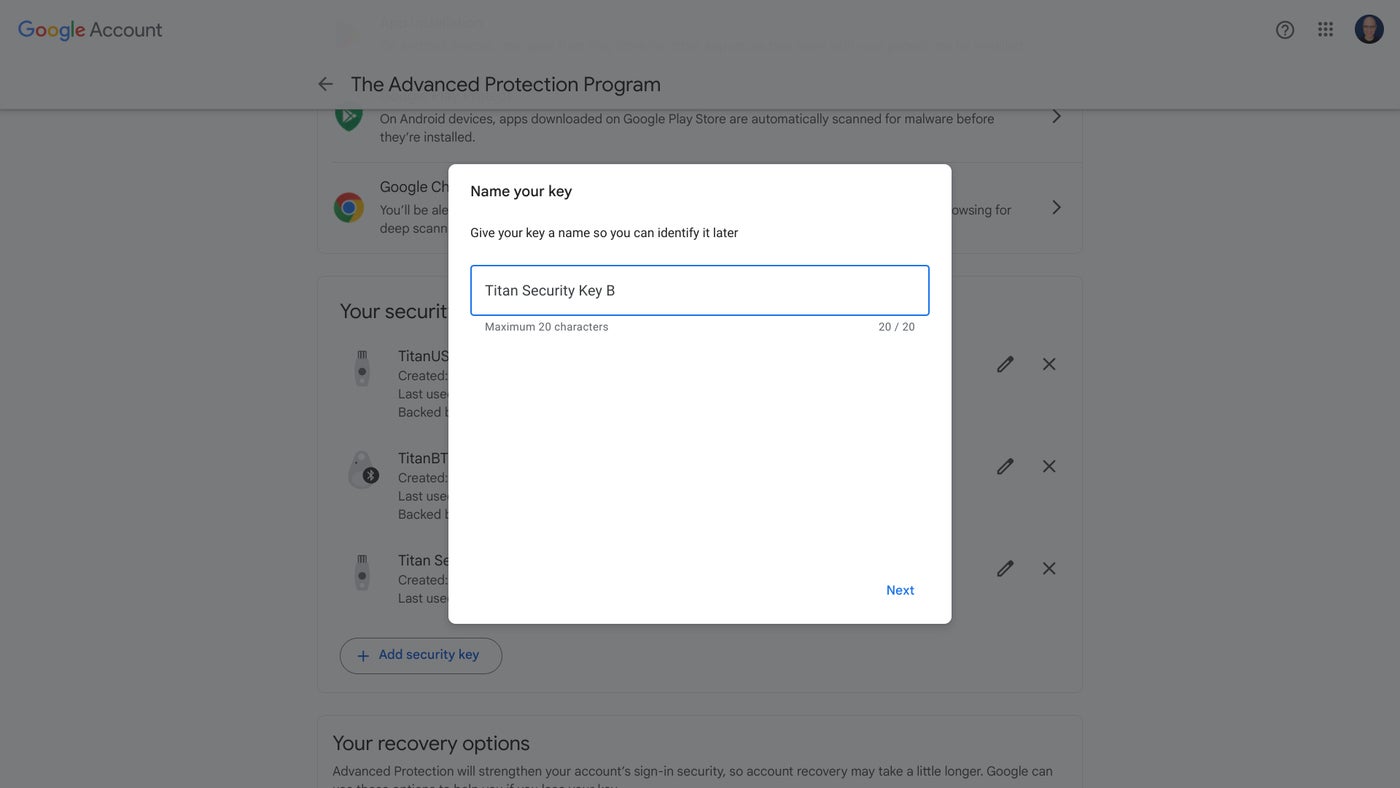
- Enter a name for your key; you may enter a name of up to 20 characters (Figure H). This name will appear in the list of security keys associated with your Google account. Select Next to continue.
Figure H
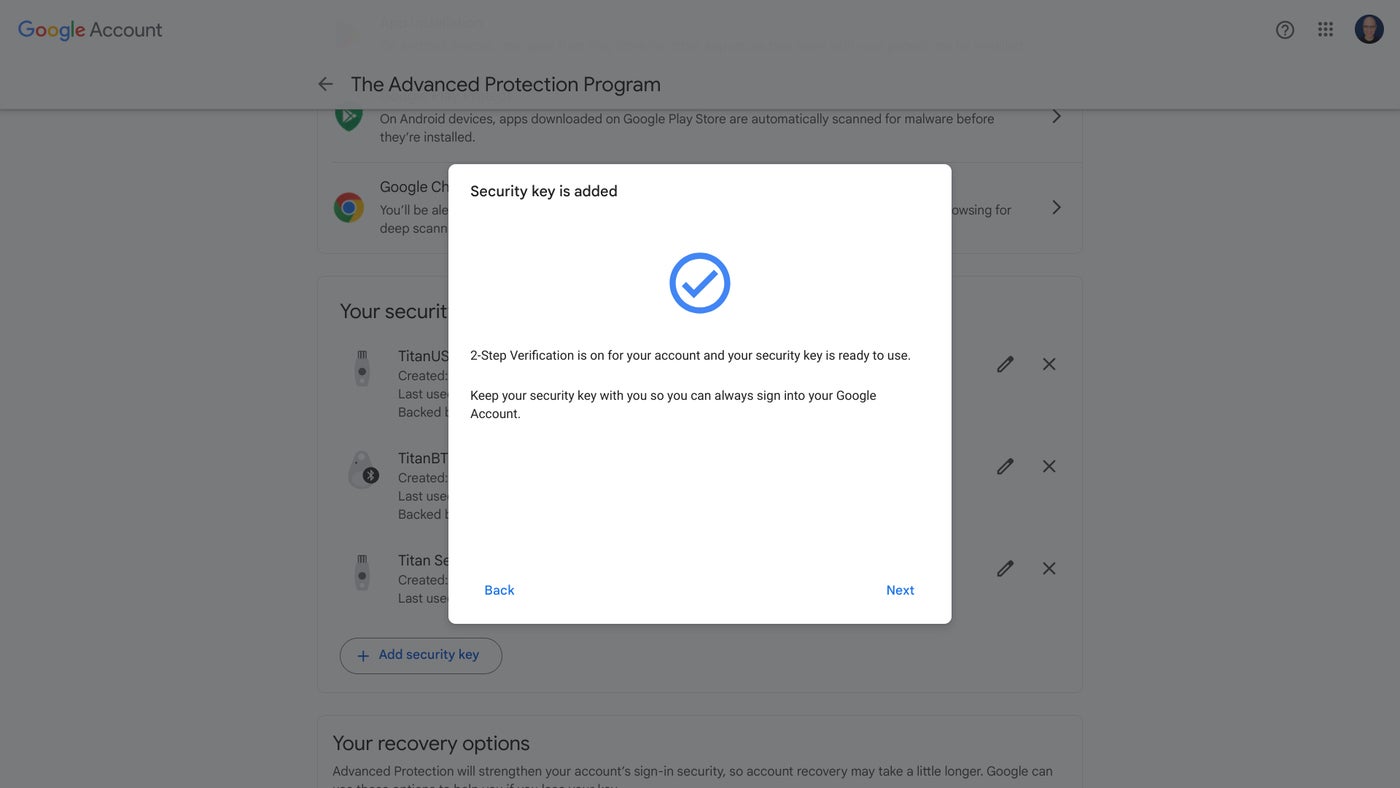
- At this point, the system displays a confirmation that your Security Key Is Added and is active for your Google account (Figure I). Select Next to continue.
Figure I
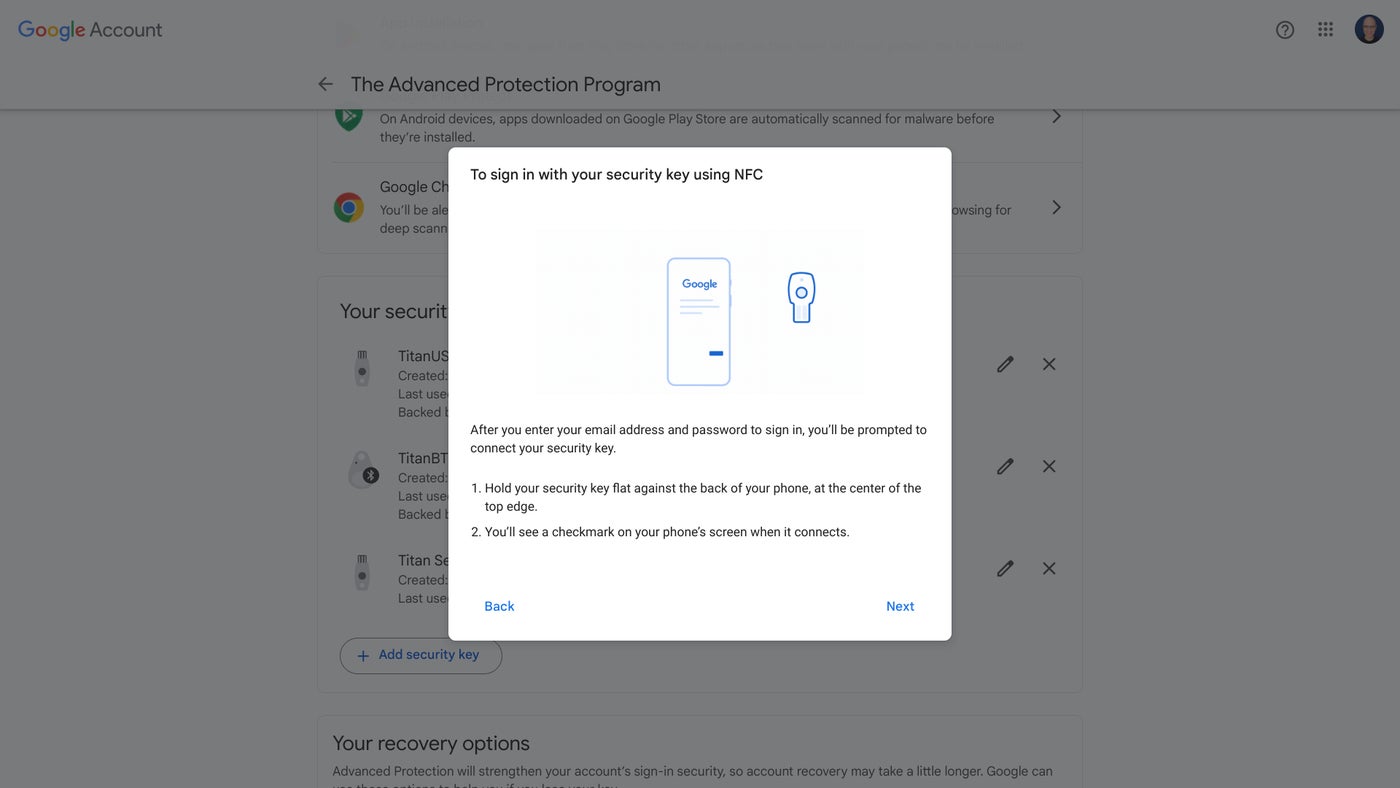
- Review the instructions for using your security key’s NFC (near-field communication) feature (Figure J). Select Next to continue.
Figure J
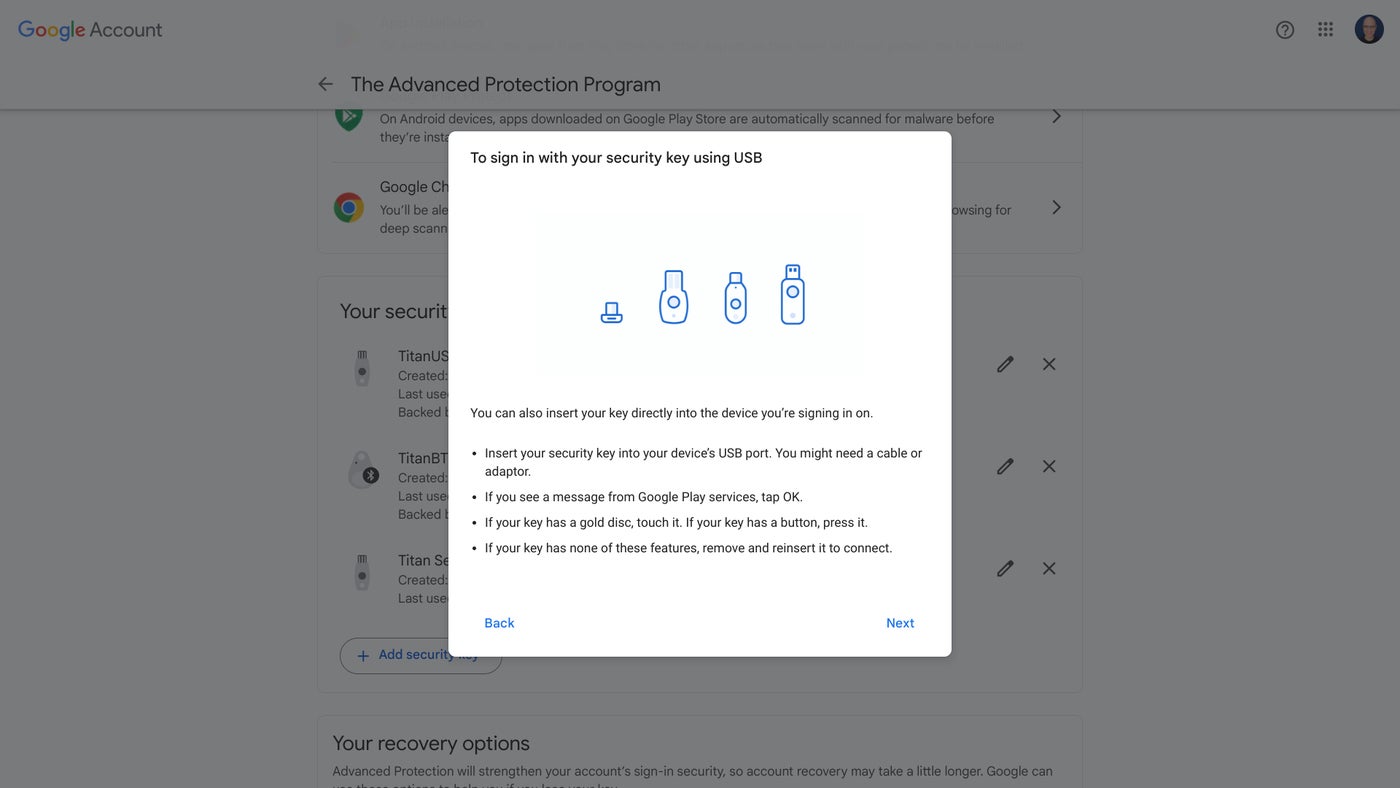
- Review the instructions for inserting your security key into a USB port of a device (Figure K). Select Next to continue.
Figure K
Your security key is now all set up and ready to use for two-step verification with your Google account.
You can add your Titan Security Key to more than one account and even to more than one account with the same vendor. For example, you may use it as two-step verification both for a Google Workspace account and a personal Gmail account.
You may also use your Titan Security Key with a wide range of other accounts that support the use of security keys for MFA. While the specific setup steps may vary, the general process will be similar: Sign in to an account, navigate to password or sign-in settings and then choose to add a security key. Each site will prompt you to insert the key, touch or press the button and approve access.
How to use a Titan Security Key as a passkey
If you prefer, you may use a Titan Security Key as a passkey for your Google or Google Workspace account. To do this, go to https://g.co/passkeys, click the Get Passkeys button, sign in if prompted, select + Create A Passkey and follow the steps as prompted. Once configured, this allows you to use the security combined with a fingerprint, facial recognition or PIN code to sign in to your account.
Your Titan Security Key can serve as a passkey for the growing number of sites that support passkeys. For example, here’s how to add the Titan Security Key as a passkey for a standard Amazon.com account in the U.S.
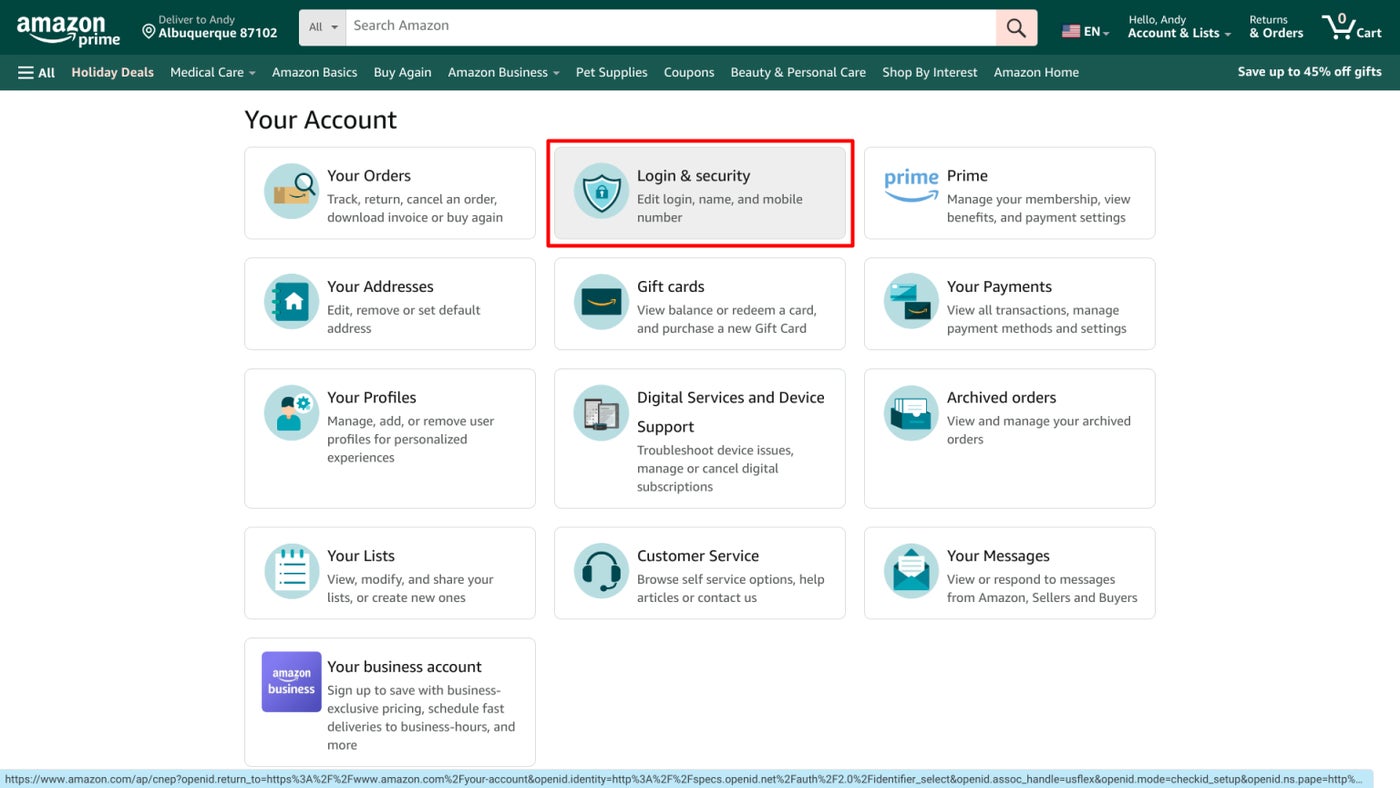
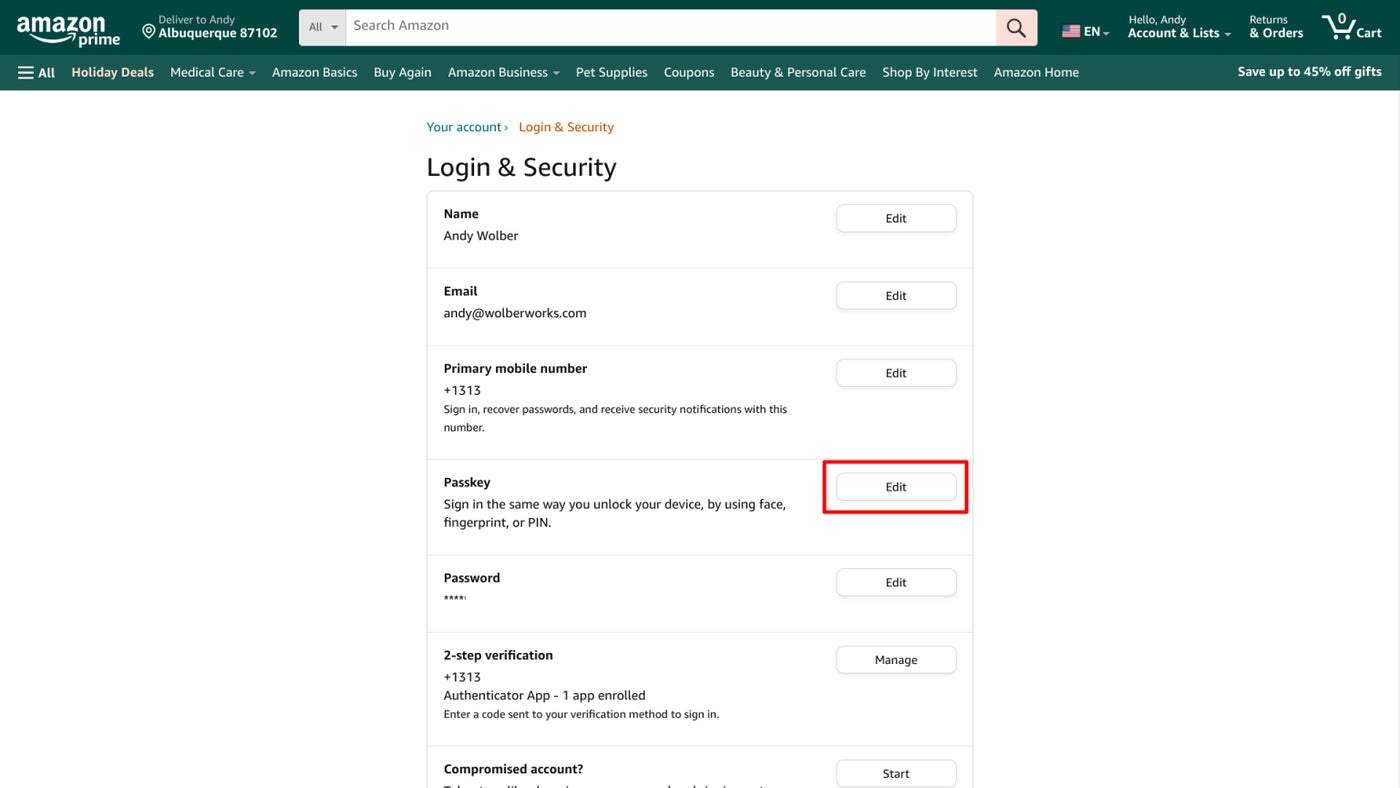
- Sign in to Amazon.com and then navigate to your Account | Login & Security (Figure L).
Figure L
- In the Passkey section, select Edit (Figure M).
Figure M
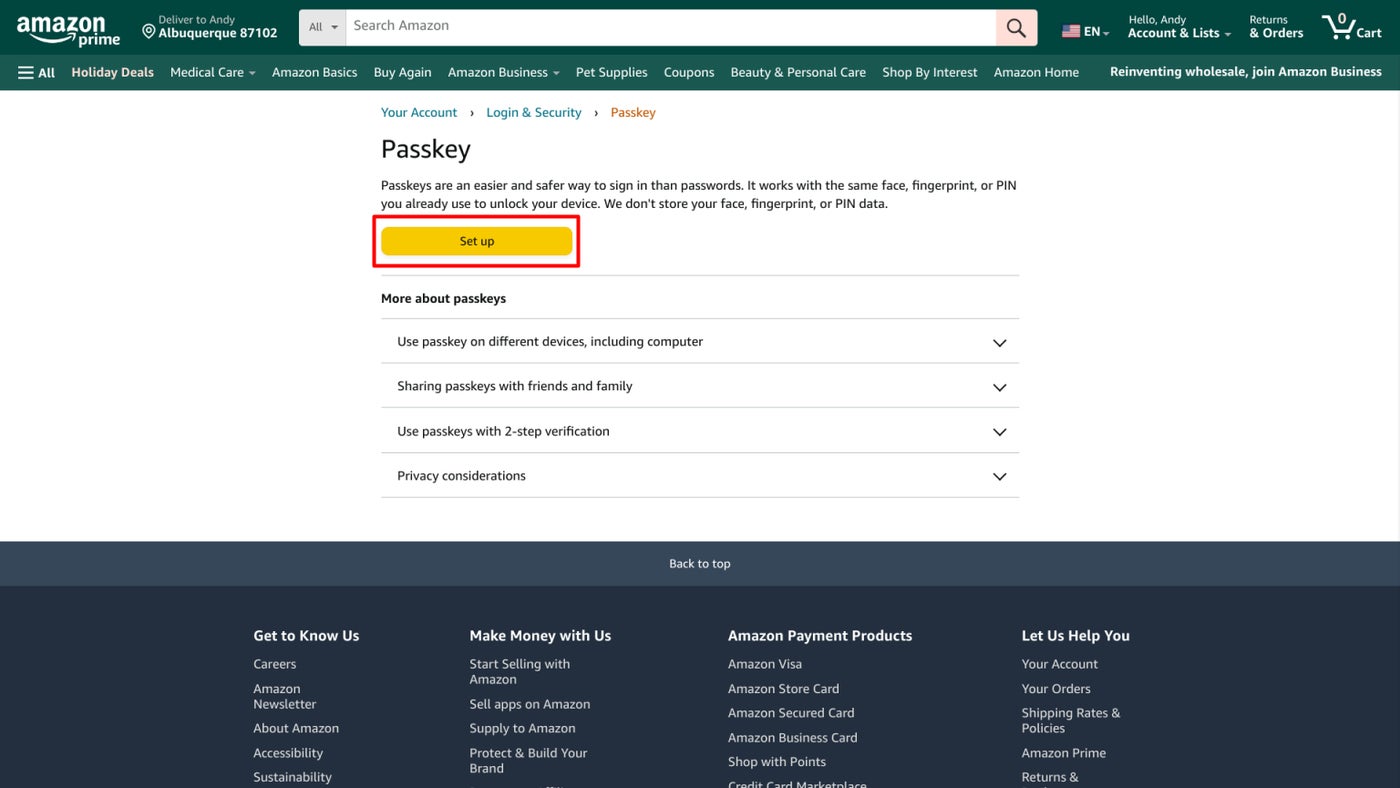
- Select Set up (Figure N).
Figure N
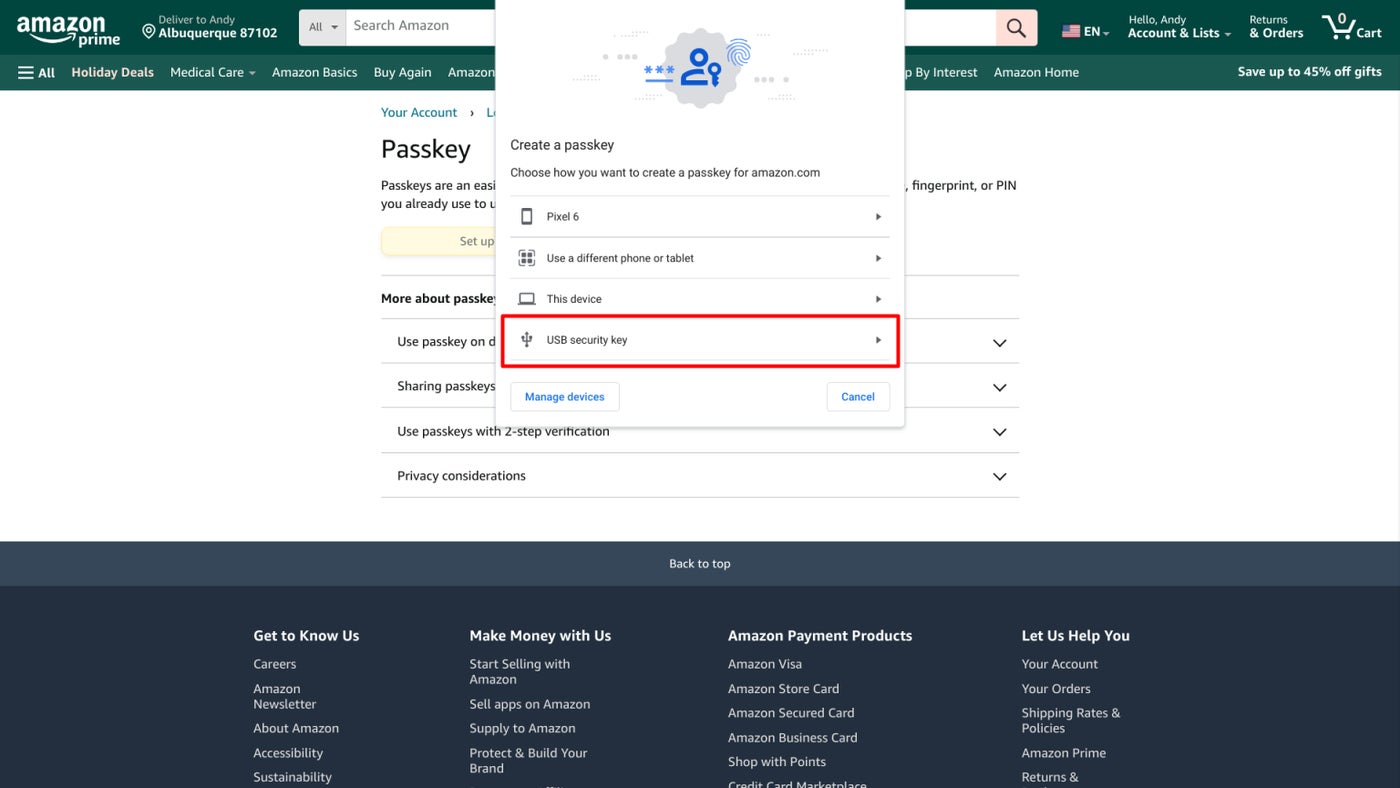
- Several options may be displayed. Select the USB security key option to use your Titan Security Key inserted in the device (Figure O). Insert the key and touch the button.
Figure O
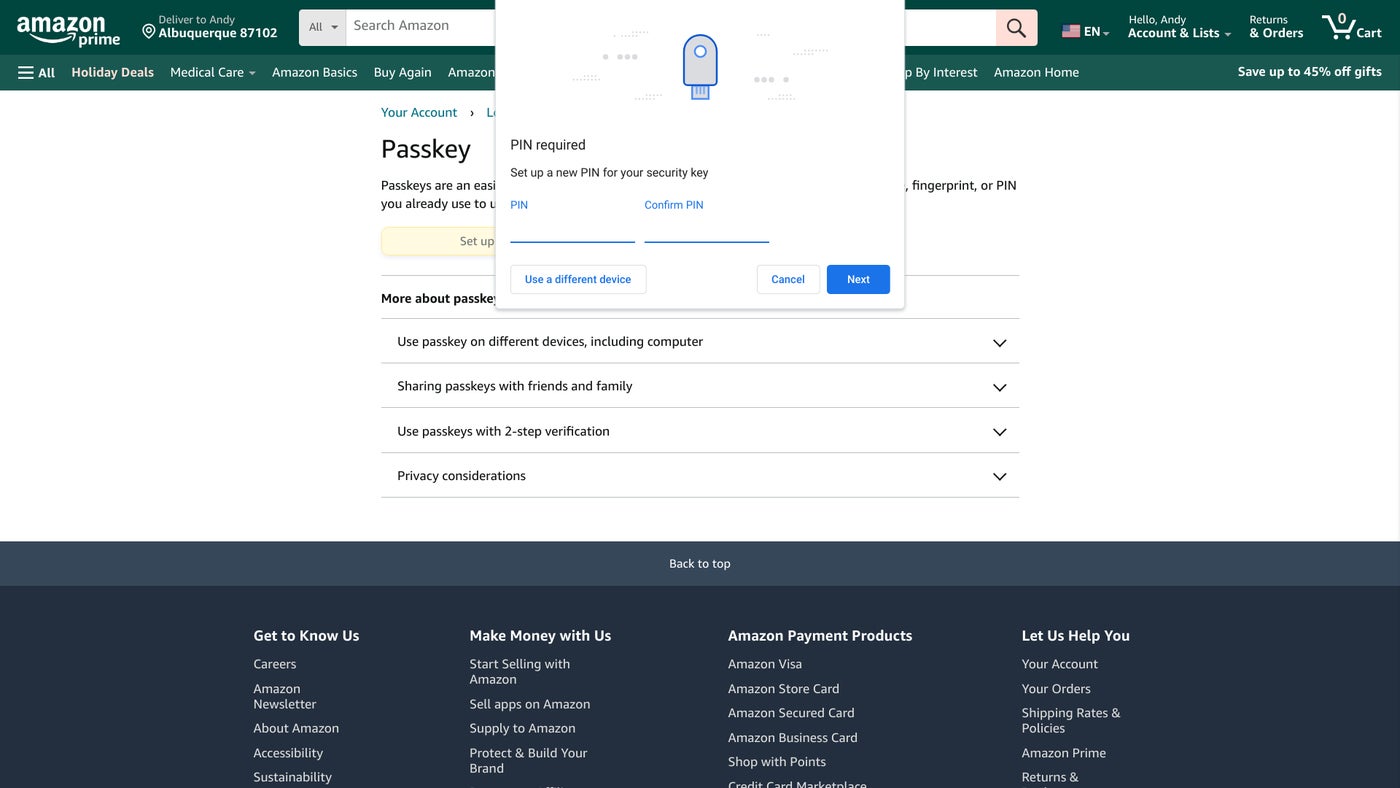
- You may be prompted to create a PIN code to use in conjunction with the security key (Figure P). Enter a PIN code that you will remember, and then select Next.
Figure P
The security key will now be added and may be used when prompted to authenticate instead of a password to sign in to your Amazon.com account.
The steps to configure the Titan Security Key as a passkey for other sites and apps will be similar.
Do you use the latest Titan Security Keys, or do you prefer other alternatives, such as Yubico keys? Mention or message me on X (@awolber) to let me know how you use security keys as passkeys or for multi-factor authentication on your accounts.