


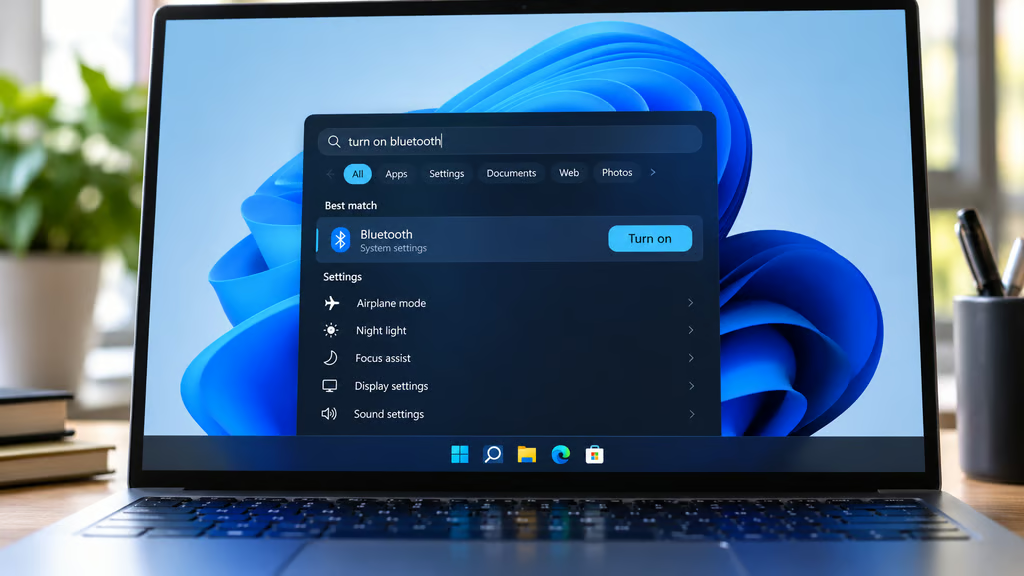
Microsoft is testing a redesigned Windows 11 Search experience that lets users change settings and manage open windows directly from the taskbar. Instead of opening the Settings app, users can type everyday commands such as “turn on Bluetooth” or “dim my screen” and complete the action from Search.
The new experience began rolling out to Windows Insiders on Oct. 7, 2026. It’s currently limited to the Experimental and Experimental (26H1) channels, with English as the only supported language.
Regular Windows 11 users won’t see the change yet, and Microsoft hasn’t announced a general release date. For businesses, the preview offers an early look at features that could simplify common tasks on Windows PCs.
Five things you can do with the new Windows 11 Search
According to Microsoft’s Windows Insider announcement, the redesigned Search can perform several actions without sending users through additional menus.
Here are five examples:
- Turn on dark mode. Type “switch to dark mode” to change Windows’ appearance.
- Enable Bluetooth. Search for “turn on Bluetooth” to activate Bluetooth connectivity.
- Adjust screen brightness. Enter “dim my screen” to lower the display brightness.
- Mute your device. Type “mute” to turn off system audio.
- Arrange open windows. Use “arrange windows on screen” to organize your workspace.
Microsoft also lists commands for turning on Night Light and minimizing open windows.
The actions appear within the Search experience, allowing users to make quick changes without opening a separate settings page.
For people who regularly switch between applications or adjust display settings during work, these shortcuts could reduce repetitive navigation.
Search is also getting a simpler design
The update isn’t limited to new commands.
Microsoft has rebuilt Windows Search using WinUI 3, bringing results into a single list rather than the previous layout with a large preview panel.
The company says the redesign improves performance and memory efficiency, although those gains are based on Microsoft’s internal testing.
Search is also getting better at understanding misspelled words and related terms. Microsoft plans to continue improving result accuracy throughout the preview.
Those changes follow earlier Windows 11 performance improvements aimed at making the operating system more responsive on PCs with limited memory.
Microsoft has additional Search features planned for later in 2026, including richer file previews, web answers, and filters for narrowing results.
Users will eventually be able to see more information about documents, photos, and web results without opening them.
Quick actions for connected phones through Phone Link are also planned, but they aren’t part of the initial release.
How to enable the new Windows 11 Search
The redesigned Search is available for testing in two Windows Insider builds:
- Experimental channel: Build 26340.9616
- Experimental (26H1) channel: Build 28120.3181
Microsoft is rolling out the feature gradually, so installing either build doesn’t guarantee immediate access.
Insiders who want to try the feature sooner can follow these steps:
- Install the appropriate Windows Insider preview build.
- Open Settings > Windows Update.
- Select Check for updates.
- Restart the PC.
- Go to Settings > Windows Update > Windows Insider Program > Feature flags.
- Enable New Windows Search Experience if the option is available.
The redesigned experience currently works through taskbar Search. Searching from the Start menu still opens the existing interface.
Microsoft says Start menu integration is planned for 2027, alongside improvements for different taskbar positions and Windows configurations.
These changes are separate from the Windows 11 26H2 update, and Microsoft hasn’t said whether the new Search experience will be included in that release.
What IT administrators should know
For organizations managing Windows devices, the preview is best evaluated on test PCs rather than deployed across production systems.
Microsoft hasn’t announced dedicated Intune policies, Group Policy settings, or auditing controls for the new inline actions.
That doesn’t establish how the eventual enterprise release will be managed. Administrators should wait for Microsoft to document the supported controls and rollout requirements.
IT teams testing the feature can focus on whether commands work consistently, how the interface behaves with existing Windows settings, and whether it introduces unexpected changes to established workflows.
Microsoft is also testing other taskbar customization features, although those experiments have their own availability requirements and release schedules.
The new Search interface is still an early preview. Microsoft plans to expand its capabilities, but the company has not confirmed when it will reach standard Windows 11 installations.
For now, eligible Insiders can try the five actions, test how reliably they work, and submit feedback through Feedback Hub under Desktop Environment > Search.
Also read: Microsoft is also testing Windows XP-style taskbar previews and new Android phone controls in experimental Windows 11 builds.