


You’ve decided to change the Google account you use on your Android device. Wiping the device isn’t necessary, though your contacts may not follow along for the ride. If that happens, what do you do?
You migrate your contacts with the help of the Google Contacts import/export tool. It’s actually quite simple and isn’t relegated to you importing/exporting contacts of your Google accounts. In fact, you can use this to share contacts with other users (or import your Google work contacts into your Google personal account).
SEE: Power checklist: Managing and troubleshooting cloud storage
How to export and import your contacts
While this task can be done from within the Google Contacts app, it’s much easier to manage from the Google Contacts page. (Note: Exporting and importing isn’t supported by the new Contacts page yet.) Once you’re on that page, do the following.
- Log into the source account.
- Click the More drop-down.
- Click Export.
- From the resulting window (Figure A), select All Contacts (unless you want to select a particular Group) and Google CSV format.
- Click Export.
- Save the file to your local storage.
Figure A
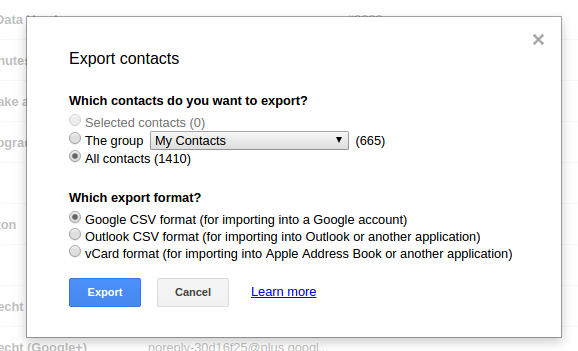
Exporting contacts from the source account.
Log out of the source account and log into the destination account. You’ll follow the same process except select Import from the More drop-down. Then click the Choose File button, navigate to the file you just saved, and click Import.
Now you can add the new Google account to your device, remove the old account, and wait for your contacts to sync to the phone.
Export and import contacts from your mobile device
You can also do this from the device. Here are the steps.
- From the source account, open the Contacts app.
- Tap the Menu button.
- Tap Import/Export.
- Tap Export To Storage.
- Note the filename of the exported contacts and tap OK.
- Add the new account to the device and remove the old account.
- Once the new account is on the device, open the Contacts app.
- Tap the Menu button.
- Tap Import/Export.
- Tap Import From Storage.
- When prompted for where to create the contacts, select Google.
- Allow the import to complete.
The bottom line
With these steps you can easily manage your Google cloud contacts, regardless of device or account; you don’t have to rely on third-party apps to help migrate your Google contacts from one account or device to another — you can just follow the steps in this tip. These instructions can also be used to add new contacts to an existing account.