


You might be troubleshooting a PC or installing a brand-new device. Inevitably, there you are, holding a dangling ribbon cable and wondering which way it connects. That’s right, you’re searching for Pin 1.
The search is on
While some ribbon cables are keyed so that they can only be plugged in one way, many used today are still symmetrical. In other words, the connector can be connected backwards if you’re not careful. This is where the pin number designations become important. The ribbon cable has a stripe, usually red, to tell you where Pin 1 is on its connectors. It’s finding Pin 1 on the device and on the motherboard that’s the real headache. By the time you finish this Daily Feature, you’ll always be able to find Pin 1.
Motherboards may use any of five methods to designate Pin 1. You may need to use different identification techniques for different motherboards, and you always want to verify the Pin 1 designation by at least two of these methods, if possible. The first two methods are “rules of thumb.” They won’t apply to all boards, but in the absence of other clear indications, they’re trustworthy. Use them to crosscheck the other methods.
It’s all about location
- Connectors that are positioned on the board front-to-back, with respect to the computer case, will almost always have Pin 1 toward the back of the case (See Figure A). There are rare exceptions, but generally you can rely on this rule for connectors oriented in this direction. For connectors parallel to the back of the case, sorry, no rule of thumb applies.
| Figure A |
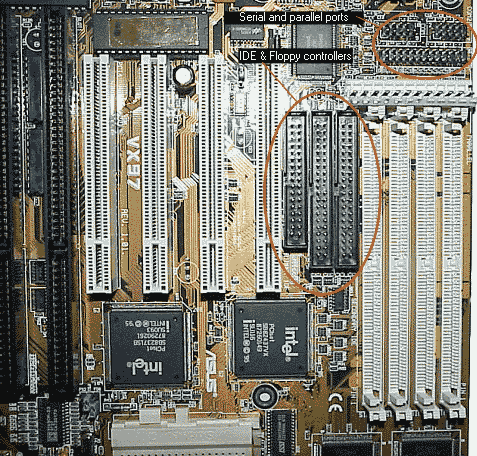 |
| The Floppy Disk and the Primary and Secondary IDE Controller connectors are oriented front-to-back on this motherboard, which lets you use method 1. On the other hand, the serial and parallel ports (upper right) are oriented left-to-right, so this method can’t be used for those connectors. |
- Connectors oriented in the same direction will be consistent. In other words, Pin 1 will be at the same end of all these connectors. If you can’t identify Pin 1 on one connector, you might on another one facing the same direction. Here again, there may be exceptions, but you can generally count on consistency.
Read the signs
- Look for a label on the board around the connector. It may be called Pin 1, or it may simply show a 1 and 2. Other possibilities include 39 and 40, or 33 and 34, which would mean you would find Pin 1 at the other end. The only problem with this rule is that many motherboards have so much writing on them that a “1” may refer to something else nearby. That’s why it’s so important to crosscheck with at least one other method.
It’s symbolic
- This method has the most variations: Look for distinctive white markings around or near Pin 1. Markings may take the form of an arrow or arrowhead, a box drawn around Pin 1, or a white block or circle painted under the pin (see Figure B). Sometimes a box will be drawn around or adjacent to the connector, with a white isosceles triangle painted in the corner that contains Pin 1.
| Figure B |
 |
| These IDE and floppy disk controller connectors have a distinctive white marking under Pin 1. |
Some motherboards don’t use any of these methods; in some cases you may have your doubts. If you reach that point, try the fifth method. This one requires that you look on the back of the board, so you will need to remove it from the case if it isn’t already out.
Want to see my etchings?
- Looking at the rear of the motherboard, in most cases Pin 1 will be a square solder, whereas all the other pins’ solder connections will be round. If you haven’t seen this technique before, you might have trouble recognizing it (see Figure C). Once you get the hang of it, though, you’ll recognize the square pin.
| Figure C |
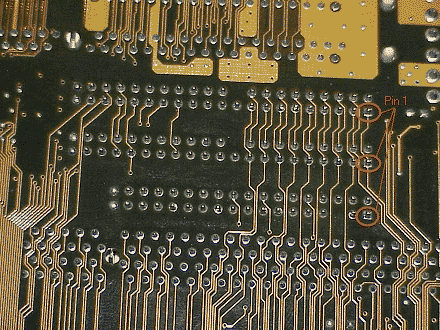 |
| Note that the lower right-hand pin of each connector is a square solder joint on the motherboard, designating Pin 1. These connectors are for (top to bottom) the primary and secondary IDE controllers, and the floppy disk controller. |
The downside to method 5 is that all motherboards don’t employ it, and you may even find this technique applied inconsistently to some connectors and not others on the same board. The great majority of boards use it on all connectors using ribbon cables. Most jumpers use the same technique. So if you have a 3-pin jumper and aren’t sure which end has Pin 1, look for the square solder joint on the back of the board.
Stay close to the power
The above five methods cover motherboards. The number of methods that apply to each motherboard will vary, but all will use at least one. Of course, as a last resort, your motherboard documentation should provide this information as well. But what about other system components, such as hard drives?
On the drives themselves, Pin 1 is usually marked, though not always in a position that is easy for you to see. If you can’t find the marking on a hard drive or CD-ROM, locate Pin 1 at the end adjacent to the power connector. You can count on this alignment with hard drives, CD, and DVD devices. A high percentage of floppy drives do not follow this standard, however.
If you connect the ribbon cable backwards on a floppy drive, you’ll know as soon as you apply power to the unit. The floppy drive LED will stay on as long as the system is on. Any time you see that symptom when you power up a PC, shutting it down and reversing the floppy cable should solve the problem.
Conclusion
When connecting your devices to today’s motherboards, looking for Pin 1 can be like finding a pin in a haystack. With the guidelines I’ve presented in this Daily Feature, you’ll always be able to connect your ribbon cables properly. Your devices will work the first time, and life will be good!
The authors and editors have taken care in preparation of the content contained herein but make no expressed or implied warranty of any kind and assume no responsibility for errors or omissions. No liability is assumed for any damages. Always have a verified backup before making any changes.