macOS Mojave: A look at the new features - TechRepublic

macOS Mojave: A look at the new features

  • 201828-applemacosmojave-figure-a.jpg

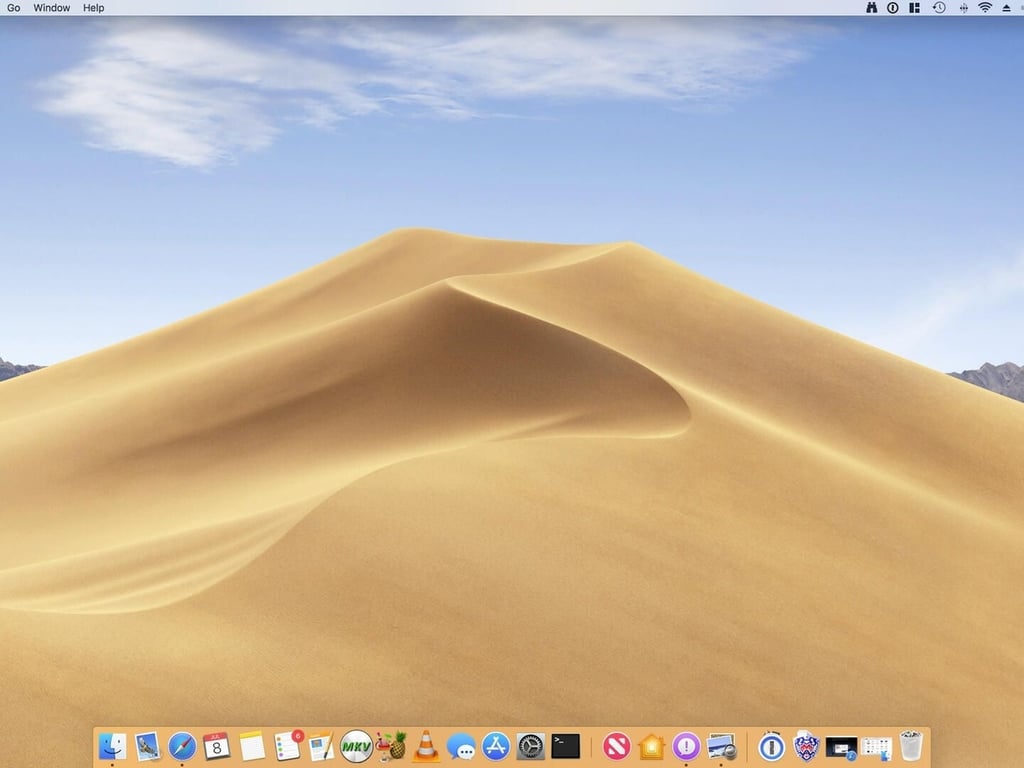
    macOS Mojave desktop

    Apple’s newest operating system, macOS Mojave, is available now. The screenshots in this gallery give you a look at some of the very best features and capabilities in Mojave.

    Sporting various updates to the underlying OS, while incorporating new features that further bridge the gap between users and the multiple devices they use, the gateway to macOS Mojave begins at the desktop. Apple has quietly dropped support for OpenGL-driven graphics and instead has chosen its Metal platform as the source behind rendering the graphics for faster, higher-performing graphics.

    SEE: Apple macOS Mojave: Cheat sheet (TechRepublic)

  • 201828-applemacosmojave-figure-b.jpg

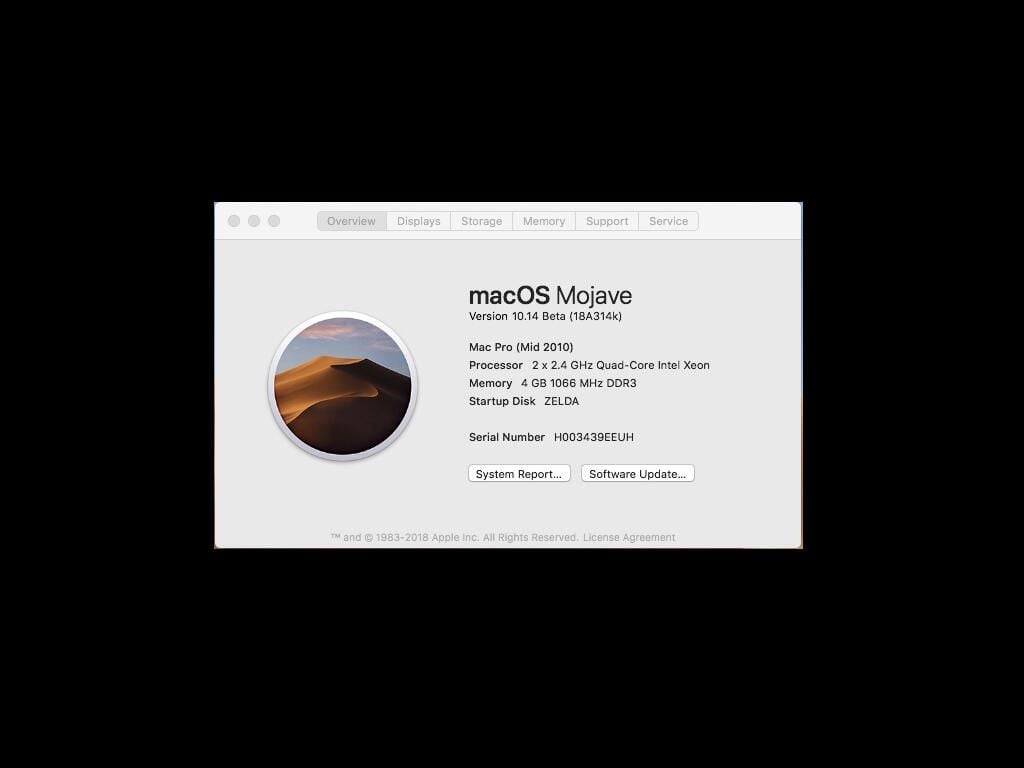
    About macOS Mojave

    While this screen may be familiar to anyone that’s been using a Mac for a few years, macOS Mojave has implemented new features that will cause users to double-check their settings to ensure their Mac can make the jump to version 10.14.

    SEE: Apple macOS Mojave: Cheat sheet (TechRepublic)

  • 201828-applemacosmojave-figure-c.jpg

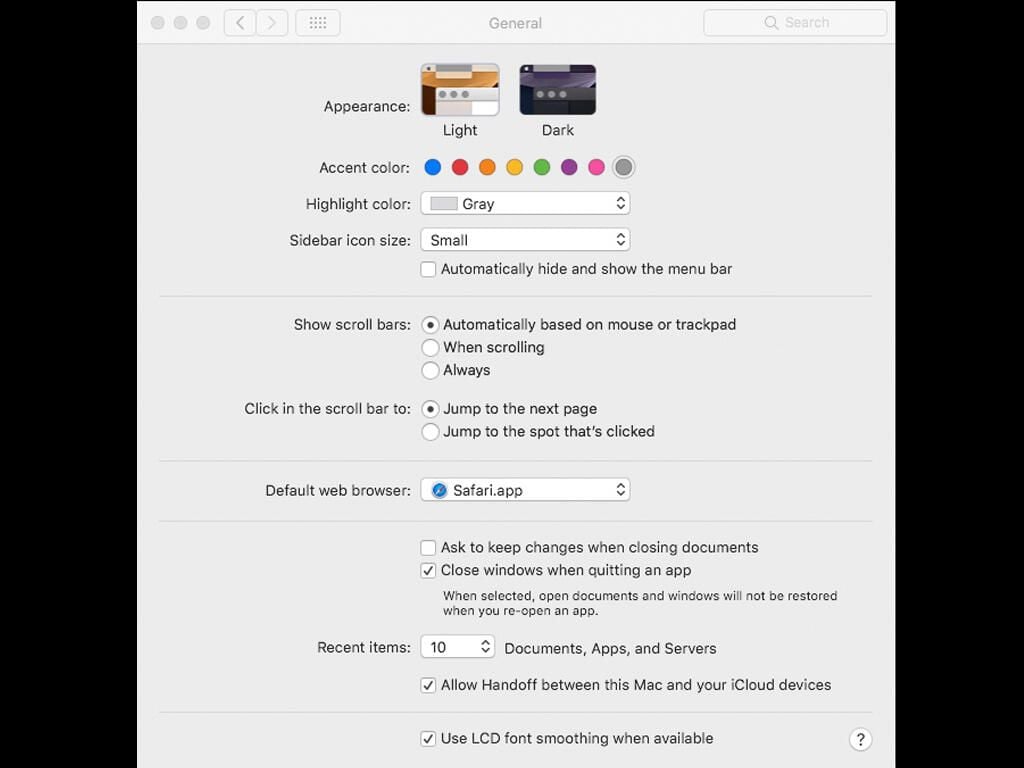
    Light mode v. Dark mode

    The Light and Dark modes present in Settings offer users a nice change to the existing mode in macOS. These modes are aimed primarily at power users who work on their computer for extended periods of time, or users who work in variably lit areas.

    SEE: Apple macOS Mojave: Cheat sheet (TechRepublic)

  • 201828-figure-d.jpg

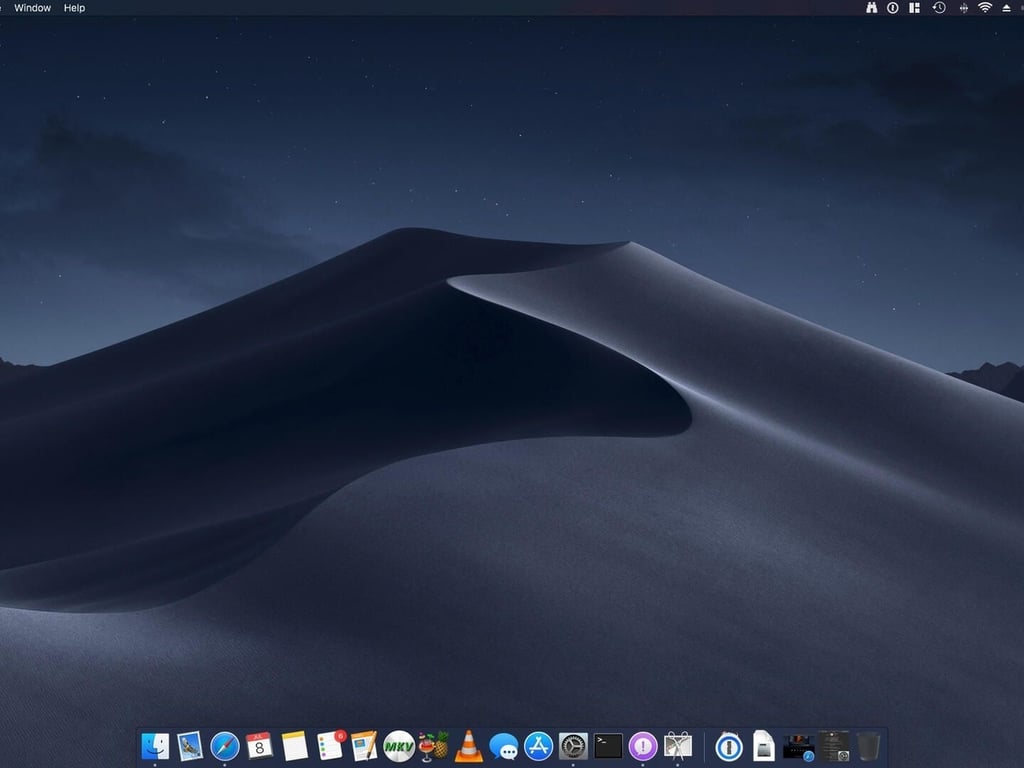
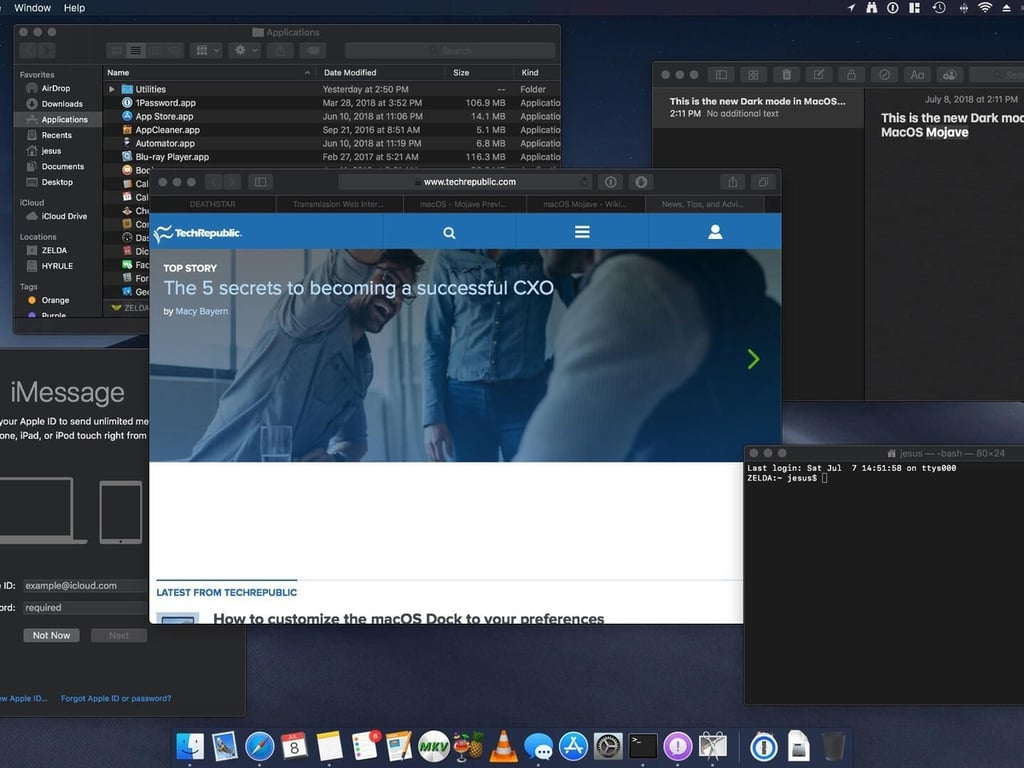
    Dark mode in action

    With a darkend GUI, Dark mode allows users to focus on the task at hand while giving their eyes a rest and allowing them to take a break from the distracting brightness and background details.

    SEE: Apple macOS Mojave: Cheat sheet (TechRepublic)

  • 201828-applemacosmojave-figure-e.jpg

    Dark mode for native apps

    Dark mode is a system-wide implementation within Mojave. Once enabled, the GUI components of the OS will be displayed accordingly–this includes native apps from Apple, such as Messages, Safari, Notes, and Keynote to name a few. Third-party developers may code their applications to support Dark mode as well.

    SEE: Apple macOS Mojave: Cheat sheet (TechRepublic)

  • 201828-applemacosmojave-figure-f.jpg

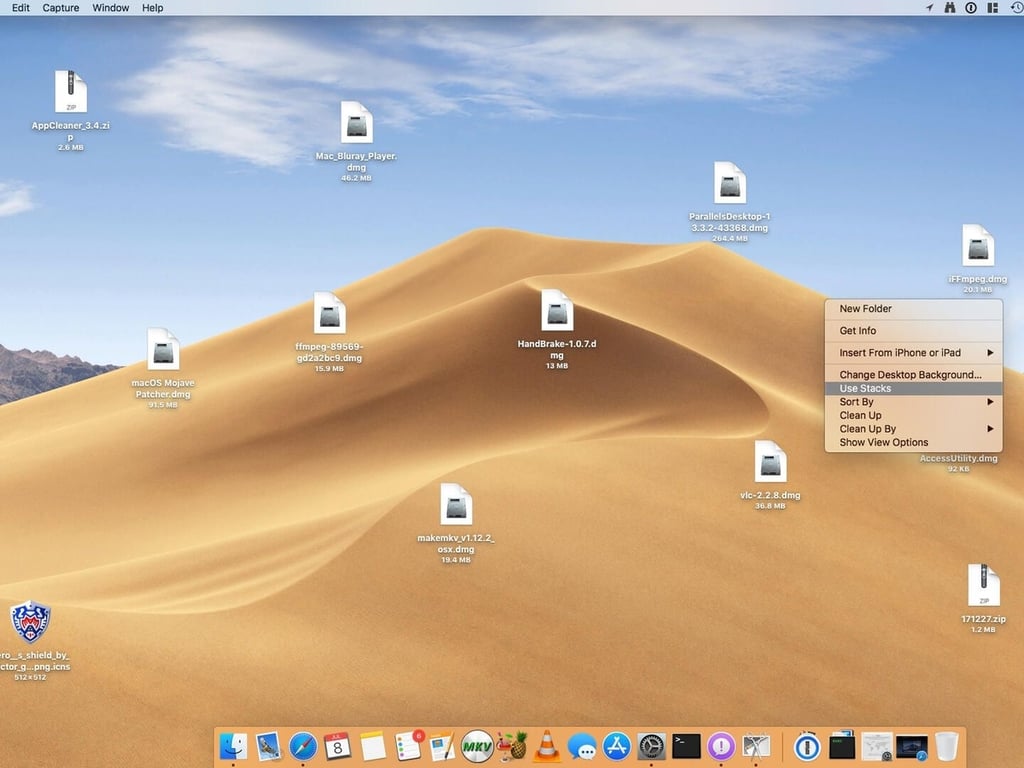
    Desktop Stacks...

    Cluttered desktops are not uncommon. When desktops are disorganized, it prevents users from finding the files they placed there for ease of access.

    SEE: Apple macOS Mojave: Cheat sheet (TechRepublic)

  • 201828-applemacosmojave-figure-g.jpg

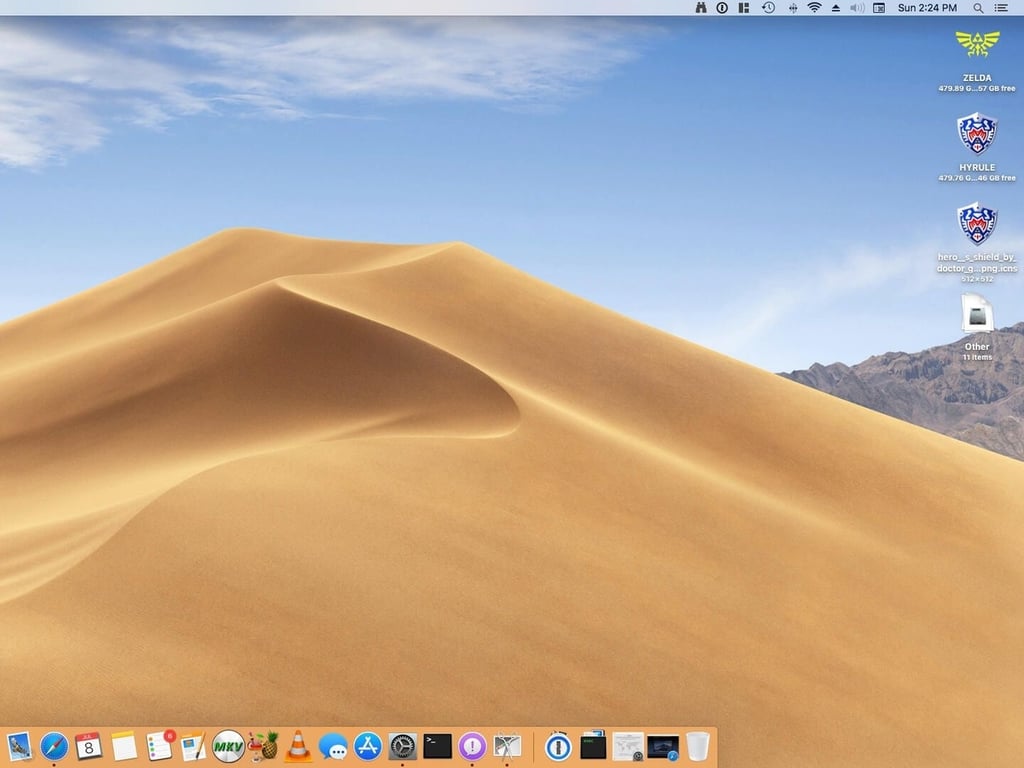
    ... to the rescue

    Apple aims to curb this issue with the introduction of Stacks. With a simple right-click of the mouse, users can select Use Stacks to condense files into groups, based on the file type. This creates neat little groups that help declutter the desktop.

    SEE: Apple macOS Mojave: Cheat sheet (TechRepublic)

  • 201828-applemacosmojave-figure-i.jpg

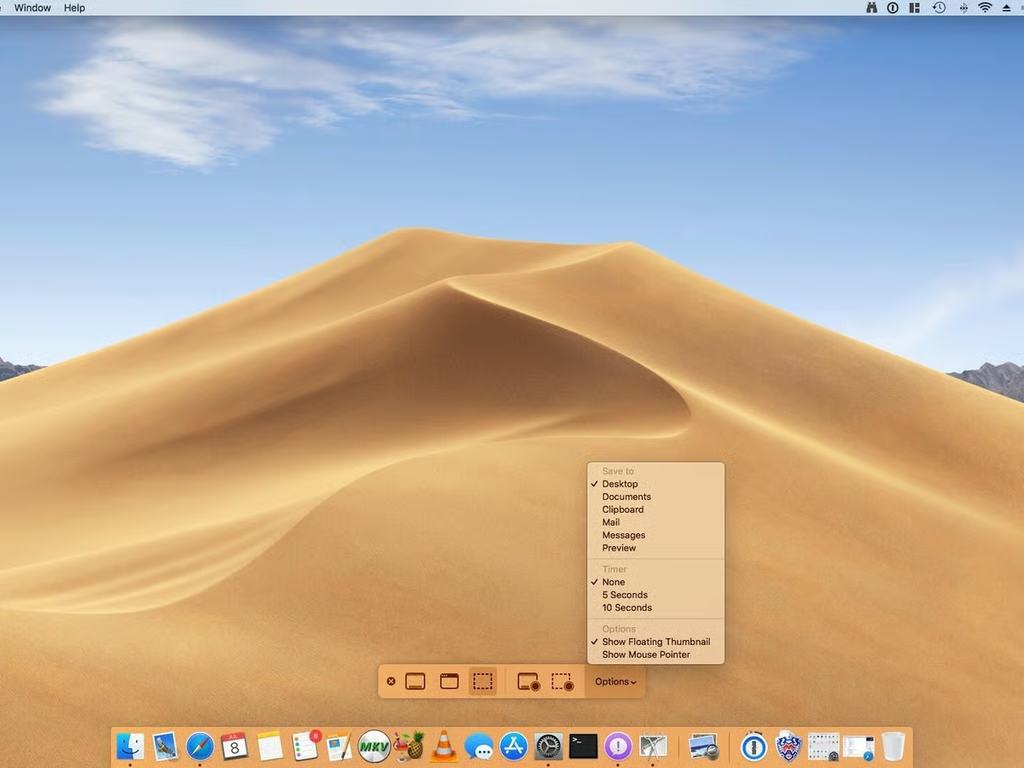
    Screenshots utility

    Taking screenshots on a Mac has always involved using the Grab app or using the correct keyboard shortcuts to call up the various screenshot commands. Apple has streamlined the latter and provided a floating toolbar that appears when pressing Shift+Command+5. The new Screenshots floating utility gives users more control over their screenshots, as well as a screen recording option, in one handy, ease to use shortcut.

    SEE: Apple macOS Mojave: Cheat sheet (TechRepublic)

  • 201828-applemacosmojave-figure-k.jpg

    Group FaceTime

    Using the familiar FaceTime app and chat/video streaming protocol developed by Apple, Group FaceTime takes it one step further by refining the experience to create and join FaceTime audio and video chats with groups of up to 32 people. The feature supports macOS- and iOS-base streams, though it requires iOS 12 for mobile devices.

    SEE: Apple macOS Mojave: Cheat sheet (TechRepublic)

  • 201828-applemacosmojave-figure-l.jpg

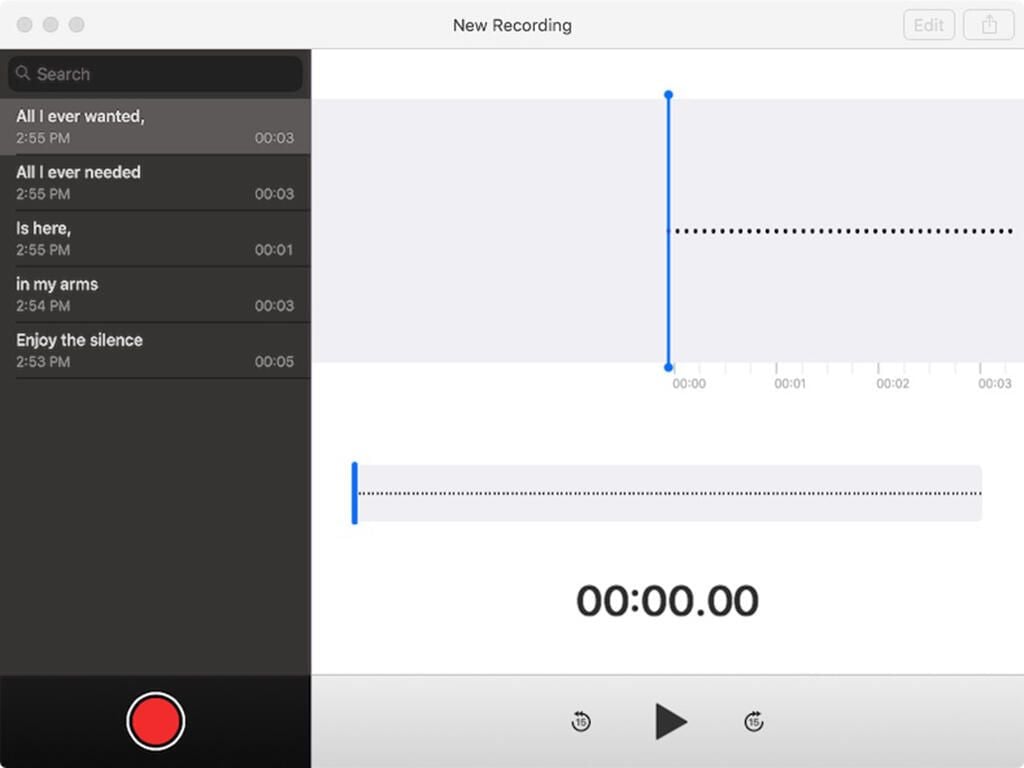
    New app: Voice Memos

    A favorite iOS app that has made the leap to macOS is Voice Memos. The app allows users to record and save important voice messages on their Mac, and then listen to the messages on their iOS-based devices as they’re synced through iCloud.

    SEE: Apple macOS Mojave: Cheat sheet (TechRepublic)

  • 201828-applemacosmojave-figure-m.jpg

    New app: Stocks

    Similar to its iOS sibling, the Stocks app allows users to follow the stock market’s highs and lows. The app has fully customizable features, and it can alert users to any changes in their favorited stocks.
    SEE: Apple macOS Mojave: Cheat sheet (TechRepublic)

  • 201828-applemacosmojave-figure-n.jpg

    New app: News

    With the News app, you can get the latest news directly to your device, and it’s curated based on your interests. The News app provides a centralized hub for all the news and current events so users can stay up to date without having to flip through different apps or websites to get the information.

    SEE: Apple macOS Mojave: Cheat sheet (TechRepublic)

  • 201828-applemacosmojave-figure-o.jpg

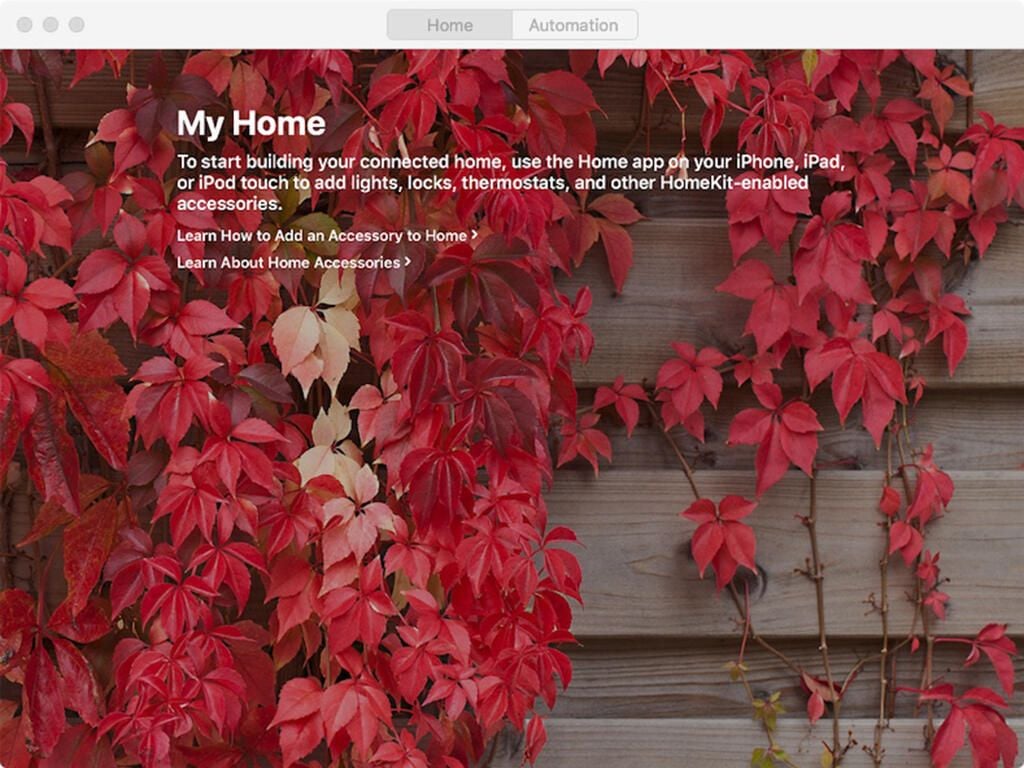
    New app: Home

    Home functions as a hub for all the automation devices used to control your home from your Mac. From lights to AC & heating to security systems and cameras, the devices are centrally managed from here to enable multiple functions and services to run from one simple, easy-to-use dashboard.

    SEE: Apple macOS Mojave: Cheat sheet (TechRepublic)

  • 201828-applemacosmojave-figure-p.jpg

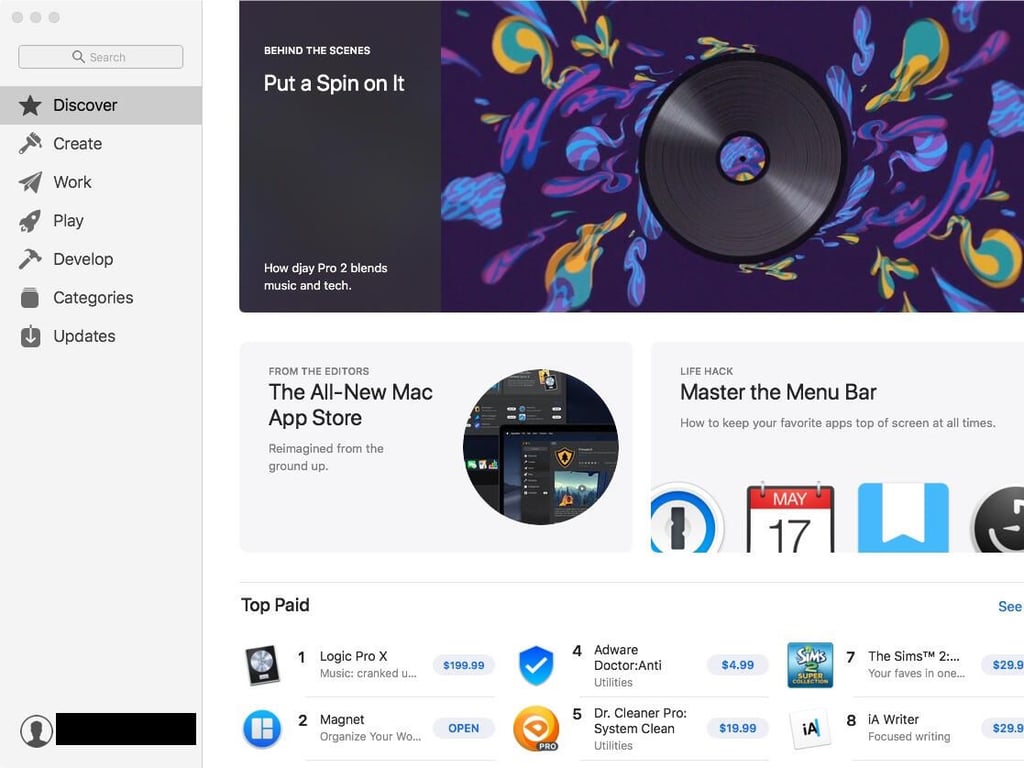
    Redesigned App Store

    The Mac App Store has been redesigned, bringing it more inline with how it appears in iOS, including its curation of apps based on criteria that some users find useful. The aesthetic has also been changed to appear more like its iOS younger sibling, including being the central point for updates.

    SEE: Apple macOS Mojave: Cheat sheet (TechRepublic)

  • 201828-applemacosmojave-figure-q.jpg

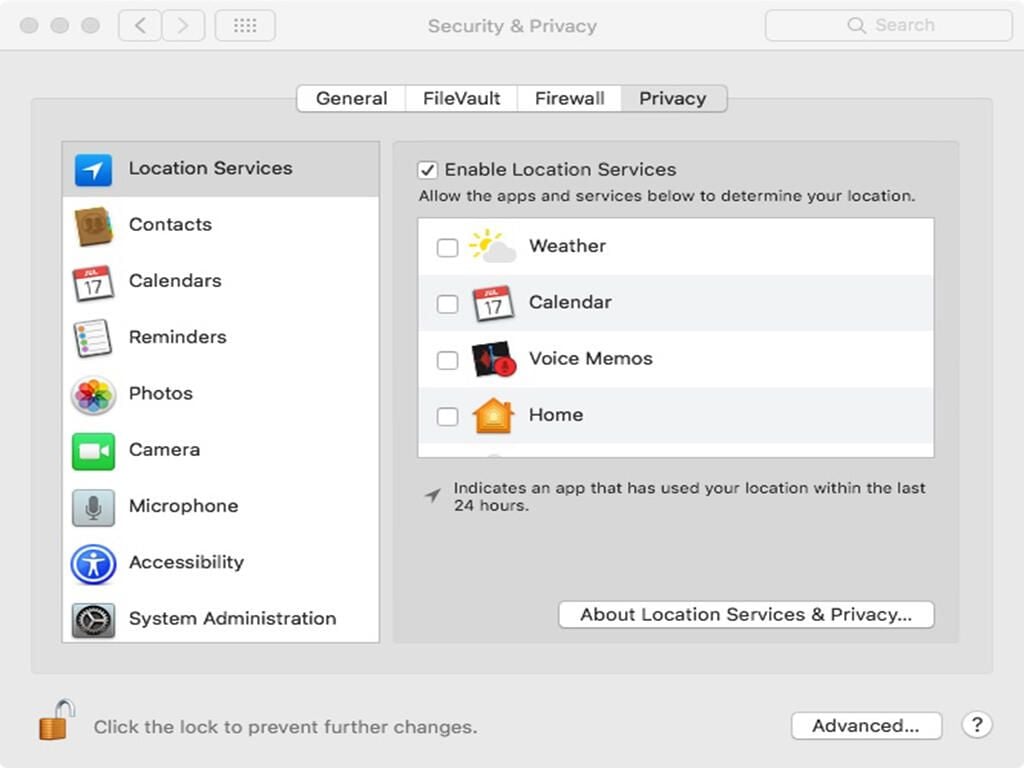
    Privacy: App-specific & Services

    Apple’s push to strengthen privacy and security continues with application-specific settings, including services, such as Location information. By granularly controlling which apps have access to which services or functions, privacy issues are kept to a minimum, mitigating threats and unintended leaks.

    SEE: Apple macOS Mojave: Cheat sheet (TechRepublic)

  • 201828-applemacosmojave-figure-r.jpg

    Privacy & Security: Monitoring

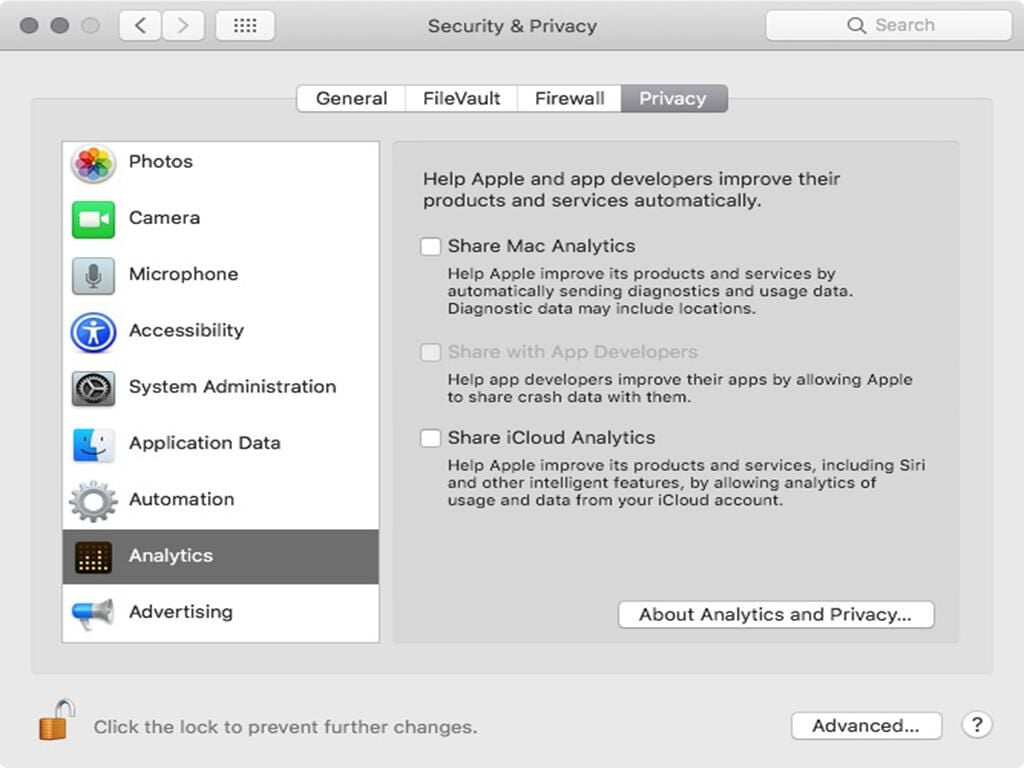
    Another aspect of privacy is the leaking of system data regarding the use of a system and/or the environment’s state when there is a crash. These metrics (often referred to as analytics) can and often do include personally identifiable data (e.g., location-based data, which some users do not feel comfortable disclosing).

    SEE: Apple macOS Mojave: Cheat sheet (TechRepublic)

  • 201828-applemacosmojave-figure-s.jpg

    Privacy & Security: Data Protection

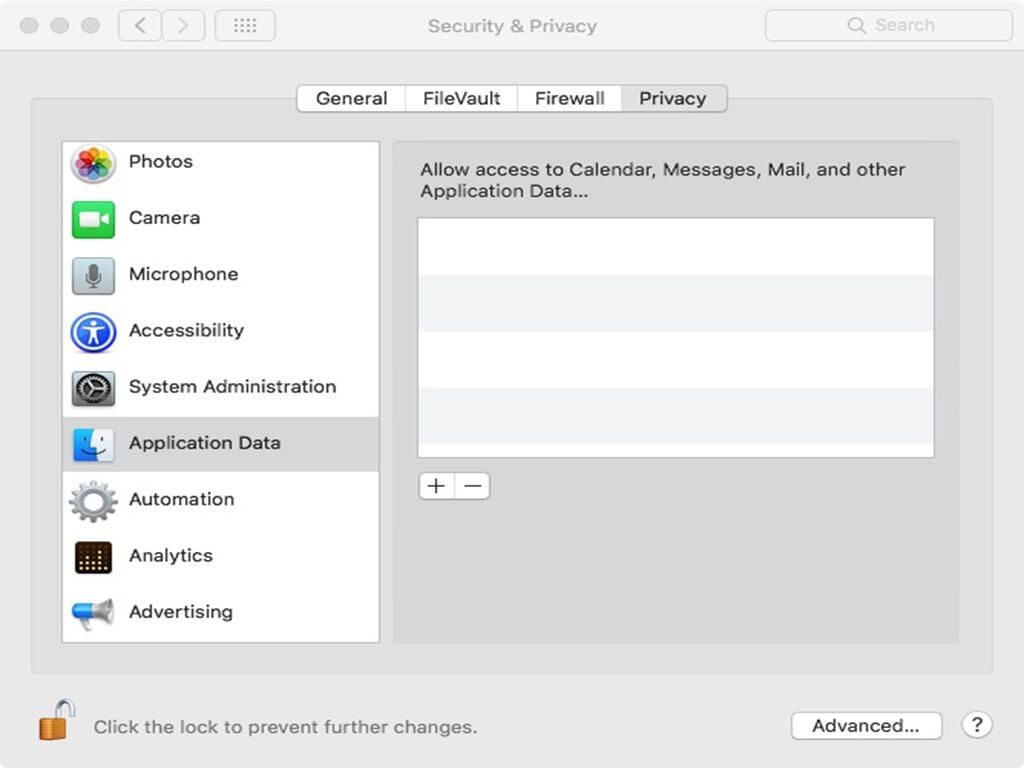
    In a big push for privacy, Apple is keeping users’ data protected from applications and malware that are trying to manipulate it for nefarious reasons. By default, Mojave limits application access to data unless explicitly approved by the user.

    SEE: Apple macOS Mojave: Cheat sheet (TechRepublic)

  • 201828-applemacosmojave-figure-t.jpg

    Safari: Site-based settings

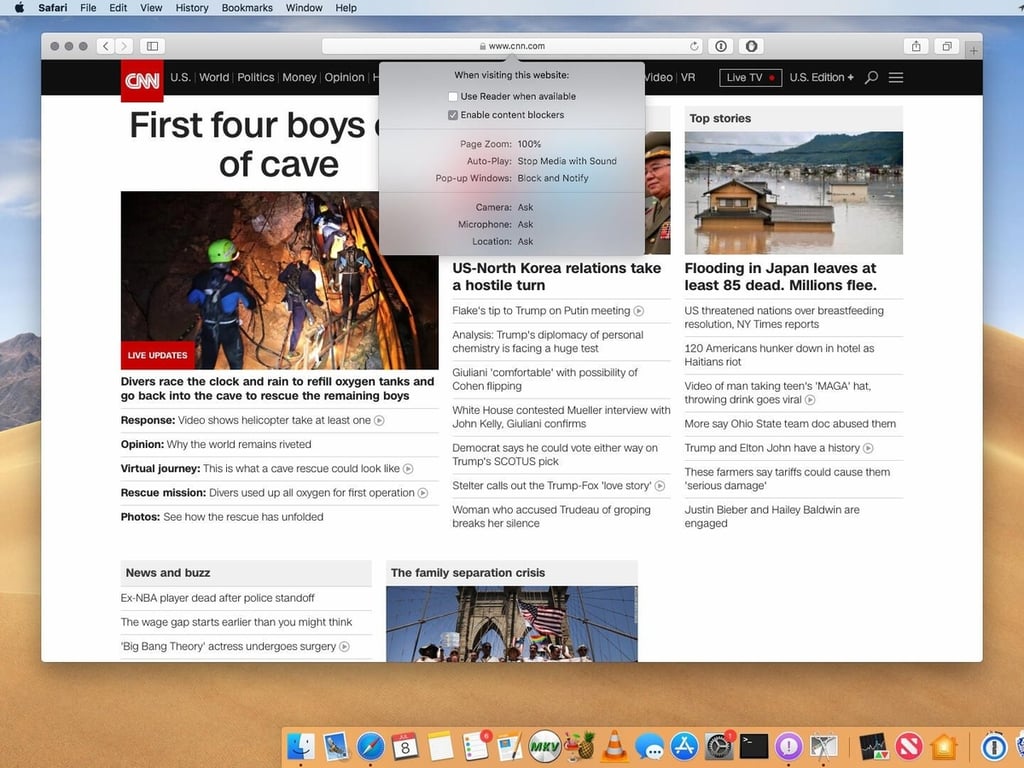
    In an effort to prevent websites from having too much access to users’ data, Safari includes settings that may be configured per website, allowing trusted sites to run with a particular set of options, while limiting untrusted websites to a different, more stringent set of options.
    SEE: Apple macOS Mojave: Cheat sheet (TechRepublic)

  • 201828-applemacosmojave-figure-u.jpg

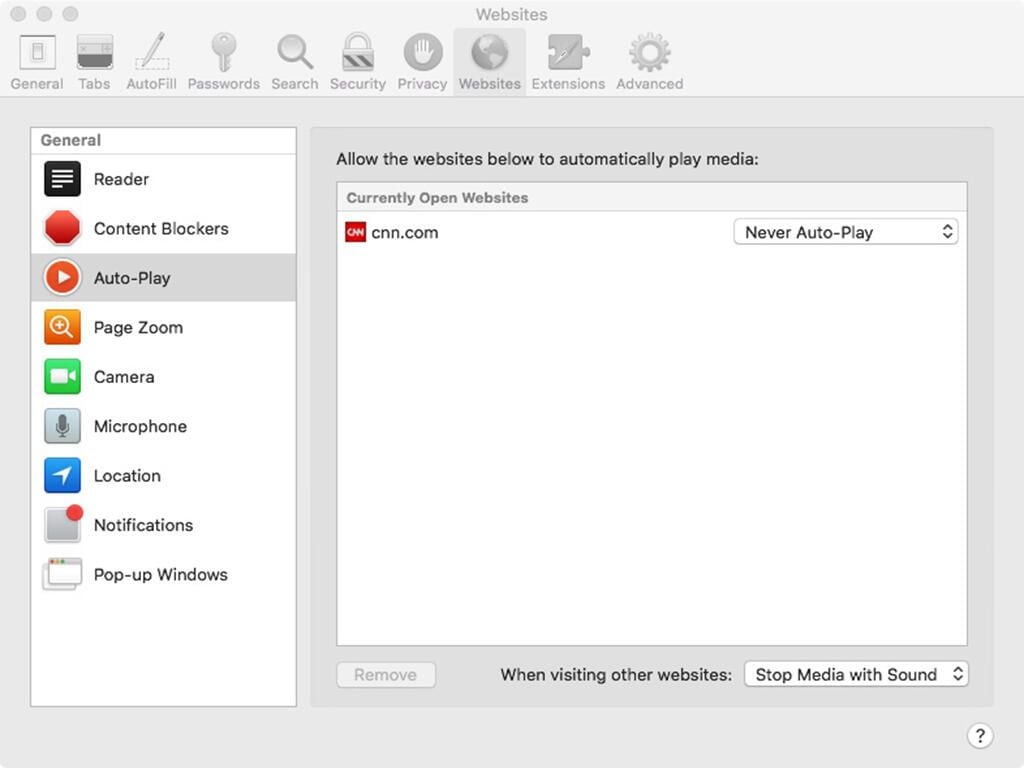
    Safari: Global v. site-based settings

    As you visit websites, the Websites tab in Safari’s Preferences will become populated. As you click through the various categories, such as Auto-Play, individual sites may be whitelisted to allow them to run content automatically, while others are blacklisted and prevented from running unchecked.

    SEE: Apple macOS Mojave: Cheat sheet (TechRepublic)

  • 201828-applemacosmojave-figure-w.jpg

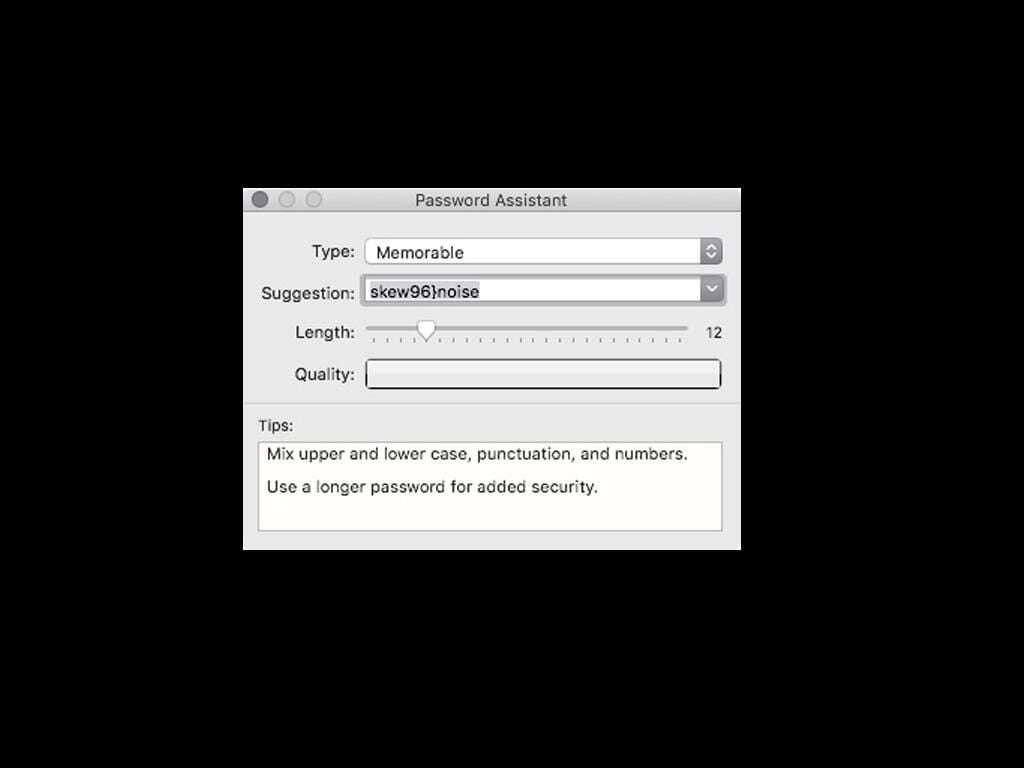
    Hardened Password Assistant

    Apple’s Password Assistant goes back many iterations of macOS (and OS X prior) to provide users with stronger passwords for their accounts. An important update: Its default algorithm will generate stronger passwords based on numbers, upper and lowercase letters, and symbols.

    SEE: Apple macOS Mojave: Cheat sheet (TechRepublic)

  • 201828-applemacosmojave-figure-x.jpg

    Dynamic Desktop

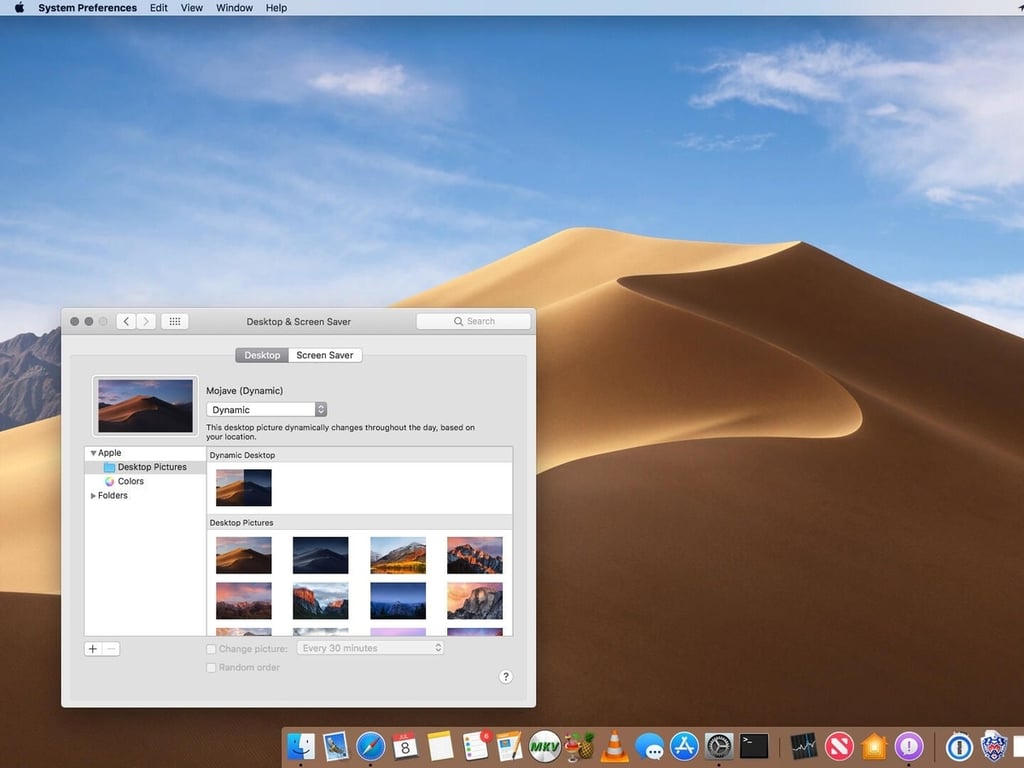
    Leveraging the switch from OpenGL to Metal 2 for powering graphics, the Dynamic Desktop acts as a living background that will automatically lighten or darken depending on your location and the time of day or night.

    SEE: Apple macOS Mojave: Cheat sheet (TechRepublic)

  • 201828-applemacosmojave-figure-y.jpg

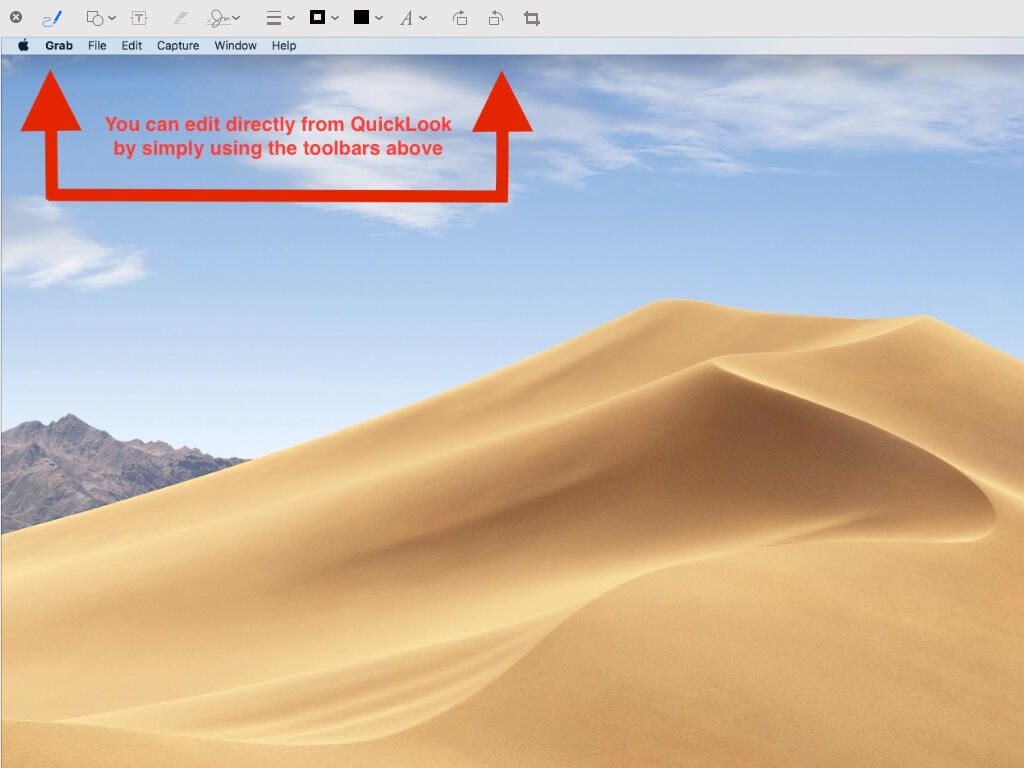
    Mark up files without launching them

    Several versions back, Apple introduced QuickLook, which allowed users to quickly view a file just by highlighting it and tapping the space bar; a full-size preview of the file’s contents would be displayed onscreen without having to actually launch the file.

    Apple has taken this functionality one step further by allowing for marking up the file with edits, comments, and sharing it right from QuickLook.

    SEE: Apple macOS Mojave: Cheat sheet (TechRepublic)

1 of 22
Jesus Vigo

Jesus Vigo is a Network Administrator by day and owner of Mac|Jesus, LLC, specializing in Mac and Windows integration and providing solutions to small- and medium-size businesses. He brings 19 years of experience and multiple certifications from several vendors, including Apple and CompTIA.