

When joining or facilitating a Zoom meeting, aside from the camera quality and internet bandwidth, ensure that your background is appropriate for the video call.
You have options built right into Zoom to hide the space behind you or keep your surroundings private by simply turning on the background blurring feature. This easy toggle setting in Zoom can turn your personal space into a more professional-looking background.
In this guide, we’ll show you how to blur your Zoom background before a meeting, while in a meeting, as well as how to choose a virtual background image that suits your needs.

Download Zoom for free to start hosting video meetings, seamlessly driving collaboration within your remote tech teams.
How to blur the Zoom background before a meeting
Zoom allows you to hide or unhide your video. However, for those who want to turn their video on but, at the same time, not use a virtual background, their next best alternative is to blur their background before joining.
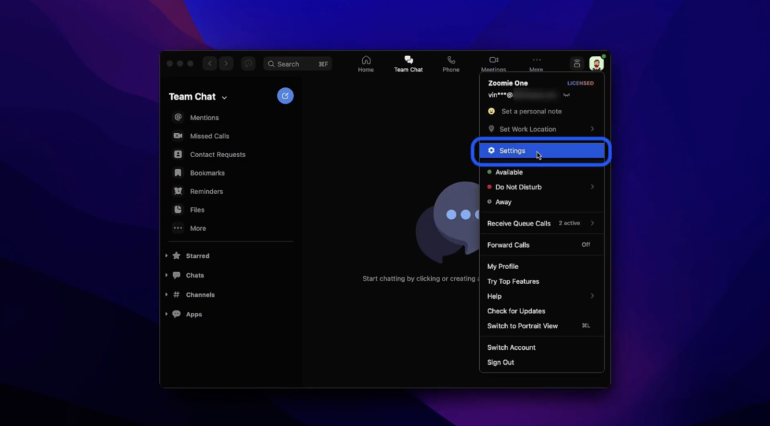
- Sign in to your Zoom desktop account and click on your profile picture in the upper right corner of the screen. Then, click on Settings.
Figure A
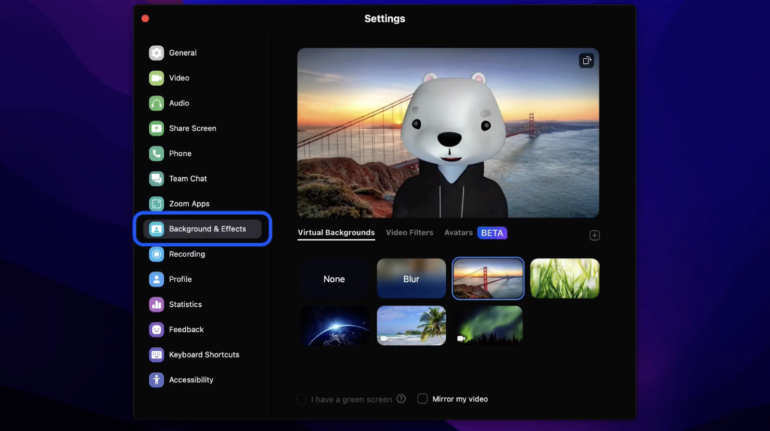
- Navigate to the left panel and select Background & Effects.
Figure B
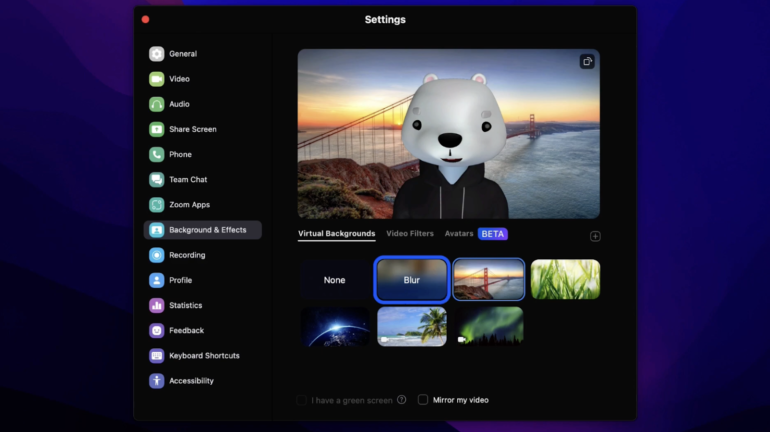
- Lastly, under the Virtual Backgrounds tab, click on Blur to enable this feature.
Figure C
Pro tip: Check your system requirements and compatibility. To successfully enable Zoom’s background blurring feature, you’ll need to meet the minimum system requirements.
- Zoom desktop client for Windows or macOS: version 5.5.0 or higher
- Zoom mobile app for Android or iOS: version 5.6.6 or higher; iOS 11 or later, and Android 8.0 or higher
How to blur the Zoom background during a meeting
If you’re undecided on blurring your background before the meeting, you can do it later, even when the call is ongoing. For instance, if you want to hide random people passing by at the coffee shop or your family members in the background, you can turn on the Blur feature mid-call.
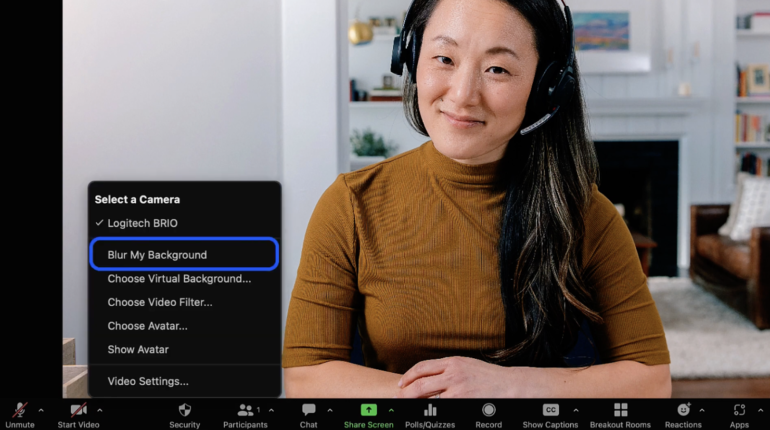
- During a live call, on the Zoom video window, locate the small up arrow next to the Start/Stop Video button.
Figure D
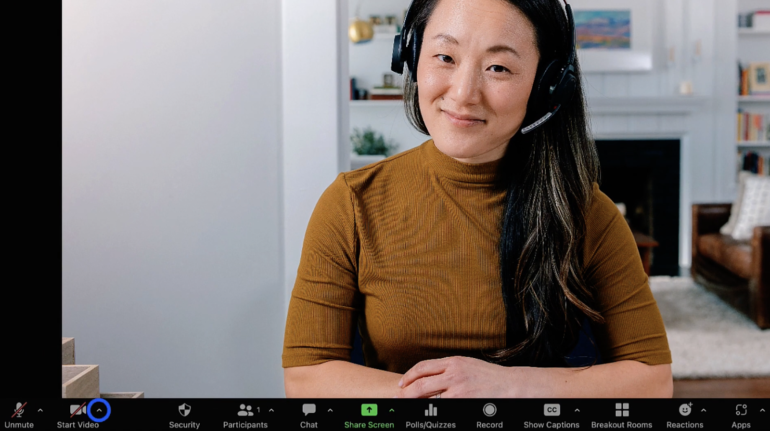
- Click on the up arrow and then select Blur My Background to enable this feature.
Alternatively, you can select the Video Settings. Then, Background & effects and the Blur option from the virtual backgrounds, even after the call starts.
Figure E
How to blur the Zoom background on mobile
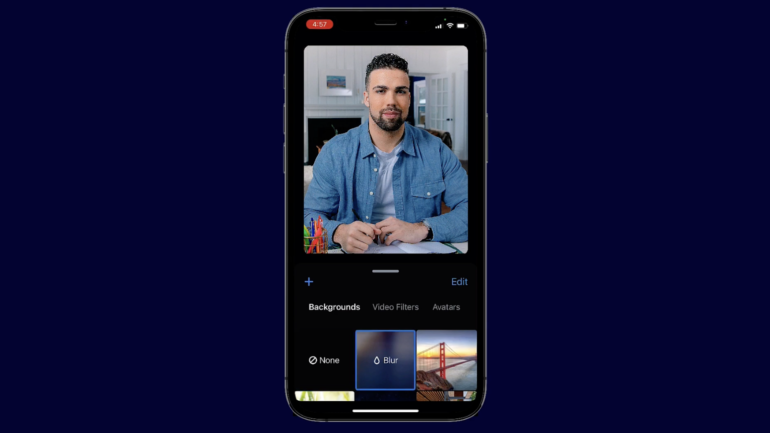
If you ever need to take a Zoom call on your phone and are not prepared for it, turn on the Blur feature to instantly fix your background.
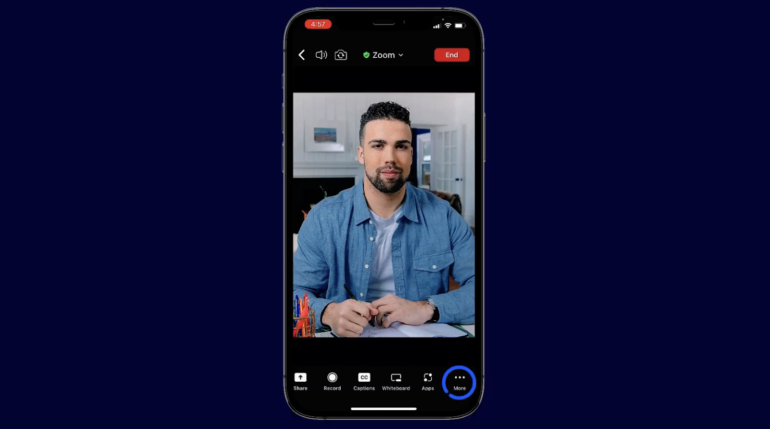
- Tap on the three dots or the More option.
Figure F
- Select Blur to turn this feature on instantly.
Figure G
How to change the Zoom virtual background image
Choosing a background image during or before a Zoom meeting is similar to the steps for blurring your background.
- From the main meeting screen, click on the small up arrow next to Start/Stop Video.
- Click Adjust background & effects.
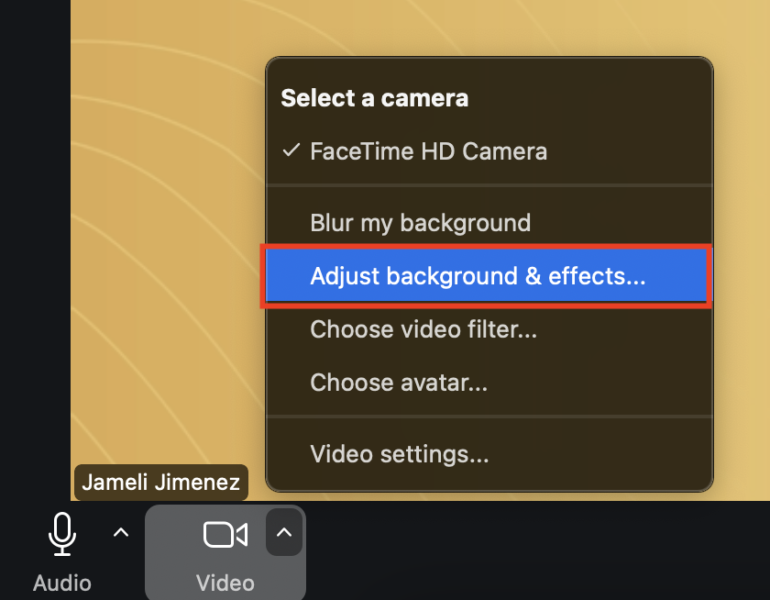
3. Select your preferred background or click on the plus icon to add an image or video as a virtual background.
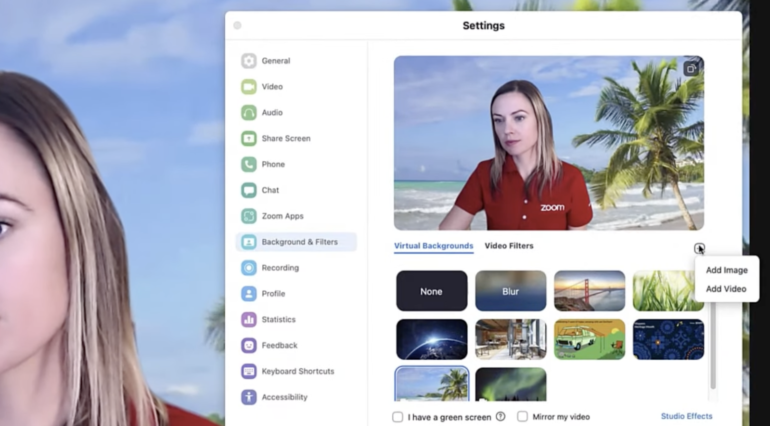
SEE: How to Create a Virtual Background in Zoom
Blurring Zoom background vs choosing a background image
The choice between blurring your background and selecting a background image during a Zoom meeting depends on your preferences, needs, and the context of the meeting.
- Blur effect: Reduces distractions and unwanted sight while maintaining a professional setting.
- Background image: Reinforces branding and specific themes while hiding the background entirely.
Pros & cons: Choosing to blur the background in Zoom
| Pros | Cons |
|---|---|
|
|
Pros & cons: Choosing a background image
| Pros | Cons |
|---|---|
|
|
SEE: The Best Free Virtual Backgrounds to Use on Zoom or Teams
Frequently asked questions (FAQs)
Why is the blur not working on Zoom?
If you have tried selecting the Blur feature from the Background & Effects menu and it still doesn’t work, the next step is to double-check your Zoom app’s version. According to Zoom, you should update your app to the latest version to use this feature. Further to this, there are device system requirements and compatibility you need to meet in order to start blurring your background, which you can find in the Zoom Support portal.
How do I check the Zoom version?
To determine if you have the latest Zoom version on your computer, sign in to your Zoom app and click your profile picture in the upper-right corner. Select Help and click on About Zoom. From there, you’ll find the currently installed version of Zoom on your desktop.
How to test Zoom background before a meeting?
Test and preview your Zoom background by clicking on your profile picture found in the upper-right corner. Select Settings, and then go to the Background & Effects. Navigate to the Virtual Backgrounds menu, where you can preview, select, and change your background image.