


If you get tired of jumping back and forth between your desktop and your Android smartphone, stop what you’re doing and read carefully. With the help of an easy to use Chrome extension and Android app called Vysor, you can display and interact with that Android device right from your desktop. This means you can type from your desktop keyboard and work much more efficiently.
I’m going to walk you through the steps of installing and using Vysor. For this demonstration I will be using Chrome on elementary OS Freya and a Verizon-branded Droid Turbo. The process is the same, regardless of platform. Let’s get busy.
SEE: Gallery: 10 Chromebooks available now that will support the upcoming Google Play store update
Installing Vysor
Mobility must-reads
- Big Apple OS Makeover: Here’s What to Expect & When
- MWC 2025: Nothing Shows Off (3A) Phones With AI Organization Tool
- Bad News for App Developers: Most Apps Fail to Hit $1,000 Monthly Revenue Within Two Years
- Mobile Device Computing Policy
There are two versions of Vysor: Free and Pro. The Pro edition (an in-app purchase of $1.99/mo, $9.99/yr, or $39.99/lifetime) gives you more features, such as:
- High-quality mirroring
- Fullscreen mode
- Wireless connection
- Vysor share
- Drag and drop between desktop and device
Prior to the Chrome extension becoming available, the Android Debug Bridge (ADB) had to be installed–that is no longer the case. All you have to do is install the mobile app and the Chrome extension. Here’s how.
Android app
- Open the Google Play Store on your Android device.
- Search for vysor.
- Locate and tap the entry by Clockwork Mod.
- Tap Install.
- Read the permissions listing (if applicable).
- Tap Accept.
- Allow the installation to complete.
Chrome extension
- Point your Chrome browser to the Vysor page.
- Click ADD TO CHROME.
- When prompted, click Add App.
- Allow the installation to complete.
Connecting your device
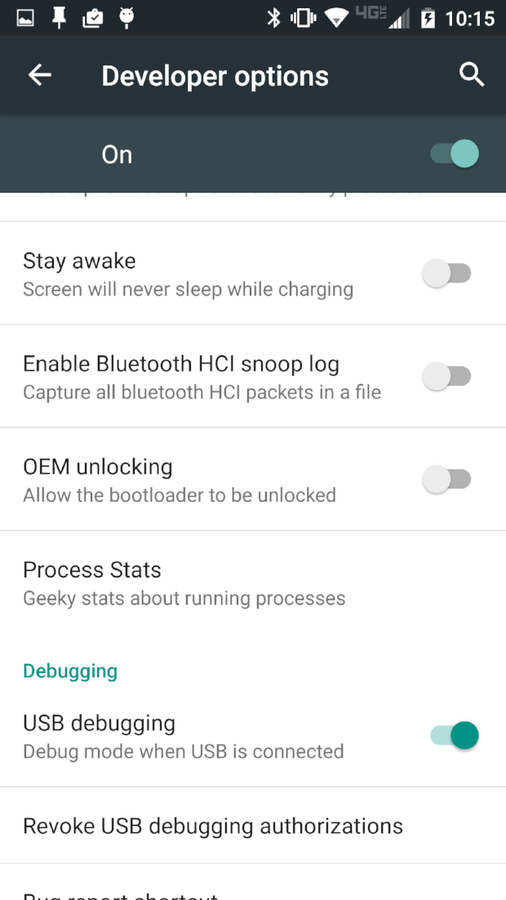
The first thing you must do is enable USB debugging on your Android device. To do that, follow these steps.
- Open Settings.
- Look for Developer Options*.
- Locate USB Debugging.
- Tap to enable USB Debugging (Figure A).
Figure A
* If you do not see Developer options in Settings, do the following.
- Go to Settings | About Phone.
- Tap Build Number seven times.
- Back out of About Phone.
- Scroll down to see Developer options are now available.
The next step is to connect your device via USB to your desktop. Once connected, launch the Vysor app from the Chrome Apps button. When the Vysor app opens (Figure B), click Find Devices.
Figure B
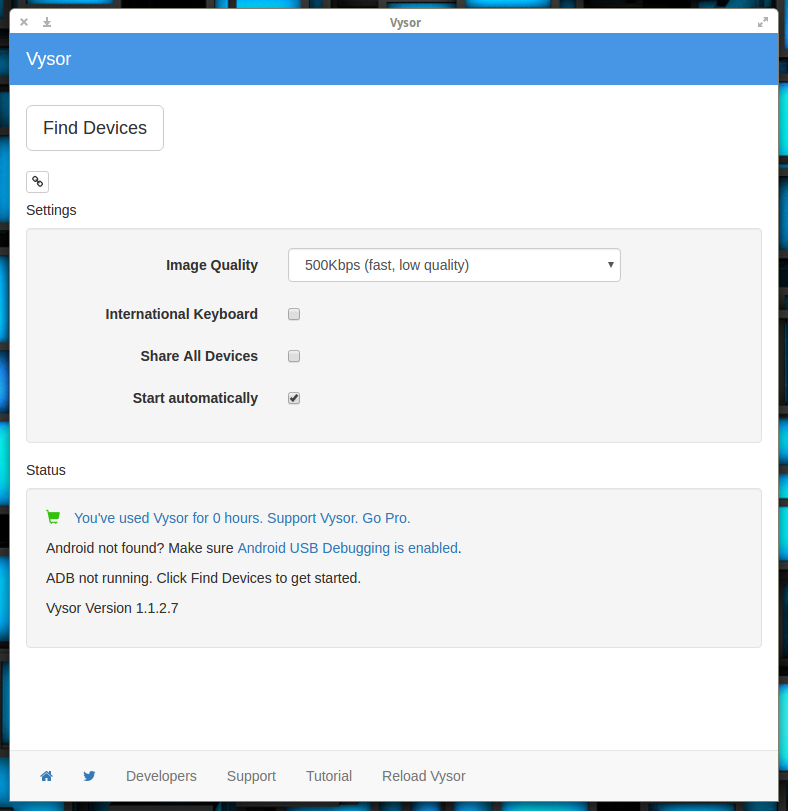
From the discovery window, you can select the image quality for your device. If you prefer Vysor to run more quickly, select 500Kbps. You can go all the way up to 2Mbit, which will display a high-quality image, but will slow the responsiveness of the connection between phone and desktop dramatically.
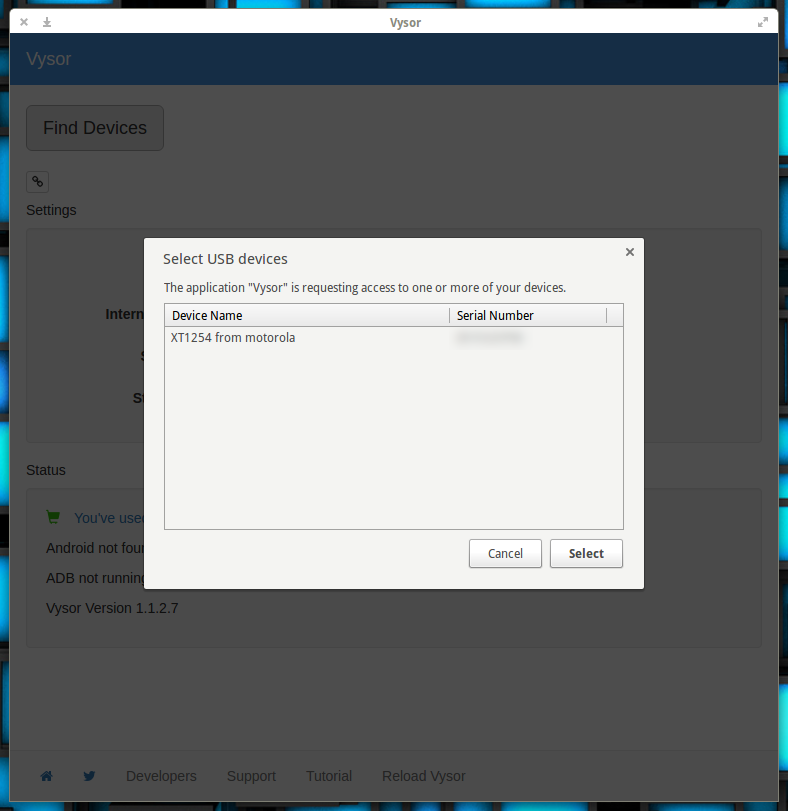
Next, when prompted, choose the device to be displayed (Figure C) and click Select.
Figure C
A help window will appear to display handy keyboard shortcuts. Click OK or NEVER SHOW THIS AGAIN, and your Android device will appear in its own window (Figure D).
Figure D
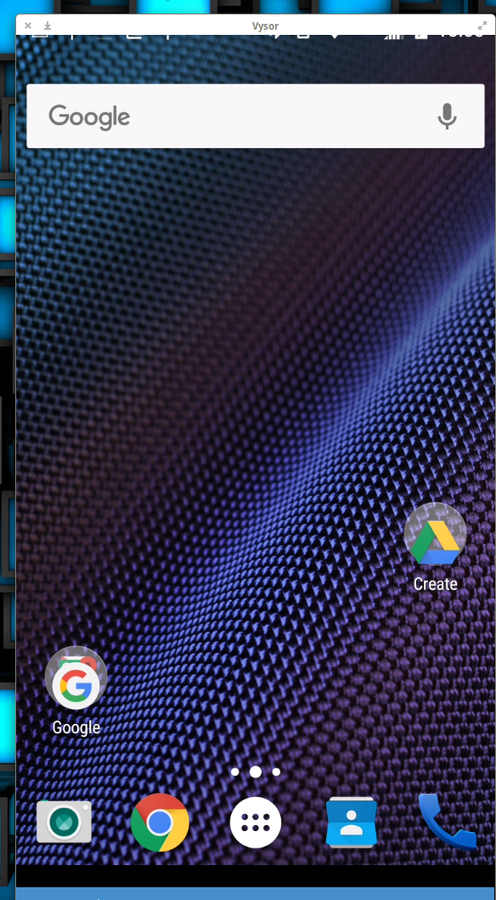
You are now ready to interact with your Android, directly from your desktop. Case in point: I wrote this very article using Vysor (Figure E).
Figure E
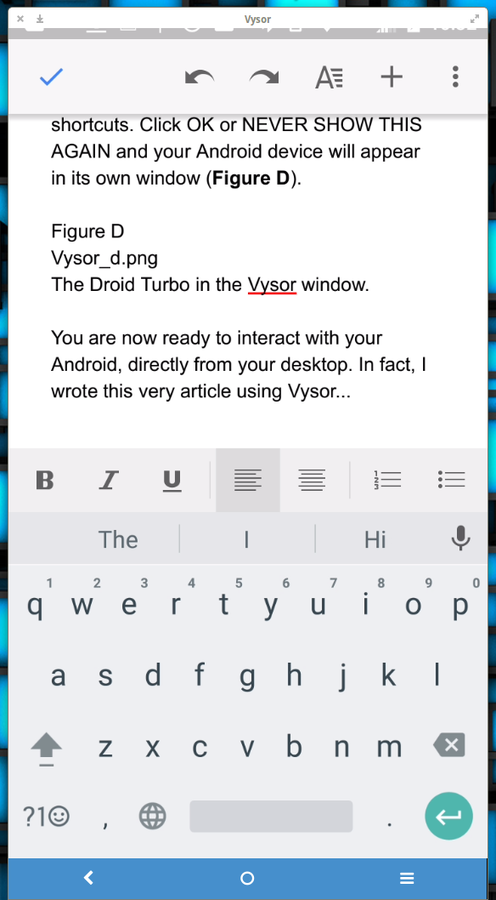
It doesn’t get any easier
If you’re looking for one of the easiest ways to work between your desktop and your Android device, look no further than Vysor. With this amazing tool you can work seamlessly and efficiently all day without having to switch your focus from desktop to mobile device.