



No matter what you’re doing on your computer, you need to do so with an eye to security — that means using strong passwords, storing files in safe locations, and in some cases encrypting files. Fortunately, for nearly every usage, there are tools to enable you to encrypt your data…from transferring data online, to storing data on a locally attached storage, even encrypting your entire drive.
Must-read security coverage
- UK Police Convicts Pair in £5.5 Billion Bitcoin Launder Case
- Blackpoint Cyber vs. Arctic Wolf: Which MDR Solution is Right for You?
- How GitHub Is Securing the Software Supply Chain
- 8 Best Enterprise Password Managers
Or you might want to encrypt a single file or folder by turning to the tried-and-true GnuPG. With one command, gpg, you can have that file or folder encrypted so that the only way to decrypt it is with a password. I’ll show you how to use the gpg command to quickly encrypt and decrypt a file.
Since gpg is built in to almost every Linux system, you won’t have to install anything to get this working from the command line. I’ll also show how to gain this functionality within the Nautilus (GNOME Files) file manager tool.
SEE: Encryption Policy (Tech Pro Research)
From the command line
Let’s say you have a file, ~/Documents/important.docx, that you want to password protect. Using gpg, you would do the following.
- Open a terminal window.
- Change to the ~/Documents directory with the command cd ~/Documents.
- Encrypt the file with the command gpg -c important.docx.
- Enter a unique password for the file and hit Enter.
- Verify the newly typed password by typing it again and hitting Enter.
You should now see the file important.docx.gpg in the ~/Documents folder. To decrypt that file, do the following.
- Open a terminal window.
- Change to the ~/Documents directory with the command cd ~/Documents.
- Decrypt the file with the command gpg important.dox.gpg.
- When prompted, enter the decryption password you created when encrypting the file.
You could send that file to a recipient and, as long as they have gpg installed, they can decrypt the file with the password you used for encryption. If they are a Windows user, they can always install Gpg4win.
The GUI way
If you happen to be a GNOME 3 user (or any Linux desktop that makes use of either Nautilus or GNOME Files), you can add a contextual menu entry to the file manager for encryption. Here’s how (I’ll demonstrate on Ubuntu GNOME 16.04).
- Open a terminal window.
- Issue the command sudo apt-get install seahorse-nautilus.
- Type your sudo password and hit Enter.
- If prompted, type y and hit Enter.
- Allow the installation to complete.
Open the file manager and navigate to the ~/Documents directory. Right-click the important.docx file and then click the Encrypt… entry (Figure A). You will be prompted to enter and then verify an encryption password. Once you’ve verified the password, the important.docx.gpg file will appear in ~/Documents.
Figure A
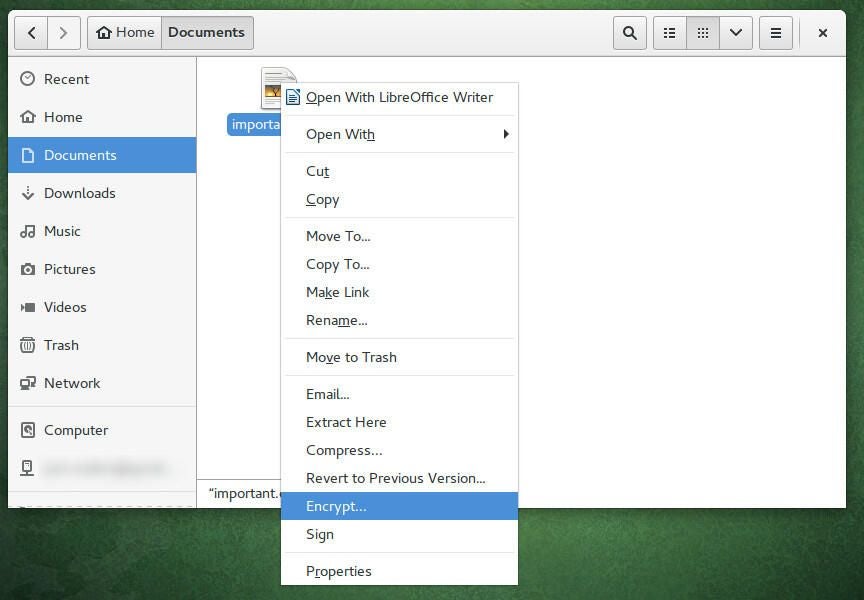
Encrypting a file within Nautilus.
The decryption process is the same.
- Open the file manager.
- Navigate to the encrypted file.
- Right-click the encrypted file.
- Click Open with Decrypt File.
- When prompted, give the new file a name and click Enter.
- When prompted, enter the decryption password and click Enter.
The encrypted file will now be decrypted and ready to use.
Let the encrypting begin
You don’t have to employ complicated systems to encrypt/decrypt files on your machine. With the help of a simple to use Linux command, your files and folders can be secured.
Remember to use complex passwords when encrypting those files, because encrypting a file with a weak password will get you nowhere.
Become a Linux expert with these TechRepublic Academy resources: