


NitroShare is a fantastic tool that allows you to easily share files across a local network. Created to be simple, fast, cross-platform, and open, NitroShare makes the sharing of files between systems and platforms incredibly easy…all without having to bother with Samba or Windows shares.
Networking: Must-read coverage
- Gartner releases 4 trends that will impact cloud, data centers and infrastructure in 2023
- Support for these Microsoft enterprise products ends in 2023
- Dell Technologies World 2023: Q&A on how Dell sees security at the edge
- Best VPNs for small business in 2023
NitroShare offers the following features:
- Cross-platform: Linux, Windows, Mac OS X
- Simple to use with no configurations required
- Supports auto-discovery of devices running NitroShare on LAN
- Optional TSL encryption (don’t bother with this, unless you have a signed certificate)
- Works at gigabit speeds (if available)
- Transfer files and directories
- Supports desktop notifications
For anyone that needs to regularly move files from one machine to another, this free and open app is exactly what you want. Let’s install NitroShare and see how it works.
SEE: Securing Linux Policy (Tech Pro Research)
Installing NitroShare
I’ll demonstrate the installation and usage of NitroShare between instances of Ubuntu 16.04 and Ubuntu GNOME 16.04. Although you can find NitroShare in the default repositories for Ubuntu (and Debian), it very likely could be out of date. For that reason, we’ll add a new repository and then install. Here are the commands you need to issue to make this happen.
sudo apt-add-repository ppa:george-edison55/nitrosharesudo
âapt-get updatesudo
âapt-get install nitroshare
Once the installation commands are complete, you can open the Unity Dash (or your desktop menu of choice), search for NitroShare, and click the icon to launch the app. A splash screen will open to inform you that NitroShare lives in your desktop system tray. Click the Close button, and the NitroShare indicator will appear in your desktop system/notification tray.
Note: In the case of GNOME 3, NitroShare requires the addition of the KStatusNotifierItem/AppIndicator Support extension. Point your browser to the extension page, click the ON/OFF switch on the extension page, and then when prompted click Install.
Using NitroShare
Sending a file with NitroShare is incredibly simple. You can send to any machine on your network that also has a running instance of NitroShare (your NitroShare app will automatically discover any NitroShare-enabled machine). Here’s how it’s done.
- Click the NitroShare indicator.
- Select Send Files.
- When the file manager opens, locate and select the file to be sent.
- Click Open.
- When Select Device appears, choose the target machine (Figure A).
- Click OK.
Figure A
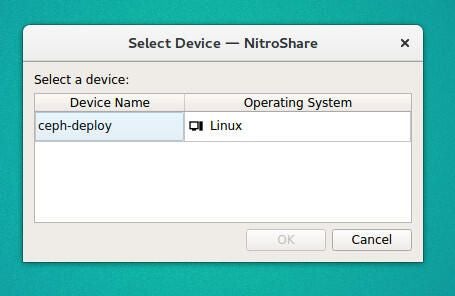
Sending a file from Ubuntu GNOME to Ubuntu with NitroShare.
As the file sends, the Transfer window will appear (Figure B). From this window you can get a glimpse of recent transfers, send files/directories, and clear the transfer/receive log.
Figure B
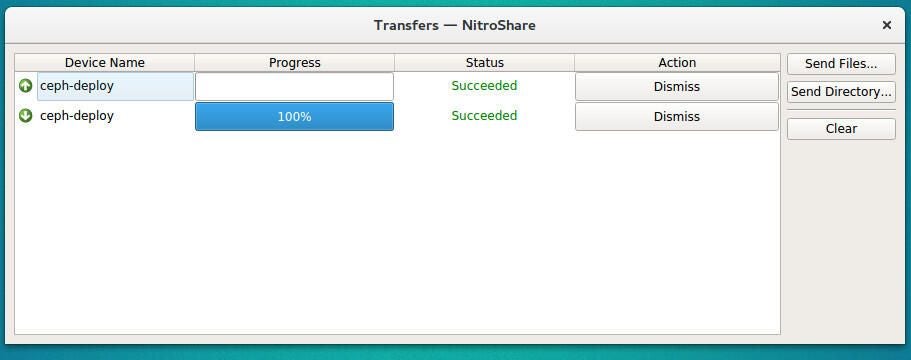
The NitroShare Transfers window lists files that have been sent (up arrow) and received (down arrow).
On the receiving end, NitroShare will display a message that a file has been received (Figure C).
Figure C
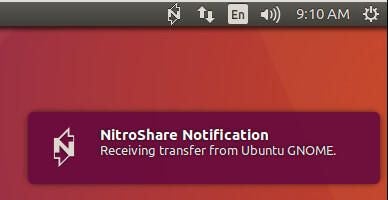
Ubuntu notification of an incoming file from NitroShare.
That’s how easy it is to send files from machine to machine on your LAN.
The complete package
If you’ve been looking for a tool to make the process of sharing files and folders as simple as possible, do not overlook NitroShare–it’s the complete package for Linux, Windows, and Mac.