


Android Marshmallow came with a whole host of new features, including battery optimization via the app standby mode. This feature puts apps to sleep so they cannot use precious resources on your device. I can attest the app standby mode works very well; the increase in battery life from Lollipop to Marshmallow is significant.
Mobility must-reads
- Big Apple OS Makeover: Here’s What to Expect & When
- MWC 2025: Nothing Shows Off (3A) Phones With AI Organization Tool
- Bad News for App Developers: Most Apps Fail to Hit $1,000 Monthly Revenue Within Two Years
- Mobile Device Computing Policy
However, there may be times when you have a particular app (such as an email or a messaging app) that you don
’
t want Android to place into sleep mode. The reason why you don
’
t want the app put in standby mode will vary, but most likely it is so the app can continuously receive data and not have to wait until it is out of standby mode. Fortunately, for those apps you want to be
“
always on,
”
Android allows you to remove them easily from standby mode.
SEE: Android Marshmallow: The smart person’s guide
Removing an app from standby mode
By default all apps but one (and in some cases, two) will be on the app standby mode list. The app that is certain to be on the list is Google Play services, because you cannot add it to the list. You may also see Carrier Provisioning Services, which cannot be added to standby mode (Figure A).
Figure A
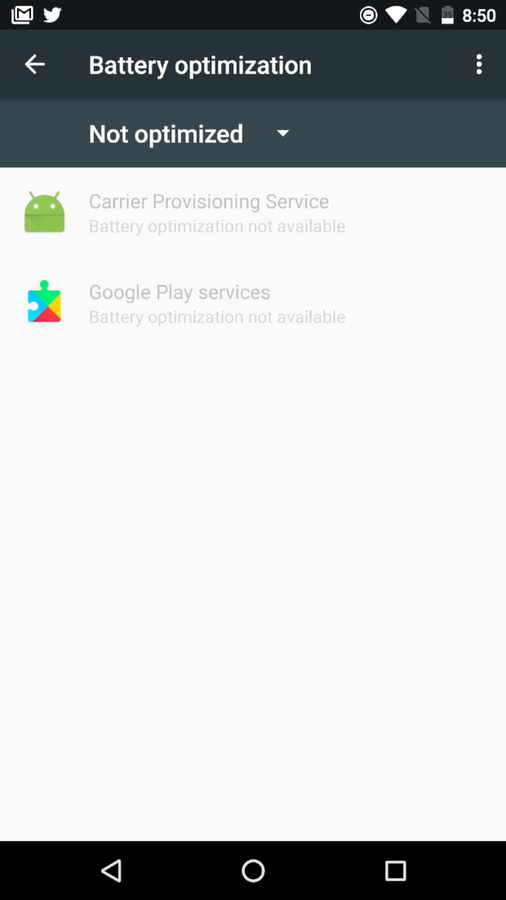
The default listing of app standby on a Verizon-branded Nexus 6.
To see all the apps on the list, go to Settings | Battery, tap the menu button (three vertical dots in the upper-right corner), tap Battery Optimization, tap the Not Optimized drop-down, and select All Apps. To remove an app from this list, follow these steps. (A big caveat: Depending upon the app you remove from the standby list, your battery could take a hit.)
- Locate the app you want to remove from app standby mode.
- Tap the app in question.
- From the popup (Figure B), tap to select Don’t Optimize.
- Tap DONE.
Figure B
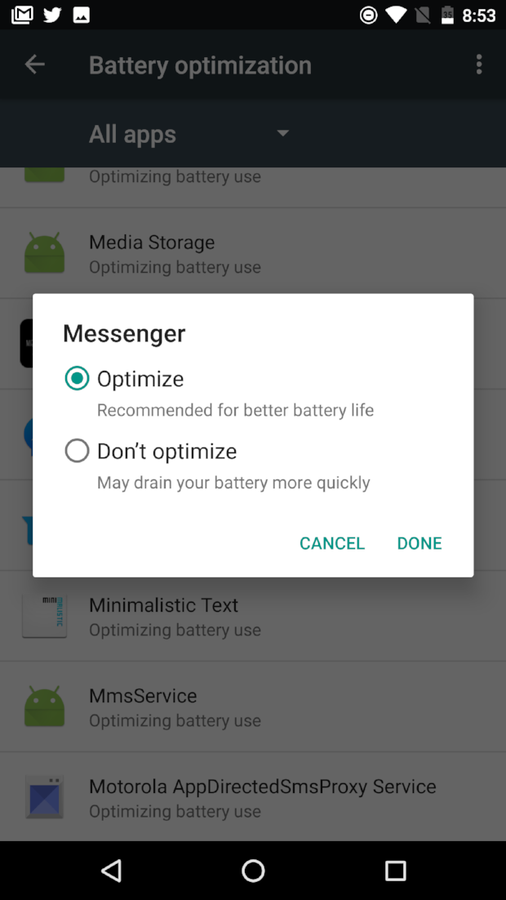
Removing Messenger from app standby mode.
Adding an app to standby mode
If you find a removed app is causing your battery to drain too fast, you can always add it back to the app standby mode list. Here’s how.
- Go to Settings | Battery.
- Tap the menu button.
- Tap Battery Optimization.
- Locate and tap the app you want to add back to the list.
- Tap Optimize.
- Tap DONE.
Your app is back on the list and will be placed on standby. You should see your battery return to its once-outstanding life.
Standby mode works
The Android developers have done a great job of extending battery life with the standby mode feature. But not all apps are created equal, and you may have one or two that you don’t want to wind up on standby. For those apps, remember that you have options.