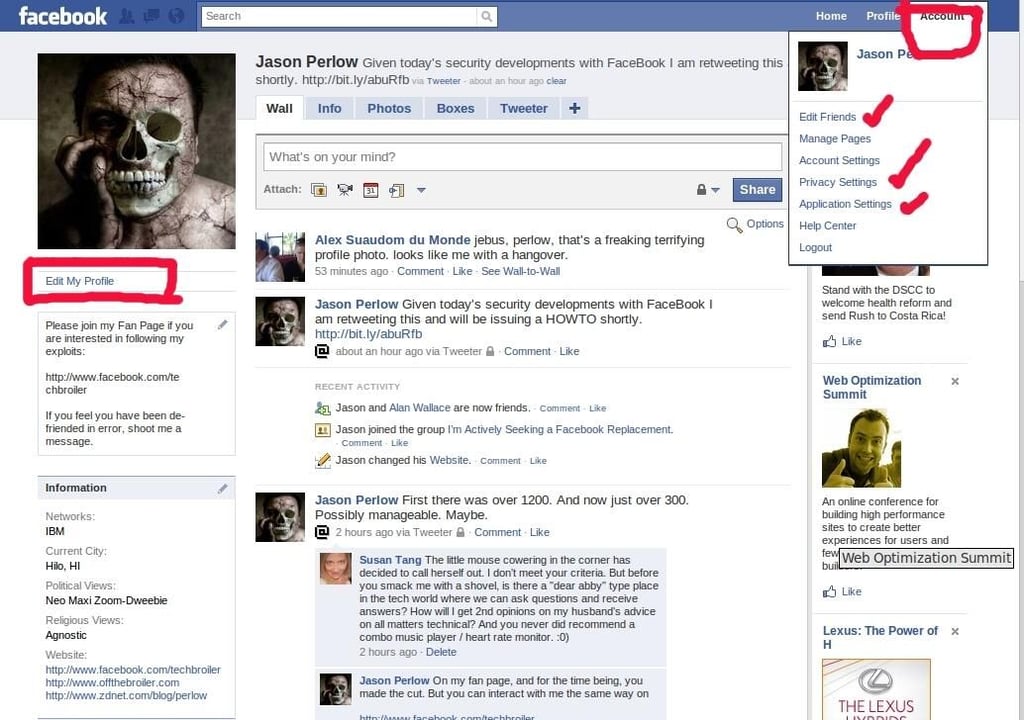
You’ll need to take mind of these two settings areas to lock down your Profile.
See full story: Lockdown or Death for your FaceBook Profile: An Advanced User Guide to Social Networking Privacy
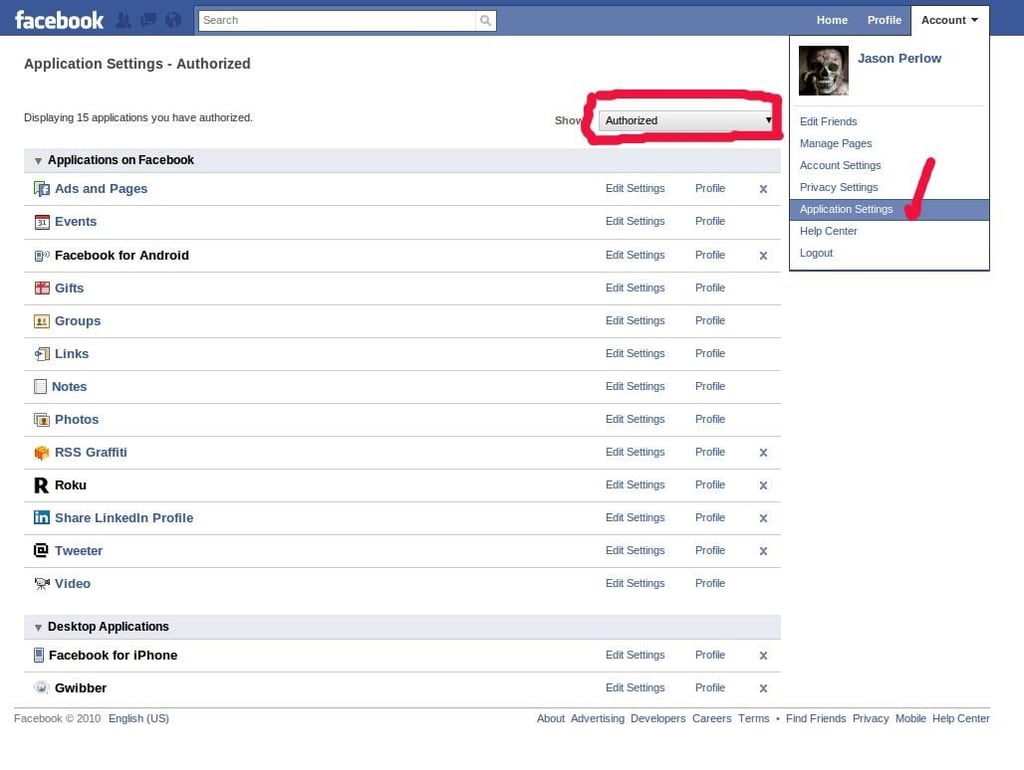
Filter on “Authorized” and remove all non-essential Applications. If you’ve been playing quizzes and games, you’ve probably got a large amount you need to expunge.
See full story: Lockdown or Death for your FaceBook Profile: An Advanced User Guide to Social Networking Privacy
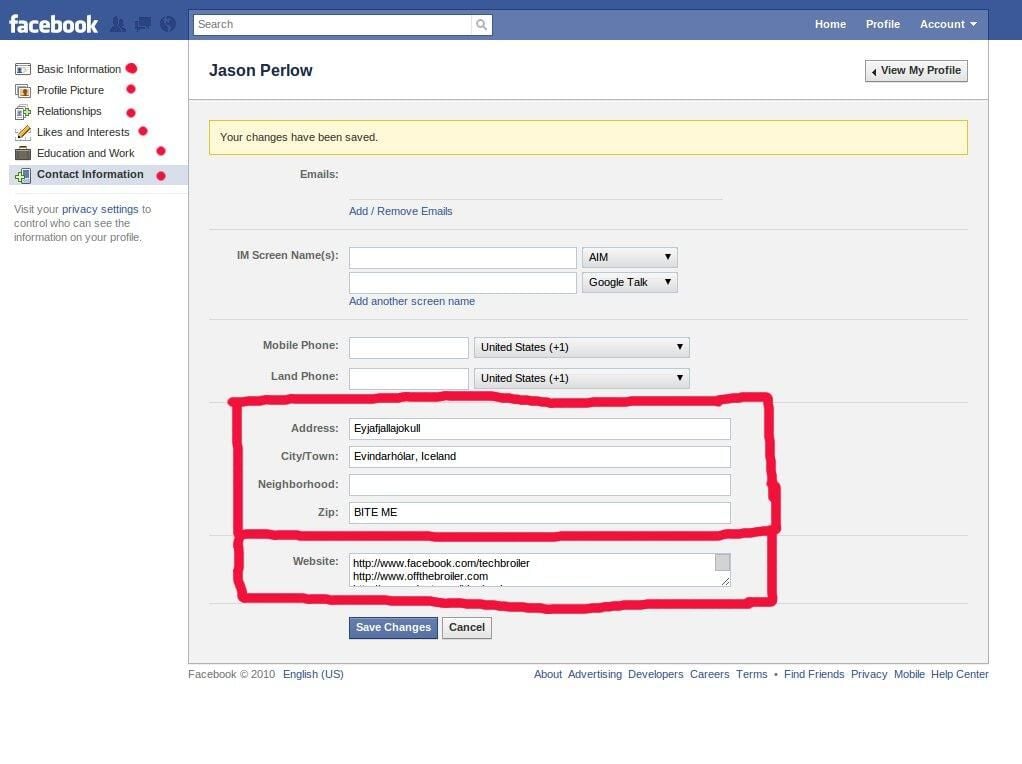
Your Town/Address should be set to completely bogus information, with only the web site information filled out for your Fan Page and your blogs/Websites. All areas indicated by a red dot should have all data removed. Your core group of friends is perfectly aware of these personal details already.
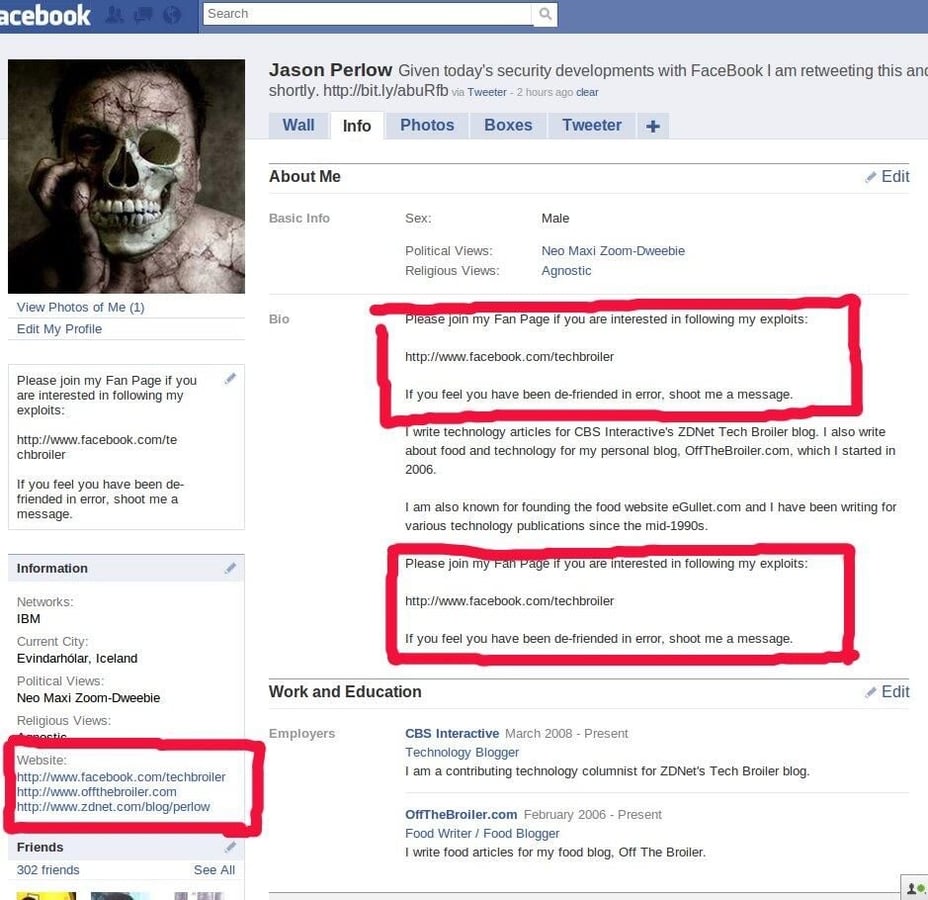
Here is what my “Cleansed” Profile now looks like.
See full story: Lockdown or Death for your FaceBook Profile: An Advanced User Guide to Social Networking Privacy
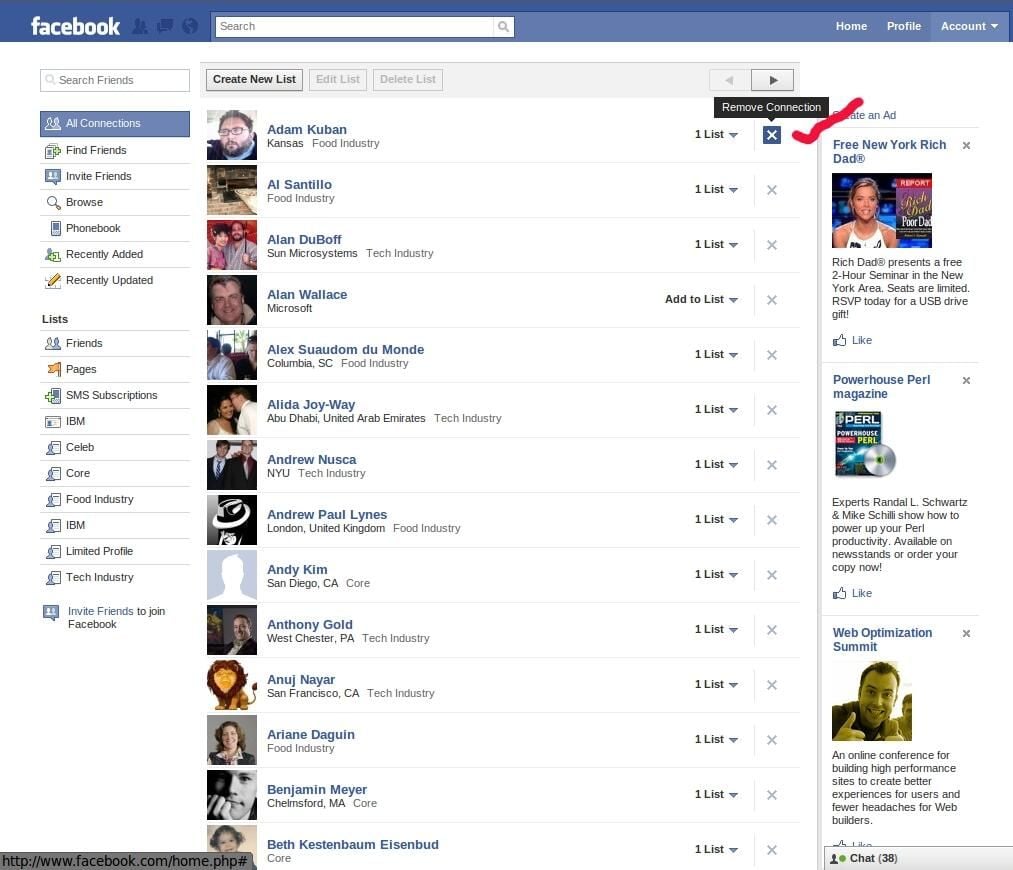
You’ll need to cut down your friends to just the core people that are important to you.
See full story: Lockdown or Death for your FaceBook Profile: An Advanced User Guide to Social Networking Privacy
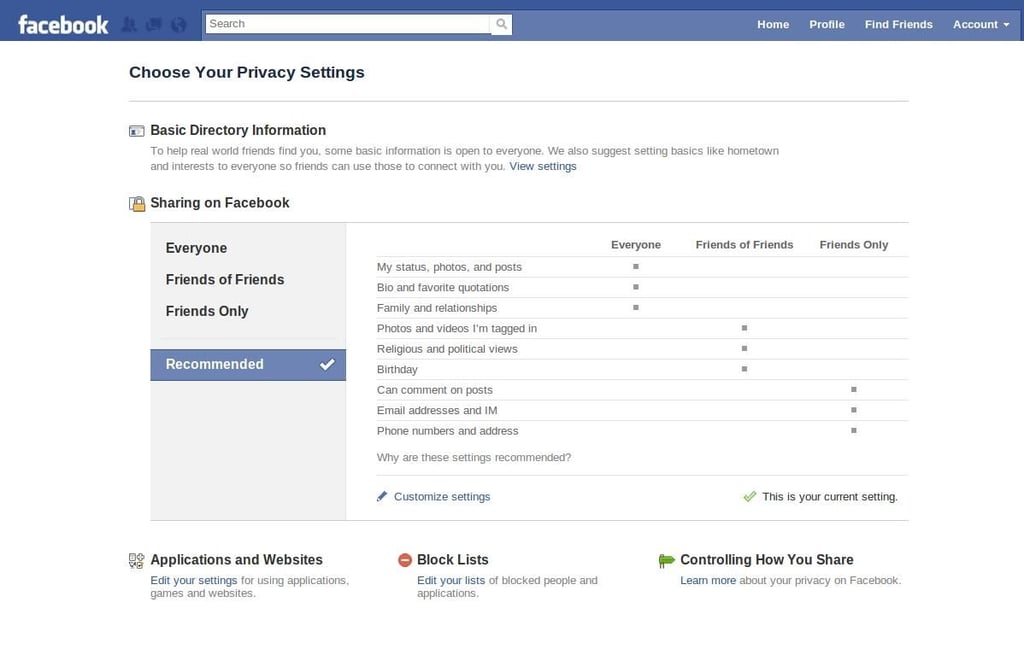
This is what Facebook’s new Privacy settings area looks like. The “Recommended” settings are still too permissive.
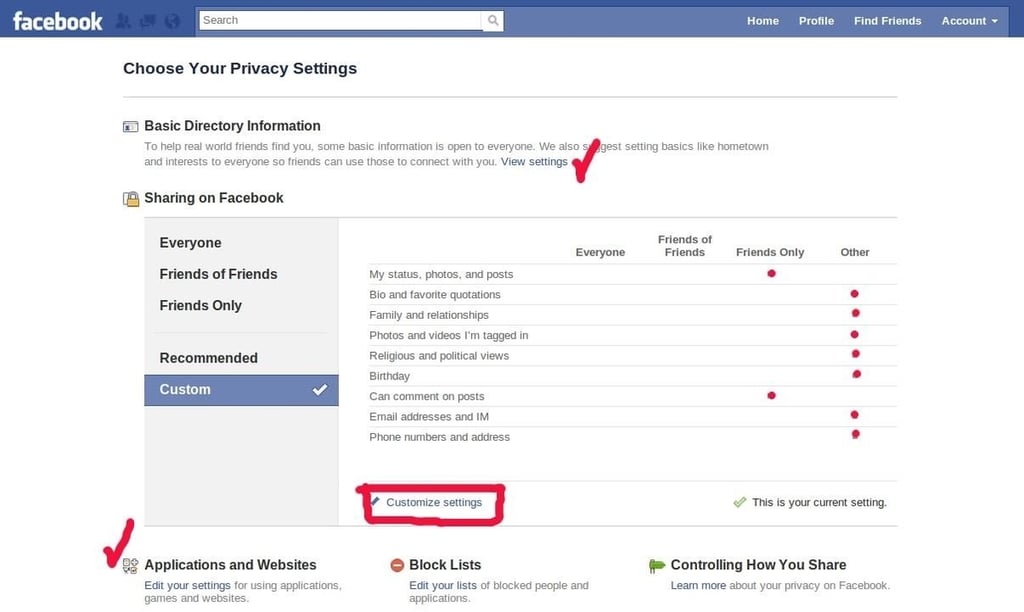
This is what your Privacy Settings screen should look like when properly optimized. Take note of the “Customize Settings” link, you’ll need to make changes in there so your settings come out looking like this.
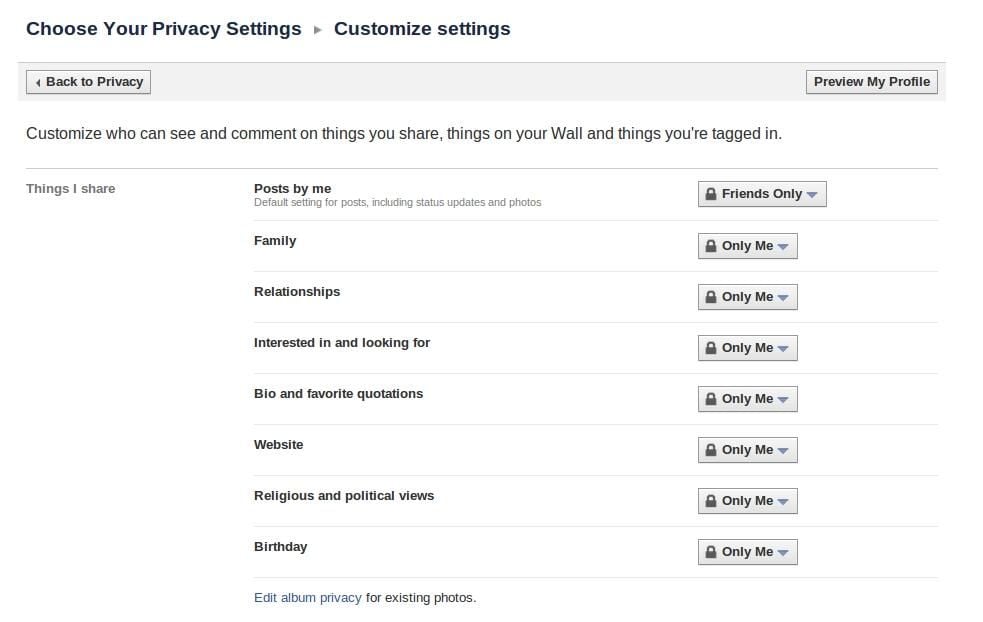
This is what you want your effective rights to look like in “Customize Settings” for Things I Share.
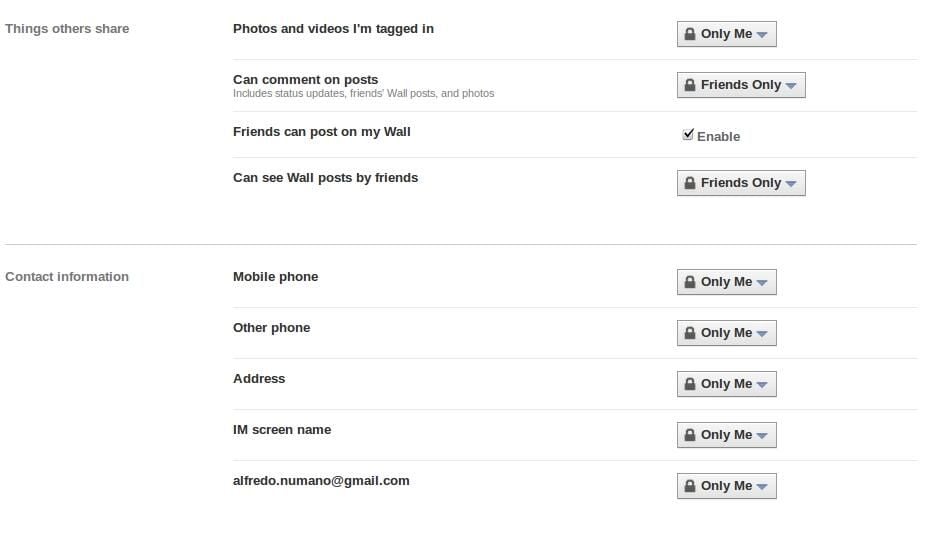
This is what you want your effective rights to look like in “Customize Settings” for Things Others Share and Contact Information.
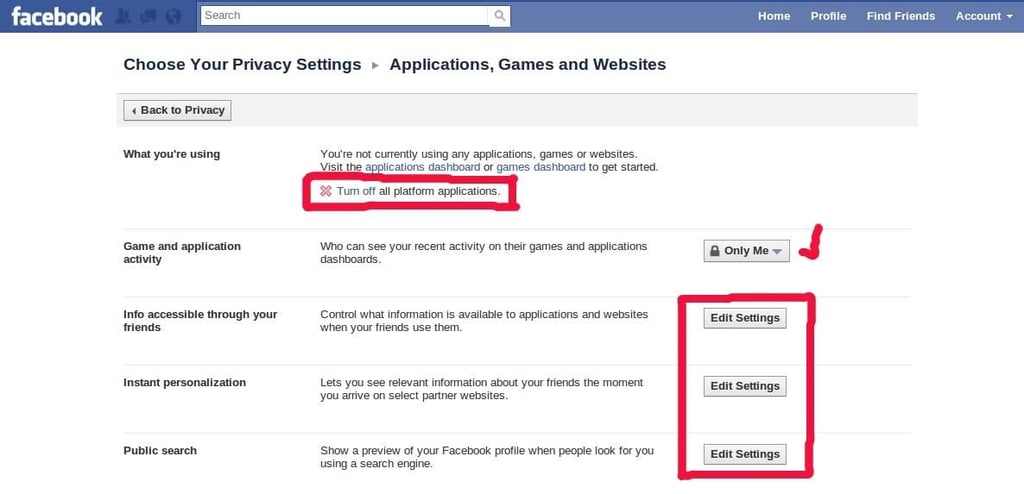
These sections need your attention.
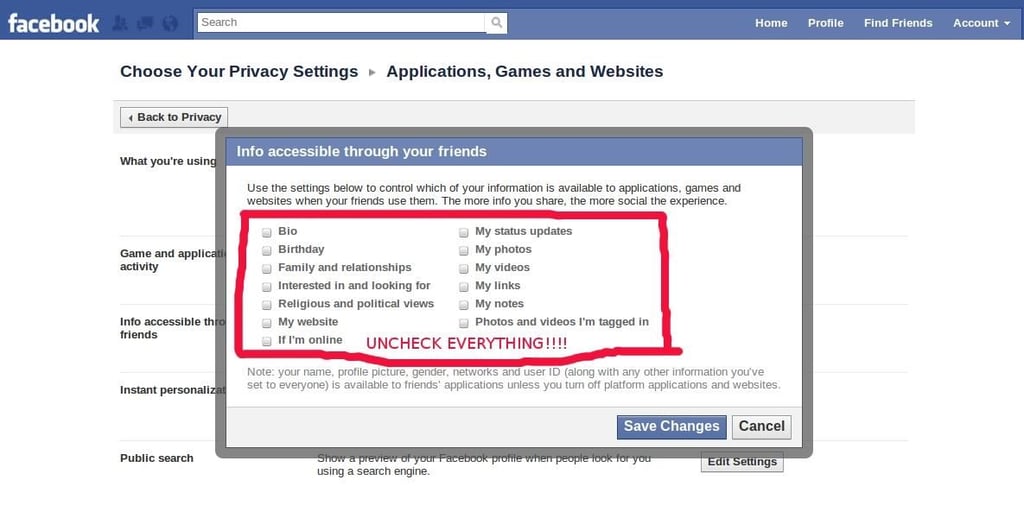
Make sure nothing is checked under Applications, Games and Websites.
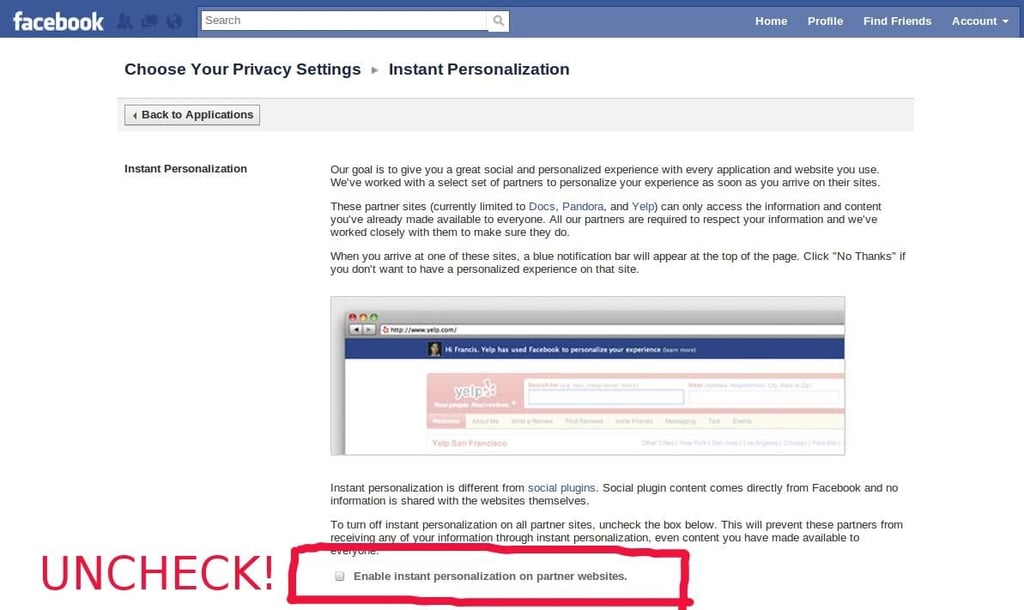
Make sure you opt out of the Instant Personalization Program.
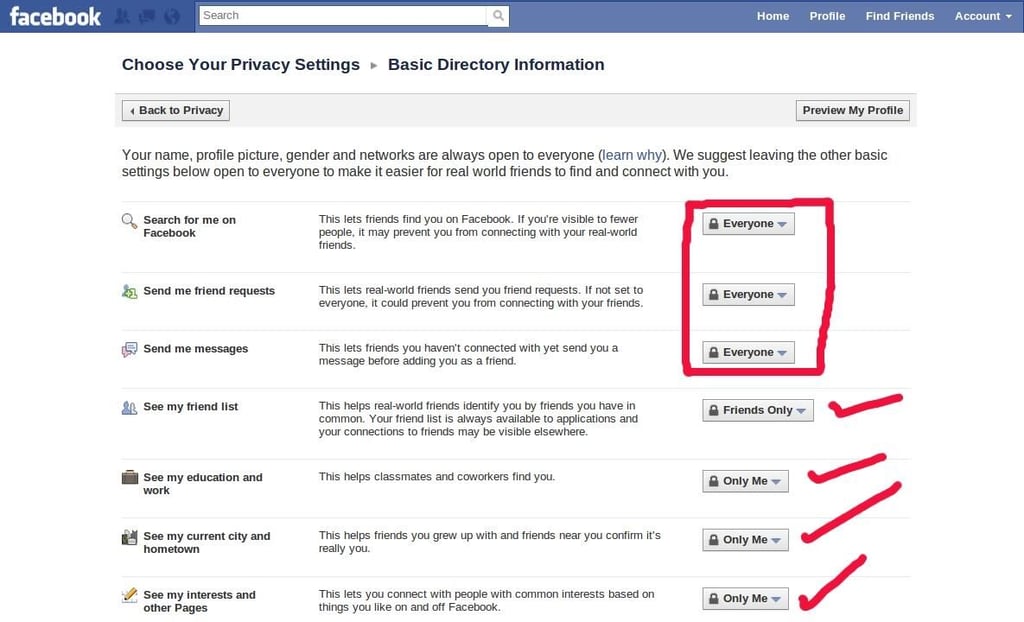
This is what you want your settings to look like under Directory Information. The areas with the checkmarks are what I consider to be mandatory for optimal levels of privacy. The rectangle selected areas are at your discretion.


