\n\tThis gallery is also available as a post in the Windows and Office Blog.
\n
\n\tMicrosoft Word has been the primary tool of my trade for many years now (at one time it was WordPerfect) and for the most part I am happy with the application – well, at the very least, I am comfortable with it. However, every new version of Word requires some tweaking to make it work the way I want it to work and Word 2013 is no exception.
\n
\n\tNow, the changes I make may not make sense for you and I am not suggesting that everyone do exactly what I do, but I am suggesting that you take a few minutes to adjust the default settings in Word 2013 to make it work the way you want it to work – at least as best you can. And, I mean before you starting using it, not after. A few minutes now can save you some frustration later.
\n
\n
\n
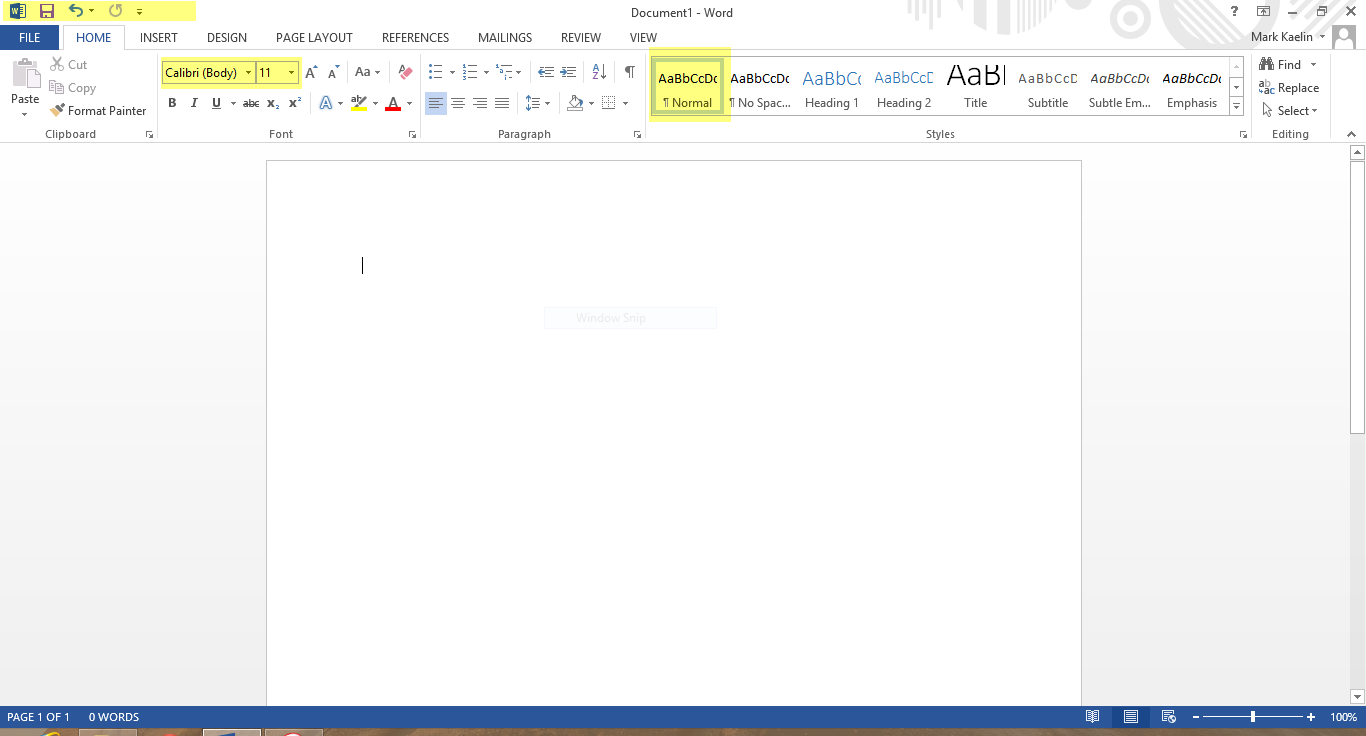
\n\tThis suggestion is probably the most obvious and the most often overlooked. I don’t like the default font and spacing in Word – I haven’t liked it since 2007. Personally I like the Arial font and I like my paragraphs spaced evenly, so I change the default Normal Template (Figure A) right away.
\n
\n\tCredit: Images by Mark Kaelin for TechRepublic
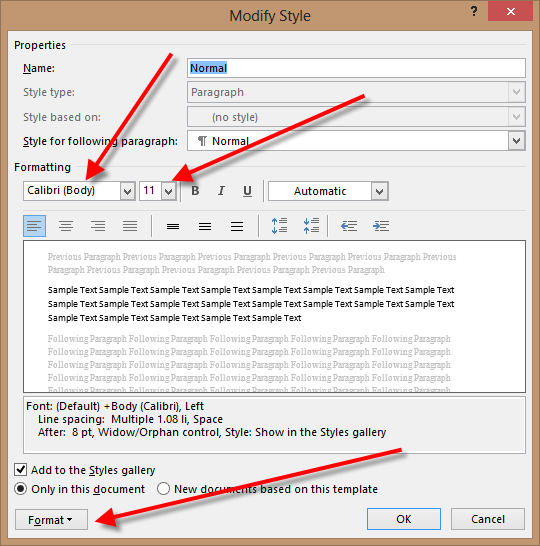
\n\tRight-click the Normal Style in the Ribbon to get to the Modify Style options screen shown in Figure B. I change the font to Arial 10.
\n
\n\tCredit: Images by Mark Kaelin for TechRepublic
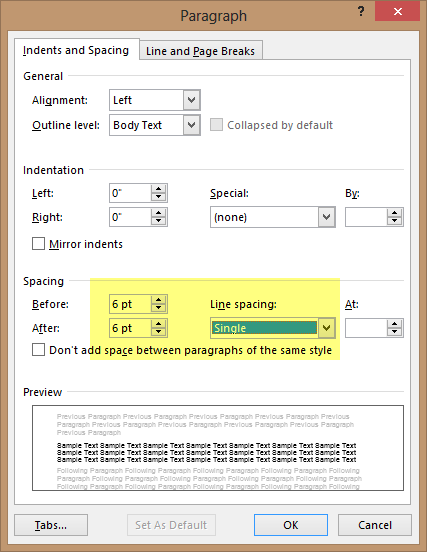
\n\tI then click the Format button to access the Paragraph options screen (Figure C). I change the line spacing to Single and the before and after spacing to six points each. This purely a personal preference – your choices are likely to vary, but I like the clean, some might say boring, look of the text.
\n
\n\tClick OK a few times to put the modifications into action. Remember to click the New documents based on this template radio button to make this your permanent Normal Template.
\n
\n\tCredit: Images by Mark Kaelin for TechRepublic
\n
\n\tThis next set of modifications is very subjective – I make them because it makes my life as an editor easier. Reviewing the options may give you some ideas that will increase your productivity.
\n
\n
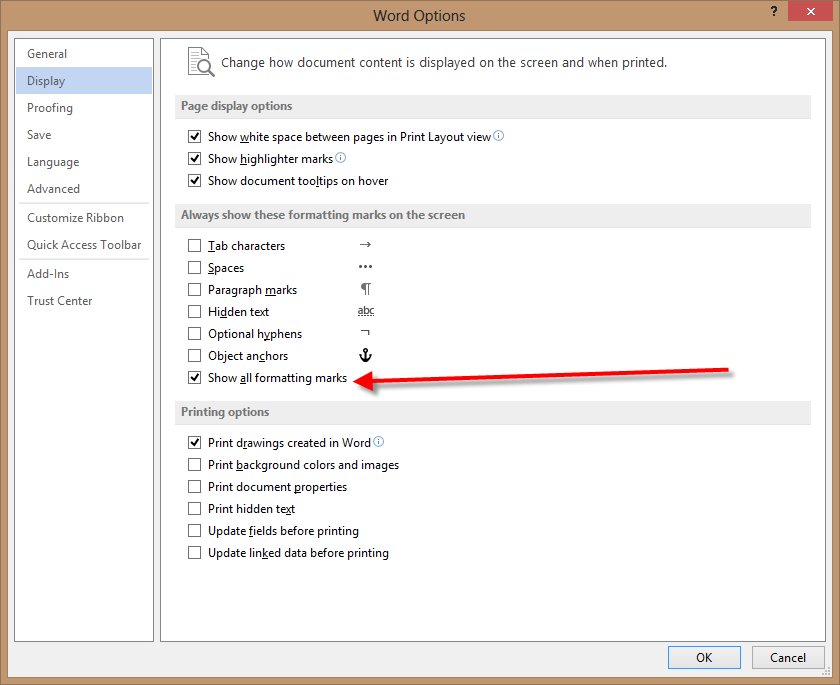
\n\tAs an editor, I need to see every character on the page, even if the character is a blank space, so I always turn on all formatting marks. Click File in the menu bar and navigate down to the Options link to reach the Word Options configuration screen (Figure D). Click on the Display tab to reach the formatting marks settings. Click the Show all formatting marks check box.
\n
\n\tCredit: Images by Mark Kaelin for TechRepublic
\n
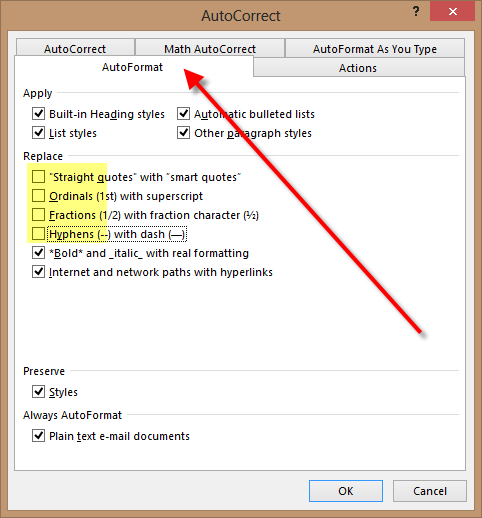
\n\tSmart Quotes look great when you are in Word, but they don’t play well with WordPress and the other tools I have to use to publish content on TechRepublic, so I always turn them off. This is a two-step process, which makes it slightly tricky.
\n
\n\tUnder the Proofing tab you will see a button with the label: AutoCorrect Options. When you click that button you are taken to the AutoCorrect configuration screen. Click the AutoFormat tab (Figure E) and deselect the Replace Straight quotes with smart quotes check box. For good measure, I also uncheck the boxes for Ordinals, Fractions, and Hyphens.
\n
\n\tCredit: Images by Mark Kaelin for TechRepublic
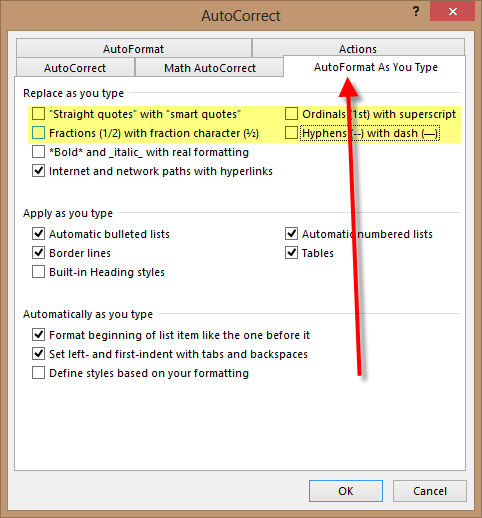
\n\tHere is the slightly tricky part, you also have to look under the AutoFormat As You Type tab and uncheck the appropriate check boxes under the Replace as you type category (Figure F). Click OK to apply the changes.
\n
\n\tCredit: Images by Mark Kaelin for TechRepublic
\n
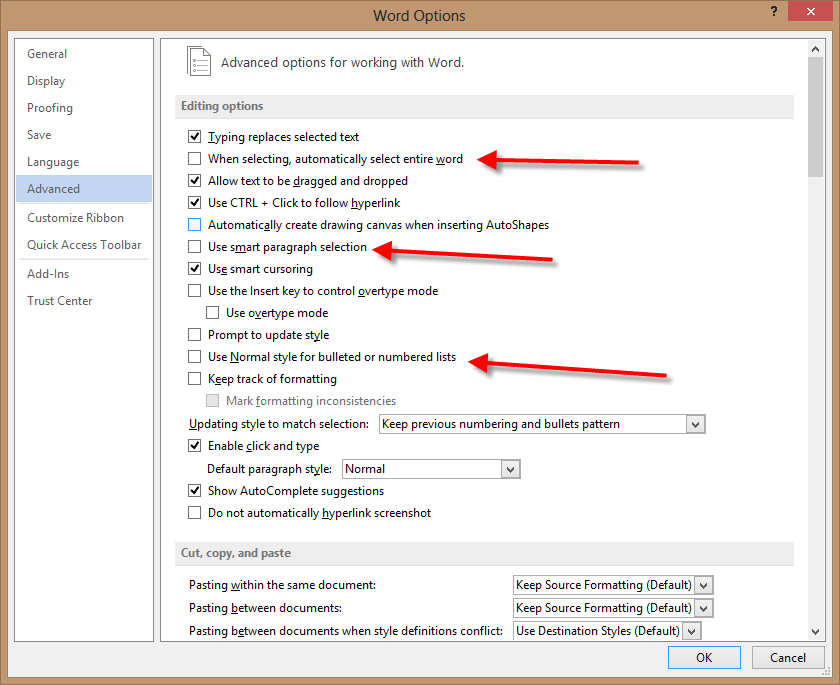
\n\tOne of the features Word employs to purportedly make our lives easier is called “smart” selecting. I hate it. I much prefer to select what I want to select without Word presuming I want a whole word or sentence or paragraph. Perhaps you like this feature, but it is not for me.
\n
\n\tUnder the Advanced tab of Word Options (Figure G), you will see several check boxes regarding selecting. I turn off selecting the entire word, and smart paragraph selection. I also typically click the check box that turns on Use Normal style for bulleted or numbered lists.
\n
\n\tCredit: Images by Mark Kaelin for TechRepublic
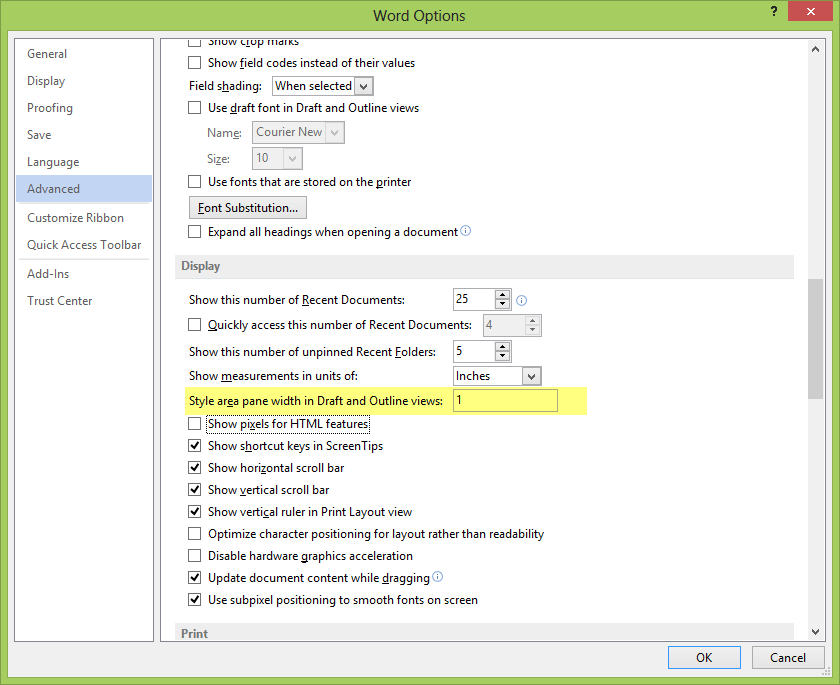
\n\tThis next change is really just for editing purposes, so it may not apply to you, but it is still good to know where the feature is located in case you ever need it. Further down the page under the Advanced tab there is an item that says: Style area pane width in Draft and Outline views (Figure H). I change that from zero to one inch. That change will reveal the style name used for each section of your document. Click OK to apply all of your changes.
\n
\n\tCredit: Images by Mark Kaelin for TechRepublic
\n
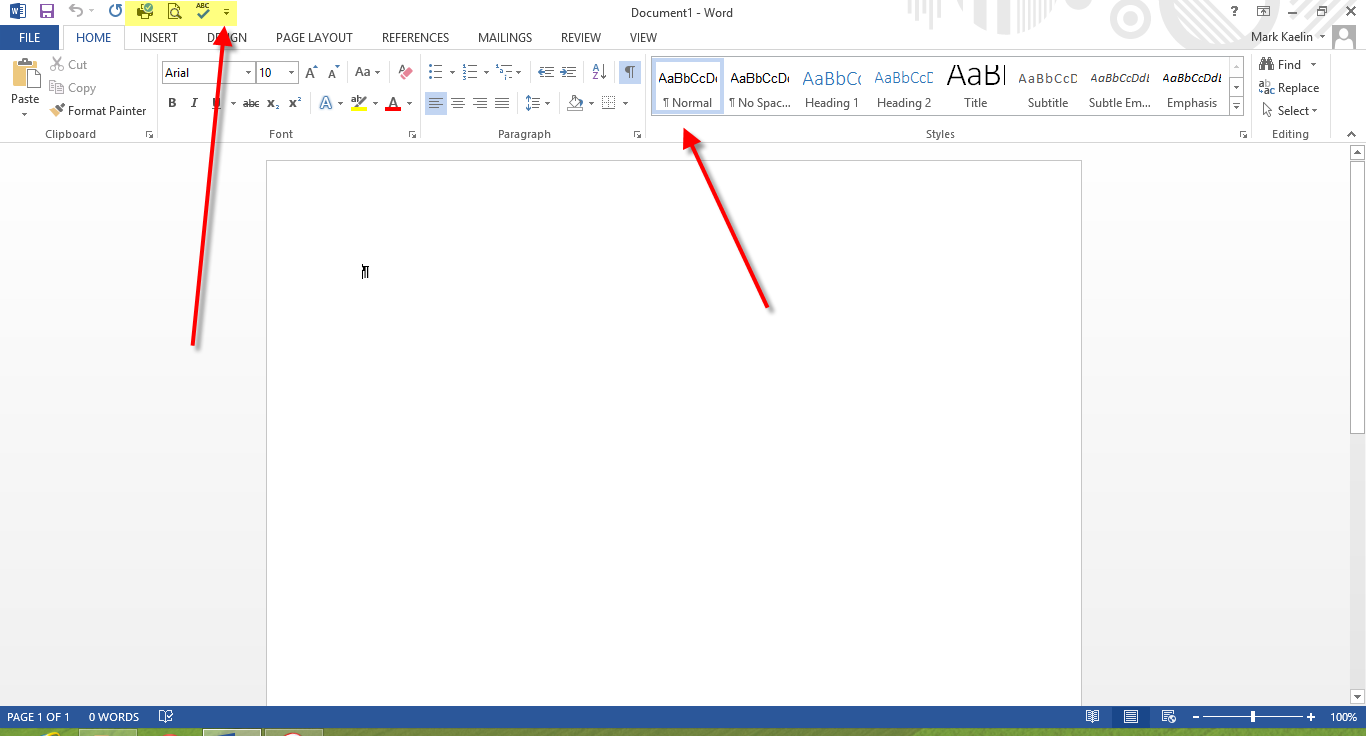
\n\tAs part of the ribbon interface, in the upper left corner, Word has a feature called the Quick Access Toolbar. However, the default configuration for that feature is, to put it politely, sparse: Save, Undo, and Redo.
\n
\n\tWhile there are many tools and features to choose from when adding to the Quick Access Toolbar (Figure I), I start with four obvious ones. No doubt, I will add more, as I am sure you will too.
\n
\n\t
\n\t
\n\t
\n
\n
\n\tCredit: Images by Mark Kaelin for TechRepublic
\n\tAdding Quick Print, Print Preview and Spelling and Grammar is very simple: click the down arrow on the Quick Access Toolbar to reveal a list of potential tools and click the appropriate entries on the list.
\n
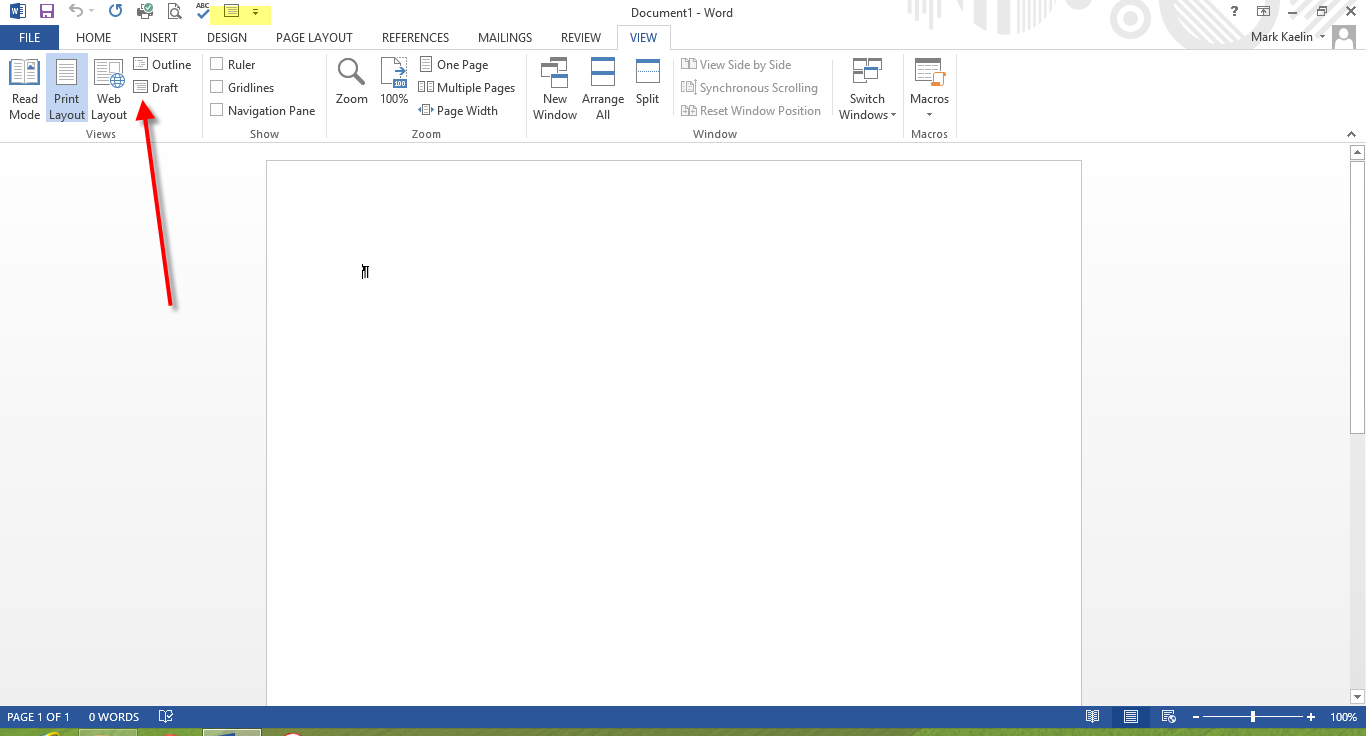
\n\tAdding Draft mode is a little more complicated. There are several ways to accomplish the task, but the easiest way is to click the View tab (Figure J) and then right-click the Draft icon and select the Add to Quick Access Toolbar item.
\n
\n\tCredit: Images by Mark Kaelin for TechRepublic
\n
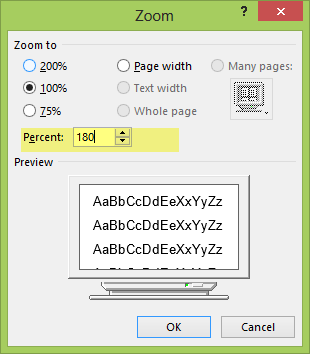
\n\tThe last thing I do depends on the display screen I am working on at the time. For large monitors, I change the Zoom factor to a higher percentage. The Zoom slider is located in the bottom right corner of you Word window. The default is 100%, but for 24 inch screens I typically bump this percentage to 180%. Click the 100% in that bottom right corner to get the Zoom configuration screen (Figure K) and change the percentage to 180. Or if you are good with the slider you can simply move it to your desired percentage.
\n
\n
\n\tNone of the changes I have outlined are absolutely necessary, but for me, making these adjustments saves time, frustration, and headaches. The changes you make may not be the same as mine, but I am willing to bet, whatever changes to defaults you do make, are also made with the desire to save you time, frustration, and headaches.
\n
\n
\n\t
\n\t
\n
\n
\n\tCredit: Images by Mark Kaelin for TechRepublic

Mark W. Kaelin has been writing and editing stories about the information technology industry, software, hardware, gaming, finance, accounting, and technology geekdom for more than 30 years.

