

Choosing the right remote work tools for collaboration is essential, keeping distributed teams aligned, productive, and connected. With so many platforms offering chat, project management, documentation, and video conferencing features, identifying which tools actually fit your workflows can be challenging.
To help businesses, technology leaders, and virtual teams narrow their options, I’ve highlighted the best tools for remote work in 2026, along with the specific use cases where each platform excels.
- Google Workspace: Best unified hub for email, calendars, real-time document collaboration, and file storage
- Slack: Best for real-time communications and deep integrations with existing tools
- monday.com: Best for customizable workflows and visual project tracking
- Microsoft Teams: Best for companies using Microsoft 365
- Asana: Best for managing complex projects with structured workflows and detailed task visibility
- ClickUp: Best all-in-one work platform that replaces multiple tools for tasks, docs, and project planning
- Trello: Best for a simple Kanban-style task management experience
- Notion: Best for remote or knowledge-heavy teams that need flexible documentation, wikis, and context-rich project spaces
- Zoom: Best for frequent video meetings, webinars, workshops, or client presentations
- Miro: Best collaborative visual workspace for brainstorming and ideation
- Top remote work tools at a glance
- 1. Google Workspace: Best unified hub for email, calendars, real-time document collaboration, and file storage
- 2. Slack: Best for real-time communications & deep integrations with existing tools
- 3. monday.com: Best for customizable workflows & visual project tracking
- 4. Microsoft Teams: Best for companies using Microsoft 365
- 5. Asana: Best for managing complex projects with structured workflows & detailed task visibility
- 6. ClickUp: Best all-in-one work platform that replaces multiple tools for tasks, docs & project planning
- 7. Trello: Best for individuals or small teams looking for a simple Kanban-style task management experience
- 8. Notion: Best for remote or knowledge-heavy teams that need flexible documentation, wikis, and context-rich project spaces
- 9. Zoom: Best for frequent video meetings, webinars, workshops, or client presentations
- 10. Miro: Best collaborative visual workspace for brainstorming and ideation
- My methodology
- Frequently asked questions (FAQs)
Top remote work tools at a glance
| Google Workspace |
| |||
| Slack |
| |||
| monday.com |
| |||
| Microsoft Teams |
| |||
| Asana |
| |||
| ClickUp |
| |||
| Trello |
| |||
| Notion |
| |||
| Zoom |
| |||
| Miro |
|
1. Google Workspace: Best unified hub for email, calendars, real-time document collaboration, and file storage
My rating: 4.88/5
Why I chose Google Workspace
Google Workspace stands out as the most seamless platform for real-time collaboration, especially for distributed teams that rely heavily on documents, spreadsheets, and presentations. Its simplicity, browser-based accessibility, and familiarity make onboarding almost frictionless — an advantage over more complex suites like Microsoft Teams or specialized tools that require additional configuration.
It’s best for teams that want an easy-to-manage, all-in-one productivity hub. However, companies needing advanced compliance controls, deeply structured communication threads, or intensive enterprise governance may find Microsoft’s ecosystem more robust. Google Workspace shines in collaboration speed and usability, not in heavy administrative control.
| Pros | Cons |
|---|---|
| ✅ Easy, intuitive real-time collaboration | ❌ Limited advanced enterprise controls |
| ✅ Smooth real-time collaboration and sharing | ❌ Formatting issues with Microsoft file types |
| ✅ Most people are already familiar with Google’s UI | ❌ Admin management and permissions can get complicated for non-IT-savvy teams |
| ✅ Scales well for small teams to large enterprises |
Pricing
- Starter: $8.40 per user, per month
- Standard: $16.80 per user, per month
- Plus: $26.40 per user, per month
- Enterprise: Customized
Annual billing and introductory pricing are available.
Standout features
- Unified productivity suite combining email, calendars, chat, and video conferencing in one platform.
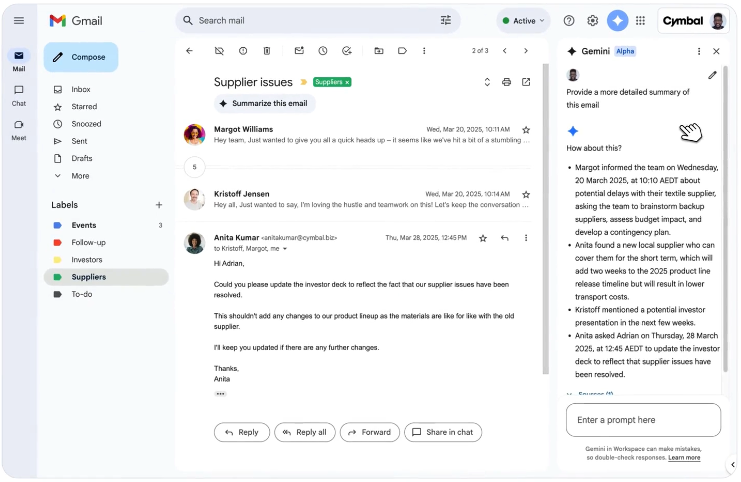
- Gemini AI integration for drafting content, summarizing documents, generating insights, and automating routine tasks.
- Secure cloud file storage through Google Drive, supporting easy sharing, permissions, and team organization.
- Seamless cross-device access so teams can collaborate from any browser or device without installing software.
SEE: Google Workspace cheat sheet: What is it, and how does it work?
2. Slack: Best for real-time communications & deep integrations with existing tools
My rating: 4.61/5
Why I chose Slack
Slack remains one of my favorite remote work tools because it enables fast, asynchronous, and conversational collaboration, which is essential for remote teams working across time zones.
Its unmatched ecosystem of integrations means teams can connect almost every system they use, reducing context switching and making Slack a true communications hub.
It’s the top pick for teams that value speed, transparency, and quick decision-making through chat. However, Slack’s lightweight structure can also become a downside: channel overload, notification fatigue, and a lack of built-in project or documentation tools.
Unlike Microsoft Teams, Slack doesn’t bundle enterprise-grade calling or Office apps, so most companies pair it with Workspace or another productivity suite.
| Pros | Cons |
|---|---|
| ✅ Fast, intuitive communications | ❌ Channel overload can cause noise |
| ✅ Robust integration ecosystem | ❌ Limited message history on the free tier |
| ✅ Great for quick, informal one-on-one or team updates | ❌ Not built for structured project tracking |
Pricing
- Free: Includes 90 days of message history, up to 10 apps, 1:1 meetings, and 1:1 external messages
- Pro: $8.75 per user, per month
- Business+: $18 per user, per month
- Enterprise: Customized
Annual billing and introductory pricing are available.
Standout features
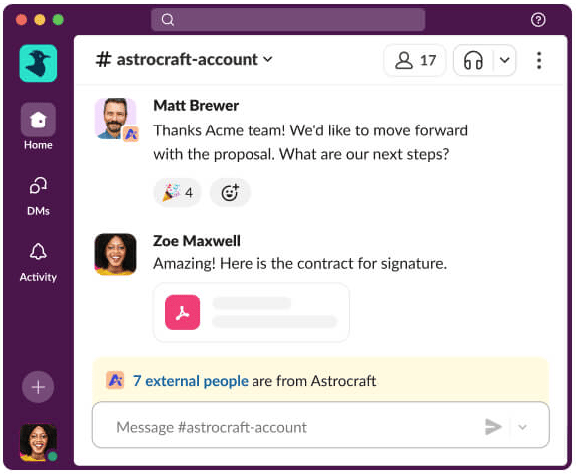
- Channel-based messaging to organize team conversations by topic, project, or department.
- Instant voice/video Huddles for quick, informal real-time discussions.
- Extensive integration marketplace connecting thousands of apps and workflows.
- Slackbot, an automated assistant, answers questions, triggers workflows, and delivers personalized reminders.
SEE: Slack Review: Features, Pricing, Alternatives, and More
3. monday.com: Best for customizable workflows & visual project tracking
My rating: 4.55/5
Why I chose monday.com
monday.com excels because it blends ease of use with advanced workflow customization, making it accessible to non-technical teams while still offering the structure operational teams require.
Its visual boards, automation templates, and dashboards help teams standardize processes without feeling constrained by rigid project management frameworks.
This platform is an excellent choice for growing teams that juggle multiple workflows across marketing, operations, engineering, and leadership. The platform is flexible enough to evolve with your organization.
But compared to Asana or ClickUp, monday.com can become pricey as workflows scale, and some teams may prefer the deeper project hierarchy and reporting offered in Asana or ClickUp.
| Pros | Cons |
|---|---|
| ✅ Highly customizable workflows | ❌ Can get expensive as teams grow |
| ✅ Strong visual project tracking | ❌ Not ideal for deep document collaboration |
| ✅ Easy to adapt across teams | ❌ Setup may feel overwhelming for small teams |
Pricing
- Free: Includes up to two seats, 200+ templates, and up to three boards and docs
- Standard: Starts at $14 per seat, per month for three users
- Pro: Starts at $24 per seat, per month for three users
- Enterprise: Customized
Annual billing is available.
Standout features
- Customizable work boards for building workflows, pipelines, and team processes.
- Automation recipes to streamline repetitive tasks and reduce manual updates.
- Visual project views, like Kanban, timelines, and calendars, for easy tracking.
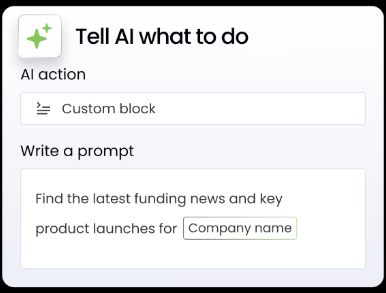
- AI assistance for generating task summaries, automating updates, and streamlining work processes.
4. Microsoft Teams: Best for companies using Microsoft 365
My rating: 4.53/5
Why I chose Microsoft Teams
Microsoft Teams is part of my remote work tools top picks because it brings chat, meetings, calling, and document collaboration into a single, tightly integrated experience.
The platform is especially powerful for companies already using Microsoft 365. Its enterprise security, compliance tools, and governance features make it uniquely suited for regulated industries, such as finance, healthcare, and government.
This tool is best for mid-size and enterprise organizations seeking a unified collaboration and communication platform without needing multiple third-party tools.
The downside is that Teams has a steeper learning curve than apps like Slack, and some users find the interface cluttered. Smaller teams may feel that Teams is more complex than necessary, especially if they don’t rely on the Office suite.
| Pros | Cons |
|---|---|
| ✅ All-in-one chat, meetings, and files | ❌ Steep learning curve |
| ✅ Deep Microsoft 365 integration | ❌ Interface can feel cluttered |
| ✅ Strong security and compliance | ❌ May be too heavy for small teams without 365 |
Pricing
- Microsoft Teams Essentials: $4 per user, per month
- Microsoft 365 Business Basic: $6 per user, per month
- Microsoft 365 Business Standard: $12.50 per user, per month
Plans are paid in full annually.
Standout features
- Unified communication hub combining chat, meetings, calling, and file sharing.
- Native Office 365 integration for editing Word, Excel, and PowerPoint files in-app.
- Team and channel organization for structured collaboration across departments.
- Enterprise security features supporting compliance, retention, and identity management.

SEE: Major Microsoft Teams Performance Update Rolling Out in January 2026
5. Asana: Best for managing complex projects with structured workflows & detailed task visibility
My rating: 4.5/5
Why I chose Asana
Asana stands out for its strong balance between ease of use and project management depth. It excels in tracking multi-step workflows, mapping cross-team dependencies, and aligning individual tasks with larger goals or company-wide initiatives.
Its structured approach helps teams move beyond scattered to-do lists and into organized, scalable operations.
It’s ideal for organizations running complex, multi-layered projects with cross-functional coordination. Teams that require Gantt-style timelines, dependencies, and milestone tracking will appreciate its clarity.
The downside is that Asana can feel heavy for small teams or teams that work chaotically or organically. ClickUp may offer more flexibility, and Trello may feel simpler for lightweight workflows.
| Pros | Cons |
|---|---|
| ✅ Excellent task and workflow visibility | ❌ Free plan is limiting |
| ✅ Multiple project views | ❌ Overkill for small or simple projects |
| ✅ Strong for cross-team coordination | ❌ Requires upkeep as workflows expand |
Pricing
- Personal (Free): Up to two users with unlimited tasks, projects, and messages
- Starter: $13.49 per user, per month
- Advanced: $24.99 per user, per month
- Enterprise: Customized
Annual billing is available.
Standout features
- Task and project structures with assignments, due dates, and dependencies.
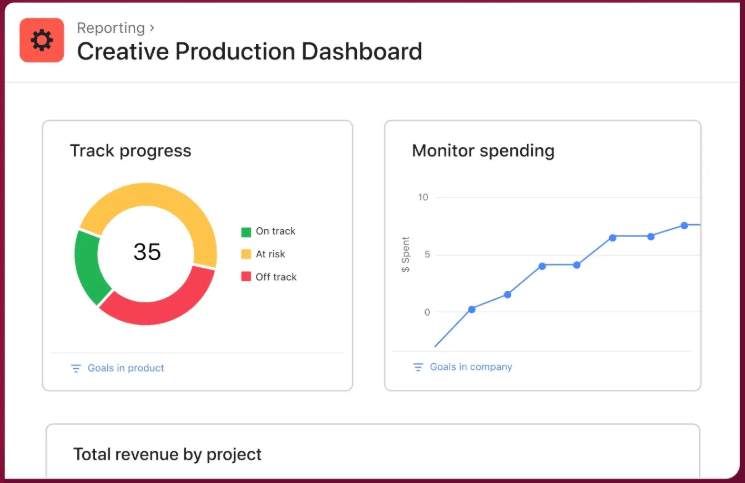
- Multiple work views, including boards, lists, timelines, and workload charts.
- Workflow automation tools that standardize processes and reduce manual updates.
- Goal and portfolio tracking give leaders visibility into organizational progress.
SEE: Asana Review: Pricing, Ease of Use, Pros & Cons
6. ClickUp: Best all-in-one work platform that replaces multiple tools for tasks, docs & project planning
My rating: 4.44:/5
Why I chose ClickUp
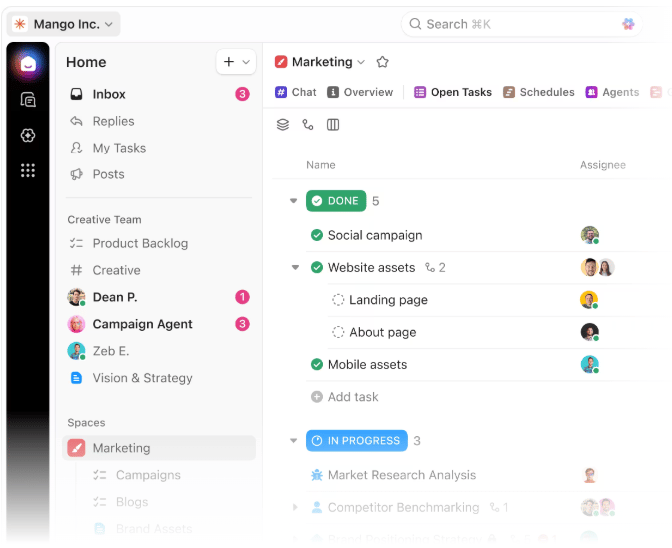
ClickUp lands in the second spot for its ability to serve as an all-in-one work hub, combining tasks, docs, goals, dashboards, sprints, and whiteboards.
This makes it a compelling choice for teams looking to reduce “tool sprawl” and consolidate workflows into a single system. Its deep customization allows teams to shape the platform around their processes rather than forcing them to adapt to rigid project management (PM) models.
| Pros | Cons |
|---|---|
| ✅ Replaces multiple collaboration tools | ❌ Setup can be complex |
| ✅ Highly customizable interface | ❌ Feature overlap may confuse users |
| ✅ Works well for growing teams | ❌ Too robust for very small teams |
It’s best for fast-scaling startups, product teams, agencies, and remote organizations wanting flexibility and complete visibility across workloads.
The downside is that ClickUp’s power comes with complexity; initial setup can feel overwhelming, and teams without strong processes may struggle to adopt its full features. Compared to Trello, ClickUp is far more powerful; compared to Asana, it’s more flexible but sometimes less polished.
Pricing
- Free Forever: Up to 60MB storage, unlimited tasks and free plan members, and Kanban boards
- Unlimited: $10 per month
- Business: $19 per month
- Enterprise: Customized
Annual billing is available.
Standout features
- All-in-one workspace combining tasks, docs, whiteboards, and dashboards.
- Highly customizable workflows tailored to project, team, or industry needs.
- Advanced views like Gantt charts, mind maps, and workload planning.
- Goal tracking and reporting to align daily tasks with broader business outcomes.
SEE: ClickUp Review: Features, Pricing, Pros, and Cons
7. Trello: Best for individuals or small teams looking for a simple Kanban-style task management experience
My rating: 4.23/5
Why I chose Trello
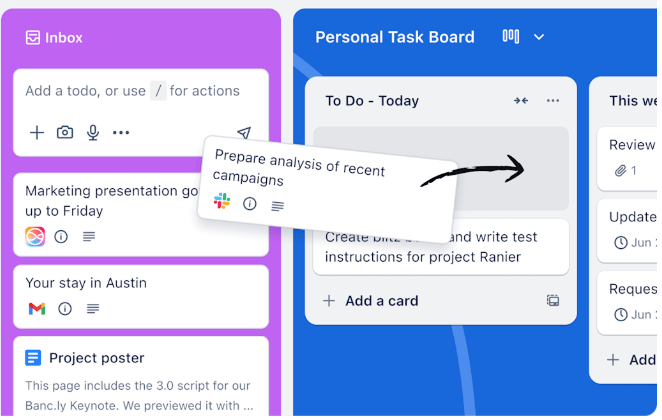
Trello is one of the simplest, most user-friendly collaboration tools thanks to its intuitive Kanban-style boards. For teams that need clarity without complexity, Trello is a refreshing alternative to task-heavy or customizable platforms.
It is perfect for visual thinkers, simple workflows, and smaller teams that don’t need advanced project hierarchy.
It’s best for small teams, freelancers, or departments using lightweight workflows like sprint planning, content calendars, or personal productivity.
The downside: Trello lacks advanced reporting, dependencies, and scaling features that teams may later need. Asana, ClickUp, or monday.com offer more depth if your workflows become more complex.
| Pros | Cons |
|---|---|
| ✅ Simple, visual Kanban boards | ❌ Lacks advanced PM features |
| ✅ Easy for beginners | ❌ Not ideal for scaling projects |
| ✅ Great for lightweight workflows | ❌ Requires strong organization discipline |
Pricing
- Free: Up to 10 collaborators per workspace
- Standard: $6 per user, per month
- Premium: $12.50 per user, per month
- Enterprise: Starts at $210 per user, per month for 50 users (paid in full per year)
Annual billing is available.
Standout features
- Simple Kanban boards for visual task and workflow management.
- Card-based task system with checklists, attachments, and comments.
- Power-Ups integrations adding automation and third-party functionality.
- Drag-and-drop interface that makes organizing and reordering tasks effortless.
SEE: Trello Review: Pricing, Features, Pros & Cons
8. Notion: Best for remote or knowledge-heavy teams that need flexible documentation, wikis, and context-rich project spaces
My rating: 4.23/5
Why I chose Notion
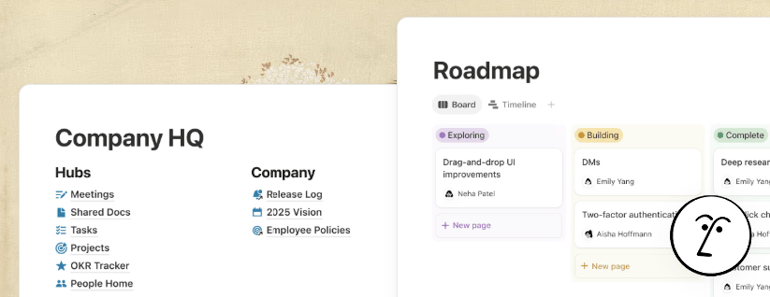
Notion is a top pick because it blends documentation, wikis, databases, and lightweight project management in one flexible workspace.
Remote teams value it for capturing institutional knowledge — something text-based chats and rigid PM apps struggle to maintain. Its modular structure allows teams to build tailored spaces without coding.
It’s ideal for content, product, engineering, or distributed teams that rely heavily on documentation, meeting notes, wikis, and knowledge sharing. Notion helps maintain alignment even when team members are across time zones.
However, its flexibility can be a double-edged sword: Without strong internal organization, workspaces can become messy. Notion also lacks the deep project management features found in tools like Asana and ClickUp.
| Pros | Cons |
|---|---|
| ✅ Flexible docs and wikis | ❌ Requires structure to avoid clutter |
| ✅ Excellent for knowledge sharing | ❌ Not made for complex project planning |
| ✅ Adaptive for many team types | ❌ Some learning curve for new users |
Pricing
- Free: Includes basic forms and sites, calendar, and mail
- Plus: $12 per user, per month
- Business: $24 per user, per month
- Enterprise: Customized
Annual billing is available.
Standout features
- Flexible workspace combining documents, wikis, and notes in a modular layout.
- Database-backed pages with filters, sorting, and custom properties.
- Real-time editing for collaborative writing, planning, and knowledge sharing.
- Customizable templates to build project hubs, team wikis, and content workflows.
SEE: Notion Review 2024: Pricing, Features, Pros & Cons
9. Zoom: Best for frequent video meetings, webinars, workshops, or client presentations
My rating: 4.22/5
Why I chose Zoom
Zoom is the gold standard for reliable, high-quality video meetings. Its stability, ease of use, and ability to support large calls, webinars, and breakout sessions make it indispensable for remote teams. Its universal adoption means almost everyone knows how to use it, eliminating the adoption barrier.
This video conferencing platform is best for teams that rely on frequent synchronous collaboration, client calls, training sessions, or virtual events.
While Zoom excels at video communication, it offers fewer collaboration features than Teams or Google Meet, and organizations often need complementary tools for chat, file-sharing, and project management. Zoom fatigue is also a concern for teams that rely too heavily on synchronous meetings.
| Pros | Cons |
|---|---|
| ✅ Reliable, high-quality video conferencing | ❌ Limited collaboration outside video |
| ✅ Easy to use across all devices | ❌ Free tier meeting limits |
| ✅ Ideal for large meetings and webinars | ❌ Can contribute to meeting fatigue |
Pricing
- Basic (Free): Includes 40 minutes of meeting time and 100 participants per meeting
- Pro: $16.99 per user, per month
- Business: $21.99
- Enterprise: Customized
Annual billing is available.
Standout features
- High-quality video meetings with stable audio and HD streaming.
- Breakout rooms for small group discussions and workshop-style sessions.
- Cloud recording and transcripts to capture and revisit meeting content.
- Webinar and event hosting for large-scale presentations and virtual events.

SEE: Zoom: A cheat sheet about the video conferencing solution
10. Miro: Best collaborative visual workspace for brainstorming and ideation
My rating: 3.98/5
Why I chose Miro
Miro stands out as the leader in visual collaboration — something most remote teams struggle with when lacking a shared physical workspace.
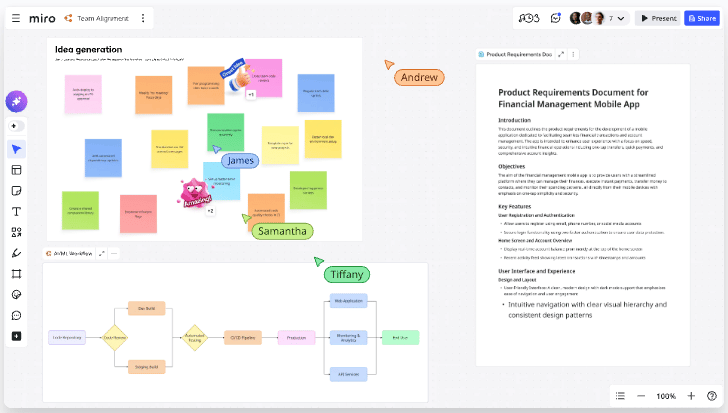
With its whiteboards, templates, and real-time multi-user editing, Miro enables better brainstorming, planning, design thinking, and workshop facilitation. It fills a crucial gap that PM and chat apps cannot solve.
It’s best for UX/UI teams, product teams, strategists, facilitators, and agile teams that need to sketch ideas, map user flows, run retrospectives, or host virtual workshops.
The downside is that Miro is specialized, thus, teams won’t use it daily for general communication or task management, and it requires pairing with a broader collaboration suite. Compared to Notion or ClickUp, Miro is less suited for documentation or long-term work tracking.
| Pros | Cons |
|---|---|
| ✅ Great for visual brainstorming | ❌ Not a daily-use tool for all teams |
| ✅ Real-time multi-user collaboration | ❌ Needs pairing with PM or doc tools |
| ✅ Huge library of templates (e.g., flowcharts, mind maps, product roadmaps, etc.) | ❌ Can become cluttered without version control |
Pricing
- Free: Includes three editable boards, 5,000+ templates, and Miro AI
- Starter: $8 per user, per month
- Business: $16 per user, per month
- Enterprise: Customized
Standout features
- Collaborative whiteboard for brainstorming, mapping, and diagramming.
- Extensive template library covering agile boards, brainstorming frameworks, user flows, and more.
- Real-time multi-user editing enabling synchronous workshops and ideation sessions.
- Integrations with PM and design tools to embed boards into broader workflows.
SEE: How to use Miro as your whiteboard in a virtual meeting
My methodology
To identify the top remote work tools for 2026, I evaluated each platform using a set of criteria aligned with TechRepublic’s research standards.
This included analyzing product documentation, feature sets, pricing tiers, integration capabilities, and user experience. I also reviewed recent updates, roadmap announcements, and third-party ratings from platforms.
Beyond product and feature offerings, I examined how each tool performs in real-world distributed work environments. This involved assessing ease of adoption, scalability, cross-team collaboration, security features, and how well each tool integrates into modern remote workflows.
Tools that demonstrated strong usability, flexibility, and reliable support for asynchronous and synchronous collaboration scored highest.
Finally, I compared each tool to determine best-fit use cases. The providers on this list deliver consistent value across remote, hybrid, and fully distributed teams in technology, operations, product development, and creative fields.
Frequently asked questions (FAQs)
What are the most important remote work tools for distributed teams?
Most teams need a core stack: a productivity suite (like Google Workspace or Microsoft 365), a communication platform (Slack or Teams), and a video meeting tool (Zoom or Meet). These remote work tools form the foundation of daily collaboration.
How do I choose the right remote work tools for my organization?
Start by identifying your team’s workflows: documentation, communication, project tracking, and brainstorming. Choose remote work tools that integrate well and support your processes without adding unnecessary complexity.
Are free remote work tools enough for business use?
Free versions can work for small teams or early testing, but they often limit storage, history, automation, and security. Most organizations benefit from paid plans to unlock the full capabilities of essential remote work tools.
Are remote work tools secure for business use?
Yes, most leading remote work tools offer encryption, access controls, and compliance features. However, strong security also depends on proper configuration, including permissions, authentication settings, and user policies.