


Ever want to add a WebDAV server to your Android device? If so, you can–and it’s not much of a challenge (at least not with the right app).
Some of you might be wondering why in the world would you want to add a WebDAV server to your smartphone or tablet. The answers to that question are simple:
- You want to be able to easily snag files from your device onto your desktop
- Because you can
We all know that IT pros tend to geek out on doing things for no other reason than because it’s possible. Like adding an http server to your mobile device. Who really needs that? You do, if you’re wanting to show people you can.
As for the practical application, well that should be obvious. But which app should you install to add WebDAV to your device? There’s a really easy app available, called WebDAV server that makes it possible with one click. WebDAV server allows you to access the directory structure of your Android device (minus system files, of course) from a web browser. If you’re using a Sharepoint-compatible application (with IE 4.0 or greater), you can even open them for editing.
Let’s get WebDAV server installed and running.
Installation
There are two versions of the app–the free version and the ad-free version. Both contain the same features. The ad-free version will set you back a whopping $0.99 (USD). Let’s go with the free version at first. If you like the free version, I highly recommend that you drop the pennies to purchase the ad-free take on the app.
To install WebDAV server, do the following:
- Open the Google Play Store on your Android device
- Search for webdav server
- Locate and tap the entry for WebDAV Server by The Olive Tree
- Tap Install
- Read the permissions listing
- If the permissions listing is acceptable, tap Accept
- Allow the installation to complete
Once it’s installed, you’re a button tap away from gaining access to your files.
Usage
From the main screen (Figure A), tap the big red button. That will start the server and return the address that will give you access to the files (it will be the Wi-Fi LAN address, plus the port 8080). Go to your desktop web browser and point it to that address to start downloading files.
Figure A
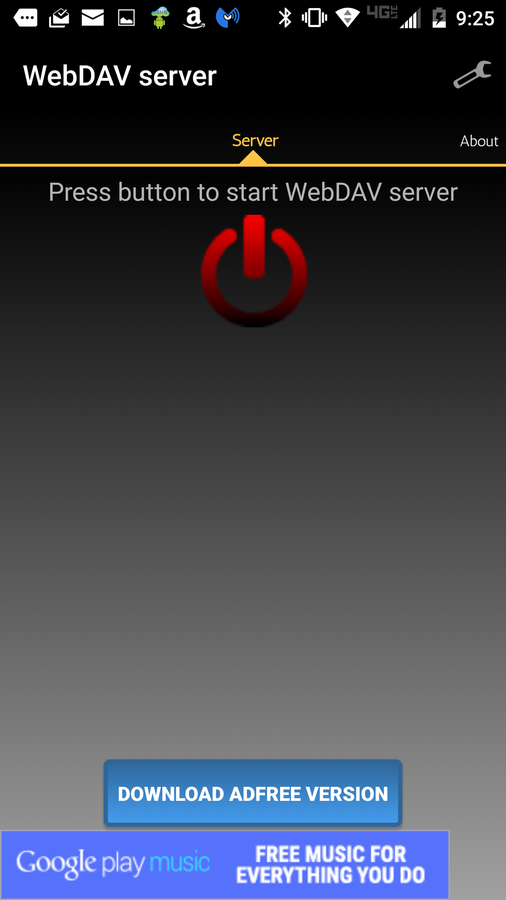
Running the WebDAV Server app on a Verizon-branded Droid Turbo.
By default, the WebDAV server is not password protected. Fortunately, the developers added the ability to password protect the connection. To add a layer of security (which you should), do the following:
- Make sure the server isn’t running
- Tap the wrench icon in the upper right corner
- Tap to enable Use password (Figure B)
- Enter a User name
- Enter a User password
- Tap the back button to return to the main window
Figure B
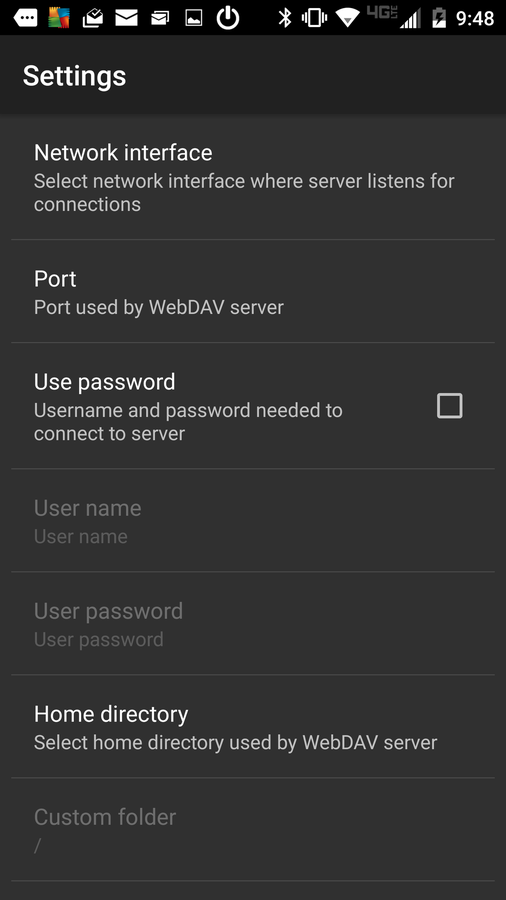
Password protecting your WebDAV server.
Now, tap the button to start the server and your WebDAV-enabled device will be password protected when attempting to access the address from a web browser.
You can also change the default port, limit the home directory, change the Lock mode (how the device is forced to remain awake when the server is running), give the server High priority service (to prevent the server from being killed under low memory conditions), Show server details (list server details on the app’s main window), and reset the configuration.
When you visit the address, you won’t be greeted by a modern, Ajax-powered web page. Instead you’ll see an old-school listing of files and folders (Figure C).
Figure C
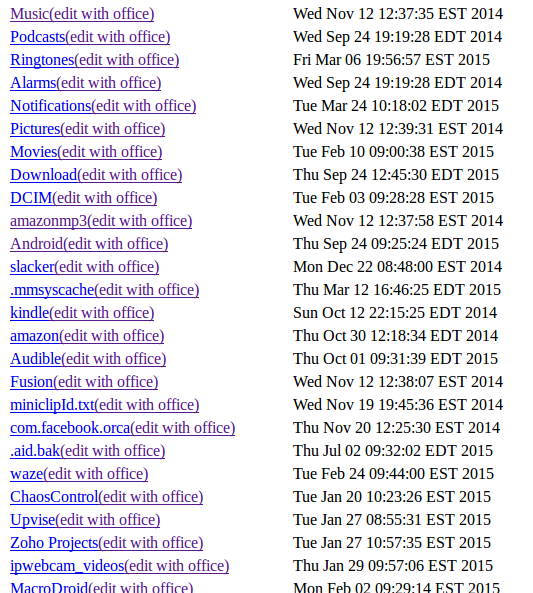
A listing of files and folders using the WebDAV server.
If you’re looking for one of the easiest ways to get files from your Android device to your desktop, this might well be it.
What is your preferred method of getting files from mobile to desktop? Let us know in the discussion thread below.