


Having spent years working alongside enterprise teams managing complex operations, I know how difficult it is to track resource capacity, budgets, and project timelines when each team is managing them in separate systems. Enterprise project management software solves this by providing a suite of features to manage communication, resources, and project data in a centralized platform.
In this guide, I break down the best enterprise project management software and evaluate each one based on real-world use cases and the operational needs of large organizations.
- monday work management: Best for creating custom project workflows
- Smartsheet: Best for portfolio planning
- Asana: Best for ease of use
- ClickUp: Best AI-powered workspace
- Wrike: Best for content management
- Jira: Best for software development
- Celoxis: Best for self-hosted deployment
- Microsoft Planner: Best for Microsoft 365 users
- Teamwork.com: Best for billable client work
How the best enterprise project management software compare
| Enterprise PM software | ||||
|---|---|---|---|---|
| monday |
| |||
| Smartsheet |
| |||
| Asana |
| |||
| ClickUp |
| |||
| Wrike |
| |||
| Jira |
| |||
| Celoxis |
| |||
| Microsoft Planner |
| |||
| Teamwork.com |
|
1. monday: Best for creating custom project workflows

My rating: 4.5 / 5
Visit monday.com
Why I chose monday
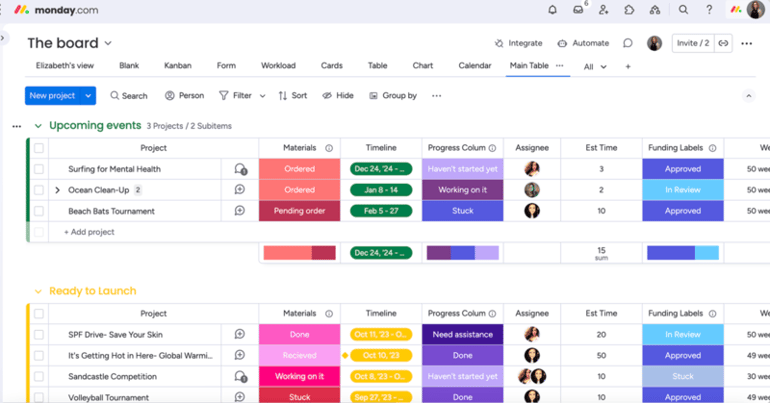
I’d recommend monday Work Management to any mid-size or enterprise organization that has outgrown the rigid structure of traditional project management tools. Boards act as flexible workspaces where you can build your project layout from scratch or start with a prebuilt template from its extensive library, then customize it to reflect your unique processes.
monday’s visual design enhances the platform’s user-friendliness by allowing teams to set up boards with color-coded columns and reorganize them easily through drag-and-drop controls. Columns can be configured for specific data types such as status, numbers, time tracking, or team ownership.
For enterprises that require advanced customization, you can deploy private apps exclusive to your monday.com account. These apps extend the platform with tailored functionality through workflow automation, system integrations, and custom reporting or visualizations aligned to your organization’s needs. Custom objects provide dedicated views that exist outside individual boards, giving organizations space to view work items outside the context of a specific dashboard.
| Pros | Cons |
|---|---|
| ✅Visually appealing interface makes navigation easier ✅Flexible customizations for boards and templates ✅Enterprise plan includes a bundled package for monday’s AI products | ❌Mobile app is not as feature-rich as the desktop version ❌Steep learning curve when building complex automations ❌ Licenses must be purchased in fixed increments |
Pricing
- Free plan: Up to 2 users and includes 200+ templates, Kanban view, embedded documents, and shareable forms
- Basic: $9/user/month — Adds 5GB storage, custom fields, unlimited documents, and monday AI credits
- Standard: $12/user/month – Adds Gantt view, 20GB storage, guest access, and automation and integration (250 actions each)
- Pro: $19/user/month — Adds private boards, chart view, time tracking, formula, and automation and integration (25,000 actions each)
- Enterprise: Custom — Adds portfolio reporting, resource management, and automation and integration (250,000 actions each)
Standout features
- Dependency column: Define relationships between tasks on your board so you manage how dates shift when a preceding task changes.
- Resource planner: Create high-level resource plans and assign the right people to each project by mapping resource needs.
- Capacity manager: Combine multiple resource planners into a single dashboard for a centralized view of resource utilization across projects and workload distribution.
- Portfolio dashboard: Track project progress at a glance with an interactive dashboard that displays task completion and planned vs actual timelines.

Why I chose Smartsheet
Smartsheet caters to enterprise teams that launch multiple projects each year and need a dedicated tool for replicating workflows. The Control Center is exclusive to Smartsheet’s Advanced Work Management plan, offering a suite of tools to automate project creation and aggregate reporting across all active projects.
New project requests are submitted through the Control Center via intake forms that collect information required for evaluation. Demand intake includes prioritization tools that score each submission against predefined criteria, giving project leaders a data-driven basis for deciding whether to approve or fund a request.
Once a project is approved, the Control Center automatically provisions it using predefined blueprints that generate the required sheets, reports, and dashboards, so every project starts with the same standardized structure.
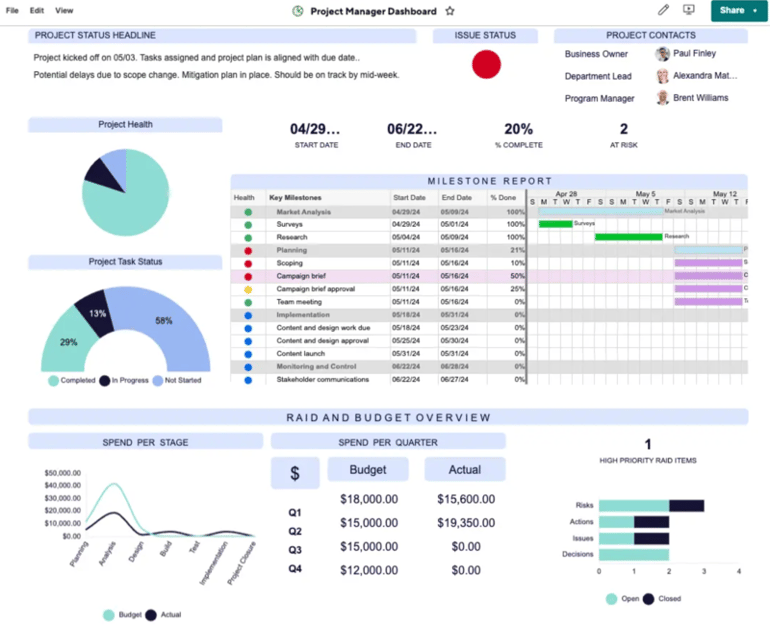
The Control Center also aggregates critical data from all active projects into portfolio dashboards, giving project managers a centralized view of schedules, reported risks, and resource assignments. Resource planning tools show which teams are fully allocated in real time, so decision makers can delay or reassign projects if needed.
Another practical benefit is that Smartsheet allows you to share sheets, reports, and dashboards with non-licensed users at no additional cost. This makes it easier to keep clients, executives, and external collaborators informed without purchasing additional user licenses.
| Pros | Cons |
|---|---|
| ✅Unlimited automation credits on higher plan tiers ✅Automated generation of project structures at scale. ✅Comprehensive privacy features | ❌No free plan ❌Resource management and portfolio features are sold as premium add-ons ❌Access to AI features requires an Enterprise account |
Pricing
- Pro: $9/user/month — Includes unlimited viewers, formulas, sheets, and project views for up to 10 members
- Business: $19/user/month — Adds free guests, unlimited automations, conditional form logic, timeline view, workload tracking, and admin capabilities
- Enterprise: Custom — Adds work insights, AI formulas, charts, role-based sharing, unlimited attachment storage, and SSO
- Advanced Work Management: Custom – Adds Control Center, granular sharing controls, and app connectors
Standout features
- Formulas and functions: Calculate data, pull information from other sheets, and automatically update symbols or dropdown fields.
- File library: Store and collaborate on documents, presentations, images, and videos in a centralized file library.
- E-signature: Request and collect legally binding signatures within project workflows.
- Work insights: Customize data visualizations like burndown and time series charts to analyze data trends and bottlenecks.

Why I chose Asana
Asana is my top choice for enterprises that need a project management solution for handling complex operations without sacrificing ease of use. Beyond its clean interface, users consistently praise Asana for maintaining a consistently intuitive experience throughout its workspace.
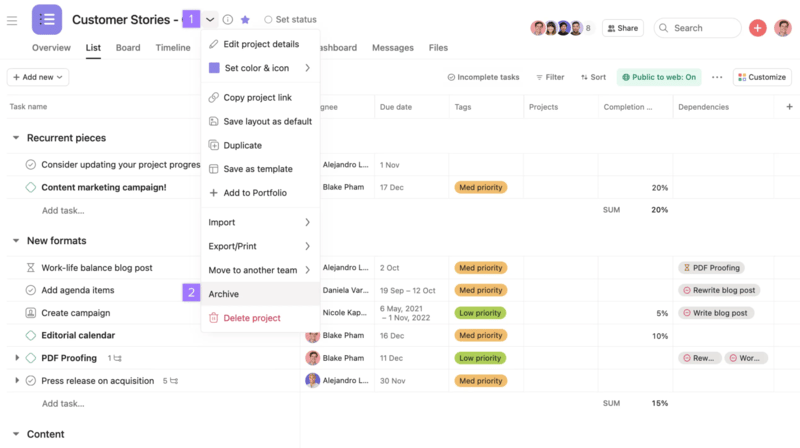
When you enter Asana, the main navigation panel gives direct access to Home, My Tasks, Inbox, Reporting, and Portfolios. The Home view surfaces tasks based on due dates and activity, while My Tasks consolidates all work assigned to you across projects. A new user can determine what to work on without building dashboards or filtering through complex views — something I often find myself doing when navigating large-scale boards on other project management platforms.
Portfolio management is also one of Asana’s highlight features for enterprise teams. Portfolios consolidate multiple projects into a single dashboard that automatically pulls status updates and progress data from each project in real time. When a project owner updates a status or completes a task, the portfolio view reflects the change immediately, so project managers can assess the overall status without waiting for separate reports.
| Pros | Cons |
|---|---|
| ✅Free plan includes 100+ integrations ✅Dedicated inbox for notifications and activities ✅Extensive admin controls | ❌Large teams cannot purchase individual seats and must buy in bulk. ❌Timesheet and budgeting features are sold as add-ons ❌ Several required add-ons for enterprise functionality |
Pricing
- Free: Up to two users — Includes list, board, calendar views, and 100+ integrations
- Starter: $10.99/user/month — Adds forms, templates, Gantt view, AI studio, automations, custom fields, workflow builder, project dashboards, and unlimited guests
- Advanced: $24.99/user/month — Adds goals, proofing, approvals, time tracking, goals, forms branching, and portfolio workload
- Enterprise: Custom – Adds capacity planning, mobile app controls, and admin controls
Standout features
- Bundles: Apply a combination of rules, fields, sections, and task templates across multiple projects at once, with updates automatically reflected in every project that uses that bundle.
- AI Studio: Use a no-code builder to automate routine tasks like drafting emails, translating content, and scoring incoming requests.
- Restricted custom field values: Control who can edit specific custom field values to protect sensitive data, including fields created through intake forms or used for budget tracking.
- Portfolio workload: View your team’s capacity over specific time periods with a workload overview that pulls task data from projects within the portfolio.

Why I chose ClickUp
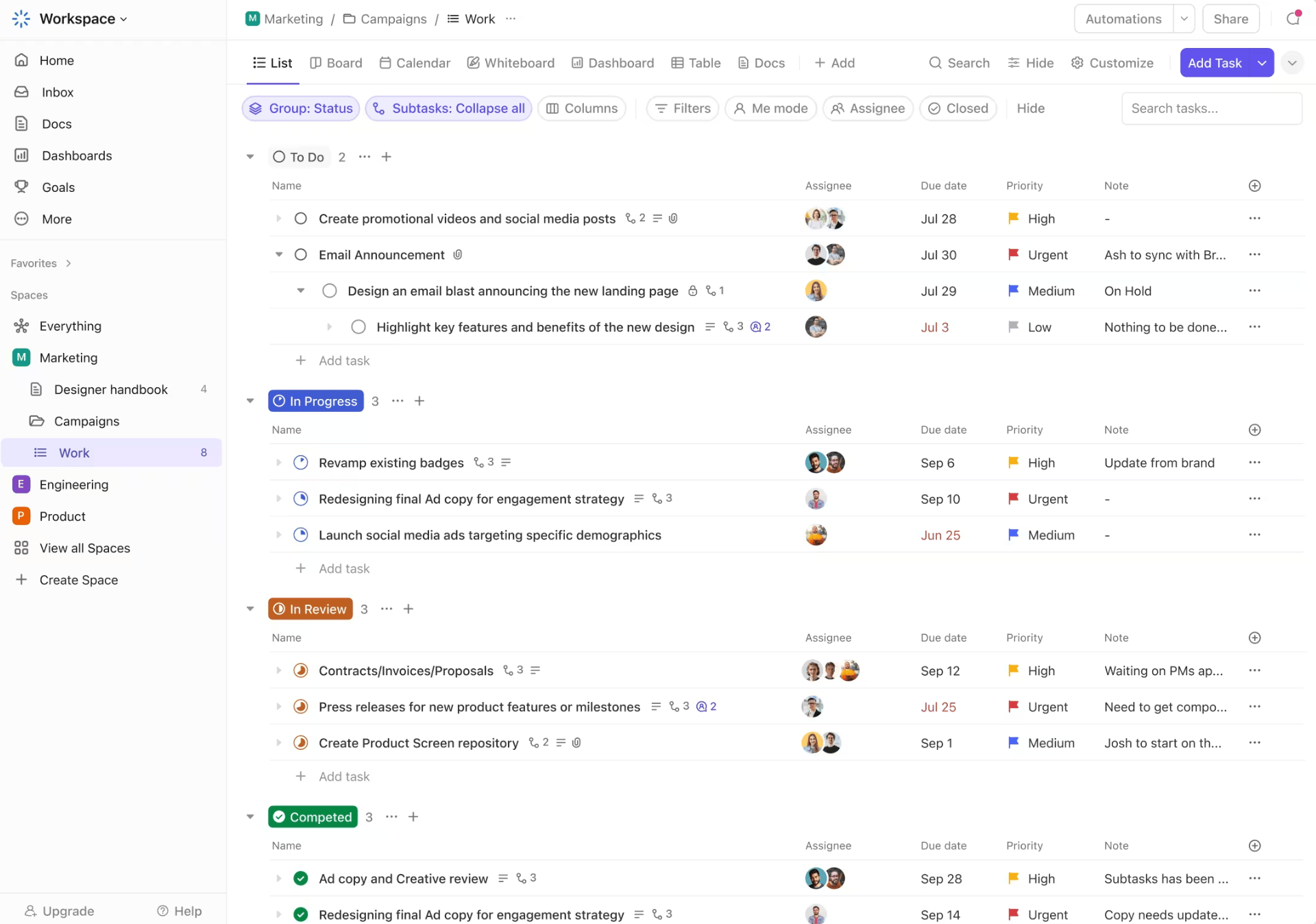
Enterprises that want AI embedded into their project management workflows will find ClickUp a strong fit. Its native AI assistant, ClickUp Brain, brings a comprehensive suite of AI-powered features across the platform. Unlike competitors that treat AI as a premium add-on, ClickUp packages it separately for users who want a versatile assistant capable of supporting all types of work.
ClickUp Brain’s all-in-one approach is a major advantage for enterprises that currently depend on multiple AI tools. Rather than switching between AI platforms, teams can handle it all in one place, whether that’s taking meeting notes, running org-wide searches, drafting follow-up emails, or generating AI images. Users can also switch between AI models with its built-in integrations with ChatGPT, Claude, and Gemini.
The ClickUp Brain add-on starts at only $9 per user monthly. Upon activation, you unlock the ability to run autonomous projects that automatically track risks and milestones, assign tasks based on skill sets, and self-prioritize tasks based on your current workload. MacOS users also get access to a personalized talk-to-text tool that understands the full context of your tasks and learns your most-used words and work-specific jargon.
| Pros | Cons |
|---|---|
| ✅Unified collaboration suite for chat and meetings ✅Feature-rich entry-level plan ✅Offers 15+ native project views | ❌Advanced AI features are sold as a separate plan ❌Steep learning curve ❌ Lacks a dedicated portfolio-level financial module |
Pricing
- Free Forever: Includes unlimited users, Kanban view, collaborative docs, 60MB storage, in-app video recording, and sprint management
- Unlimited: $7/user/month — Adds integrations, forms, Gantt charts, real-time chat, time tracking, guest permissions, portfolios, and resource management
- Business: $12/user/month — Adds timeline view, activity views, whiteboards, workload management, and sprint points and reporting
- Enterprise: Custom — Adds conditional logic in forms, custom workload capacity, SSO, advanced permission, enterprise API, and custom roles
Standout features
- Custom task types: Define your own task categories, such as campaigns or content briefs, so every team uses the same item types across all projects.
- Conditional logic in forms: Create dynamic forms that adjust based on previous field selections so respondents see only relevant fields and provide the exact information needed to trigger the right automations.
- ClickApp: Activate specific features for the whole workspace or individual teams. Supported features include nested subtasks, time estimates, sprint points, and dependency warnings.
- Screen recording: Record training, project plans, or feedback sessions, and capture audio with Voice Clips.

Why I chose Wrike
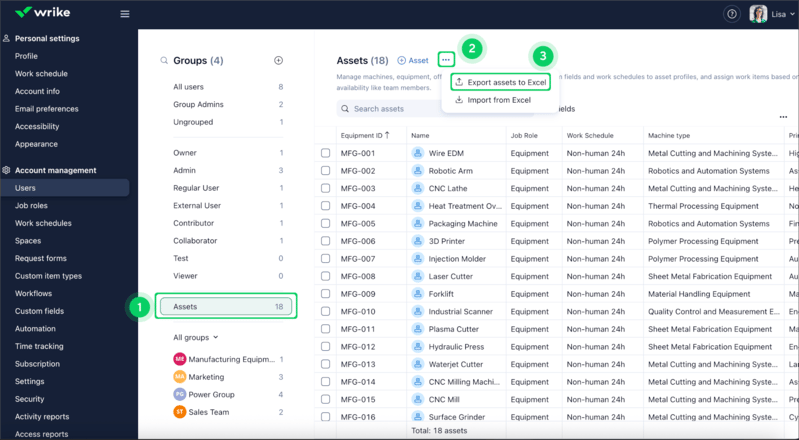
Wrike’s native digital asset management (DAM) integration makes it a strong fit for enterprises whose marketing and creative teams need to manage tasks and files within a single platform. With Wrike’s Cloud Content Connector, users can search DAM workspaces, preview files, and attach approved assets to tasks within Wrike.
Files pulled from connected DAM platforms such as MediaValet or Bynder are attached to tasks, so team members have access to the correct asset version. Before publishing, assets are routed to Wrike’s proofing tool, where reviewers can annotate files and leave feedback that is recorded directly in the task thread, creating a documented trail of comments and approvals.
Wrike enforces access controls that restrict which files are authorized for use, which prevents outdated or unapproved materials from entering active campaigns. It also integrates with Adobe Creative Cloud, so users can build and edit assets without leaving their design, while Wrike tracks file versions and manages the approval process.
| Pros | Cons |
|---|---|
| ✅Unlimited free plan users ✅Comprehensive permission controls ✅Built-in proofing tools for comparing file versions | ❌24/7 support is limited to web form submissions ❌Native Wrike integrations are sold as add-ons ❌Relies on add-ons for enterprise scale |
Pricing
- Free: Unlimited users with basic task management and folder hierarchy
- Team: $10/user/month — For 2 to 15 users and adds cross-tagging, generative AI, custom fields, dashboards, Gantt charts, and portfolio management
- Business: $25/user/month — for 5 to 200 users and adds AI elite features, request forms, templates, approvals, workload charts, time tracking, and guest approvals
- Pinnacle: Custom pricing — Adds advanced reporting, resource and capacity planning, budgeting, and locked spaces
- Apex: Custom pricing – Adds Wrike Datahub, bi-directional integrations with third-party solutions, and advanced security controls
Standout features
- Blueprints: Create reusable blueprints for tasks, folders, or projects so you can quickly generate new versions with the correct format.
- Task effort: Assess the effort needed for each task so you can assign an available team member and better predict when the project will be completed.
- Resource bookings: Reserve time for a team member or role, estimate project hours, and confirm whether the selected resource has enough capacity to complete the work.
- External requester collaboration: Communicate with external contacts from within Wrike tasks by sending and receiving emails, so you can share updates without granting account access.

Why I chose Jira
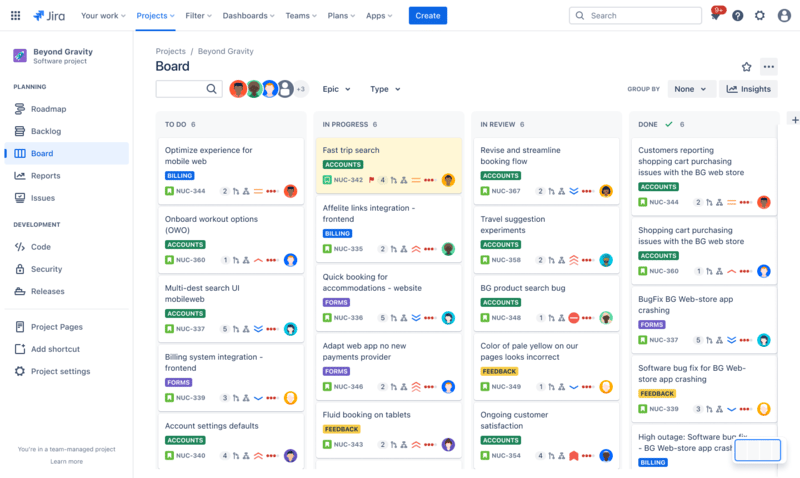
Jira is built for software development teams that need a dedicated agile tool to manage work across the full development cycle. Teams log tasks directly into a centralized backlog, where each item can be categorized by issue type, such as bugs, stories, or epics. You can assign a custom workflow that reflects how that type of work gets done.
During sprint planning, users can select specific issues, assign story points or time estimates, and commit to completing that work within a fixed sprint. Agile boards for Scrum and Kanban workflows display each work item as it moves through workflow stages, such as To Do, In Progress, and Done.
Jira also provides a number of Agile reports that compute delivery metrics from sprint data. Burndown, velocity, and cycle time reports calculate how much work is completed over time and how quickly teams are progressing toward a release. Roadmaps visualize how each team contributes to the company goal. These reports give product owners and engineering leads data insights to adjust priorities or redistribute work before the next sprint.
| Pros | Cons |
|---|---|
| ✅Affordable per-user pricing ✅Offers a multi-level task hierarchy ✅AI features are included in all plans at no extra cost | ❌Setup requires an understanding of agile configuration ❌Relies on Marketplace add-ons for additional functionality ❌Limited native portfolio management |
Pricing
- Free: Up to 10 users — Includes reports, dashboards, unlimited projects, forms, 2GB storage, and project views (backlog, list, board, timeline, and summary)
- Standard: $9.05/user/month — Adds AI assistant, user roles, external collaboration, 250GB storage, and 1700 automation rule runs
- Premium: $18.30/user/month — Adds dependencies, custom approvals, unlimited storage, and 1,000 rule runs per user
- Enterprise: Custom — Adds advanced admin controls and security, cross-product insights, and unlimited automation rule runs
Standout features
- Backlog Kanban board: Organize upcoming work separately from active development tasks, and use version or epic filters to quickly locate and manage specific issues before they enter a sprint.
- Jira Query Language (JQL): Use JQL to run detailed searches across projects and save the results as reusable filters or board views.
- Advanced planning: Pull data from multiple boards and spaces into a single planning view where teams can model different scenarios and test changes before applying them to live project data.
- Work items: Track tasks, bugs, or tickets as work items in Jira, with each item representing a specific unit of work such as a feature, requirement, or defect.

Why I chose Celoxis
Celoxis is built for enterprises that need to host their project management software on their own infrastructure rather than rely on a cloud provider. The platform runs on all major enterprise operating systems and supports Linux with PostgreSQL, without the need for additional database licensing costs. Installation and future upgrades are handled through a web-based interface, so IT teams do not need to manually configure each update across servers.
The minimum hardware requirement to run the platform is a modern CPU, 4GB of RAM, and 10GB of disk space for the software and logs, with additional storage allocated separately for file attachments. Celoxis connects to over 400 business apps and offers an API for custom or in-house integrations, so enterprises can add it to their existing IT environment without replacing the tools already in use.
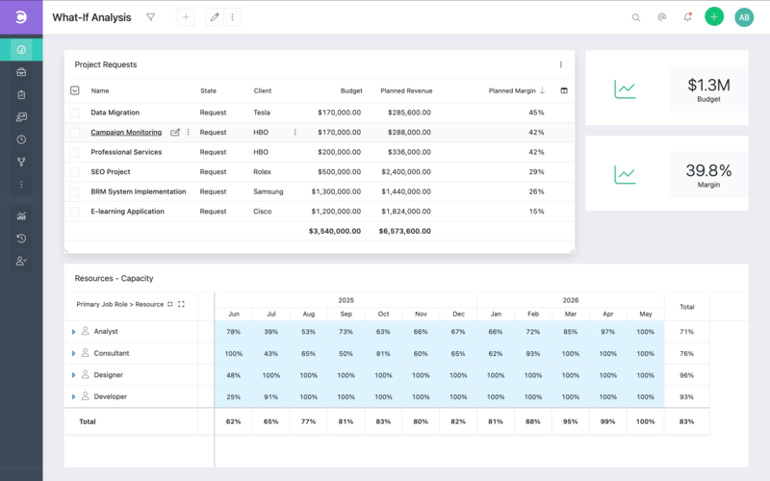
Celoxis is often preferred by large teams for its robust reporting and resource management tools. The platform tracks project budgets, time, and expenses through built-in timesheets, while capacity charts monitor team availability across multiple geographic locations, shifts, and holidays. Teams can build reports on both standard and custom fields and schedule them for automatic email delivery. It also includes a built-in AI assistant called Lex that monitors live project data and surfaces risk signals and actionable recommendations in plain language.
| Pros | Cons |
|---|---|
| ✅Supports on-premise implementation ✅AI assistant included across all pricing tiers ✅Portfolio management is included in all plans at no extra cost | ❌Complicated tier-based user pricing ❌Jira integration is sold as an add-on for non-Enterprise accounts ❌The number of free guest seats is capped per tier |
Pricing
- Core: $10/user/month — Includes advanced analytics, BI dashboards, Gantt charts, project templates, aggregated dashboards, and two read-only users.
- Essentials: $25/user/month — Adds timesheets, job roles, resource planning, work calendars, automatic RAG calculation, workspaces, custom security roles, and five free read-only users.
- Professional: $35/user/month — Adds risk tracking, intake management, costing, expense management, and 10 free read-only users.
- Business: $45/user/month — Adds billing, free client portal, advanced security, strategic portfolio management, and 15 free read-only users.
- Enterprise: Custom — Adds the ability to create your own custom apps, maximum API limits (1,800/hour), and VIP support.
Standout features
- Critical Path Analysis (CPA): Identify the sequence of tasks that affect the project completion date so teams know exactly which activities to prioritize.
- Custom drill-down charts: Click into any chart to explore the underlying data and perform bulk actions on related records within the same view.
- Client portal: Provide clients with optional login access to a dashboard where they can view project status and communicate with your team.
- Billable and costable expenses: Tag expenses as billable to count them toward project revenue, or as costable to include them in the project’s total cost calculations.
8. Microsoft Planner: Best for Microsoft 365 users

My rating: 4.51 / 5
Visit Microsoft Planner
Why I chose Microsoft Planner
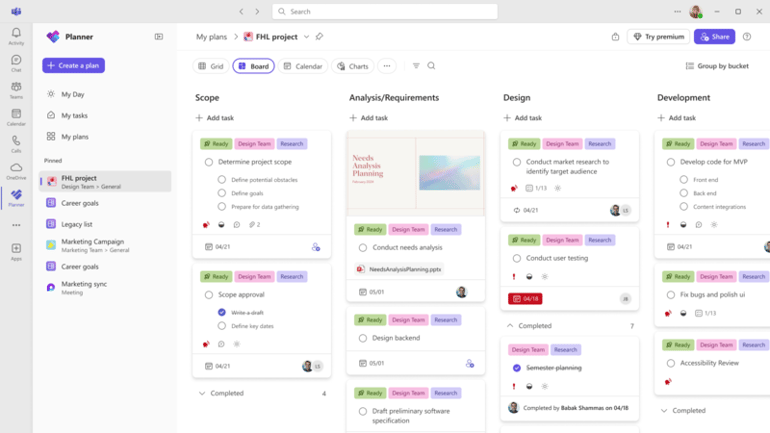
Microsoft Planner is a work management solution built for enterprises that run on Microsoft 365. With Microsoft Project Online retiring in 2026, Planner will combine Project for the web, To Do, and Planner into a single app. The platform scales from individual task tracking to enterprise project management, with Microsoft Copilot for AI assistance and security controls designed for large organizations.
Planner integrates with other productivity tools within Microsoft 365. For instance, files attached to tasks are stored in SharePoint, and comments are routed through Outlook group conversations. Users can also view and update their project plans from SharePoint pages and Microsoft Teams channels.
For a more fluid collaboration, Planner users can co-create task lists in Teams and draft project plans from video meetings and chat conversations. In Outlook, users can check assignments flagged from emails, while Loop lets teams track project plans alongside other shared content.
| Pros | Cons |
|---|---|
| ✅A basic version is included in certain Microsoft 365 subscriptions ✅Unlimited free guest access via Microsoft 365 Groups ✅Handles advanced dependencies (Finish-to-Start, Start-to-Start, etc.) | ❌Lacks a "free-forever" tier ❌More expensive per-user fees than most competitors ❌ Lacks native time tracking |
Pricing
- Free (Included in Microsoft 365): — Includes core task management features, board and list views, “My Day” and “My Tasks” personalized views, and Microsoft Teams integration.
- Planner Plan 1: $10/user/month — Adds task dependencies, project templates, custom reporting, timeline view, and agile features like backlogs and sprints.
- Planner and Project Plan 3: $30/user/month — Adds Microsoft 365 Copilot (preview), advanced dependencies, resource request capabilities, task history, and visual roadmaps.
- Planner and Project Plan 5: $55/user/month — Adds advanced portfolio management and enterprise resource management and allocation.
Standout features
- Resource request capabilities: View resource availability in a color-coded calendar and match team members with the right skills to open requests.
- Backlog and sprints: Organize tasks into timeboxed sprints so your team can focus on defined work periods and make adjustments based on feedback.
- Assignments: See all team members in a project plan and the tasks assigned to each person.
- Copilot in Planner: Build a full project plan from prompts and ask questions about deadlines or upcoming work within the plan.
9. Teamwork.com: Best for managing billable client projects

My rating: 4.37 / 5
Visit Teamwork
Why I chose Teamwork.com
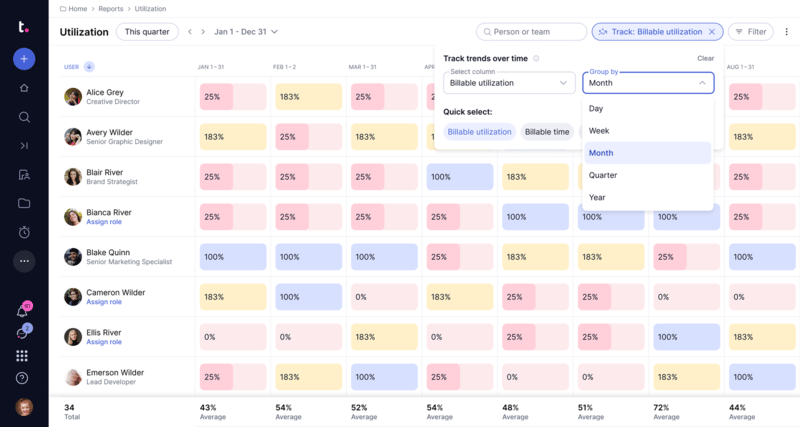
Teamwork.com is built for enterprises that need a unified software for managing client work and project finances. The client management hub gives account managers a consolidated view of every client’s projects, with metrics that automatically calculate profitability, billable versus non-billable time, and budget usage across all active projects. Clients can be added to projects at no extra cost and given controlled access to comment, log time, and review milestones without exposing internal project data.
Billing is managed through a layered rate system where each user is assigned a site-wide billable rate and a cost rate. Rates can be overridden at the project level to match specific client agreements or at the role level to standardize pricing across team members in the same function. The platform supports multiple currencies and automatically converts rates to match each project’s billing currency, with admins controlling which users can view or edit hourly rates.
Time can be logged through bulk timesheets, timers, or automated reminders, and each entry feeds into the project’s budget and profitability tracking. For client deliverables that require approval, Teamwork’s proofing tool centralizes all feedback and maintains a full revision history from first draft to final sign-off, removing the need to chase approvals across email threads or messaging apps.
| Pros | Cons |
|---|---|
| ✅AI-powered task management included across all plans ✅Unlimited free client users and collaborators on all paid plans ✅Integrated team chat app | ❌Strict limits on file storage ❌Each plan includes a limit on the number of projects allowed ❌Limited options for project templates |
Pricing
- Free: Up to five users – Includes five projects, 100 automations, time tracking, and core project management features
- Deliver: $10.99/user/month — Add project status reports, intake forms, 20 templates, 100GB storage, and 5,000 automations
- Grow: $19.99/user/month — Add budgeting, time, and financial tools, workload resource planner, utilization report, 600 projects, 20,000 automations, 50 templates, and 250GB storage
- Scale: Custom pricing – Adds profitability reports, resource scheduling, custom reporting, budget expenses, 100,000 automations, and 500GB storage
Standout features
- Tentative projects: Create placeholder projects to test scheduling scenarios before confirming timelines and resource commitments.
- Retainer budgets: Set up recurring budgets for client work that track hourly or fixed fees and automatically roll over any surplus or shortfall to the next period.
- Utilization report: Compare estimated, actual, and billable hours against each team member’s availability to see how resources are allocated across current and upcoming projects.
- Financial and utilization insights: Access a unified dashboard that combines key metrics on utilization, revenue, costs, profitability, and budget status.
Review methodology
I evaluated each platform against a scoring rubric built around six weighted criteria that reflect the priorities of enterprise teams when selecting a project management tool.
Pricing (20%) I evaluated whether each platform offers a free plan or only a time-limited trial, then scored monthly per-user costs at the entry-level. I also looked at how AI and advanced features are packaged across pricing tiers.
General Features (25%) I reviewed the depth of task management capabilities, such as dependencies and hierarchical structures, the range of project views, and the quality of team collaboration tools. I also assessed the availability of project templates.
Advanced and Niche Features (20%) I looked specifically at how each platform handles workload forecasting and skills-based allocation, as well as financial tracking and budget management features.
Customer Service and Support (10%) I examined support availability, noting which platforms offer 24/7 access and which are limited to business hours, alongside compliance certifications. I also reviewed the quality of each vendor’s knowledge base and onboarding resources.
Ease of Use (10%) I rated the technical skill required to set up each platform, the intuitiveness of the interface for non-admin users, and whether the mobile app offers comparable features to the desktop version.
Expert Score (15%) My professional assessment factored in overall feature offerings, value for money relative to the industry average, third-party user ratings, and the accessibility of product information for prospective buyers.
How do I choose the best project management software for large enterprise teams?
Choosing the right enterprise project management software comes down to matching the platform’s capabilities to how your organization operates. Here are the key factors to consider before making a decision:
- Start with your team’s size and structure. Large enterprises with multiple departments need a platform that can scale without inflating costs. Pay close attention to how each vendor charges, as some bill per user while others charge per bundle. Audit your user list before committing to a plan so you are not paying for inactive accounts or seats that go unused.
- Identify your most critical workflows. If your team runs on billable client work, prioritize platforms with robust time tracking and financial management. If you manage software development, look for tools built around sprint planning and bug tracking. If content production is your focus, look for asset management and approval workflows.
- Check how well it fits your existing tech stack. The best enterprise tool is one that connects to the systems your team already uses, whether that is a CRM, accounting software, or communication tools like Slack or Microsoft Teams.
- Evaluate security and admin controls. Enterprise teams handle sensitive data, so look for platforms with role-based permissions, compliance certifications such as SOC 2 and GDPR, and dedicated security support.
- Consider how easy it is to roll out. A platform that requires extensive technical setup or heavy training will slow down adoption across large teams. Prioritize tools with intuitive interfaces and comprehensive onboarding resources.
FAQs
What is enterprise project management software?
Enterprise project management software is a platform that helps large organizations oversee projects across multiple teams and departments. Unlike basic project management tools, it is built to handle complex operations at scale by offering a suite of features to centralize and control budgets, resources, timelines, and stakeholders — all backed by robust security controls.
What core features should I expect in enterprise project management software?
Enterprise project management software typically includes features across four key areas. Project planning covers task management, Gantt charts, and milestone tracking. On the resource management side, look for capacity planning and workload visibility tools. Reporting and portfolio management should surface real-time dashboards and cross-project performance insights, while financial management handles time tracking and billing rates.
How does enterprise project management software differ from regular project management software?
Regular project management tools are designed for small teams managing individual projects. Enterprise software includes portfolio management for a consolidated project view, resource planning tools that track workload capacity, risk management features that flag issues, and advanced security and admin controls for protecting sensitive data.