



If Android is your mobile platform, Chrome is most likely your mobile browser. Out of the box, it’s an outstanding choice for the task. But did you know there are a few hidden features that can make the experience even better? Some of these features are experimental, and none of them can be found within the browsers Settings page.
That’s right, we’re diving into the world of chrome://flags. If you haven’t experienced this yet, you’re in for a treat. Do note, however, these features tend to come and go as Google sees fit. Some features are far more handy than others, but there’s always at least one that has mass appeal.
With that said, let’s get to the hidden features.
Reader mode
One of the best of the hidden features is a special “reader” mode. This comes in very handy when you land on a site that’s particularly challenging to read on a mobile device. The “reader” mode will shed all the unnecessary items and present to you the text and only the text (unless their are inline images, which will still appear).
The difference between standard mode and reader mode is stark (Figure A).
Figure A
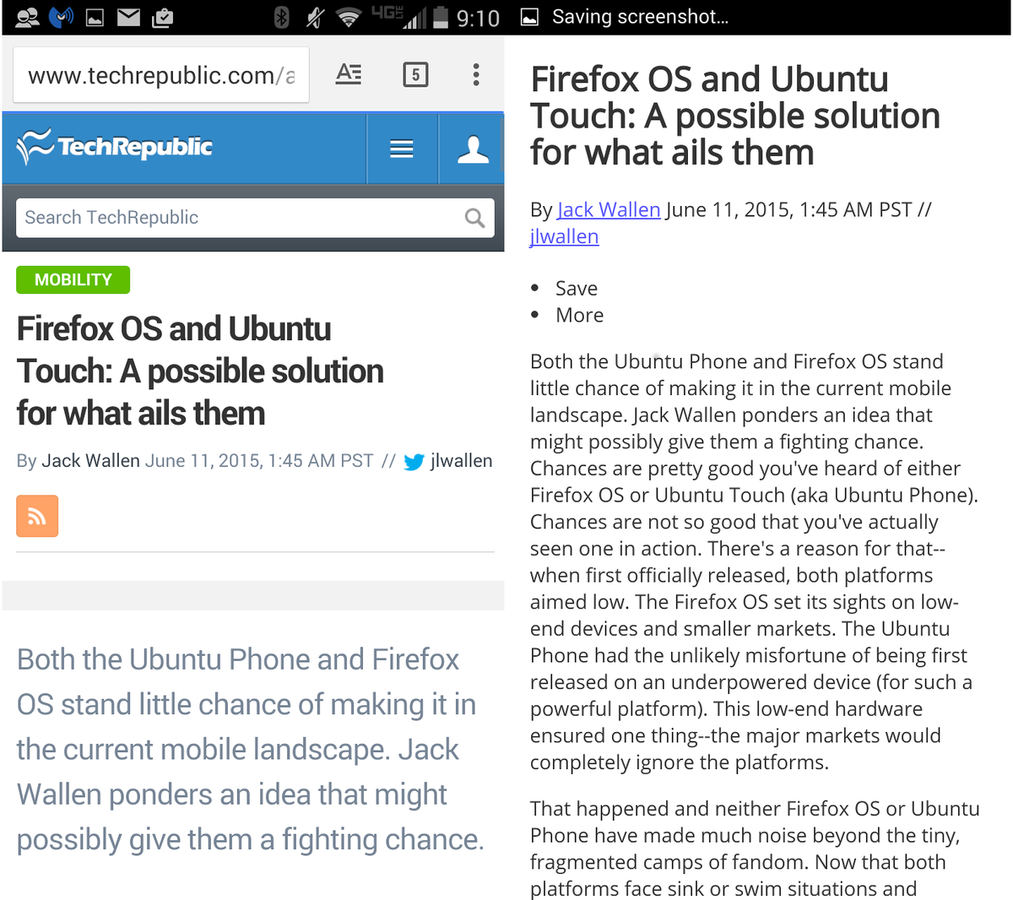
Reader mode on a Verizon-branded Droid Turbo.
Here’s how you enable the reader mode:
- Open Chrome on Android
- Enter chrome://flags in the address bar
- When the flags page appears, tap the menu button
- Tap Find in page
- Type reader
- In the Enable Reader Mode Toolbar Icon, tap Enable (Figure B)
- When prompted, tap Relaunch Now
Figure B
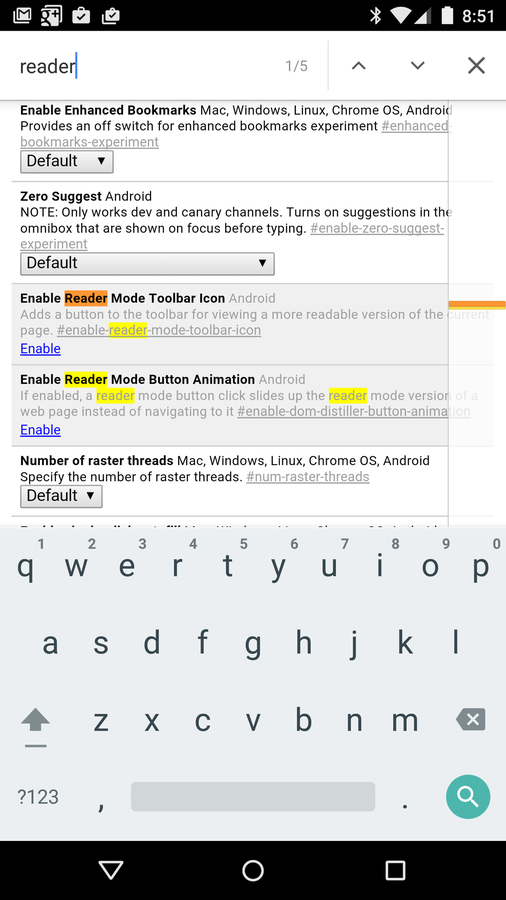
Finding reader in the flags page.
Once you’ve restarted Chrome, visit a website (like TechRepublic). When you open a page that’s compatible with the reader mode, a small icon will appear in the toolbar with the letter A. Tap that icon, and the page will re-render in reader mode.
Suggested search results
If you want instant gratification with your searching, you can enable a suggest search results that will start displaying answers to questions as you type them. Sometimes, the answers are incorrect (until you type out the whole question). Say, for example, you want to find the capital of any given state or country. You start typing and Google will anticipate your question and answer (Figure C). You’ll be surprised how accurate the answers can be.
Figure C
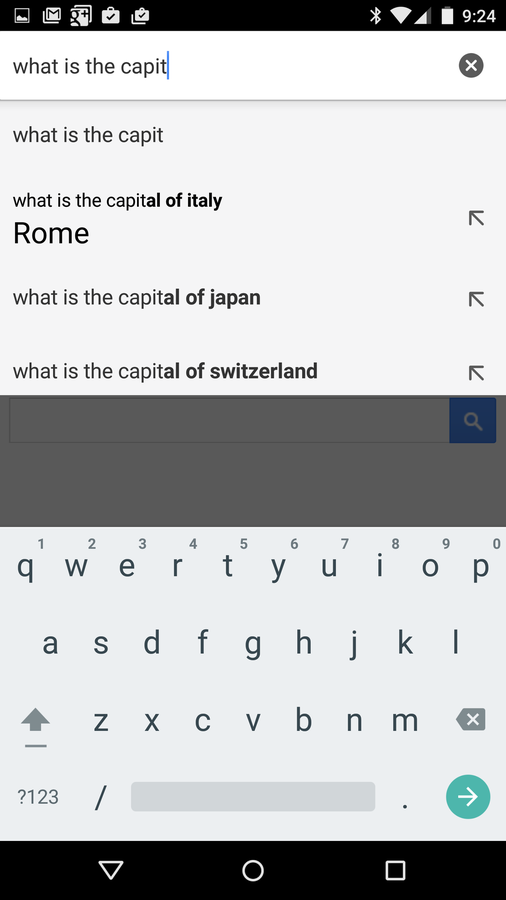
Suggested search results in action.
To enable this feature, do the following:
- Open Chrome on Android
- Enter chrome://flags in the address bar
- When the flags page appears, tap the menu button
- Tap Find in page
- Type answers
- When you see Answers in Suggest, tap Enable
- Relaunch Chrome when prompted
Browse and search faster
There are two hidden features that can give you a slight bump in browser performance. Cutting 300-450 ms from page loading doesn’t seem like much, but if you spend a lot of time on your mobile browser, that can add up.
First, we’ll enable faster browsing. What we’re going to do is disable the click delay found on links. What the default behavior does is disable click delay so that any link you tap will immediately open (by default, Chrome delays this to make sure you’re not trying to zoom in on a page). To disable click delay, do the following:
- Open Chrome on Android
- Enter chrome://flags in the address bar
- When the flags page appears, tap the menu button
- Tap Find in Page
- Type click
- Locate Disable click delay
- Tap Enable
- Relaunch when prompted
Now, you should be able to tap links even as the page loads. Please note that this feature can be a bit frustrating if you use zoom a lot within Chrome.
You can also gain a bit of speed from Google searches. What this effectively does is pre-fetch search results pages, so that when you tap on a link, it will load almost automatically. It’s much faster than the default behavior. There is, however, a caveat to this. All that background page loading can take a hit on your data plan. I suggest enabling this feature only if you do most of your Chrome searching on Wi-Fi.
To enable this feature, do the following:
- Open Chrome on Android
- Enter chrome://flags in the address bar
- When the flags page appears, tap the menu button
- Tap Find in Page
- Type prefetch
- Locate Prefetch search results
- Tap Enable
- Relaunch when prompted
Once it’s enabled, you’ll be surprised how much faster pages loaded when launched from search results.
There are quite a number of hidden features waiting to be explored. These hidden gems should help to make your Chrome on Android experience even better.
Have you come across a hidden feature on the default Android browser that’s become a deal maker? If so, please let us know in the discussion thread below.