Windows 10 keeps track of all the files and folders you open and displays that information in a number of locations within the user interface–such as Jump Lists associated with applications and the Frequent Folders and Recent Files sections of File Explorer’s Quick Access feature. But the goal of the Recent items list is to make it easy for you to access files that you use often. Instead of burrowing through File Explorer or an Open dialog box, you can access the Recent items list, select the file you’ve been using, and get right back to work.
Now, even though Recent items is a boon to your productivity, you will probably reach a point when you want to clear out the list and start over from scratch. In this article, I’ll show you how to do just that.
Must-read Windows coverage
- CrowdStrike Outage Disrupts Microsoft Systems Worldwide
- 10 Best Project Management Software for Windows in 2024
- Windows 10 Extended Security Updates Promised for Small Businesses and Home Users
- Securing Windows Policy
How it works
Before I show you how clear the list of Recent items, let’s look at how the feature works. If you launch File Explorer and select the Quick Access panel in the tree pane, you’ll find the Frequent Folders and Recent Files sections, shown in Figure A.
Figure A
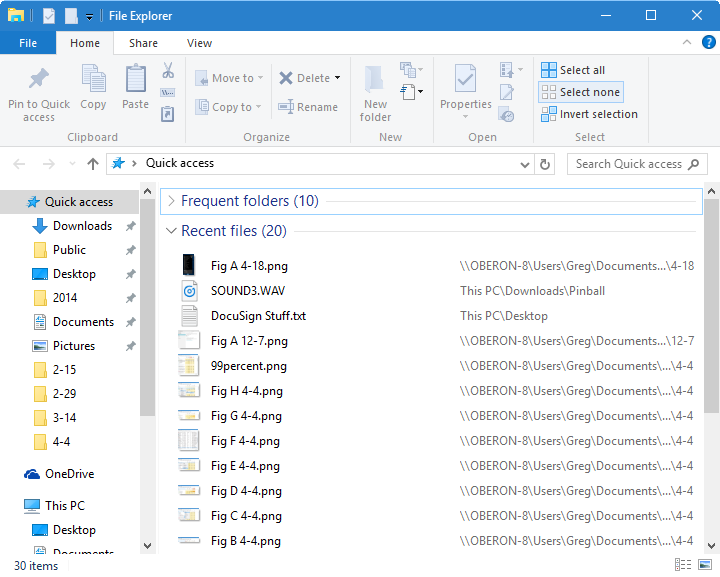
File Explorer’s Quick Access panel shows the Frequent Folders and Recent Files sections,
The Frequent Folders section displays the folders you access more than once, while the Recent Files section lists all the files you’ve recently opened, regardless of the file type. The file you opened most recently will appear at the top of the list.
Jump Lists, on the other hand, will show you a list of the files you have recently accessed with a particular application. For example, Word’s Jump List will display DOCX files and Notepad’s Jump List will display TXT files, as shown in Figure B.
Figure B
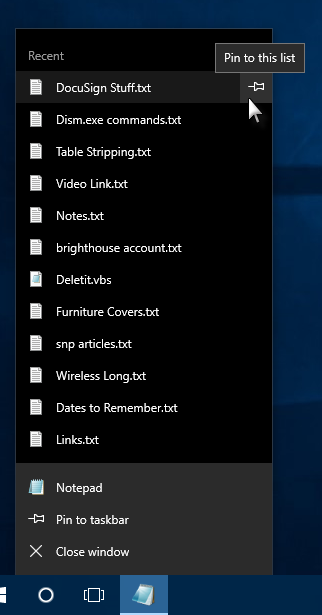
A Jump List will show all recent files associated with a particular application.
Once an item appears on a Jump List, you can make it remain on the list indefinitely. To pin the item to the list, click on the pushpin icon adjacent to the item.
- Of course, Windows follows a few rules when it comes to Recent items. According to a WindowsDev Center article covering the Recent items feature:
- A new item is always added at the top of the Recent items list.
- Items will move down in the list over time. Once the list is full (reaches the maximum number of items specified in markup), older items fall off the bottom of the list as new items are added to the top of the list.
- If an item already appears somewhere in the list but is accessed again, it moves back to the top of the list.
- If an item is pinned, it will still travel down the list, but it will not fall off the bottom. Instead, once the list is full, the first unpinned item above the pinned item will fall off when a new item is added to the list.
- If the number of pinned items ever reaches the maximum number of items, then no new items will get added to the list until an item is unpinned.
SEE: How to use Task Manager’s Processes tab to troubleshoot issues in Windows 10
Clear Recent items
You can clear all the Recent items by turning the feature off and then turning it back on again. To do so, access Settings from the Start menu and then open Personalization, as shown in Figure C.
Figure C
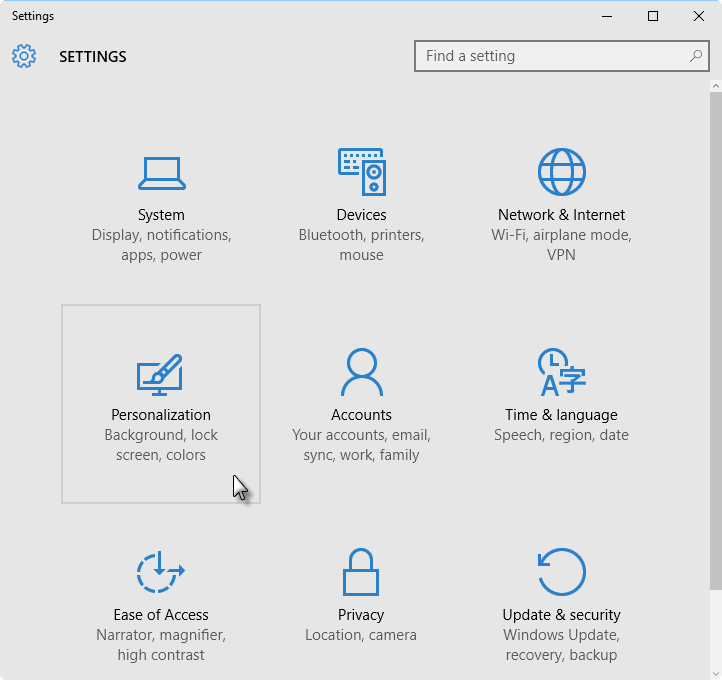
After you launch Settings, select the Personalization tile.
When the Personalization window appears, select the Start tab to access the settings shown in Figure D. Then, toggle off the Show Recently Opened Items In Jump Lists On Start Or The Taskbar option. As soon as you do, all the Recent items will be cleared. (Anything that you have explicitly pinned will remain.) You can then switch the toggle back to On.
Figure D
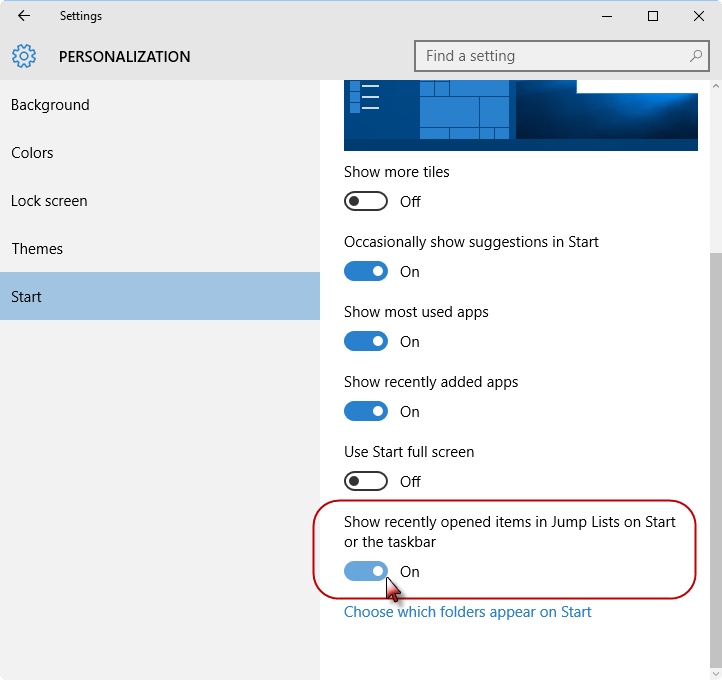
On the Start tab, turn the toggle switch to Off and then back to On.
Also read…
- The Universal Windows Platform flexes its muscles at Build 2016
- The Windows 10 roadmap provides in-depth details on Device Guard and Credential Guard
- Windows 10 rollout: Unwary small firms complain of unwanted upgrades
- Windows 10: The best new features coming to Microsoft’s latest OS (pictures)
What’s your take?
How much do you rely on the Windows 10 Recent items feature? Share your experiences and advice with fellow TechRepublic members.