


The founder of ownCloud has started a new company called Nextcloud; the stated purpose of Nextcloud is to access and share your files and more from any device. The ownCloud server worked quite well, and Nextcloud looks equally as promising.
I installed and tested the Nextcloud server as well as the Android app, and both do a great job considering the company is just getting off the ground (it’s obvious Nextcloud is only building on what ownCloud started). I’ll walk you through the process of connecting the Nextcloud Android app to your Nextcloud server.
SEE: Speculations on why ownCloud’s founder forked its popular product into Nextcloud
The Nextcloud server
Anyone interested in testing the Nextcloud server can spin it up with the help of a snap package. If you’re running Ubuntu Linux, open a terminal window and issue the command sudo snap install nextcloud. The snap will download and install everything necessary to run the Nextcloud server. Point your browser to the IP address of the machine, add an administrative user, and you’re ready to go.
Cloud: Must-read coverage
- CrowdStrike Outage Disrupts Microsoft Systems Worldwide
- Quick Glossary: Cloud Platform Services
- Achieving Cost Efficiency in Cloud Storage: The Role of Western Digital’s Hard Drive Portfolio
- Still Not Backing Up Microsoft 365 Data? Here’s Why That’s a Risky Move
- Verito vs. Rightworks: Which IT Provider Is Best for Your Firm?
Believe it or not, it
’
s that simple
—
thank you,
Canonical and snap packages.
The snap version of Nextcloud is limited in features. You can’t do much in the way of configuration; this is only a way to test how Nextcloud works. If you want the full-blown version, you’ll have to walk through the somewhat complicated steps of manually installing Nextcloud.
Installing the Nextcloud Android app
The first thing you must do is install the Nextcloud app. Here’s how.
- Open the Google Play Store on your Android device.
- Search for nextcloud.
- Locate and tap the entry by Nextcloud.
- Tap Install.
- Read the permissions listing.
- If the permissions listing is acceptable, tap Accept and allow the installation to complete.
Once installed, you’ll find a launcher for Nextcloud in your app drawer and/or on your home screen.
Connecting the Nextcloud app to your server
When you fire up the Nextcloud app, you’ll be asked to enter your server’s server address, username, and password (Figure A).
Figure A
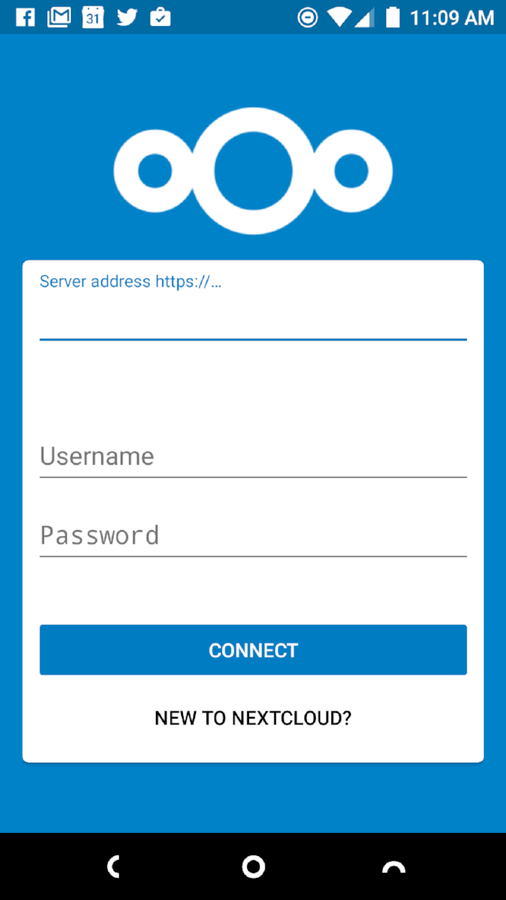
Connecting to Nextcloud, for the first time, on a Nextbit Robin.
If you’re connecting to a snap package install of Nextcloud, you’ll enter only the IP address (using https). If you’re attempting to connect to a full-blown installation, this will depend upon how you configured Apache. In my case, I had to use the following address:
https://192.168.1.228/nextcloud
If you didn’t set up Apache to work with SSL, that same address would be:
http://192.168.1.228/nextcloud
If you did configure Apache to work with SSL, you’ll also have to okay the certificate. After you tap YES, you should see Secure Connection Established displayed under the server address (Figure B).
Figure B
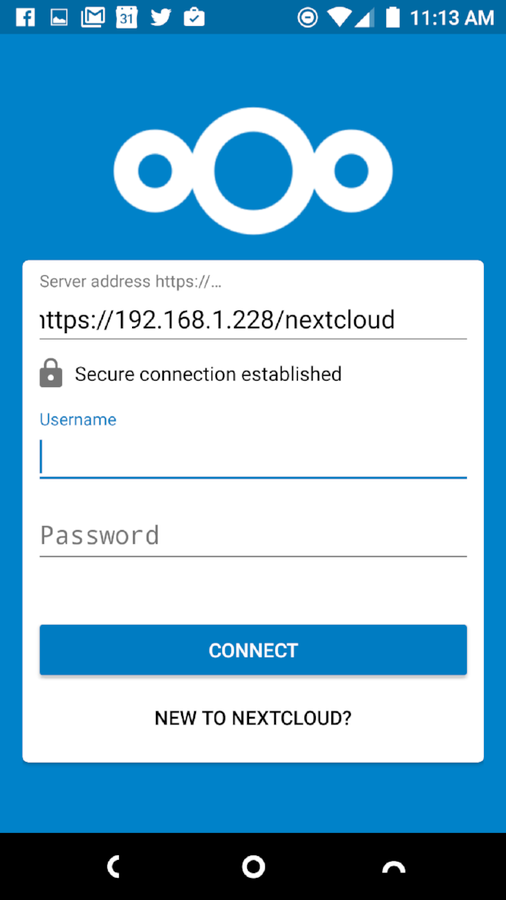
Your https connection is ready to go.
After you connect to the server, you’ll have to allow Nextcloud access to photos, media, and files on your device. Tap ALLOW when prompted, and your Nextcloud folders will appear on your device. You’re ready to create folders and upload/download files to/from your Nextcloud server.
Your personal cloud, your way
Nextcloud could serve any individual or company as an in-house cloud for easy file storage and sharing. It’s powerful; it’s free; and it’s fully open source, so you can serve up your cloud…your way.