



Two-factor authentication is a must–if you’re not using it, you should immediately. If you’re already using two-factor authentication, you’re probably working with one of the few outstanding tools that make this extra layer of security possible.
One such tool is Authy, which generates 2-step verification tokens on your device for the likes of Google, Amazon, SSH, Facebook, Dropbox, and more. In other words, it’ll do the same thing as Google Authenticator, but Authy has a trick up its sleeve Authenticator can’t match.
With Authy, you can add a second device to your account. That’s right, with an Authy account, you have multiple devices to hand out those verification tokens. This can come in very handy when you bounce between smartphone and tablet, or personal and company device. When you don’t want to have to carry two devices around, it’s good to know you can add both to Authy. Here’s how.
SEE: MDM for Android devices: What your business needs to know (ZDNet)
First things first
I assume you already have one device set up and registered with Authy, and all of your two-factor-enabled accounts configured and working on the app; we’ll call that your Primary Device. You’ll need to have the phone number for the Primary Device at the ready.
Installing Authy
Must-read security coverage
- UK Police Convicts Pair in £5.5 Billion Bitcoin Launder Case
- Blackpoint Cyber vs. Arctic Wolf: Which MDR Solution is Right for You?
- How GitHub Is Securing the Software Supply Chain
- 8 Best Enterprise Password Managers
Let
’
s install Authy on the Secondary Device.
- Open Google Play Store on the Secondary Device.
- Search for authy.
- Locate and tap the entry by Authy Inc.
- Tap Install.
- Read the permissions listing (if applicable).
- Tap Accept.
- Allow the installation to complete.
You’ll find the Authy launcher on your home screen, or in your App Drawer, or in both spots. Tap the Authy icon to launch the app.
Connecting the Secondary Device
When you first run Authy, you’ll be prompted to enter a phone number (Figure A). You must enter the phone number of the Primary Device on the Secondary Device.
Figure A
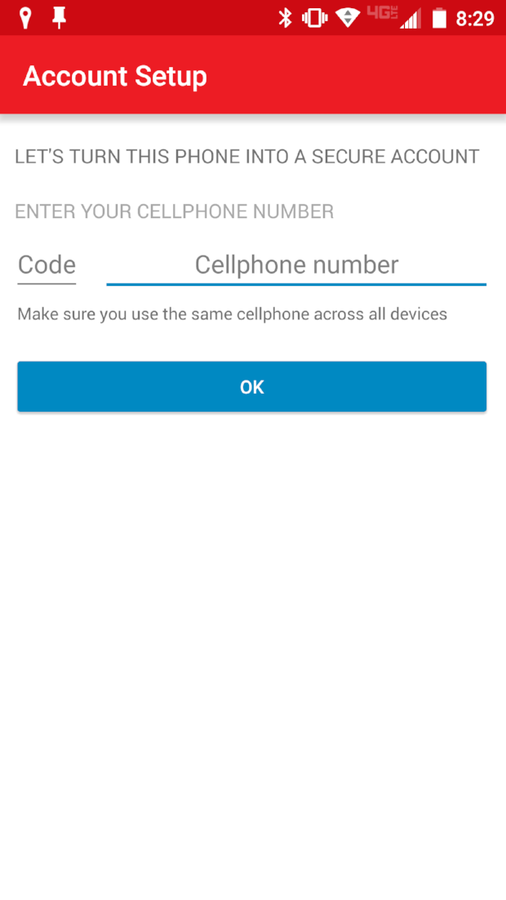
Setting up Authy on a Verizon-branded Droid Turbo.
Once you enter the phone number for the Primary Device, tap OK and go back to your Primary Device and check for an SMS message. Once that message arrives, locate the six-digit PIN from Authy and enter it in the prompt on the Secondary Device and tap OK (Figure B).
Figure B
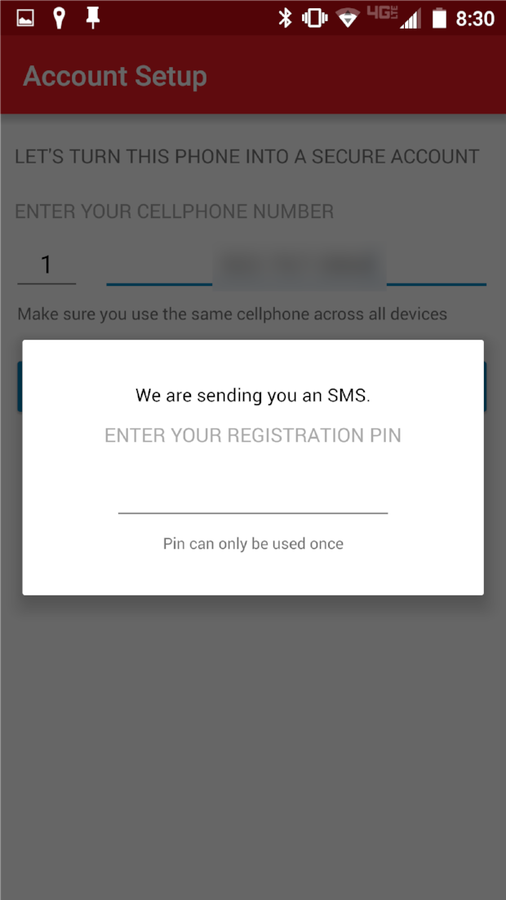
Entering the verification PIN on the Secondary Device.
At this point, all of your associated accounts will show up along the bottom of the Authy app. Each account will be tagged as NEW and won’t be made available to you until you enter your Authy backups password for the first time (Figure C).
Figure C
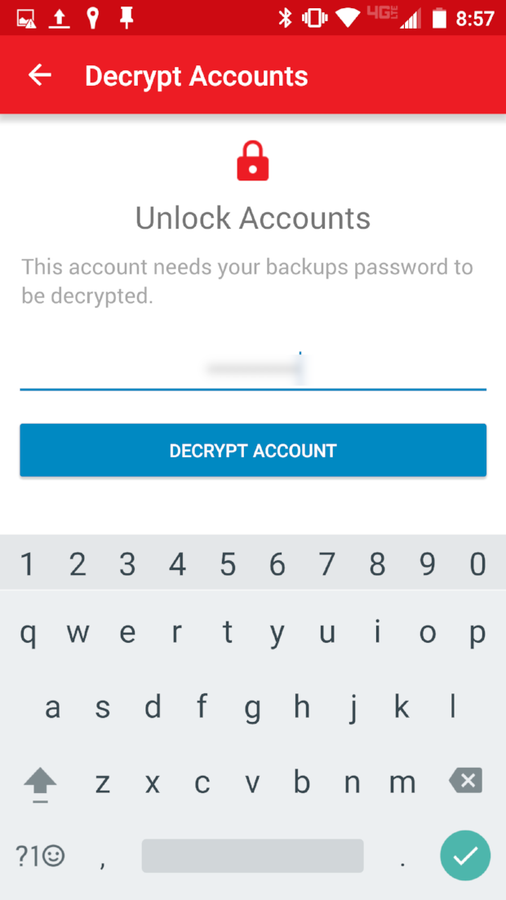
Once you enter your backups password, your accounts will be made available.
You are now ready to use Authy on the second device. If you need more than two devices, you can add more…just remember to always use the Primary Device phone number when setting them up.
Team usage
Because you can add as many devices as necessary, this makes it possible to hand out Authy (set up with multiple accounts) to a team of users…all working with two-factor authentication on those precious accounts. Considering how data security is at a prime, you should certainly invest the time in setting up Authy on all the devices necessary to make two-factor authentication happen for you and/or your team.