


Must-read Windows coverage
- CrowdStrike Outage Disrupts Microsoft Systems Worldwide
- 10 Best Project Management Software for Windows in 2024
- Windows 10 Extended Security Updates Promised for Small Businesses and Home Users
- Securing Windows Policy
The System Information tool in Windows 10 displays configuration details about your computer, including information about the main components, hardware resources, and system software. While being able to see all this information is a nice way find out specific information about your system, it can also help you troubleshoot problems related to your system configuration.
More specifically, you can use it to create what I call configuration data sets you can use to compare past and present configurations. Basically, you create a configuration data set when your system is functioning normally. Then, if your system begins to behave oddly, you can compare the current configuration data set with the one you created earlier and see what has changed.
In this article, I’ll show you how to use System Information to create and use configuration data sets as a troubleshooting tool by comparing past and present configurations.
What System Information shows
Launching System Information is easy. To do so, press the Windows key and type System Information. When you see see the desktop app icon in the results pane, shown in Figure A, just click it.
Figure A
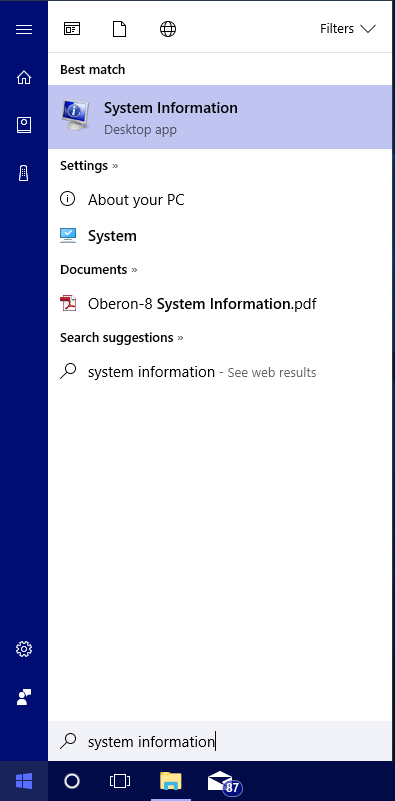
You can launch System Information from the Start menu.
Each time you launch System Information, it examines your system and displays detailed configuration information about your computer, as shown in Figure B. To display all that data, System Information employs an expandable tree structure to break down system configuration information into four categories:
- System Summary displays a general profile of your computer and the operating system, including CPU type, amount of RAM, and information about the page file.
- Hardware Resources displays detailed information about hardware resources, including DMA, IRQ, and the I/O channel.
- Components displays details about each of the main components in your system, such as storage devices, display devices, and network adapters.
- Software Environment displays information about the system software configuration, including signed drivers, installed and running programs, network connections, and running tasks.
Figure B
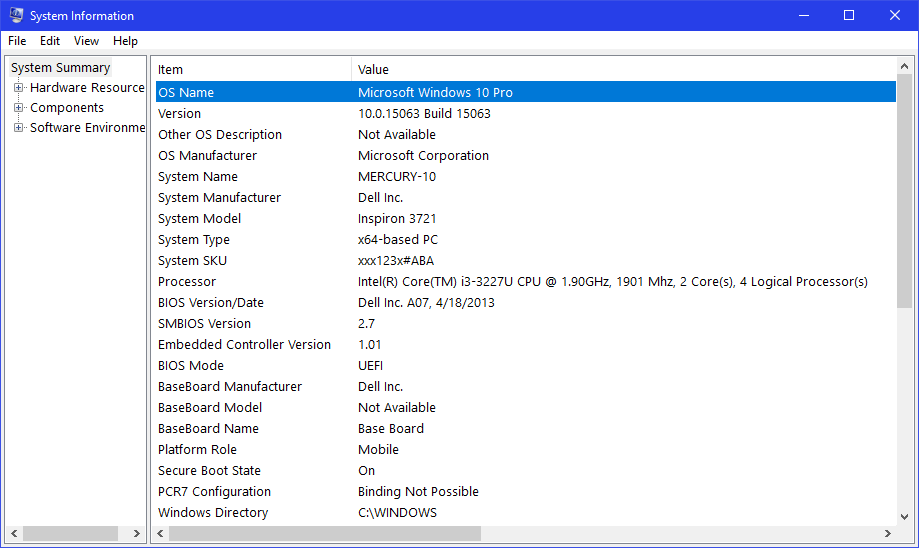
System Information displays detailed configuration information about your computer.
If you know what you’re looking for but aren’t sure of its location, you can use the Find What feature at the bottom of the System Information screen. If you don’t see it, just press Ctrl+F or pull down the Edit menu and select the Hide Find command to remove the check mark.
When you use the Find What feature, shown in Figure C, you can search through the configuration data in three ways: You can search the entire tree, you can select the Search Selected Category Only checkbox, or you can select the Search Category Names Only checkbox.
Figure C
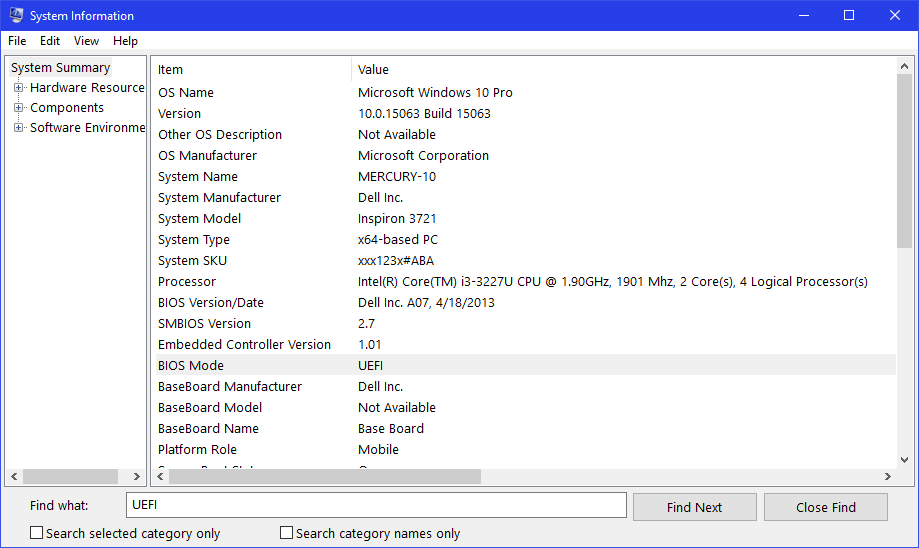
The Find What feature in System Information gives you three ways to search through the configuration data.
SEE: Video: How to change drive letters in Windows 10 (TechRepublic)
Creating a configuration data set
Once you have System Information up and running, creating a configuration data set is easy. Just press Ctrl+S or pull down the File menu, select the Save command, and save your configuration data set as a System Information File (.NFO file). Be sure that you append the date to the end of the filename. For example, you might use the filename System Information 07-17-17.nfo, as shown in Figure D.
Figure D
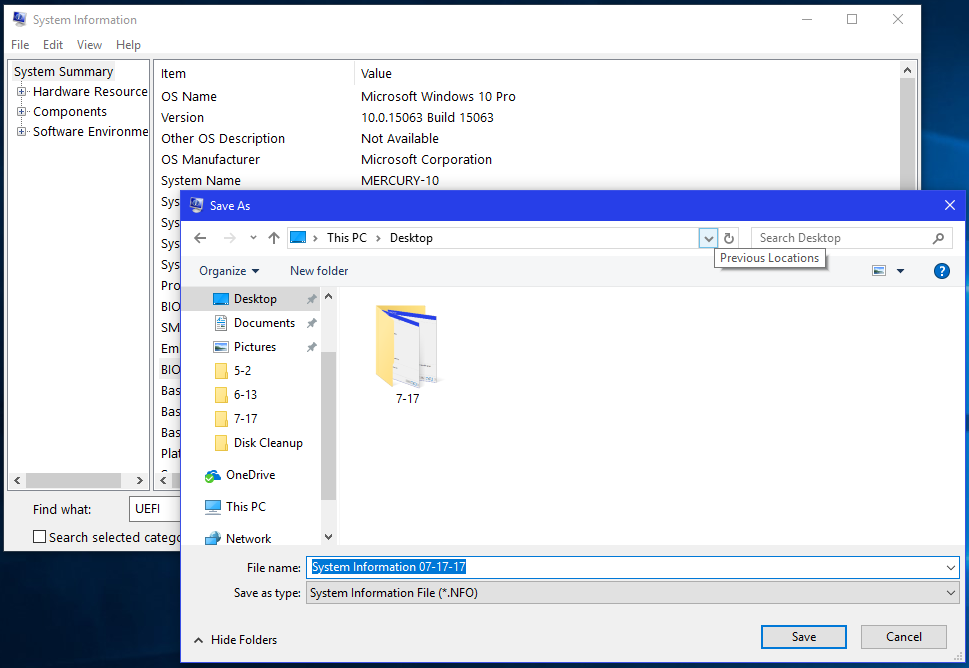
Save your configuration data set as a System Information File.
Troubleshooting with configuration data sets
Once you’ve created a System Information File, you can use System Information to compare the past and present configurations. To do so, launch two instances of System Information and then load the System Information File in one instance by choosing Open from the File menu and locating the configuration data set you created earlier.
Position the windows as shown in Figure E and then scan for differences between the current configuration and your old configuration in the file. You can tell the two windows apart because one shows your file at the top of the tree.
Figure E
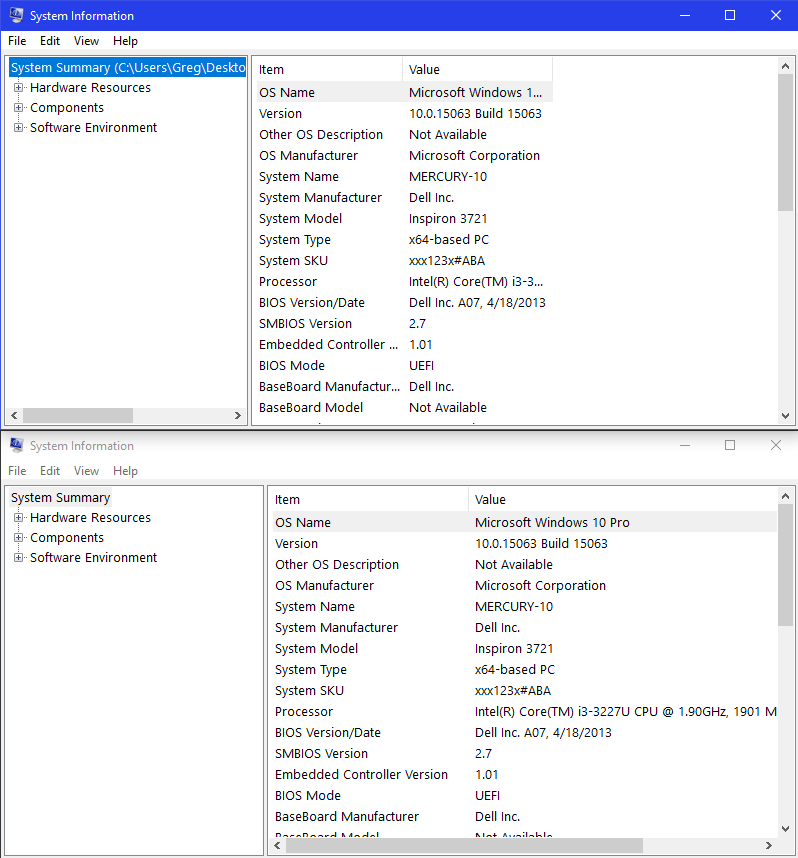
You can launch two instances of System Information and then scan for differences.
Also read…
- How to bypass the Windows 10 Start menu with virtual program groups (TechRepublic)
- How to troubleshoot Windows 10 hardware issues with Device Manager’s views (TechRepublic)
- Windows 10 tip: More secret shortcuts to your favorite settings (ZDNet)
- Microsoft Universal Windows Platform Expert Bundle (TechRepublic Academy)
What’s your take?
Do you use System Information as a troubleshooting tool? Share your experiences and advice with fellow TechRepublic members.