


No matter how many features Microsoft crams into its operating system, users will always look for a faster, better, or different way of doing things. One example of Microsoft’s acknowledgment of this behavior is Microsoft PowerToys. This free download can manage application windows, rename files in bulk, preview file contents, and more.
This TechRepublic cheat sheet describes each available tool or feature provided by Microsoft PowerToys and describes what each system utility can do.
When was Microsoft PowerToys first made available?
This set of slightly unusual free Windows tools has been part of the Windows operating system landscape since Windows 95. That first set of 15 free utilities was published and endorsed by Microsoft and made available for free download. Their availability was noticeably absent for Windows 10 and Windows 11 — at least until September 2019.
With the general release of Microsoft Windows 11, developers now refer to this project as Microsoft PowerToys rather than Windows 10 PowerToys.
From the beginning, PowerToys was designed for “power users” who were seeking ways to tweak how the operating system functions. In some cases, inexperienced users could make a careless change while using a PowerToys utility, which could wreak havoc within the Windows operating system. As such, novice users have often been encouraged to use caution.
For the most part, though, PowerToys has allowed users — whether they considered themselves power users or not — to more easily tweak the look and feel of Windows without a deep dive into configuration screens or the dreaded and dangerous edit of the Windows Registry file.
Even in the earliest iterations of PowerToys, Microsoft offered users many valuable functionalities. Windows 95 PowerToys included:
- TweakUI was used to tweak obscure Windows settings.
- CD Autoplay allowed all CDs to autoplay, not just audio CDs.
- Command Prompt Here opened a command prompt is opened in the current directory.
- Explore from Here opened File Explorer in the current directory.
- FlexiCD allowed users to control audio CDs from the Taskbar.
- Xmouse 1.2 allowed users to change window focus by moving the mouse cursor, so no clicks were needed.
Through the years and various Windows versions, individual PowerToys have come and gone. Each Windows version inspired a new set of tools based on what developers perceived was needed to improve and enhance that version.
Why are Microsoft PowerToys important?
Microsoft PowerToys provides tools and features that can make Windows operating system users more productive and, by extension, happier. Over the years, many users have come to depend on one or more of these PowerToys for their daily computer productivity. For many power users, PowerToys improve their quality of work and life.
SEE: Secure Windows 11 systems with this checklist from TechRepublic Premium.
Beyond making users more productive, PowerToys has also provided a glimpse into what features and tools could and should become an integral part of the Windows operating system in the future. Many of these once-separate tools have become just another part of the operating system during its next iteration.
How can I get Microsoft PowerToys?
Traditionally, each Microsoft PowerToy has been offered as a separate executable file, available for free download from a specific Microsoft website.
Microsoft has taken a slightly different approach for Windows 10 and 11. All Windows 10 and 11 PowerToys are now included in a free downloadable system that users can configure.
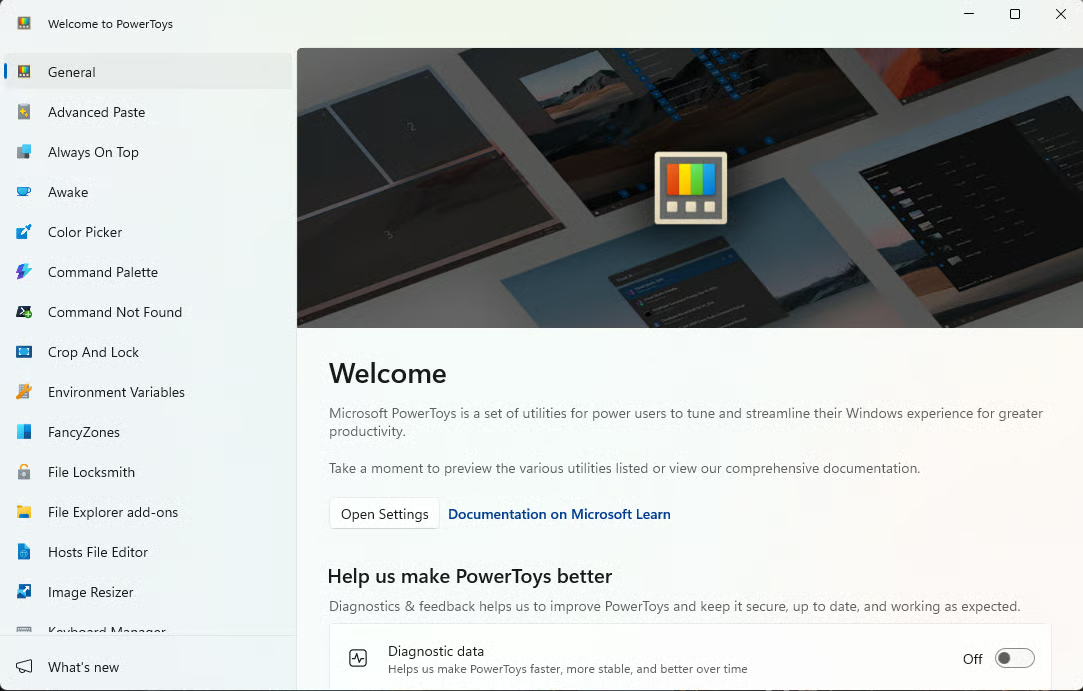
The newest version of Microsoft PowerToys is v0.93, and it is now available on GitHub.
Release 0.93 changes the PowerToys settings app, which runs in the background of any PowerToys operation. Settings now has “modern, card-based dashboard with clearer descriptions and faster navigation for a streamlined user experience,” according to the release notes. Over 99 issues in Command Palette were resolved, while startup memory usage of Command Palette was reduced by about 15% and load time by about 40%.
See the PowerToys releases page on GitHub for the complete list of changes.
These PowerToys are currently available:
- Always On Top.
- Awake.
- Color Picker.
- Command Not Found.
- Crop and Lock.
- Environment Variables.
- FancyZones.
- Preview pane and thumbnail rendering for File Explorer.
- File Locksmith.
- Hosts File Editor.
- Image Resizer.
- Keyboard Manager.
- Mouse utilities.
- Mouse Without Borders.
- New+
- Advanced Paste.
- Peek.
- PowerRename.
- PowerToys Run.
- PowerToys Workspaces.
- Quick Accent.
- Registry Preview.
- Screen Ruler.
- Shortcut Guide.
- Text Extractor.
- ZoomIt.
SEE: All of TechRepublic’s cheat sheets and guides
What can Microsoft PowerToys do?
Here is a list of available Microsoft PowerToys with a brief description of what each toy does.
FancyZones
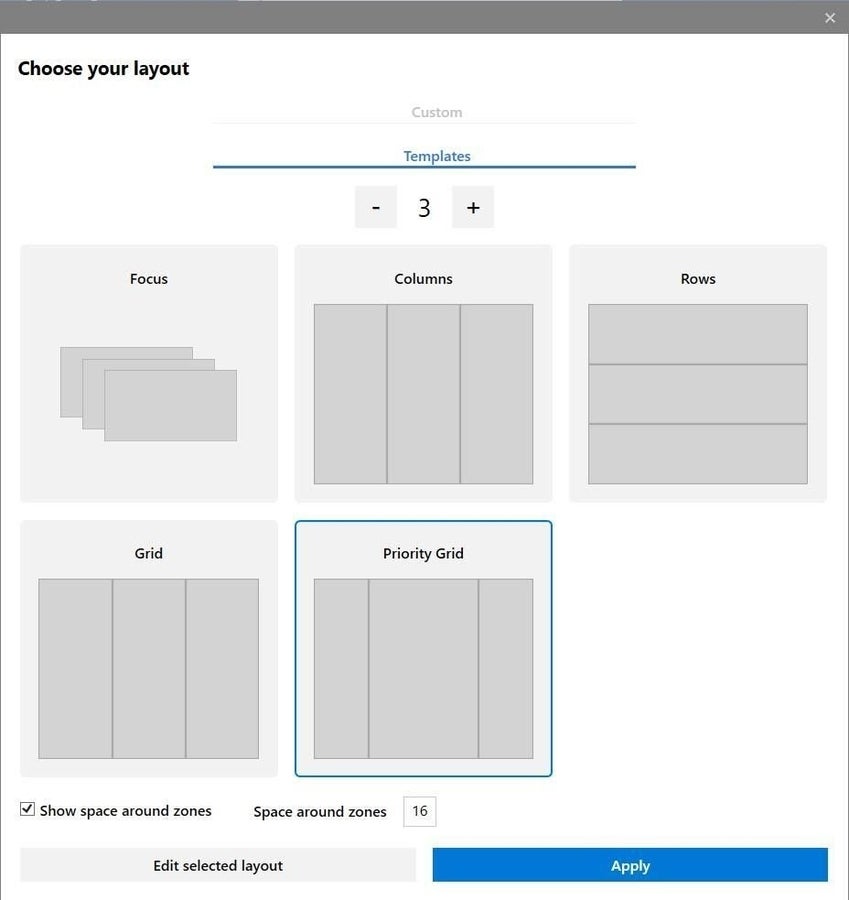
FancyZones allows users to manage where and how each open application window on a Windows desktop will display.
SEE: Windows 11 brings the Copilot AI assistant along with it. (TechRepublic)
For example, you could use FancyZones to set up a Windows 10 desktop where Outlook always displays on the right-hand side of the desktop, Twitter or other social media always displays on the left-hand side of the desktop, and Word or Excel always displays on the middle between the other two. There would be three distinct and perpetual zones displayed at all times.
Windows key Shortcut Guide
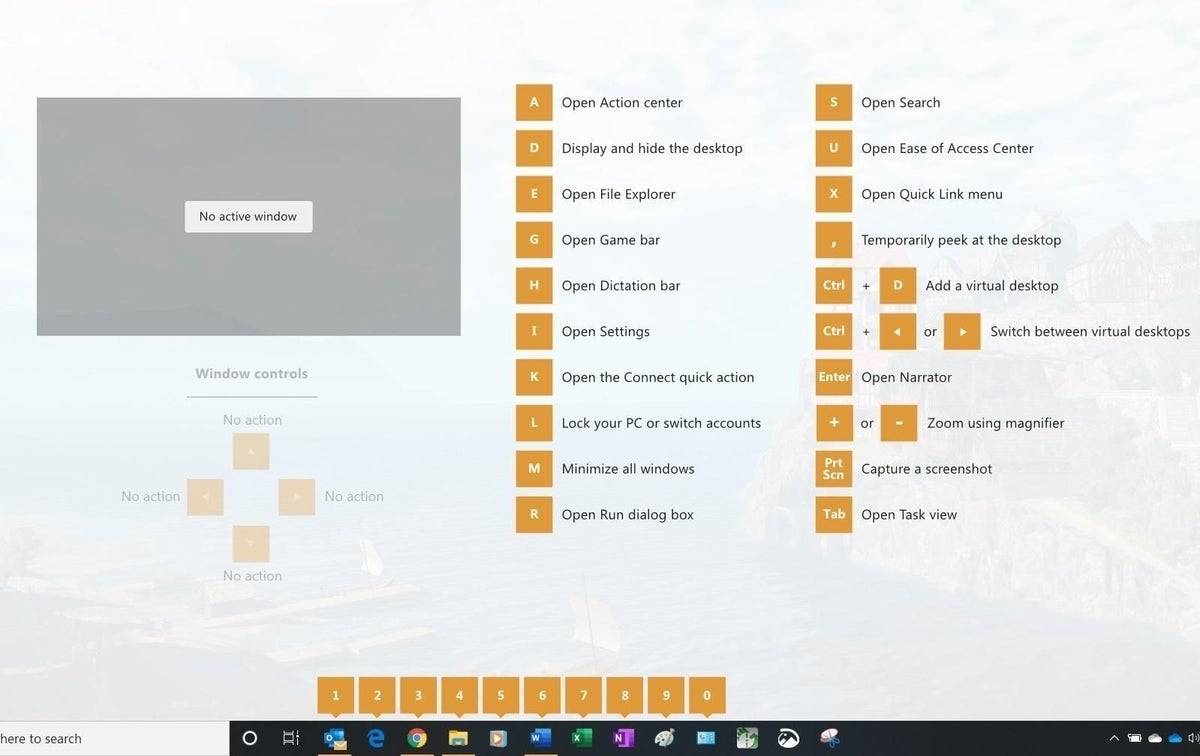
The Windows key Shortcut Guide displays all of the available keyboard shortcuts for the current Windows desktop. This PowerToy is activated by holding the Windows key down for the length of time specified in the tool’s configuration settings. The default is 900ms.
With this feature, users don’t have to remember so many Windows key-related shortcut combinations.
PowerRename
The PowerRename Windows PowerToy provides users with advanced tools for bulk renaming of files. The toy extends the Windows Shell Context Menu to add an entry for PowerRename to File Explorer.
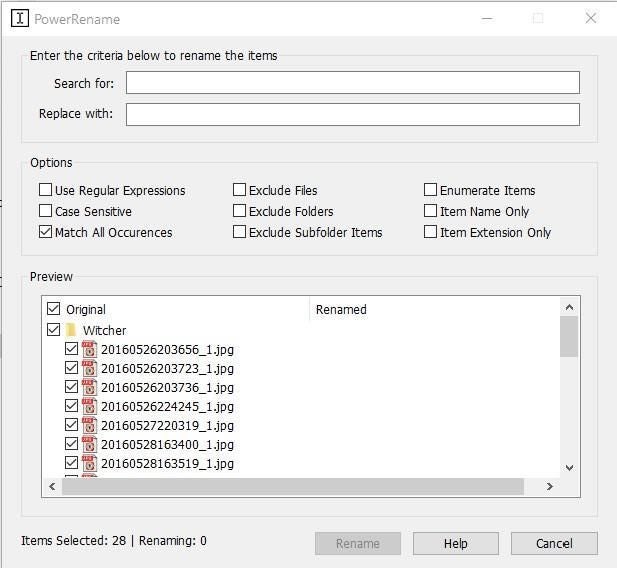
With PowerRename enabled, simple search and replace or more powerful regular expression matching are added to your toolset for the bulk renaming process. A preview area is displayed as you perform search and replace procedures so you can see how file names will change before initiating the action.
SEE: How to batch rename files in Windows 10 with the PowerToys PowerRename tool
Preview Pane add-ons for File Explorer
This Windows PowerToy expands on the Preview Pane feature already available in the standard File Explorer application by adding additional file types. Preview Pane add-ons for File Explorer allow users to preview the contents of a file after clicking it in File Explorer without actually opening the file.
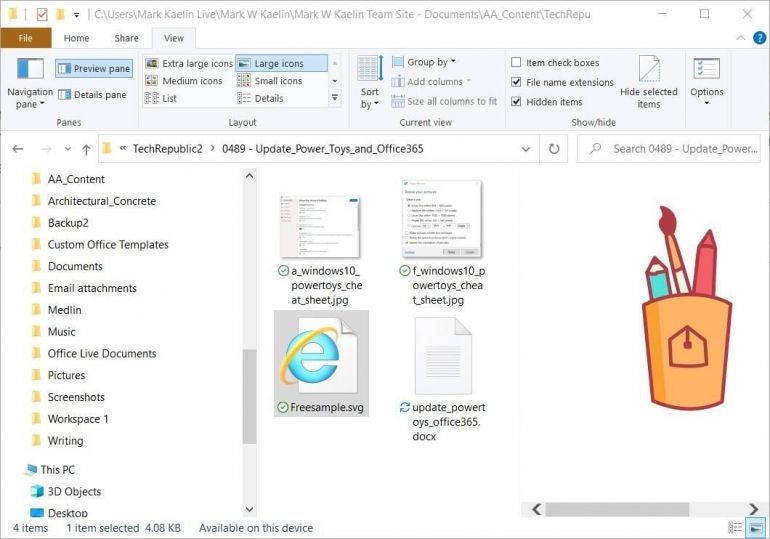
Version 0.16.0 adds preview support for Scalable Vector Graphics (.svg) and Markdown (.md) files. Subsequent PowerToys releases have added more file types, including source code files and geometric code.
Image Resizer
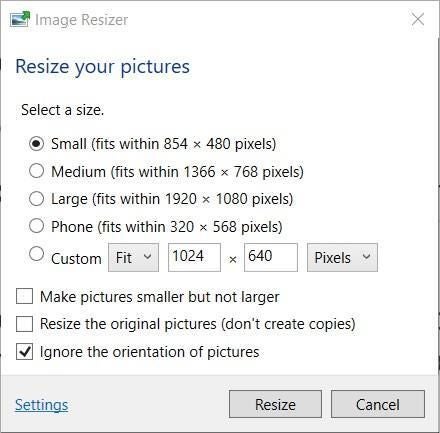
The Image Resizer Windows PowerToy adds more functionality to File Explorer by allowing users to apply bulk image resizing. Users can select images in File Explorer and then select the new Resize Pictures item on the context menu, revealed with a right-click on any image.
Window Walker
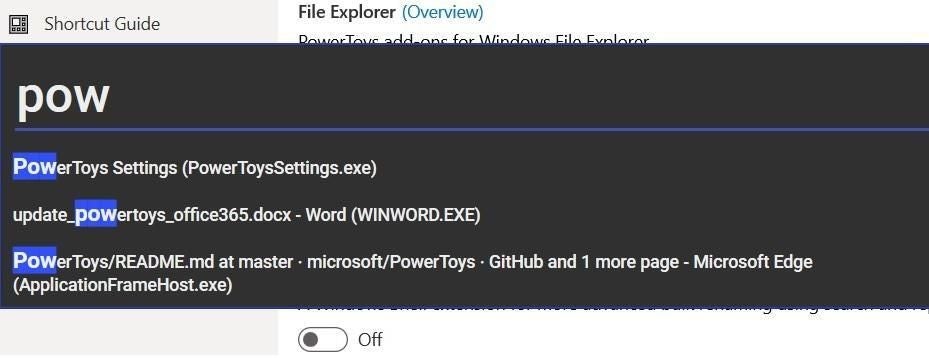
The Window Walker Windows PowerToy is designed to be an alternative to the standard Alt-Tab feature in Windows 10 and Windows 11. Users press the CTRL-Windows key combination instead of Alt-Tab to pull up a search box. Users then enter keywords into the search box to narrow down the currently open apps and screens on their desktops.
SEE: How to find open apps with the Window Walker tool in Windows 10 PowerToys
PowerToys Run
PowerToys Run acts as a quick launcher on Windows. It is another extension of the ALT-Tab concept and taps into the Windows file indexing system. To activate the tool, use the keyboard combination ALT-Space and start typing the name of your desired application.
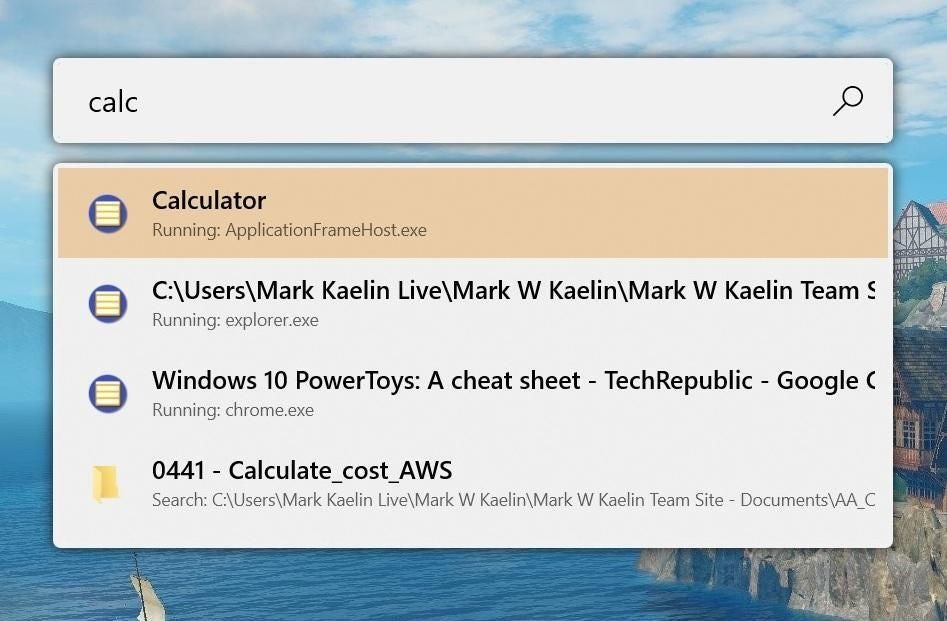
PowerToys Run will search the system and list possible applications based on your search phrase. When the application you desire appears, click or tap to run.
SEE: How to use Windows 10 PowerToys Run to open applications, folders, and files
PowerToys Workspaces
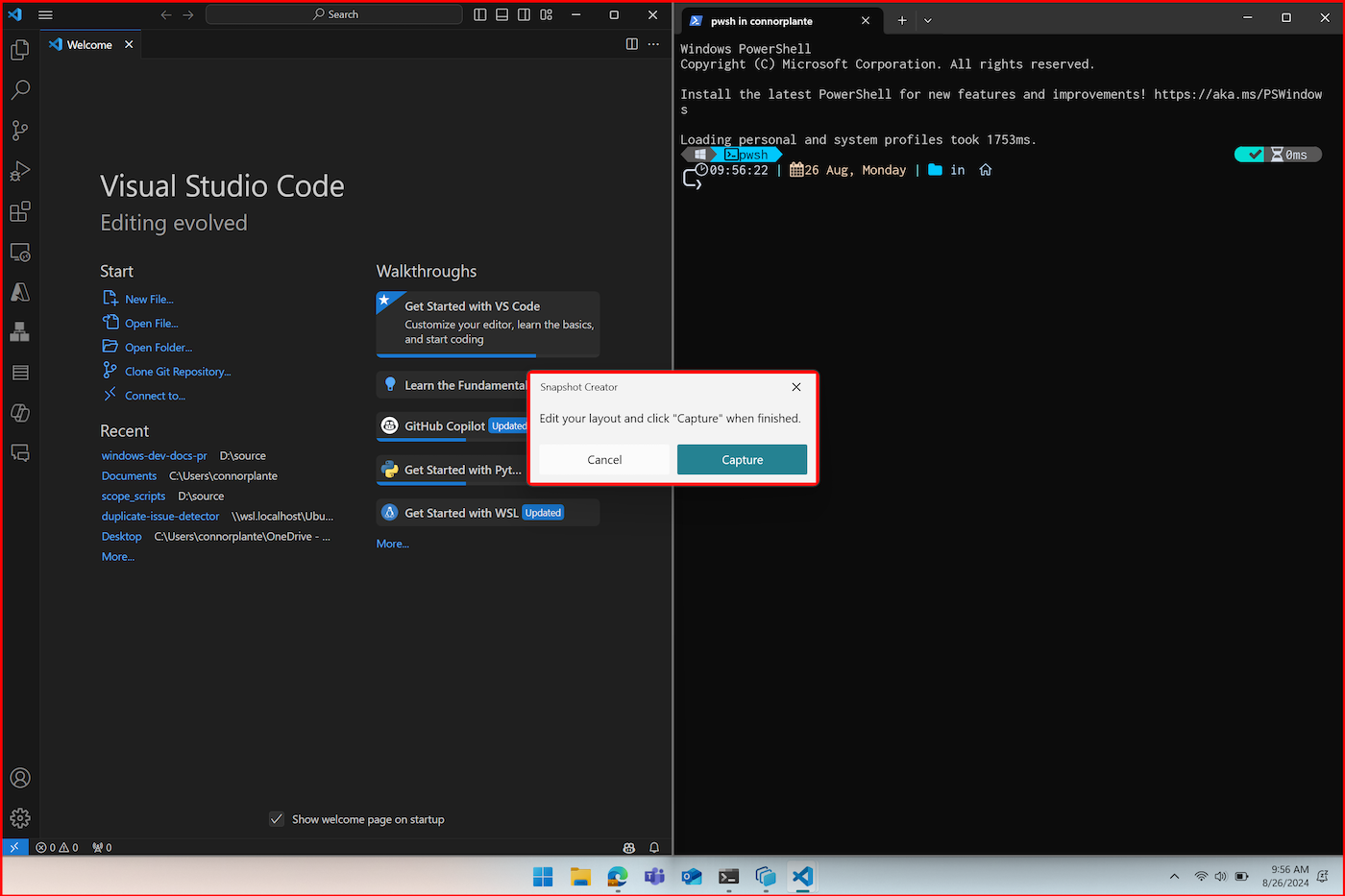
PowerToys Workspaces enables users to launch multiple applications into preset window configurations at the same time. For example, it can automatically place Visual Studio Code next to a browser to save some time when setting up both applications.
Workspaces configurations can be set up in multiple ways: from Workspaces Editor or from a desktop shortcut. Doing so in the Workspaces Editor allows for some additional customizations, such as automatically applying “launch as admin” modifiers.
Keyboard Manager
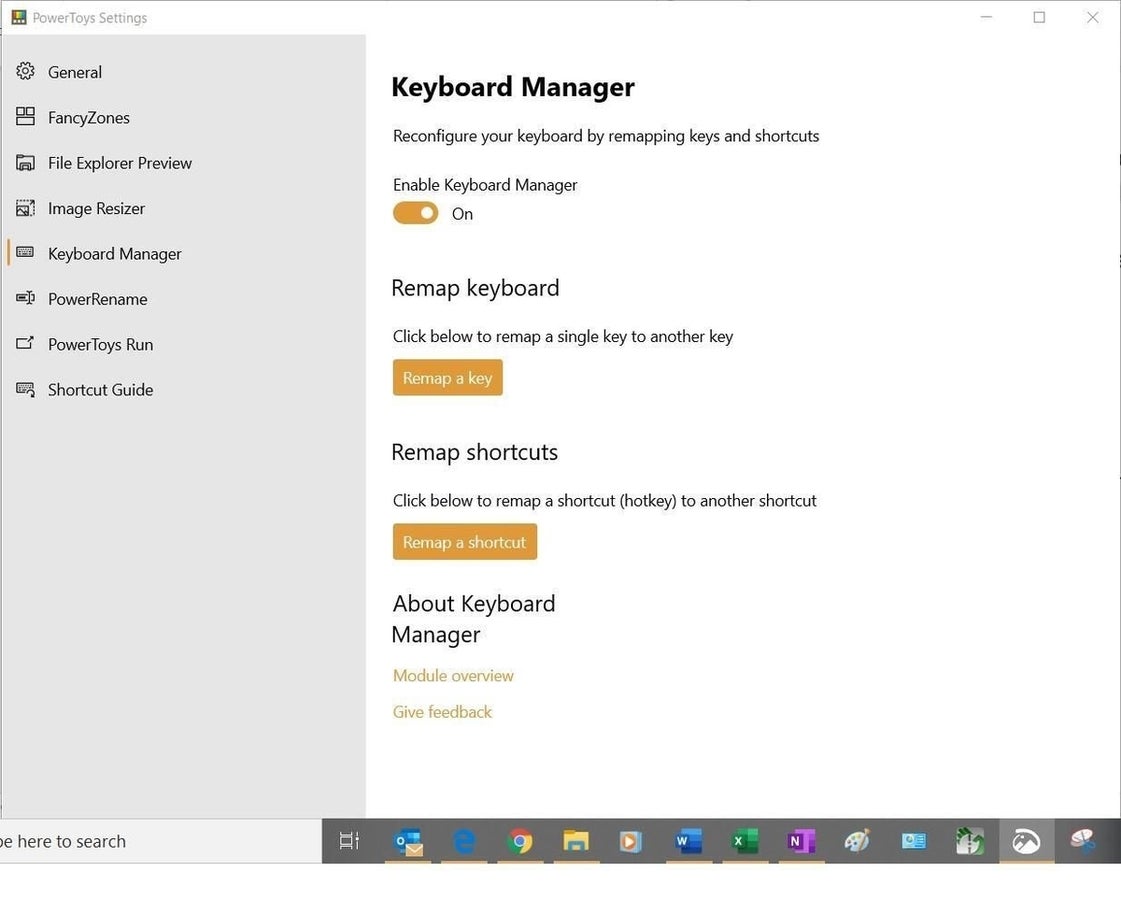
The Keyboard Manager application in Microsoft PowerToys is a simple keyboard remapper. Run the application from the PowerToys menu and either remap a single key on your keyboard or remap a shortcut keyboard combination. Whatever you remap will remain active if Keyboard Manager is enabled and PowerToys runs in the background.
Color Picker
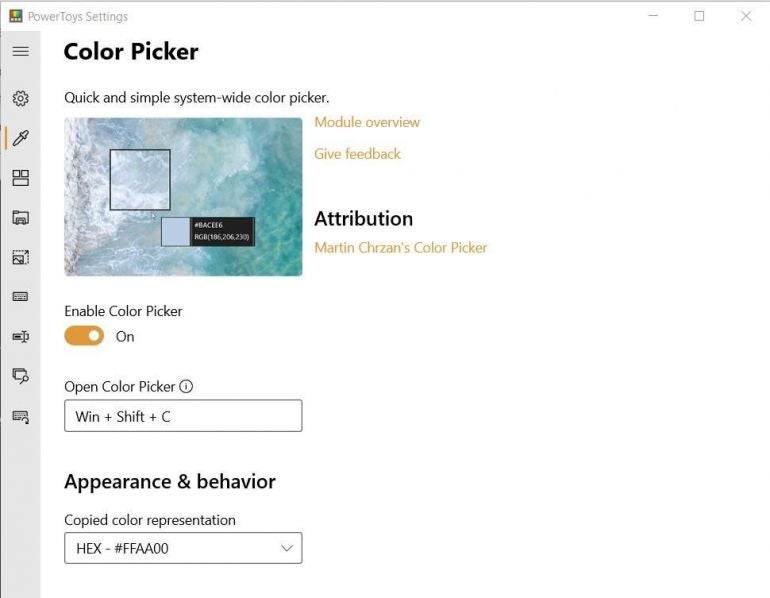
Color Picker was contributed to the Microsoft PowerToys project by Martin Chrzan. The utility allows you to identify any color on your screen by either its HEX or RGB code and then save that information to the Windows clipboard for later use. It is a simple tool that can save time and prevent frustration for developers and content creators working on color design.
Awake
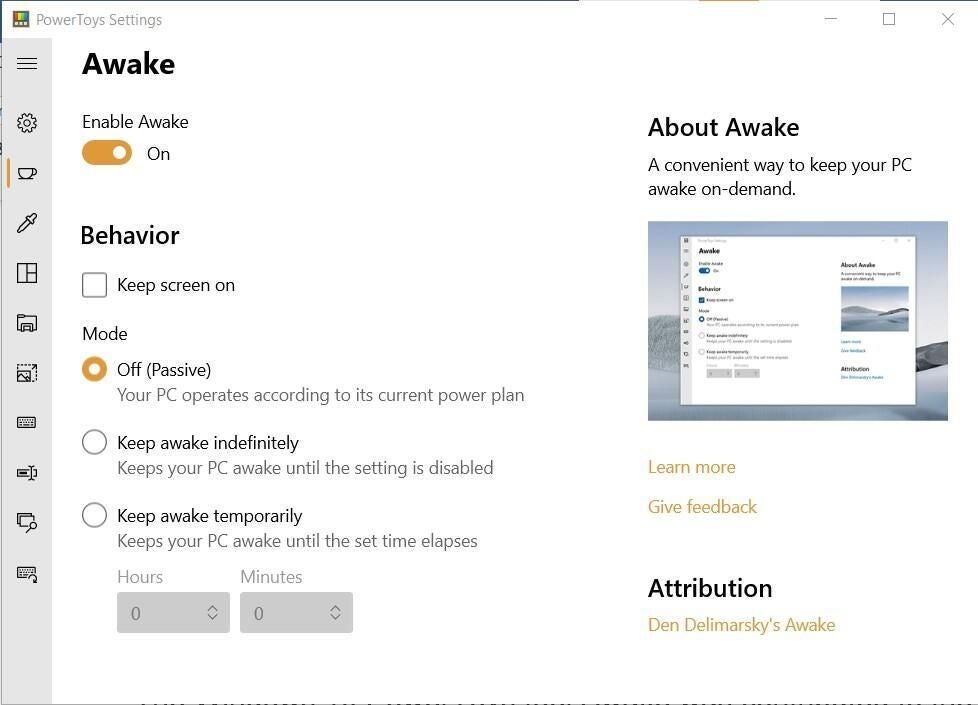
The community contributed the Microsoft PowerToys tool Awake to the PowerToys project, with attribution given to Den Delimarsky. Awake lets users keep their computer awake on-demand without managing its power settings.
Mouse utilities
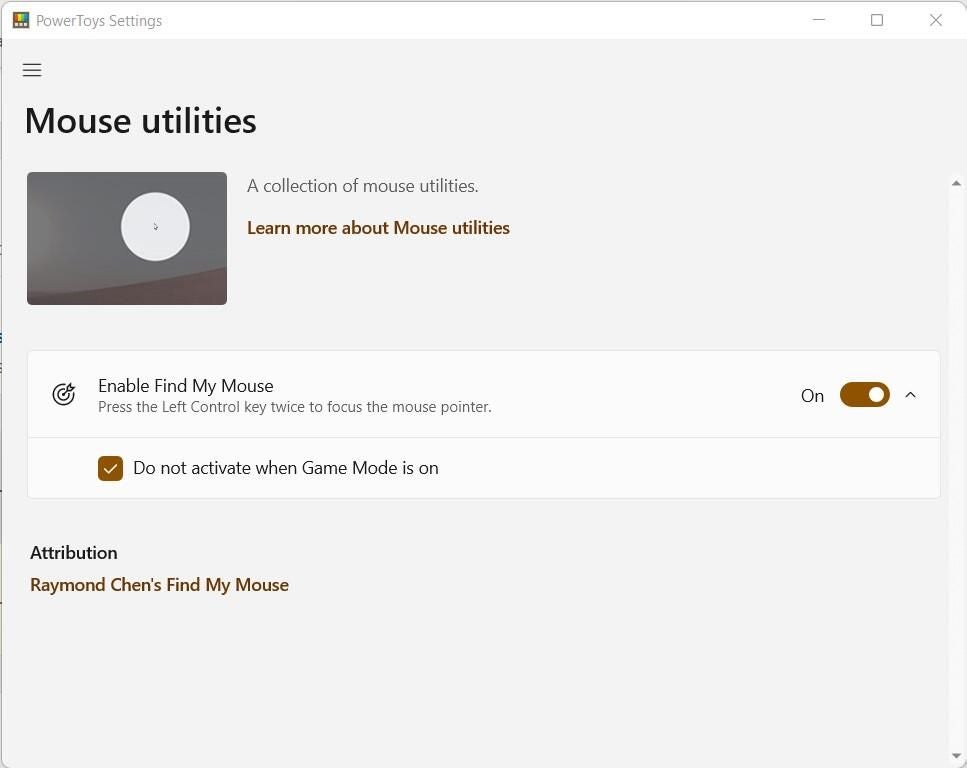
Mouse utilities were contributed to the Microsoft PowerToys project by Raymond Chen. Mouse utilities include a collection of features that enhance the mouse and cursor functionality on Windows systems.
With two consecutive presses of the Left CTRL key, Find My Mouse will locate your mouse cursor and highlight its current position with a halo. Pressing the Esc key will dismiss the highlight. The Find My Mouse feature is useful for presentations on large displays when you want to draw the audience’s attention to a specific screen area.
Always on Top
Always on Top allows users to designate the application window currently in focus as “always on top” with a keyboard shortcut toggle.
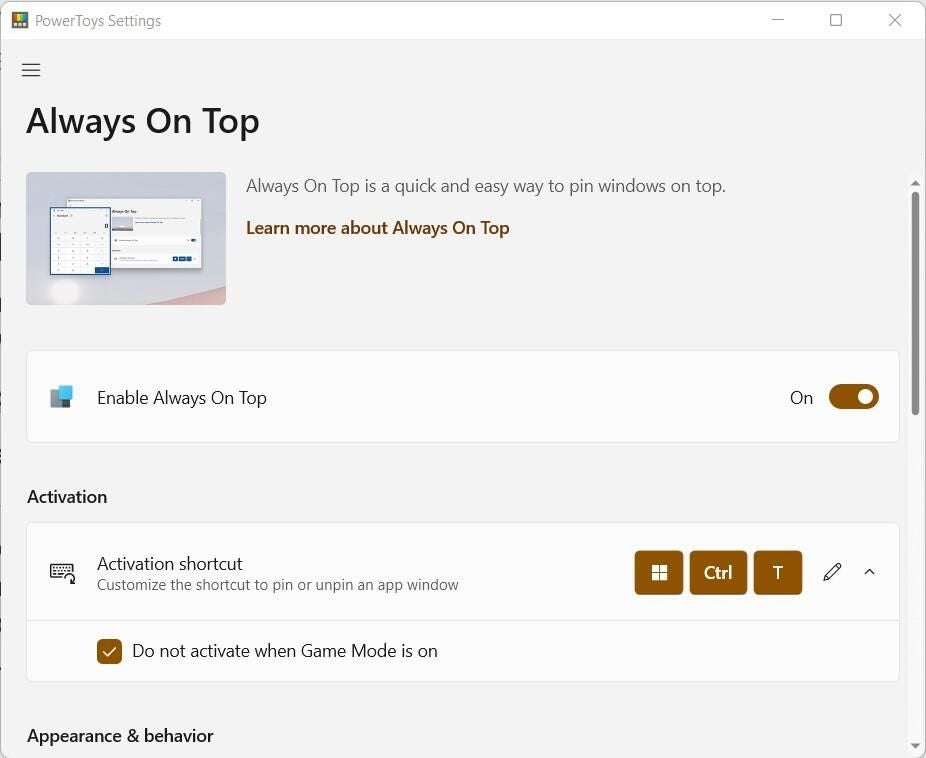
Regardless of what commands, mouse clicks, or other inputs are made from that point on, the designated window will remain at the forefront, superseding any other open windows until Always on Top is toggled off. The default keyboard shortcut for the Always on Top toggle is Windows Key + CTRL + T.
Screen Ruler
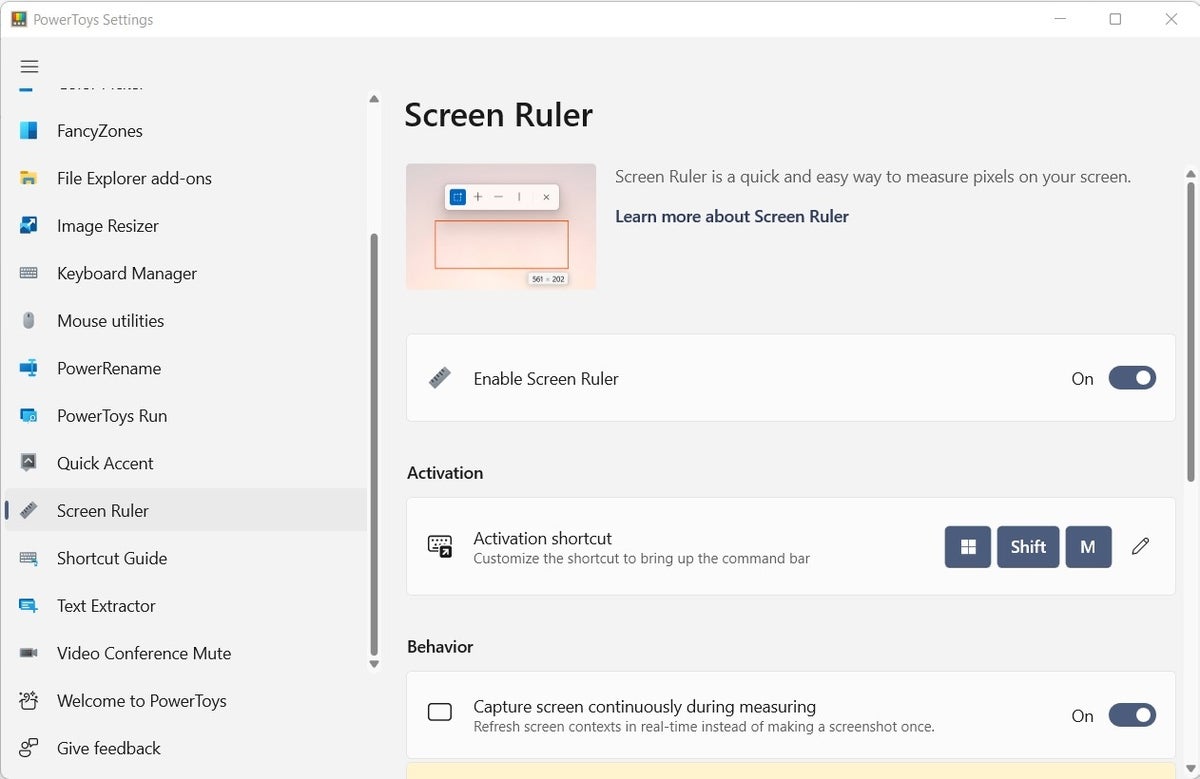
The Microsoft PowerToys utility Screen Ruler is a quick and easy way to measure the pixels represented on your display screen. The tool is perfect for determining the pixel size of a potential screen capture or for lining up objects in a document.
Quick Accent
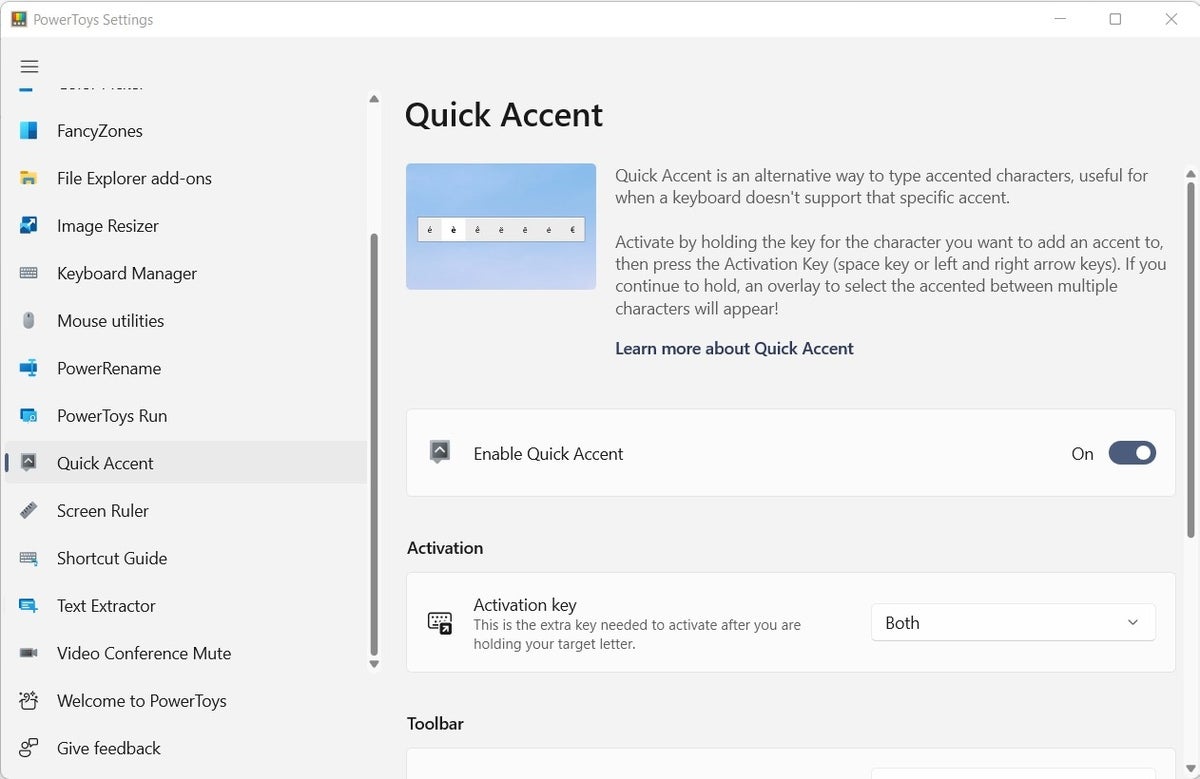
Quick Accent is an alternative way to type accented characters, which is useful when a keyboard doesn’t support that specific accent with a quick key combo. Use this utility to create accented characters, especially for writing in languages other than English.
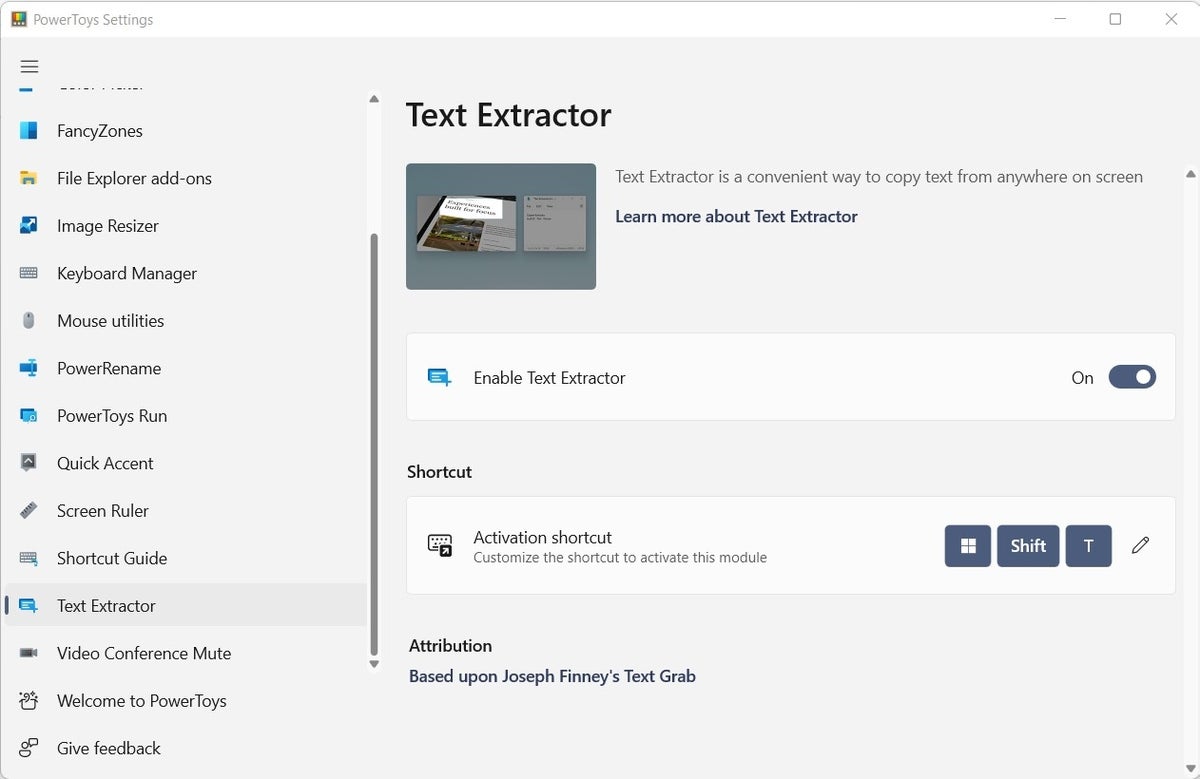
Text Extractor
The Microsoft PowerToys utility Text Extractor is a convenient way to copy text from anywhere on your screen. This code is based on Joe Finney’s Text Grab. Text Extractor uses optical character recognition to read the text on the screen, which may require editing or proofreading.
File Locksmith
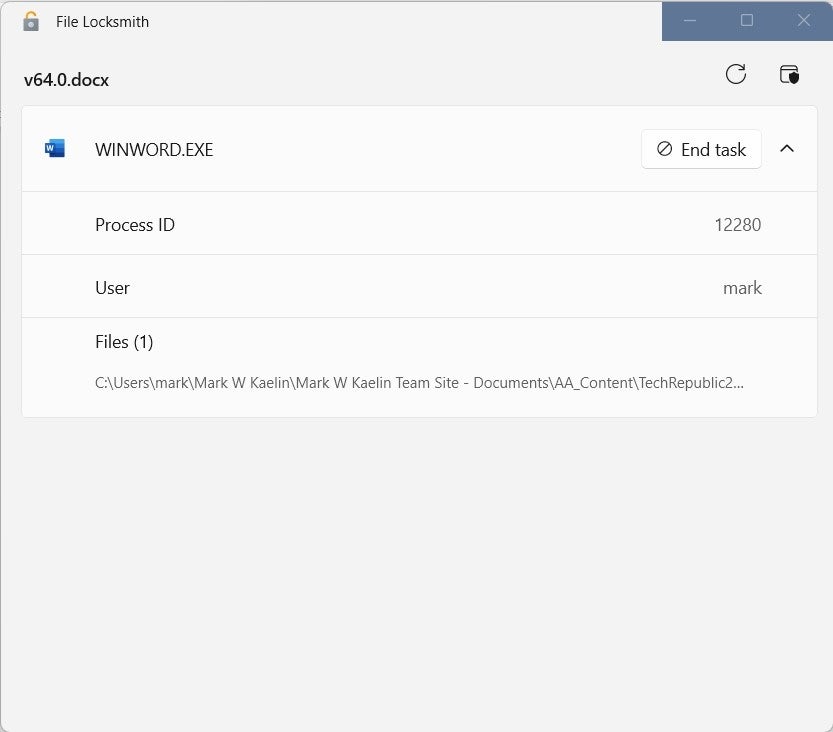
The Microsoft PowerToys utility File Locksmith is a Windows shell extension that checks what files are used and by which processes. After installing, right-click on one or more selected files in File Explorer, and then select “What’s using this file?” from the context menu.
Hosts File Editor
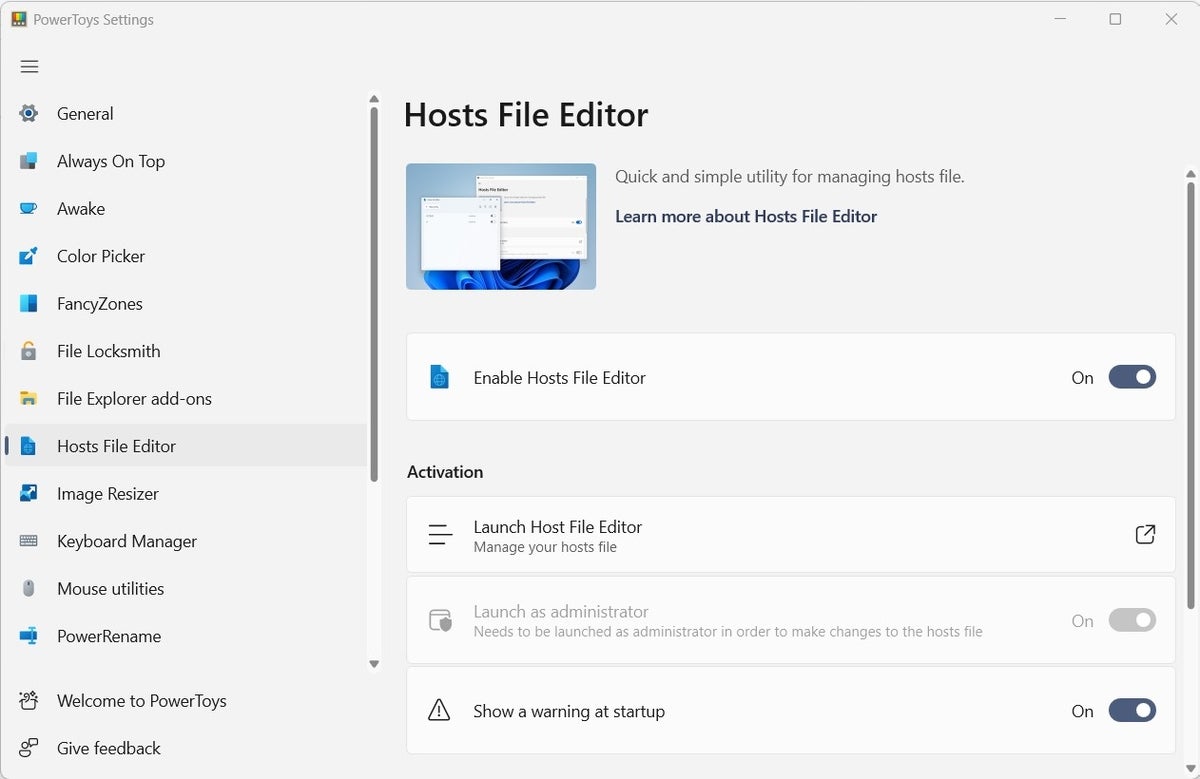
The Window PowerToys utility Hosts File Editor is a quick and simple utility for editing a local host file. Note that the application will only work if a host file exists.
Mouse Jump
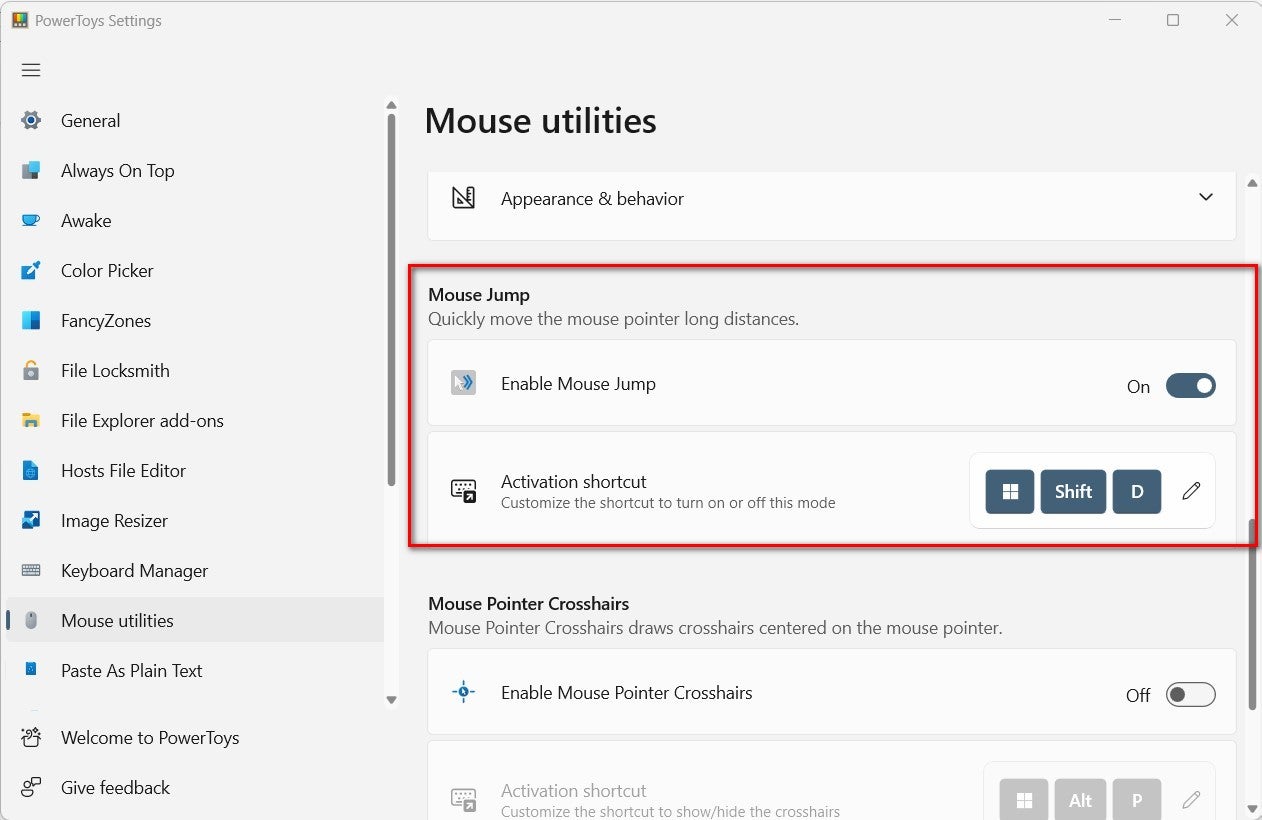
The Microsoft PowerToys utility Mouse Jump is a new feature for the existing set of mouse utilities. Mouse Jump allows you to move the mouse pointer great distances on the same screen instantly and even jump from one screen to another if you wish.
Advanced Paste
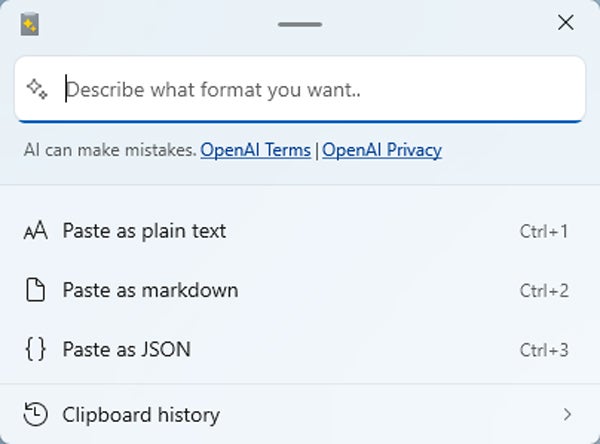
The Microsoft Windows PowerToys utility Advanced Paste is a keyboard combination shortcut that allows users to paste formatted clipboard contents as plain, unformatted text using either the new UX or a direct keystroke invoke. Using this tool will also replace the formatted text with plain text in the clipboard, so users can always paste it as text.
A previous version of Advanced Paste was known as Paste as Text.
In Release 0.81.0, Advanced Paste received an opt-in AI assistant to analyze and format the text on your clipboard. For example, it could generate code, translate text into another language, rewrite it in a different style, or summarize it before pasting. This feature requires an OpenAI API key with a credit balance.
Registry Preview
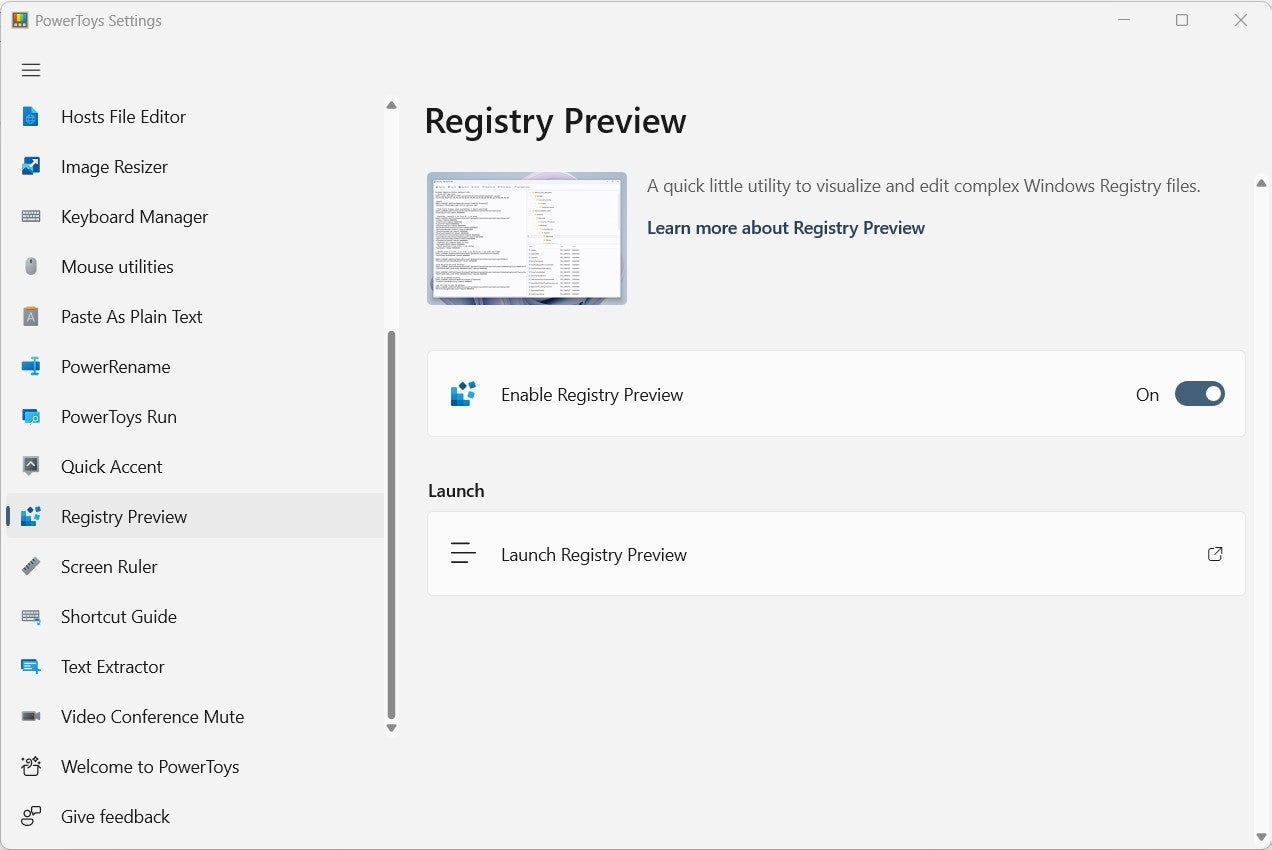
PowerToys Registry Preview, released in Version 0.69.0, is designed to simplify the process of visualizing and editing Windows Registry files. The utility app also allows you to write registry changes directly to the Windows Registry file without using the standard Regedit app that comes built into the Windows operating system.
Mouse Without Borders
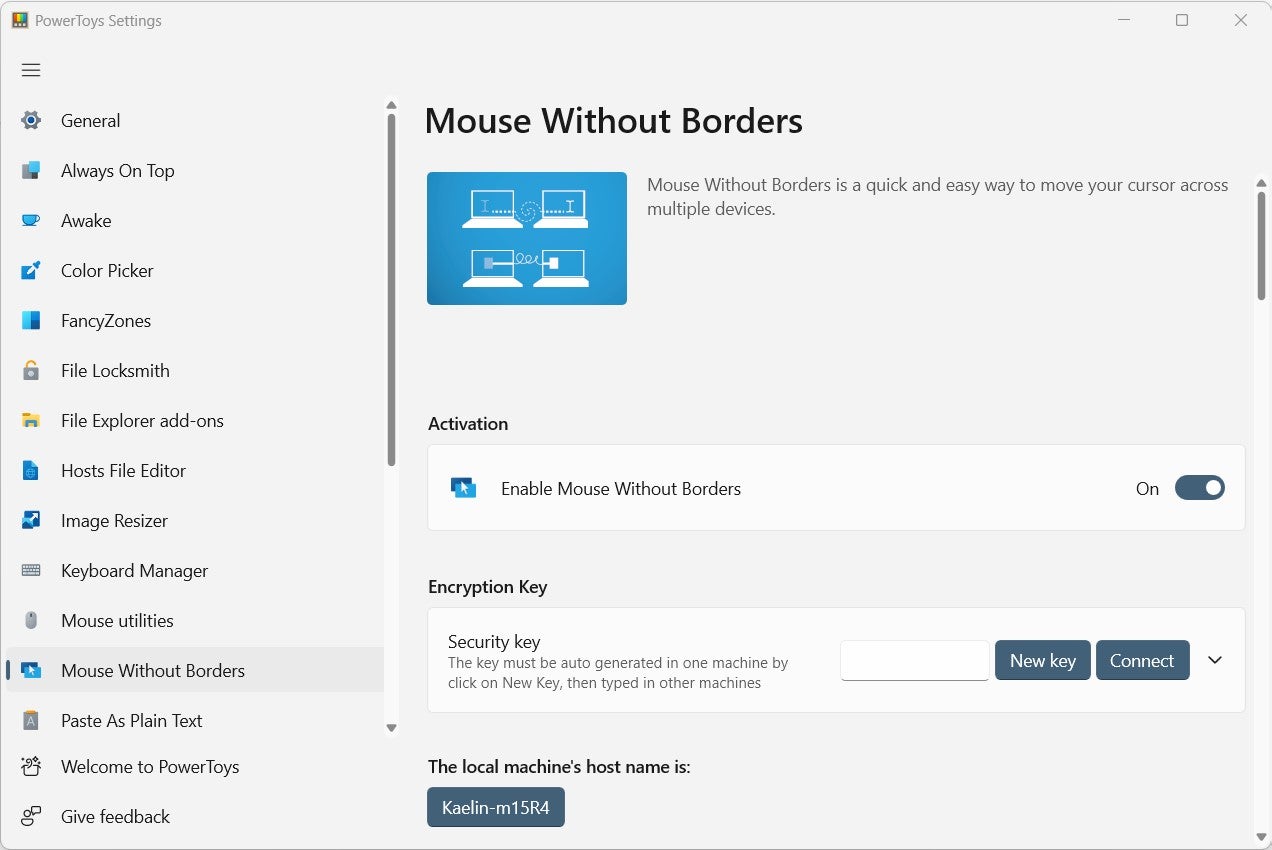
PowerToys Mouse Without Borders, released in Version 0.70.0, allows users to interact with other computers using the same keyboard and mouse they use for their current PC. Users can also share clipboards and files between the machines with Mouse Without Borders. Control of the other computers is granted using an encryption key.
New+
New+, released in version 0.85.0, lets users quickly create templates that can be deployed to create new files and folders in preferred configurations. It resides within a File Explorer context menu. Templates follow from one device to another if the template location is set to a folder synced with a cloud drive. Users can select whether or not they want filename extensions to be shown in the template.
Peek
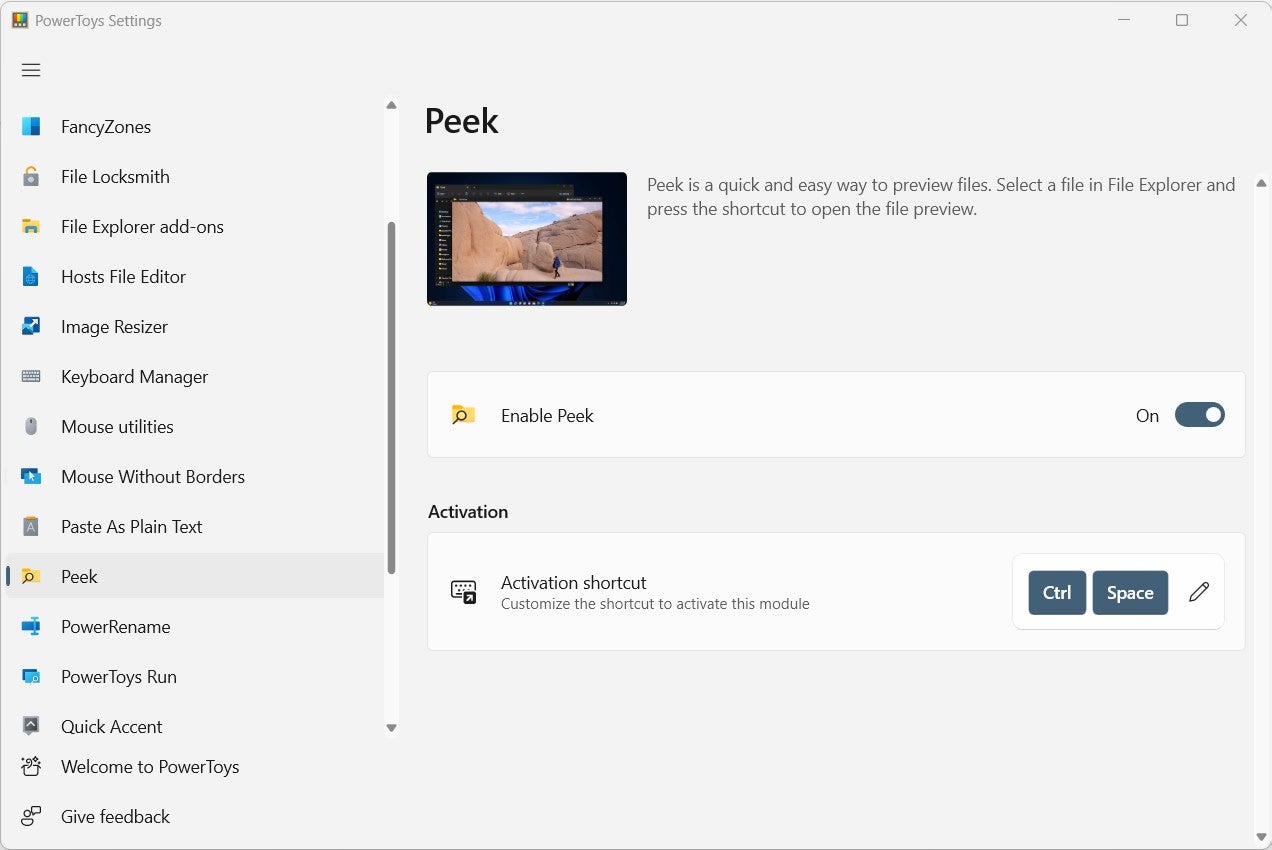
Peek, released in Version 0.70.0, allows users to see a quick preview of files they select in File Explorer when they press a specified keyboard shortcut. The keyboard shortcut can be modified to a user’s preference.
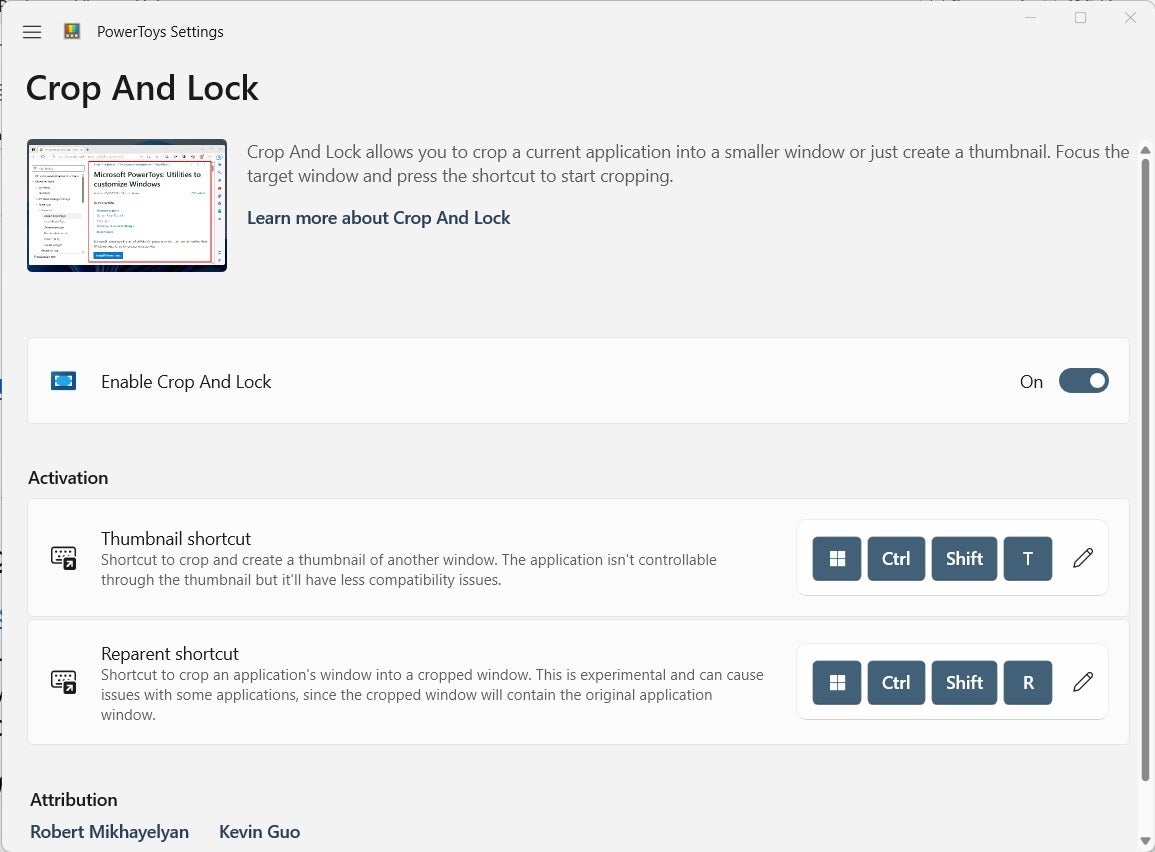
Crop And Lock
PowerToys Crop And Lock, released in Version 0.73.0, allows users to crop a current application into a smaller window or create a thumbnail. The utility lets you focus on a specific section of an application window without shutting down the application’s running functions. Essentially, from the application’s perspective, the window is normal, but from the user’s perspective, the window is smaller or thumbnail size.
Environment Variables
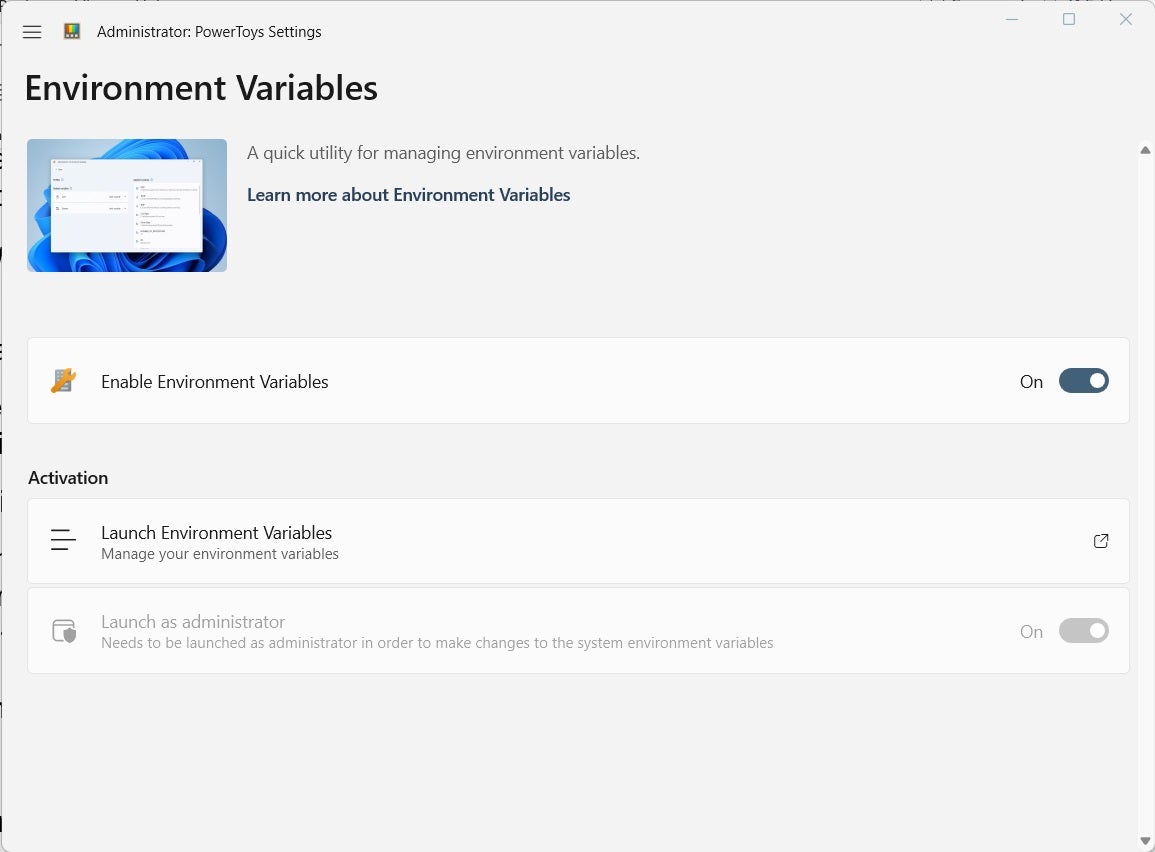
PowerToys Environment Variables, released in Version 0.75.0, allows users to add, change, and apply profiles, user information, and Windows system setting variables. The tool is handy for software engineers, programmers, and other IT professionals when testing and iterating applications, platforms, and systems during development.
ZoomIt
Before it was added to PowerToys, the ZoomIt tool could be used as a download from Sysinternals. ZoomIt enables the users to set hotkeys to zoom, annotate, or record presentations. It is intended for technical presentations and demos. As of PowerToys version 0.88.0, ZoomIt can be found within PowerToys. The annotation feature includes both drawing and typing on the zoomed-in image.
Command Palette
An expansion on PowerToys Run, Command Palette is a launcher with a richer display menu and more capabilities. Command Palette lets users search for installed apps, shell commands, files and WinGet package installation. It can be accessed using Win+Alt+Space.
Are more Microsoft PowerToys coming soon?
New Microsoft PowerToys are periodically added to the Windows library to address new user expectations and requirements. As new PowerToys are released, this list of available tools will be updated to reflect that expansion.
More about Software
- Best Free VPNs
- Best Free CRM Software
- Best Free Accounting Software
- Best Free Project Management Software
Does Microsoft PowerToys impact performance?
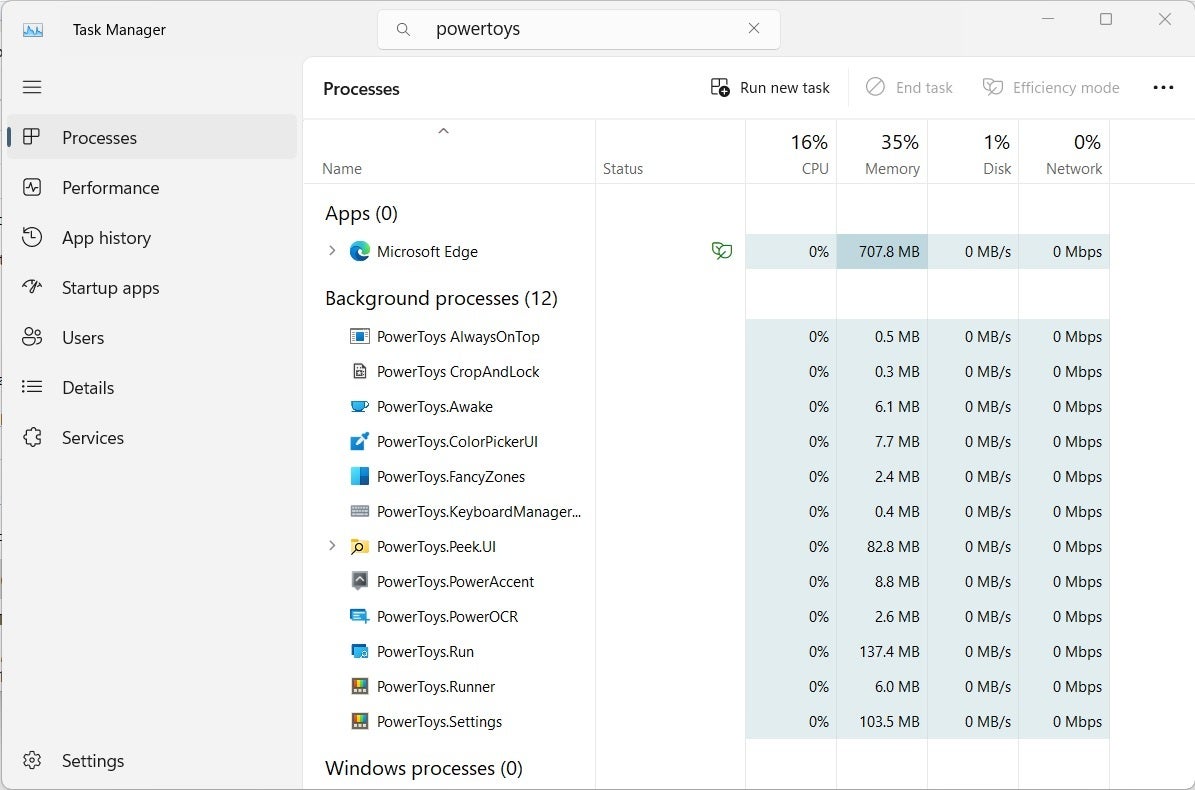
PowerToys can impact performance. In general, the amount of RAM required by PowerToys apps is significant enough that you should activate only the tools you are actually using. If you determine an app is not something you use regularly, it may be advantageous to set it to the “off” position; you can always turn it on again when you need it.
The amount of RAM Microsoft PowerToys uses depends on how many tools and apps you have decided to run in the background. The PowerToys Settings app, which runs in the background and can be accessed from the Windows 11 system tray, requires about 104 MB of RAM. Each additional running app requires more RAM to support it, which you can gauge for yourself in Windows Task Manager.
For more Microsoft coverage, read about two Microsoft execs’ recent predictions that home computing will become “ambient” and multimodal because of the cloud and AI.
Editor’s note: This article was updated by Megan Crouse to reflect the latest version of Microsoft PowerToys.