


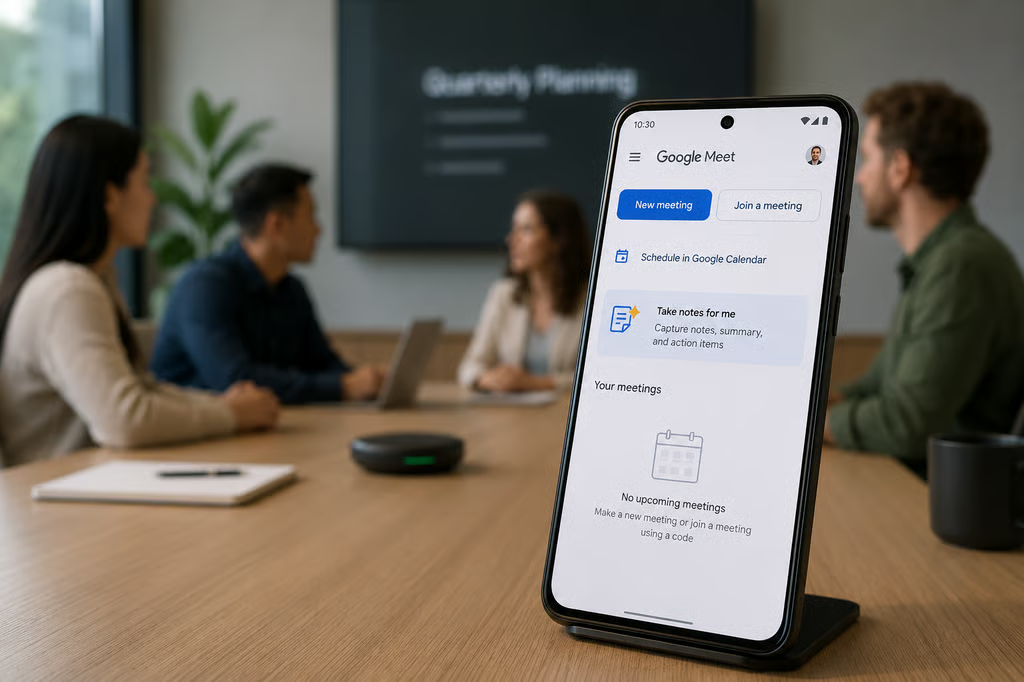
Google Meet’s Gemini-powered “Take notes for me” is expanding beyond video calls to capture in-person conversations. Users with access can start notes from the Meet home screen on mobile or desktop, and Google says the feature can also document conversations hosted on Zoom or Teams.
Gemini turns the conversation into a Google Doc with a summary and action items. Access depends on an eligible Google Workspace edition or Google AI plan and administrator settings.
How to take in-person meeting notes with Google Meet
Google announced the expansion at Cloud Next 2026, alongside broader Workspace AI upgrades. Once the feature is available on your account, the process is straightforward:
- Open Google Meet. Launch Meet on a supported mobile device or desktop and stay on the home screen. You do not need to start or join a video call.
- Select “Take notes for me.” Choose “Start taking notes” to begin capturing the in-person conversation. Place the device where it can clearly hear participants so Gemini can document the discussion accurately.
- Pause or stop capture when needed. Google’s current instructions say “Pause” pauses both transcription and note-taking. Selecting “Stop” ends the session after confirmation.
- Open the generated notes. After the session, Gemini creates a Google Doc containing the meeting notes and action items. The document is emailed to the person who started the session and saved in that user’s Drive.
If a remote participant needs to join, the session can transition into a normal video call. Google also says the same note-taking workflow can run while a meeting is hosted on Zoom or Teams.
The feature supports English, French, German, Italian, Japanese, Korean, Portuguese, and Spanish, but only one language at a time.
Teams that regularly switch languages should not assume the generated notes will capture the full discussion accurately. Google also says generated documents follow the organization’s Meet retention policy.
What admins should check before using it in a room
Google now lets Workspace admins require explicit participant consent before note-taking, recording, or transcription begins on supported devices. The setting is off by default and can be applied at the domain, organizational-unit, or group level.
A physical-room participant who never joins from a device may not see an on-screen consent prompt. Organizations should therefore establish a room-level notice and consent process before capture begins and confirm any applicable workplace, privacy, or recording requirements with legal or compliance teams.
Admins can also set the default audience for generated notes to internal guests, all invited guests, or hosts and co-hosts, and can prevent hosts from overriding that choice. Before broad deployment, verify those sharing settings and the organization’s retention policy with a test meeting.
Google warns that AI-generated meeting summaries can be incomplete or inaccurate. Run a pilot in both a quiet room and a noisier space, compare the notes with what was actually said, and confirm who receives the document afterward.
Review generated notes before using them for sensitive, legal, or personnel decisions.
Also read: Google says Gemini has surpassed 1 billion monthly active users, making it the company’s 14th product to reach that milestone.