


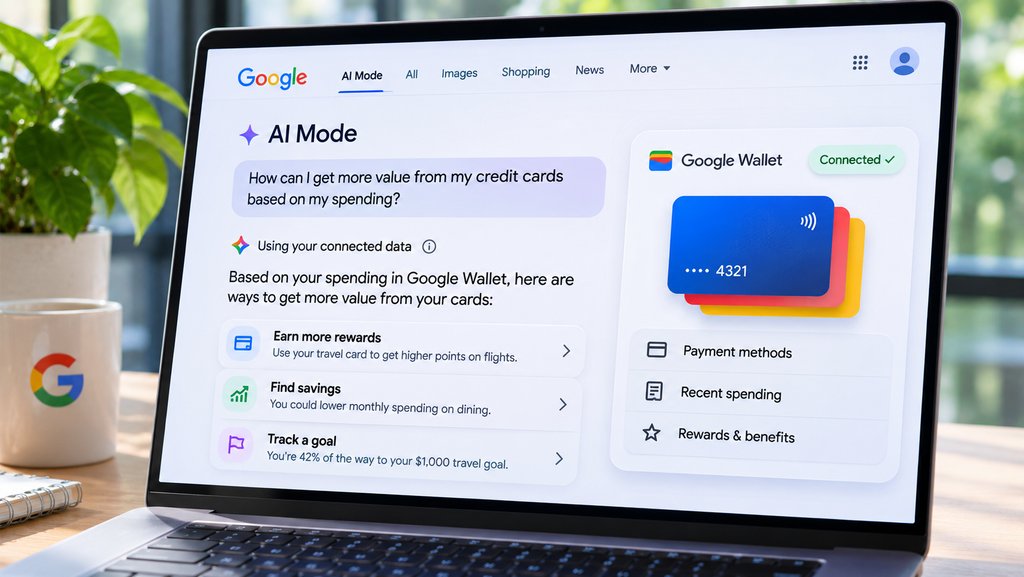
Google Search can now look at your spending and payment cards to help answer questions about money.
Instead of giving everyone the same credit card advice, its AI Mode can suggest ways to save or earn rewards based on what’s actually in your Google Wallet.
Google began rolling out the optional connection on Nov. 23 as part of Personal Intelligence, which brings information from a user’s Google apps into Search. The feature can analyze spending patterns and recommend ways to use card benefits, but it cannot transfer funds, manage accounts, or invest money.
There’s an important privacy trade-off. Connecting Wallet gives Google more personal information to work with, and turning that connection off later doesn’t automatically erase information already saved in Search history.
How Google Search uses Wallet data
According to Google’s announcement, the Wallet connection helps AI Mode answer financial questions using information from connected accounts and cards.
Google describes several possible uses:
- Review spending: Identify patterns in everyday purchases and suggest areas where expenses could be reduced.
- Plan financial goals: Help map savings milestones using available spending information.
- Compare card rewards: Suggest which linked card could offer better cash back, travel perks, or points for a purchase.
For example, instead of asking which credit card offers the best grocery rewards, you could ask which of your existing cards would earn the most on a grocery purchase.
The answer could save you from comparing reward programs manually. You’d still want to check the card’s current terms, spending caps, and exclusions before following the recommendation.
Wallet joins Gmail, Google Calendar, and Google Photos among the sources available to Personal Intelligence. Google plans to add Google Drive and connections to the Gemini app in the coming weeks.
Those additions could let Search draw on documents and previous Gemini conversations, rather than relying only on search history or information provided in the current question.
How to connect Google Wallet to Search
- Open Google Search while signed in to your personal Google account.
- Go to Search Personalization and select Connected Apps.
- Find Google Wallet and choose whether to connect it.
You can return to those settings to disconnect Wallet whenever you want.
The feature is rolling out gradually, and availability varies by country and language. Google’s Personal Intelligence connections are designed for personal accounts rather than Google Workspace business accounts.
Users may also see more personalized responses in AI Mode and AI Overviews based on recent search activity. Google says a forthcoming Personalization icon will make it easier to see the context behind tailored answers.
What happens to your Wallet data after connecting it?
The distinction between reading financial information and using that information later deserves attention.
Google says its Search services do not train generative AI models directly on Google Wallet or payments service information.
However, its Search privacy documentation explains that summaries, excerpts, and inferences generated from connected content may be used to improve services, including training AI models.
In other words, the restriction on directly training from Wallet data doesn’t mean information derived from that data is excluded from model improvement.
Google also says a subset of processed interactions may be reviewed by trained human reviewers or service providers. It takes steps to reduce personal information before those reviews, but advises users against connecting apps containing information they wouldn’t want a reviewer to see.
There are advertising implications, too. Google says summaries and inferences from connected apps may help personalize ads, depending on users’ settings.
As Google expands advertising in AI Mode, users should understand that financial personalization and advertising personalization aren’t necessarily separate.
Disconnecting Wallet doesn’t erase your Search history.
Google’s documentation says information already stored in Search Services History remains after an app is disconnected and may still be used for product improvement. Users who want to remove that information must manage their Search Services History separately.
Google has also introduced temporary AI Mode threads, but those shouldn’t be confused with deleting information previously saved through connected apps.
Search settings are also separate from Gemini’s memory controls. Changing one set of preferences doesn’t automatically change the other.
Before connecting Wallet, three checks can help avoid surprises:
- Review the connection: Check which Google apps already have permission to share information with Search services. Google’s documentation says these connections can permit access across Search services, not solely AI Mode.
- Check your history settings: Decide whether you want personalized responses and review what Search Services History retains.
- Verify financial suggestions: Compare recommended savings or card benefits against your actual statements and card terms. AI-generated recommendations can be wrong.
Employees using personal Google accounts for work-related travel or expenses should also consider whether those accounts contain information their organizations expect them to keep separate.
Google’s Wallet integration makes personalized financial answers easier to obtain without handing AI Mode control over anyone’s money. But users still have to decide whether the convenience of tailored recommendations is worth giving Search access to another source of personal data.
The connection is optional. Reviewing the permissions and history settings before enabling it gives users a clearer picture of what they’re agreeing to.
Also read: Google Wallet is now available on iPhone, bringing several Wallet features to iOS without support for tap-to-pay.