Arc is a new browser designed to change the way you work with web pages, tabs and other content. Like Chrome and Edge, the desktop version of Arc is based on the Chromium engine, which means you can install extensions from the Chrome web store. But Arc, which is developed by The Browser Company, tries to move beyond the expected with options that should interest business users.
With Arc, you can create and switch among multiple profiles — perhaps one profile for work and another for personal use. You’re able to generate spaces to hold different webpages, media and other content. Plus, Arc displays your bookmarks and tabs in a sidebar where you can more easily view and manage them.
For now, Arc works only on macOS and iOS, though a Windows version is slated for launch later in 2023. The Arc iPhone app works as a companion to the macOS version, so your first step is to install and set up Arc on a Mac. After you establish your free account and customize the macOS version, you can install Arc on an iPhone to use the browser as a mobile app. Here’s how.
- Download Arc for your iPhone
- How to open a recently visited site using Arc
- How to browse to or search for a website using Arc
- Access different spaces using Arc
- How to browse to other websites in a space using Arc
- How to manage a webpage using Arc
- How to navigate to different pages using Arc
- How to customize Arc
Download Arc for your iPhone
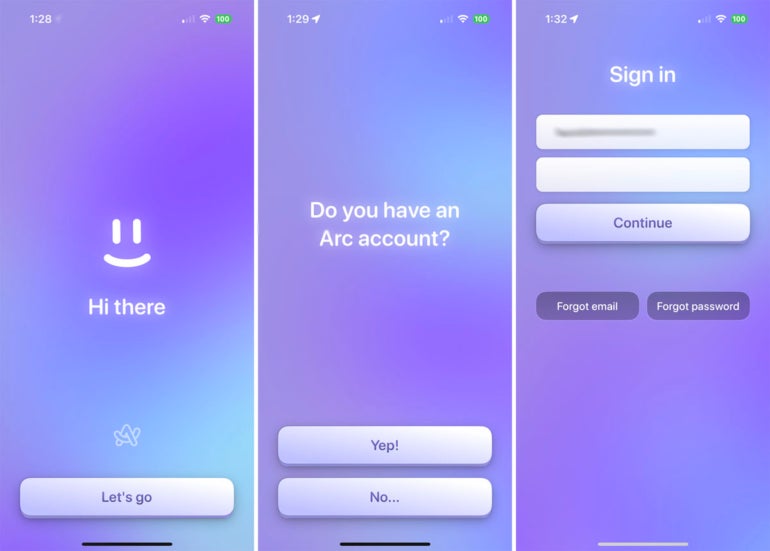
On your iPhone, download and install Arc from Apple’s App Store. Tap the Let’s Go button and sign in with your existing Arc username and password (Figure A).
Figure A
How to open a recently visited site using Arc
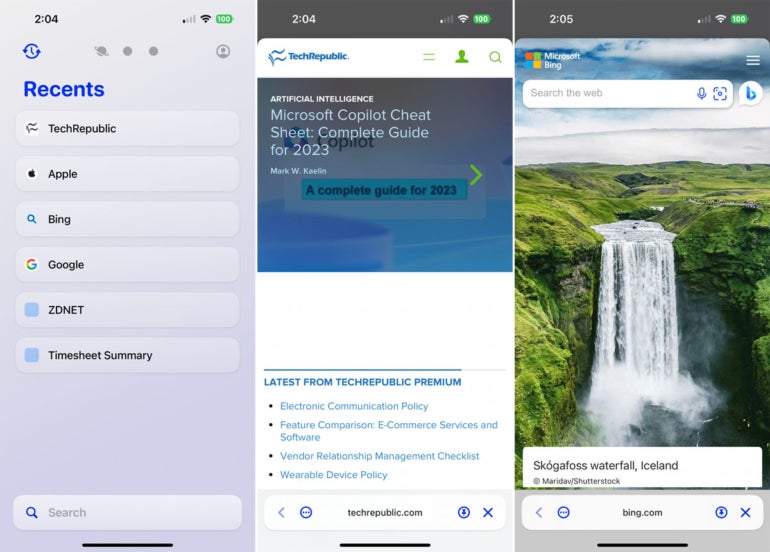
On the first screen, you can check out recent websites that you visited through the Mac version of Arc. Tap any site under Recents to open it in the browser. To close the page and return to the previous screen in Arc, tap the X in the lower right corner (Figure B).
Figure B
How to browse to or search for a website using Arc
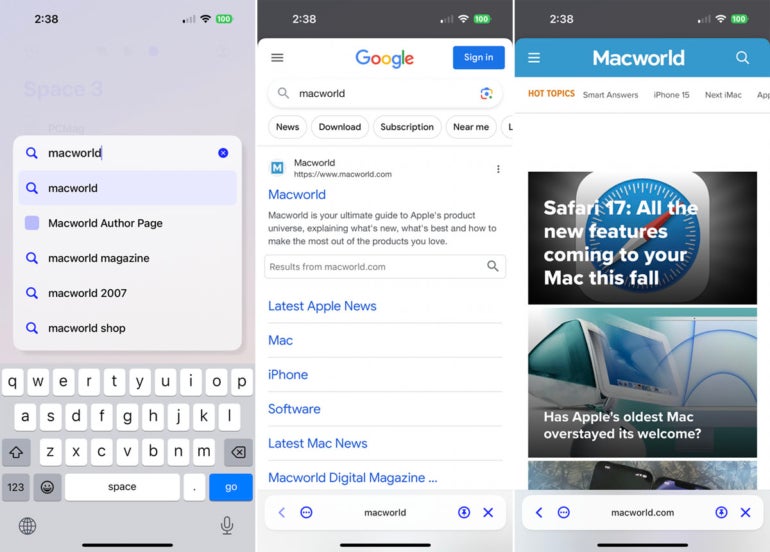
To browse to a different site, tap in the Search field at the bottom and type the URL of the site you want, or type a keyword or term to search for a specific site or subject (Figure C).
Figure C

Access different spaces using Arc
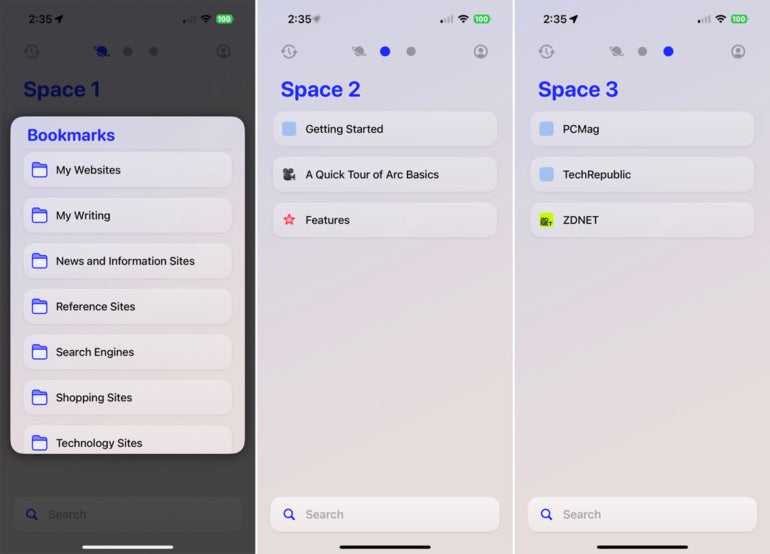
The macOS version of Arc lets you create spaces to separate and organize different websites and tabs. From the iOS app, you can move to each space to access its stored content. To try this, tap the first circle at the top for Space 1. You can then open whatever web pages and tabs are saved in Space 1. Do the same for Space 2, Space 3 and any other spaces you set up in the macOS version of the browser (Figure D).
Figure D
How to browse to other websites in a space using Arc
At each space, the Search field is still accessible at the bottom, so you’re able to search for or browse to different websites by typing a word, term or URL at the bottom (Figure E).
Figure E
How to manage a webpage using Arc
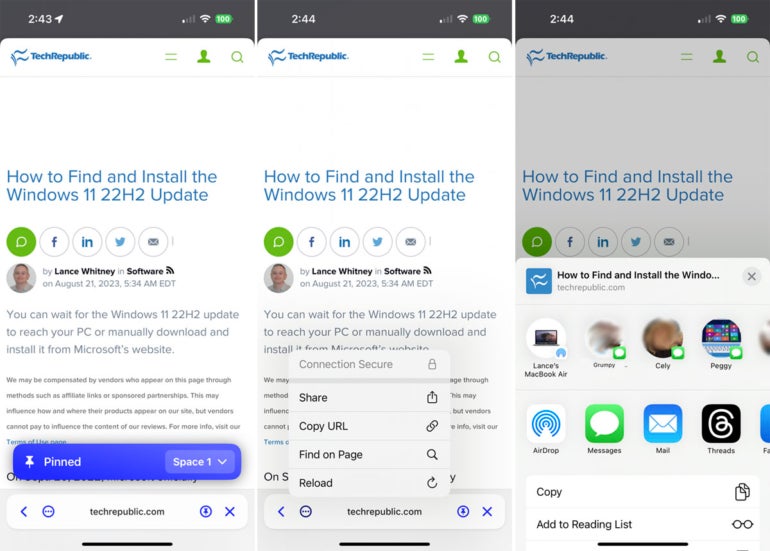
You can run different commands on any open webpage. To pin the page to a specific space, tap the pin icon at the bottom. To run other commands, tap the ellipsis icon at the bottom. From the resulting menu, you’re able to share the page via the iOS Share menu, copy the URL, find a specific text string on the page and reload the page (Figure F).
Figure F
How to navigate to different pages using Arc
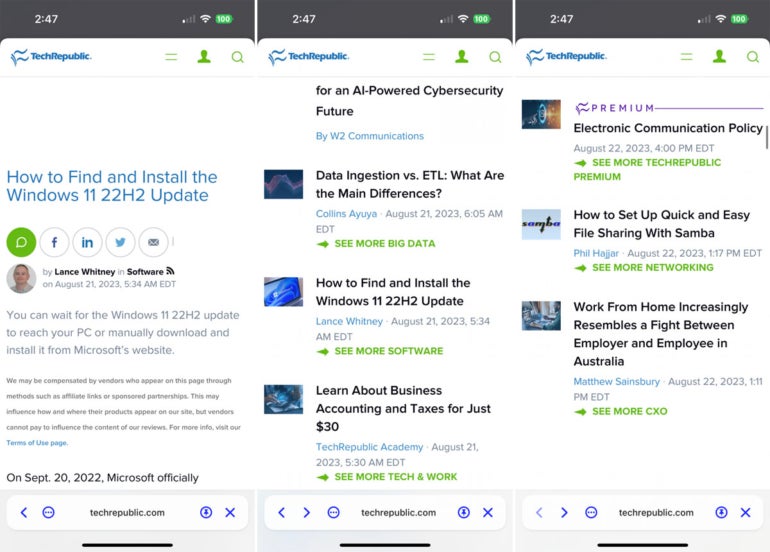
You can also tap the left arrow to go back to the previous page and then tap the left or right arrow to go back and forth between different pages (Figure G).
Figure G
How to customize Arc
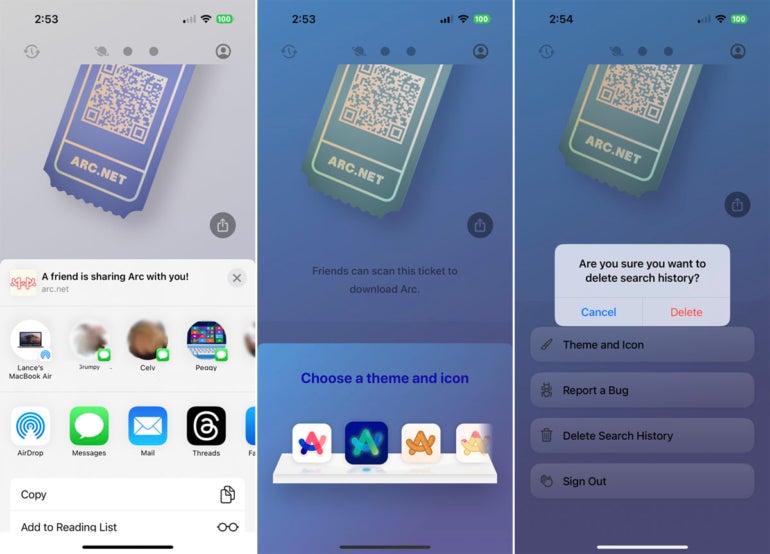
You can customize and control certain features in Arc. On any screen, tap the profile icon in the upper right. Tap the Share icon to share a link to download the iOS version of Arc. Tap the entry for Theme and icon to change the visual look of the Arc icon and browser. And tap the entry for Delete Search History to remove your entire search history (Figure H).
Figure H