


It happens occasionally—you’re in Windows, and your mouse stops working. For example, I’ve often lost the use of the mouse on the first restart after modifying Windows NT 4.0 networking. In such a case, you have two options: Cut power and lose your work (also a dangerous way to reboot), or use keyboard shortcuts to exit gracefully. If you master some basic key combinations, you’ll be able to navigate in Windows when your mouse dies. You may also decide you like the extra speed of working with both hands on the keyboard.
If you know these shortcuts already, you may be wondering why I’m writing this Daily Feature. I’ve come to understand that many experienced Windows users haven’t had the desire or time to learn keyboard shortcuts. These shortcuts are standard features of the Windows GUI (Graphical User Interface). Therefore, these conventions are followed by most programs running in Windows, not just by Windows itself. This fact alone makes keyboard shortcuts worth knowing.
If you already know most of these, consider this Daily Feature a refresher. For those of you who don’t have keyboard shortcuts at your fingertips, the ones presented in the following list will work for Windows 98, Me, NT, and 2000.
- Arrow keys: Use the up/down arrow keys to navigate vertically within any menu, and the right/left keys to move between columns. For example, if you use [Alt]F to open the File menu in Word, use the arrow keys to navigate within it.
- [Alt] plus an underlined letter: In any menu choice, an underlined letter means you can activate the feature by holding down [Alt] and pressing the letter. For instance, in Word (and almost all Windows programs), pressing [Alt]F opens the file menu. Within this menu, pressing [ALT]E opens the Versions dialog.
- [Alt][F4]: This is used to close or exit the program (closes all instances, i.e., all open windows within a program). It is the equivalent of clicking the “X” in a window title bar.
- [Alt]Spacebar: This combination opens the active window’s system menu. At the top left of every window’s title bar is a small program icon. Usually, you open the system menu by clicking the icon. The resulting short menu lets you minimize, maximize, move, and resize the window, close the program, and perform several other program functions. You could hit [Alt]Spacebar to open the system menu, then [Ctrl]M to select Move, and use the arrow keys to move the window up or down, right, or left. You could also use [Ctrl]S to size the window with the arrow keys.
- [Alt][Tab]: This allows you to move between open programs. As Figure A shows, when you hold down the [Alt] key and continue to press [Tab], an indicator (a box) moves through a list of icons, showing which running program you’ve selected. Below the icons, a description box offers more information about that window. Releasing the [Alt] key takes you to that program. I’ve found this to be one of the most useful Windows shortcuts of all.
| Figure A |
 |
| Using [Alt][Tab] lets you navigate through all your open windows without the mouse. |
- [Ctrl][Esc]: Opens the Start menu. From there, use the up and down arrows to navigate the Start list and the right and left arrows to move between columns. For instance, to shut down, use [Ctrl][Esc], then the down arrow to highlight Shut Down, and then hit [Enter].
- [Ctrl][F4]: Closes the current window. This key combination closes the active open document within a program. In a browser, it closes the active window if more than one browser window is open.
- [Enter]: Use this key to activate a highlighted button or open a highlighted file. It works just like clicking or double-clicking the mouse.
- [Esc]: Quickly dismisses an open dialog box.
- [Shift][F10]: Opens the context menu (just like right-clicking the mouse).
- Spacebar: Use this key to make a selection. For instance, Spacebar will check or uncheck a checkbox, and it can select or deselect a radio button. Used in conjunction with [Tab], you can navigate through and make selections in Web forms and many Windows dialogs.
- [Tab] and [Shift][Tab]: In a dialog box, the [Tab] key switches forward between options, such as buttons, drop-down lists, or entry boxes. [Shift][Tab] moves through options in the opposite direction.
- [Windows]D: If you have a keyboard with a Windows key (it looks like the Microsoft Windows logo), this key combination will minimize all open windows and show you the desktop.
As you might imagine, Windows operating systems have many more keyboard shortcuts available. These are the ones I consider vital. A full list is beyond the scope of this Daily Feature, but you can find the information in Windows help files (search for shortcuts) and online.
Make your own shortcuts
If you’re unfamiliar with the customization Windows allows, you might not have realized you can make your own keyboard shortcuts. The Command Console (or MS-DOS Prompt in Windows 98) is a feature those of us who support these OSs use often, so let’s make a keyboard shortcut that will open this useful window. My instructions are for Windows 2000, but they will work on all the recent Windows operating systems.
The first step is to create a shortcut to the application. In this case, a shortcut is an icon that works as a quick way to launch a program or file. For example, all the listings in the Start menu are shortcuts that point to executable files or documents. There are a few different ways to create a shortcut. Perhaps the easiest way is to highlight a file in Windows Explorer, and, while pressing the [Alt] key, drag it over to the desktop. The [Alt] key, used in conjunction with dragging a file, creates a shortcut pointing to that file at the destination. Go to C:\winnt\system32\cmd.exe (C:\Windows\Command.com in Windows 98), highlight the file, and create a desktop shortcut using the [Alt] and drag method.
As you probably know, a shortcut appears as an icon with a curved arrow at the bottom left side. In addition, the icon’s description begins with “shortcut to….” In this case, it will read Shortcut To Cmd.exe. Now right-click on the Shortcut To Cmd.exe icon (or, if you want to try your new keyboard shortcuts, type [Shift][F10] after highlighting the icon), and choose properties.
A tabbed window will open. The tab you’ll use to create a keyboard shortcut will depend on your OS. In all cases, there will be a text entry box called Shortcut Key. (Click the General tab in Windows 2000, the Program tab in Windows 98, or the Shortcut tab in Windows NT. Same function, slightly different dialogs. You knew this would happen, right?)
Finally, here’s the fun part. Click in the Shortcut Key box. Hold down the [Alt] key and press K. Notice that the key combination is entered for you. Windows 98 is a little less intelligent about this. Windows NT and 2000 force you to use [Ctrl][Alt]+letter combinations, so you don’t overwrite reserved keyboard shortcuts such as [Ctrl]S (Save). At any rate, the result should look like that shown in Figure B. Press OK to save changes and dismiss the dialog. From now on, when you press [Ctrl][Alt]K, the Command Console will open. Using this technique, you can make as many keyboard shortcuts as you like.
| Figure B |
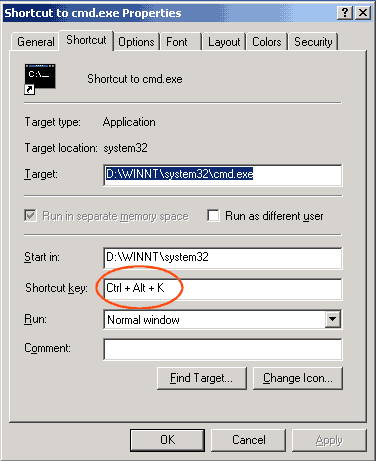 |
| Enter the key combination you want to use to run a command in the Shortcut Key box. |
Using the standard Windows keyboard shortcuts, you should be able to exit gracefully and safely from Windows when your mouse dies. Though the mouse is a device invented to make computing user-friendly, you may develop a preference for using the keyboard shortcuts more often. In many cases, keeping your fingers on the keyboard is more efficient than using the mouse. In addition, by creating your own customized keyboard shortcuts, you can easily and quickly launch the applications you need most, making your time spent administering your network more productive. For these reasons, I strongly suggest mastering the keyboard shortcuts discussed here, and then going on to learn others.
The authors and editors have taken care in preparation of the content contained herein but make no expressed or implied warranty of any kind and assume no responsibility for errors or omissions. No liability is assumed for any damages. Always have a verified backup before making any changes.