I cannot tell you how many times I’ve been in a situation where the last thing I needed is for a website to blare sound out of my mobile device and that’s exactly what happened. This can sometimes (oddly enough) happen, even when I mute the device. So when a site does scream out I scramble to shut it down.
Mobility must-reads
- Big Apple OS Makeover: Here’s What to Expect & When
- MWC 2025: Nothing Shows Off (3A) Phones With AI Organization Tool
- Bad News for App Developers: Most Apps Fail to Hit $1,000 Monthly Revenue Within Two Years
- Mobile Device Computing Policy
Is there a way to prevent this from happening? Fortunately, there is.
With the Chrome mobile app, you can disable sound on a site-by-site basis. It’s easy to do and will save you from that inevitable embarrassment, during meetings, lectures, and more.
SEE: BYOD (bring-your-own-device) policy template download (Tech Pro Research)
The caveat
There is one caveat to doing this. Because you disable sound on a site-by-site basis, the sound is on by default. This means that you have to know which sites are prone to auto-playing media, and/or those which override your device sound settings. In other words, if you miss disabling sound for a site that you visit, it’s still going to make its joyful noise when you open it during your CEO’s presentation.
You’ve been warned.
Disabling sound
In order to disable sound for a site, you need to open Chrome on your mobile device, point it to the site in question, and then do the following:
- Tap on the menu button in the upper right corner.
- Tap the site information button (i with a circle – Figure A)
- When prompted, tap SITE SETTINGS
- Under Permissions, tap Sound (Figure B)
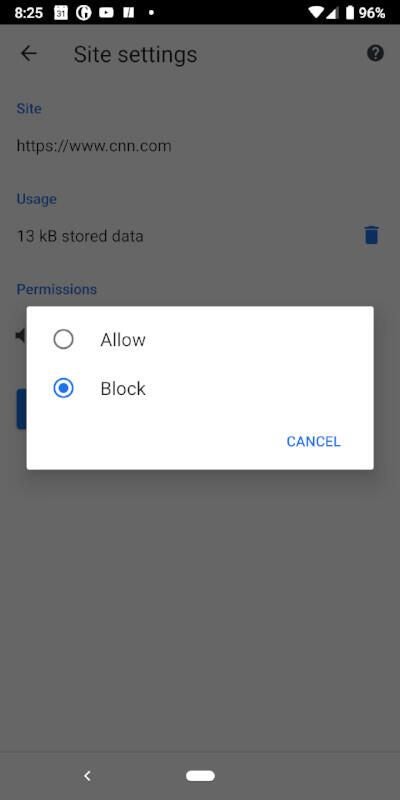
- In the popup, tap Block
Figure A
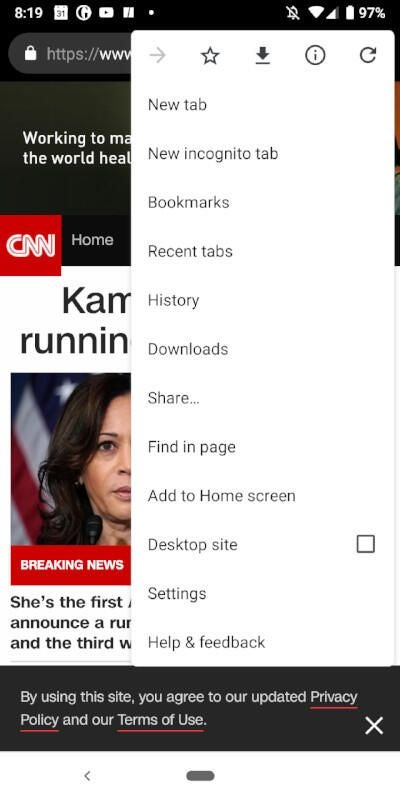
Figure B
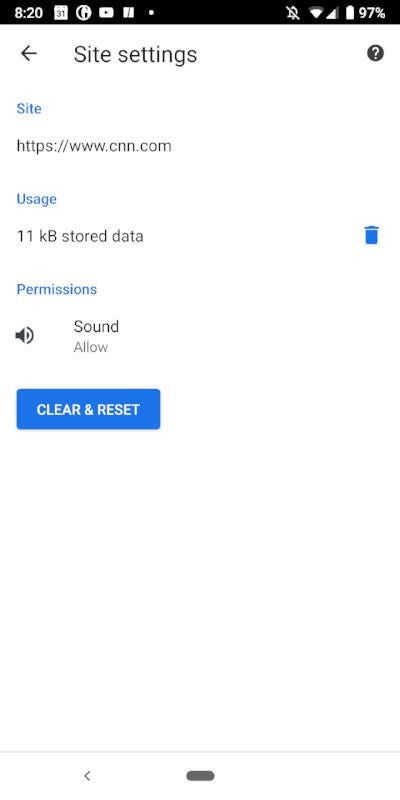
At this point, the sound is disabled for the site in question. Even if the sound is enabled for your device, you will not hear a peep from the site you just blocked.
Unblocking sound
There is no way to temporarily unblock sound from a site. In fact, the only way to unblock sound from a site is to reverse the process. So, execute the same steps above, only tap Allow from the popup (Figure C).
Figure C
Happy silence
And that’s all there is to blocking and allowing sound on a website with the mobile version of Chrome. Remember to disable sound for those sites you know could get you into trouble during those important meetings. Enjoy that happy silence.