


Image: Shutterstock/Andrey_Popov
We’re all familiar with check boxes. We’ve been using them all our lives, even before electronic forms came into existence. Technically, an electronic check box control is a visual representation of a binary state, such as on and off, true or false, and so on. One glance and you know the state. In this article, we’ll work through a simple example using check box controls in Word to denote attendance. Instead of reading through a list of names, with the word present or not present, you can quickly glean who is present and who isn’t by viewing the check box controls.
I’m using Microsoft 365 on a Windows 10 64-bit system, but you can use earlier versions through 2010. For your convenience, you can download the demonstration .docx file. Word Online will display existing check box controls and their state, but you can’t change the state.
SEE: Windows 11: Tips on installation, security and more (free PDF) (TechRepublic)
Denoting attendance
Using check box content controls couldn’t be easier now. Figure A shows three simple check boxes followed by participants Mary, Tom, and June. You can create this form quickly enough as follows:
- Position the cursor in the document where you want to insert the first check box.
- Click the Developer tab.
- In the Controls group, click the Check Box Content Control icon. Doing so will insert a check box in edit mode. We don’t want to change any of the default properties for now, so press the Right Arrow key twice to exit the control.
- Press the Tab key and enter Mary. Strictly speaking, the tab isn’t necessary, but adding a little space will improve readability.
- Insert two more controls, one for Tom and one for June.
Figure A
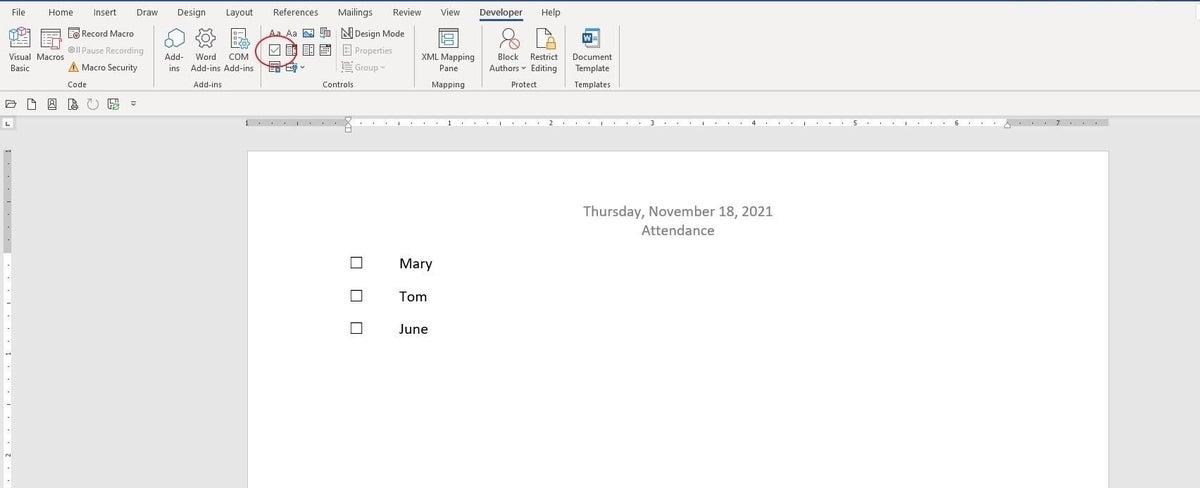
Wasn’t that easy? The form is immediately ready to use. Simply check or uncheck, appropriately! For instance, in Figure B, Tom didn’t attend the November 18th meeting. You can also print the list and check the controls manually.
Figure B
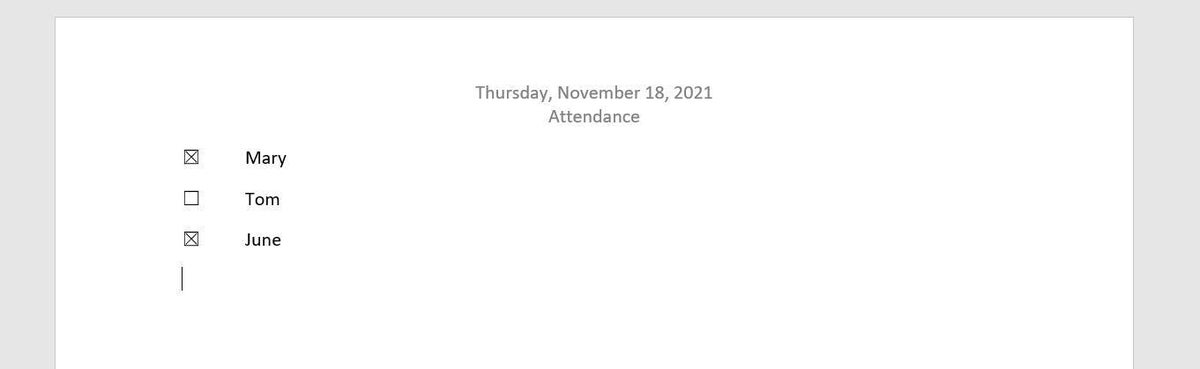
You might have noticed that the check box displays an X to denote a Yes/On/True state. You can change that to a more traditional check mark if you like.
SEE: How to use the many text wrapping options in Microsoft Word (TechRepublic)
Changing the check box
An X might not be the way you want to denote attendance. After all, it could be misunderstood as not in attendance. Fortunately, you can easily change the X to a more traditional check mark as follows.
- Click the Developer tab.
- In the Controls group, click Design mode. Doing so will change the appearance of the check box controls (Figure C).
- Select the one for Mary and then click Properties in the Controls group. The resulting dialog will display several properties. You might want to explore them all at a later time.
- In the Check Box Properties section (at the bottom) click Change to the right of the Checked Symbol option. Doing so opens the Symbols dialog, which you might already be familiar with.
- Choose Wingdings from the Font dropdown.
- Browse down until you find the two alternate check marks shown in Figure C.
- Choose one, click OK to insert it, and then click OK to return to the document.
- You’re still in design mode, so click Design Mode.
Figure C
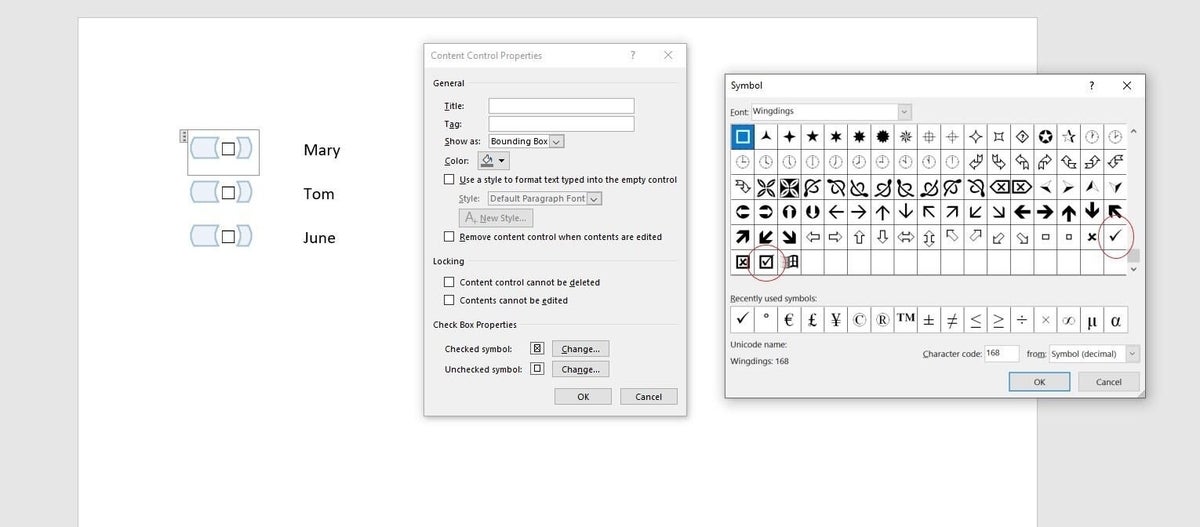
Simply click Mary’s check box control to display the selected check mark (step 7) to see the more traditional check mark. However, notice that the bounding box is gone. If you choose the second check mark in step 7, you’ll continue to see the bounding bound (Figure D). You’ll want to use the same check mark; I’m just saving a figure by showing you both in the same screenshot.
Figure D

This simple example uses check box controls to denote attendance. Attending members get a click; an empty check box represents an absent member. You could also use them to track to-do items, project benchmarks, and so on.
A word on support for older controls
Although legacy controls and even some ActiveX controls are still available, I recommend using content controls because support for the older sets could end without much notice; realistically, I don’t see that happening soon in documents. However, any web-based documents should use the newer controls and not ActiveX. Internet Explorer will probably be retired in 2022, and currently, Edge doesn’t support ActiveX. It’s unlikely it ever will support these outdated controls.
Also see
- How to use VBA to repurpose a built-in command in Word and Excel (TechRepublic)
- Windows 11 cheat sheet: Everything you need to know (TechRepublic)
- Zoom vs. Microsoft Teams, Google Meet, Cisco WebEx and Skype: Choosing the right video-conferencing apps for you (free PDF) (TechRepublic)
- Checklist: Securing Windows 10 systems (TechRepublic Premium)
- More must-read Microsoft coverage (TechRepublic on Flipboard)