


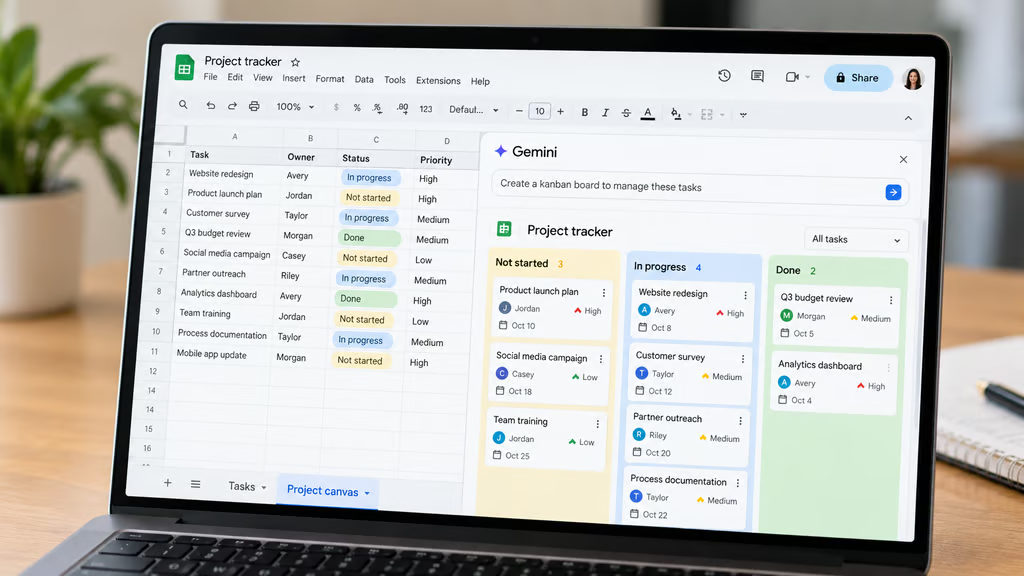
Google has introduced Sheets canvas, a Gemini-powered feature that lets users create interactive mini-apps directly inside Google Sheets using natural-language prompts. Users can describe a Kanban board, dashboard, or planning tool, and Gemini generates a working interface connected to their spreadsheet data.
The new feature allows users to work with spreadsheet information without constantly navigating rows and columns. Changes made inside a mini-app update the underlying sheet, while edits to the spreadsheet appear in the canvas automatically.
For IT and operations teams already managing projects, budgets, and schedules in Sheets, Canvas offers a way to create tailored interfaces without coding. Access depends on the user’s Google Workspace subscription, language settings, and platform.
How Google Sheets canvas works
Google announced Sheets canvas on Aug. 13, 2026, as part of its continuing expansion of Gemini in Workspace.
According to Google’s official announcement, Canvas creates interactive, read-write applications using natural-language prompts.
Rather than generating a separate standalone app, Gemini creates a visual interface layered over an existing spreadsheet.
Users can drag task cards, change statuses, add entries, and interact with data through the canvas. Those changes update the source cells immediately.
The connection works in both directions. Editing the underlying spreadsheet also updates the canvas in real time.
Because a canvas remains inside the spreadsheet file, it uses the same sharing permissions. Teams can collaborate without creating a separate application or configuring another access system.
Users can also refine a generated canvas by asking Gemini to change its layout, appearance, or functionality.
Google’s earlier Gemini spreadsheet features focused on creating tables, generating information, and helping with calculations. Canvas adds an interactive interface for working with the data.
How to create a mini-app in Google Sheets
Eligible users can create a canvas from an existing spreadsheet.
Google documents two ways to get started:
- Open a spreadsheet containing the data you want to use.
- Select Insert > Create a canvas, or open the Gemini side panel and choose Create canvas.
- Describe the interface you want Gemini to build.
- Review the generated canvas and check that it uses the correct spreadsheet data.
- Ask Gemini to modify the layout or functionality if needed.
- Test the interactive elements and confirm that changes appear in the underlying cells.
For example, a project manager could enter:
Create a Kanban board using this task list. Group tasks by status, show the assigned owner and due date, and let users move cards between columns.
Gemini can generate the interface without requiring the user to write formulas or code.
The result remains connected to the spreadsheet rather than becoming a separately deployed application.
6 mini-apps you can create with Sheets canvas
Google has described several ways teams can use Canvas to turn spreadsheet data into interactive tools.
1. Kanban boards
A task tracker can become a Kanban board organized by workflow stages such as Not Started, In Progress, and Done.
Users can drag cards between columns to change task statuses. The corresponding spreadsheet rows update automatically.
Teams already using sprint planning templates could use this approach to visualize assignments and progress without maintaining separate status boards.
2. Executive dashboards
Canvas can turn spreadsheet metrics into interactive dashboards containing scorecards, charts, and filters.
As source data changes, the dashboard updates to reflect the latest values.
A sales manager, for example, could track regional revenue, conversion rates, and monthly performance from an existing spreadsheet.
3. Financial forecasting tools
Google also describes interactive financial models that let users adjust assumptions and examine different scenarios.
A finance team could create controls for changing projected costs or revenue and view the resulting forecast without manually navigating individual cells.
The underlying spreadsheet remains the source of data and calculations.
4. Project timelines and calendars
Teams can build interactive timelines, event schedules, and run-of-show calendars.
These interfaces can make task dependencies, deadlines, and milestones easier to review.
Google Sheets already supports timeline views, but Canvas allows users to describe and customize a more specialized interface through Gemini.
5. Prioritization matrices
Canvas can generate interactive 2×2 planning matrices for comparing tasks or projects based on criteria such as urgency and impact.
Teams could use them to identify high-priority work and reorganize backlog items.
Changes made through the matrix remain connected to the spreadsheet.
6. Workshop and brainstorming boards
Google’s examples include virtual whiteboards with sticky notes and voting columns.
A facilitator could use one to collect ideas, group suggestions, and organize feedback during a planning session.
These examples demonstrate the types of interfaces Google says Canvas can create. The company has not published independent performance results for each workflow.
Who can use Google Sheets canvas?
Canvas is available to eligible Google Workspace and personal Google AI subscribers.
Supported plans include:
- Google Workspace Business: Standard and Plus
- Google Workspace Enterprise: Standard and Plus
- Personal accounts: Google AI Pro and Ultra
- Education: Google AI Pro for Education
- Additional access: Eligible AI Expanded Access add-ons
Google began rolling out Canvas in August 2026, with availability expanding across supported accounts in stages.
The feature is currently limited to Google Sheets on the web with the account language set to English.
Users also need Workspace smart features enabled.
For organizations, Canvas is available by default where administrators have enabled Gemini in Sheets. Eligible users should see the Gemini icon in the side panel.
Creating and editing canvases is subject to per-user usage limits. Google directs customers to its Help Center for current limits, which may vary by subscription.
Organizations should confirm account eligibility and administrator settings before planning a wider deployment.
What businesses should test before using Canvas
Canvas offers a different way to interact with data, but organizations should evaluate generated interfaces before using them for operational decisions.
Google’s launch documentation does not detail how every type of spreadsheet structure behaves inside a canvas, including protected ranges, hidden sheets, or unusually large datasets.
Teams should test those conditions using a copy of an existing spreadsheet before introducing the feature into production workflows.
A pilot should establish whether:
- Data updates correctly: Changes made in either the canvas or spreadsheet appear in the other.
- Permissions remain appropriate: Users can access only the information and editing capabilities intended for them.
- Existing formulas remain intact: Interactive changes do not produce unexpected calculation results.
- Complex spreadsheets work reliably: Large datasets and customized layouts behave as expected.
- Usage limits are sufficient: Employees can create and refine the interfaces they need within their plan’s limits.
These checks are especially important when spreadsheets contain financial information, operational schedules, or data shared across departments.
Google has confirmed that Canvas creates customizable, interactive interfaces that remain synchronized with source spreadsheets. It has not established that every generated interface will work correctly with every existing workflow.
For teams already relying on Google Sheets, the practical advantage is the ability to create a dashboard, Kanban board, or planning tool without moving data into another application.
The next step is to test whether those interfaces work reliably with the organization’s actual spreadsheets, permissions, and usage requirements.
Also read: Google’s earlier Workspace AI upgrades expanded Gemini’s spreadsheet analysis, meeting assistance, and workflow automation capabilities.