


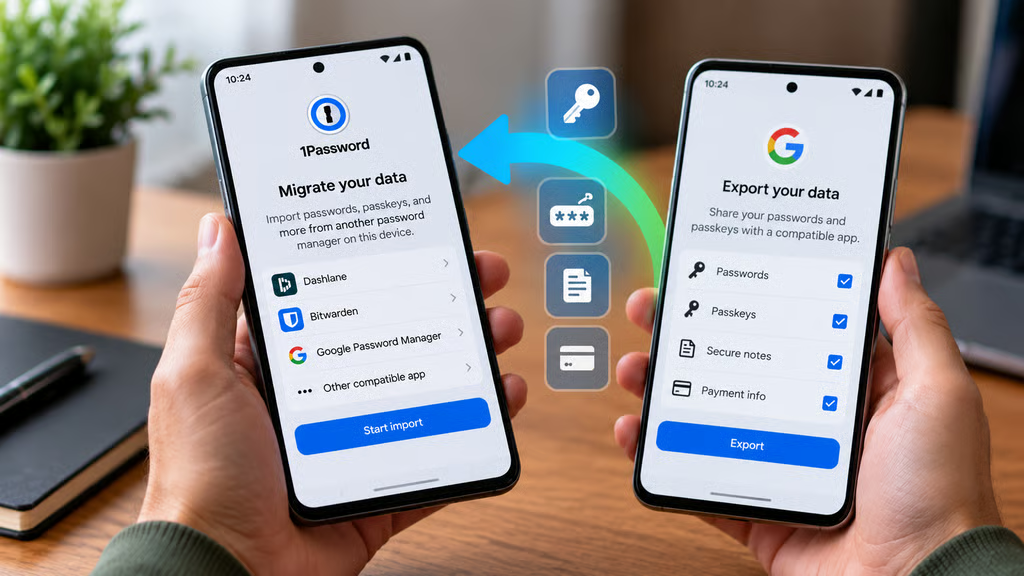
Android users can now move passwords and passkeys between supported password managers without relying solely on manual file exports. Google added Credential Exchange support to Google Password Manager in June 2026, while 1Password documents a direct import process for Android 14 and later.
The changes make it easier to switch password managers, but compatibility still depends on the apps involved. Both the source and destination must support the relevant transfer method, and users should verify that their credentials work after migration.
For businesses, moving passwords and passkeys requires additional checks before retiring an existing password manager. Not every transfer method supports the same data types, and importing passwords does not automatically guarantee that passkeys, notes, or attachments will follow.
How to transfer passwords into 1Password on Android
1Password allows users to import data directly from compatible password managers already installed on their Android devices.
According to 1Password’s import documentation, the feature works on Android 14 or later with apps that support the Credential Exchange standard, including Dashlane.
To transfer data into 1Password:
- Install and sign in to both 1Password and the source password manager on your Android device.
- Open and unlock 1Password.
- Select New Item.
- Choose Migrate data into 1Password. You may need to scroll down to find the option.
- Select a compatible password manager, such as Dashlane.
- Tap Start import.
- Follow the on-screen instructions to authorize and complete the transfer.
The source password manager must already be installed on the device.
Credential Exchange lets compatible apps move credential data directly, avoiding the need to create an intermediary CSV file for supported transfers.
However, compatibility with the standard does not establish that every stored item will transfer. Users should confirm which credential types are supported by both apps.
For organizations choosing a new provider, TechRepublic’s Android password manager comparison covers several options, including 1Password, Bitwarden, Dashlane, and Keeper.
What if the source app does not support Credential Exchange?
1Password also supports importing data through CSV files and its proprietary 1Password Unencrypted Export (1PUX) format.
CSV imports can transfer conventional login information and certain other supported items, but they should not be treated as a reliable way to migrate passkeys.
The 1PUX format preserves more of 1Password’s original data structure than CSV. However, it is primarily intended for moving information exported from 1Password, and it is not encrypted.
Users should avoid storing exported credential files in shared folders, email attachments, or cloud locations that are accessible to other people.
Delete temporary export files securely after completing and verifying the migration.
How to transfer passwords and passkeys with Google Password Manager
Google added support for importing and exporting passwords and passkeys between Google Password Manager and compatible third-party apps through Credential Exchange.
The capability was announced in Google Play services v26.21, released June 1, 2026.
The update introduced a standardized way for supported password managers to exchange credentials without requiring users to export them as unprotected CSV files.
Google’s release notes confirm support for both password and passkey transfers. They do not, however, provide a universal step-by-step process that works with every third-party password manager.
The exact transfer procedure depends on the installed applications and their implementation of Credential Exchange.
Users should:
- Update Google Play services and both password manager apps.
- Open the source or destination password manager and look for an import, export, or migration option.
- Select a supported Credential Exchange transfer when available.
- Follow the app’s instructions to authorize the migration.
- Confirm that the transferred passwords and passkeys appear in the destination manager.
- Test sign-in to important accounts before removing credentials from the original app.
If the Credential Exchange option does not appear, check the password manager’s documentation rather than assuming that every updated Android device supports the same transfer workflow.
TechRepublic previously covered Google’s June password-transfer update, which also introduced other Android security and management changes.
Can you transfer passkeys as easily as passwords?
Passkeys require different handling from conventional passwords because they use cryptographic credentials instead of reusable passwords.
Credential Exchange is designed to support their transfer between compatible providers, but successful migration depends on the participating apps and the specific account credentials.
1Password confirms in its passkey support documentation that exporting passkeys is supported through its iOS and Android apps.
The company warns that desktop data exports do not provide an equivalent passkey migration path. Users exporting their 1Password data from desktop may need to create new passkeys for affected websites and save them in the new manager.
For that reason, administrators should not assume that a successful CSV or 1PUX import means all passkeys have moved.
Before switching providers, identify accounts that use passkeys and test whether the destination password manager can sign in to those accounts.
For a broader explanation of how these credentials work, see TechRepublic’s passkey guide.
What businesses should check before migrating credentials
Password manager migrations affect access to business applications, shared accounts, and authentication systems.
Three precautions can reduce the risk of employees losing access during a transition.
Confirm which data types are supported
Check the documentation for both the source and destination password managers.
Confirm whether the selected transfer method supports passwords, passkeys, secure notes, payment information, and attachments.
Credential Exchange support should not be interpreted as a guarantee that every type of stored data moves between every compatible application.
Keep the original manager active during testing
Do not immediately delete the original vault or cancel the existing password manager subscription.
After migration, test a representative sample of accounts, including services that rely on passkeys.
Verify that users can sign in with the destination manager and that required credentials are stored in the correct vaults.
Once the migration has been verified, administrators can follow their organization’s retention and deletion policies for the previous system.
Protect exported credential files
Avoid unencrypted file exports when a supported direct transfer is available.
1Password’s 1PUX format is unencrypted by design, meaning anyone who obtains the file may be able to read its contents.
If a file-based migration is necessary, restrict access to the exported data, transfer it through an approved method, and remove temporary copies once the process is complete.
Businesses using 1Password should also consider account permissions.
The company states that Business users without permission to create vaults face restrictions when importing 1PUX files. Those restrictions should not be assumed to apply to direct Credential Exchange transfers.
Separately, 1Password administrators can restrict employees’ ability to save or use passkeys in the browser. That setting controls passkey behavior rather than migration permissions.
What to do before switching password managers
Android’s Credential Exchange support gives users a more direct way to move passwords and passkeys between compatible applications.
1Password provides documented import steps for Android 14 and later, while Google confirms password and passkey portability through its June 2026 Play services update.
The remaining consideration is compatibility between individual providers and the data types being transferred.
Before retiring an old password manager, users should confirm the supported transfer method, check that important credentials appear in the destination, and successfully sign in to accounts that use passkeys.
For businesses, testing a limited group of accounts before a full rollout can prevent migration problems from affecting an entire workforce.
Also read: Our 1Password review examines its security features, account management options, and suitability for businesses.