


Holiday gatherings often mean sharing the music, but that shouldn’t require passing around an unlocked phone or letting every guest skip songs.
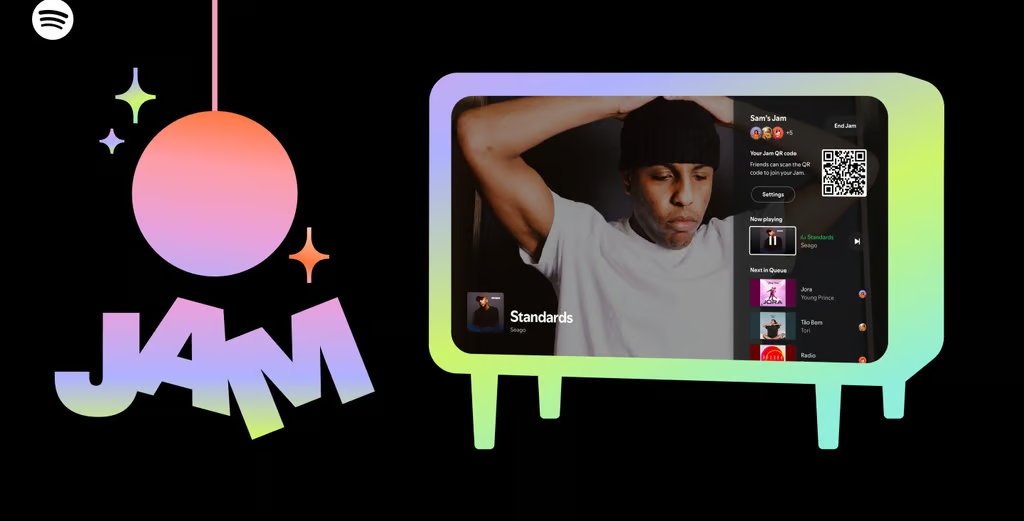
Spotify Jam gives guests a way to add tracks to a shared queue from their own devices while the host manages playback. Only the host needs Spotify Premium for an in-person session, allowing friends and family with free accounts to participate.
Whether it’s a Halloween get-together, a family celebration, or a year-end party, the setup works much the same way. Knowing how to invite guests, manage permissions, and connect speakers can help keep the music running without interruptions.
Start a Spotify Jam and invite guests
Spotify Jam works on iPhone and Android. According to Spotify’s official instructions, Premium subscribers can host sessions, while Free users can join in person. Remote participants need Premium.
To start a Jam:
- Open Spotify on the host’s phone and play a song or playlist.
- Tap the Connect device icon on the playback screen, then select Start a Jam.
- Tap Invite to display a QR code or share an invitation link.
- Ask guests to scan the code or open the link in Spotify.
- Have guests select in-person listening, tap Join, and add songs.
Participants don’t need to use the same Wi-Fi network. They can also join by bringing their phones within approximately 3 feet (1 meter) of the host’s device, provided they’re signed in to Spotify with Bluetooth enabled.
Once connected, guests can search for songs, add tracks to the queue, and explore group recommendations. Hosts preparing music beforehand can use Spotify’s Playlist Notes feature to explain their selections, although those notes aren’t part of Jam’s live queue.
Music plays through the host’s selected output device, including compatible Bluetooth speakers. Participants contribute through their own Spotify apps without accessing the host’s phone.
Manage guest permissions and playback
Guests can control playback unless the host restricts their permissions. Before inviting everyone, open the Jam’s Settings in the queue section and turn off “Let others change what’s playing” to prevent unwanted skips.
Guests can still add tracks, but they cannot control playback while that setting is disabled. Hosts can remove participants by tapping the current playback device, opening the three-dot menu beside a guest’s name, and selecting Remove from Jam.
Volume permissions are separate. Spotify supports shared volume control through Chromecast and Amazon Cast, but not through Bluetooth or Apple AirPlay. With those connections, the host should manage the speaker’s volume.
For gatherings with children, reviewing the queue and checking Spotify’s explicit-content settings can help manage song choices. These settings operate separately from Jam’s guest permissions.
Apple Music offers alternatives, but its collaborative playlists require participating users to subscribe. Following Apple Music’s July 2026 price increase, subscription requirements are worth considering when choosing a service for a group.
Apple’s speaker-based SharePlay feature also allows compatible iPhone users to control music together. In that setup, only the host needs an Apple Music subscription.
Before starting a Jam, confirm the speaker connection, test the invitation, and review guest permissions. That gives everyone a way to request songs without handing over the phone controlling the music.
Read more: For another approach to shared listening, Windows 11’s Bluetooth audio-sharing feature explains how compatible devices can send audio to two pairs of headphones.