

Whether you’re submitting legal documents, patient files, or other regulated communications, you need to know your fax system actually works. Running a free test fax ahead of time gives you confidence that your end-to-end setup — whether a traditional machine or cloud-fax service — is functioning correctly and that your documents end up in the right hands.
Typically, the process requires less than 10 minutes, and you can send a test fax for free. This is true if you’re using a fax machine, a computer with a fax modem, or an online fax service.
- Step-by-step guide on sending a free test fax
- What to check in your test fax results
- When a free test fax still fails: Troubleshooting checklist
- Tips and strategies to optimize your free test fax routine
- Online fax services you can use for test faxes
- Reputable test fax services
- Bottom line
- Frequently asked questions (FAQs)
Step-by-step guide on sending a free test fax
Statista’s 2024 data shows that roughly 17% of organizations worldwide continue to use fax systems for essential workflows, with usage remaining particularly strong in sectors such as healthcare, legal, and government.
This is a testament to the fact that many industries continue to use fax because it meets compliance requirements, integrates with older business systems, and provides a clear record of what was sent.
The steps below apply whether you’re using an online fax service, a voice-over-internet-protocol (VoIP)-based provider, or a traditional machine.
Step 1: Choose your test fax method
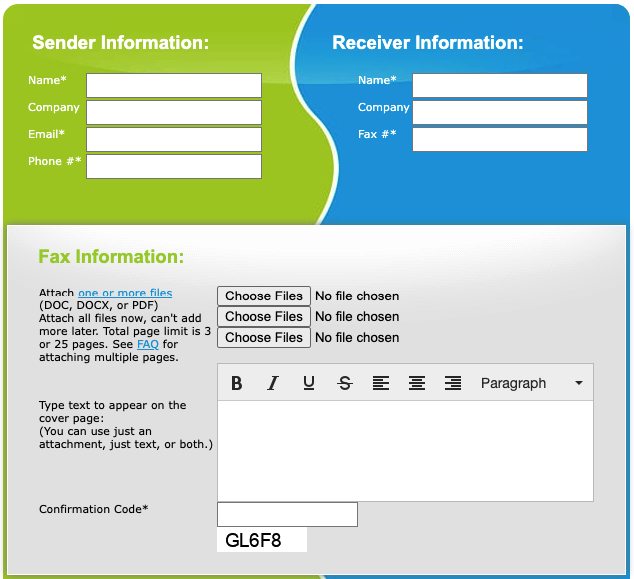
Decide whether you’ll send via your provider (e.g., RingCentral, Nextiva, or Ooma) or a standalone free service like FaxZero or Fax.Plus. Your choice depends on what you’re actually validating: your core business provider, your network path, or just basic fax capability.
Step 2: Prepare a simple test document
Create a one-page file in PDF or DOC format with clear text, the date, and a label like “Test Fax – [Title] – [Date].” This makes it easy to visually confirm legibility and ensure the right document arrived on the other side.
You don’t need to send an actual document to the test number, as a single cover sheet will suffice. Remember, much like a document header, your fax header appears at the very top of every file you send.A fax header must include key contact details, such as your name, company, fax number, and recipient’s fax number, along with the date and time of transmission. This information is programmed directly into the machine before you send your fax.
Step 3: Enter the correct destination fax number
Type in the full fax number, including country and area codes if needed. Double-check this field, as misdialed numbers are among the most common causes of failed or misdirected faxes.
Step 4: Add a cover page (optional but recommended)
Many services let you include a cover sheet with the sender, recipient, and a brief note. Using a cover page helps confirm that metadata (like names and the subject) is transmitted correctly and looks professional.
Step 5: Upload or load your document
For online fax tools, upload your file through the web portal or app. For a physical fax machine, place the document in the feeder, ensuring pages are properly aligned and not wrinkled or stuck together.
Step 6: Send the fax and wait for confirmation
Click “Send” (or press the fax machine’s Start button) and allow the transmission to complete. Most online services will show a status update or send an email confirmation indicating success or failure.
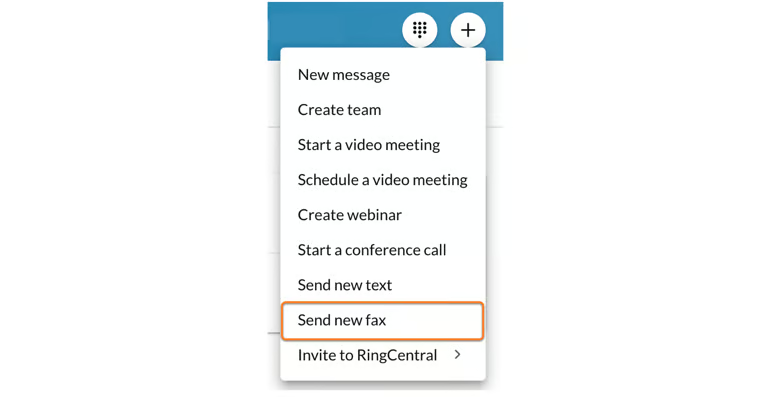
RingCentral’s online fax solution lets you send and receive secure faxes directly from your browser, email, or mobile app — no hardware or phone lines required. Streamline your fax workflows and eliminate the headaches of legacy hardware by checking out its Health Insurance Portability and Accountability Act of 1996 (HIPAA)-compliant online fax service.
Step 7: Verify the received fax
Check that all pages arrived, the text is readable, and any images or logos are clear and correctly oriented. Confirm that the cover page, if used, shows accurate sender and recipient information.
Step 8: Note any issues and document the result
If there were delays, partial pages, or quality problems, document what you observed along with the service used, time sent, and destination number. This record becomes useful if you need to adjust settings, repeat the test, or escalate to support.
SEE: Learn how to use a fax machine and some simple fixes if it’s not working.
What to check in your test fax results
Upon receipt of your fax, verify several quality and delivery factors:
- Did all the pages arrive?
- Was the text legible and properly aligned?
- Was the cover sheet correct?
- Did images or logos (if any) render clearly?
These things may seem minor, but poor formatting, missing pages, or distorted images can impair professionalism and cause compliance issues.
Check also how quickly you got confirmation (if applicable), whether your service logged any exceptions or error codes, and if the result matched your expectations from past sends.
If your test results are clean, you can move forward with confidence. If you notice issues, isolate the fault. It could be the document format, network reliability, fax service provider constraints, or recipient machine limitations.
Keep a record of your test send: date/time, recipient number, file type used, number of pages, service used, and any observed anomalies. This documentation becomes extremely useful when you escalate issues with support teams or compare service performance across providers or network periods.
When a free test fax still fails: Troubleshooting checklist
If your test fax doesn’t go through or arrives improperly formatted, start troubleshooting with these checks.
- Confirm you used the correct full recipient fax number (including country/area code).
- Verify your document format (PDF recommended) and page count falls within free-tier limits.
- Check your internet connection, firewall/VPN settings, and, if applicable, email-to-fax gateway or fax-machine phone line.
- Review your account or portal permissions — some services restrict free fax sending unless the account is upgraded.
- Ask the recipient to confirm their machine/printer is properly configured (paper size, resolution, number of pages, toner/ink).
Tips and strategies to optimize your free test fax routine
- Use PDF format if possible. Many online fax services handle PDFs best and may convert Word/other files in ways that degrade formatting.
- Keep test documents simple. A one-page document with a clear header, test marker, and date is easier to process.
- Send during normal business hours. Fax servers or network devices may behave differently under heavy load or outside peak traffic hours.
- Test from multiple locations/devices. If your team is hybrid (office + home) or mobile, send test faxes from each environment to validate consistency.
- Repeat periodically. Fax transmissions may fail due to upgrades, network changes, or vendor maintenance; scheduled quarterly test sends help maintain reliability.
- Monitor page size and complexity. Large files with images or high resolution may delay or fail on some free tiers; keep your test straightforward.
By incorporating these strategies, you’ll develop a more streamlined approach to fax system validation. One that supports everyday reliability and protects against downstream failures.
If issues persist, use your documented test send (date, number, file) to open a support ticket with your provider. Often, they can trace the transmission path and uncover bottlenecks or provider-side limitations.
SEE: Still having trouble? Check out our full-length guide on what to do when a fax won’t go through.
Online fax services you can use for test faxes
If your organization relies on cloud or hybrid faxing instead of traditional hardware, several of the best unified communications-as-a-service (UCaaS) providers offer built-in tools for sending fast, reliable test faxes.
These platforms offer greater flexibility than device-based test numbers and let you validate your fax workflow from anywhere, whether you’re using a laptop, a mobile device, or an integrated VoIP system.
RingCentral
RingCentral’s cloud-based fax solution is integrated directly into its unified communications platform, making it one of the easiest services to test. You can send a test fax from the RingCentral web app, mobile app, or email-to-fax workflow without needing hardware or a dedicated phone line.
Once sent, RingCentral provides real-time delivery status and confirmation, making it simple to verify formatting, page quality, and system readiness.
Nextiva
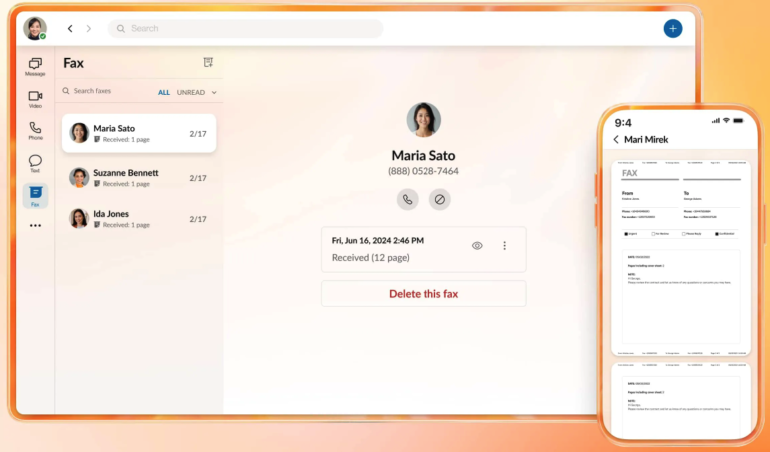
Nextiva offers online faxing through its vFax and unified communications tools, both of which support quick test sends. Users can upload PDFs or documents through the Nextiva web portal and transmit test faxes to any number, with clear confirmation receipts and error reporting.
Nextiva vFax is ideal for IT teams validating fax routing, permissions, or document compatibility before rolling out a larger workflow.
Ooma
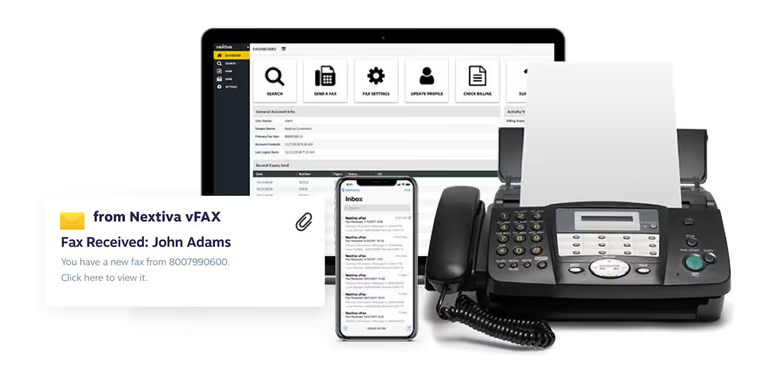
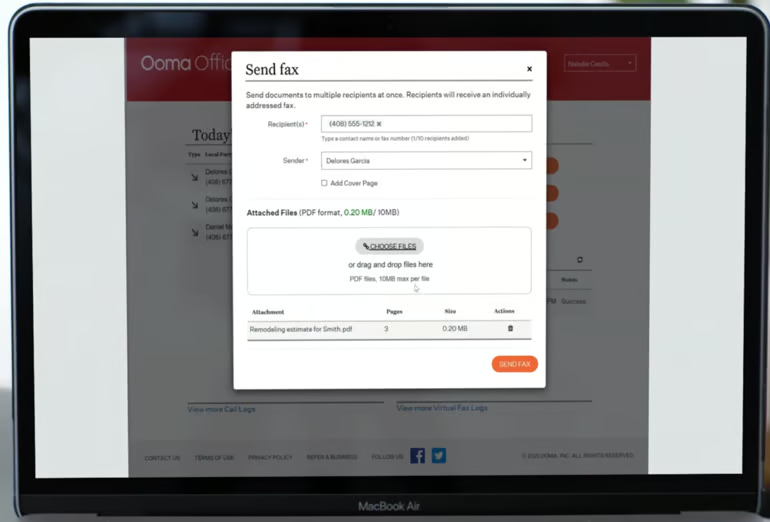
Ooma’s virtual fax feature allows users to send test faxes directly from the Ooma Office dashboard, with no physical fax machine or phone line required. The platform automatically converts your PDF or attachment into fax format and provides a delivery status report as soon as the test is complete.
It’s a practical option for small to mid-sized teams that want a simple, dependable way to verify their fax capabilities within a VoIP environment.
Reputable test fax services
If you want to test your fax setup outside of popular VoIP providers like RingCentral, Nextiva, or Ooma, several major hardware and imaging manufacturers offer reliable test fax numbers and tools.
These options are especially useful if your organization still uses multifunction printers (MFPs) or hybrid fax setups that combine hardware with cloud workflows.
HP
HP offers a dedicated test fax number that lets you verify whether your HP multifunction printer or fax-enabled device can successfully send and receive faxes.
You simply send a one-page test fax to HP’s designated number, and if the transmission succeeds, HP automatically sends a confirmation fax back to your machine. This is a fast way to confirm that your device, phone line, and fax settings are configured correctly before you transmit real documents.
Brother
Brother provides several support tools to help users troubleshoot fax transmissions, including a well-known “Fax Back” test service.
When you send a fax to the Brother test number, the system returns a confirmation message to verify line quality, resolution, and page clarity. This is particularly helpful for organizations using Brother MFPs in shared office environments where occasional line issues or porting errors occur.
Canon
Canon’s support ecosystem includes fax-testing options built into many of its imageCLASS and imageRUNNER models, allowing users to run internal connection checks and line diagnostics. Some Canon devices also support sending a test fax to Canon’s automated systems, which return a confirmation page to validate proper operation.
These tools are ideal for IT teams managing multiple devices across distributed offices, where quick validation can save time and reduce troubleshooting workloads.
Bottom line
Even in a digital-first era, faxing remains a vital communication tool for many organizations. Ensuring that your fax workflow — whether physical or online — is functioning correctly is low-effort but high-value. A free test fax serves as a proactive check, helping you avoid reputational damage, wasted time, or missed deadlines.
By following the steps above, preparing your document, choosing the right test service or provider, sending carefully, verifying thoroughly, and logging results, you position yourself and your team for reliable faxing whenever it matters. Take advantage of free test-fax options, integrate periodic checks into your workflow, and you’ll approach every important send with confidence.
Frequently asked questions (FAQs)
Why should I send a free test fax before sending important documents?
A test fax helps confirm that your system, document format, and destination number all work correctly before you send anything time-sensitive. It reduces the risk of failed transmissions, formatting issues, or compliance problems.
Can I test my fax setup even if I don’t have a physical fax machine?
Yes. Most cloud fax providers, including RingCentral, Nextiva, and Ooma, let you send test faxes online without any hardware, using only a browser or mobile device.
Are free fax services safe to use for test documents?
Free fax services are generally safe for non-sensitive test documents, but they may impose limits, add branding, or lack encryption. Avoid sending confidential information through free, third-party tools.